bgreenwell/doxx is tracked by TopGit as a mobile project, with 3.8k stars on GitHub, written primarily in Rust. Expose the contents of .docx files without leaving your terminal. Fast, safe, and smart — no Office required!
Snapshot summary built from the project's own GitHub metadata — there's no written TopGit review yet. The page will update automatically when a full review is published.
WHY NO REVIEW YET
TopGit writes full reviews for the most-starred, most-requested repositories. This page is a snapshot until then — see the READ ME tab for the original README in full.
macOS: x86_64-apple-darwin (Intel) and aarch64-apple-darwin (Apple Silicon)
Windows: x86_64-pc-windows-msvc
Build from source
git clone https://github.com/bgreenwell/doxx.git
cd doxx
cargo install --path .

# Or for development
cargo build --release
Requirements:
Rust 1.70+
System dependencies: libxcb (Linux only)
Usage
# View a document
doxx report.docx

# Search for content
doxx contract.docx --search "payment"

# Start with outline view
doxx document.docx --outline

# Export to different formats
doxx data.docx --export csv > data.csv
doxx report.docx --export markdown > report.md

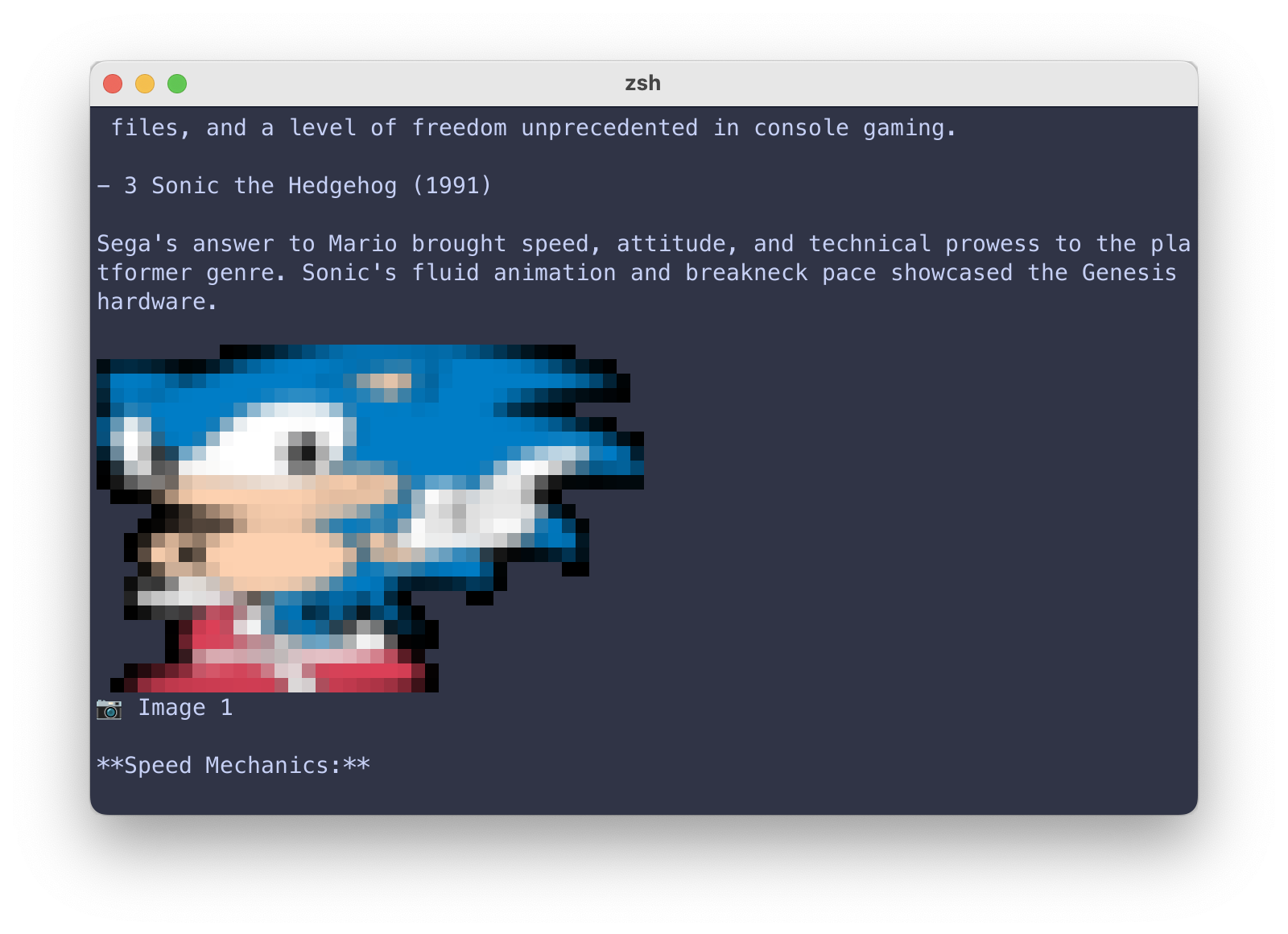
# View with images (supported terminals)
doxx presentation.docx --images --export text

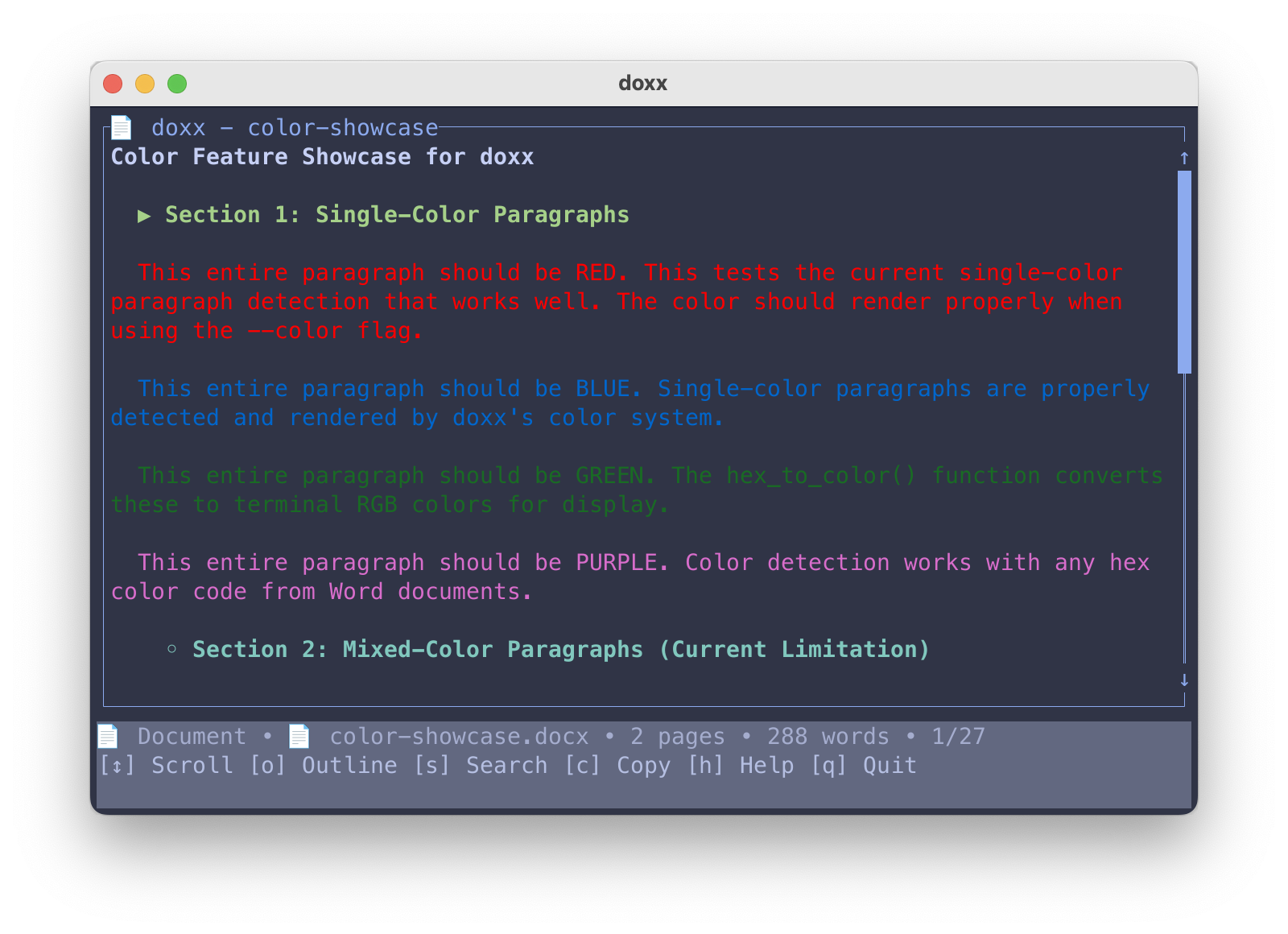
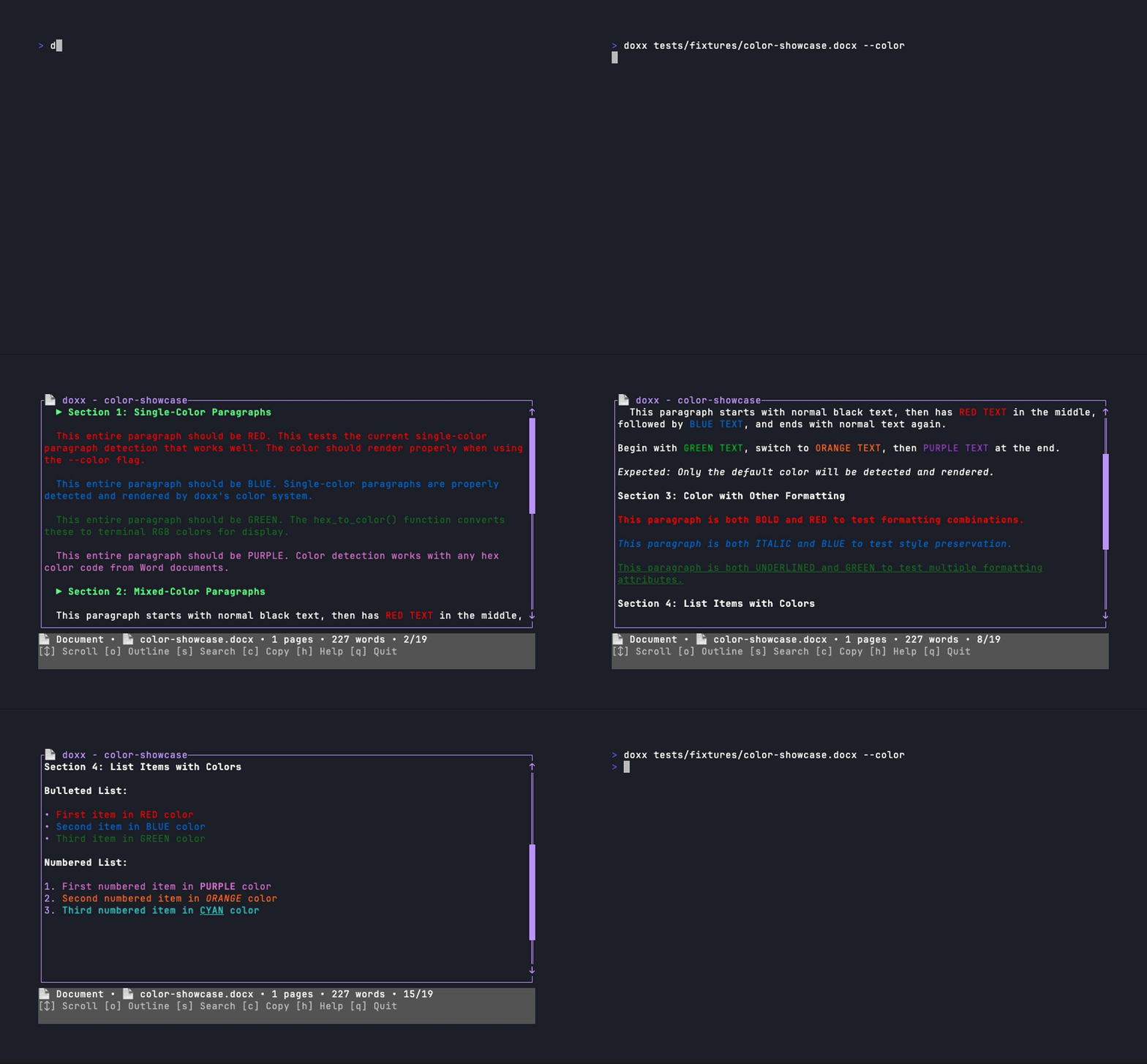
# Enable color rendering
doxx slides.docx --color
Command Line Options
Basic options
doxx [OPTIONS] <FILE>
Option
Description
<FILE>
Input document file (.docx)
-h, --help
Show help information
-V, --version
Show version information
Viewing options
Option
Description
-o, --outline
Start with outline view for quick navigation
-p, --page <PAGE>
Jump to specific page number on startup
-s, --search <TERM>
Search and highlight term immediately
-r, --restore-position
Restore the last saved scroll position for this document
--force-ui
Force interactive UI mode (bypass TTY detection)
--color
Enable color support for text rendering
Export options
Option
Values
Description
--export <FORMAT>
markdown, text, csv, json, ansi
Export document instead of viewing
Export examples:
doxx report.docx --export markdown  # Convert to Markdown
doxx data.docx --export csv         # Extract tables as CSV (tables only!)
doxx document.docx --export text    # Plain text output
doxx structure.docx --export json   # Document metadata as JSON
doxx document.docx --export ansi    # ANSI-colored terminal output
CSV export note:
The CSV export extracts only tables from the document, ignoring all text content. Perfect for pulling structured data from business reports, research papers, or surveys for analysis in Excel, Python, or databases.
ANSI export options
Option
Values
Description
-w, --terminal-width <COLS>
Number
Set terminal width for formatting (default: $COLUMNS or 80)
--color-depth <DEPTH>
auto, 1, 4, 8, 24
Control color rendering depth
ANSI export examples:
doxx document.docx --export ansi                     # Full color ANSI output
doxx document.docx --export ansi --color-depth 1     # Monochrome (no colors)
doxx document.docx --export ansi --color-depth 4     # 16 colors
doxx document.docx --export ansi --terminal-width 80 # Set terminal width
doxx report.docx --export ansi | less -R             # Pipe to less with color support
Color depth options:
auto - Auto-detect terminal capabilities
1 - Monochrome (no colors, formatting only)
4 - 16 colors (standard ANSI colors)
8 - 256 colors (extended ANSI palette)
24 - True color (16.7 million colors)
Image options
Option
Description
--images
Display images inline in terminal (auto-detect capabilities)
--no-images
Force text-only mode, even if the terminal supports inline images
--extract-images <DIR>
Extract images to specified directory
--image-width <COLS>
Maximum image width in terminal columns (default: auto-detect)
--image-height <ROWS>
Maximum image height in terminal rows (default: auto-detect)
--image-scale <SCALE>
Image scaling factor (0.1 to 2.0, default: 1.0)
--debug-terminal
Print detected terminal image capabilities and exit
Image examples:
doxx presentation.docx --images                    # Show images inline
doxx document.docx --images --image-width 80       # Limit image width
doxx slides.docx --extract-images ./images/        # Save images to folder
doxx --debug-terminal                               # Check what your terminal supports
Image display notes:
--images renders inline in both the TUI and --export text output
Supports iTerm2, Kitty, WezTerm, Sixel-capable terminals, and a half-block fallback elsewhere
Configuration
doxx reads an optional config file to set a default keymap preset and override individual key bindings. Nothing here is required — doxx works out of the box with the default preset — but it's how you switch to vim/less-style navigation or remap keys to your own layout.
This writes a default config (preset = "default", no overrides) and prints the exact path it used.
Managing the preset
doxx config set keymap.preset vim    # switch to vim-style bindings
doxx config get keymap.preset        # see the active preset
Three presets are built in:
Preset
Style
default
Arrow keys + j/k, single-letter shortcuts (this is what the Navigation table below documents)
vim
Adds u/d/ctrl-u/ctrl-d half-page scroll, g/G/H/L for start/end, / to search, N for previous match
less
Adds the same half-page scroll and g/G, plus b for page up and Space for page down, / to search, N for previous match
doxx config set/get currently only manage keymap.preset — custom key bindings (below) are set by hand-editing the TOML file.
Custom key bindings
Add a [keymap.custom] table to override or add individual bindings on top of whichever preset is active:
[keymap]
preset = "vim"

[keymap.custom]
n = "scroll_up"
m = "scroll_down"
Each entry maps a key string to an action name. A custom binding always wins over whatever the active preset assigned to that key.
Key strings:
A single character: "n", "/", "q"
A modifier combo: "ctrl-d", "shift-h"
A named key: "enter", "esc", "backspace", "tab", "up", "down", "left", "right", "pageup"/"pgup", "pagedown"/"pgdn", "home", "end", "f1", "f2", "space"
Action names:
Action
Effect
scroll_up / scroll_down
Line-by-line scroll
page_up / page_down
Full-page scroll
half_page_up / half_page_down
Half-page scroll
goto_start / goto_end
Jump to top/bottom of document
toggle_outline
Switch to/from outline view
search
Enter search mode
search_next / search_previous
Jump between search matches
toggle_search_state
Cycle search highlighting on/off
toggle_help
Show/hide the help screen
copy
Copy current view to clipboard
outline_select
Select the highlighted outline entry
escape
Cancel the current mode / close overlays
search_delete_char / search_submit
Edit/submit the search query (search mode only)
If a key or action string can't be parsed, doxx prints a warning to stderr and skips that entry — the rest of your config still loads. Since the TUI takes over the screen, that warning won't be visible while doxx is running; if a binding doesn't seem to take effect, run doxx config get keymap.preset to sanity-check the file is being read, or temporarily redirect stderr (e.g. doxx file.docx 2>/tmp/doxx-config-errors.log) to check for typos.
Navigation
The tables below show the default preset. Run doxx config set keymap.preset vim (or less) to switch — see Configuration above for what each preset changes, or press h / F1 in doxx to see the active bindings for your current preset.
Key
Action
↑/k
Scroll up
↓/j
Scroll down
PageUp / PageDown
Page up / down
Home / End
Go to start / end of document
o
Toggle outline
s
Search
S
Toggle search highlighting
n / p
Next / previous search match
c
Copy to clipboard
F2
Copy search results with surrounding context
h / F1
Toggle help screen
Esc
Cancel current mode / close overlays
Enter
Select highlighted item (outline view)
q
Quit
What vim and less presets change:
Key
vim
less
u / ctrl-u
Half-page up
Half-page up
d / ctrl-d
Half-page down
Half-page down
g / G
Go to start / end
Go to start / end
H / L
Go to start / end
(unbound)
b
(unbound)
Page up
Space
(unbound)
Page down
/
Search (replaces s)
Search (replaces s)
N
Previous search match (replaces p)
Previous search match (replaces p)
Why doxx?
Current terminal tools for Word documents:
docx2txt → Loses all formatting, mangled tables
pandoc → Complex chain, formatting lost
antiword → Only handles old .doc files
doxx gives you:
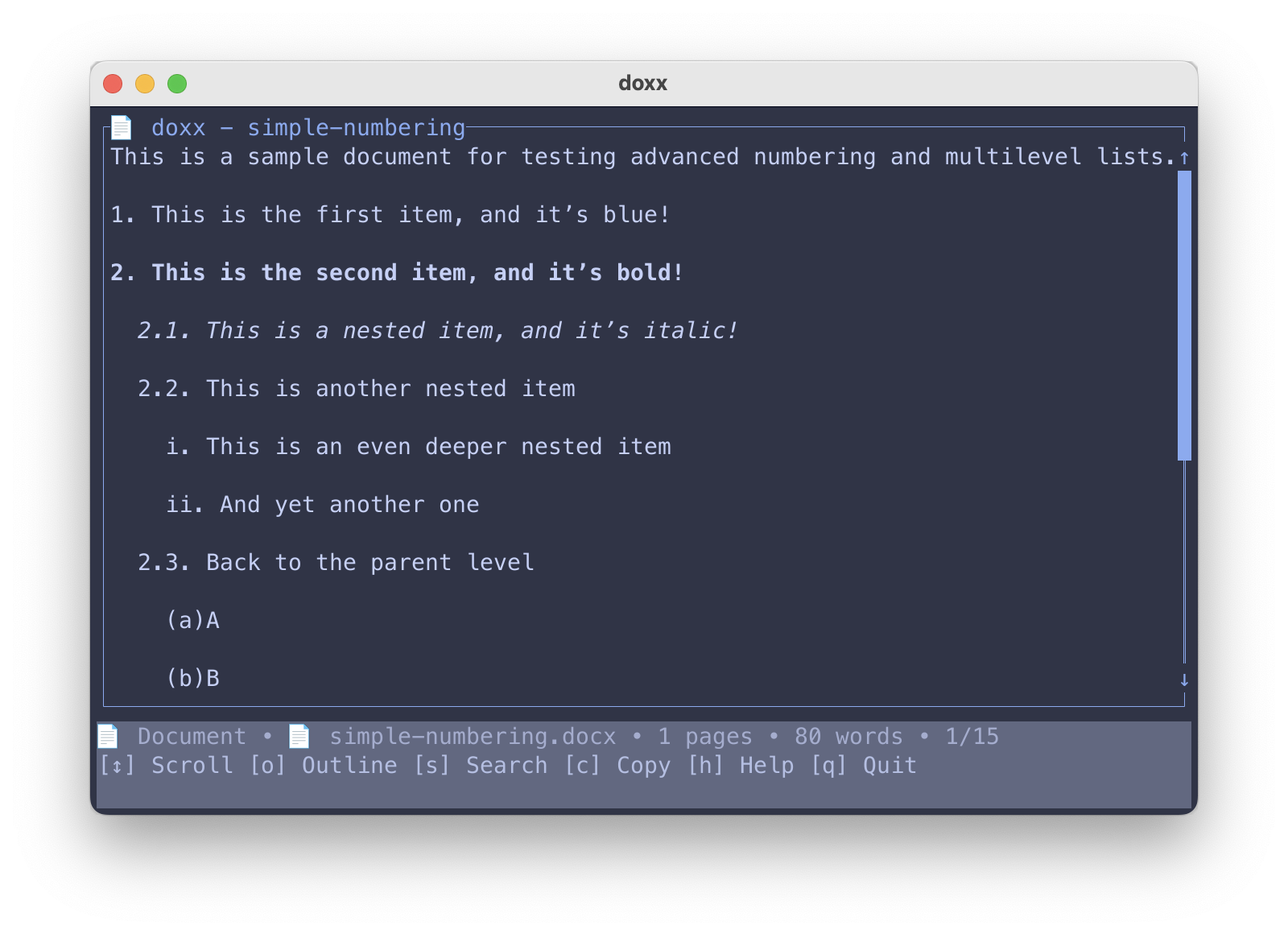
Rich formatting preserved (bold, italic, headers)
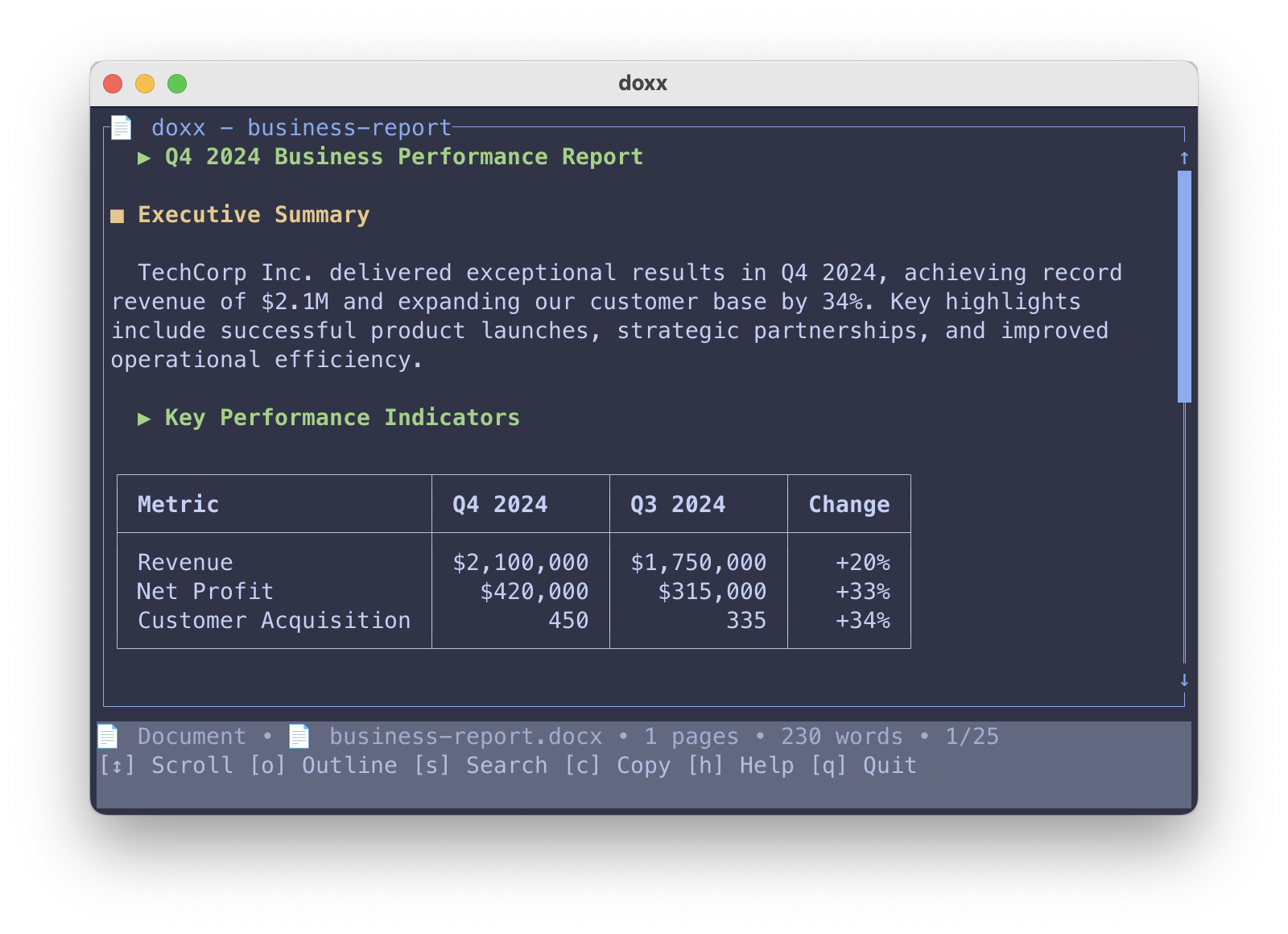
Professional table rendering with alignment
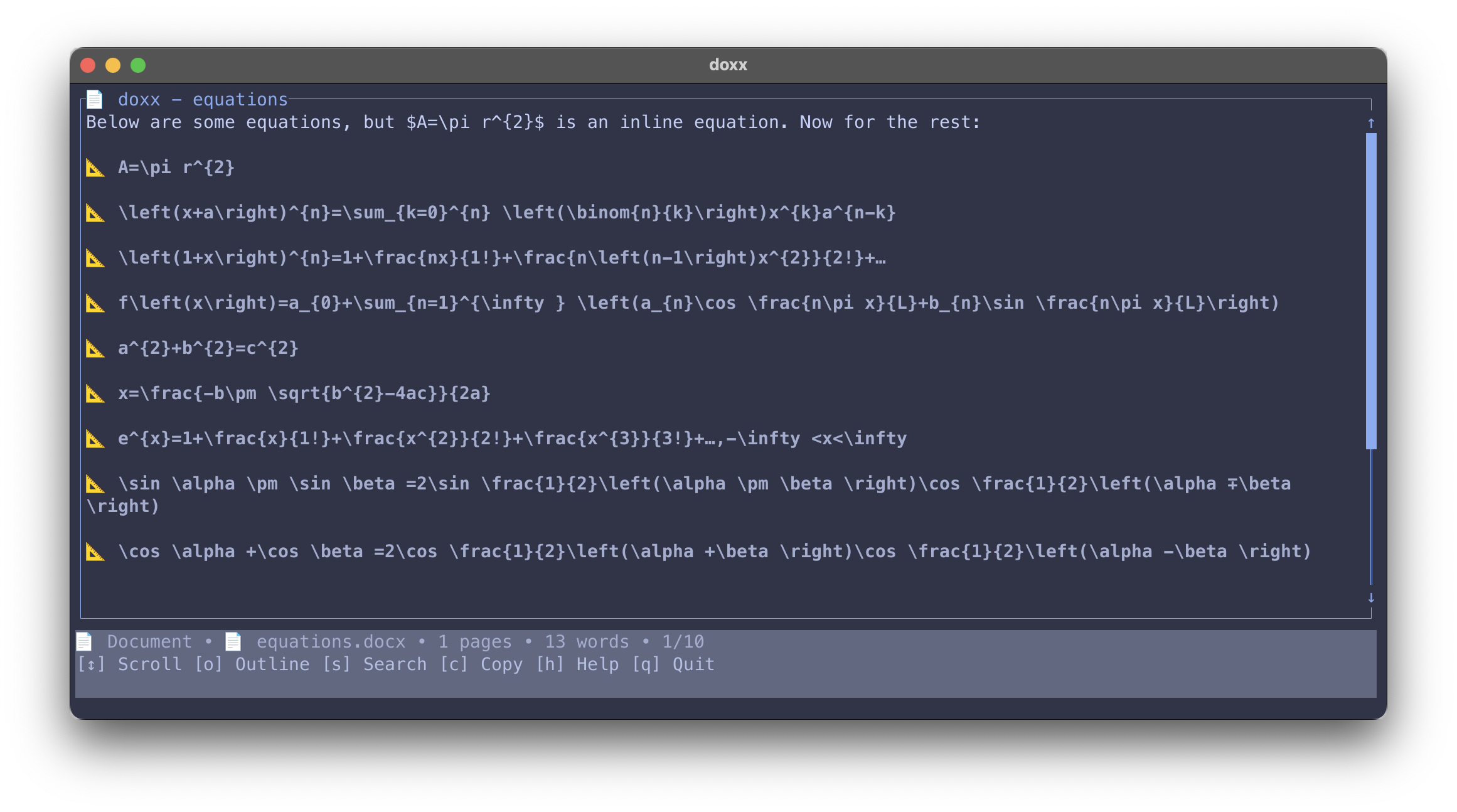
Equation support (inline and display LaTeX)
Interactive navigation and search
Multiple export formats for workflows
Terminal image display for modern terminals
Fast startup (50ms vs Word's 8+ seconds)
Perfect for developers, sysadmins, and anyone who prefers the terminal.
Examples
Quick document analysis
# Get overview and search
doxx quarterly-report.docx
doxx --search "revenue"

# Extract tables for analysis
doxx financial-data.docx --export csv | python analyze.py
Copy workflows
# Review and copy sections
doxx meeting-notes.docx
# Press 'c' to copy current view to clipboard

# Copy search results
doxx specs.docx --search "requirements"
# Press F2 to copy results with context
Pipeline integration
# Extract text for processing
doxx notes.docx --export text | grep "action items"

# Get document structure
doxx report.docx --export json | jq '.metadata'
Architecture
Built with Rust for performance:
docx-rs — Document parsing
ratatui — Terminal UI
viuer — Image rendering
unicode-segmentation — Proper Unicode handling
Development
# Build and test
cargo build --release
cargo test

# Run with sample document
cargo run -- tests/fixtures/minimal.docx
Known limitations
Equation positioning: Display equations may not appear at exact positions due to limitations in the underlying docx-rs parsing library. We've filed an upstream issue and are planning a complete fix for v0.2.0 using direct XML parsing.
Roadmap
Perfect equation positioning (v0.2.0)
Image support in TUI via ratatui-image crate
Enhanced table support (merged cells, complex layouts)
Performance improvements for large documents
Hyperlink navigation
Custom themes
Inspiration
This project was inspired by Charm's Glow package — the beautiful terminal Markdown renderer that shows how terminal document viewing can be both powerful and elegant. Just as Glow brings rich Markdown rendering to your command line, doxx aims to do the same for Microsoft Word documents.
The most recent commit recorded on bgreenwell/doxx was 3 months ago, based on the GitHub push timestamp. The repository has 99 forks — one of the better signals of community interest.
How many stars does bgreenwell/doxx have?
bgreenwell/doxx has 3.8k GitHub stars — refresh the page for the live number, or check github.com/bgreenwell/doxx. TopGit mirrors GitHub's count but does not claim minute-by-minute accuracy.
What else is in the Mobile space?
bgreenwell/doxx is tracked by TopGit under the Mobile category, alongside 7 GitHub-tagged topics. Trending and Topics pages list peer repositories of comparable stars and language.
What language is bgreenwell/doxx written in?
bgreenwell/doxx is written primarily in Rust. GitHub's language field is based on the largest share of bytes in the default branch.
What topics is bgreenwell/doxx associated with?
GitHub's repository topics for bgreenwell/doxx: "cli", "docx", "msword", "render", "rust", "terminal", "tui". TopGit's editorial category is Mobile.
Where do I read more about bgreenwell/doxx?
This TopGit page is a snapshot — the READ ME tab shows the project's own README content (links stripped, images preserved). The GitHub repository at github.com/bgreenwell/doxx is the definitive source.
Why is bgreenwell/doxx categorized under Mobile?
TopGit places bgreenwell/doxx in the Mobile category based on its GitHub topics and description (tagged: "cli", "docx", "msword"). Categories are assigned from real repository metadata, not editorial guesswork.
Read full README in the tab above.
Want a second opinion on doxx?
Ask an AI that can read this page — one click and you get its take on doxx.

 /doxx