📊 Vex — Terminal Spreadsheet Editor
A beautiful, fast, and feature-rich terminal-based Excel and CSV editor with vim-style keybindings, live row filtering, instant data profiling, formula support, and chart export.



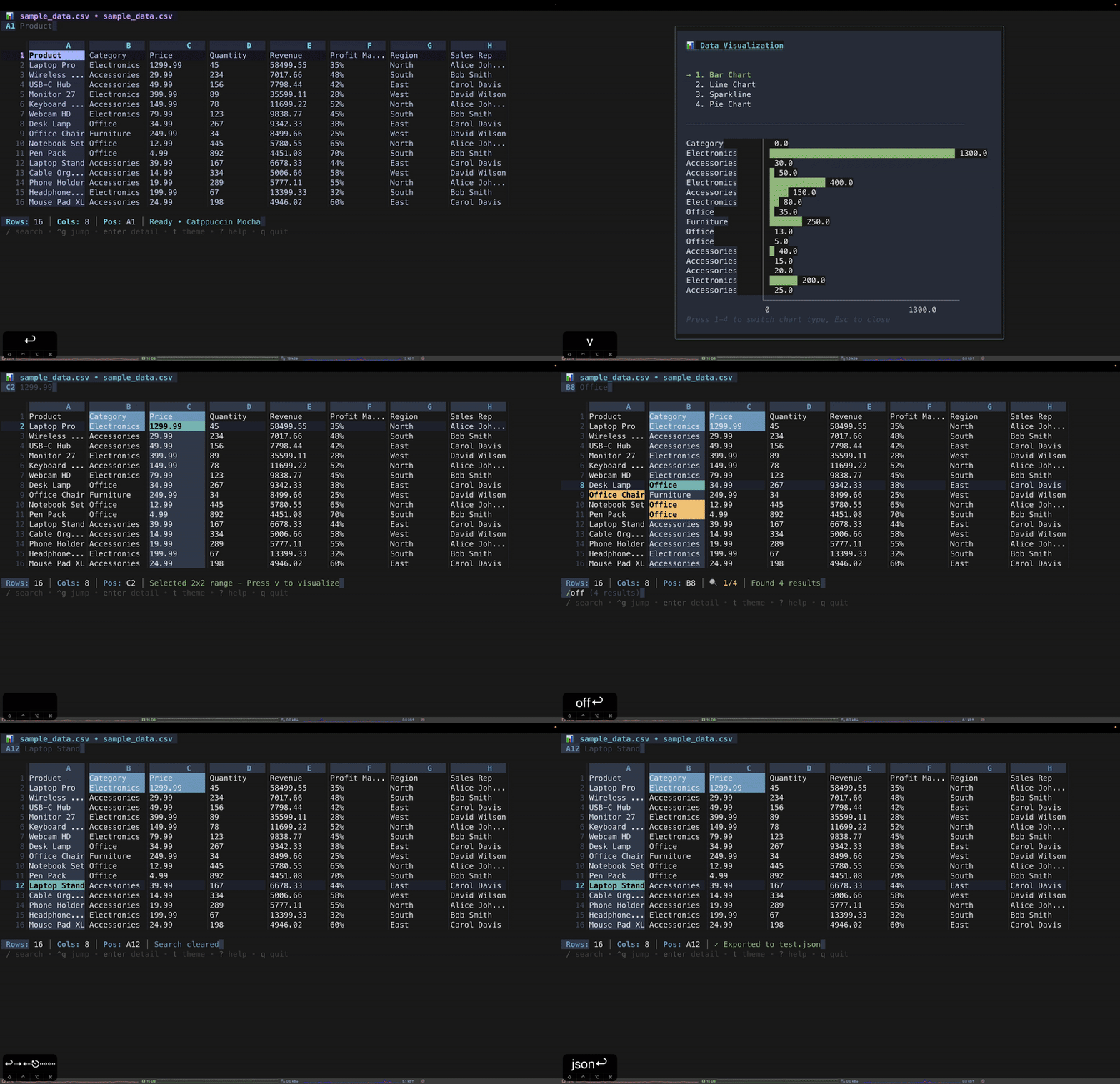
✨ Features
🔍 Live Row Filtering
Press f to filter any dataset without leaving the keyboard:
f → type expression → Enter to apply • Esc to clear
| Expression | Matches |
|---|
apple | rows containing "apple" (case-insensitive) |
>1000 | rows where current column > 1000 |
<=50.5 | rows where current column ≤ 50.5 |
=Canada | exact match (text or number) |
- Tab while typing toggles between current column and all columns
- Active filter shown in the title bar as
▾ >1000
- Esc clears the filter instantly — original data is always preserved in memory
- Works on any column of any CSV or Excel file
📊 Data Profile
Press W to get a full column-by-column breakdown of any dataset — like pandas.describe() right in your terminal:
  Col   Type      Non-null  Nulls   Stats
  A     number    1,234     0       Σ 2.4M  avg 1.9K  [0 – 9,999]
  B     text      1,230     4       891 unique  Alice, Bob, Carol…
  C     mixed     800       200     200 nulls, some numbers
- Auto-detects column types: number, text, mixed
- Shows non-null count, null count, unique values for text columns
- Shows Σ / avg / min / max for numeric columns
- Highlights the column currently under your cursor
↕️ Sort Columns
s — sort current column ascendingS — sort current column descendingu — unsort — restore original row order
Sort indicator shown in the column header (A↑) and in the title bar.
Numeric and text columns are sorted with the appropriate comparison.
When freeze header is enabled, the header row stays pinned during sort.
⌶ Freeze Header Row
Press Ctrl+R to pin the first row permanently at the top while scrolling through large files. The ⌶ indicator appears in the title bar when active. Sort is freeze-header aware — the header row is never moved.
📈 Live Column Statistics
When the cursor is on any numeric column the status bar automatically shows:
Σ 45,230 avg 1,004 min 2 max 9,999 n=45
No selection required — just move your cursor.
📁 CSV — Any Delimiter, Auto-Detected
Vex reads the first line of every CSV file and picks the most likely delimiter from , ; \t | automatically. You can also specify it explicitly:
vex data.csv                   # auto-detect
vex data.csv -d ';'            # semicolon
vex data.tsv -d '\t'           # tab
vex data.csv --delimiter '|'   # pipe
📊 Data Visualization with Chart Export
Select a range with V, then press v to open the chart viewer:
- Bar chart — supports negative values, responsive width, unfilled track
- Line chart — Bresenham algorithm draws actual connecting lines between points
- Sparkline — compact inline overview + bar chart
- Pie chart — proportional breakdown with legend
Press p inside the chart to export a beautiful PNG image via freeze:
p → saves data-chart.png next to your file
If freeze is not installed, vex shows the install command. No other terminal spreadsheet lets you share charts as images.
🎨 Ten Beautiful Themes
Press t to switch theme live. All themes are 256-color and truecolor compatible.
Dark Themes:
- Catppuccin Mocha — Soft pastels, perfect for all-day use
- Nord — Cool Arctic blues, minimal and focused
- Rosé Pine — Elegant rose tones, sophisticated
- Tokyo Night — Vibrant cyberpunk aesthetic
- Gruvbox — Warm retro colors, comfortable
- Dracula — Classic high contrast theme
Light Themes:
- Catppuccin Latte — Gentle pastel light theme
- Solarized Light — Balanced contrast
- GitHub Light — Clean and minimal
- One Light — Soft Atom-inspired colors
🎨 Cell Type Coloring
Numbers, formulas, and text are visually distinct — no configuration needed:
- Numbers — accent color, easy to scan down columns
- Formulas — secondary color, instantly recognizable
- Text — default theme color
✏️ Full Editing Capabilities
- Edit cells with values or formulas (
i)
- Insert / delete rows and columns
- Copy / paste single cells or multi-cell ranges (Tab-separated from any app)
- Fill down / right for quick data entry
- Apply formulas to entire ranges with automatic reference adjustment
- Modification indicator (
●) in the title bar on first edit
Tab / Shift+Tab in edit mode saves and jumps to the next/previous cell
📐 Powerful Formula Engine
Arithmetic: =A1+B1, =C1*D1/E1, =B2-B1
15+ built-in functions:
| Function | Description |
|---|
SUM(A1:A10) | Sum a range |
AVERAGE(B1:B20) / AVG(...) | Average values |
COUNT(C1:C50) | Count numbers |
MAX(D1:D100) / MIN(...) | Find extremes |
IF(A1>100,"High","Low") | Conditional logic |
CONCAT(A1," ",B1) / CONCATENATE(...) | Join text |
UPPER(A1) / LOWER(A1) | Change case |
LEN(A1) | Text length |
ROUND(A1,2) | Round to decimals |
ABS(A1) / SQRT(A1) / POWER(2,8) | Math functions |
Auto-recalculates on every edit. Formula references auto-adjust when applied to a range.
🔍 Powerful Navigation
- Vim-style keybindings (
hjkl) and arrow keys
- Jump to cell (
Ctrl+G) — supports A100, 500, or 10,5
- Search (
/) across cell values and formulas with n/N navigation
- Page Up/Down,
Home/End, gg/G
- Multi-sheet support with
Tab / Shift+Tab
📋 Data Operations
- Copy cell (
c) or entire row (C) to clipboard
- Paste (
p) — multi-row/column paste from any app
- Export (
e) to CSV or JSON
- Save (
Ctrl+S) with format preservation (xlsx / csv)
- Save As (
Ctrl+Shift+S) to a new file
- Toggle formula display (
Ctrl+F)
- View cell details (
Enter) — full value, formula, and type
📑 File Support
- Excel (.xlsx, .xlsm, .xls) — full formula and multi-sheet support
- CSV — auto-delimiter detection, any separator
- Multiple sheets with easy navigation
- Safe saving — file format preserved on save
🚀 Installation
Homebrew (macOS / Linux) — recommended
brew install CodeOne45/tap/vex
go install
go install github.com/CodeOne45/vex-tui@latest
Download binary
Pre-built binaries on the releases page:
- macOS (Intel & Apple Silicon)
- Linux (x64 & ARM64)
- Windows (x64)
Build from source
git clone https://github.com/CodeOne45/vex-tui.git
cd vex-tui
make build
sudo mv vex /usr/local/bin/
📖 Usage
vex data.xlsx                    # open Excel file
vex report.csv                   # open CSV (delimiter auto-detected)
vex data.csv -d ';'              # explicit semicolon delimiter
vex data.tsv -d '\t'             # tab-separated
vex file.xlsx --theme nord       # start with a specific theme
vex --help                       # show all options
⌨️ Keyboard Shortcuts
Navigation
| Key | Action |
|---|
↑↓←→ / hjkl | Move cursor |
PgUp / PgDn or Ctrl+U/D | Scroll page |
Home / End or 0 / $ | First / last column |
gg / G | Top / bottom of file |
Tab / Shift+Tab | Next / previous sheet |
Ctrl+G | Jump to cell (A100, 500, 10,5) |
Data & Analysis
| Key | Action |
|---|
f | Filter rows — >100, <=50, =exact, text |
W | Data profile — types, nulls, unique counts, stats |
s / S | Sort column ascending / descending |
u | Unsort — restore original order |
Ctrl+R | Toggle freeze header row |
/ | Search cells and formulas |
n / N | Next / previous search result |
Esc | Clear filter / search / selection |
Editing
| Key | Action |
|---|
i | Enter edit mode |
Tab / Shift+Tab | Save and move right / left |
Ctrl+S | Save file |
Esc | Cancel edit |
x | Delete cell content |
dd / dc | Delete row / column |
o / O | Insert row / column |
c / C | Copy cell / row |
p | Paste |
Ctrl+J / Ctrl+L | Fill down / right (requires selection) |
Ctrl+A | Apply formula to range (requires selection) |
View
| Key | Action |
|---|
> / < | Widen / narrow column |
Ctrl+F | Toggle formula display |
t | Change theme |
? | Toggle help |
Visualization
| Key | Action |
|---|
V | Start / finish range selection |
v | Open chart (requires selection) |
1 / 2 / 3 / 4 | Bar / Line / Sparkline / Pie |
p | Export chart as PNG image (inside chart view) |
File
| Key | Action |
|---|
Ctrl+S | Save |
Ctrl+Shift+S | Save as |
e | Export to CSV or JSON |
q | Quit (press twice if unsaved) |
💡 Quick Start
Explore an unknown CSV
vex data.csv
# W  → see column types, nulls, unique counts instantly
# f  → type >1000 to show only matching rows
# s  → sort the column under cursor
# u  → restore original order
Visualize and export a chart
1. Press V  — start range selection
2. Move to end of data, press V  — finish selection
3. Press v  — open chart
4. Press 1-4  — switch chart type
5. Press p  — save as PNG (requires freeze: brew install charmbracelet/tap/freeze)
Bulk formula entry
i             Enter edit mode
=A1*B1        Type formula
Tab           Save and move right
...           Continue typing
Ctrl+S        Save file
Or: enter one formula → select range with V → press Ctrl+A to apply with auto-adjusted references.
🏗️ Project Structure
vex-tui/
├── main.go                     # Entry point + CLI flags
├── internal/
│   ├── app/
│   │   ├── model.go            # State + filter/sort/stats logic
│   │   ├── update.go           # Event handling
│   │   ├── view.go             # Rendering, charts, data profile
│   │   ├── keys.go             # Keybindings
│   │   ├── edit.go             # Edit / save operations
│   │   └── formulas.go         # Formula evaluation engine
│   ├── loader/
│   │   ├── loader.go           # File loading + CSV delimiter detection
│   │   └── save.go             # File saving
│   ├── theme/
│   │   └── theme.go            # Theme definitions
│   └── ui/
│       └── ui.go               # Styles + helpers
└── pkg/
    └── models/
        └── models.go           # Data models + mode constants
🤝 Contributing
Contributions are welcome! Please open an issue first for large changes.
git clone https://github.com/CodeOne45/vex-tui.git
cd vex-tui
make test            # run tests
make build           # build binary
make snapshot        # local multi-platform build via goreleaser
make tag VER=v2.1.0  # tag + push → triggers GitHub Actions release
Follow Effective Go and run make fmt before opening a PR.
☕ Support
If Vex saves you time or you just enjoy using it:
Every coffee keeps the terminal dream alive. ☕
📄 License
MIT — see LICENSE.
🙏 Acknowledgments
- Bubble Tea — TUI framework
- Lipgloss — terminal styling
- Freeze — chart PNG export
- Excelize — Excel parsing
- atotto/clipboard — clipboard support
- Themes inspired by Catppuccin, Nord, Rosé Pine, and others
📮 Contact
- GitHub: @CodeOne45
- Issues: GitHub Issues
- Discussions: GitHub Discussions
⭐ If Vex is useful to you, a star goes a long way — thank you!
Made with ❤️ for terminal enthusiasts and spreadsheet power users.
 CodeOne45/vex-tui