Indexed by TopGit from live GitHub metadata: danburzo/percollate has 4.7k stars, written primarily in JavaScript. A command-line tool to turn web pages into readable PDF, EPUB, HTML, or Markdown docs.
Snapshot summary built from the project's own GitHub metadata — there's no written TopGit review yet. The page will update automatically when a full review is published.
WHY NO REVIEW YET
TopGit writes full reviews for the most-starred, most-requested repositories. This page is a snapshot until then — see the READ ME tab for the original README in full.
Percollate is a command-line tool that turns web pages into beautifully formatted PDF, EPUB, HTML or Markdown files.
Sample spread from the generated PDF of a chapter in Dimensions of Colour; rendered here in black & white for a smaller image file size.
Installation
Usage
Available commands
Available options
Recipes
Basic bundling
Web feeds
The --css option
The --style option
The --template option
How it works
Updating
Limitations
Troubleshooting
Contributing
See also
Installation
percollate is a Node.js command-line tool which you can install globally from npm:
npm install -g percollate
Percollate and its dependencies require Node.js 14.17.0 or later.
Community-maintained packages
There's a packaged version available on Arch User Repository, which you can install using your local AUR helper (yay, pacaur, or similar):
yay -S nodejs-percollate
Some Docker images are available in this tracking issue.
Usage
Run percollate --help for a list of available commands and options.
Percollate is invoked on one or more operands (usually URLs):
percollate <command> [options] url [url]...
The following commands are available:
percollate pdf produces a PDF file;
percollate epub produces an EPUB file;
percollate html produces a HTML file.
percollate md produces a Markdown file.
The operands can be URLs, paths to local files, or the - character which stands for stdin (the standard inputs).
Available options
Unless otherwise stated, these options apply to all three commands.
-o, --output
Specify the path of the resulting bundle relative to the current folder.
percollate pdf https://example.com -o my-example.pdf
-u, --url
Using the - operand you can read the HTML content from stdin, as fetched by a separate command, such as curl. In this sort of setup, percollate does not know the URL from which the content has been fetched, and relative paths on images, anchors, et cetera won't resolve correctly.
Use the --url option to supply the source's original URL.
curl https://example.com | percollate pdf - --url=https://example.com
-w, --wait
By default, percollate processes URLs in parallel. Use the --wait option to process them sequentially instead, with a pause between items. The delay is specified in seconds, and can be zero.
percollate epub --wait=1 url1 url2 url3
--individual
By default, percollate bundles all web pages in a single file. Use the --individual flag to export each source to a separate file.
percollate pdf --individual http://example.com/page1 http://example.com/page2
--template
Path to a custom HTML template. Applies to pdf, html, and md.
--style
Path to a custom CSS stylesheet, relative to the current folder.
--css
Additional CSS styles you can pass from the command-line to override styles specified by the default/custom stylesheet.
--no-amp
Don't prefer the AMP version of the web page.
--debug
Print more detailed information.
-t, --title
Provide a title for the bundle.
percollate epub http://example.com/page-1 http://example.com/page-2 --title="Best Of Example"
-a, --author
Provide an author for the bundle.
percollate pdf --author="Ella Example" http://example.com
--cover
Generate a cover. The option is implicitly enabled when the --title option is provided, or when bundling more than one web page to a single file. Disable this implicit behavior by passing the --no-cover flag.
--toc
Generate a hyperlinked table of contents. The option is implicitly enabled when bundling more than one web page to a single file. Disable this implicit behavior by passing the --no-toc flag.
Applies to pdf, html, and md.
--toc-level=<level>
By default, the table of contents is a flat list of article titles. With the --toc-level option the table of contents will include headings under each article title (<h2>, <h3>, etc.), up to the specified heading depth. A number between 1 and 6 is expected.
Using --toc-level with a value greater than 1 implies --toc.
--hyphenate
Hyphenation is enabled by default for pdf, and disabled for epub, html, and md. You can opt into hyphenation with the --hyphenate flag, or disable it with the --no-hyphenate flag.
See also the Hyphenation and justification recipe.
--inline
Embed images inline with the document. Images are fetched and converted to Base64-encoded data URLs.
This option is particularly useful for html to produce self-contained HTML files.
--md.<option>=<value>
Pass options to the underlying Markdown stringifier, mdast-util-to-markdown. These are the default Markdown options:
Disables some JSDOM validations that may throw an error when parsing invalid HTML pages (See #177).
Recipes
Basic bundling
To turn a single web page into a PDF:
percollate pdf --output=some.pdf https://example.com
To bundle several web pages into a single PDF, specify them as separate arguments to the command:
percollate pdf --output=some.pdf https://example.com/page1 https://example.com/page2
You can use common Unix commands and keep the list of URLs in a newline-delimited text file:
cat urls.txt | xargs percollate pdf --output=some.pdf
To transform several web pages into individual PDF files at once, use the --individual flag:
percollate pdf --individual https://example.com/page1 https://example.com/page2
If you'd like to fetch the HTML with an external command, you can use - as an operand, which stands for stdin (the standard input):
curl https://example.com/page1 | percollate pdf --url=https://example.com/page1 -
Notice we're using the url option to tell percollate the source of our (now-anonymous) HTML it gets on stdin, so that relative URLs on links and images resolve correctly.
Web feeds
Percollate has basic support for processing XML web feeds in Atom or RSS format.
When processing a web feed, every entry in the feed becomes its own article, as if percollate received all the entry URLs as operands. The command below produces an EPUB book from the feed contents:
percollate epub https://example.com/posts.xml
To produce individual output files for the feed entries, use the --individual flag:
The content of the articles is read from the feed file rather than fetched anew. The content is passed through the DOM enhancements and sanitized as usual, but it’s not processed with Readability.
To fetch the HTML pages for entries in Atom and RSS feeds
If instead you’d like to fetch and process the original HTML pages corresponding to the entries in the Atom/RSS feed, use hred to extract the URLs and feed them to percollate with xargs.
Below is an example hred query for extracting URLs from Atom feeds, explained in more detail on the hred recipes page.
💡 To work correctly, you must have the fonts installed on your machine. Custom web fonts currently require you to use a custom CSS stylesheet / HTML template.
Remove the appended hrefs from hyperlinks
The idea with percollate is to make PDFs that can be printed without losing where the hyperlinks point to. However, for some link-heavy pages, the appended hrefs can become bothersome. You can remove them using:
percollate pdf --css "a:after { display: none }" http://example.com
Hyphenation and justification
Hyphenation is only enabled by default for PDFs, but you can opt in or out of it for any output format with a flag.
When hyphenation is enabled, paragraphs will be justified:
.article__content p {
	text-align: justify;
}
If you prefer left-aligned text:
percollate pdf --css ".article__content p { text-align: left }" http://example.com
The --style option
The --style option lets you use your own CSS stylesheet instead of the default one. Here are some common use-cases for this option:
⚠️ TODO add examples here
The --template option
The --template option lets you use a custom HTML template for the PDF.
💡 The HTML template is parsed with nunjucks, which is a close JavaScript relative of Twig for PHP, Jinja2 for Python and L for Ruby.
Here are some common use-cases:
Customizing the page header / footer
Puppeteer can print some basic information about the page in the PDF. The following CSS class names are available for the header / footer, into which the appropriate content will be injected:
date — The formatted print date
title — The document title
url — document location (Note: this will print the path of the temporary html, not the original web page URL)
pageNumber — the current page number
totalPages — total pages in the document
👉 See the Chromium source code for details.
You place your header / footer template in a template element in your HTML:
You can add CSS styles to the header / footer with either the --css option or a separate CSS stylesheet (the --style option).
💡 The header / footer template do not inherit their styles from the rest of the page (i.e. they are not part of the cascade), so you'll have to write the full CSS you want to apply to them.
If an AMP version of the page exists, use that instead (disable with --no-amp flag)
Enhance the DOM using jsdom
Pass the DOM through @mozilla/readability to strip unnecessary elements
Apply the HTML template and the stylesheet to the resulting HTML
Different formats then use different tools to produce the final file.
PDFs are rendered with puppeteer.
EPUBs have external images fetched and bundled together with the HTML of each article. When the --inline option is used, images are instead converted to data URLs and embedded into the HTML.
HTMLs are saved without any further changes. When the --inline option is used, images are converted to data URLs and embedded into the HTML. External images are not otherwise fetched.
Markdown files are produced the same way as HTMLs, then processed with a series of utilities from the unified.js umbrella.
Limitations
Percollate inherits the limitations of two of its main components, Readability and Puppeteer (headless Chrome).
The imperative approach Readability takes will not be perfect in each case, especially on HTML pages with atypical markup; you may occasionally notice that it either leaves in superfluous content, or that it strips out parts of the content. You can confirm the problem against Firefox's Reader View. In this case, consider filing an issue on @mozilla/readability.
Using a browser to generate the PDF is a double-edged sword. On the one hand, you get excellent support for web platform features. On the other hand, print CSS as defined by W3C specifications is only partially implemented, and it seems unlikely that support will be improved any time soon. However, even with modest print support, I think Chrome is the best (free) tool for the job.
Troubleshooting
On some Linux machines you'll need to install a few more Chrome dependencies before percollate works correctly. (Thanks to @ptica for sorting it out)
The percollate pdf command supports the --no-sandbox Puppeteer flag, but make sure you're aware of the implications before disabling the sandbox.
Using Firefox to render PDFs
This feature is experimental. Please log an issue if you notice anything wrong.
Starting with percollate 3.x, it's possible to use Firefox Nightly as an alternative browser with which to render PDFs. To make Firefox available to Percollate, use the following install command:
PUPPETEER_PRODUCT=firefox npm install percollate
After installation, percollate pdf commands can be run with the --browser=firefox option.
Limitations of Firefox PDF rendering
At the moment, rendering PDFs with Firefox has the following limitations:
The pages can't have headers and footers, so there are no page numbers.
Contributing
Contributions of all kinds are welcome! See CONTRIBUTING.md for details.
See also
Here are some other projects to check out if you're interested in building books using the browser:
The most recent commit recorded on danburzo/percollate was 1.2 years ago, based on the GitHub push timestamp. The repository has 175 forks — one of the better signals of community interest.
How many stars does danburzo/percollate have?
danburzo/percollate has 4.7k GitHub stars — refresh the page for the live number, or check github.com/danburzo/percollate. TopGit mirrors GitHub's count but does not claim minute-by-minute accuracy.
What language is danburzo/percollate written in?
danburzo/percollate is written primarily in JavaScript. GitHub's language field is based on the largest share of bytes in the default branch.
What license does danburzo/percollate use?
danburzo/percollate is released under the MIT license. Always verify the LICENSE file directly on GitHub for the authoritative terms — license strings can be edited out of sync with a project's actual stance.
What topics is danburzo/percollate associated with?
GitHub's repository topics for danburzo/percollate: "cli", "epub", "html", "markdown", "pdf", "puppeteer", "readability". TopGit's editorial category is Developer Tools.
Where can I see danburzo/percollate in action?
The project maintains a homepage at https://danburzo.ro/projects/percollate/. The README tab on this page also usually contains screenshots and a quickstart.
Where do I read more about danburzo/percollate?
This TopGit page is a snapshot — the READ ME tab shows the project's own README content (links stripped, images preserved). The GitHub repository at github.com/danburzo/percollate is the definitive source.
Read full README in the tab above.
Want a second opinion on percollate?
Ask an AI that can read this page — one click and you get its take on percollate.

 /percollate


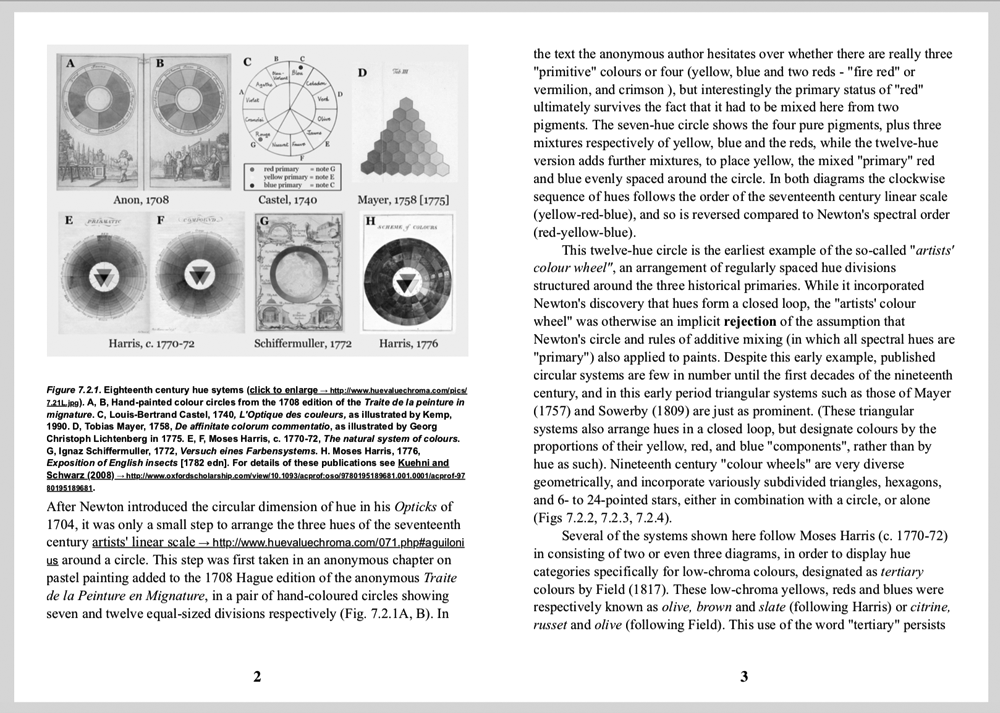 Sample spread from the generated PDF of a chapter in Dimensions of Colour; rendered here in black & white for a smaller image file size.