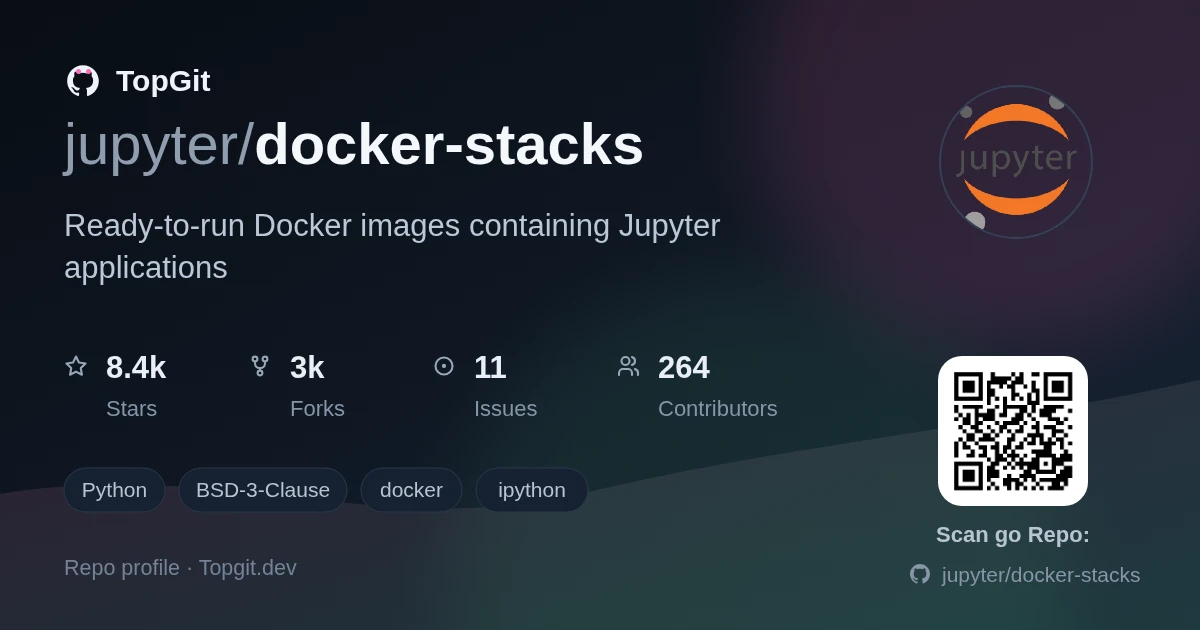
jupyter/docker-stacks is a Python project with 8.5k stars in the Developer Tools space. Ready-to-run Docker images containing Jupyter applications
Snapshot summary built from the project's own GitHub metadata — there's no written TopGit review yet. The page will update automatically when a full review is published.
WHY NO REVIEW YET
TopGit writes full reviews for the most-starred, most-requested repositories. This page is a snapshot until then — see the READ ME tab for the original README in full.
Jupyter Docker Stacks are a set of ready-to-run Docker images containing Jupyter applications and interactive computing tools.
You can use a stack image to do any of the following (and more):
Start a personal Jupyter Server with the JupyterLab frontend (default)
Run JupyterLab for a team using JupyterHub
Start a personal Jupyter Server with the Jupyter Notebook frontend in a local Docker container
Write your own project Dockerfile
Quick Start
You can try the quay.io/jupyter/base-notebook image on https://mybinder.org.
Otherwise, the examples below may help you get started if you have Docker installed,
know which Docker image you want to use, and want to launch a single Jupyter Application in a container.
The User Guide on ReadTheDocs describes additional uses and features in detail.
Since `2023-10-20` our images are only pushed to `Quay.io` registry.
Older images are available on Docker Hub, but they will no longer be updated.
Example 1
This command pulls the jupyter/scipy-notebook image tagged 2026-07-28 from Quay.io if it is not already present on the local host.
It then starts a container running a Jupyter Server with the JupyterLab frontend and exposes the container's internal port 8888 to port 10000 of the host machine:
docker run -p 10000:8888 quay.io/jupyter/scipy-notebook:2026-07-28
You can modify the host port to which the container's port is mapped by changing the value of the -p option to -p 8888:8888.
Visiting http://<hostname>:10000/?token=<token> in a browser loads JupyterLab,
where:
The hostname is the name of the computer running Docker
The token is the secret token printed in the console.
The container remains intact for restart after the Server exits.
Example 2
This command pulls the jupyter/datascience-notebook image tagged 2026-07-28 from Quay.io if it is not already present on the local host.
It then starts an ephemeral container running a Jupyter Server with the JupyterLab frontend and exposes the server on host port 10000.
docker run -it --rm -p 10000:8888 -v "${PWD}":/home/jovyan/work quay.io/jupyter/datascience-notebook:2026-07-28
The use of the -v flag in the command mounts the current working directory on the host (${PWD} in the example command) as /home/jovyan/work in the container.
The server logs appear in the terminal.
Visiting http://<hostname>:10000/?token=<token> in a browser loads JupyterLab.
Due to the usage of the --rm flag
Docker automatically cleans up the container and removes the file system when the container exits,
but any changes made to the ~/work directory and its files in the container will remain intact on the host.
The -i flag keeps the container's STDIN open, and lets you send input to the container through standard input.
The -t flag attaches a pseudo-TTY to the container.
By default, [jupyter's root_dir](https://jupyter-server.readthedocs.io/en/latest/other/full-config.html) is `/home/jovyan`.
So, new notebooks will be saved there, unless you change the directory in the file browser.

To change the default directory, you must specify `ServerApp.root_dir` by adding this line to the previous command: `start-notebook.py --ServerApp.root_dir=/home/jovyan/work`.
Choosing Jupyter frontend
JupyterLab is the default for all the Jupyter Docker Stacks images.
It is still possible to switch back to Jupyter Notebook (or to launch a different startup command).
You can achieve this by passing the environment variable DOCKER_STACKS_JUPYTER_CMD=notebook (or any other valid jupyter subcommand) at container startup;
more information is available in the documentation.
Resources
Documentation on ReadTheDocs
Issue Tracker on GitHub
Jupyter Discourse Forum
Jupyter Website
Images on Quay.io
Acknowledgments
Starting from 2022-07-05, aarch64 self-hosted runners were sponsored by @mathbunnyru.
Please, consider sponsoring his work on GitHub
Starting from 2023-10-31, aarch64 self-hosted runners are sponsored by an amazing 2i2c non-profit organization
Starting from 2025-02-11, we use GitHub-hosted aarch64 runners
CPU Architectures
We publish containers for both x86_64 and aarch64 platforms
Single-platform images have either aarch64- or x86_64- tag prefixes, for example, quay.io/jupyter/base-notebook:aarch64-python-3.13.14
Starting from 2022-09-21, we create multi-platform images (except tensorflow-notebook)
Starting from 2023-06-01, we create a multi-platform tensorflow-notebook image as well
Starting from 2024-02-24, we create CUDA enabled variants of pytorch-notebook image for x86_64 platform
Starting from 2024-03-26, we create CUDA enabled variant of tensorflow-notebook image for x86_64 platform
Starting from 2025-12-02, we create CUDA enabled variants of pytorch-notebook and tensorflow-notebook images for aarch64 platform as well
Using old images
This project only builds one set of images at a time.
The weekly build (latest tag) is based on Ubuntu 26.04 and Python 3.13.
If you want to use the older Ubuntu and/or Python version, you can use the following images:
Ubuntu 24.04
Build Date
Python
Tag
2024-10-22
3.11
b74418220768
2025-08-11
3.12
82d322f00937
2026-09-28
3.13
ac62373f9f60
Ubuntu 22.04
Build Date
Python
Tag
2022-10-09
3.7
b86753318aa1
2022-10-09
3.8
7285848c0a11
2022-10-09
3.9
ed2908bbb62e
2023-05-30
3.10
4d70cf8da953
2024-08-26
3.11
00987883e58d
Ubuntu 20.04
Build Date
Python
Tag
2022-10-09
3.7
1aac87eb7fa5
2022-10-09
3.8
a374cab4fcb6
2022-10-09
3.9
5ae537728c69
2022-10-09
3.10
f3079808ca8c
Contributing
Please see the the documentation
for information about how to contribute
issues,
features,
recipes,
tests,
and community-maintained stacks.
LICENSE
This project is licensed under the terms of the Modified BSD License (also known as New or Revised or 3-Clause BSD).
About the Jupyter Development Team
The Jupyter Development Team is the set of all contributors to the Jupyter project.
This includes all of the Jupyter subprojects.
The core team that coordinates development on GitHub can be found here:
https://github.com/jupyter/.
Our Copyright Policy
Jupyter uses a shared copyright model. Each contributor maintains copyright
over their contributions to Jupyter. But, it is important to note that these
contributions are typically only changes to the repositories. Thus, the Jupyter
source code, in its entirety is not the copyright of any single person or
institution. Instead, it is the collective copyright of the entire Jupyter
Development Team. If individual contributors want to maintain a record of what
changes/contributions they have specific copyright on, they should indicate
their copyright in the commit message of the change, when they commit the
change to one of the Jupyter repositories.
With this in mind, the following banner should be used in any source code file
to indicate the copyright and license terms:
# Copyright (c) Jupyter Development Team.
# Distributed under the terms of the Modified BSD License.
Alternatives
b-data's JupyterLab docker stacks - For
R,
Python,
MAX/Mojo and
Julia.
With code-server next to JupyterLab.
Just Python – no Conda /
Mamba.
rocker/binder -
From the R focused rocker-project,
lets you run both RStudio and Jupyter either standalone or in a JupyterHub
jupyter/repo2docker -
Turn git repositories into Jupyter-enabled Docker Images
openshift/source-to-image -
A tool for building artifacts from source code and injecting them into docker images
jupyter-on-openshift/jupyter-notebooks -
OpenShift compatible S2I builder for basic notebook images
How active is development on jupyter/docker-stacks?
The most recent commit recorded on jupyter/docker-stacks was 3 months ago, based on the GitHub push timestamp. The repository has 3.0k forks — one of the better signals of community interest.
How does jupyter/docker-stacks compare to other Developer Tools projects?
jupyter/docker-stacks is tracked by TopGit in the Developer Tools category, with 8.5k GitHub stars and written in Python. Browse the Developer Tools topic page on TopGit to compare it against similar projects by stars and activity.
How many stars does jupyter/docker-stacks have?
jupyter/docker-stacks has 8.5k GitHub stars — refresh the page for the live number, or check github.com/jupyter/docker-stacks. TopGit mirrors GitHub's count but does not claim minute-by-minute accuracy.
Is jupyter/docker-stacks open source?
Yes — jupyter/docker-stacks ships under the BSD-3-Clause license, which makes its source code freely readable (and, depending on license terms, forkable and reusable). Source: github.com/jupyter/docker-stacks.
What is jupyter/docker-stacks?
jupyter/docker-stacks (jupyter/docker-stacks) is a Python project on GitHub. From the project's own README: Ready-to-run Docker images containing Jupyter applications
Where do I read more about jupyter/docker-stacks?
This TopGit page is a snapshot — the READ ME tab shows the project's own README content (links stripped, images preserved). The GitHub repository at github.com/jupyter/docker-stacks is the definitive source.
Read full README in the tab above.
Want a second opinion on docker-stacks?
Ask an AI that can read this page — one click and you get its take on docker-stacks.

 /docker-stacks