mbadolato/iTerm2-Color-Schemes

Snapshot of mbadolato/iTerm2-Color-Schemes: 27.3k★, Shell, Developer Tools. Our next-generation, interactive app is currently in beta! Come try it out at terminalthemes.com! Over 750 terminal color schemes/themes for iTerm, with ports to Terminal, Konsole, PuTTY, Xresources, XRDB, Remmina, Termite, XFCE, Tilda, FreeBSD VT, Terminator, Kitty, Windows, Visual Studio,, Ghostty, and dozens more
Snapshot summary built from the project's own GitHub metadata — there's no written TopGit review yet. The page will update automatically when a full review is published.
TopGit writes full reviews for the most-starred, most-requested repositories. This page is a snapshot until then — see the READ ME tab for the original README in full.
Snapshot
Top contributors
Show top contributors

iTerm Color Schemes
- Intro
- Installation Instructions
- Contribute
- Screenshots
- Credits
- Extra
- Previewing color schemes
- X11 Installation
- Konsole color schemes
- Terminator color schemes
- Mac OS Terminal color schemes
- PuTTY color schemes
- Xfce Terminal color schemes
- FreeBSD vt(4) color schemes
- MobaXterm color schemes
- LXTerminal color schemes
- Visual Studio Code color schemes
- Windows Terminal color schemes
- Alacritty color schemes
- Ghostty color schemes
- Otty color schemes
- Termux color schemes
- Generic color schemes
- Vim color schemes
- Machine-readable schemes (JSONL)
Intro
This is a set of color schemes for iTerm (aka iTerm2). It also includes ports to Terminal, Konsole, PuTTY, Xresources, XRDB, Remmina, Termite, XFCE, Tilda, FreeBSD VT, Terminator, Kitty, Ghostty, Otty, MobaXterm, LXTerminal, Microsoft's Windows Terminal, Visual Studio, Alacritty, Vim
Screenshots below and in the screenshots directory.
Installation Instructions
There are 3 ways to install an iTerm theme:
-
Direct way via keyboard shortcut:
- Launch iTerm 2. Get the latest version at iterm2.com
- Type CMD+i (⌘+i)
- Navigate to Colors tab
- Click on Color Presets
- Click on Import
- Click on the schemes folder
- Select the .itermcolors profiles you would like to import
- Click on Color Presets and choose a color scheme
-
Via iTerm preferences (go to the same configuration location as above):
- Launch iTerm 2. Get the latest version at iterm2.com
- Click on iTerm2 menu title
- Select Preferences... option
- Select Profiles
- Navigate to Colors tab
- Click on Color Presets
- Click on Import
- Select the .itermcolors file(s) of the schemes you'd like to use * Click on Color Presets and choose a color scheme
-
Via Bash script
- Launch iTerm 2. Get the latest version at iterm2.com
- Run the following command:
# Import all color schemes tools/import-scheme.sh schemes/* # Import all color schemes (verbose mode) tools/import-scheme.sh -v schemes/* # Import specific color schemes (quotations are needed for schemes with spaces in name) tools/import-scheme.sh 'schemes/SpaceGray Eighties.itermcolors' # by file path tools/import-scheme.sh 'SpaceGray Eighties' # by scheme name tools/import-scheme.sh Molokai 'SpaceGray Eighties' # import multiple- Restart iTerm 2. (Need to quit iTerm 2 to reload the configuration file.)
Contribute
Using Docker
If docker is installed, the script generate-all.sh will do most of the
steps described in Prerequisites, except for the instructions
related to pyenv as this is not required in a docker container dedicated to
generating the required files.
With docker, there is no need to install python and its dependencies on your computer.
The remaining manual tasks are to update README.md to include your theme and
screenshot, and to update CREDITS.md to credit yourself for your contribution.
Debugging using Docker
In cases where new tools have to be tested, ./generate-all.sh debug will start
an interactive terminal session inside the container.
Prerequisites
- For convenient work with generation scripts, it is recommended to install pyenv.
- Run
pyenv installinside project folder to install python version from.python-versionfile. - Run
pip install -r requirements.txtto install the project dependencies.
How to add new theme
Have a great theme? Send it to me via a Pull Request!
Theme naming
Name source files exactly as the theme should be displayed. Use the human-readable name — no slugification, no replacing spaces with underscores.
- iTerm2:
schemes/Your Theme Name.itermcolors - YAML:
yaml/Your Theme Name.yml(see yaml/README.md)
Quote names with spaces in shell commands: python3 tools/gen.py -s "Your Theme Name".
Have an iTerm theme?
- Get your theme's
.itermcolorsfile.- Launch iTerm 2
- Type CMD+i (⌘+i)
- Navigate to Colors tab
- Click on Color Presets
- Click on Export
- Save the .itermcolors file
- Put your theme file into
/schemes/, named as you want it displayed.mv <your-itermcolors-file> schemes/"Your Theme Name.itermcolors"
Have a theme in another format?
- Convert it to the YAML format specified in yaml/README.md.
This is an extension of the format supported by the Gogh project.
- If it helps, you can use
tools/kitty_to_yaml.pyandtools/ghostty_to_yaml.py. These tools accept configuration file streamed into stdin, and output a YAML fragment to stdout.
- If it helps, you can use
- Put the YAML file in
yaml/asYour Theme Name.yml.
Test your theme
- Generate other formats for your theme using the
gen.pyscript.python3 tools/gen.py -s "Your Theme Name"
- Optionally check WCAG contrast (
.itermcolorsonly; YAML themes must be generated first).python3 tools/wcag_check.py -s "Your Theme Name"- Failing checks are OK —
gen.pymay adjust colors during generation to meet the minimum contrast threshold (1.75:1).
- Generate a screenshot of your theme using the
screenshot_gentool.pushd tools && python3 -m screenshot_gen && popd. This will generate new screenshots where they are missing.- If you have
oxipngorzopflipnginstalled, the screenshot will be optimized for you.
Update CREDITS.md (optional)
- Update
CREDITS.mdto credit yourself for your contribution.
How to add new template
Do you want to convert existing iTerm themes to themes for your favorite terminal/editor/etc?
- Get config file from your terminal/editor/etc.
- Change actual colors in config to template placeholders from the list below.
  {{ Background_Color }}
  {{ Bold_Color }}
  {{ Cursor_Color }}
  {{ Cursor_Text_Color }}
  {{ Foreground_Color }}
  {{ Selected_Text_Color }}
  {{ Selection_Color }}
  {{ Ansi_0_Color }} // black
  {{ Ansi_1_Color }} // red
  {{ Ansi_2_Color }} // green
  {{ Ansi_3_Color }} // yellow
  {{ Ansi_4_Color }} // blue
  {{ Ansi_5_Color }} // magenta
  {{ Ansi_6_Color }} // cyan
  {{ Ansi_7_Color }} // white
  {{ Ansi_8_Color }} // bright black
  {{ Ansi_9_Color }} // bright red
  {{ Ansi_10_Color }} // bright green
  {{ Ansi_11_Color }} // bright yellow
  {{ Ansi_12_Color }} // bright blue
  {{ Ansi_13_Color }} // bright magenta
  {{ Ansi_14_Color }} // bright cyan
  {{ Ansi_15_Color }} // bright white

  Each color has these fields:
 - {{ Background_Color.hex }} for hex representation
 - {{ Background_Color.rgb }} for rgb representation as a "(r, g, b)" string
 - {{ Backgroun_Color.guint16 }} for guint16 representation

  Also you have access to this metadata fields:
 - {{ Guint16_Palette }} with a string containing all ansi colors as guint16 values
 - {{ Dark_Theme }} which contains a sign that the theme is dark
- If you need a new value type for color, add it too
tools/converter.py - Put your template file into
tool/templates. A folder with schemas will be created based on the filename. And the file extension will remain with all generated ones. Example:editor.extfile will generate schemas aseditor/scheme_name.ext - Generate all existing themes for all templates
cd tools/ && ./gen.py. Or, if you only want to generate schemas for your template, you can use the-tflag.
./gen.py -t kitty
- If in the process you had to add new dependencies or update the version of python, do not forget to indicate this in
requirements.txtor.python-version.
Screenshots
The screenshots are categorized.
- Dark Themes
- Light Themes
Dark Themes
0x96f
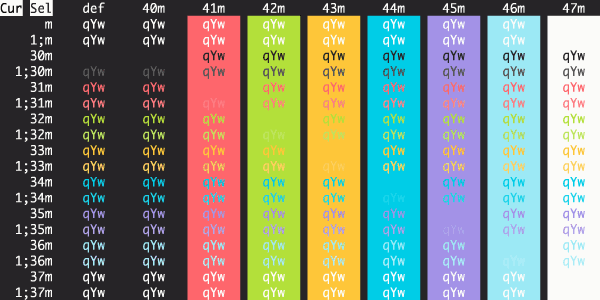
12-bit Rainbow
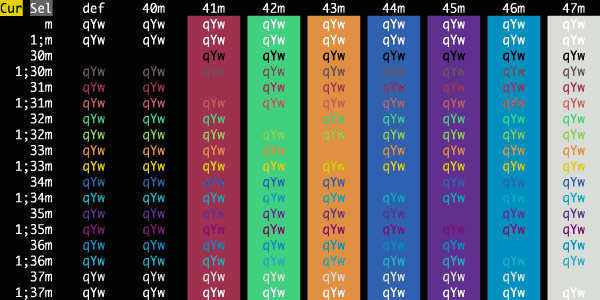
13th Floor
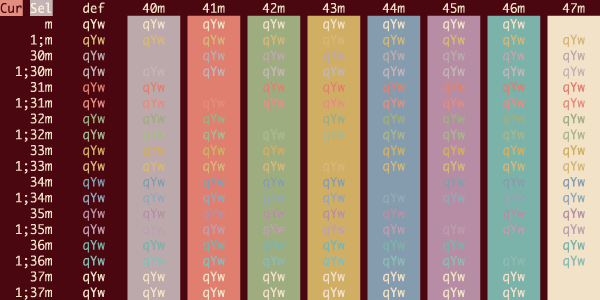
3024 Night
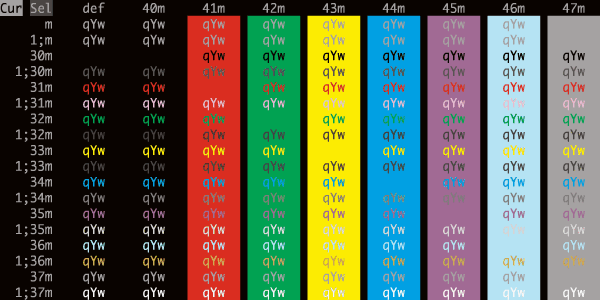
5150 Mode
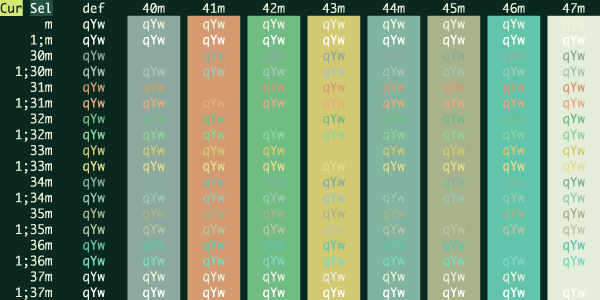
Aardvark Blue
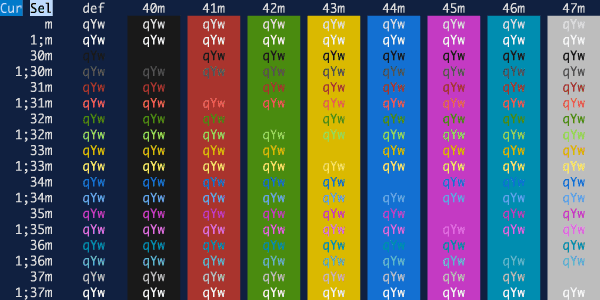
Aardvark Ink
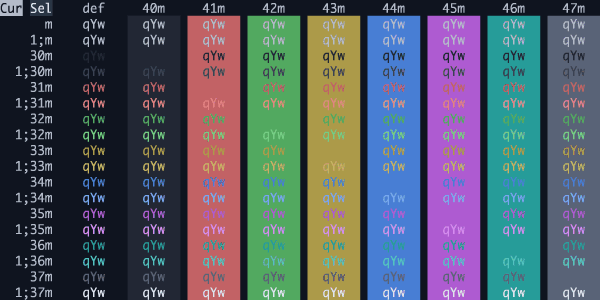
Abandoned
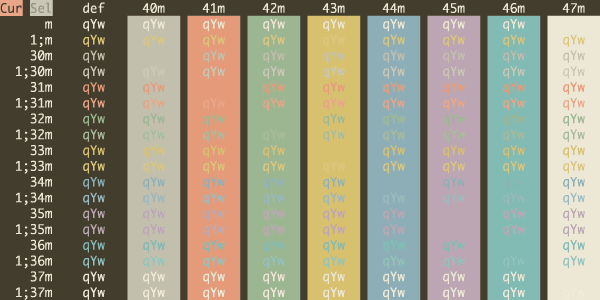
Abernathy
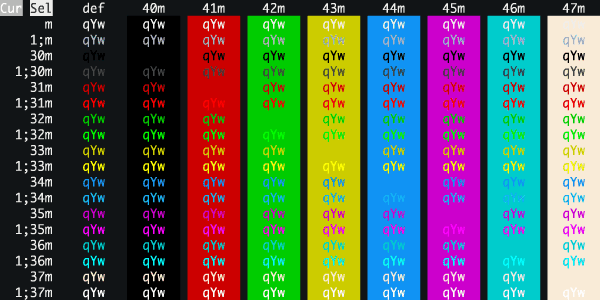
Acid Lime
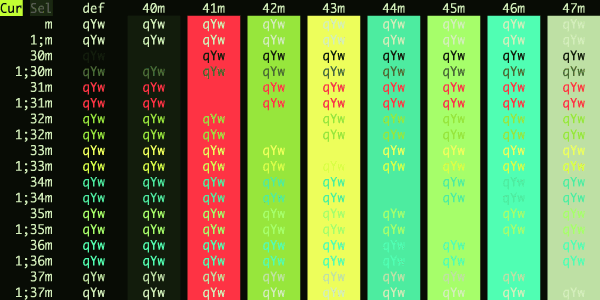
Adobe Moon
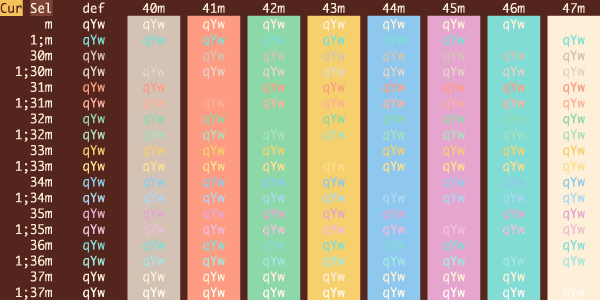
Adventure Time
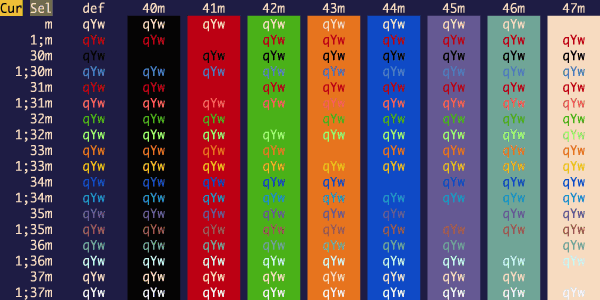
Adventure
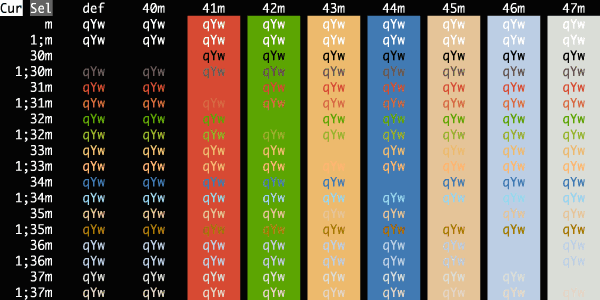
Adwaita Dark
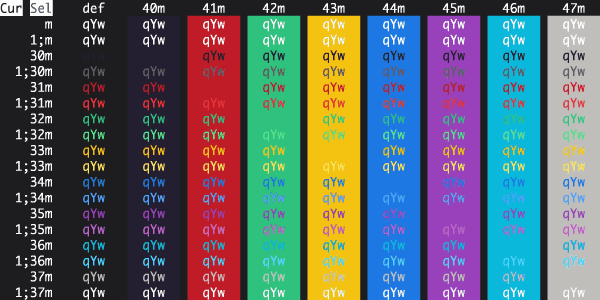
After Hours
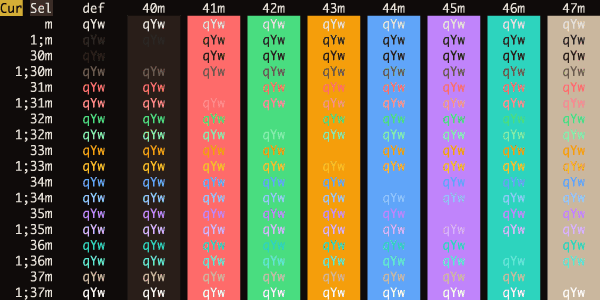
Afterglow
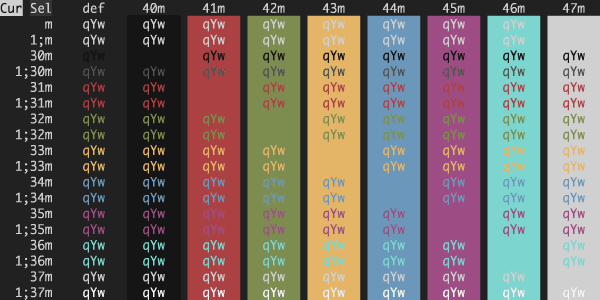
Agave Dusk
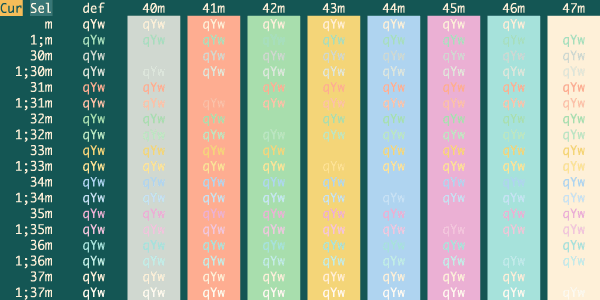
Aizen Dark
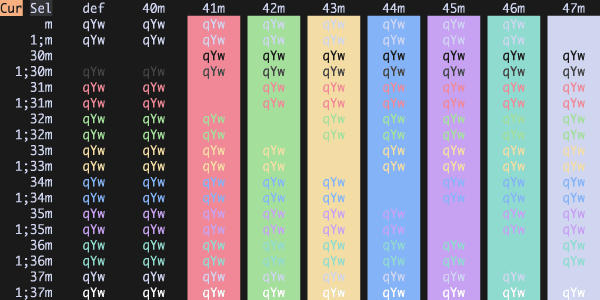
Alien Blood
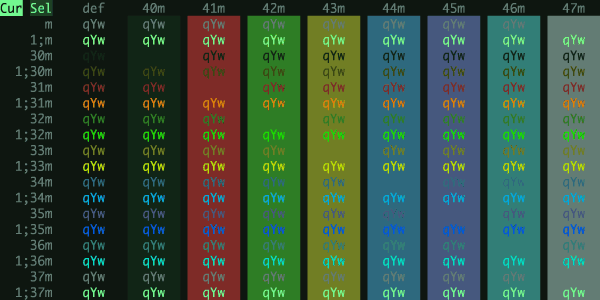
Amber CRT Retro
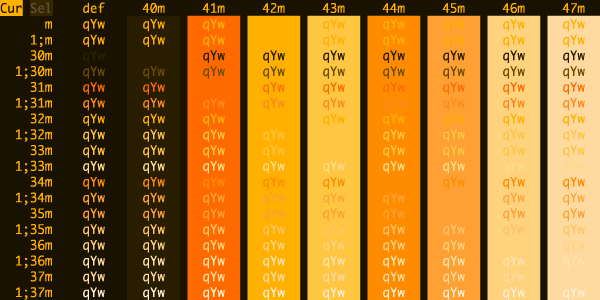
Analyzed Dark
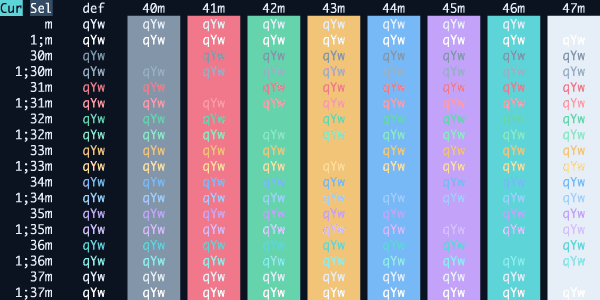
Andromeda
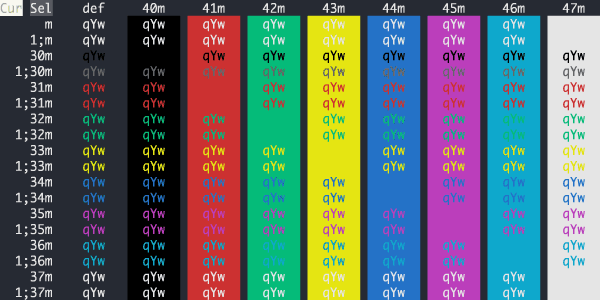
Apple Classic
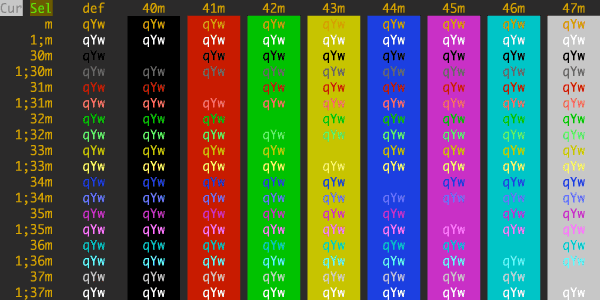
Apple System Colors
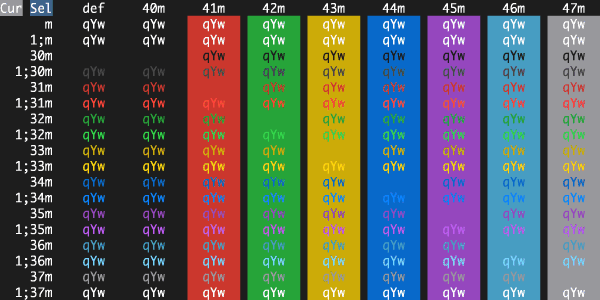
Arcoiris
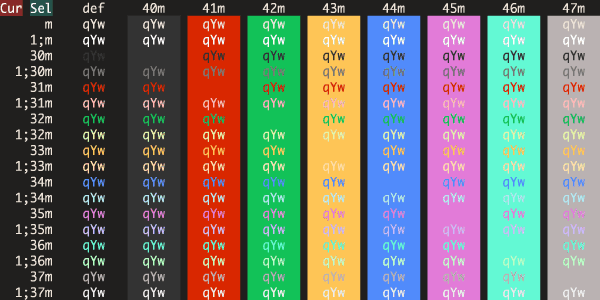
Ardoise
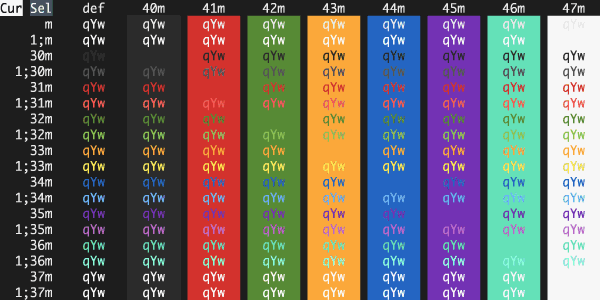
Argonaut
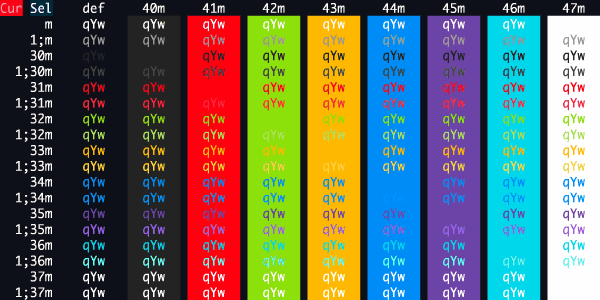
Arizona Monsoon
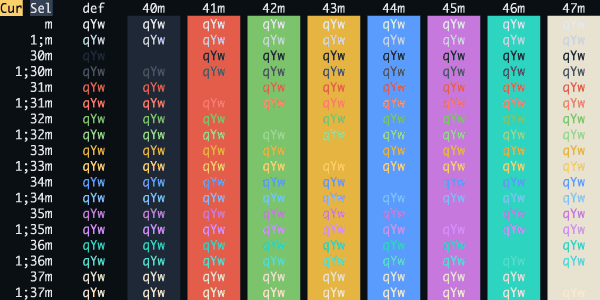
Arthur
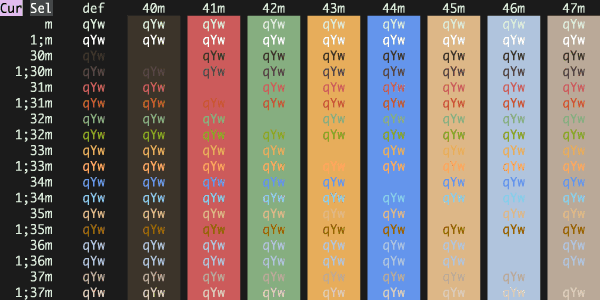
Atelier Sulphurpool
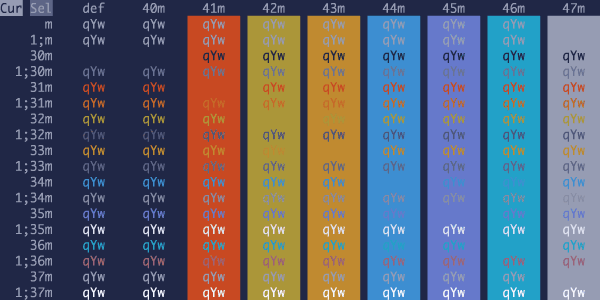
Atlas Ragnarok
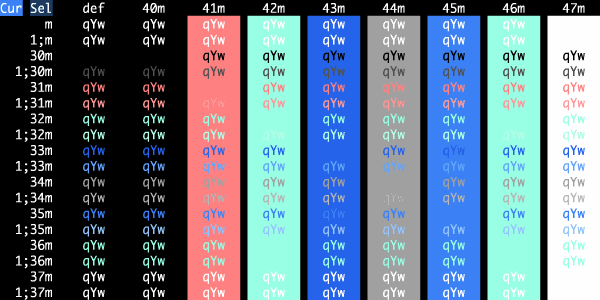
Atom One Dark
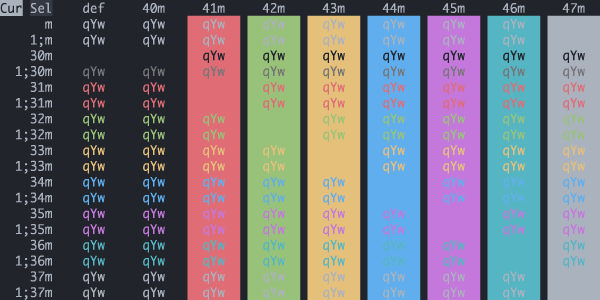
Atom
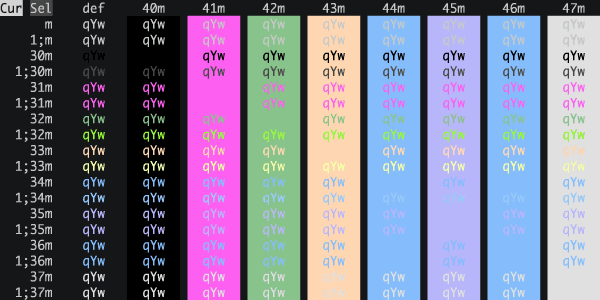
Aura Dark
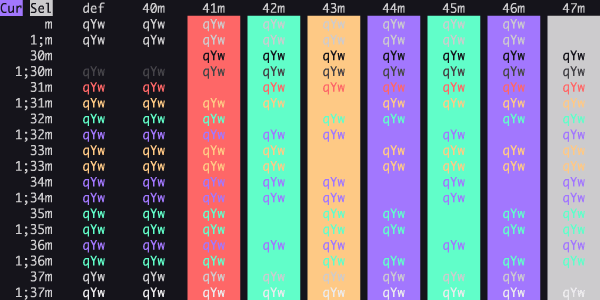
Aura
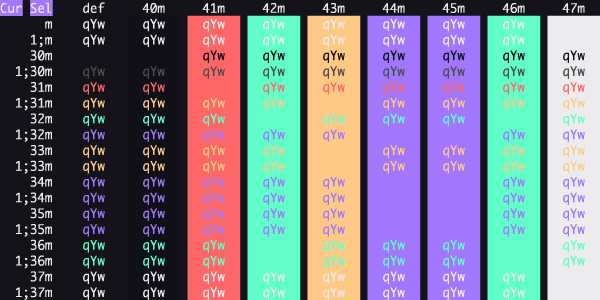
Aurora Drift
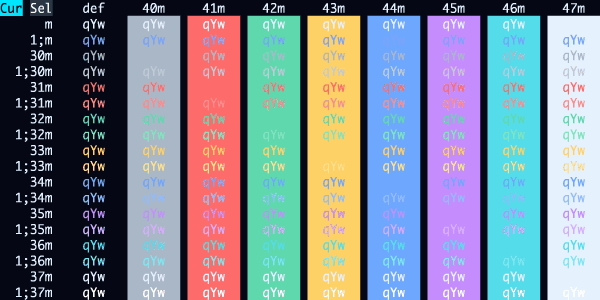
Aurora
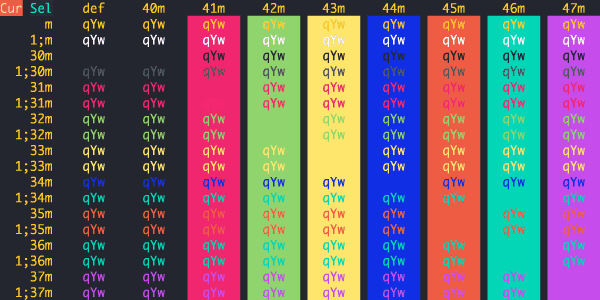
Autumn After Dark
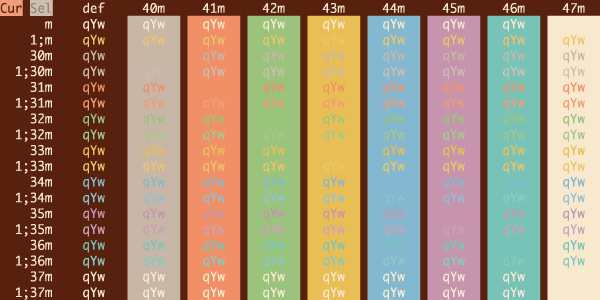
Ayu Mirage
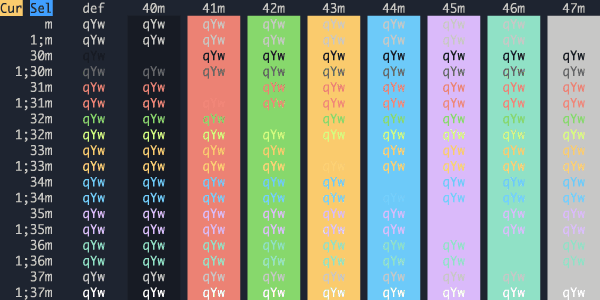
Ayu
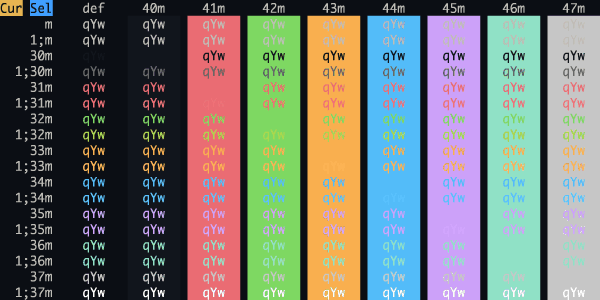
Aztec Sunset
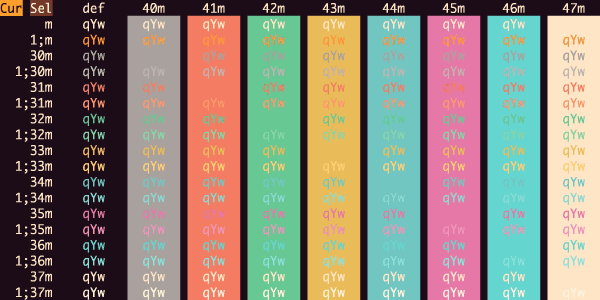
Banana Blueberry
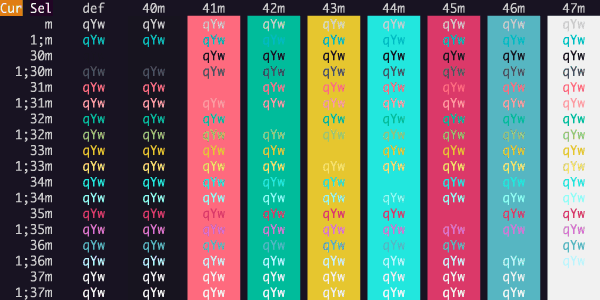
Barrel Cactus
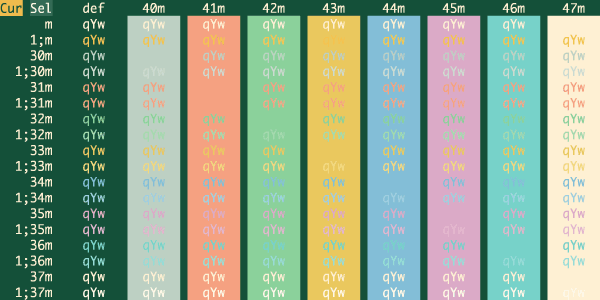
base16-icy
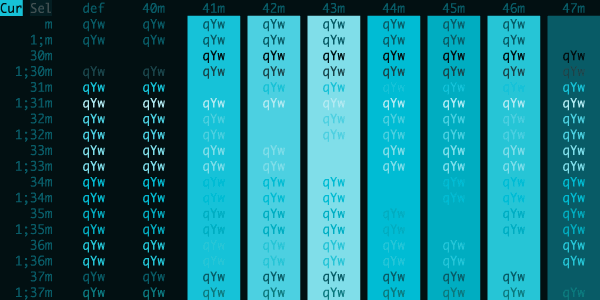
Batman
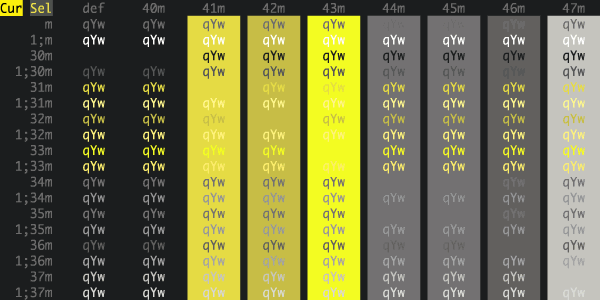
Belafonte Night
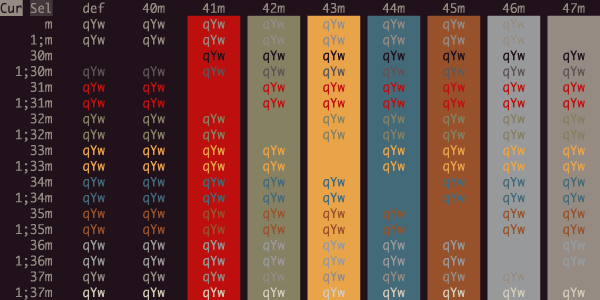
Belfry
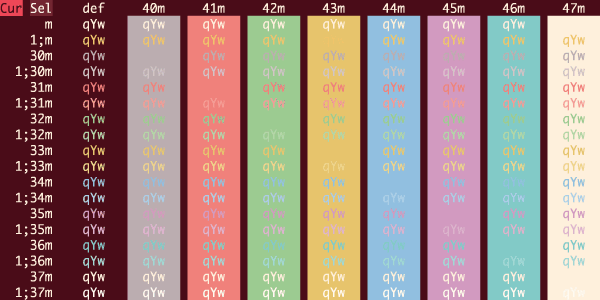
Birds Of Paradise
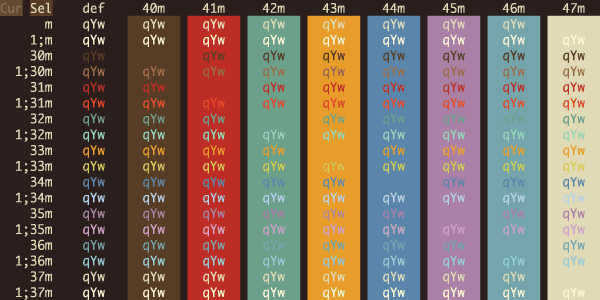
Black Box Recorder
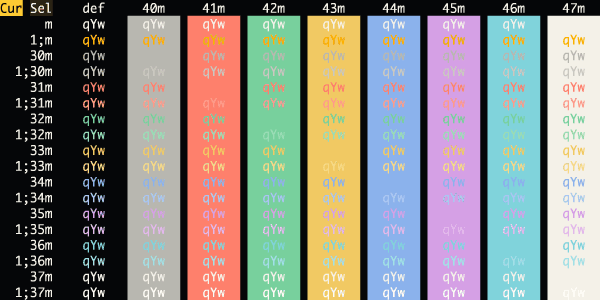
Black Cat
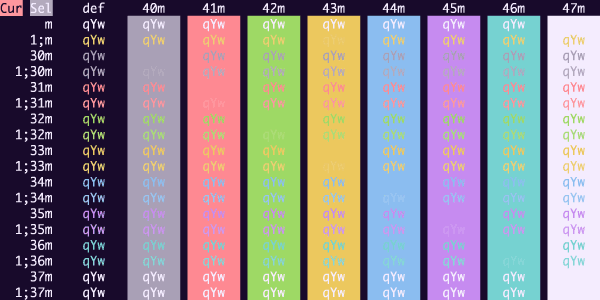
Black Metal (Bathory)
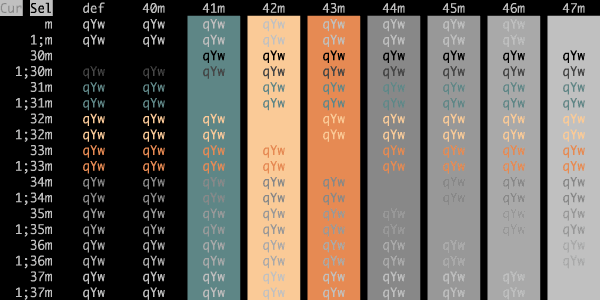
Black Metal (Burzum)
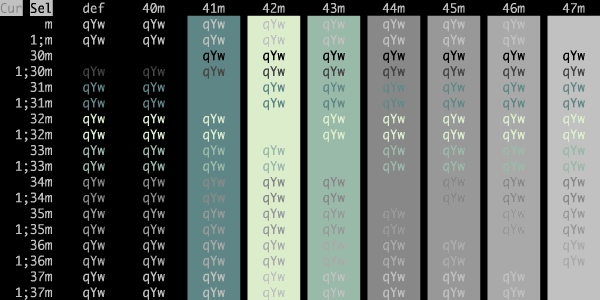
Black Metal (Dark Funeral)
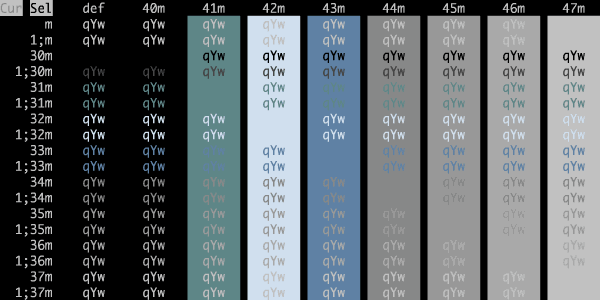
Black Metal (Gorgoroth)
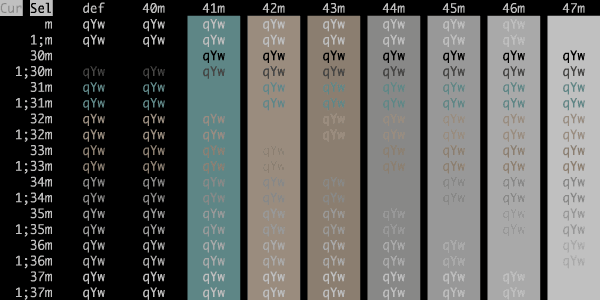
Black Metal (Immortal)
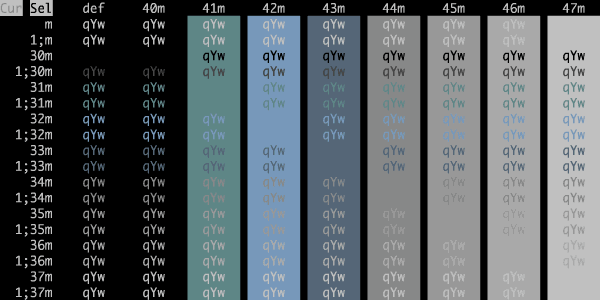
Black Metal (Khold)
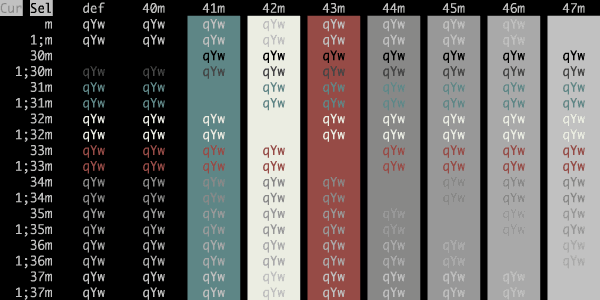
Black Metal (Marduk)
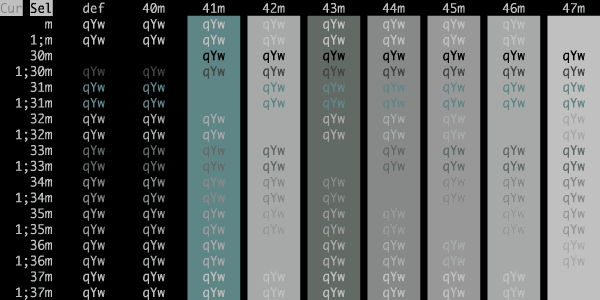
Black Metal (Mayhem)
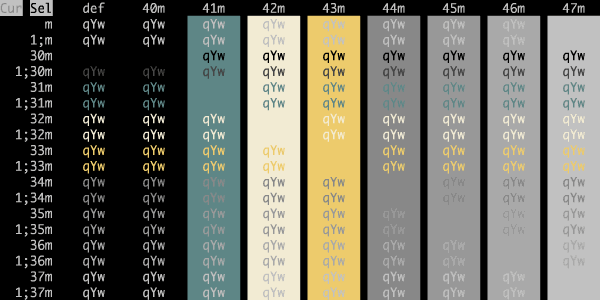
Black Metal (Nile)
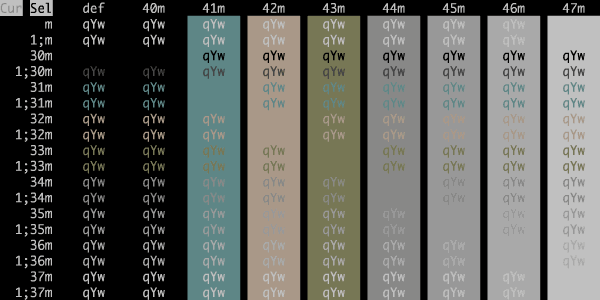
Black Metal (Venom)
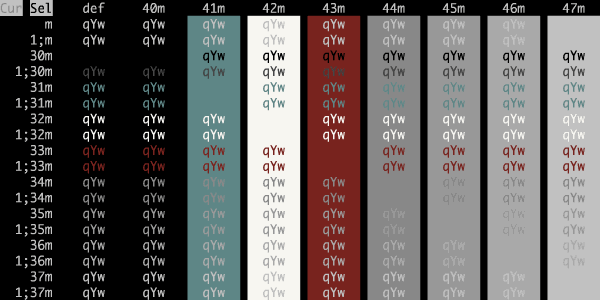
Black Metal
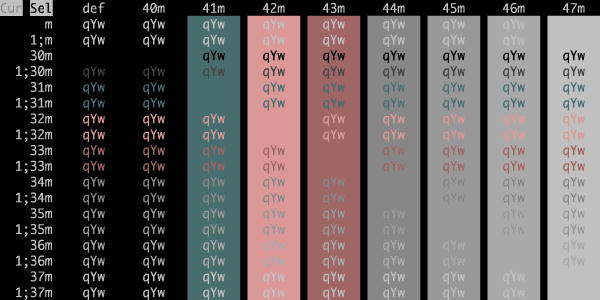
Blazer
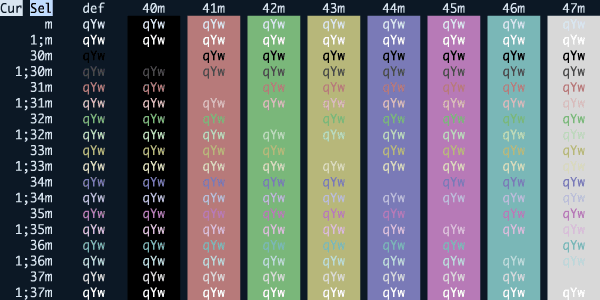
Blood Moon
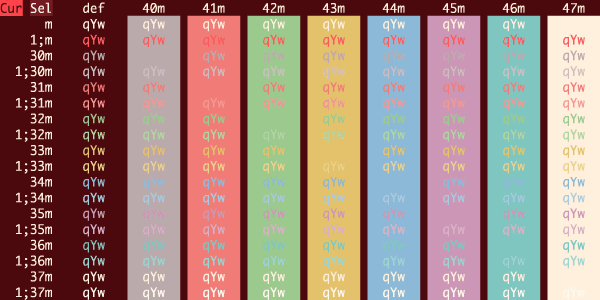
Blue Berry Pie
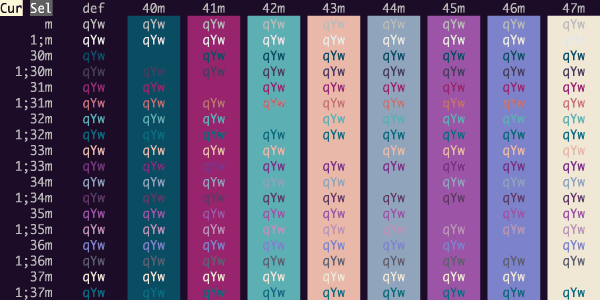
Blue Dolphin
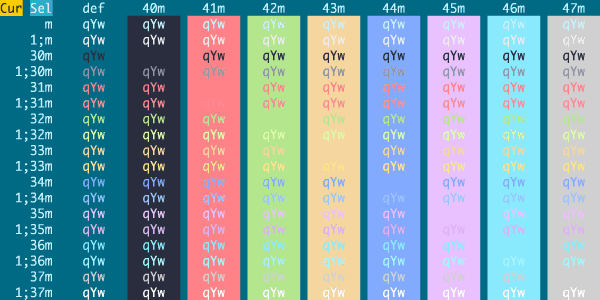
Blue Matrix
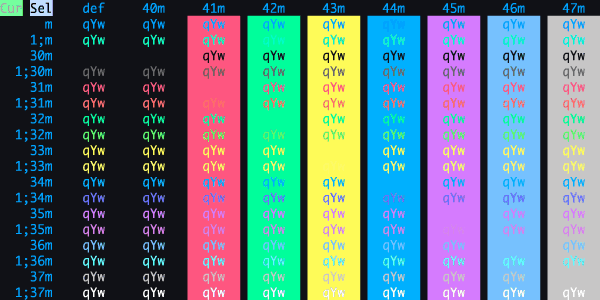
Bluloco Dark
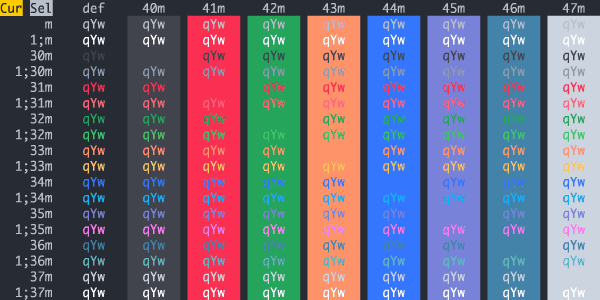
Borland
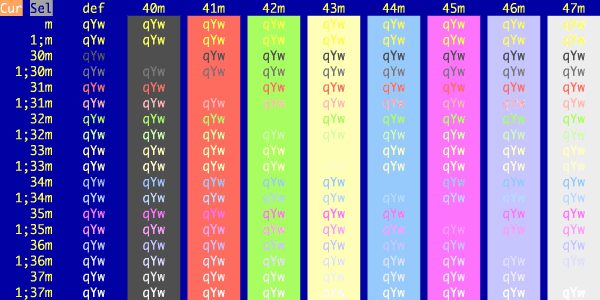
Box
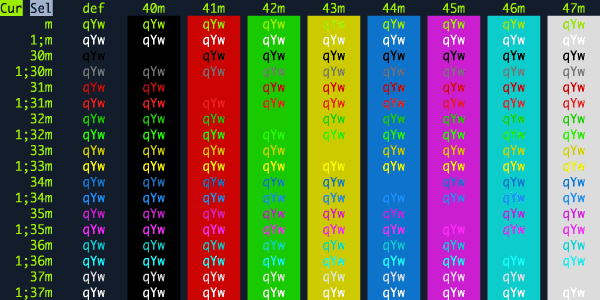
branch
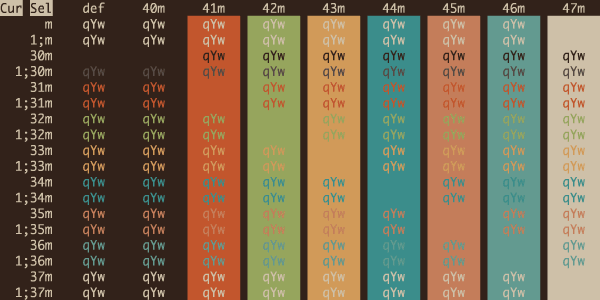
Breeze
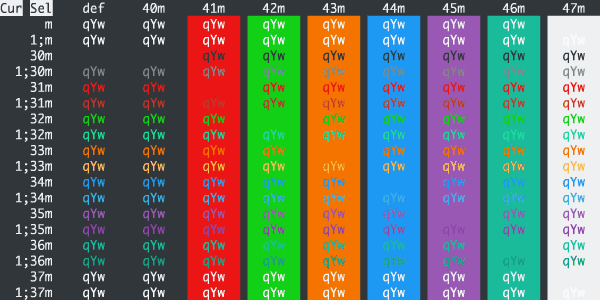
Bright Lights
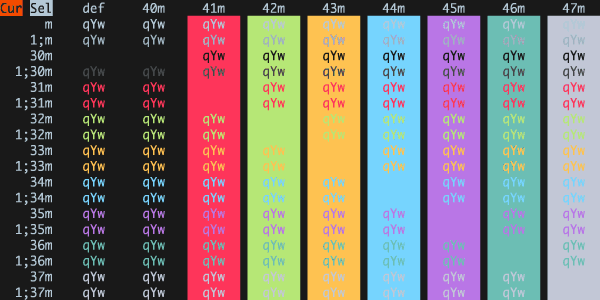
Broadcast
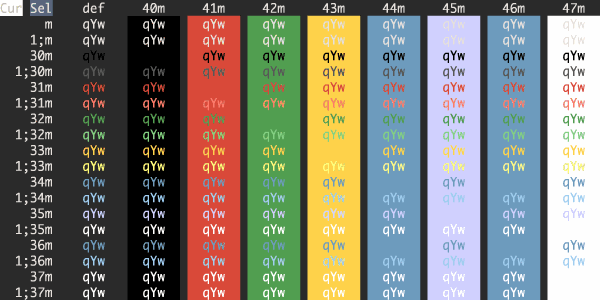
Brogrammer
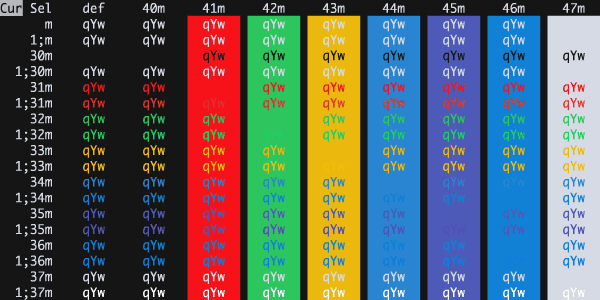
Builtin Dark
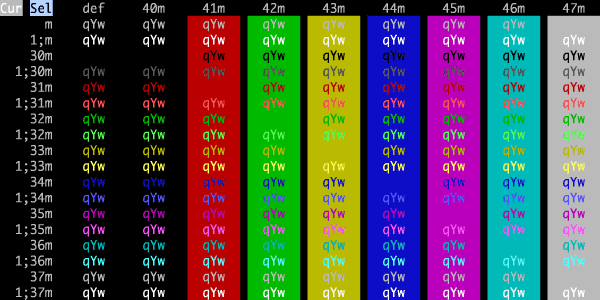
Builtin Pastel Dark
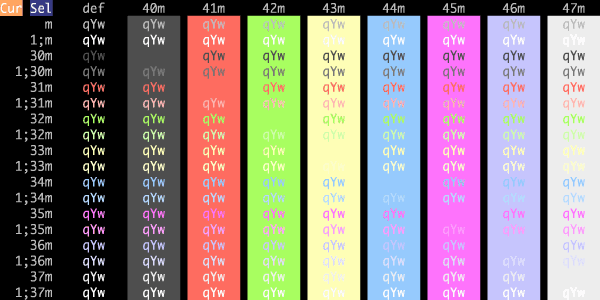
Builtin Tango Dark
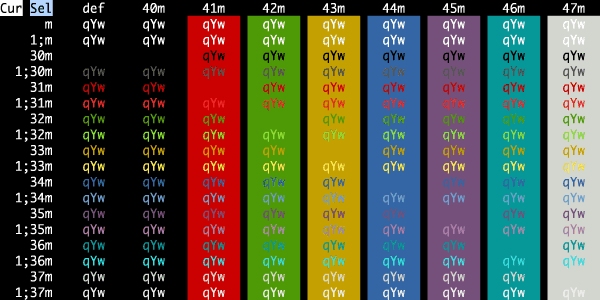
C64
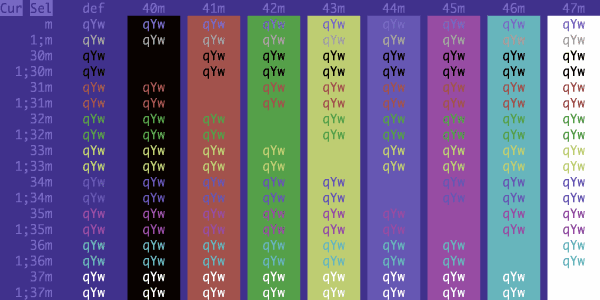
Calamity
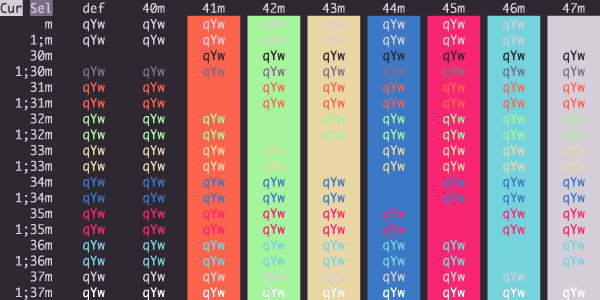
Caliche
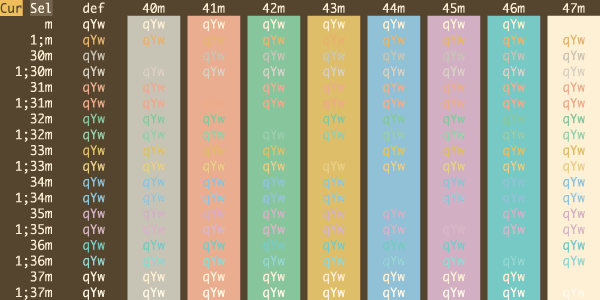
Callie
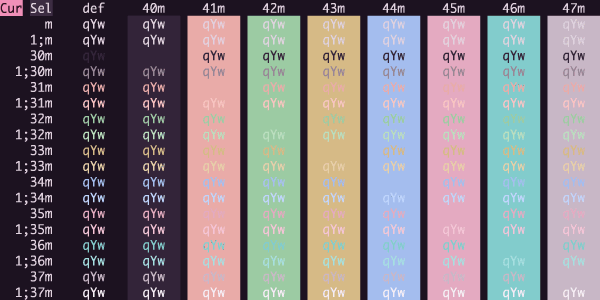
Candlelight
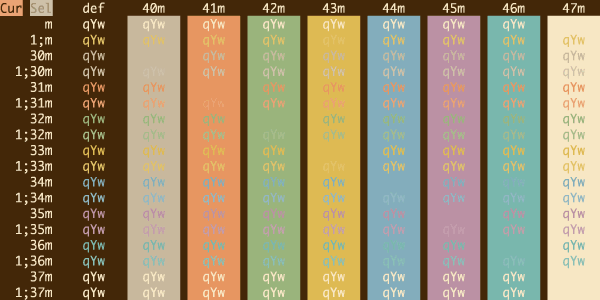
Canyon Shadow
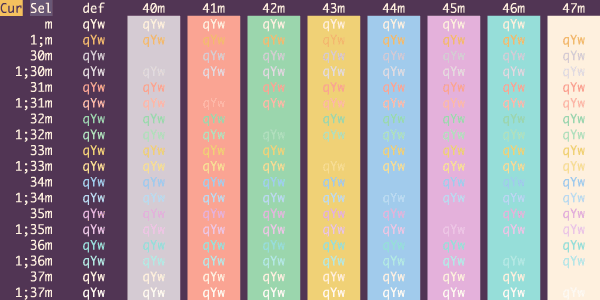
Canyon Walnut
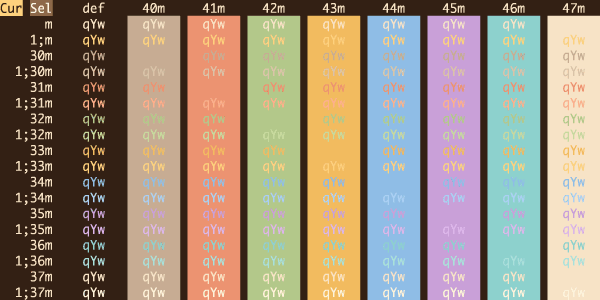
Carbonfox
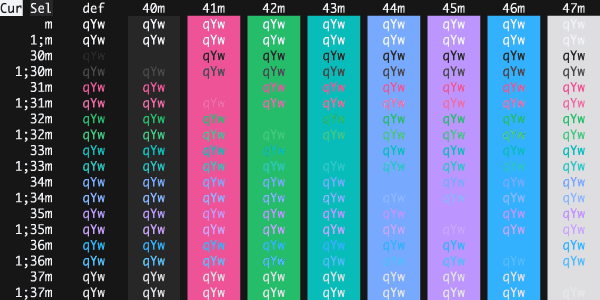
Catppuccin Frappe
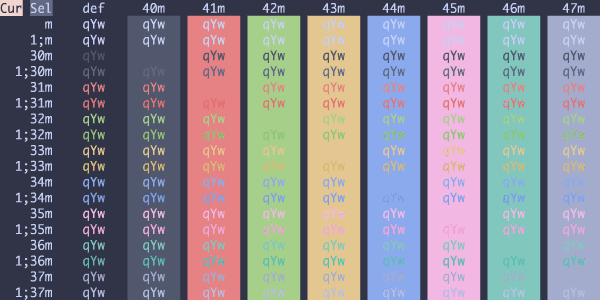
Catppuccin Macchiato
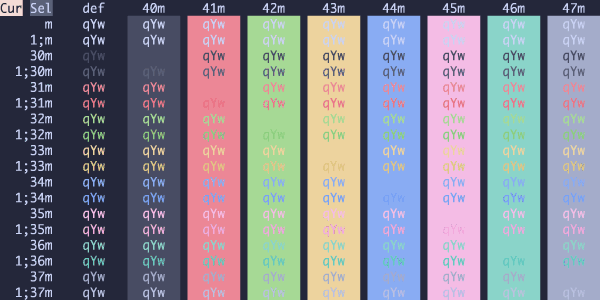
Catppuccin Mocha
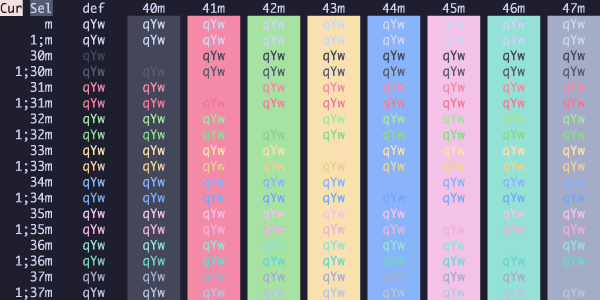
Catthode
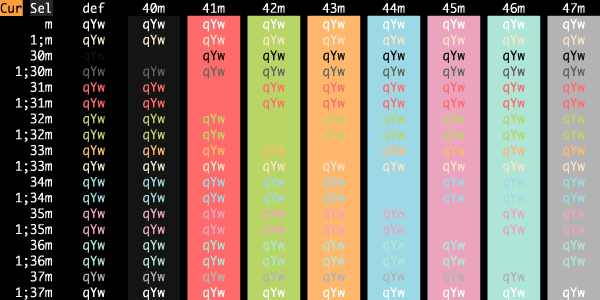
CGA
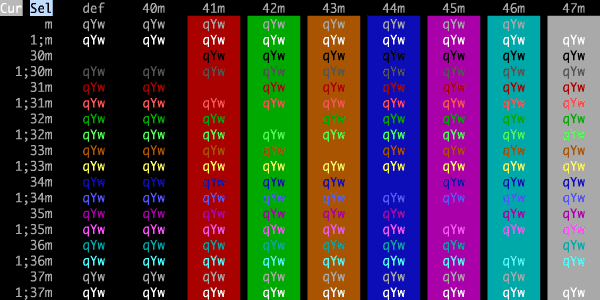
Chalk
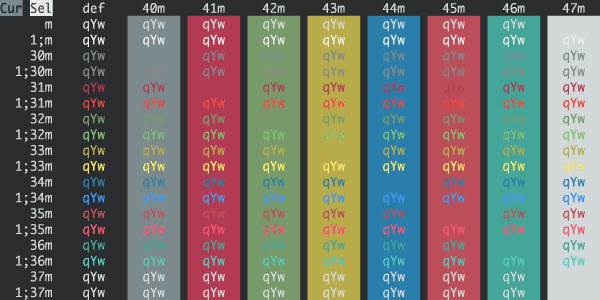
Chalkboard
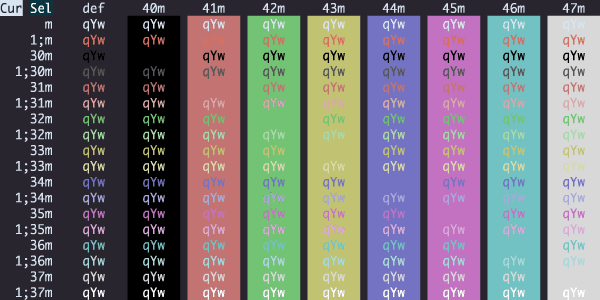
Challenger Deep
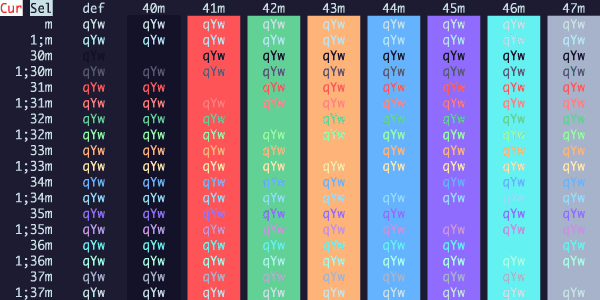
Charcoal
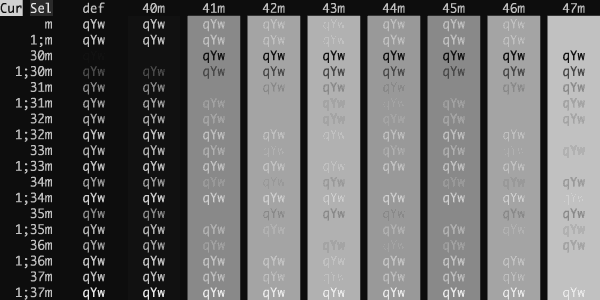
Chester
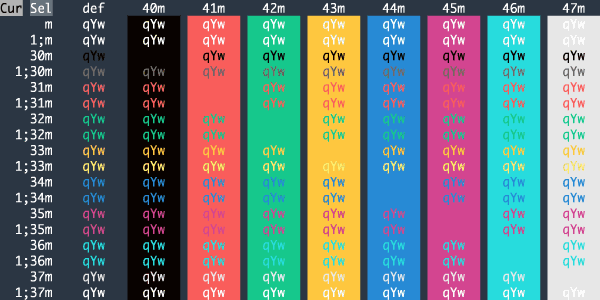
Cholla
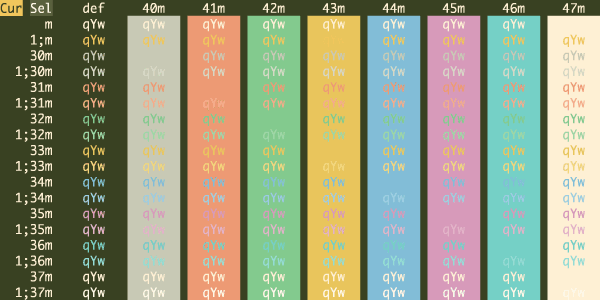
Ciapre
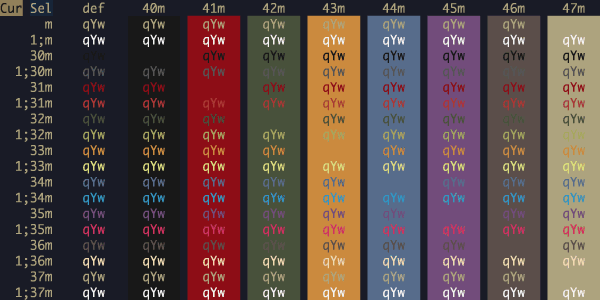
Citrus Ink
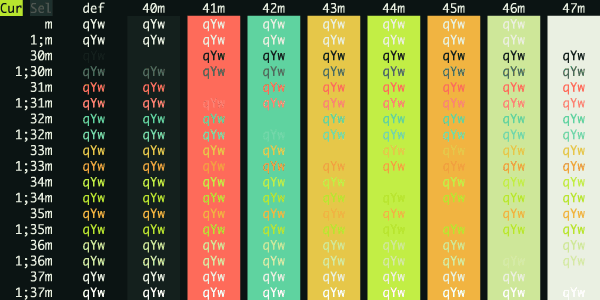
Citruszest
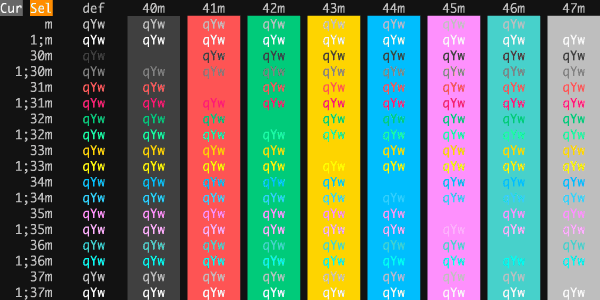
Claude Dark
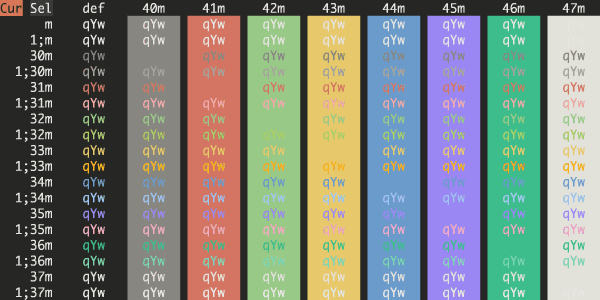
Clear Dark
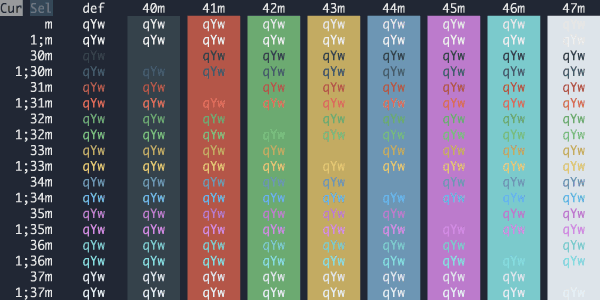
Clockwork Gold
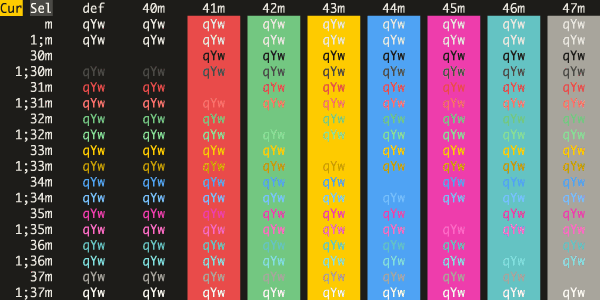
Clu
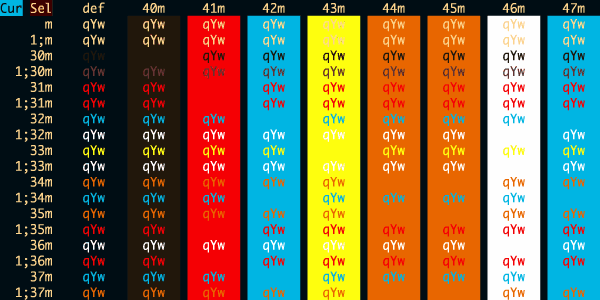
Cobalt Neon
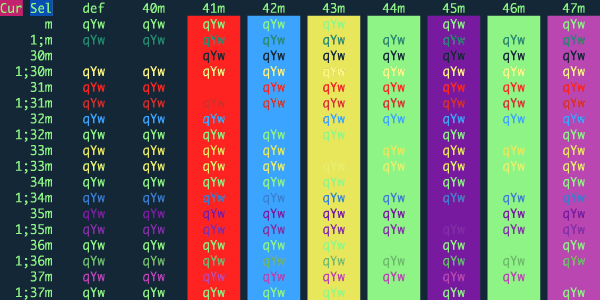
Cobalt Next Dark
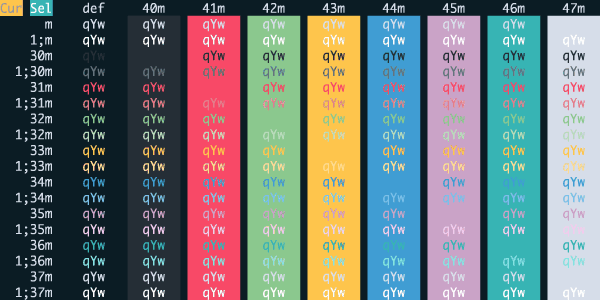
Cobalt Next Minimal
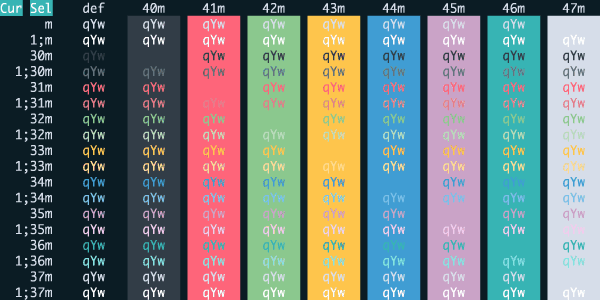
Cobalt Next
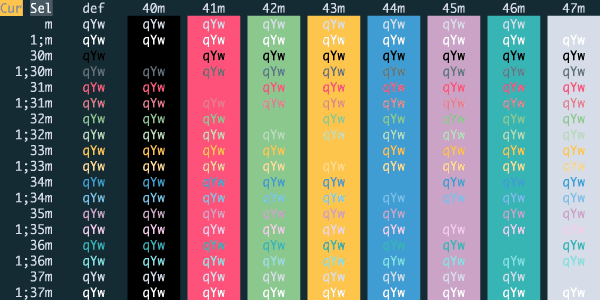
Cobalt2
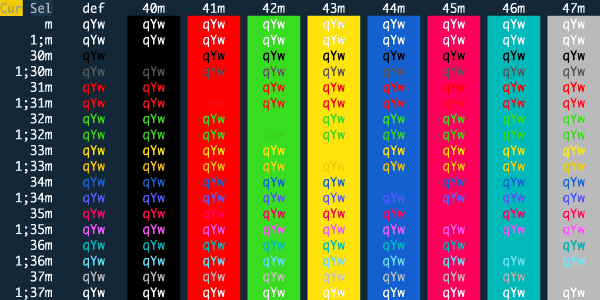
Cobweb
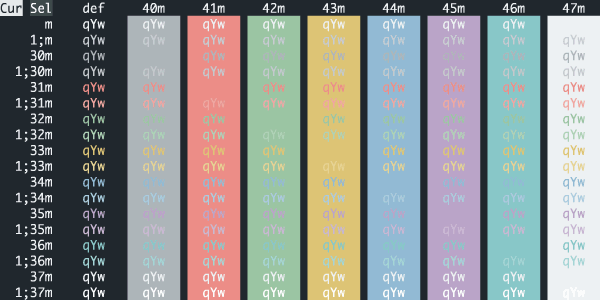
Cool Night
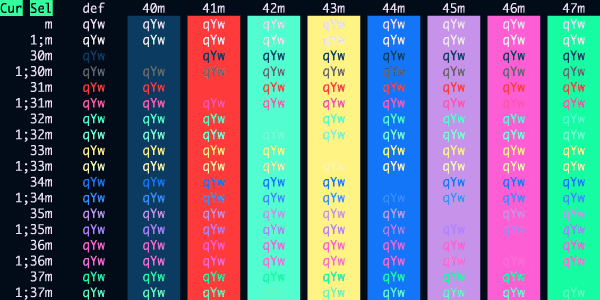
Copper Canyon
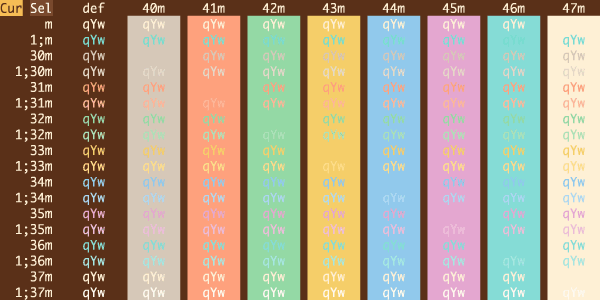
Count Terminal
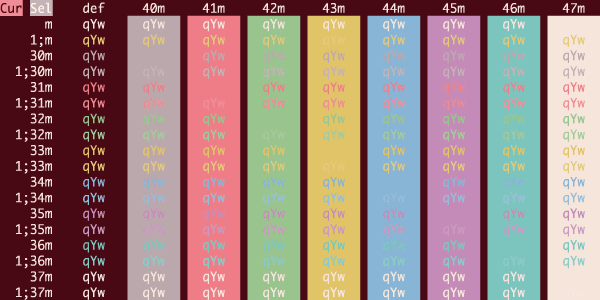
Crayon Pony Fish
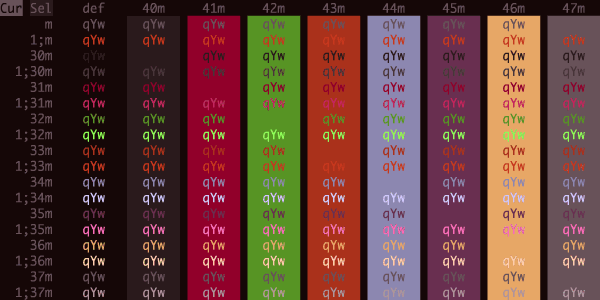
CRT Afterglow
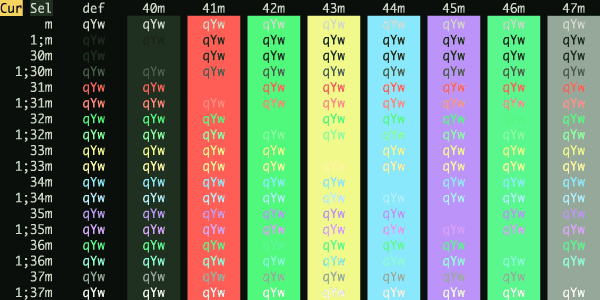
CRT Amber
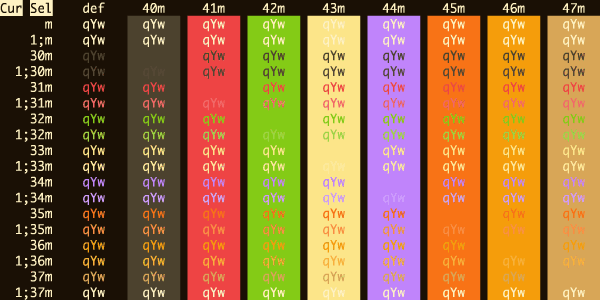
Crypt Keeper
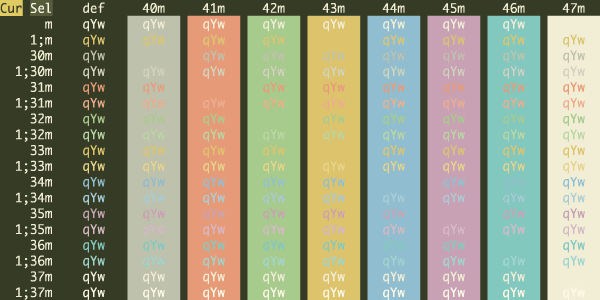
Crystal Ball
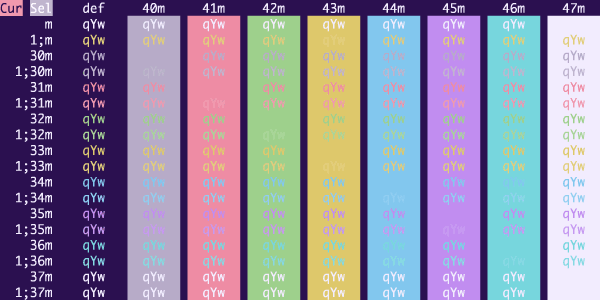
Cursed VHS
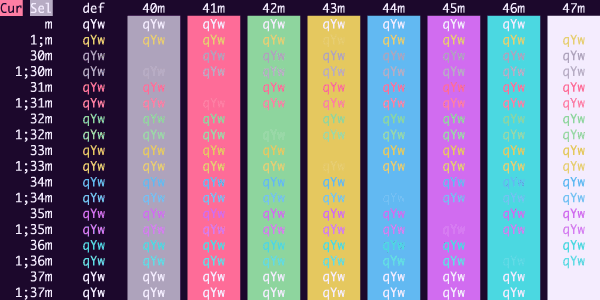
Cursor Dark
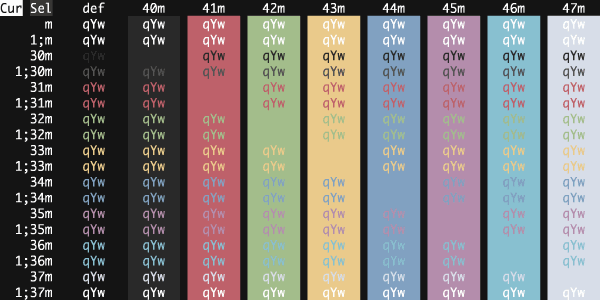
Cutie Pro
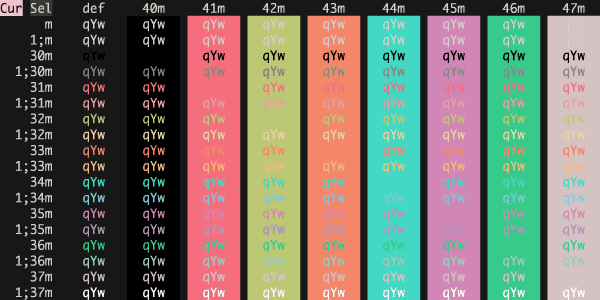
Cyberdyne
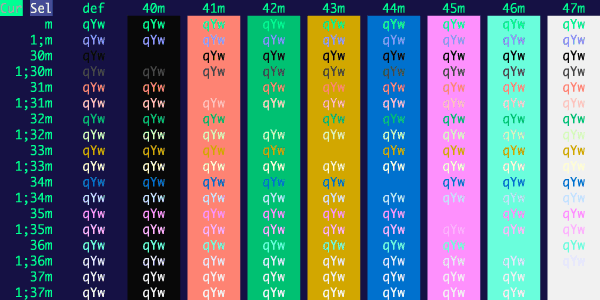
Cyberpunk Scarlet Protocol
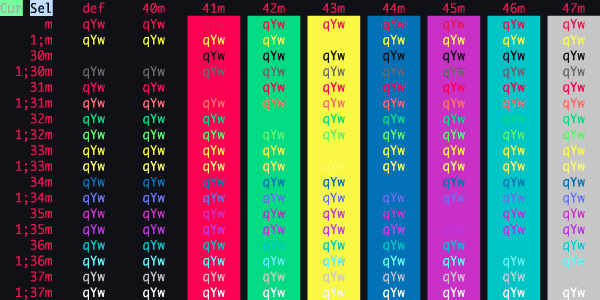
cyberpunk-icy
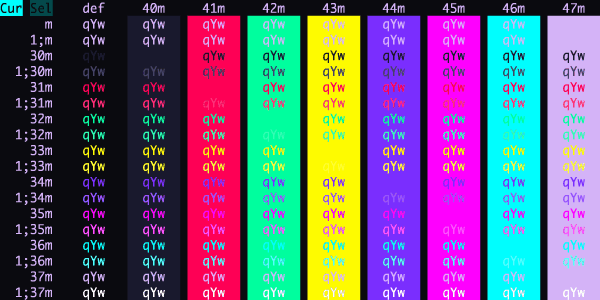
Cyberpunk
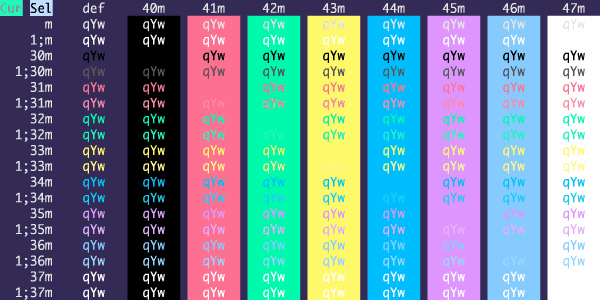
Dalton Dark
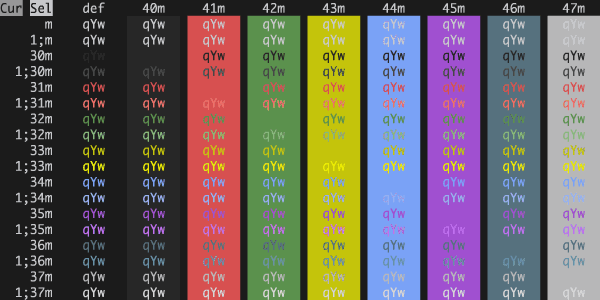
Dark 2026
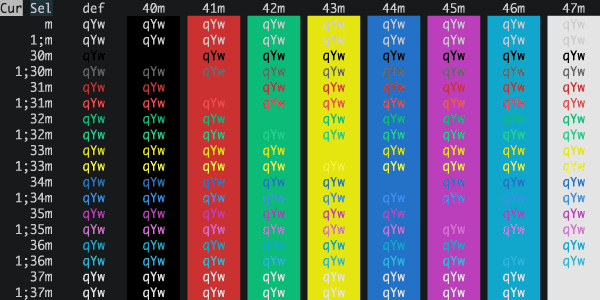
Dark Modern
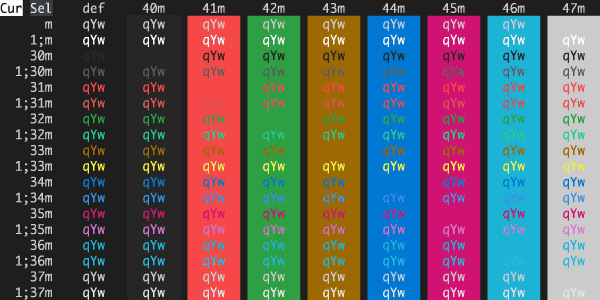
Dark Pastel
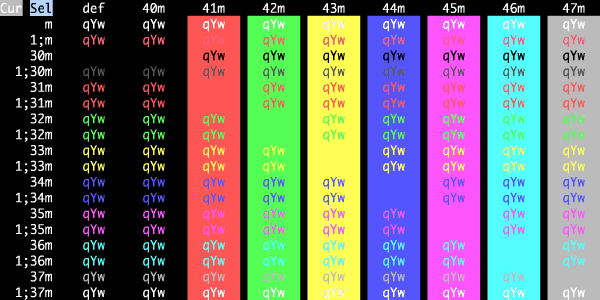
Dark+
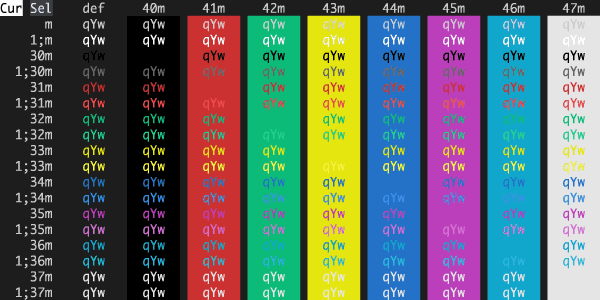
Darkermatrix
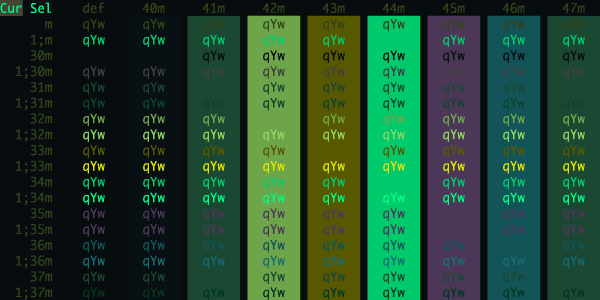
Darkmatrix
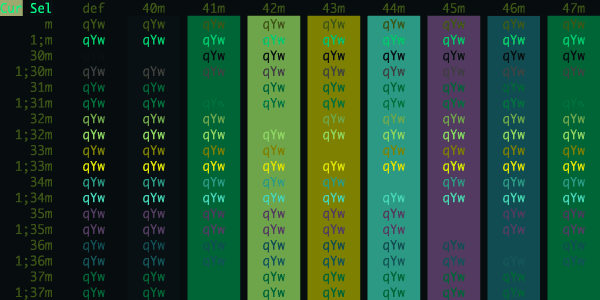
Darkside
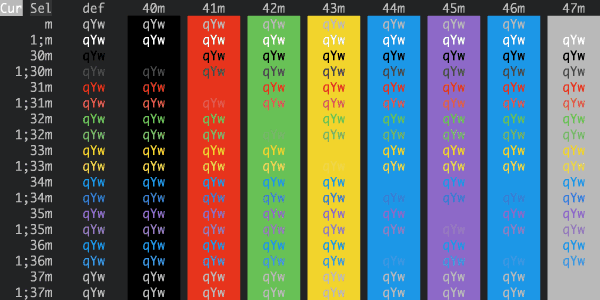
datum (dark)
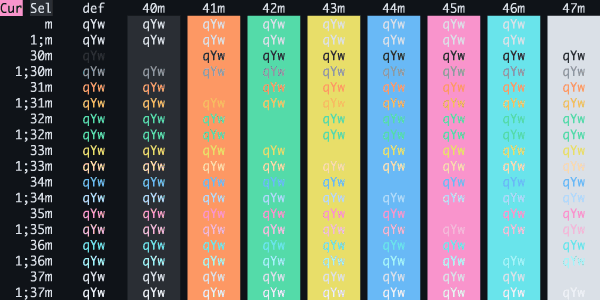
Dead Letter Office
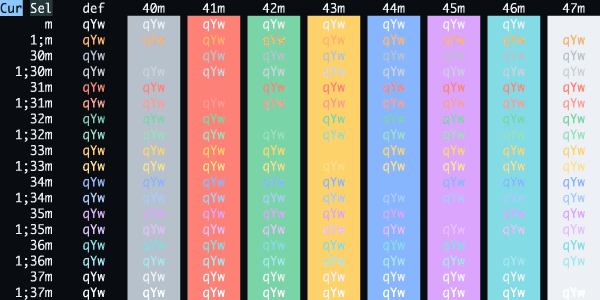
Deep Current
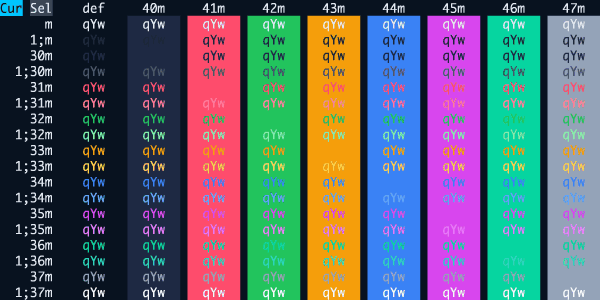
Deep
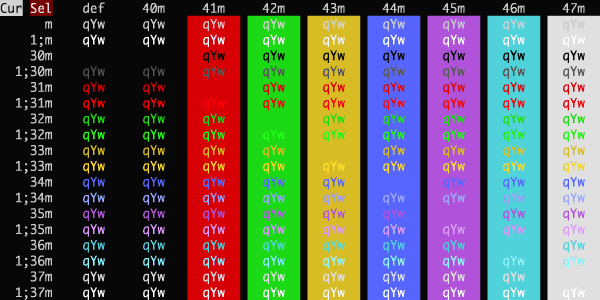
Desert Bloom
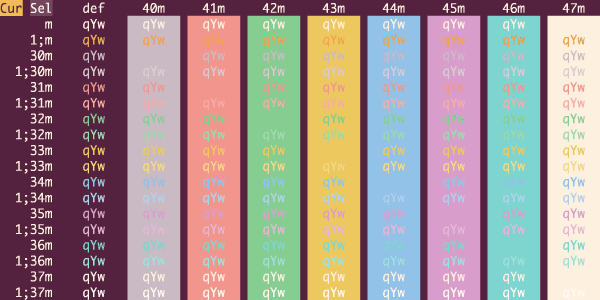
Desert Moon
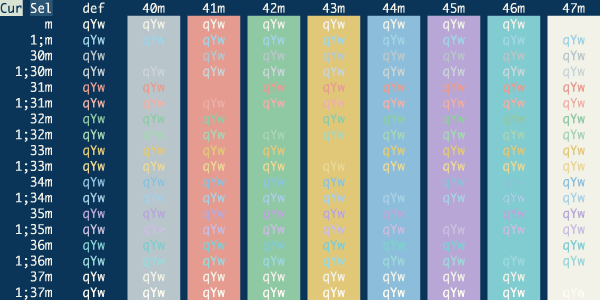
Desert Rose
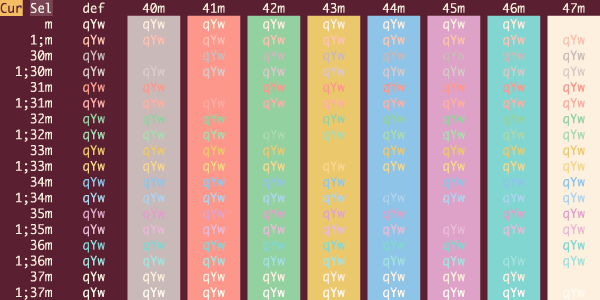
Desert Thunder
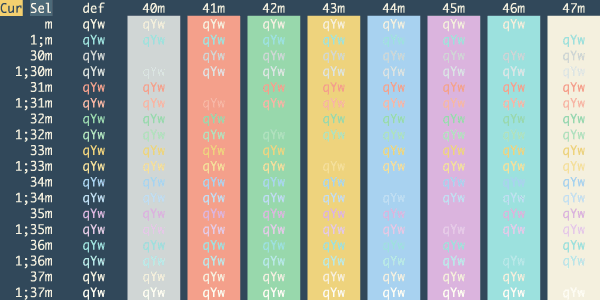
Desert
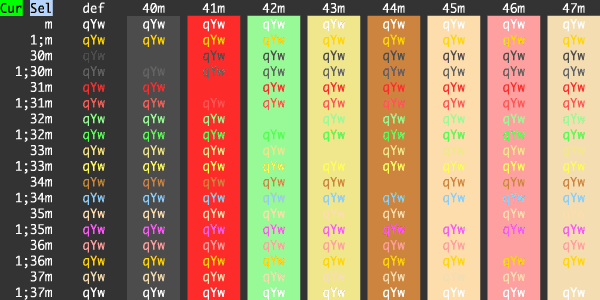
Detroit After Dark
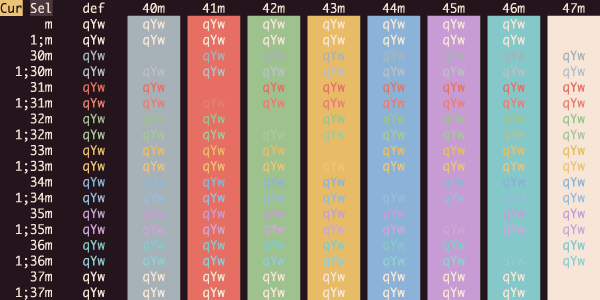
Detuned
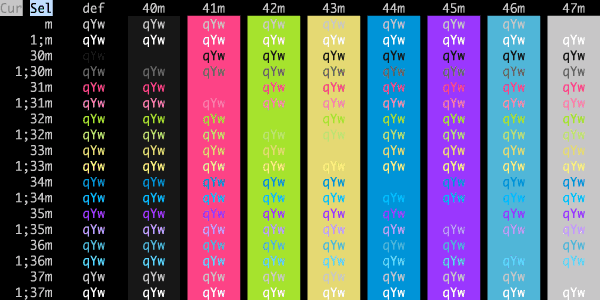
Diary of a Lunatic
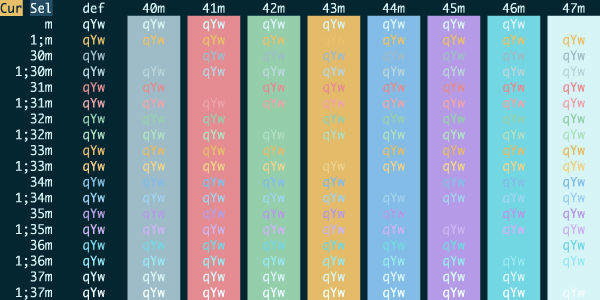
Dimidium
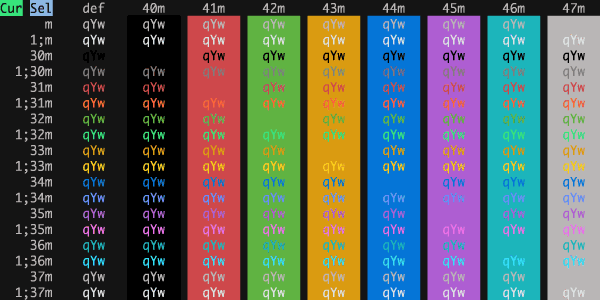
Dimmed Monokai
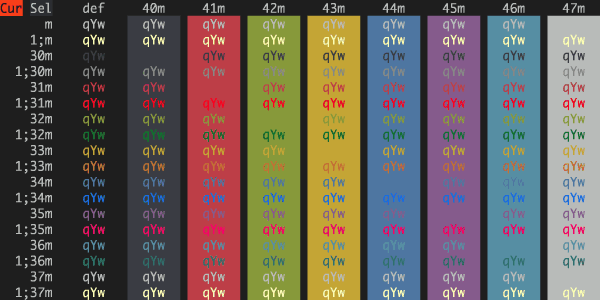
Django Reborn Again
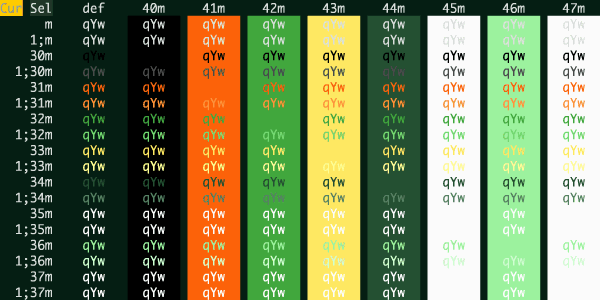
Django Smooth
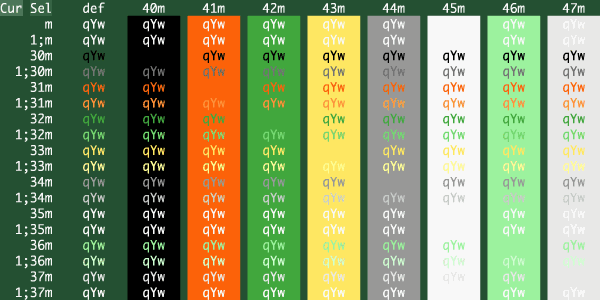
Django
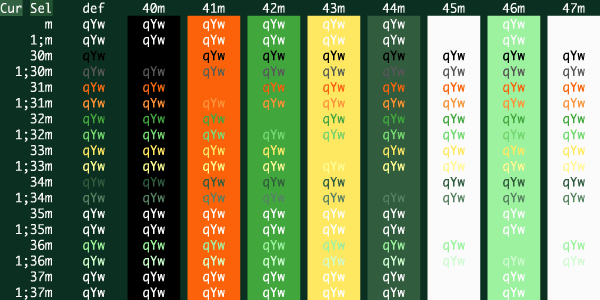
Dogxi Misty
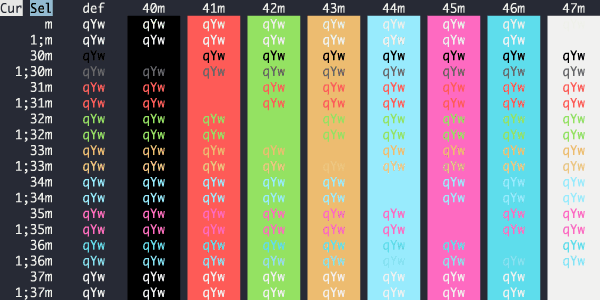
Doom One
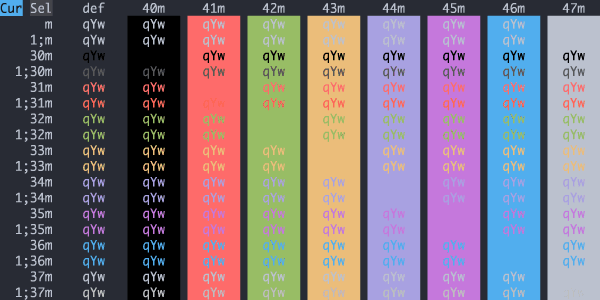
Doom Peacock
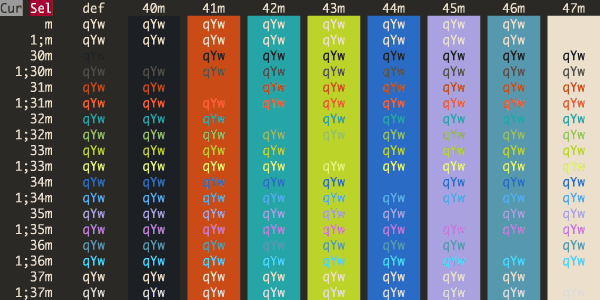
Dot Gov
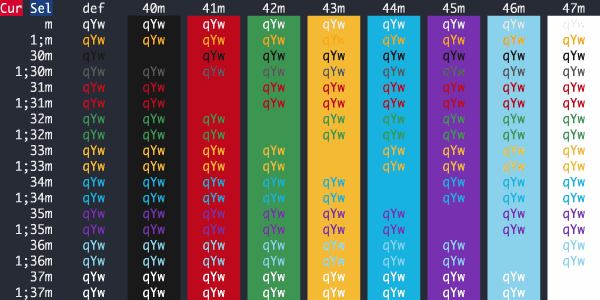
Dracula+ High Contrast
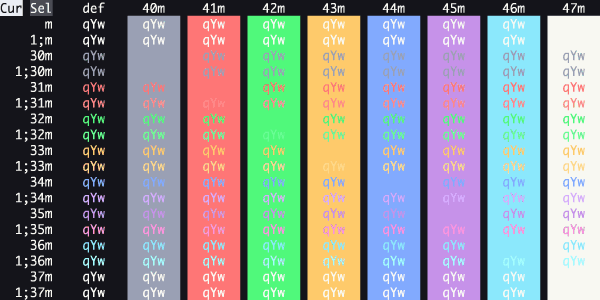
Dracula+
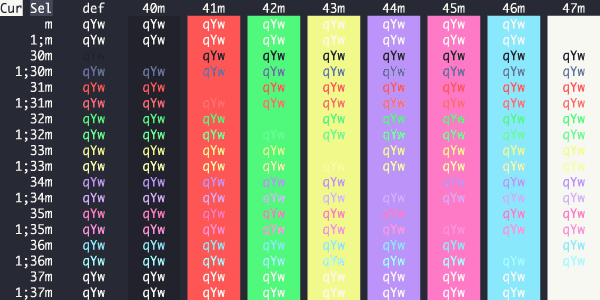
Dracula
Dream Onward
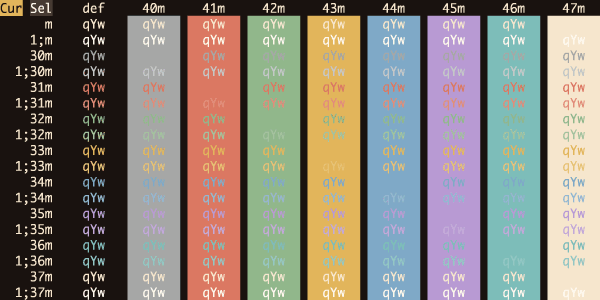
Driftwood
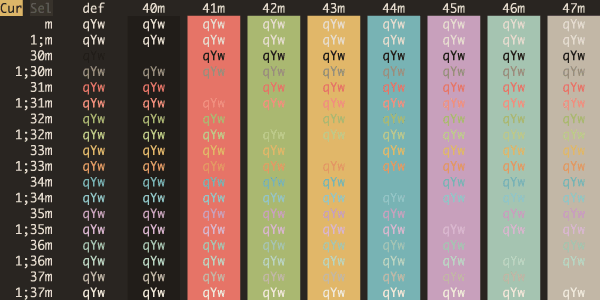
Duckbones
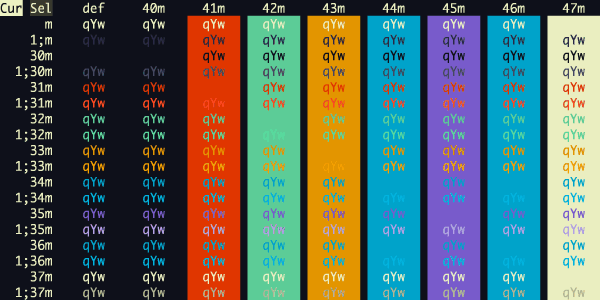
Duotone Dark
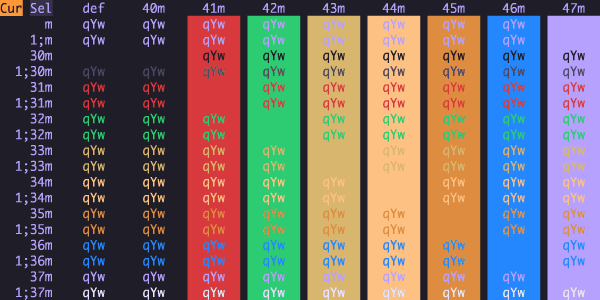
Duskfox
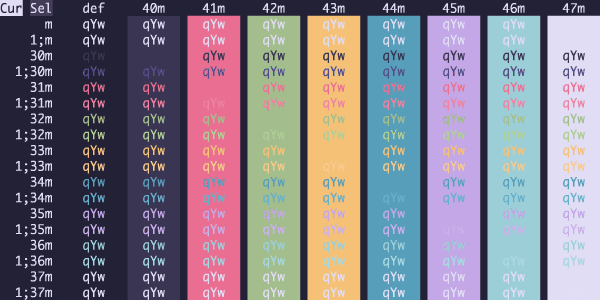
Earthsong
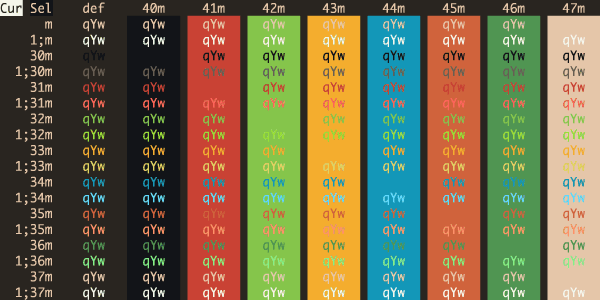
Eclipse
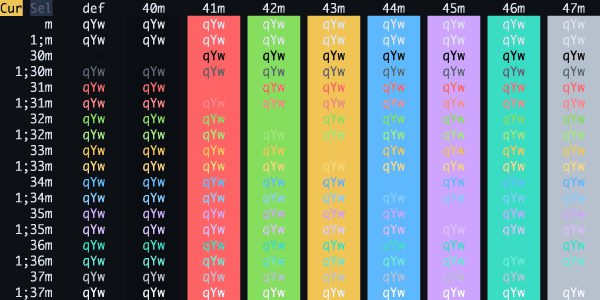
Ectoplasm
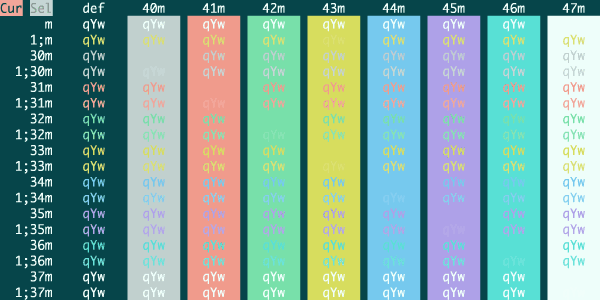
Eight Hundred
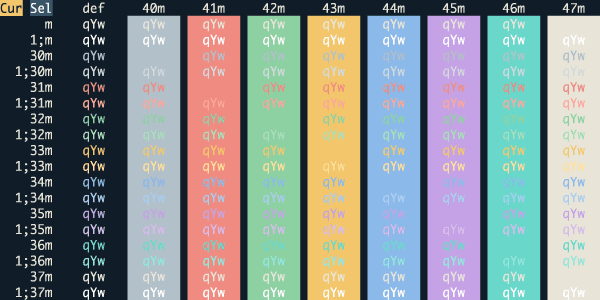
Electric Voodoo
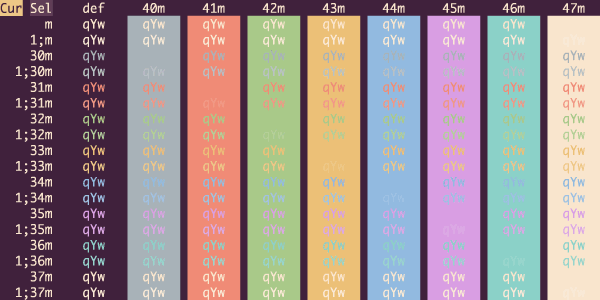
Electron Highlighter
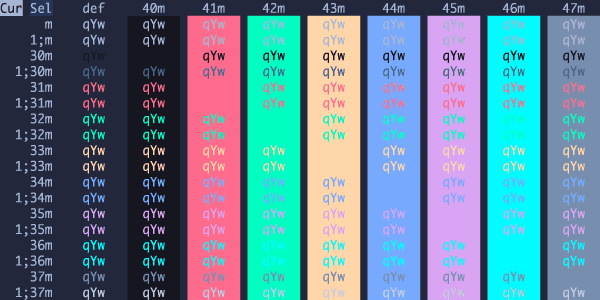
Elegant
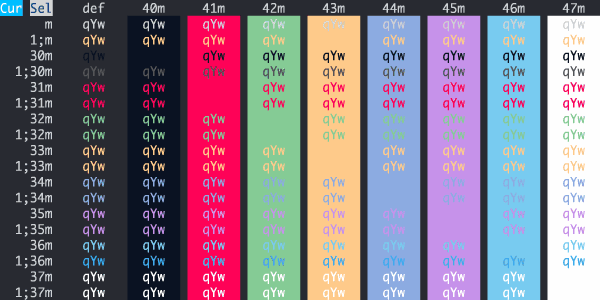
Elemental
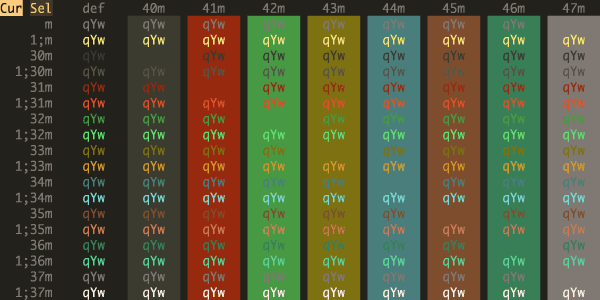
Elementary
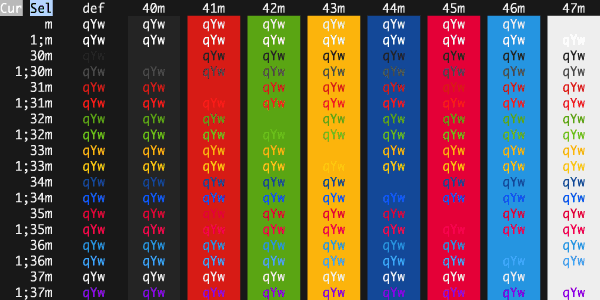
Embark
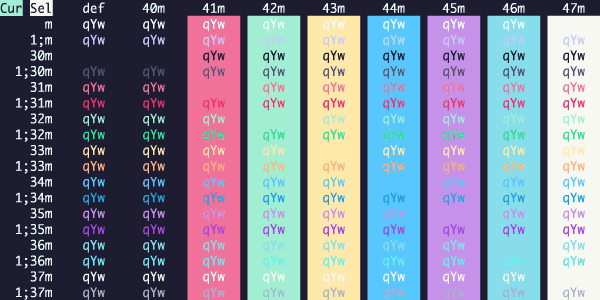
Ember Peak
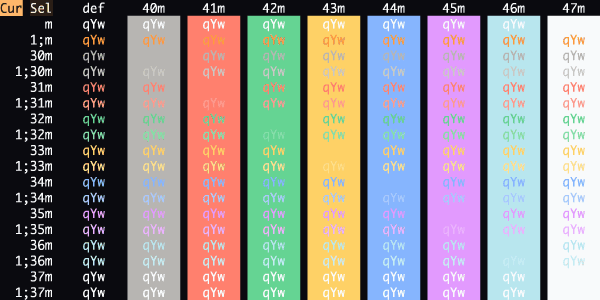
Ember
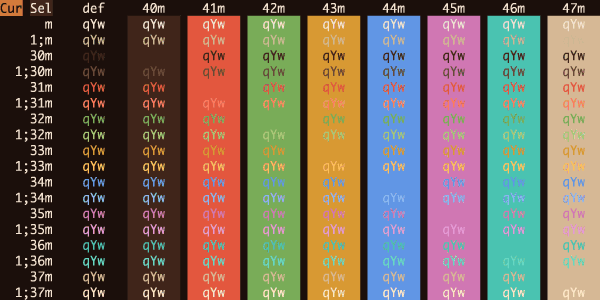
Emberglass
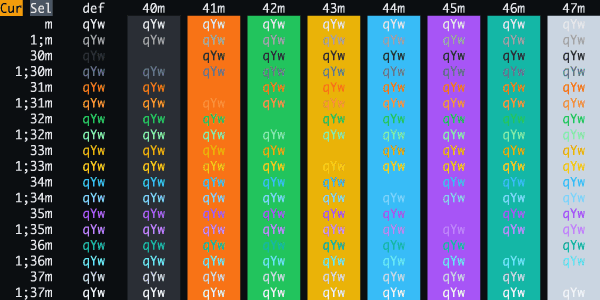
Embers Dark
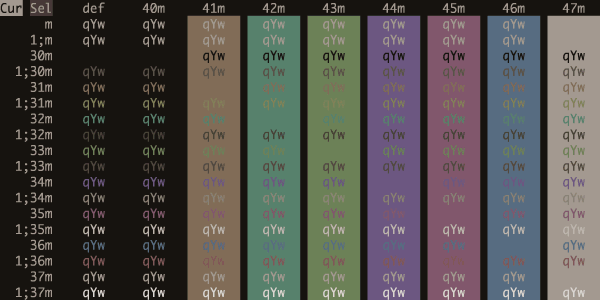
Emerald Synth
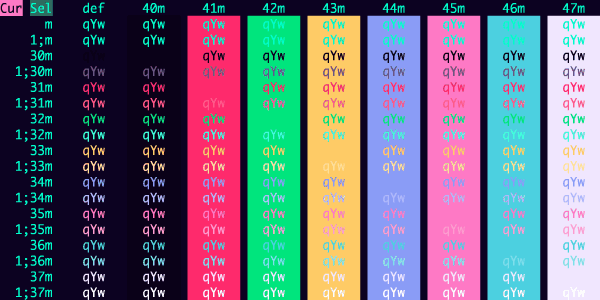
ENCOM
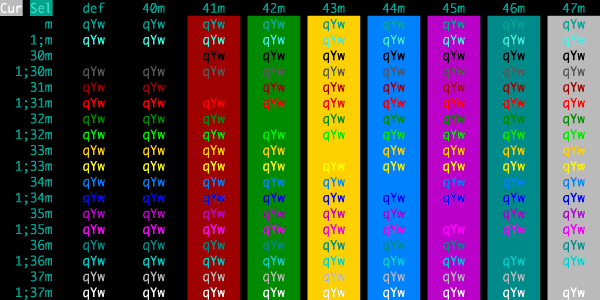
Espresso Libre
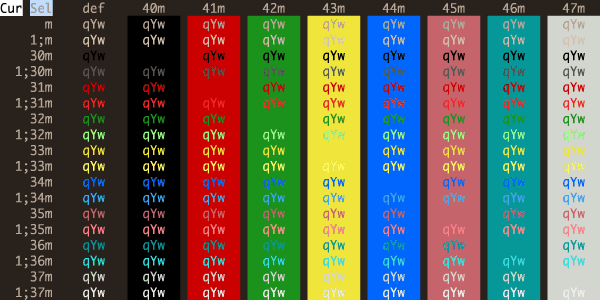
Espresso
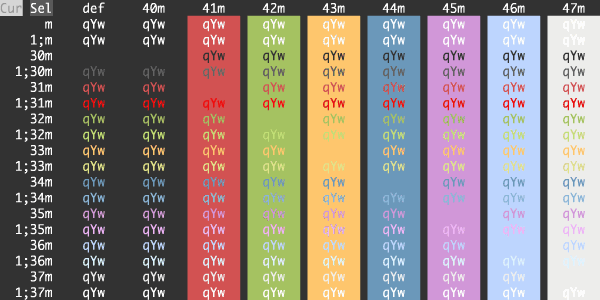
Eventide
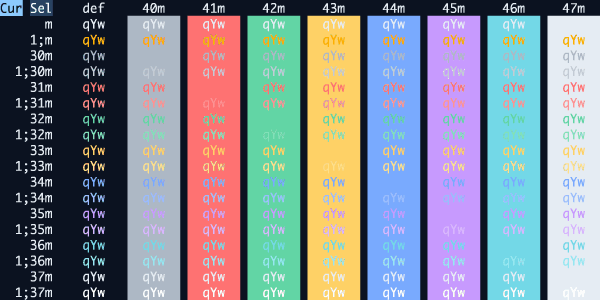
Everblush
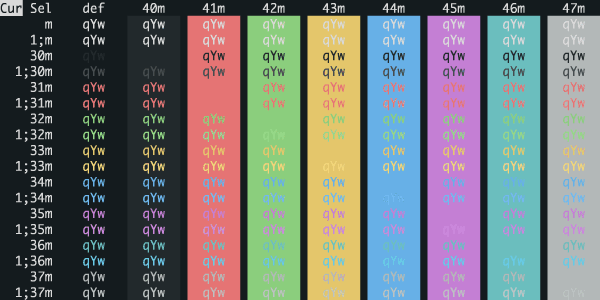
Everforest Dark Hard
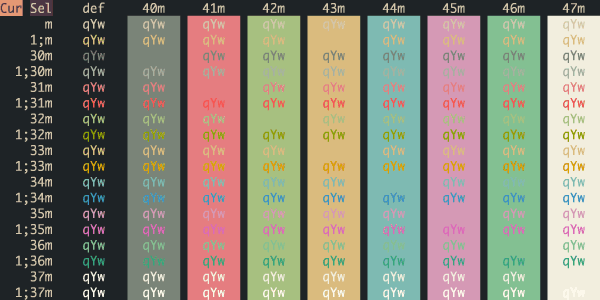
Everforest Dark Med
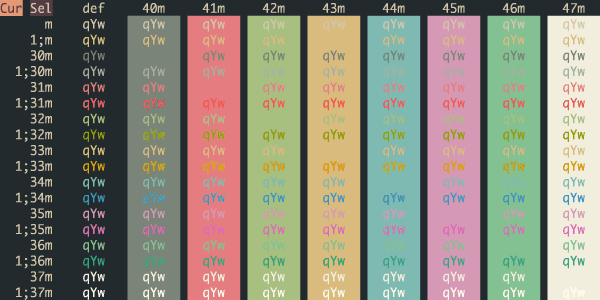
Everforest Dark Soft
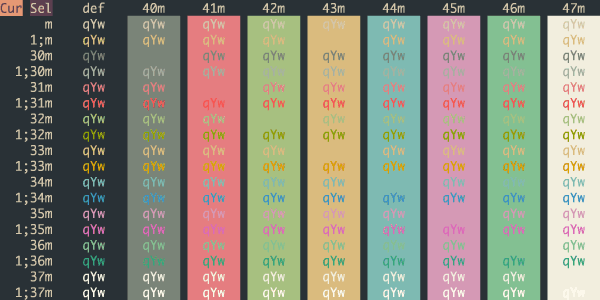
Evergreen
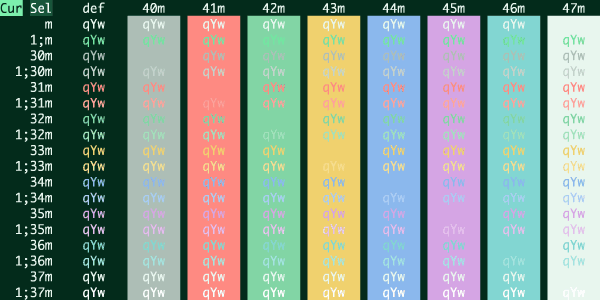
EVH FrankenTone
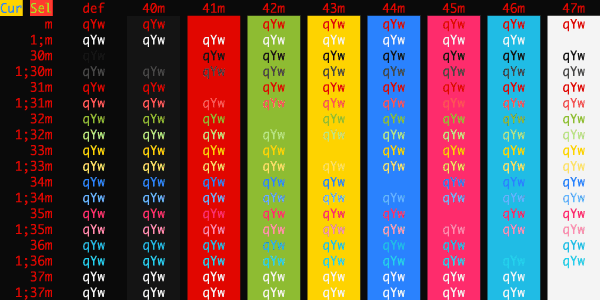
eyesclosed
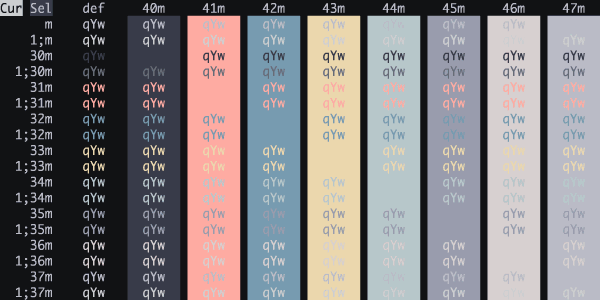
Fahrenheit
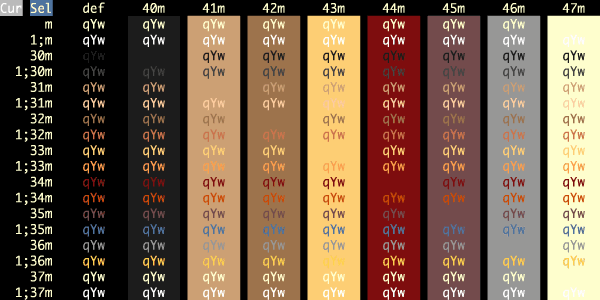
Fairyfloss
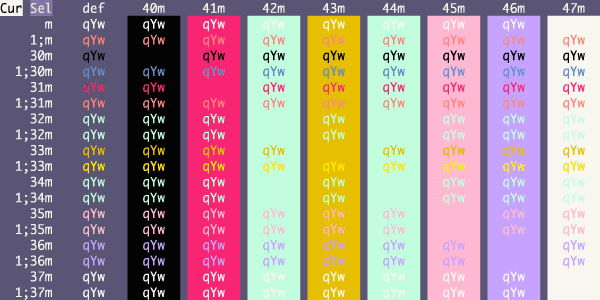
Farmhouse Dark

Fideloper
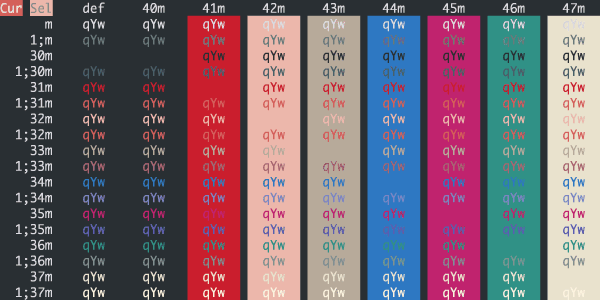
Firefly Traditional
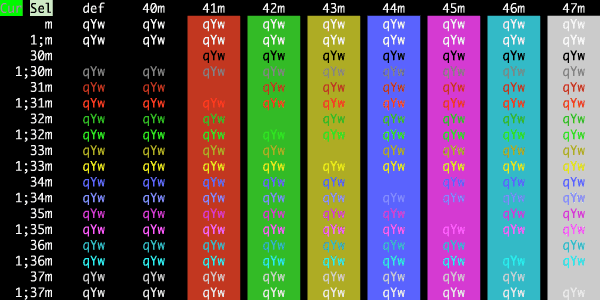
Firefox Dev
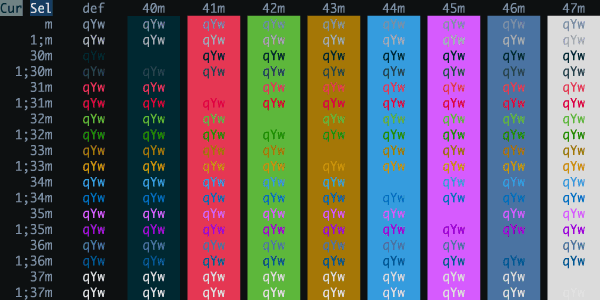
Firewatch
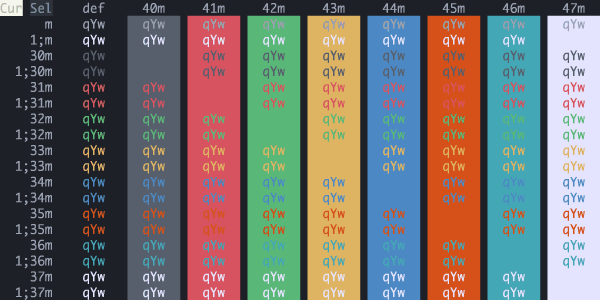
Fish Tank
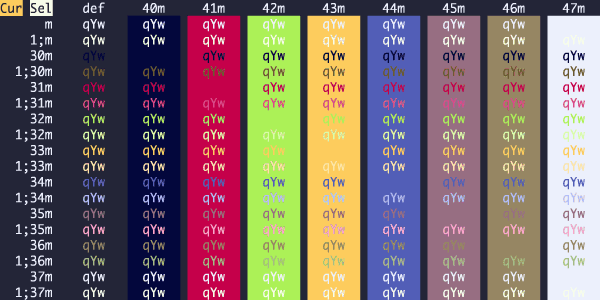
Flat
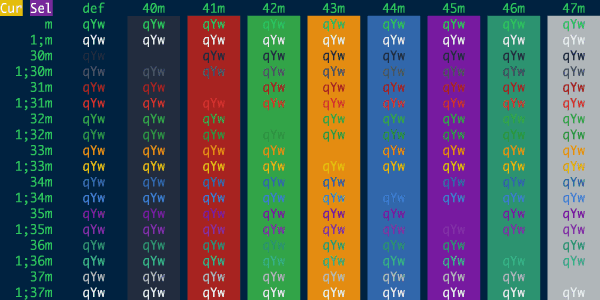
Flatland
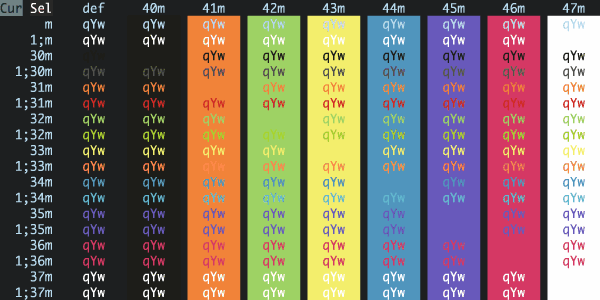
Flexoki Dark
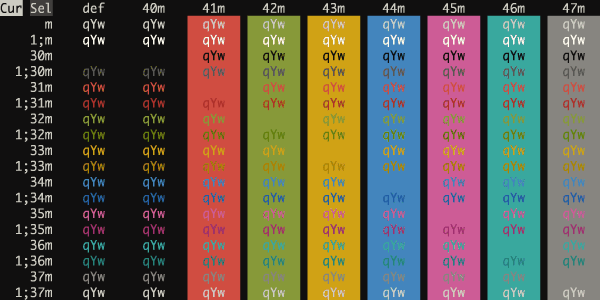
Floraverse
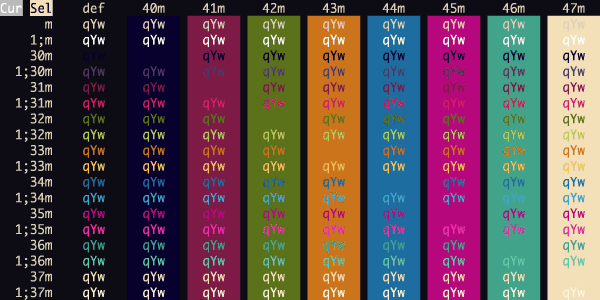
Forest Blue
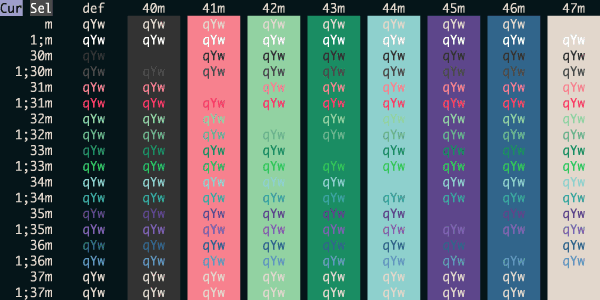
Forge Ember
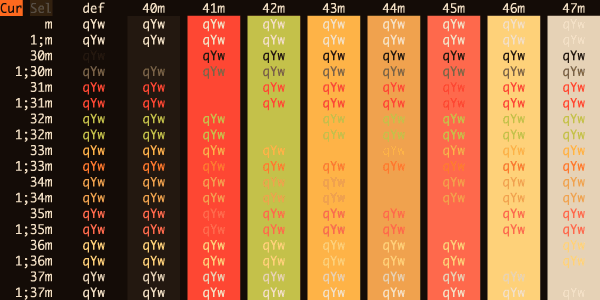
Forged in Steel
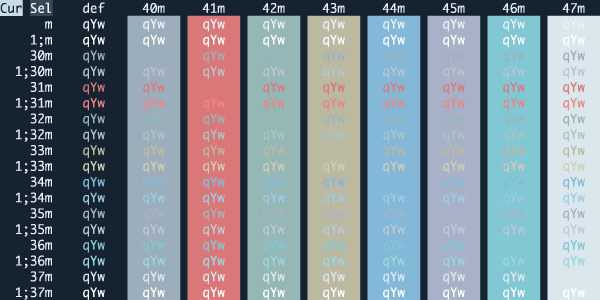
Framer
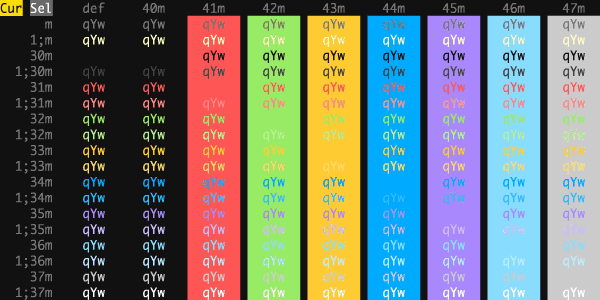
Front End Delight
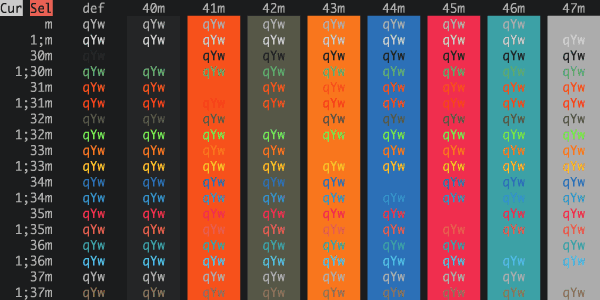
Fun Forrest
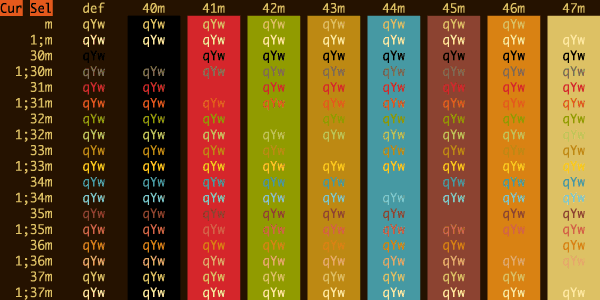
Galaxy
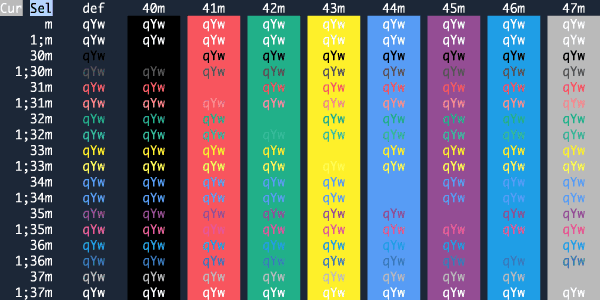
Galizur
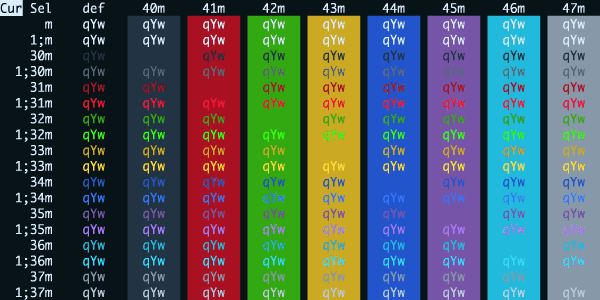
Ghost Circuit
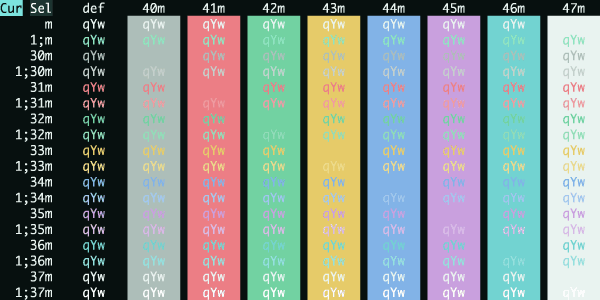
Ghostty Default Style Dark
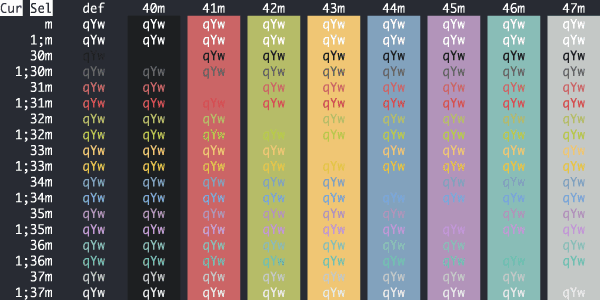
Gilded-Forest-Dark
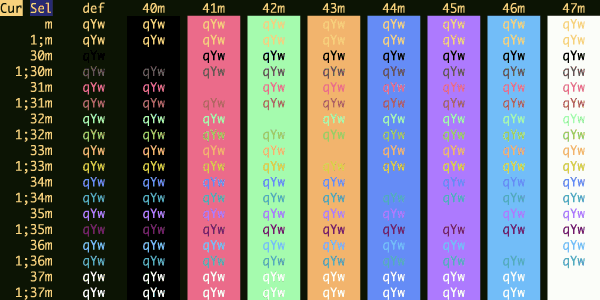
GitHub Dark Colorblind
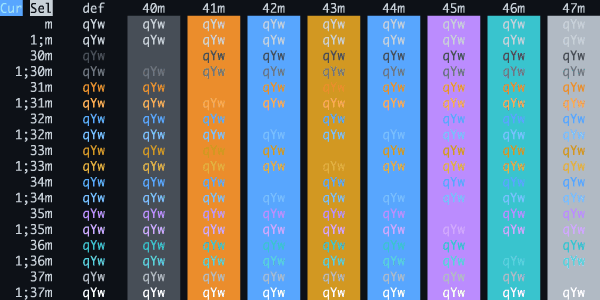
GitHub Dark Default
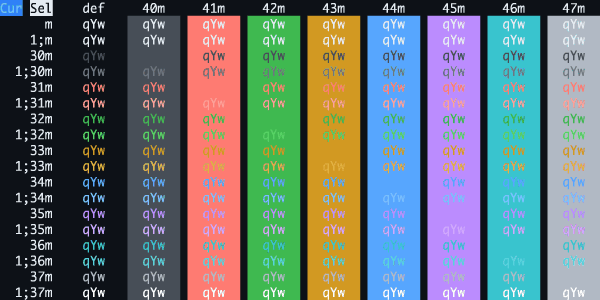
GitHub Dark Dimmed
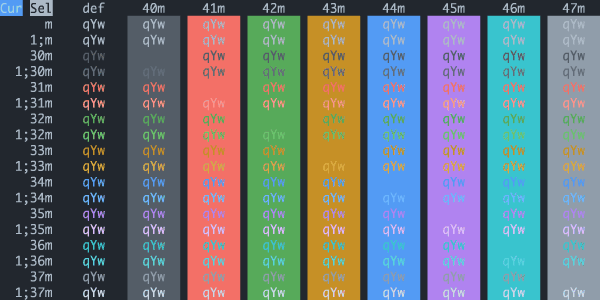
GitHub Dark High Contrast
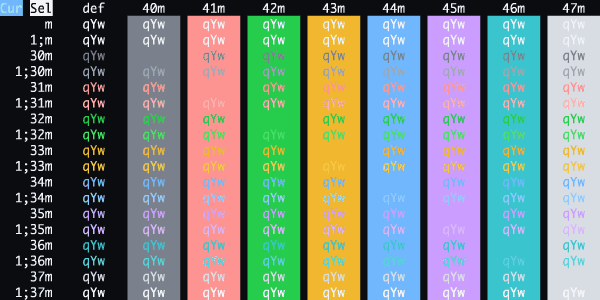
GitHub Dark
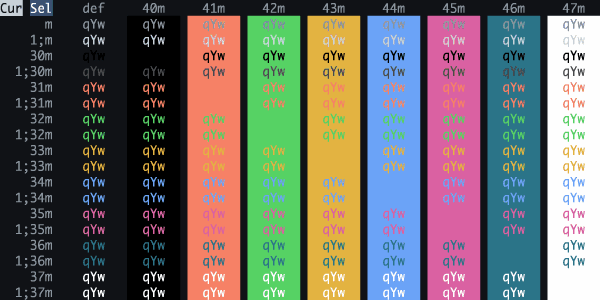
GitLab Dark Grey
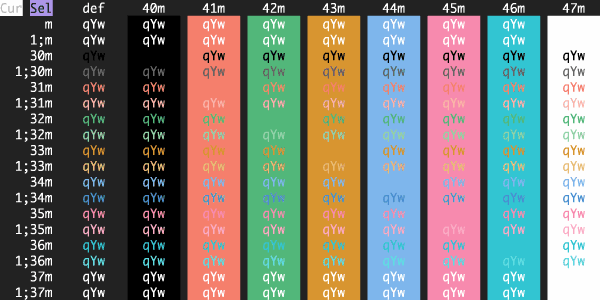
GitLab Dark
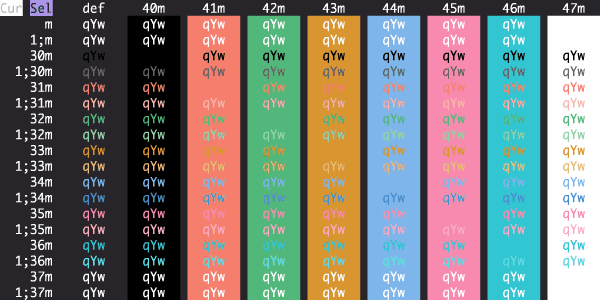
Glacier
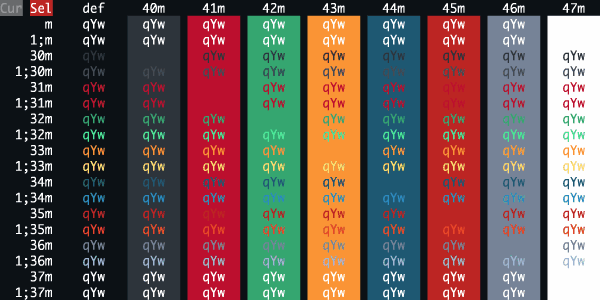
Gleam Classic
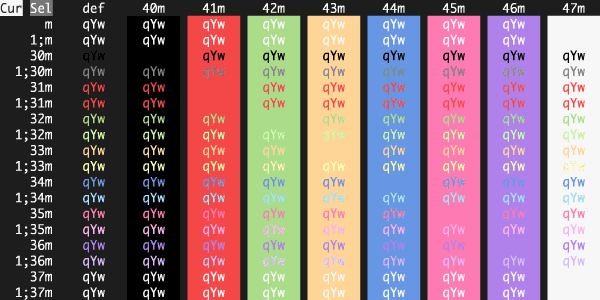
Gleam
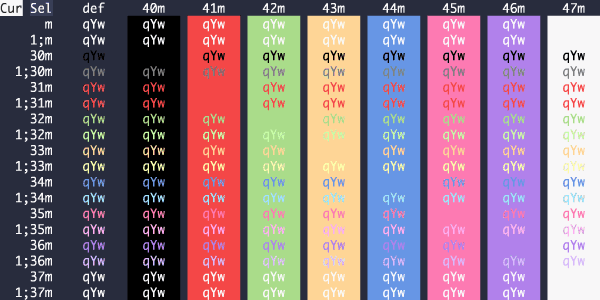
Grape
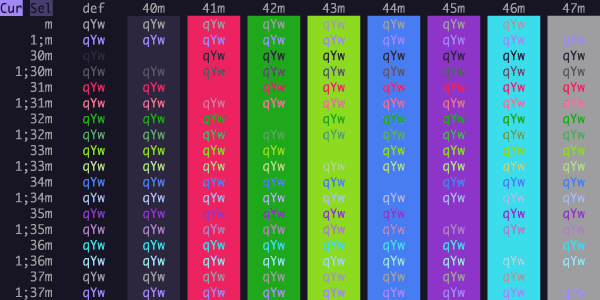
Graphite
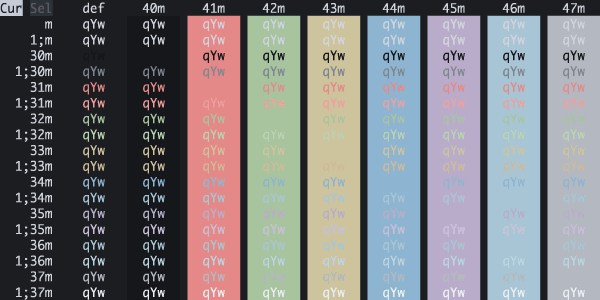
Grass
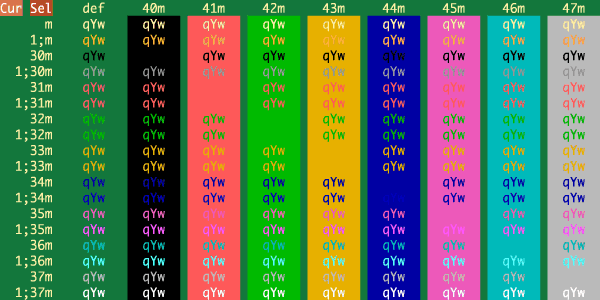
Graveyard Shift
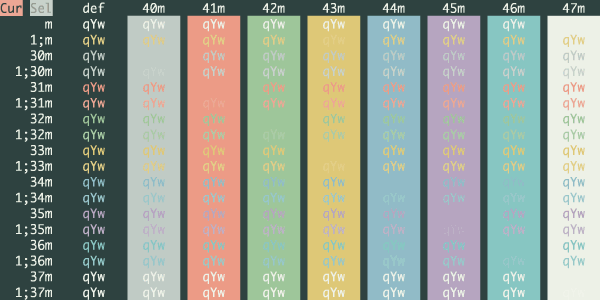
Green Phosphor CRT
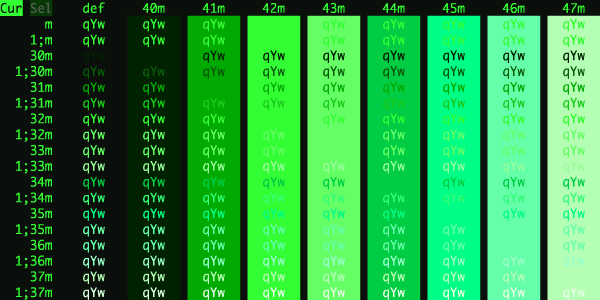
Green Screen
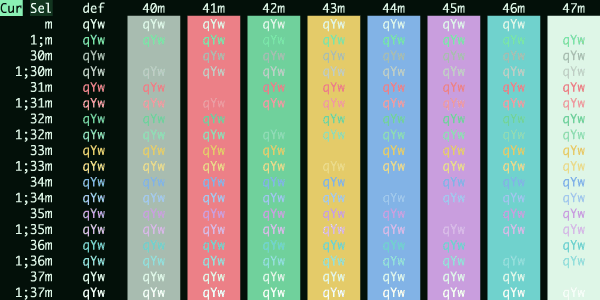
Grey Green
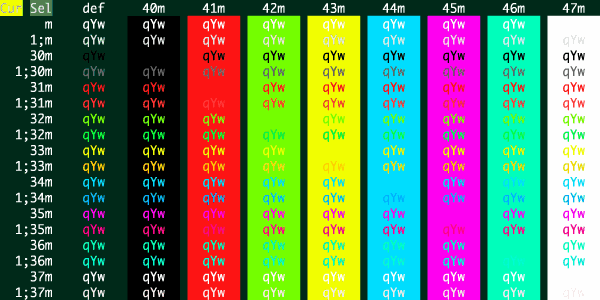
Grok Night
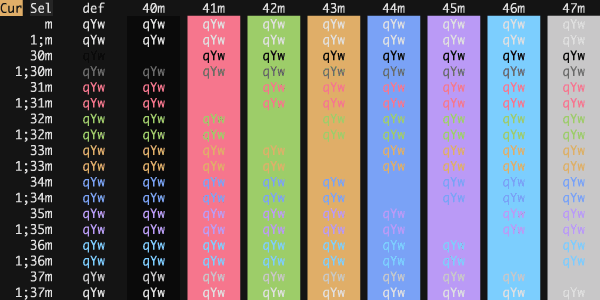
Gruber Darker
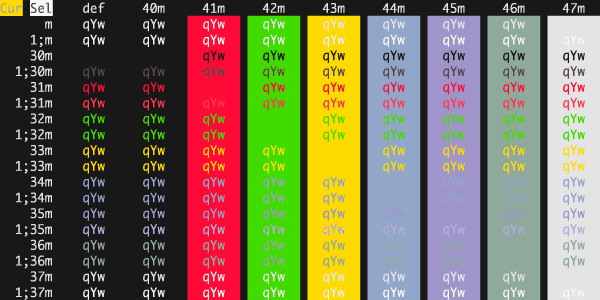
Gruvbox Dark Hard
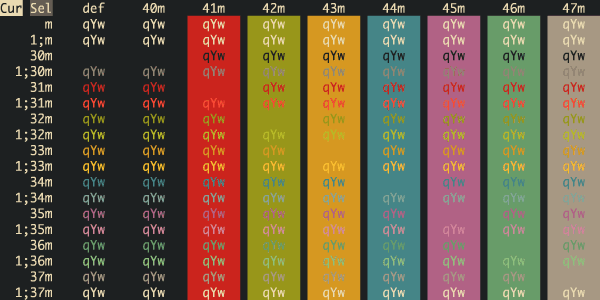
Gruvbox Dark
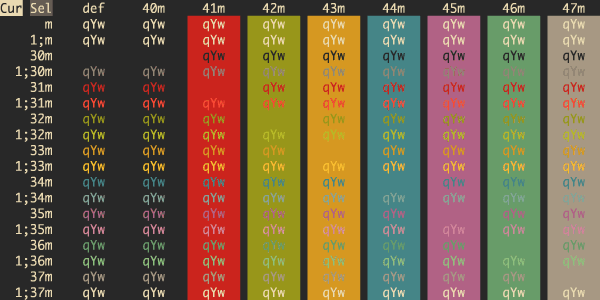
Gruvbox Material Dark
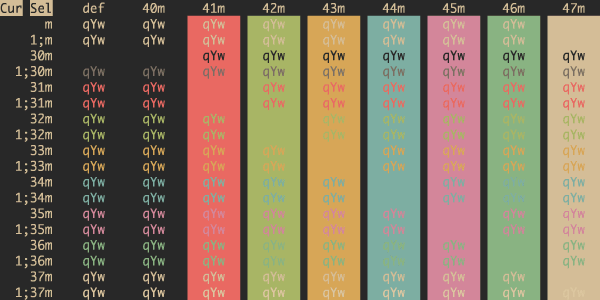
Gruvbox Material
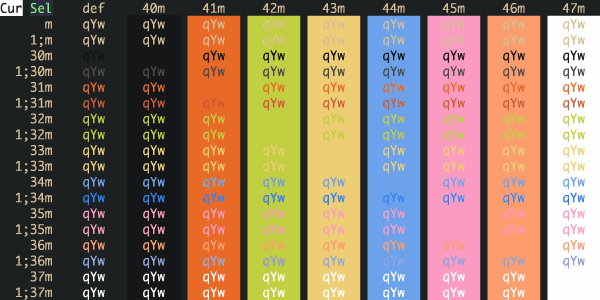
Guezwhoz
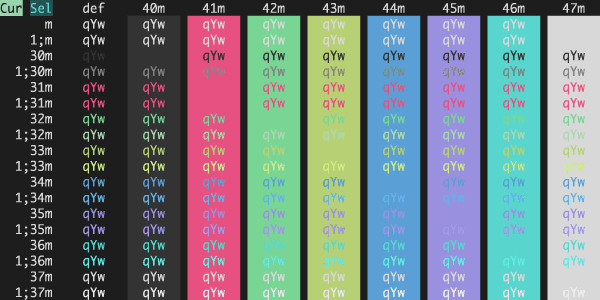
Hacktober
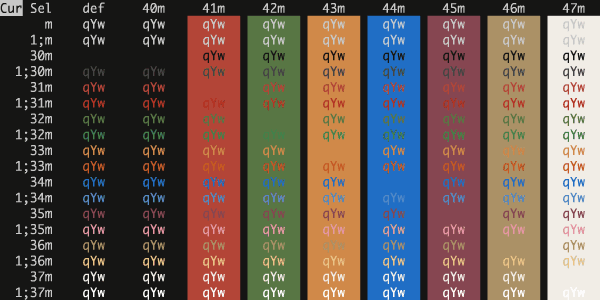
Hardcore
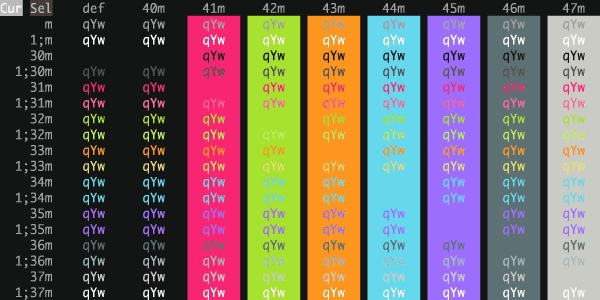
Harper
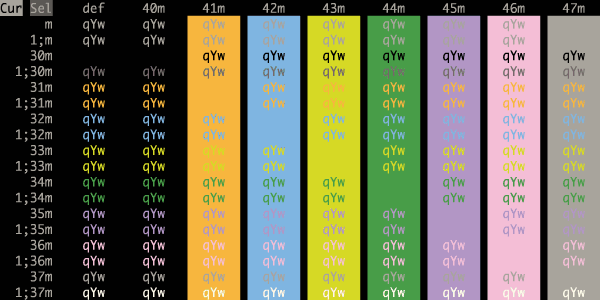
Harvest Moon
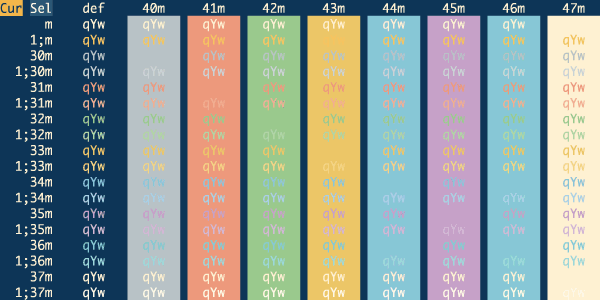
Haunted House
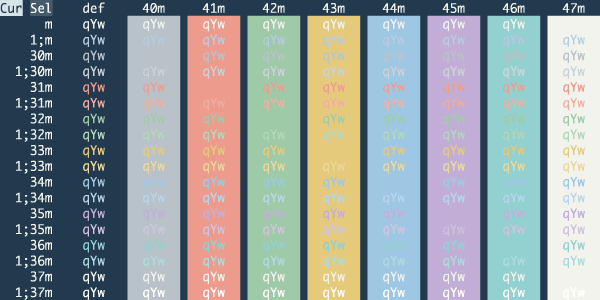
Havn Skumring
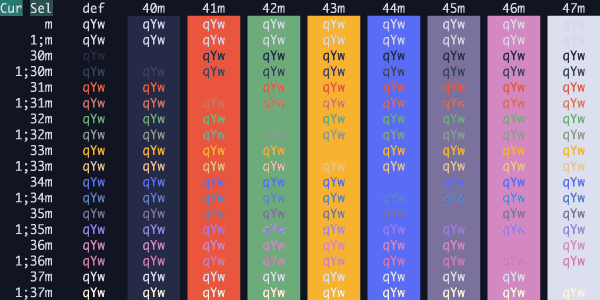
HaX0R Blue
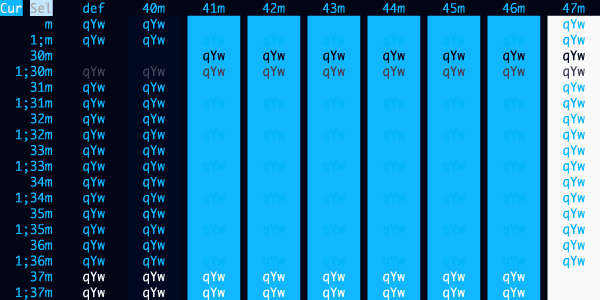
HaX0R Gr33N
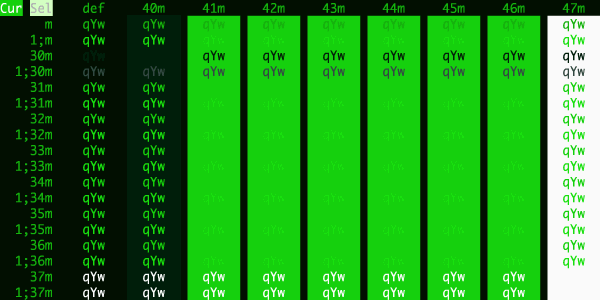
HaX0R R3D
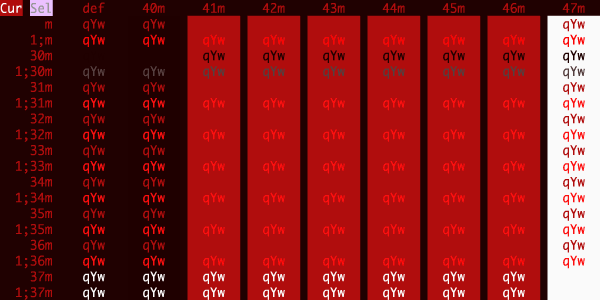
Heeler
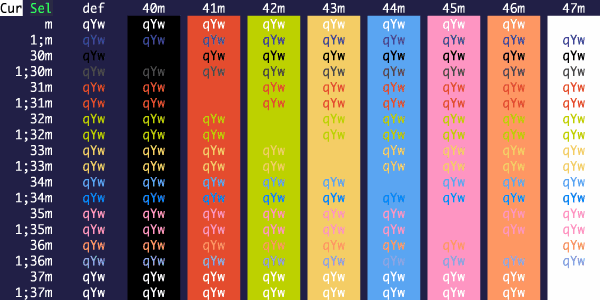
Hellfire
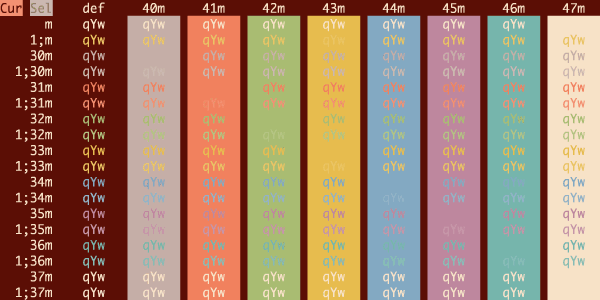
High Voltage Highway
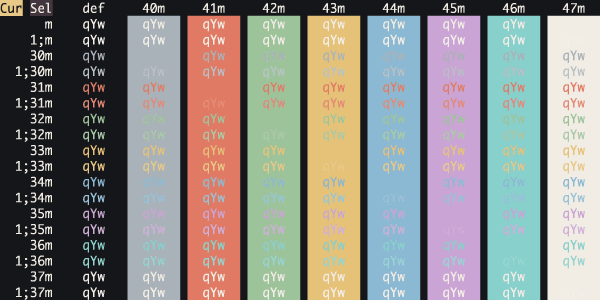
Highway
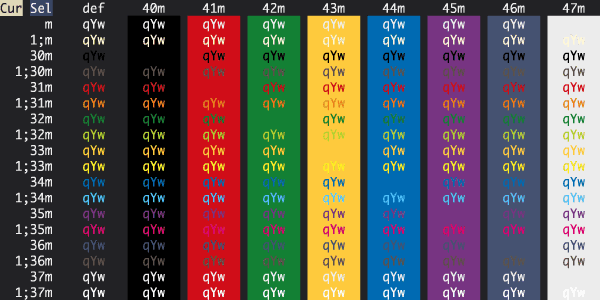
Hipster Green
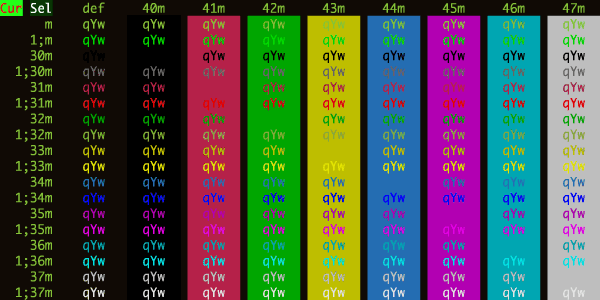
Hivacruz
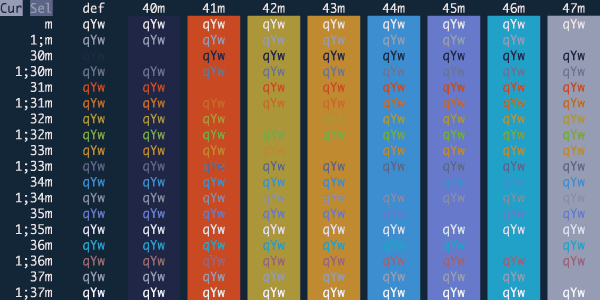
HN After Dark
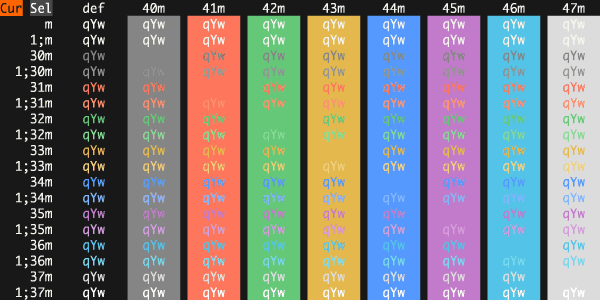
Hocus Pocus
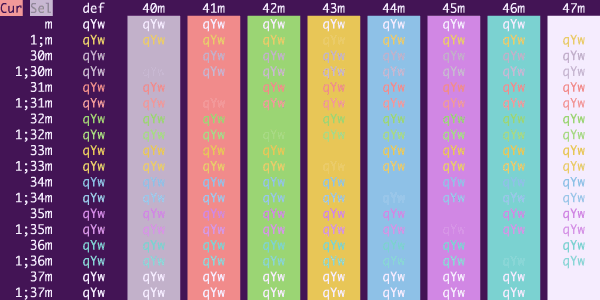
Homebrew
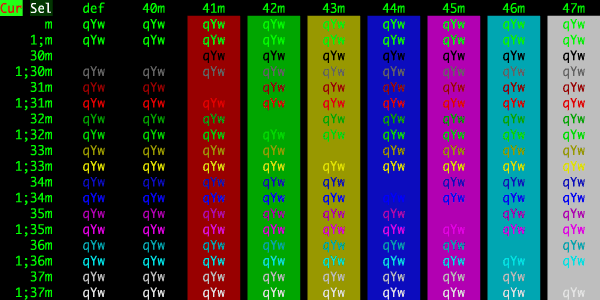
Hopscotch.256
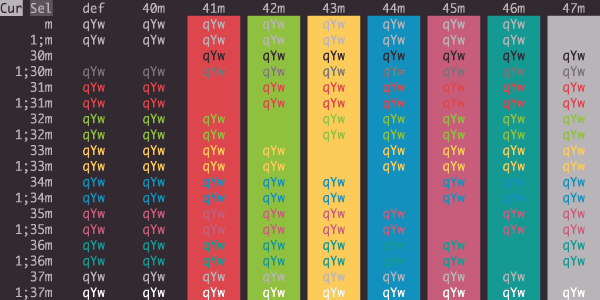
Hopscotch
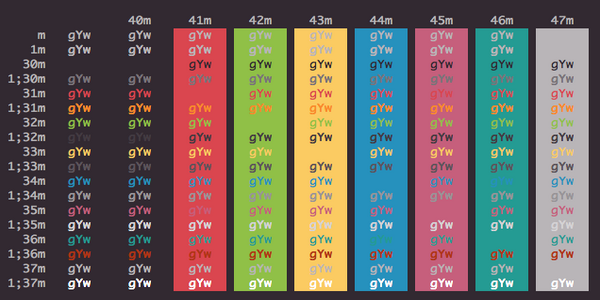
Horizon
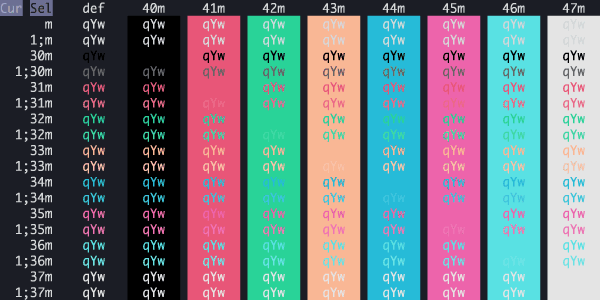
Hot Dog Stand
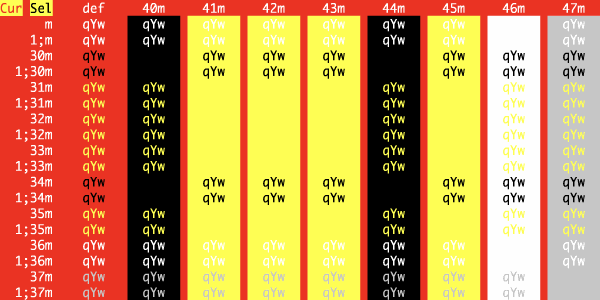
Hurtado
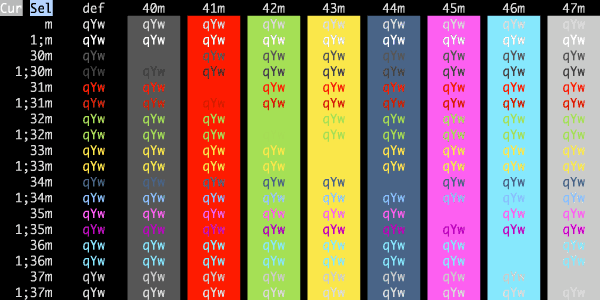
Hybrid
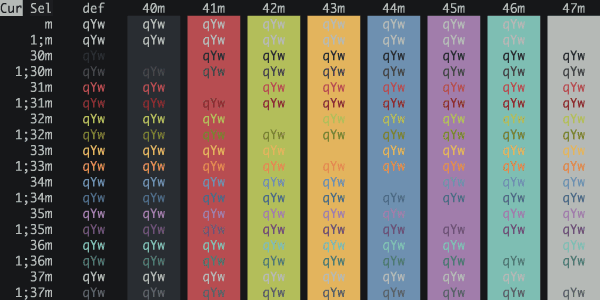
Hyper
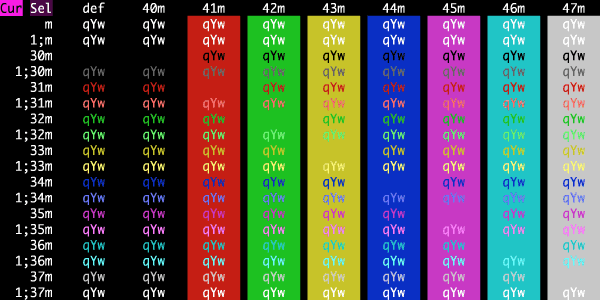
Hysterical Frequency
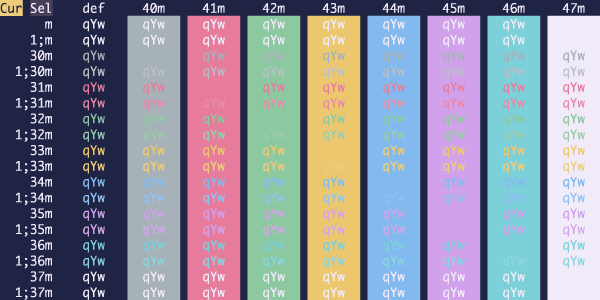
IBM 5153 CGA (Black)
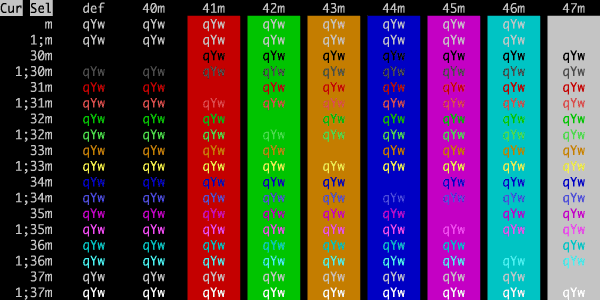
IBM 5153 CGA
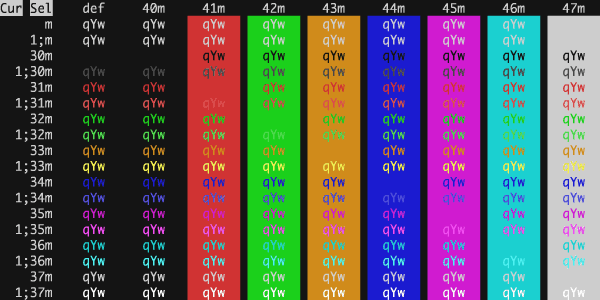
IC Green PPL
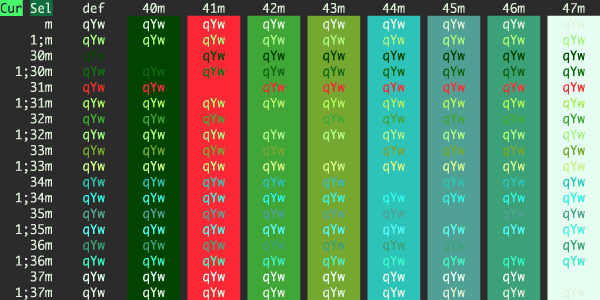
IC Orange PPL
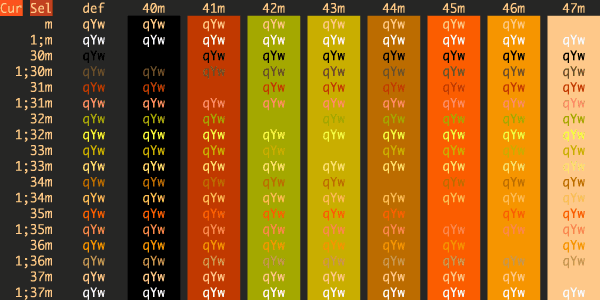
Iceberg Dark
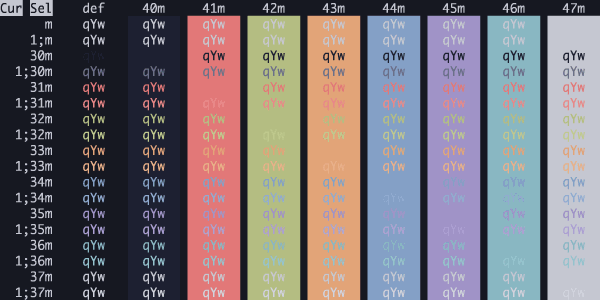
Idea
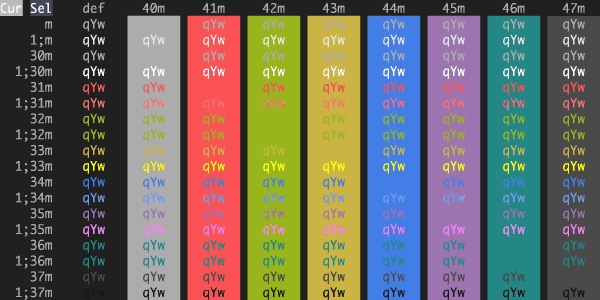
Idle Toes
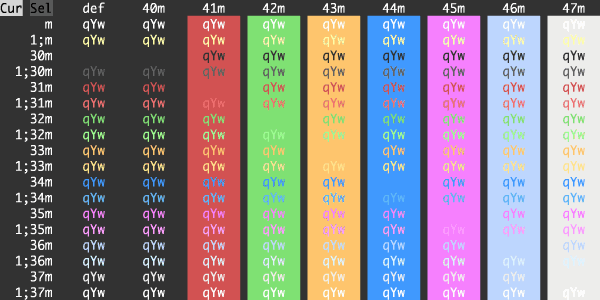
iglass Dark
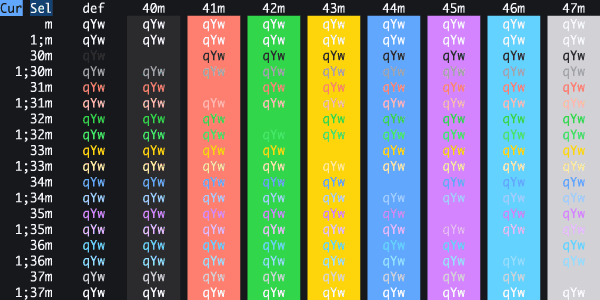
IR Black
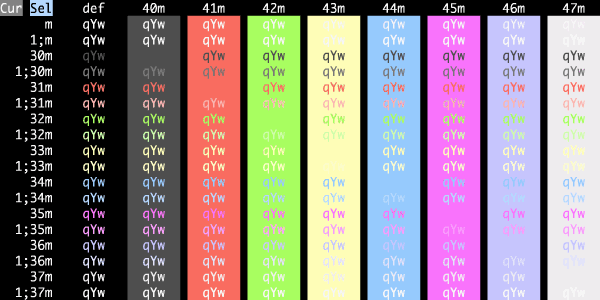
IRIX Console
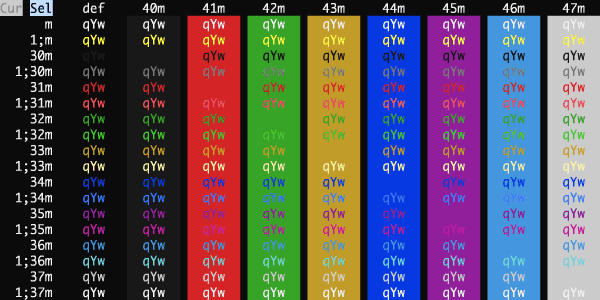
IRIX Terminal
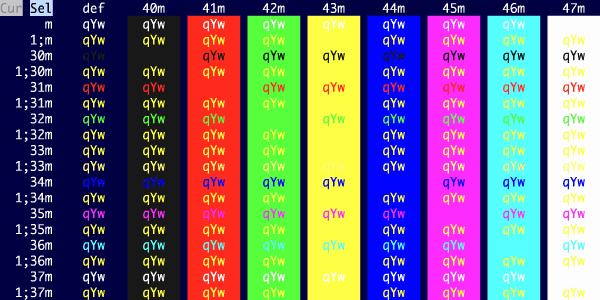
Isocon Dark
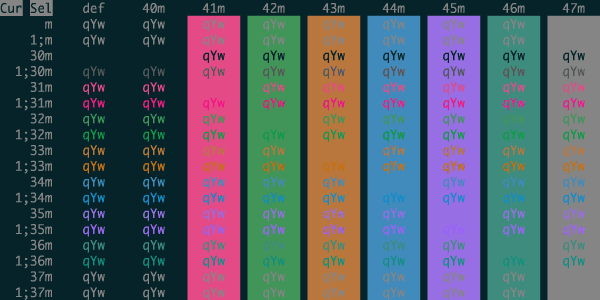
iTerm2 Dark Background
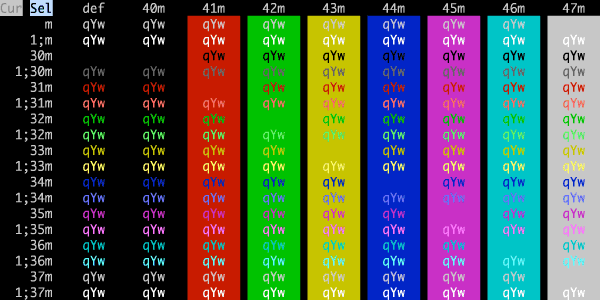
iTerm2 Default
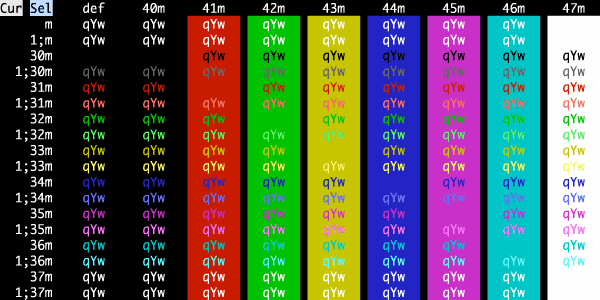
iTerm2 Pastel Dark Background
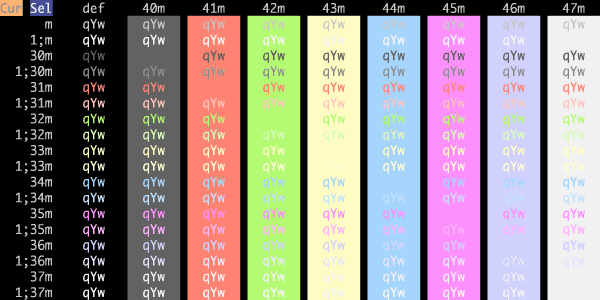
iTerm2 Smoooooth
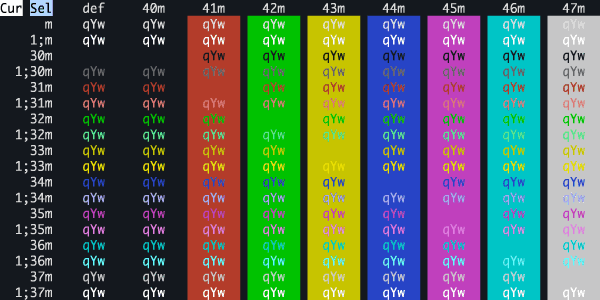
iTerm2 Solarized Dark
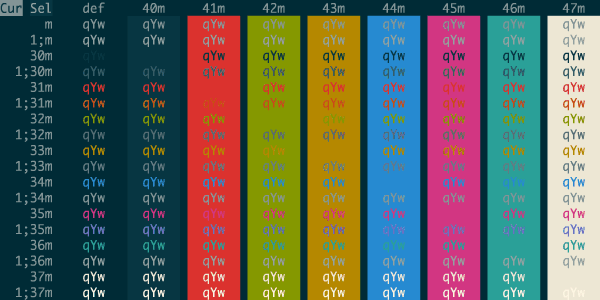
iTerm2 Tango Dark
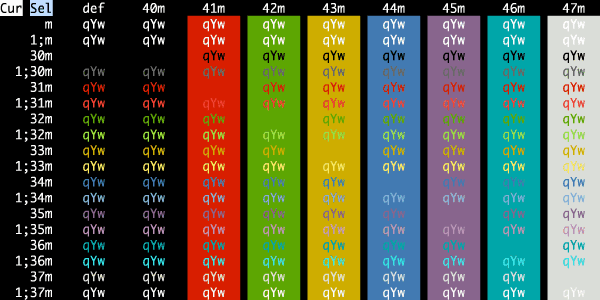
Jack O' Lantern
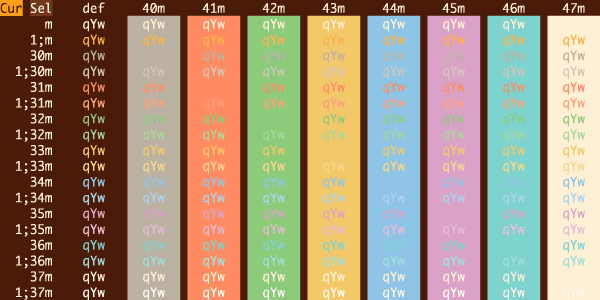
Jackie Brown
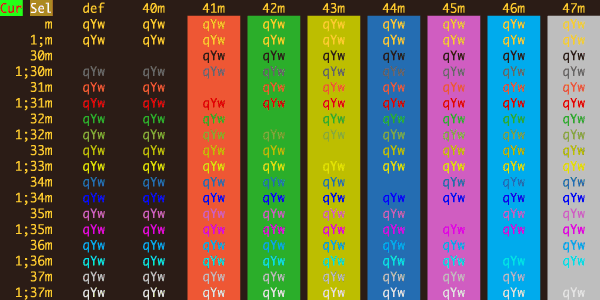
Japanesque
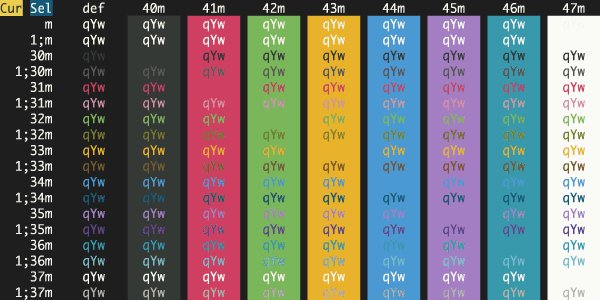
Jellybeans
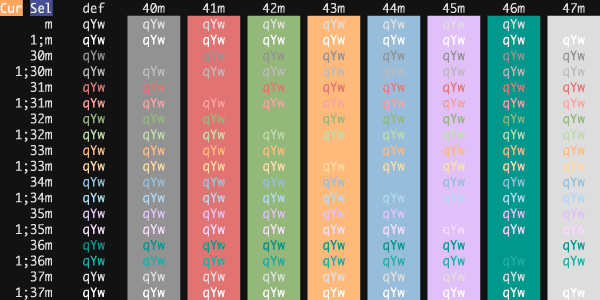
JetBrains Darcula
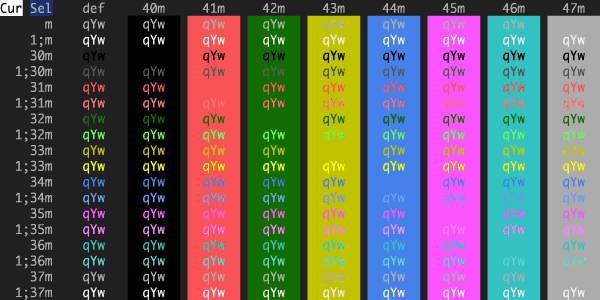
JetBrains Islands Dark
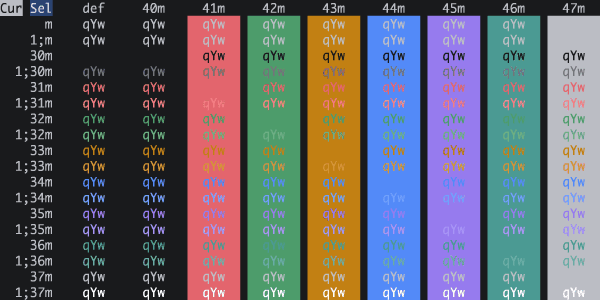
Jubi
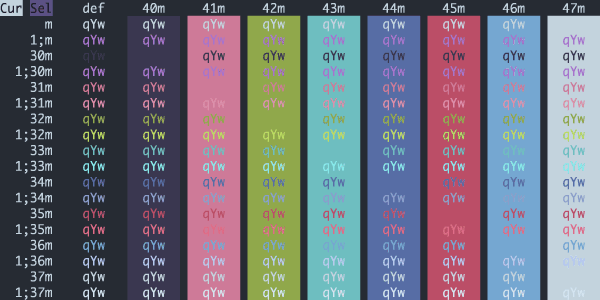
Jump Start
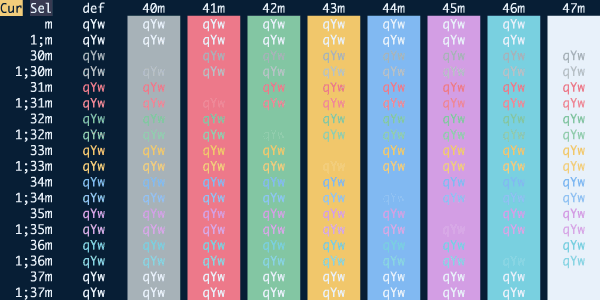
Jute Espresso
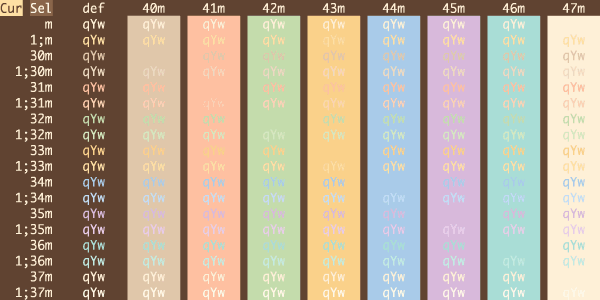
Kanagawa Dragon
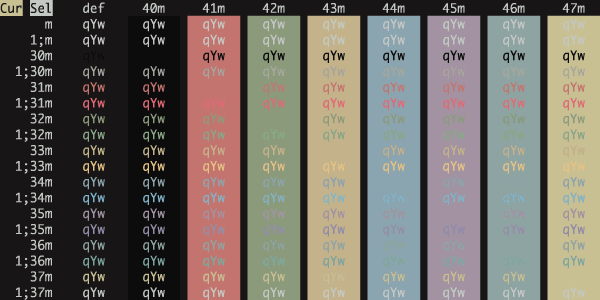
Kanagawa Wave
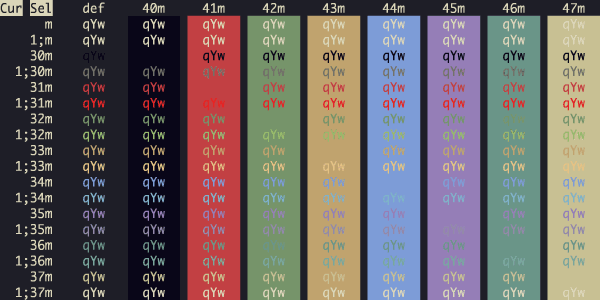
Kanagawabones
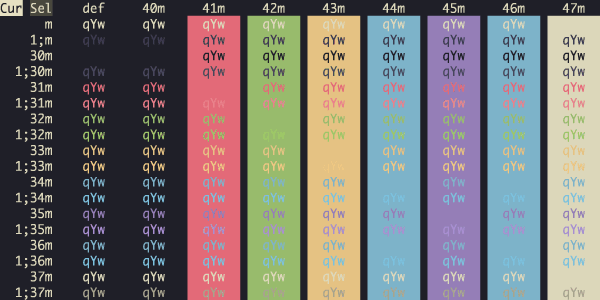
Kanso Ink
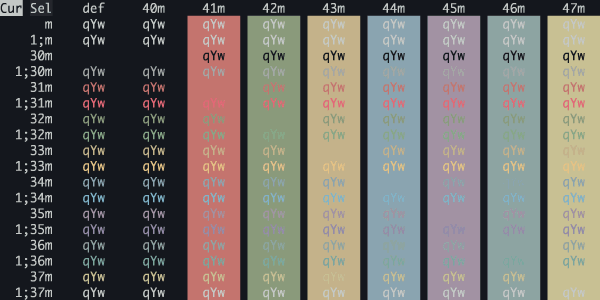
Kanso Mist
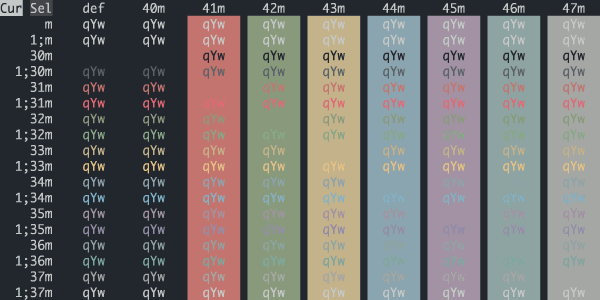
Kanso Zen
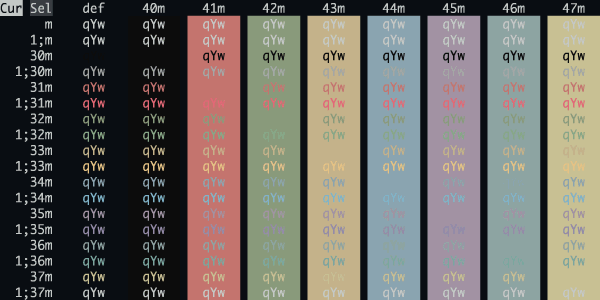
Karasu Night
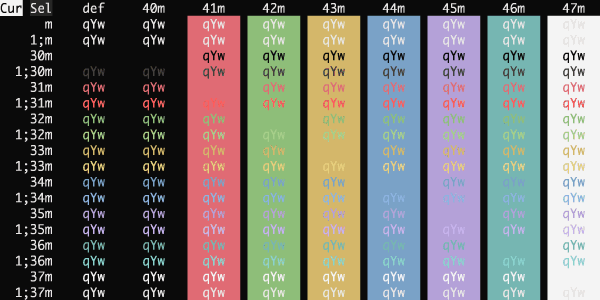
Karma Dark Dimmed
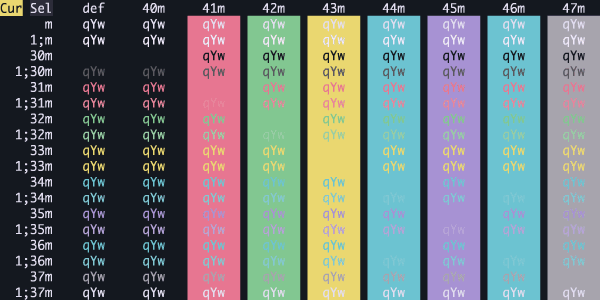
Karma Dark HC
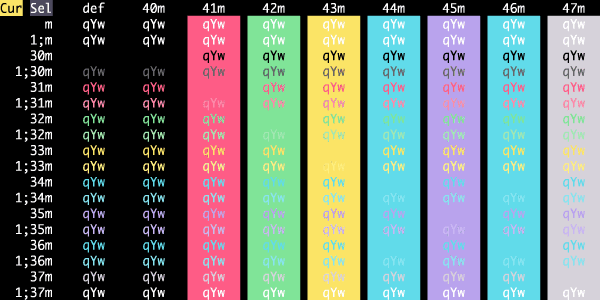
Karma Dark
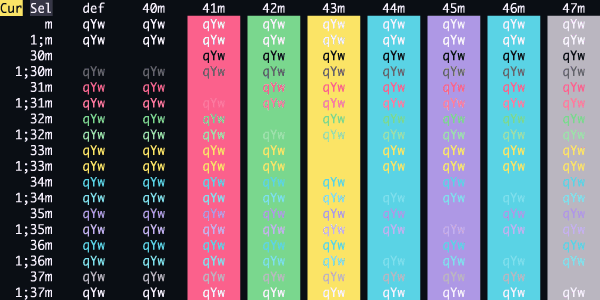
Kashmir Nights
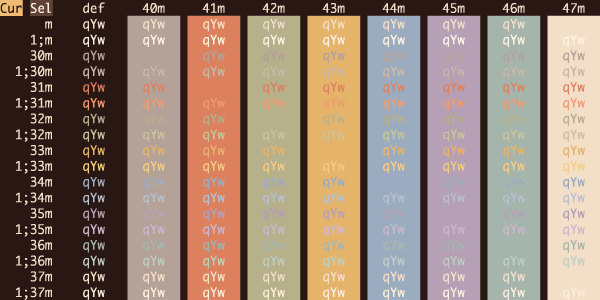
Keys Ocean Sunset HC
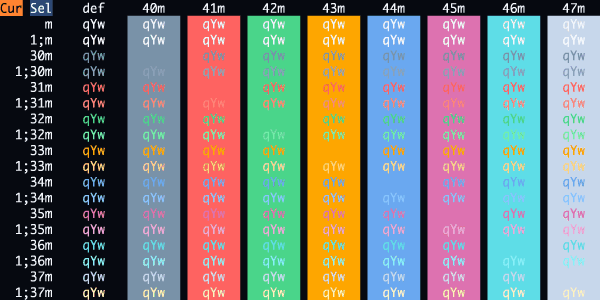
Keys Ocean Sunset
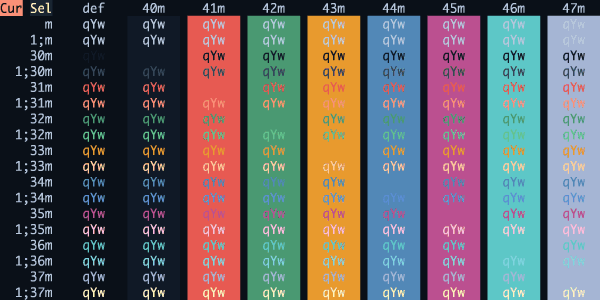
Kibble
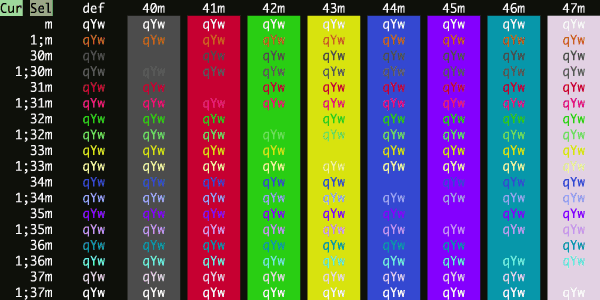
Kitty Default
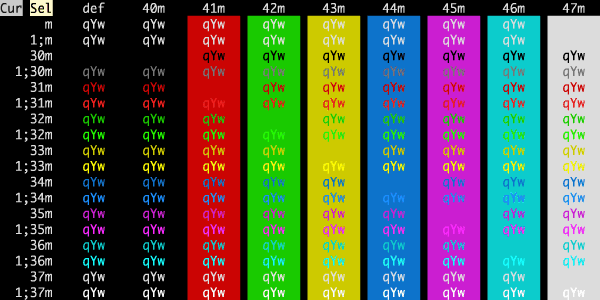
Kitty Low Contrast
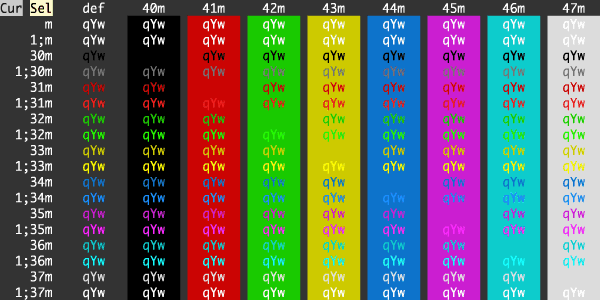
Klein Void
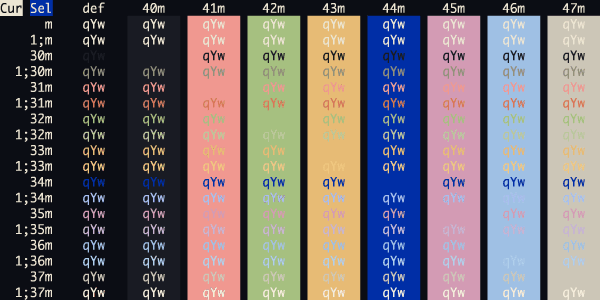
Kolorit
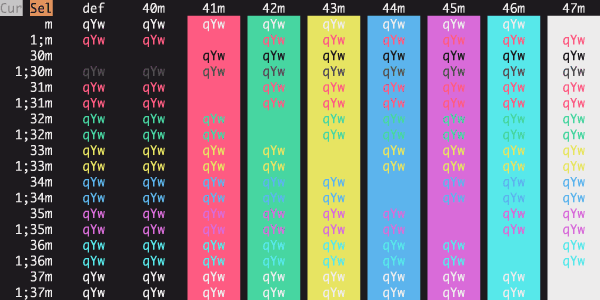
Konsolas
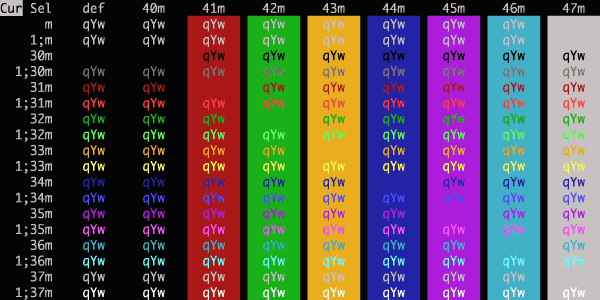
Kurokula
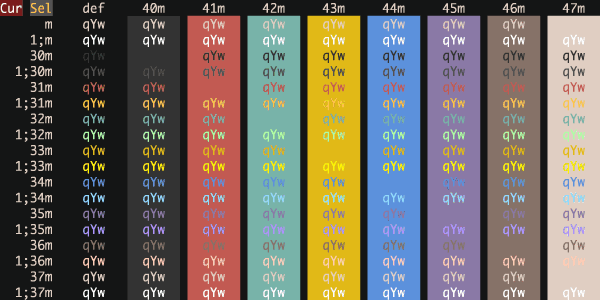
Kwyjibo
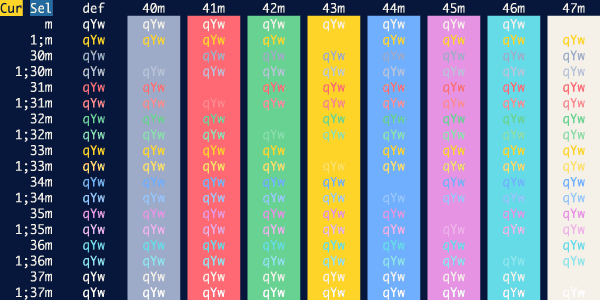
Lab Fox
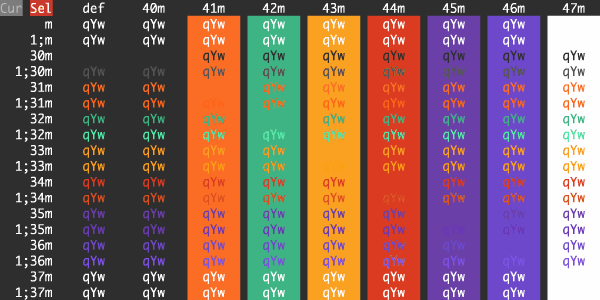
Laser
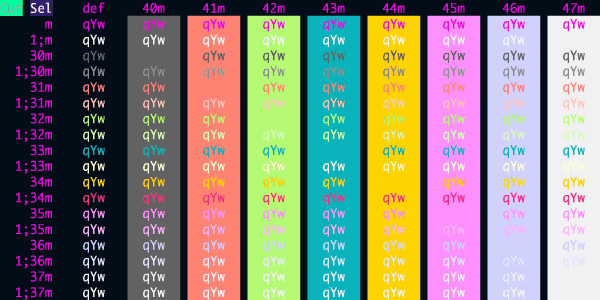
Last Broadcast
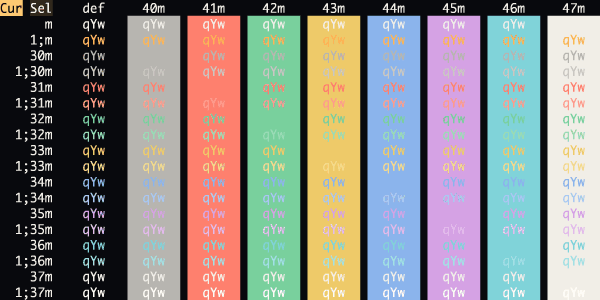
Later This Evening
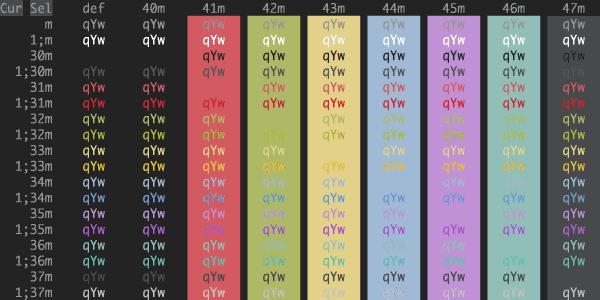
Lavandula
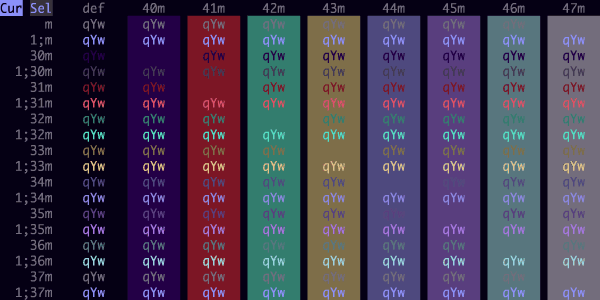
Lemon Graphite
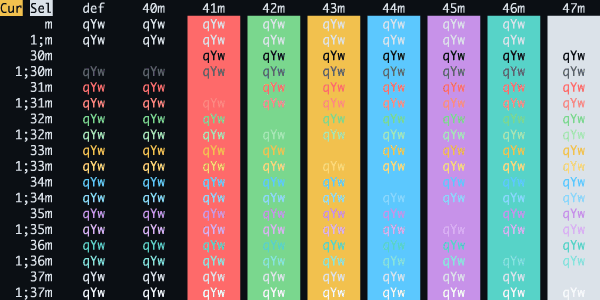
Liquid Carbon Transparent
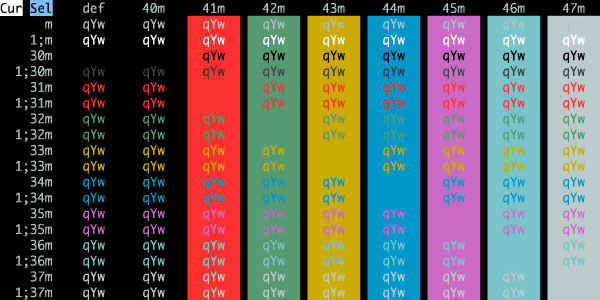
Liquid Carbon
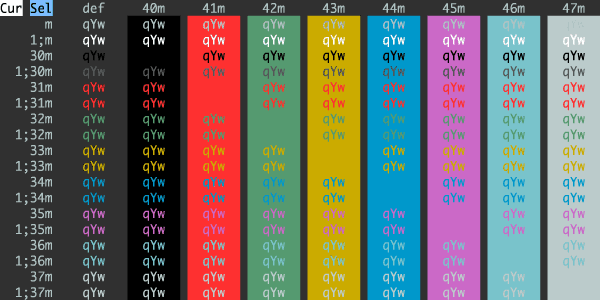
Lit Cell
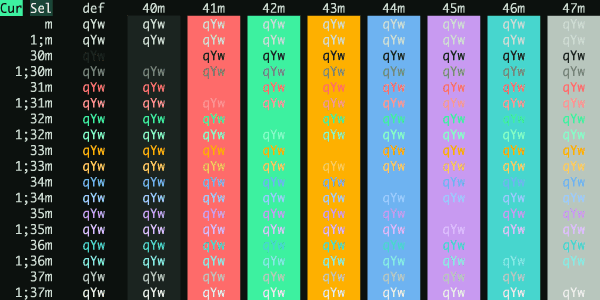
London Bonfire Night
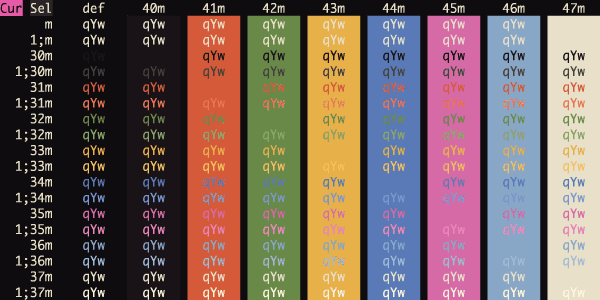
London Embankment Dusk
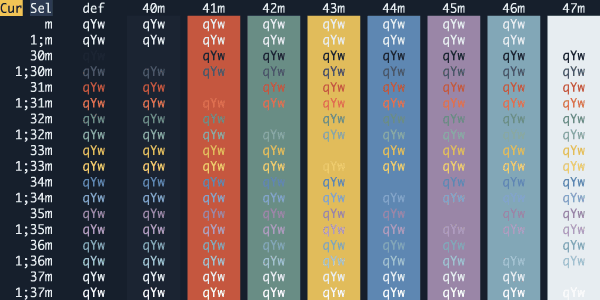
London Soho Night
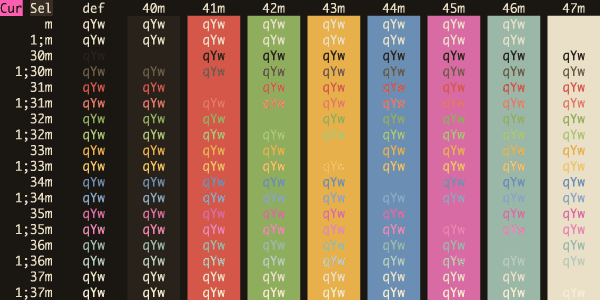
Lovelace
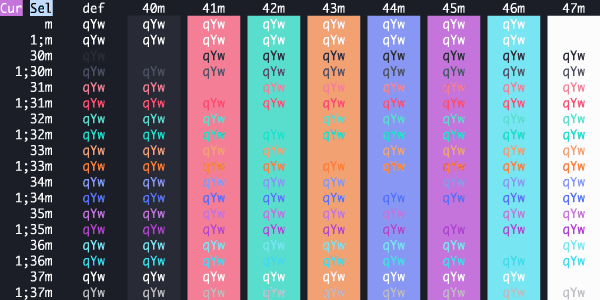
Madman's Diary
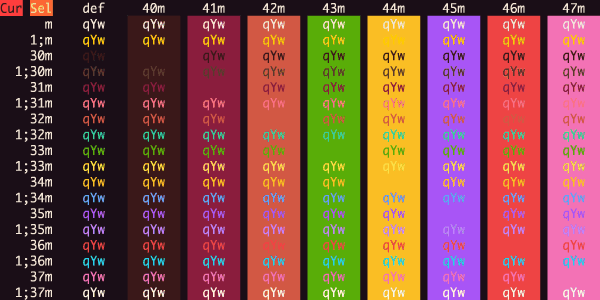
Maple Jute
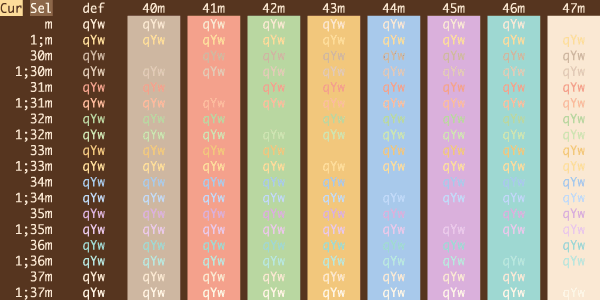
Mariana
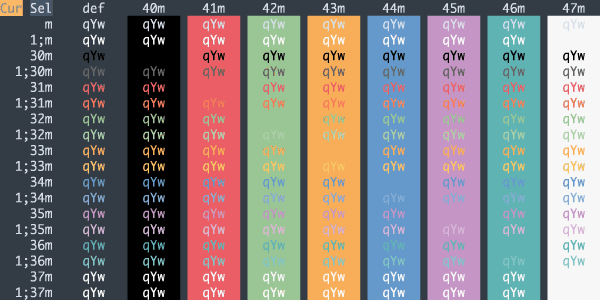
Material Dark
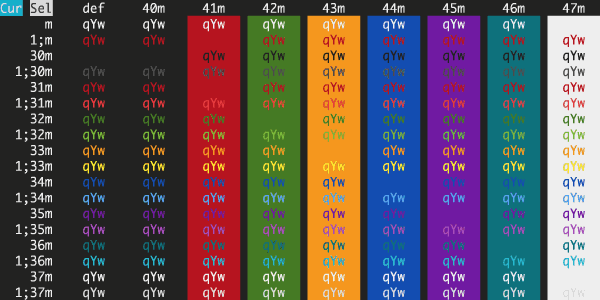
Material Darker
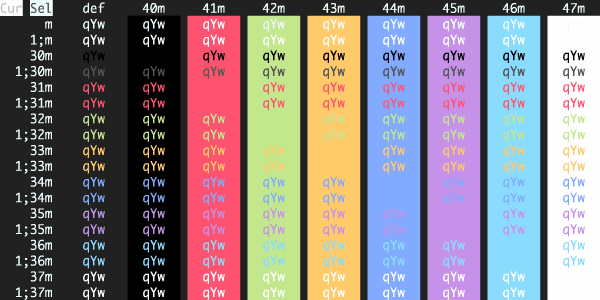
Material Design Colors
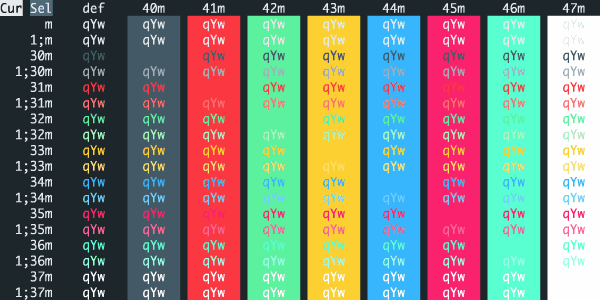
Material Ocean
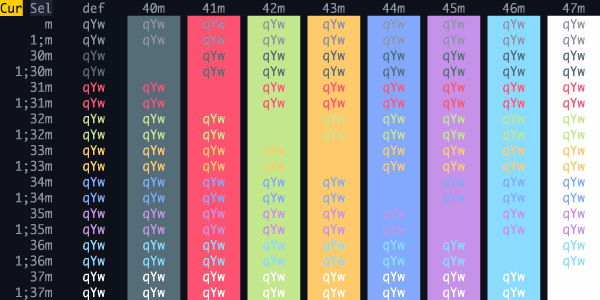
Mathias
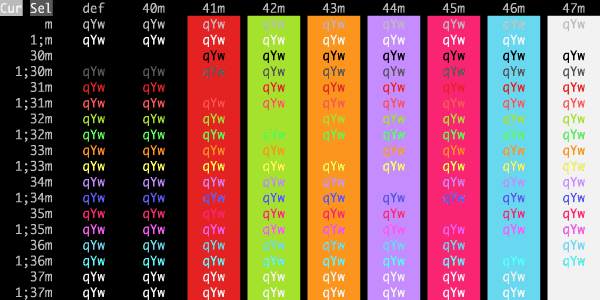
Matrix
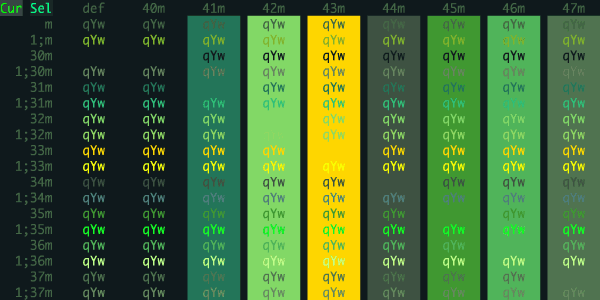
Matte Black
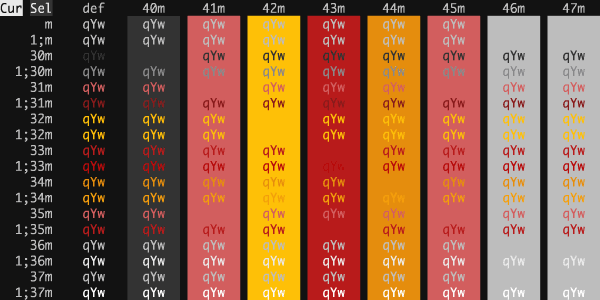
Medallion
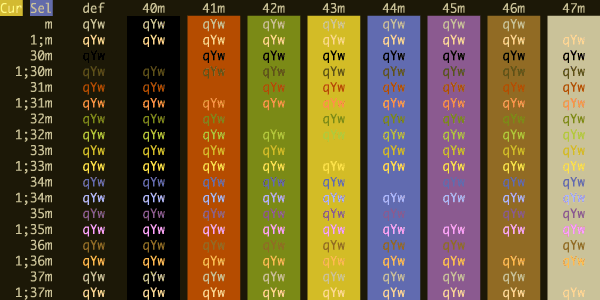
Melange Dark
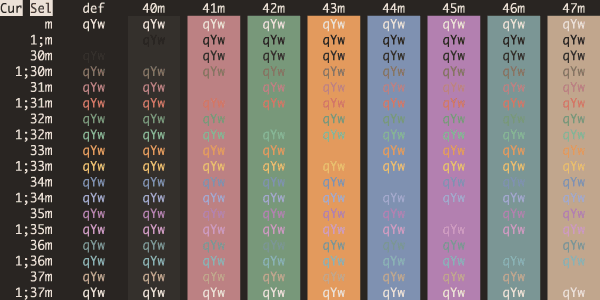
Mellifluous
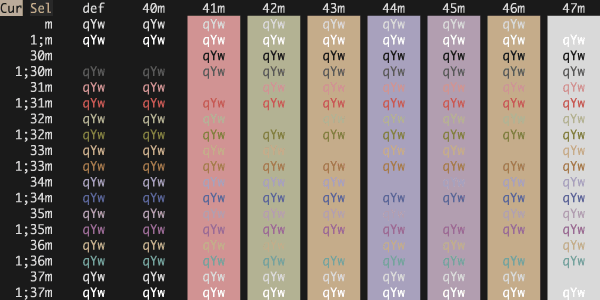
Mellow
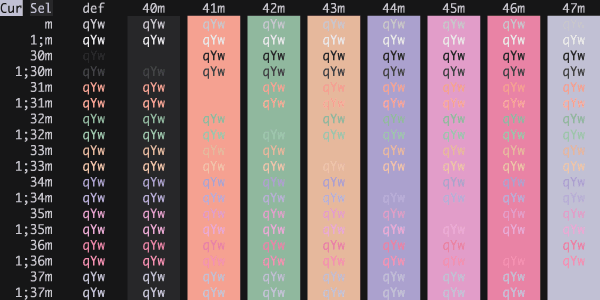
Mesa Blue
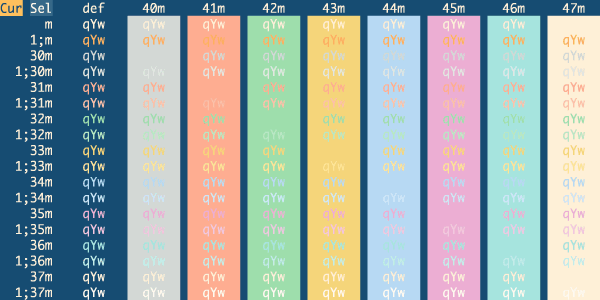
Mesa Twilight
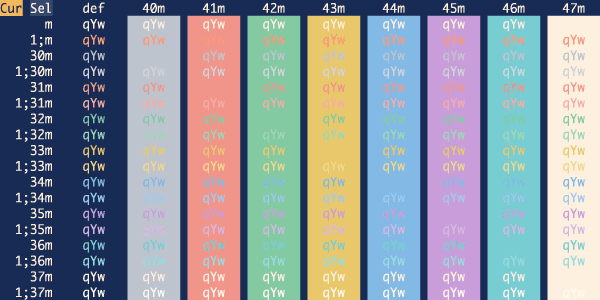
Mesila One
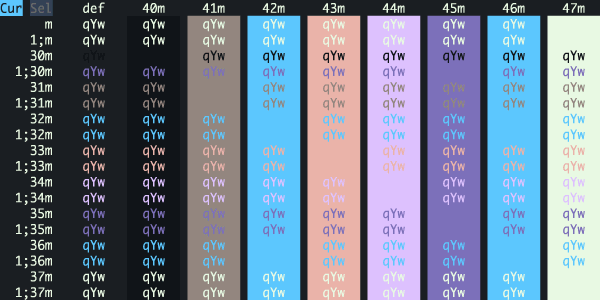
Miami Heat
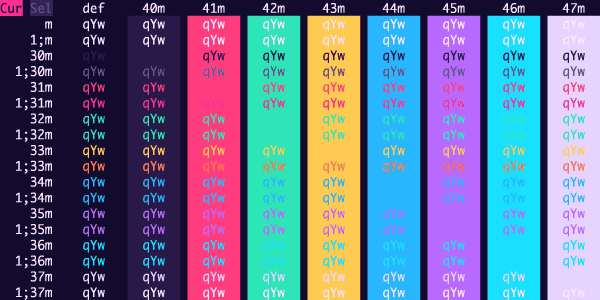
Miasma
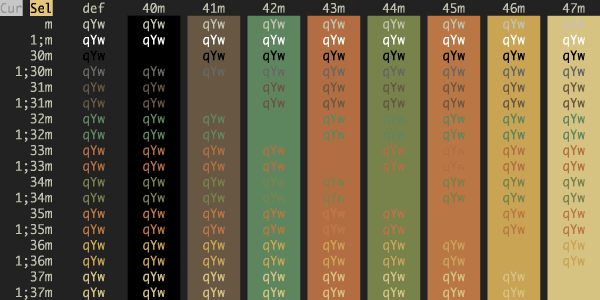
Midnight Arcade
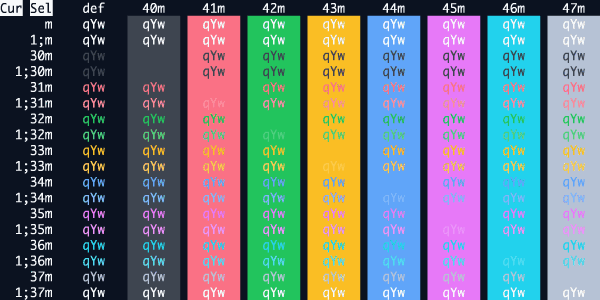
Midnight In Mojave
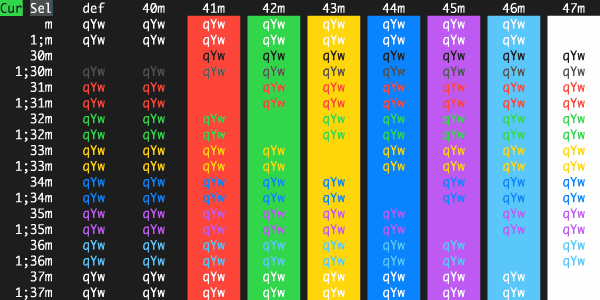
Midnight Rambler
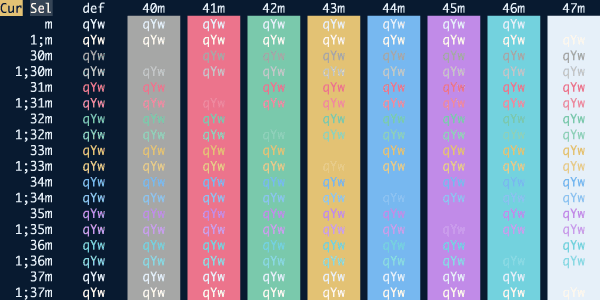
Mindcrime
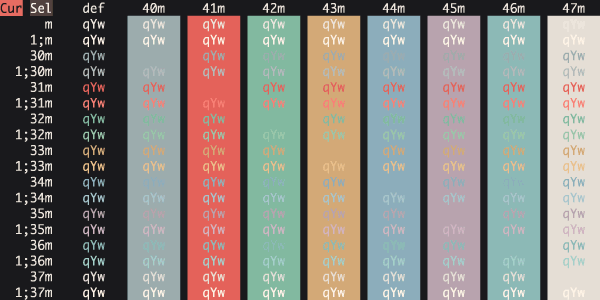
Mirage
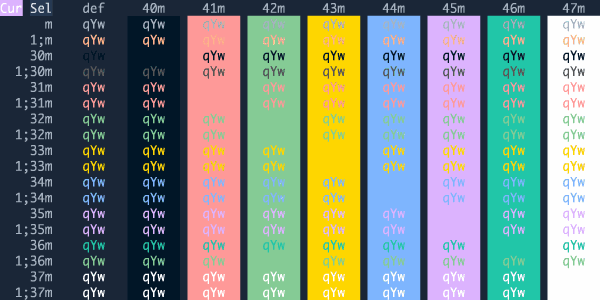
Misterioso
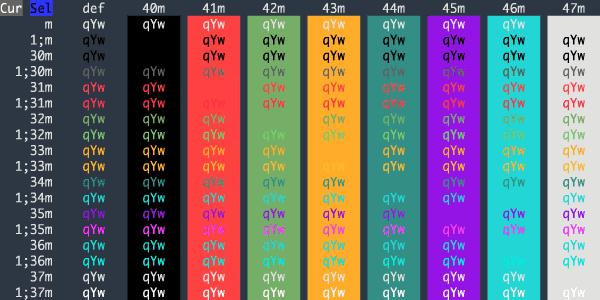
Modus Vivendi Deuteranopia
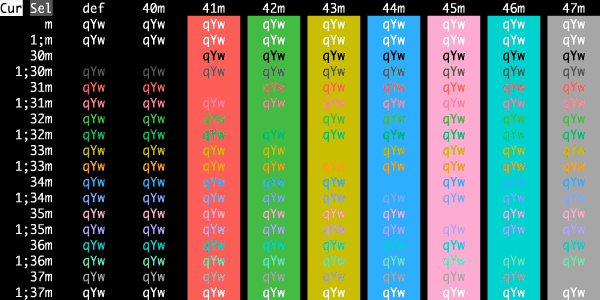
Modus Vivendi Tinted
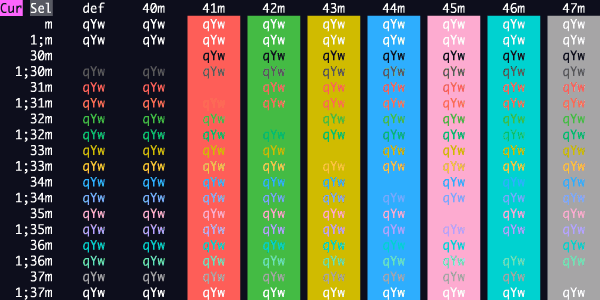
Modus Vivendi Tritanopia
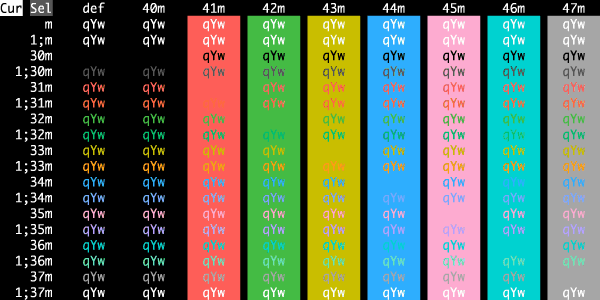
Modus Vivendi
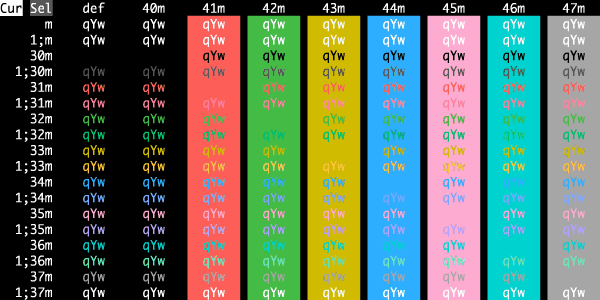
Molokai
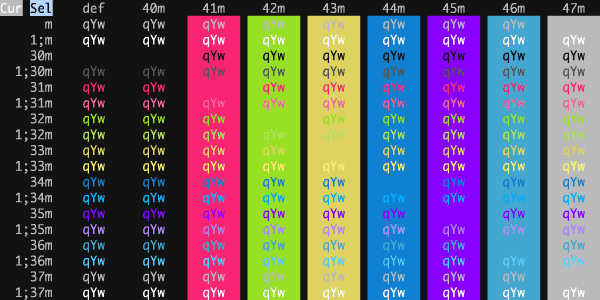
Molten Core
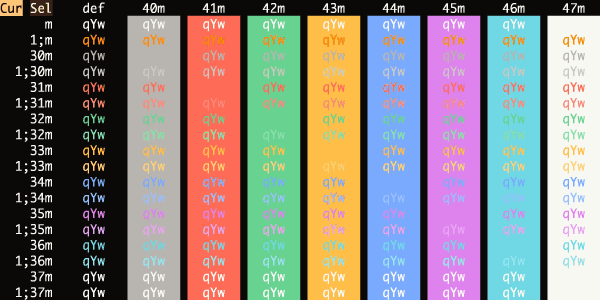
Mona Lisa
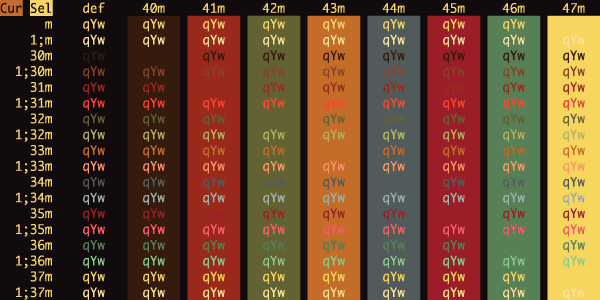
Monokai Classic
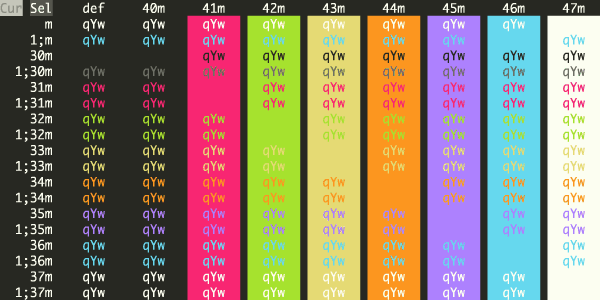
Monokai Pro Machine
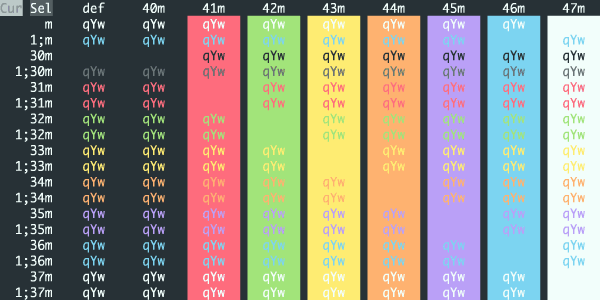
Monokai Pro Octagon
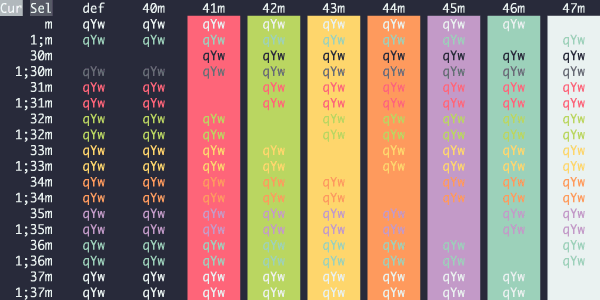
Monokai Pro Ristretto
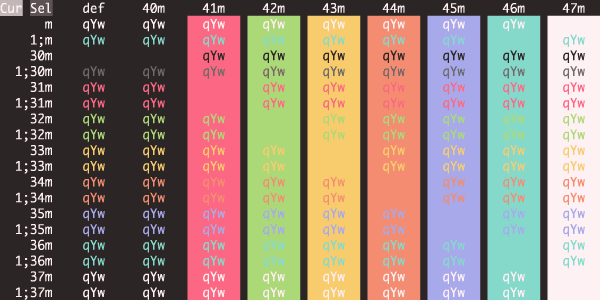
Monokai Pro Spectrum
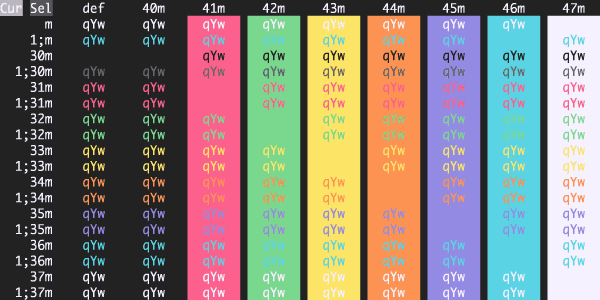
Monokai Pro
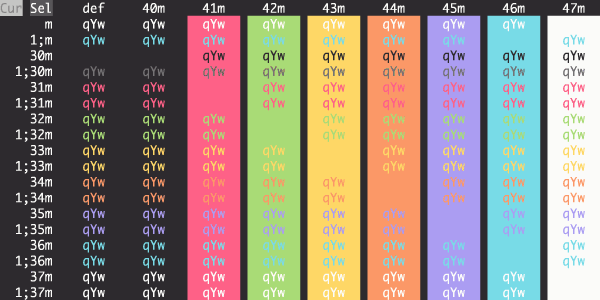
Monokai Remastered
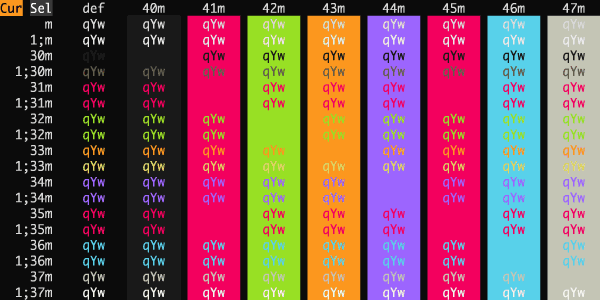
Monokai Soda
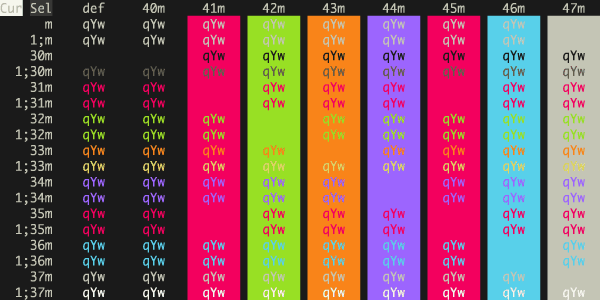
Monokai SublimeText
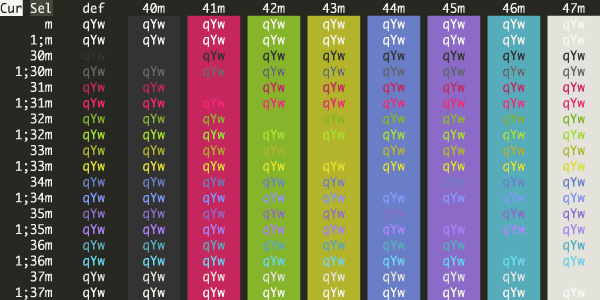
Monokai Vivid
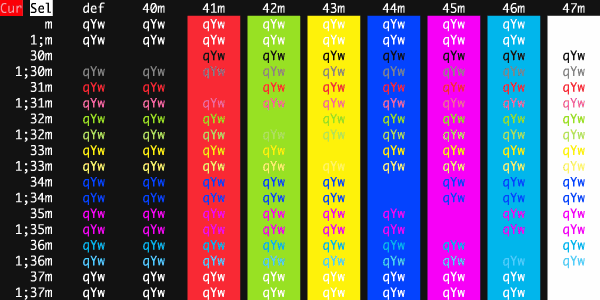
Monospace Dark
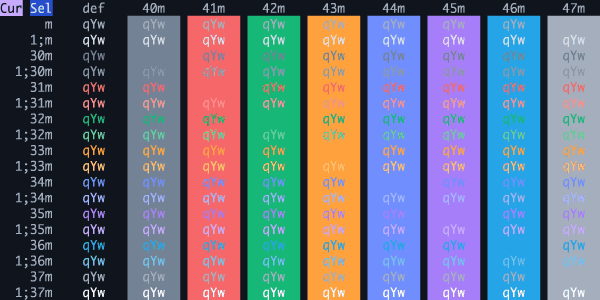
Monsoon Mesa
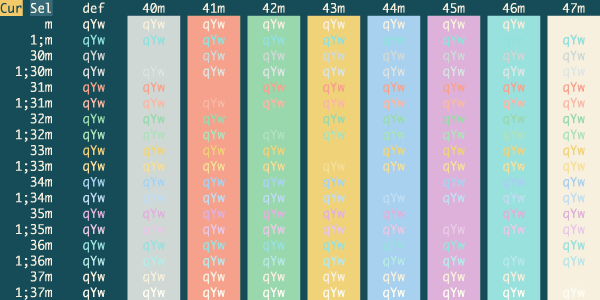
Monster Mash
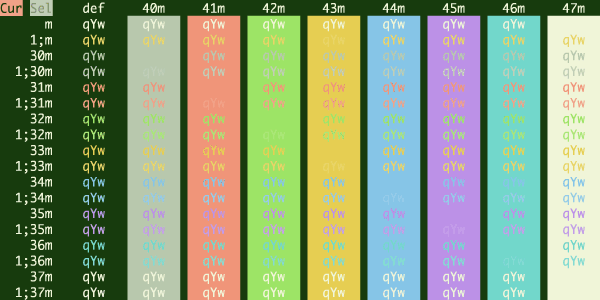
Moonfly
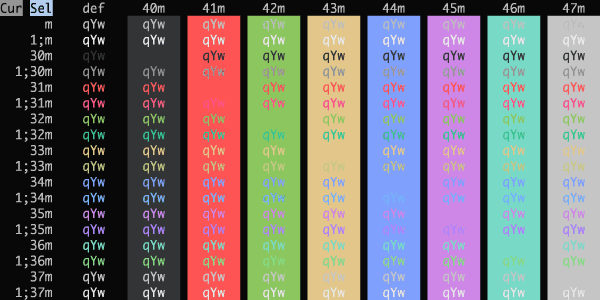
Motel Vacancy
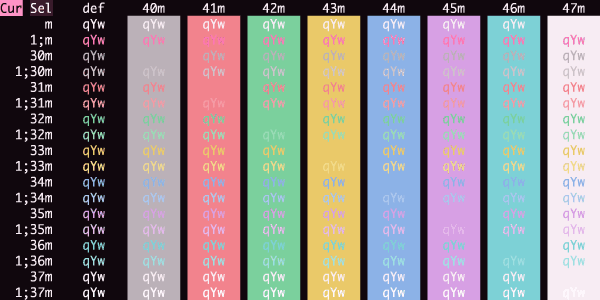
Moving Signals
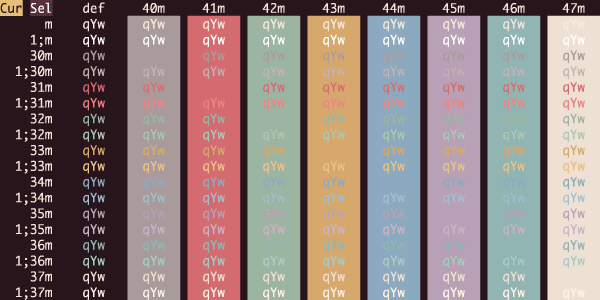
N0Tch2K
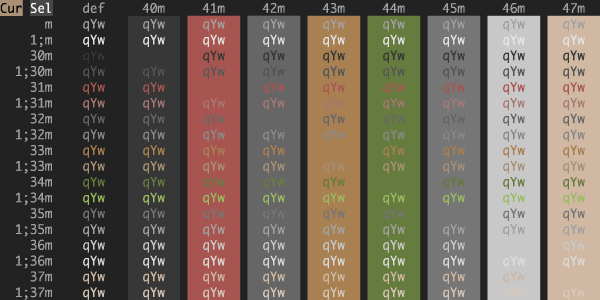
Nachtschicht
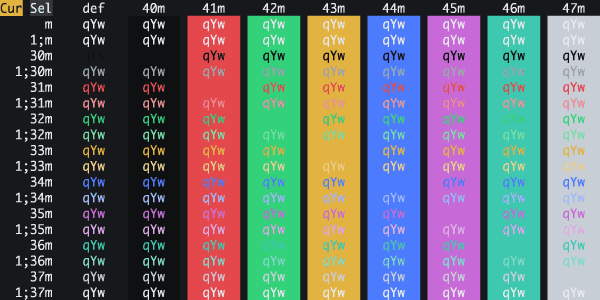
Nebula Drift
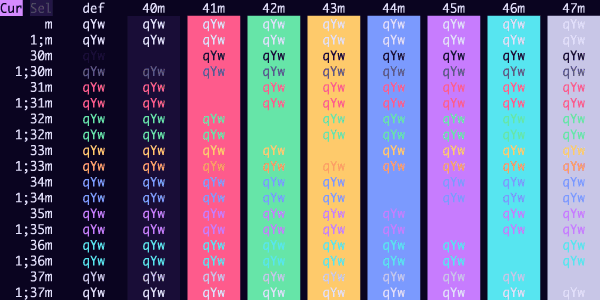
Neobones Dark
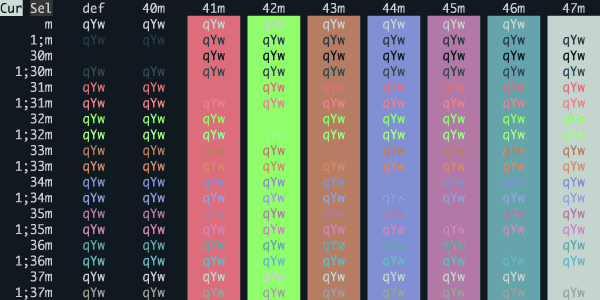
Neon Analog
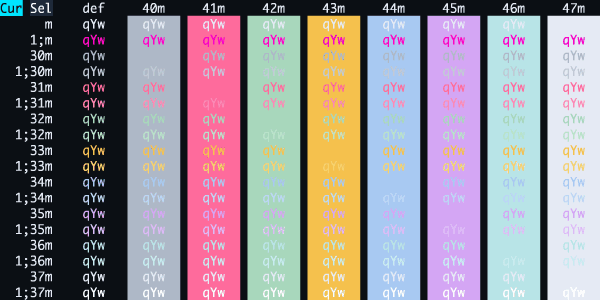
Neon Purple
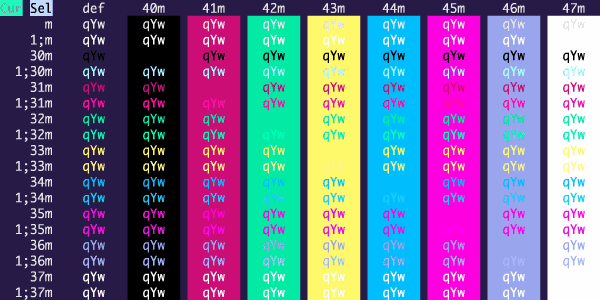
Neon
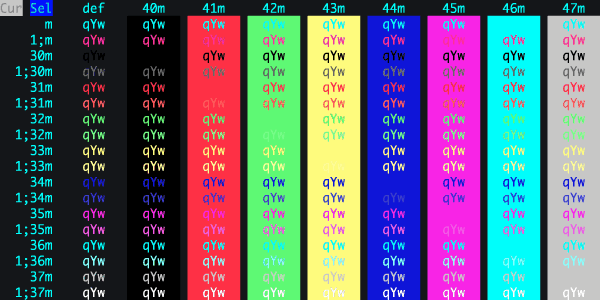
Neopolitan
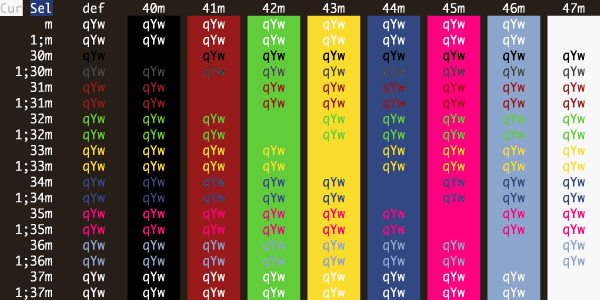
Neutron
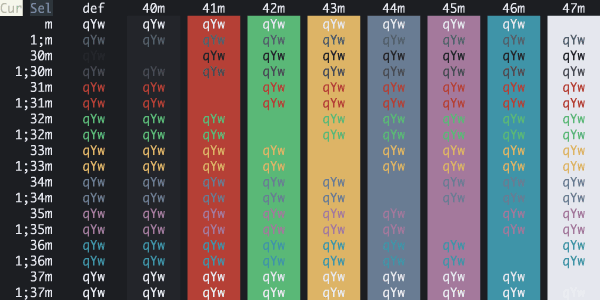
Night Lion V1
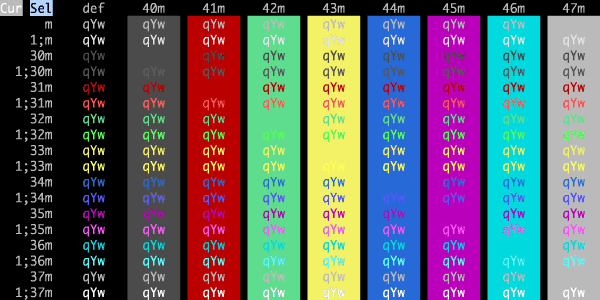
Night Lion V2
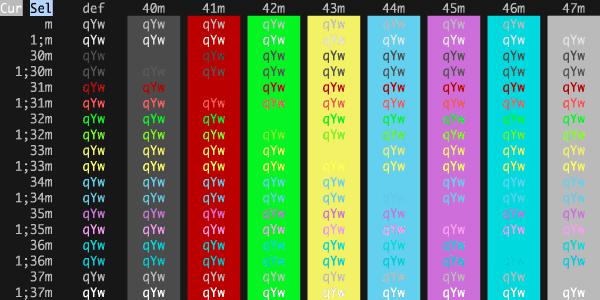
Night Owl
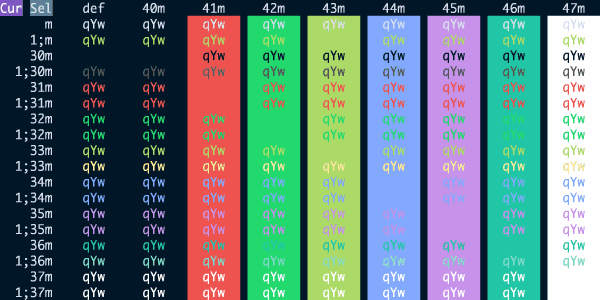
Night Pharmacy
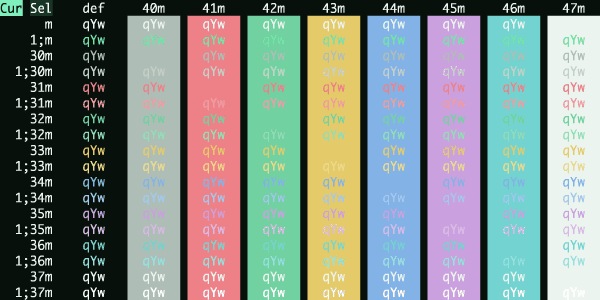
Nightfall
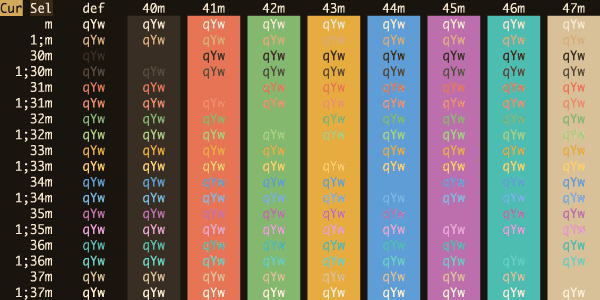
Nightfox
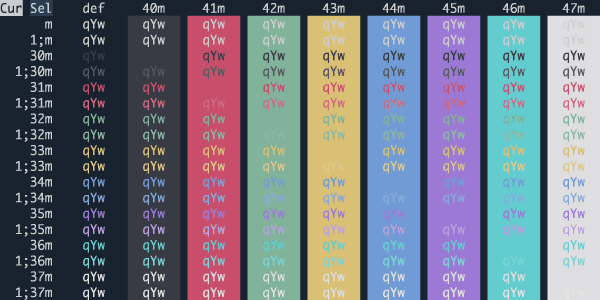
Niji
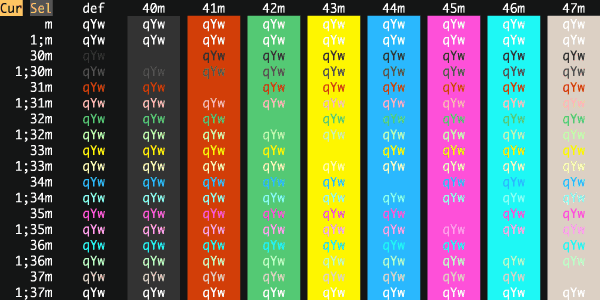
No Clown Fiesta
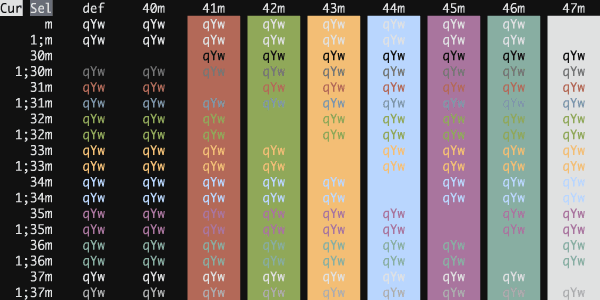
Noctis Azureus
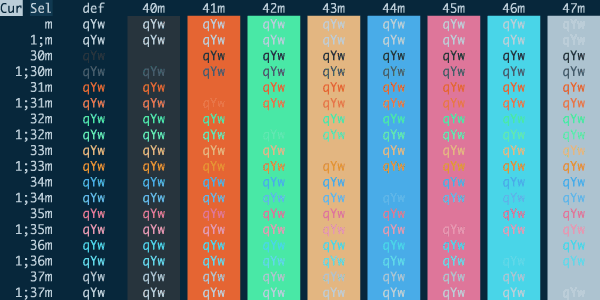
Noctis Bordo
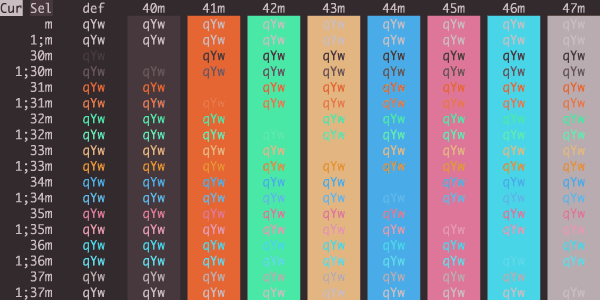
Noctis Minimus
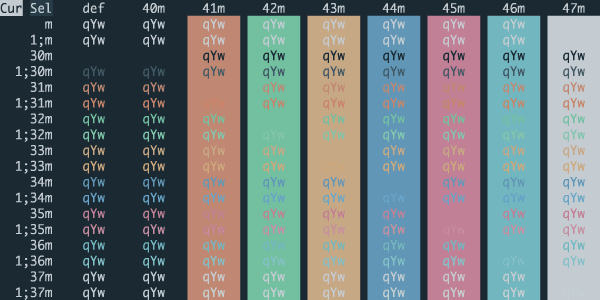
Noctis Obscuro
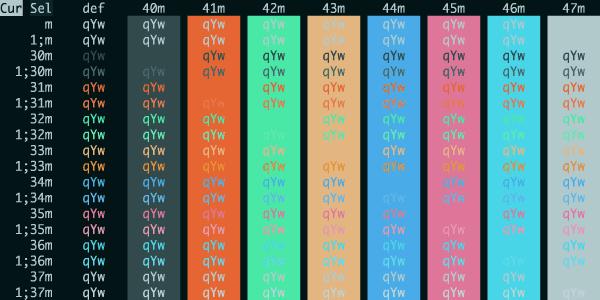
Noctis Sereno
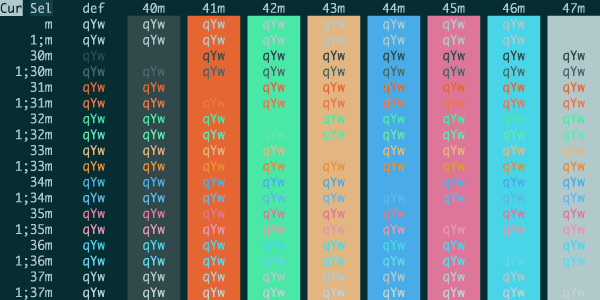
Noctis Uva
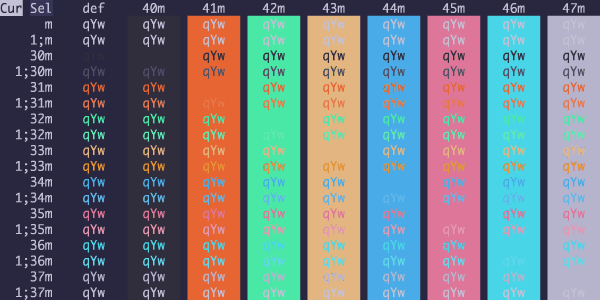
Noctis Viola
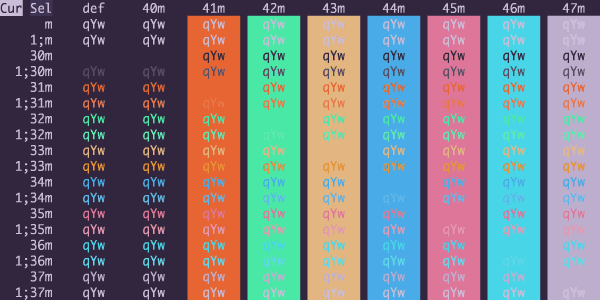
Noctis
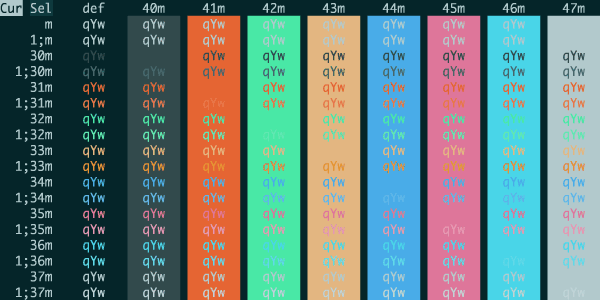
Nocturnal Winter
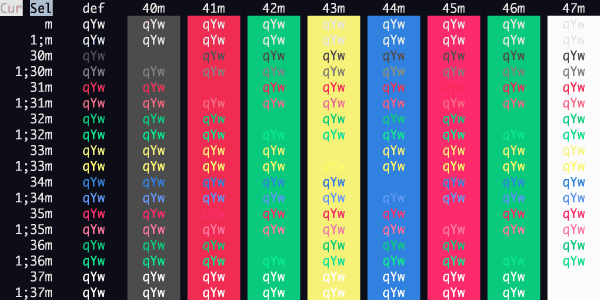
Nord Wave
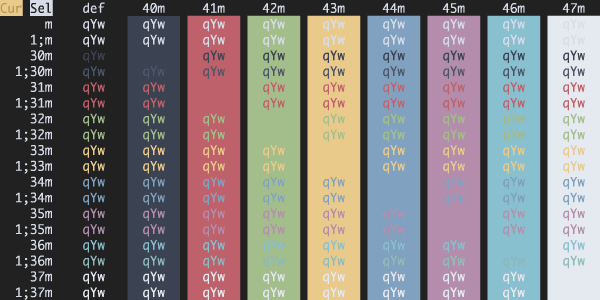
Nord
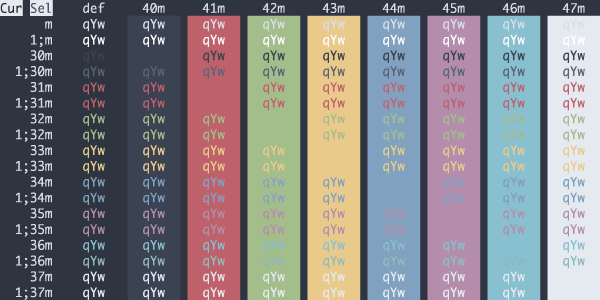
Nordfox
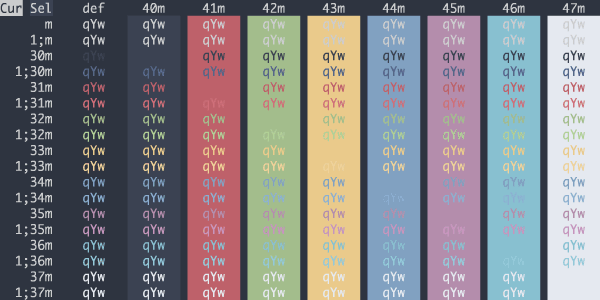
Northstar
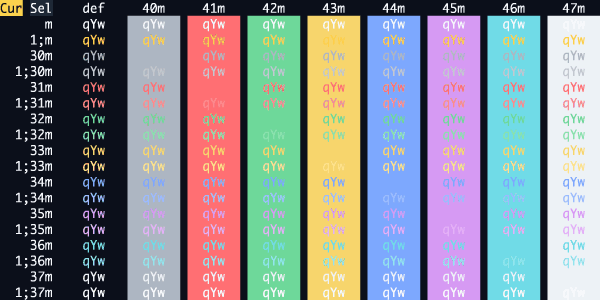
novmbr
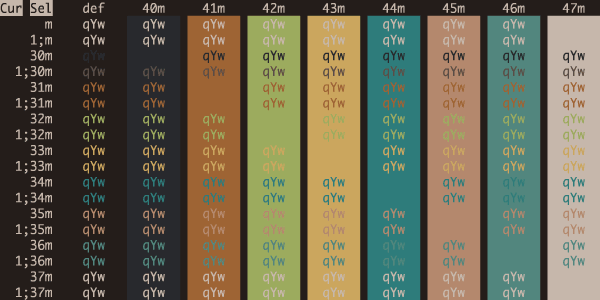
Numbers Station
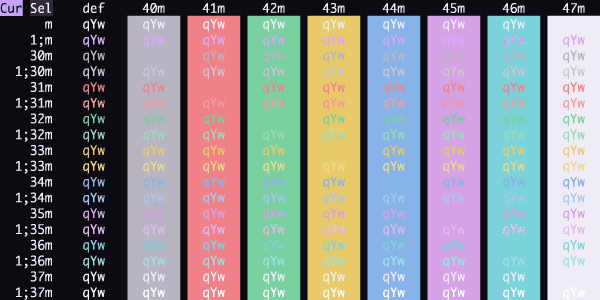
Nvim Dark
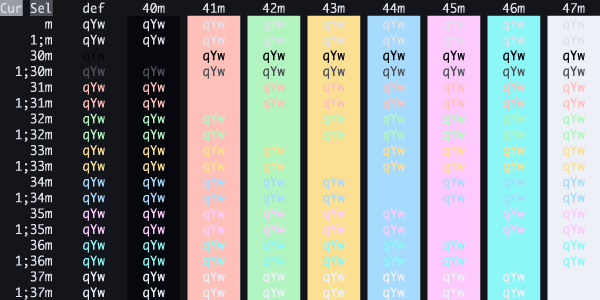
Obsidian
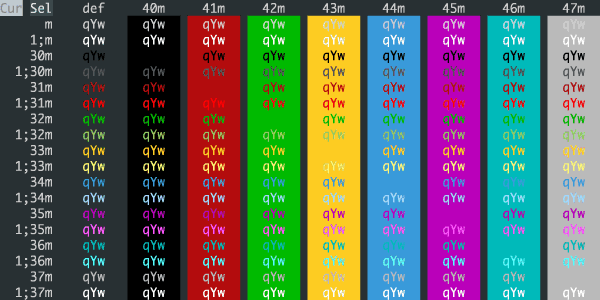
Obsurdian
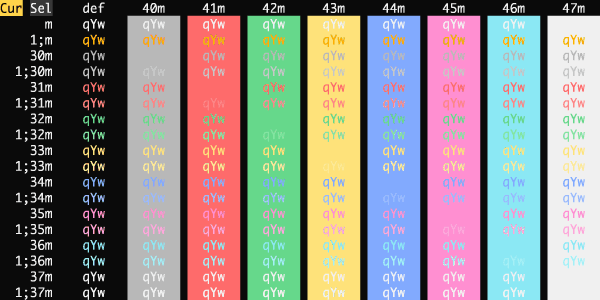
Ocean
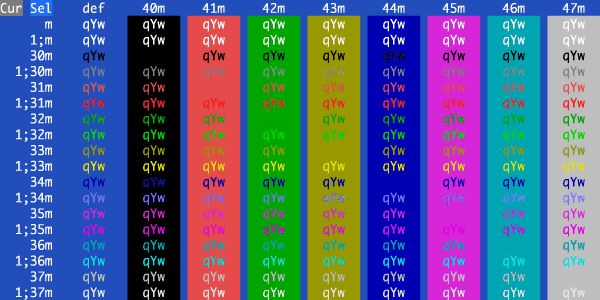
Oceanic Material
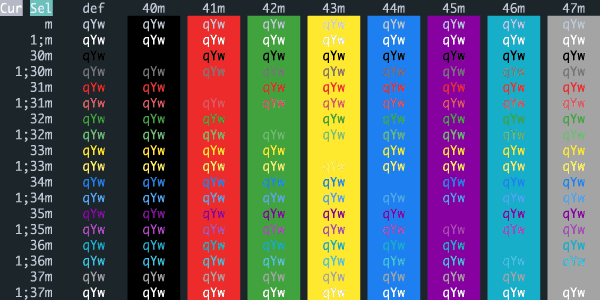
Oceanic Next
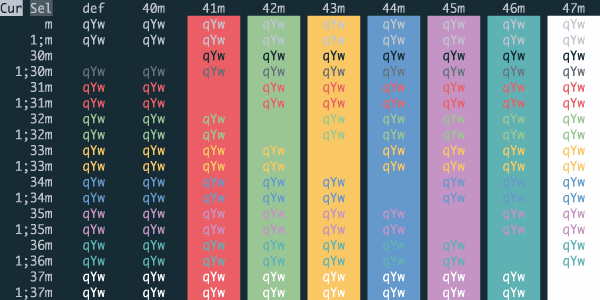
Ocotillo
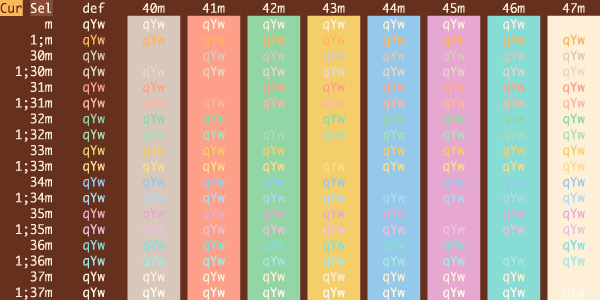
Ollie
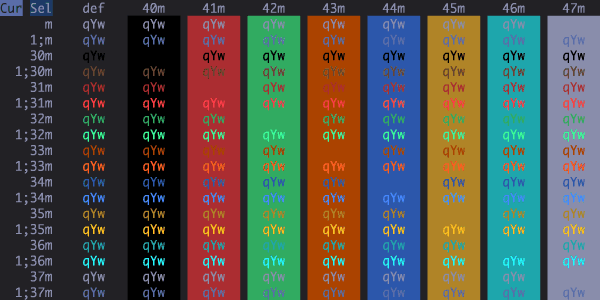
One Dark Two
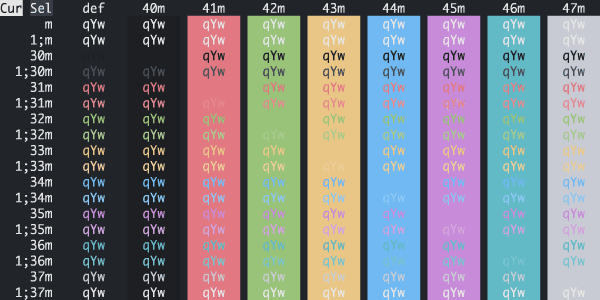
One Double Dark
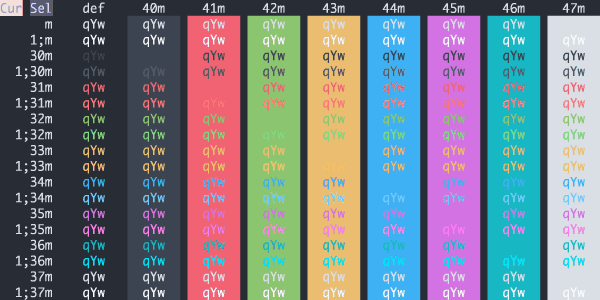
One Half Dark
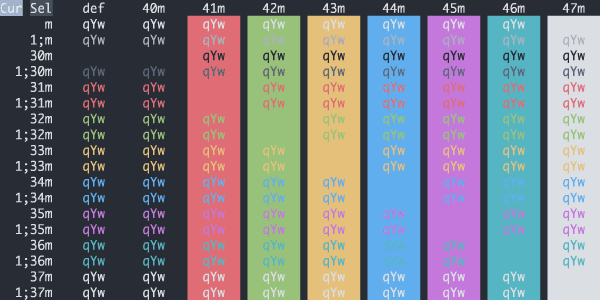
Onenord
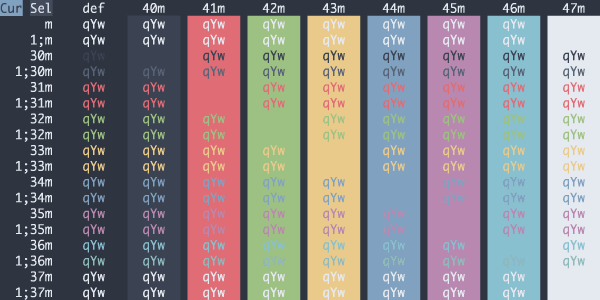
Opaline
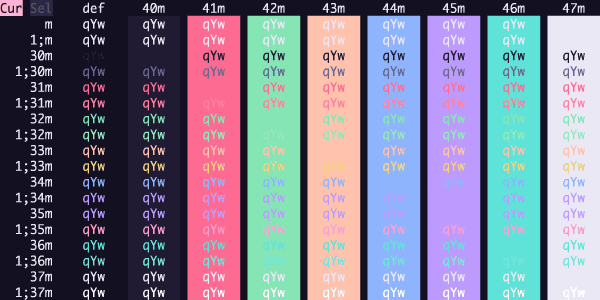
Operator Mono Dark
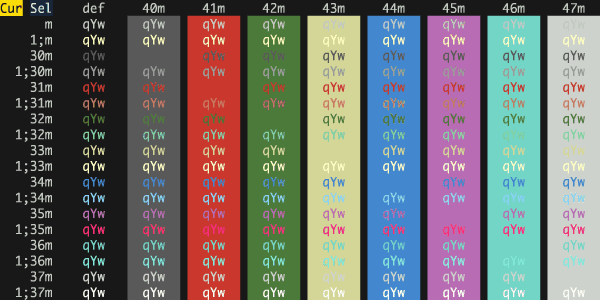
Outrun Electric
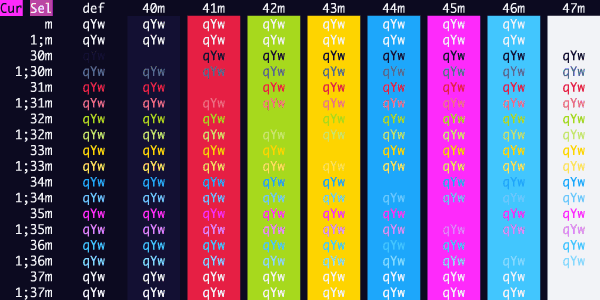
Overnight Slumber
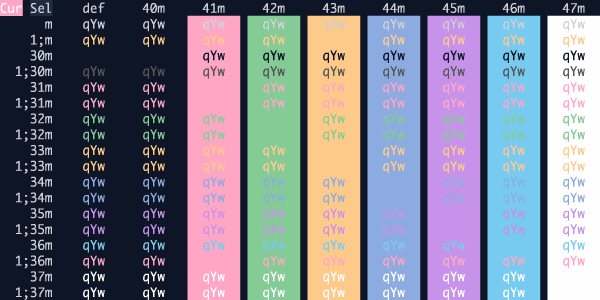
owl
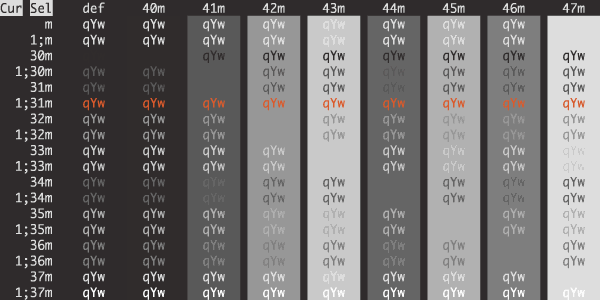
Oxblood
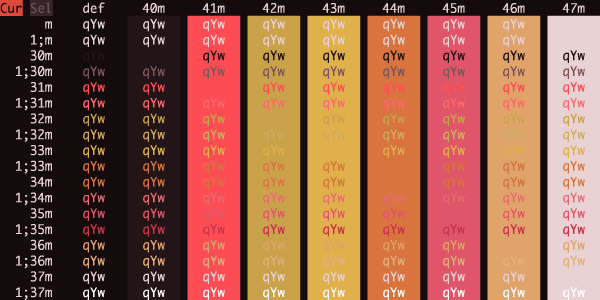
Oxide
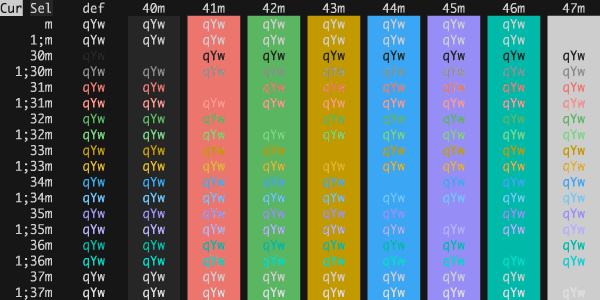
Oxocarbon
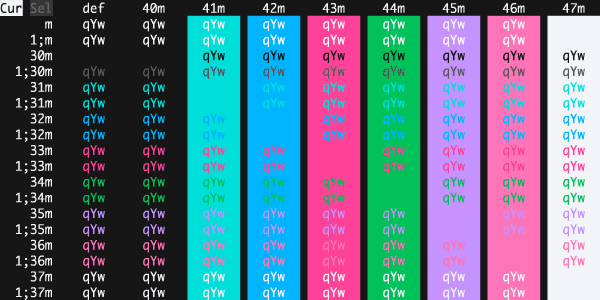
Ozz's Blizzard
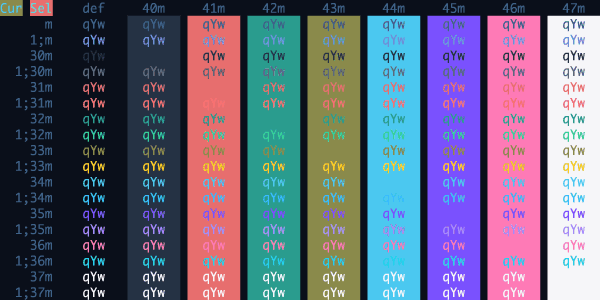
Painted Desert
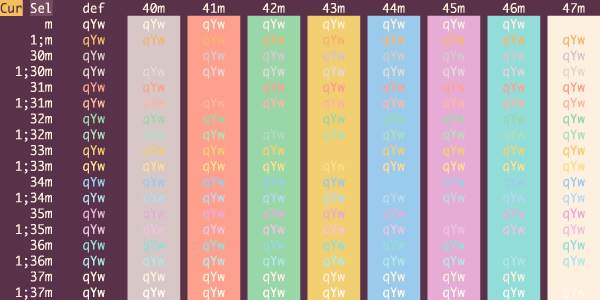
Pale Night Hc
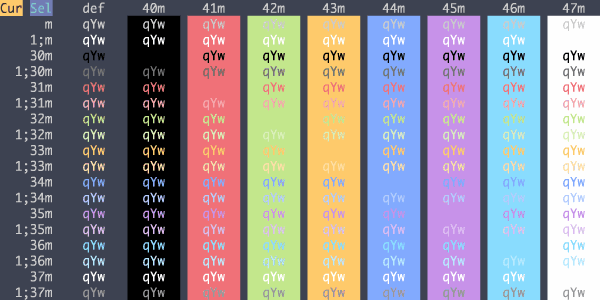
Pandora
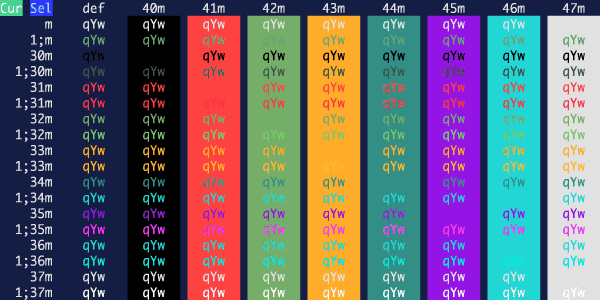
Paraiso Dark
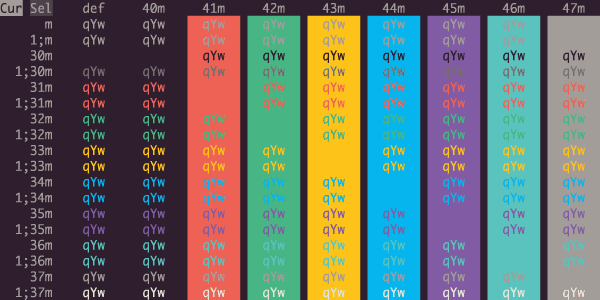
Paranoid Circuit
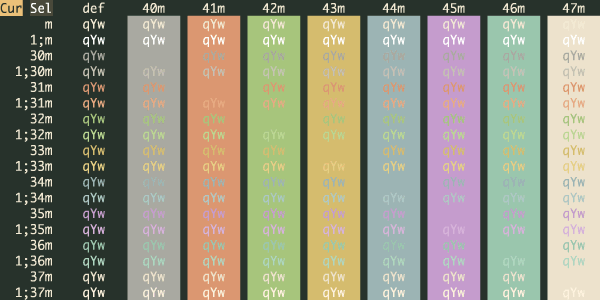
Patina Dark Soft
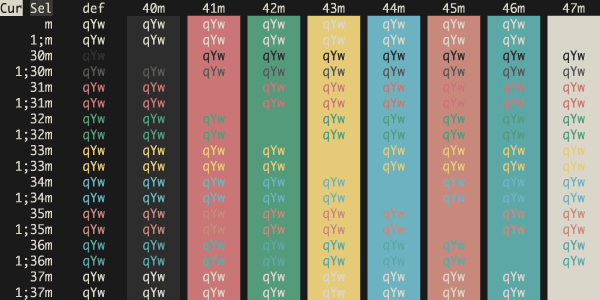
Patina Dark
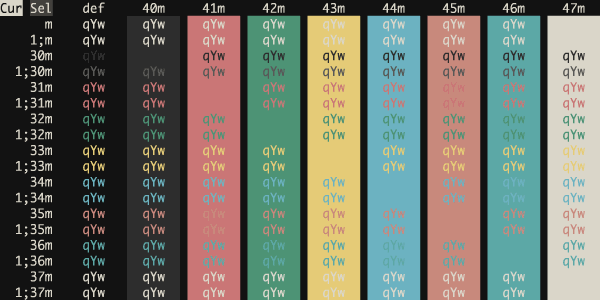
Patina Moss
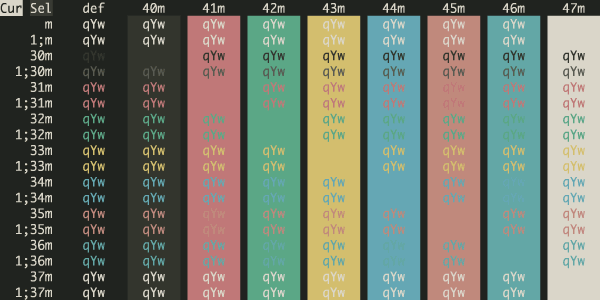
Patina
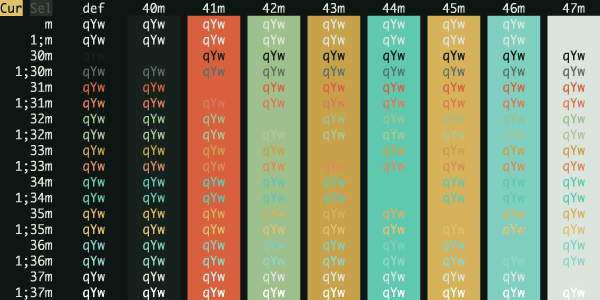
Paul Millr
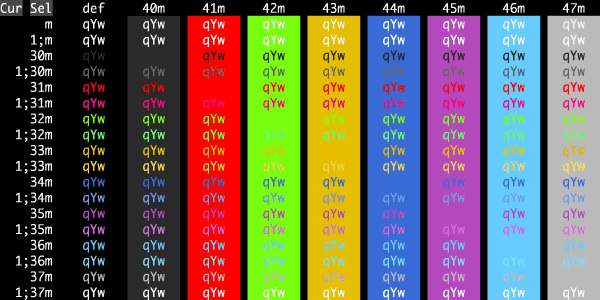
Pencil Dark
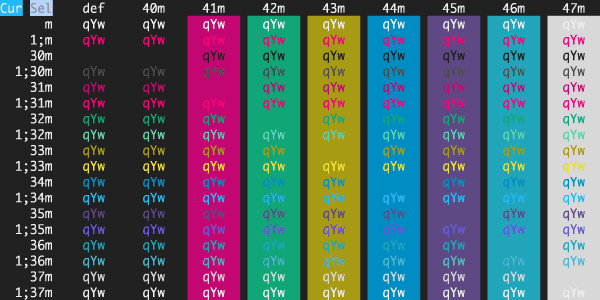
Peppermint
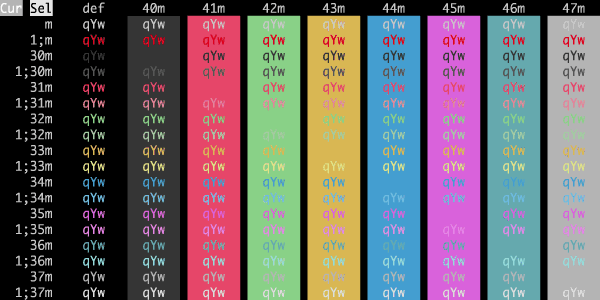
Petrified
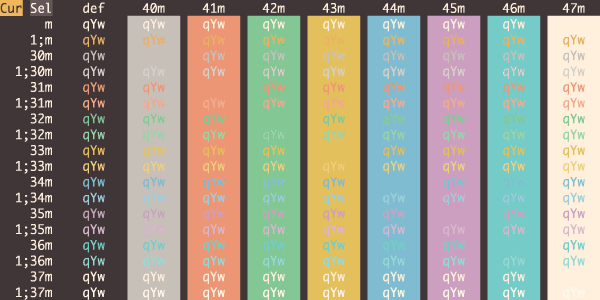
Phala Green Dark
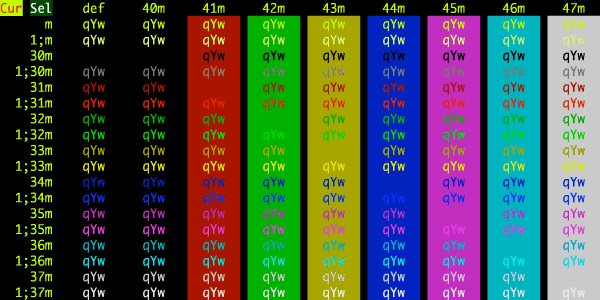
Pharaoh's Voltage
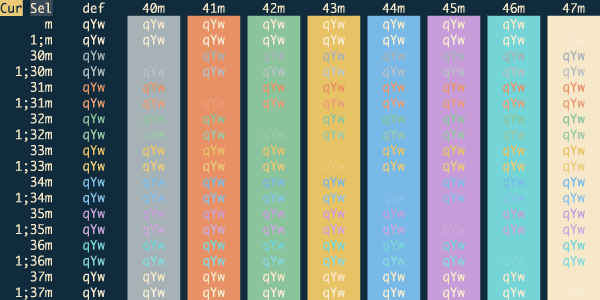
Pierre Dark
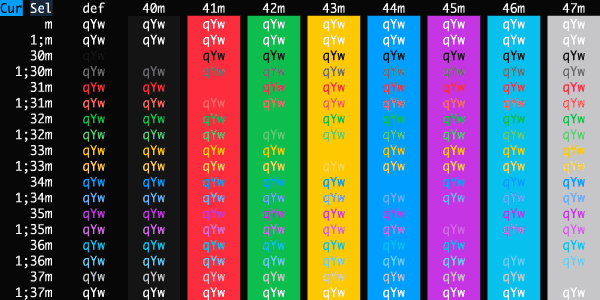
Pissed Off Pancakes
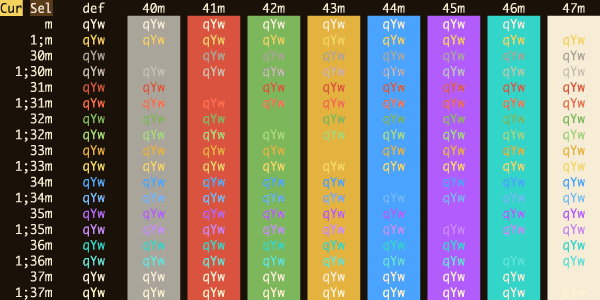
Pnevma
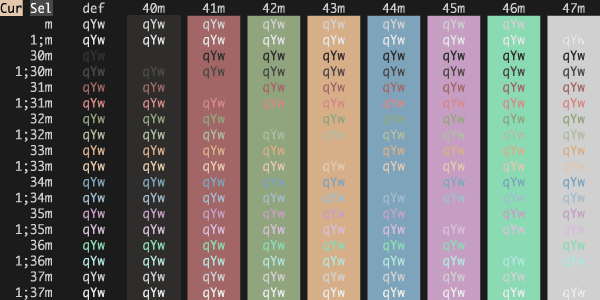
Poimandres Darker
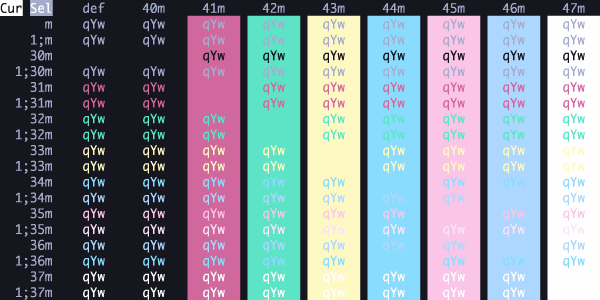
Poimandres Storm
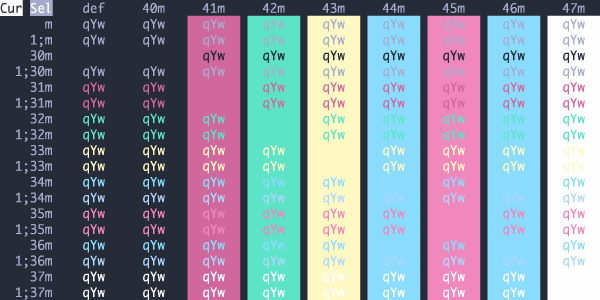
Poimandres
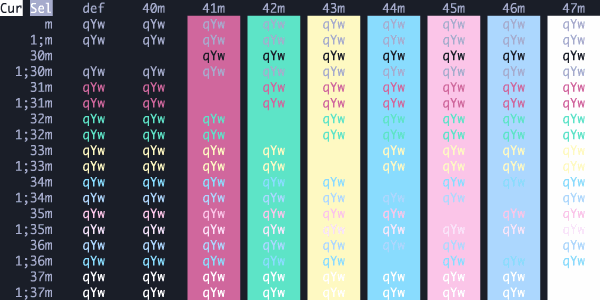
Poison Apple
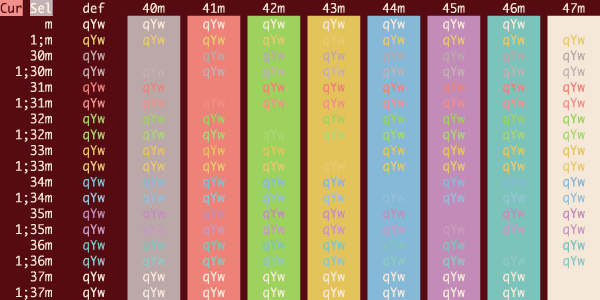
Poltergeist
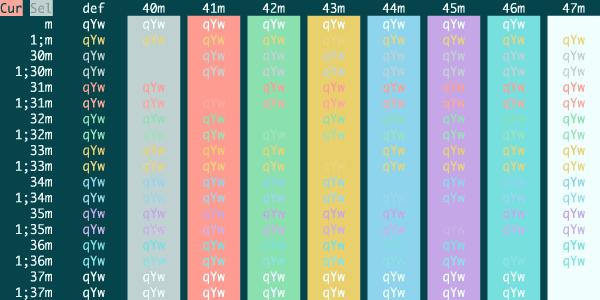
Popping And Locking
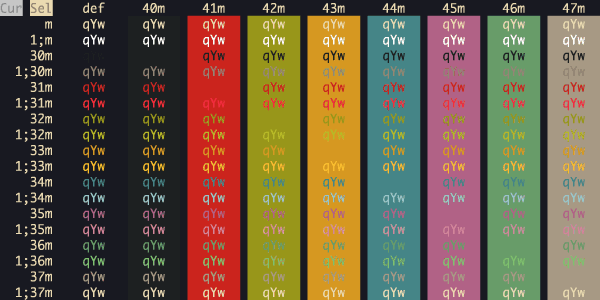
Possessed Toaster
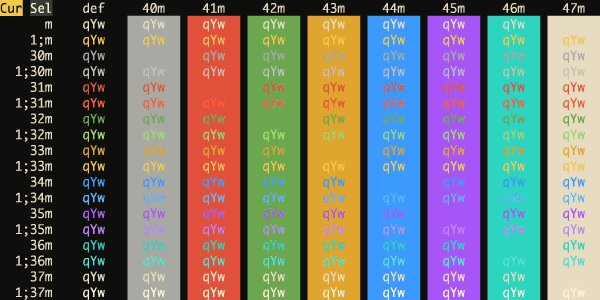
Powershell
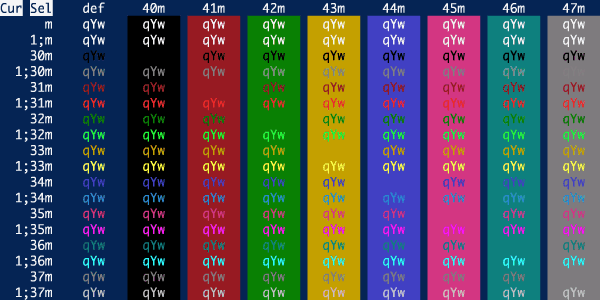
Prickly Pear
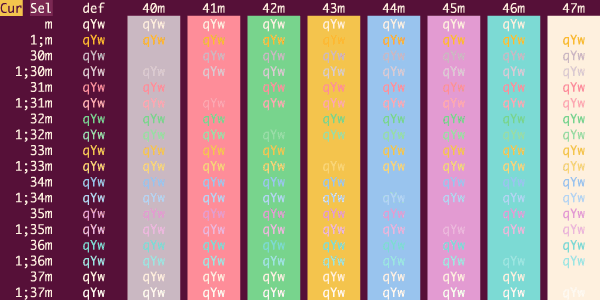
Prince of Barkness
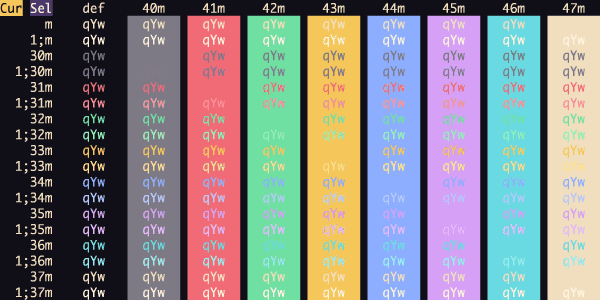
Prince of Darkness
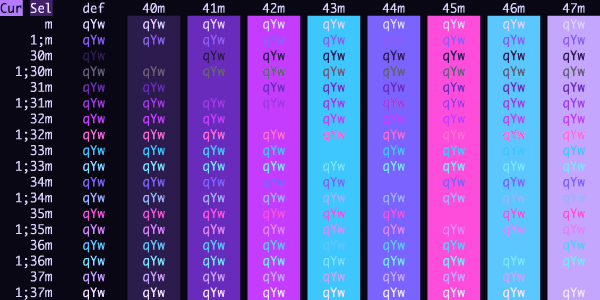
Prism
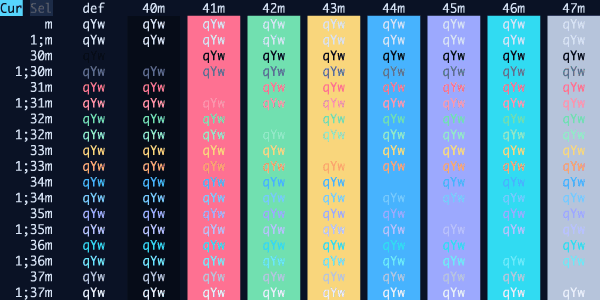
Prismatica
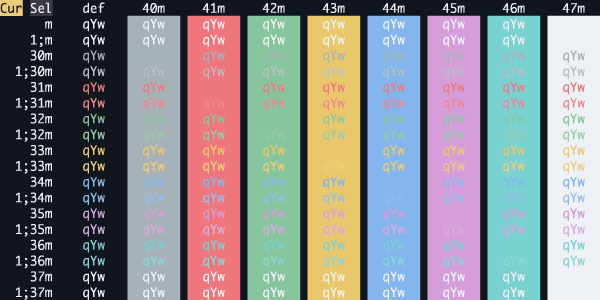
Pro
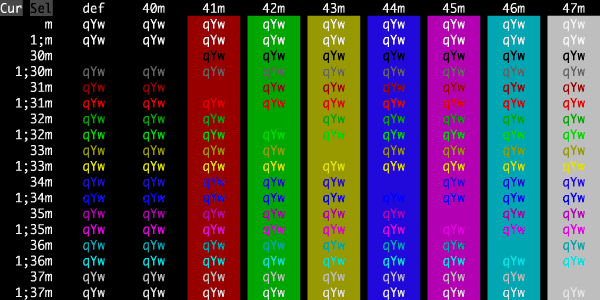
Pueblo Night
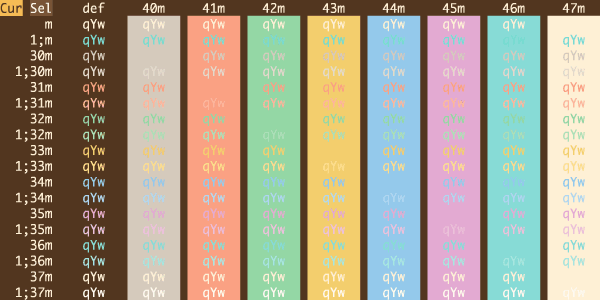
Pumpkin Patch
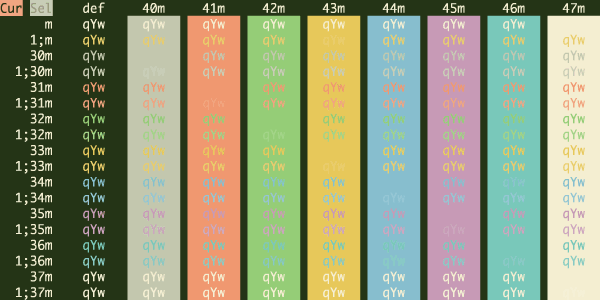
Pumpkin Spice
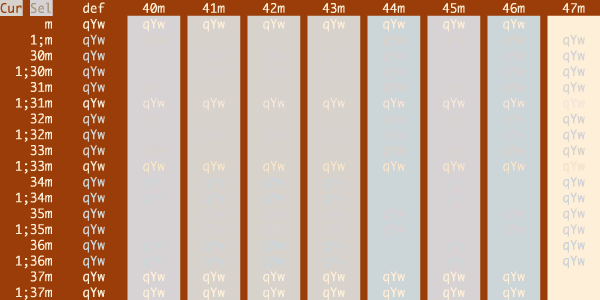
Puppet's Master
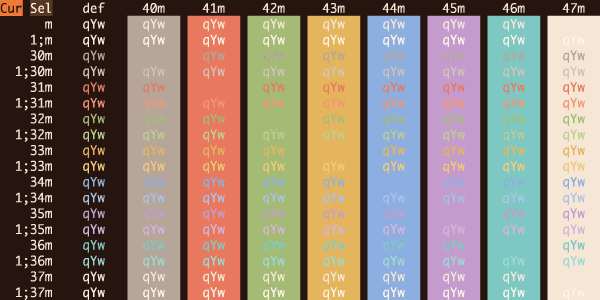
Purple Portal
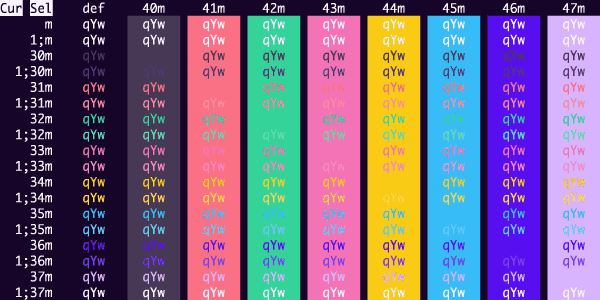
Purple Rain
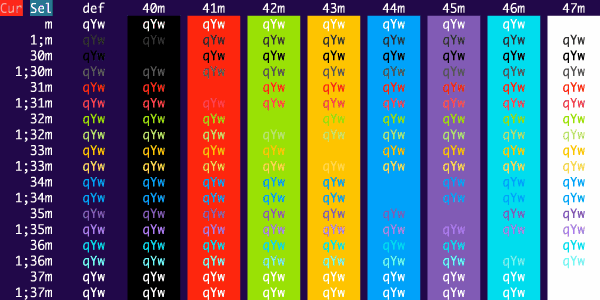
Purplepeter
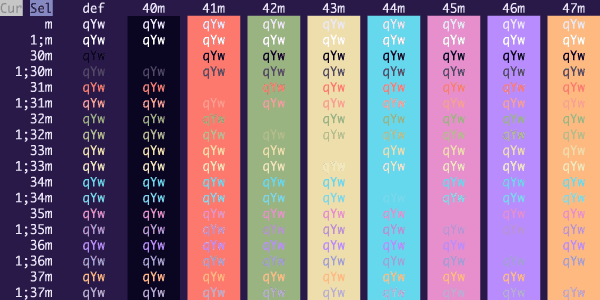
Pyrokai
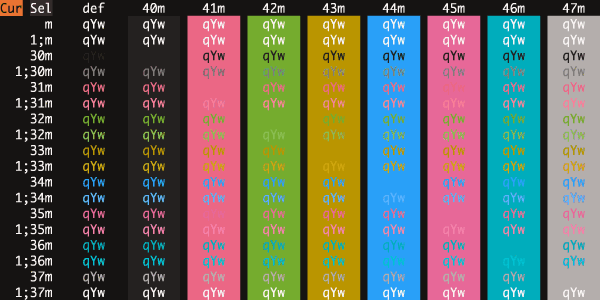
RadicalReborn
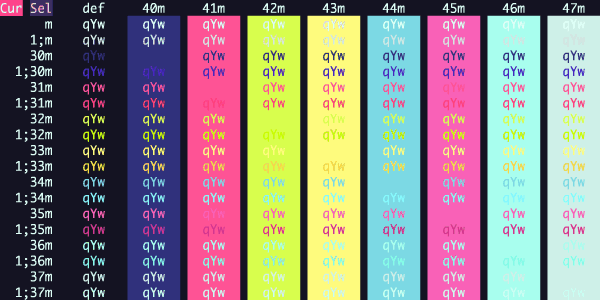
Rapture
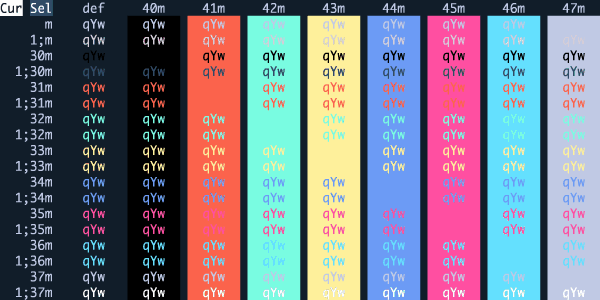
Raycast Dark
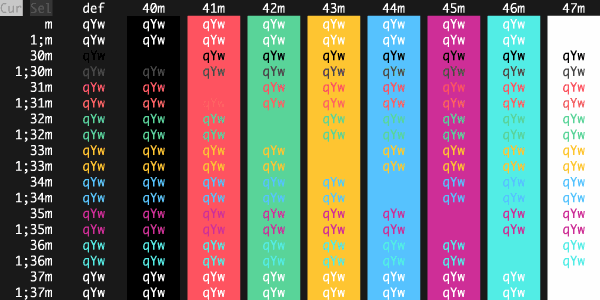
Rebecca
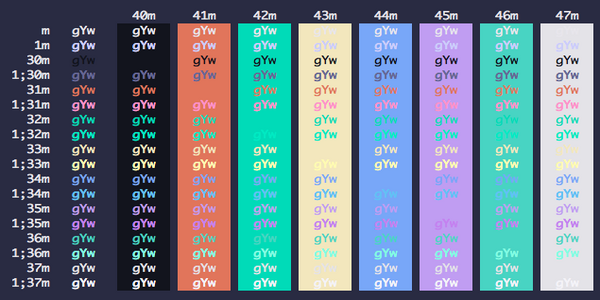
Red Alert
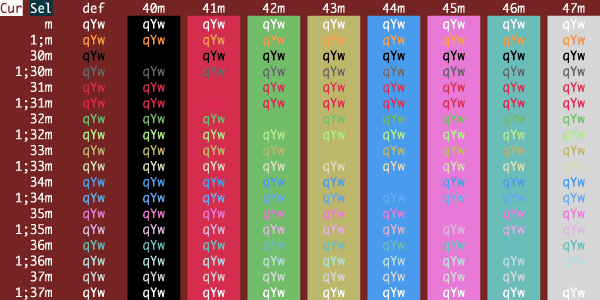
Red Planet
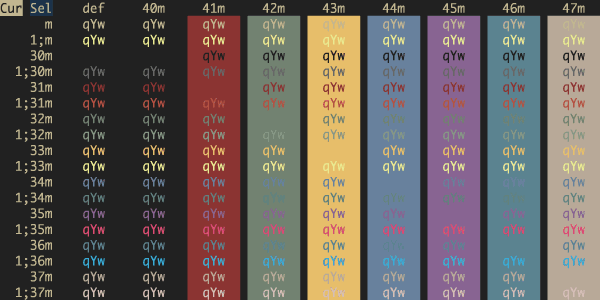
Red Rock
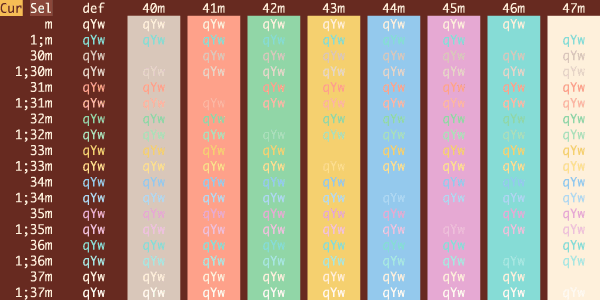
Red Sands
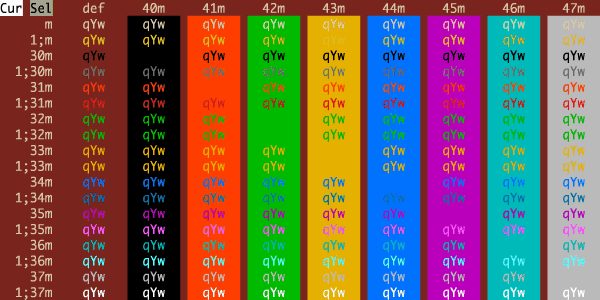
Relaxed
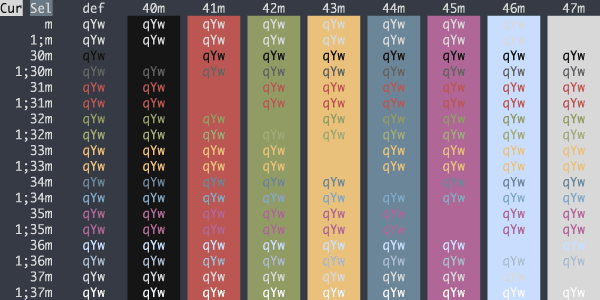
Retro Legends
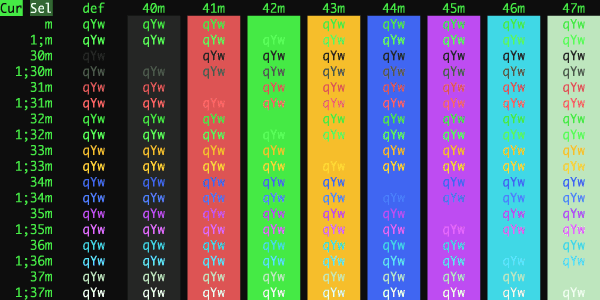
Retro
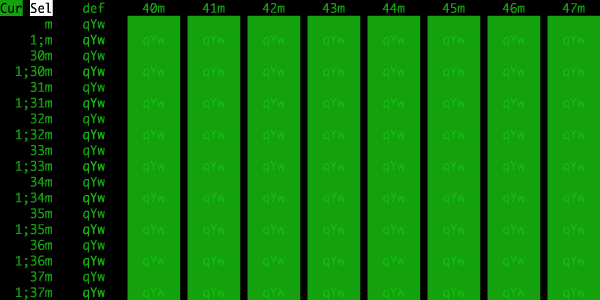
Rhoads Insipired
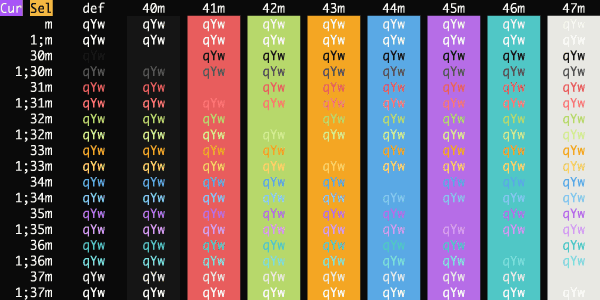
Rhoads Legacy
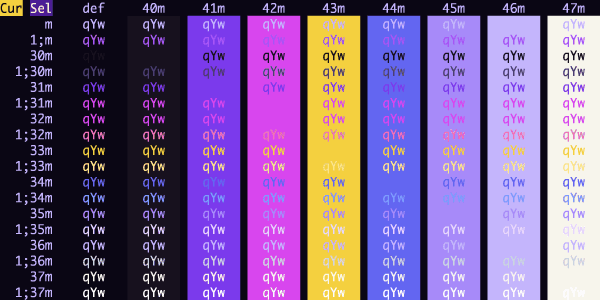
Rhoads RR Black
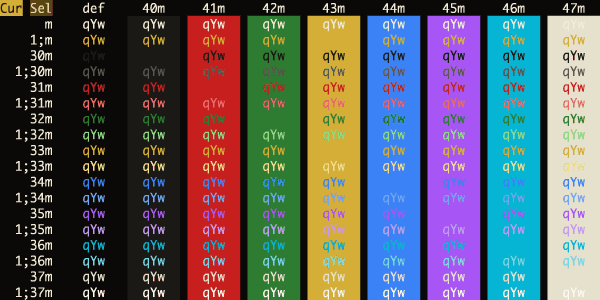
Rhoads Tribute
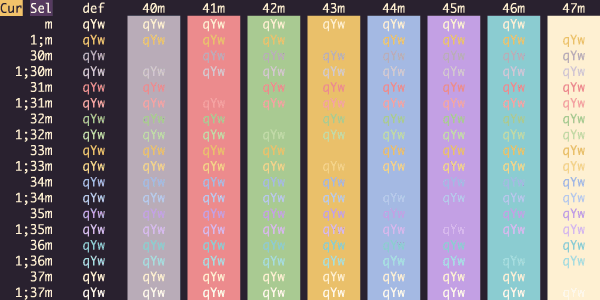
Ride the Current
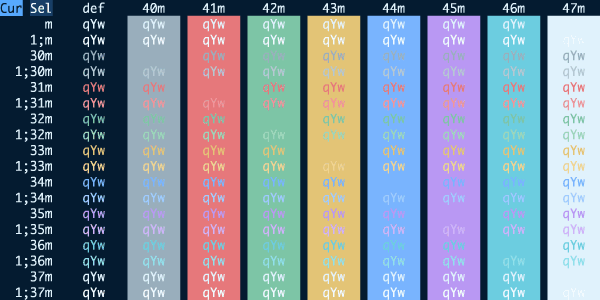
Rippedcasts
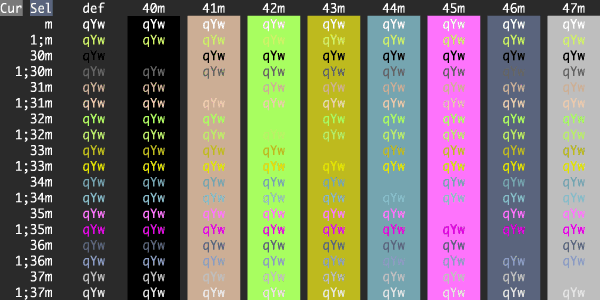
Rose Pine Moon
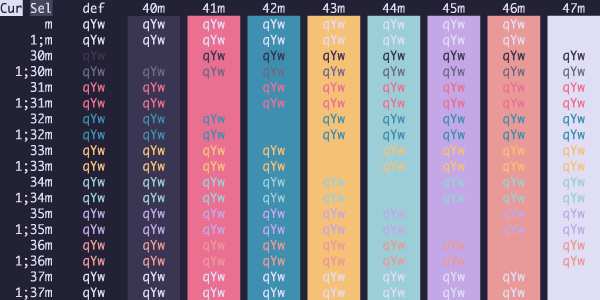
Rose Pine
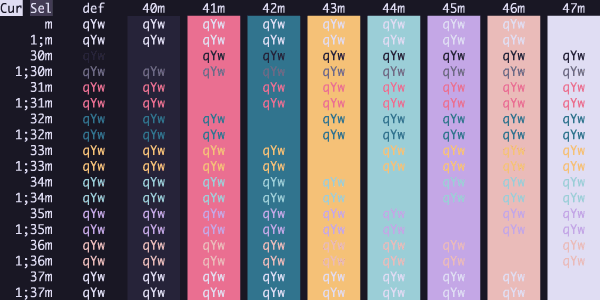
Rouge 2
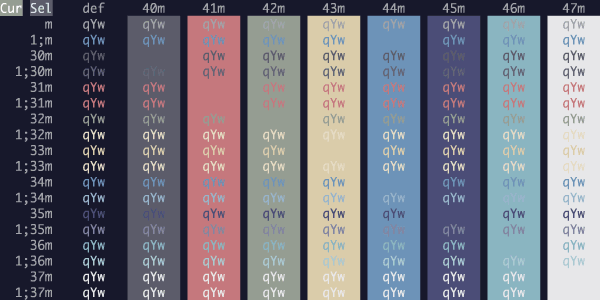
Royal
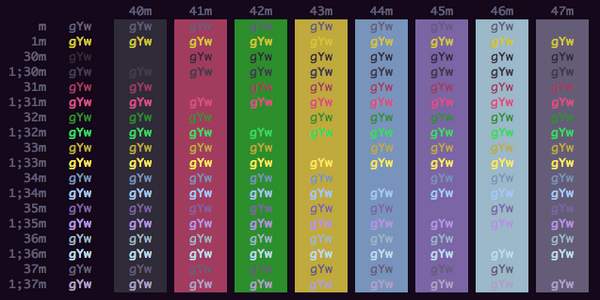
Ryuuko
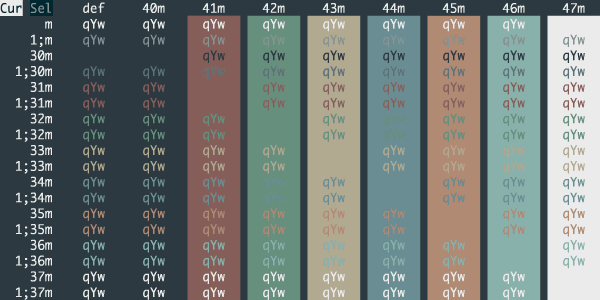
Saguaro
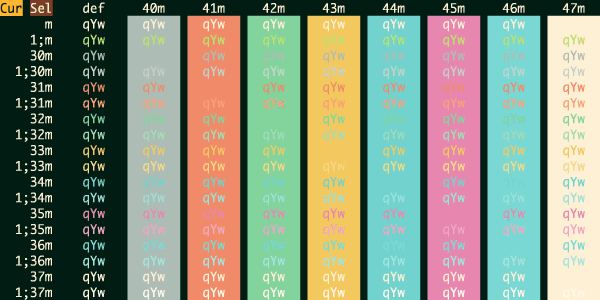
Sakura
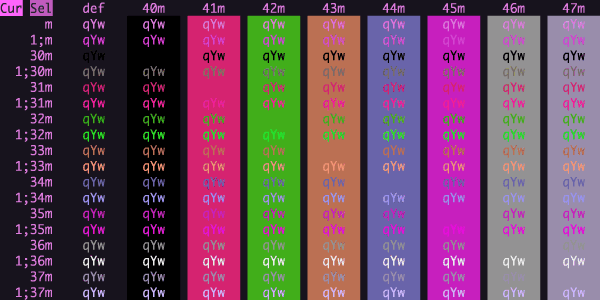
Salem
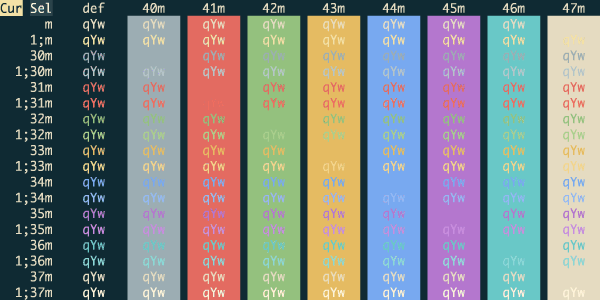
Scabos Sand
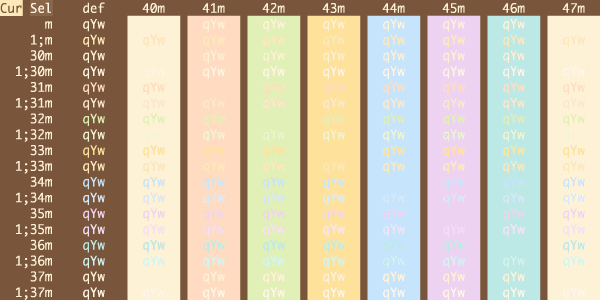
Scarlet Protocol
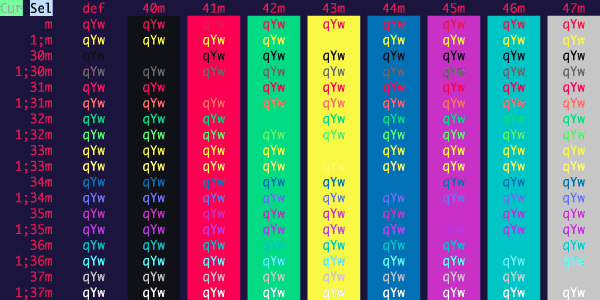
Sea Shells
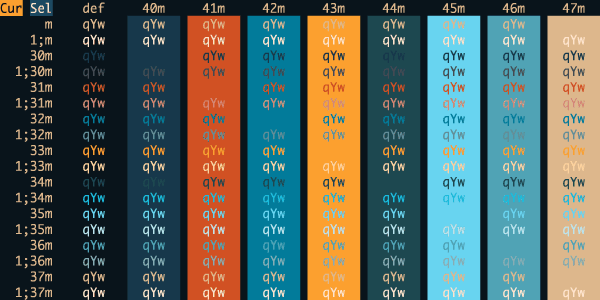
Seafoam Pastel
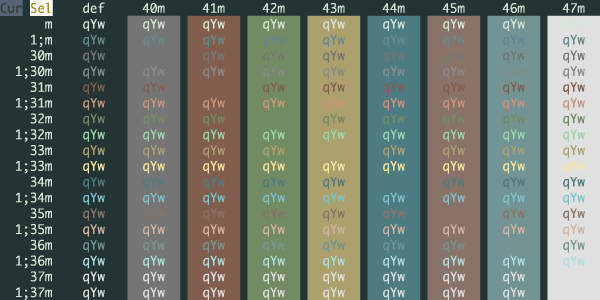
Seance
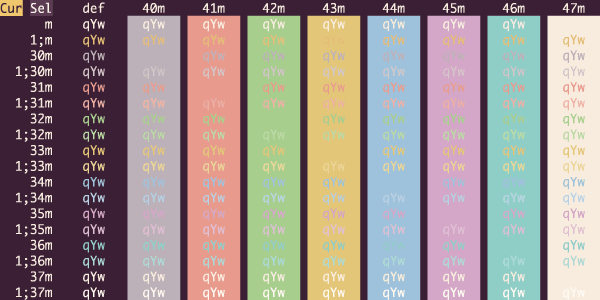
Sedona
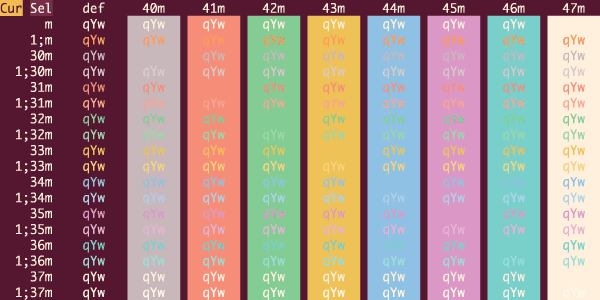
SeedFlip Abyss
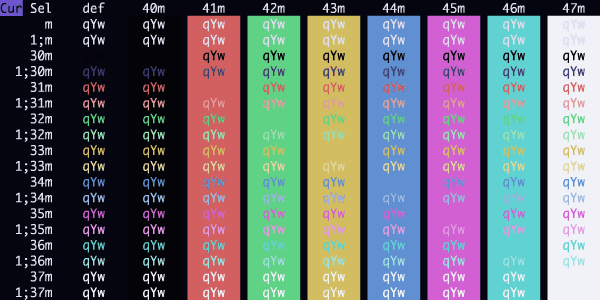
SeedFlip Canopy
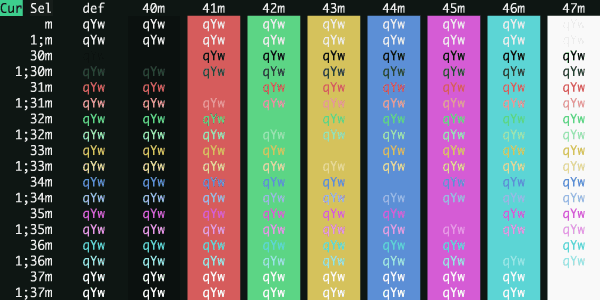
SeedFlip Ember
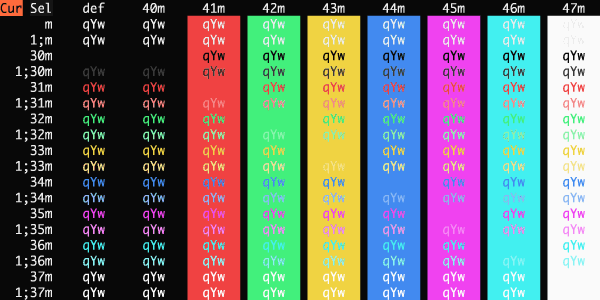
SeedFlip Inkwell
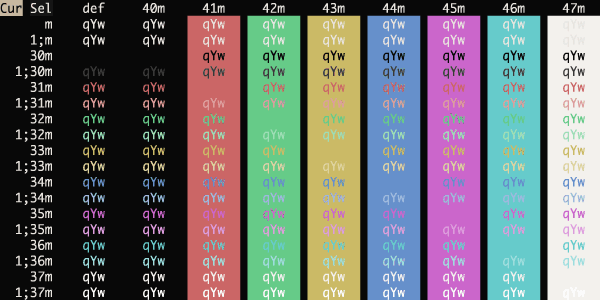
SeedFlip Nightfall
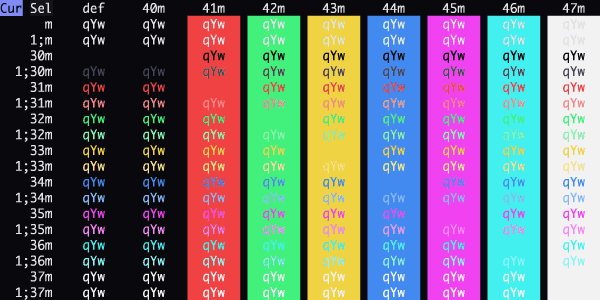
SeedFlip Phosphor
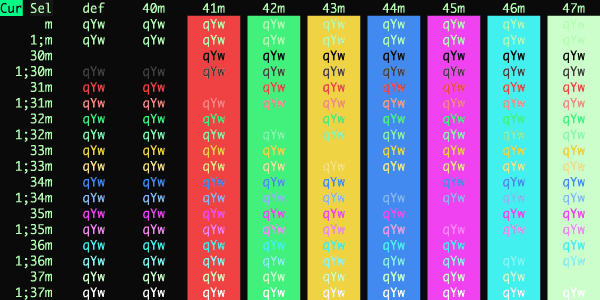
SeedFlip Pulse
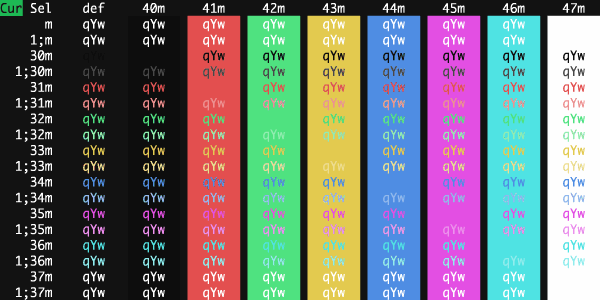
SeedFlip Ultraviolet
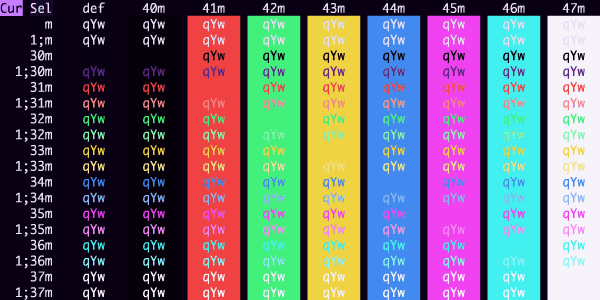
SeedFlip Voltage
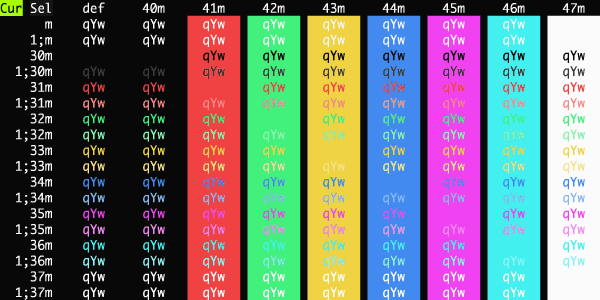
SeedFlip Wavelength
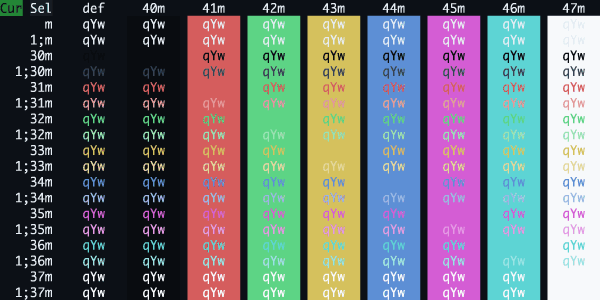
Selenized Black
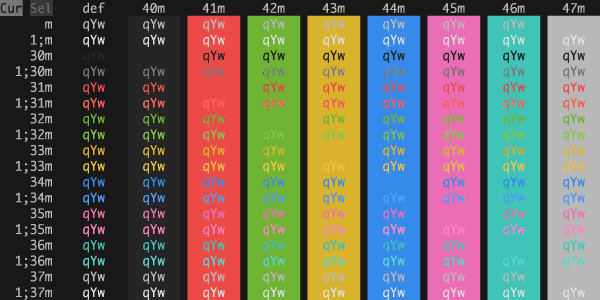
Selenized Dark
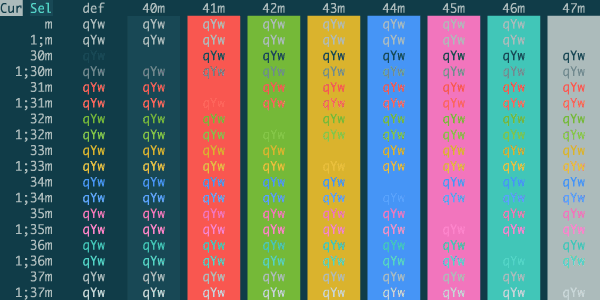
Seoulbones Dark
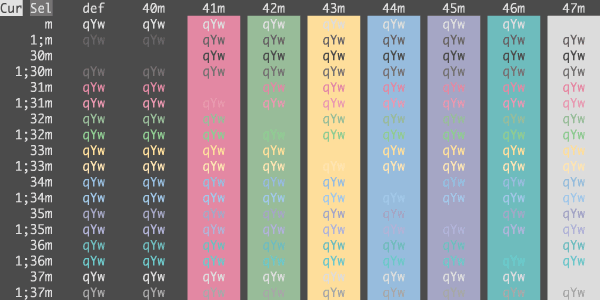
Sequoia Monochrome Dark
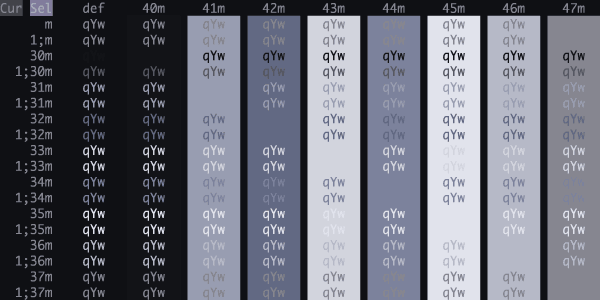
Sequoia Moonlight Dark
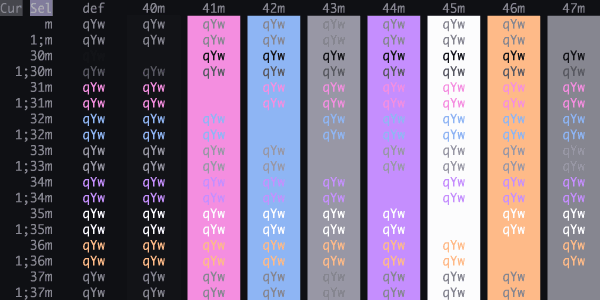
Sequoia Retro Dark
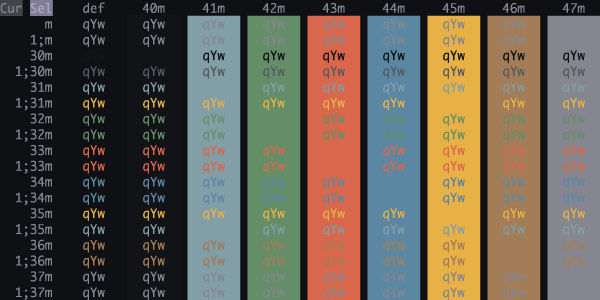
Serendipity Midnight
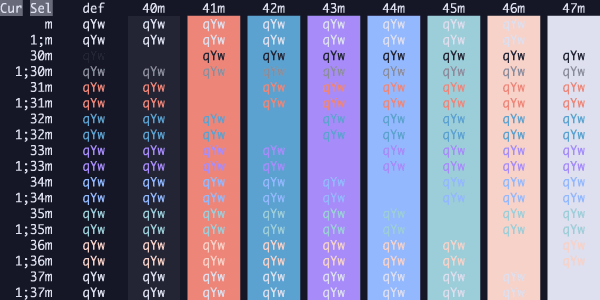
Serendipity Sunset
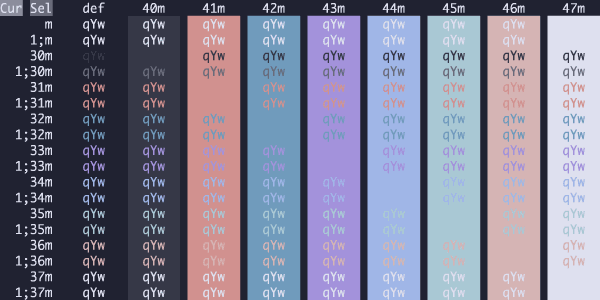
Seti
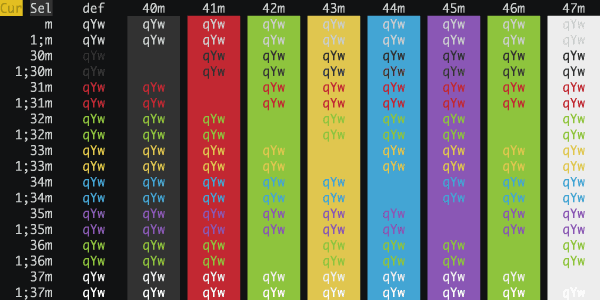
Shades Of Purple
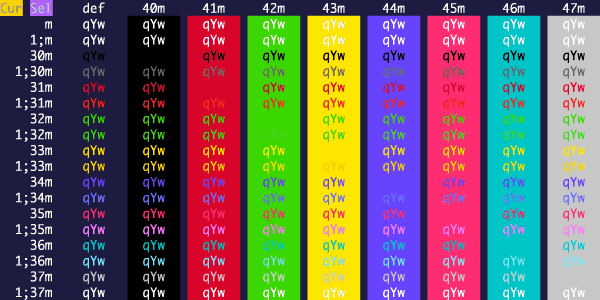
Shaman
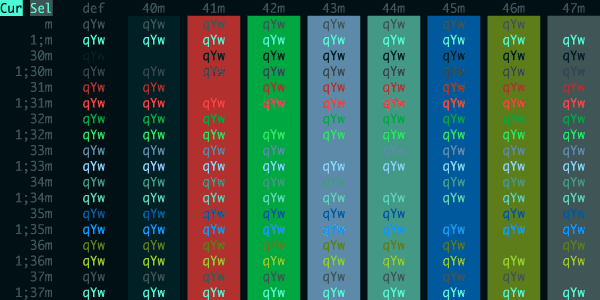
Sierra Gold
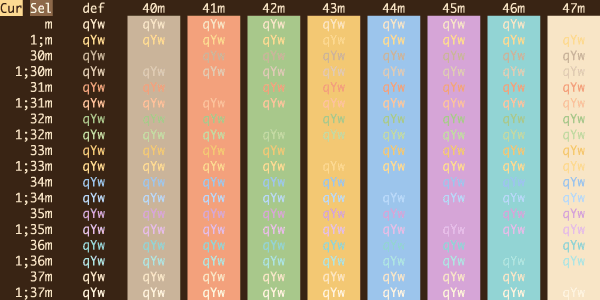
Signal Ghost
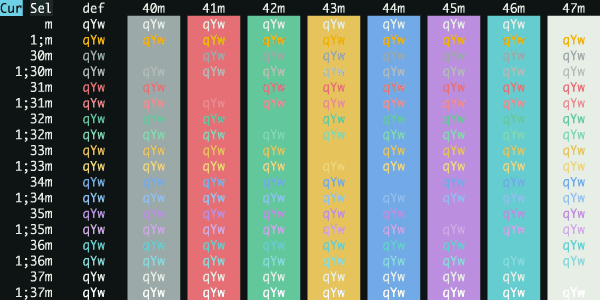
Silent Empire
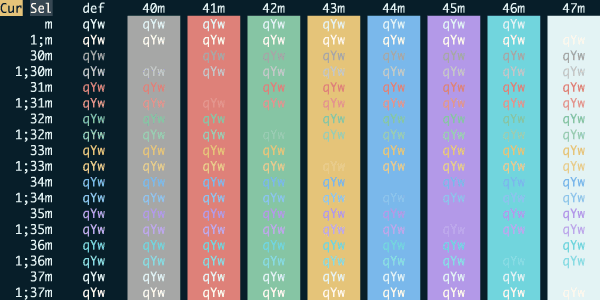
SilkCircuit Glow
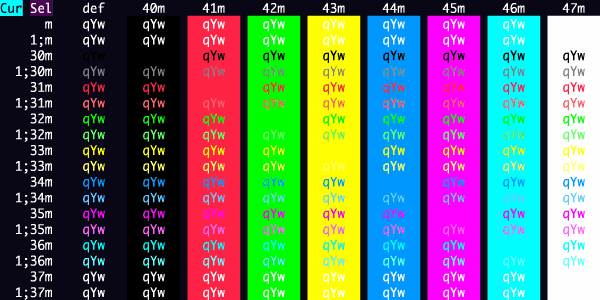
SilkCircuit Neon
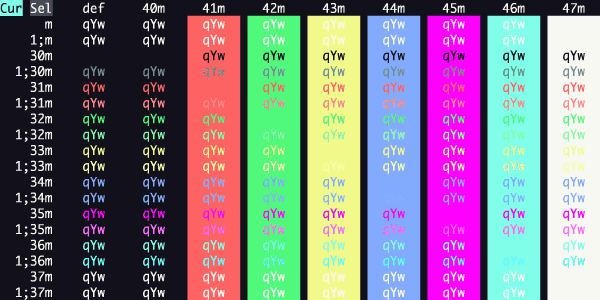
SilkCircuit Soft
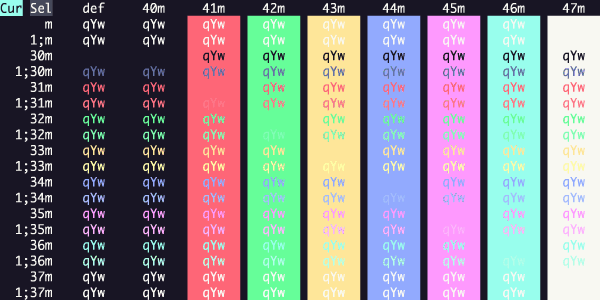
SilkCircuit Vibrant
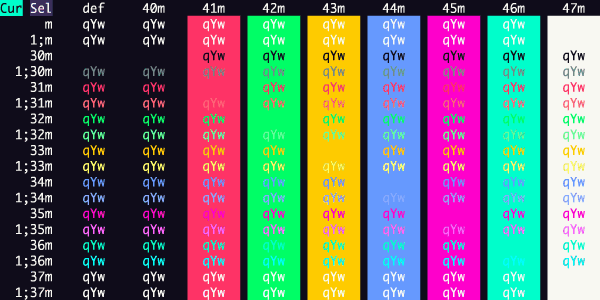
Slate
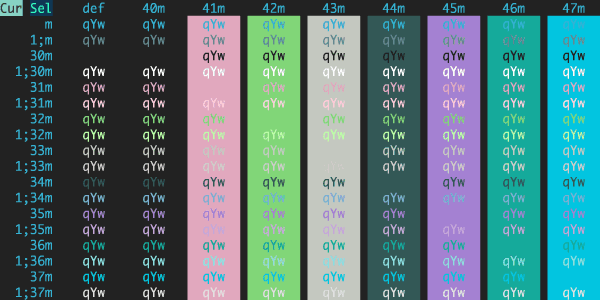
Sleepy Hollow
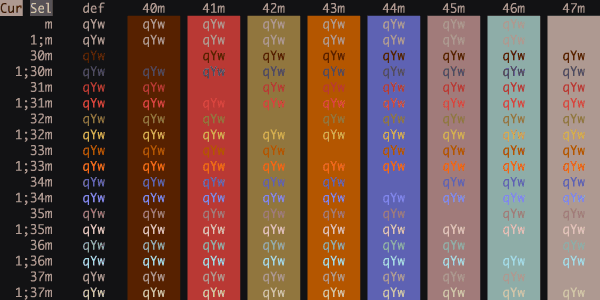
SLOMP
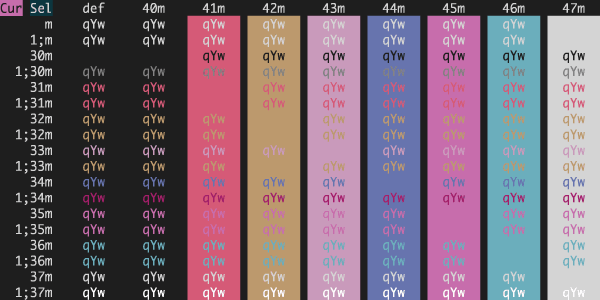
Smoke on the Terminal
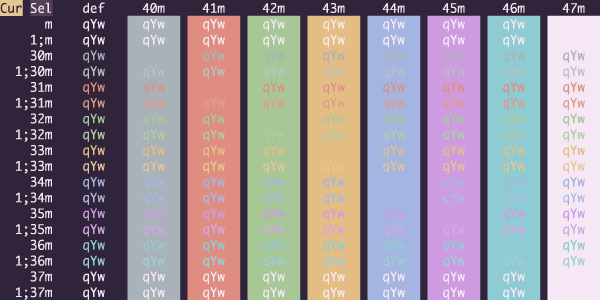
Smyck
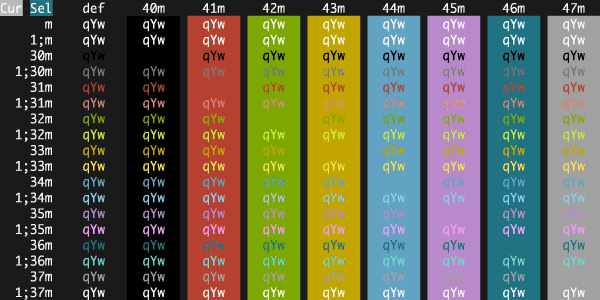
Snazzy Soft
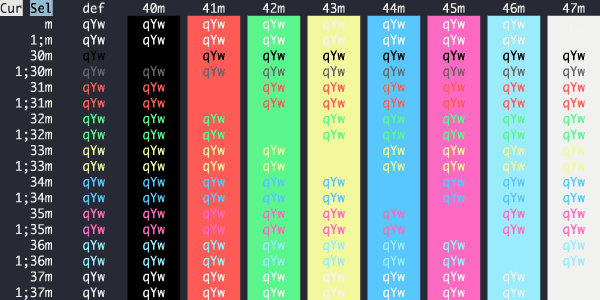
Snazzy
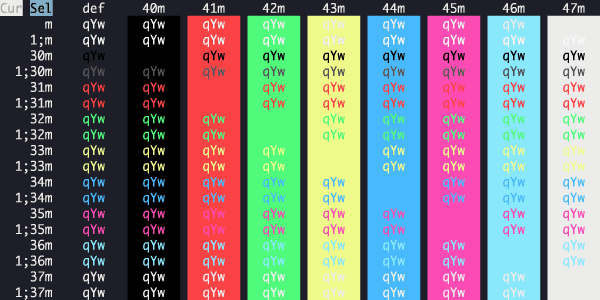
Soft Server
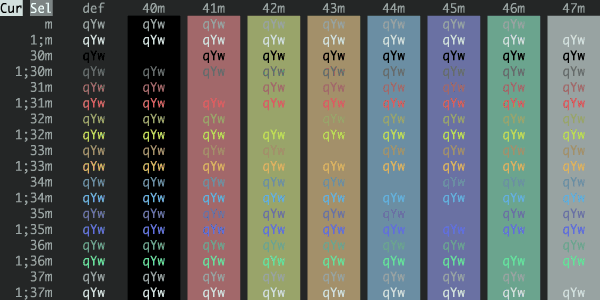
Solarized Darcula
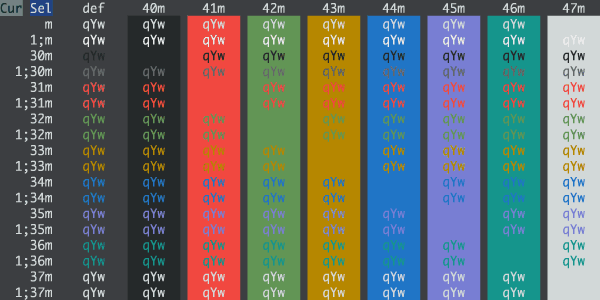
Solarized Dark Higher Contrast
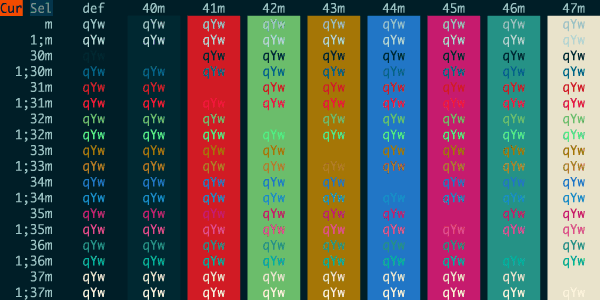
Solarized Dark Patched
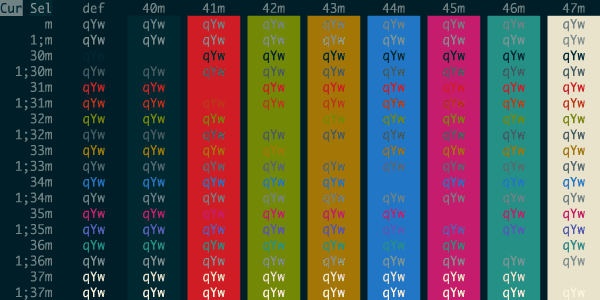
Solarized Osaka Night
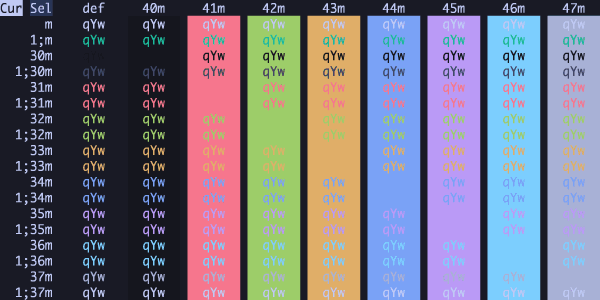
Sonokai
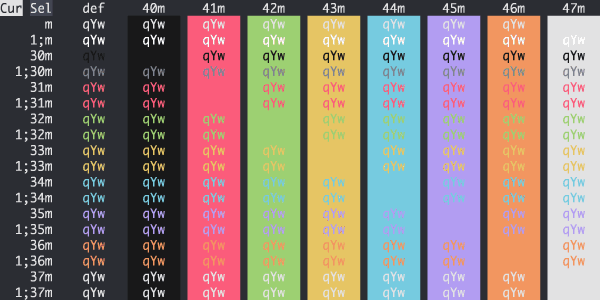
Sonoran Dusk
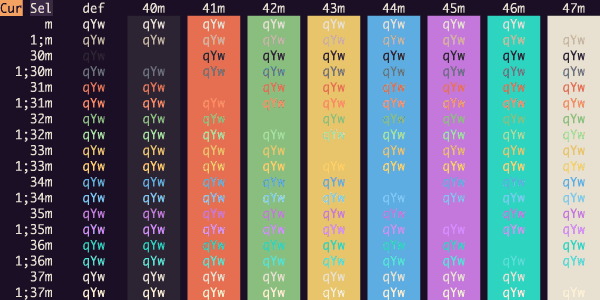
Spacedust
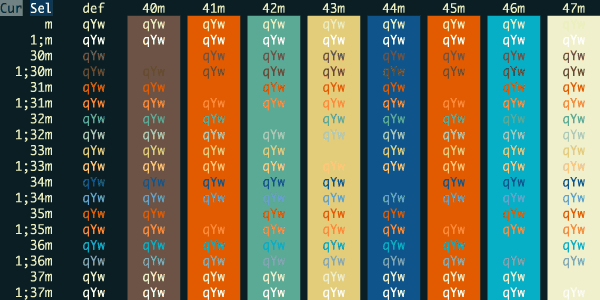
Spacegray Bright
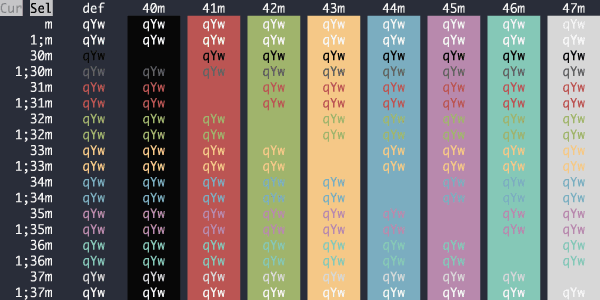
Spacegray Eighties Dull
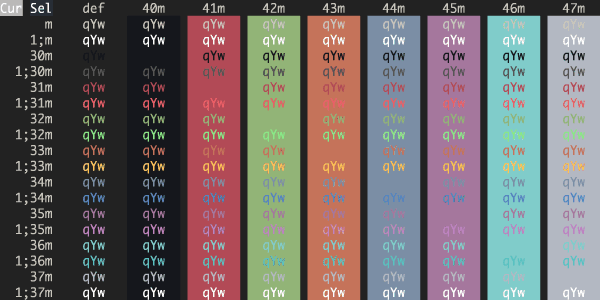
Spacegray Eighties
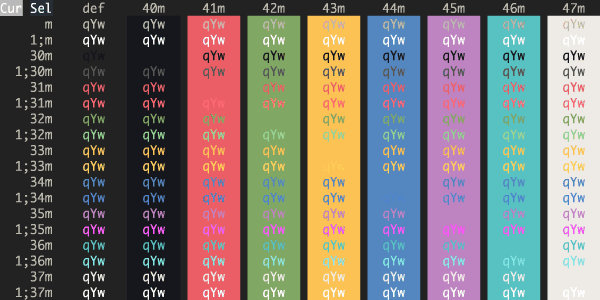
Spacegray
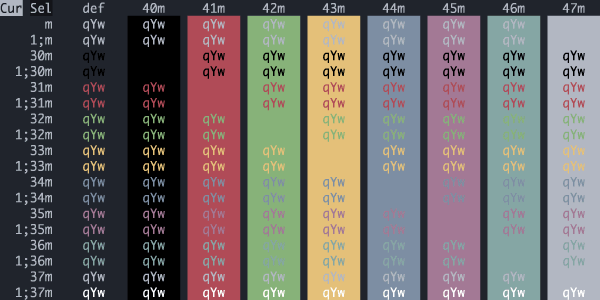
Spiderman
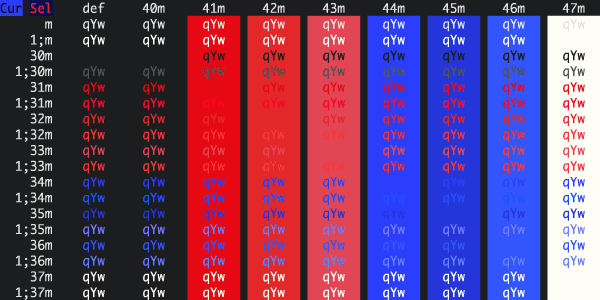
Square
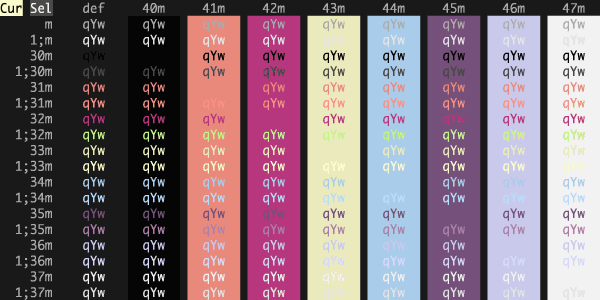
Squirrelsong Dark
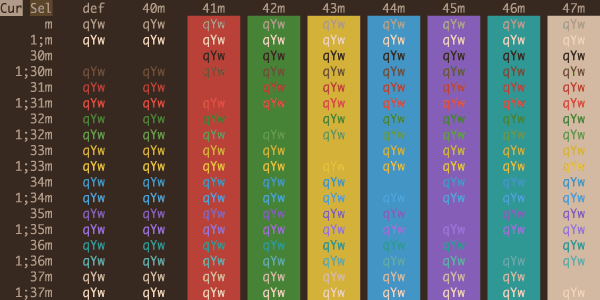
Srcery
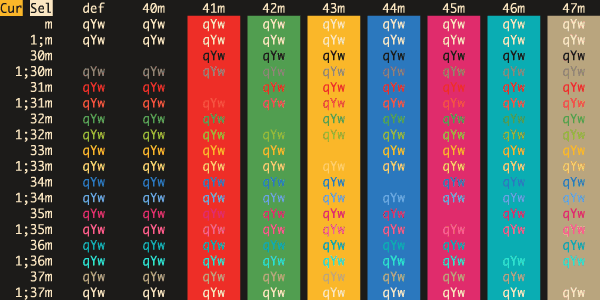
Stairway Skies
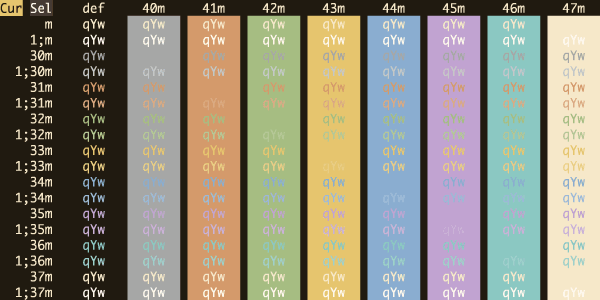
Starlight
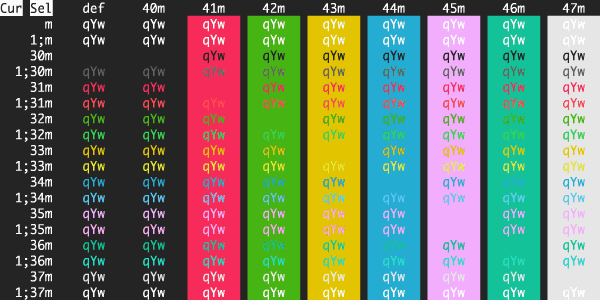
Sublette
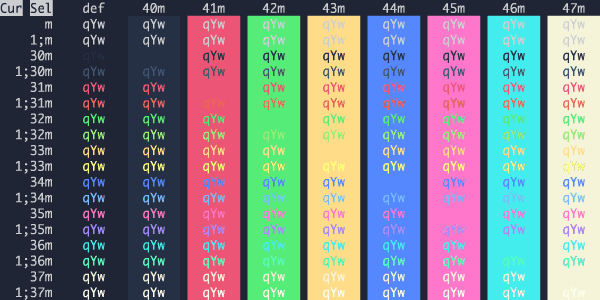
Subliminal
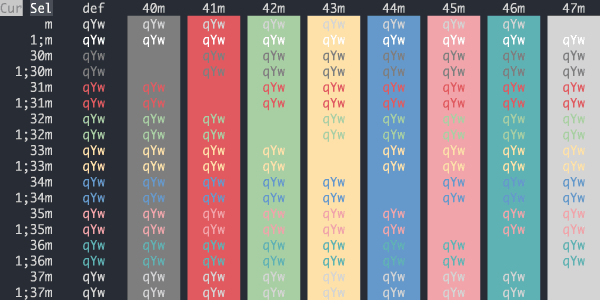
Sugarplum
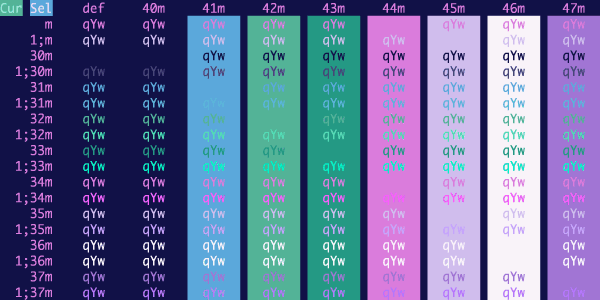
Sumi Phosphor
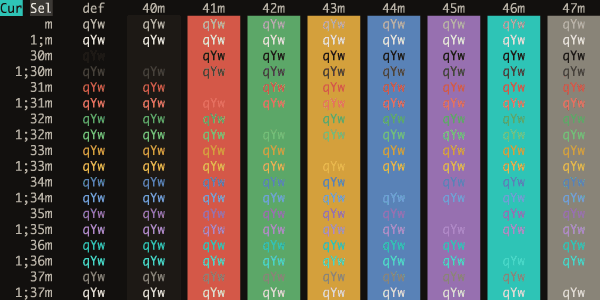
Sundried
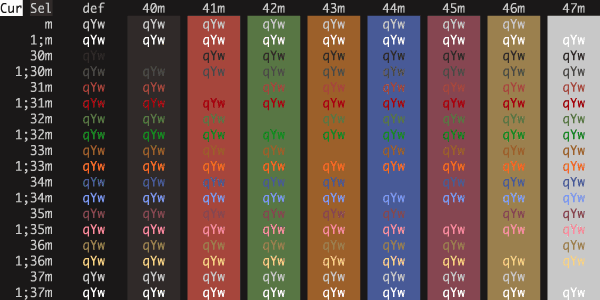
Sunset Copper Relay
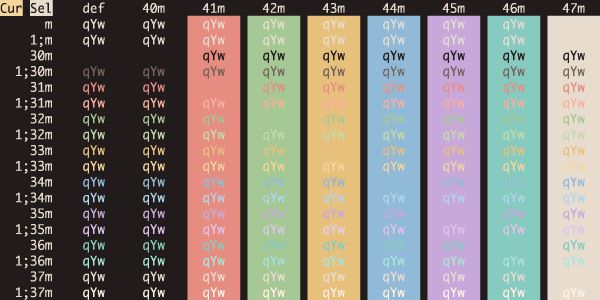
Sunset Drive
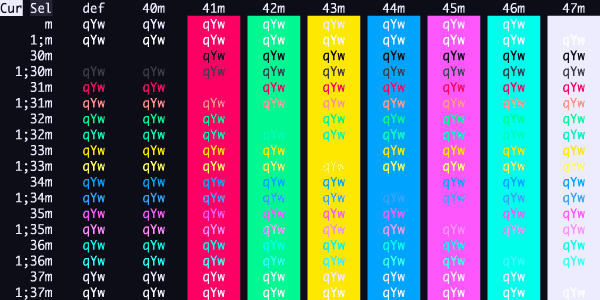
Sunset Strip
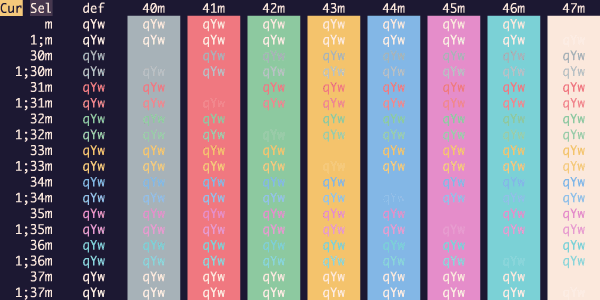
Sweet Emotion
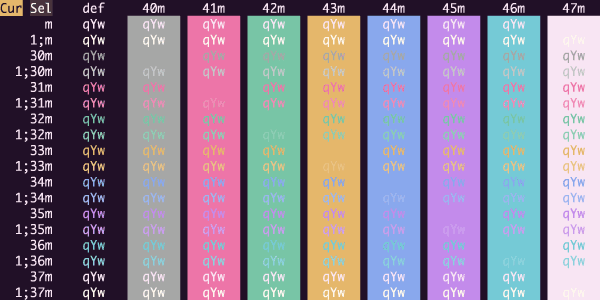
Symfonic
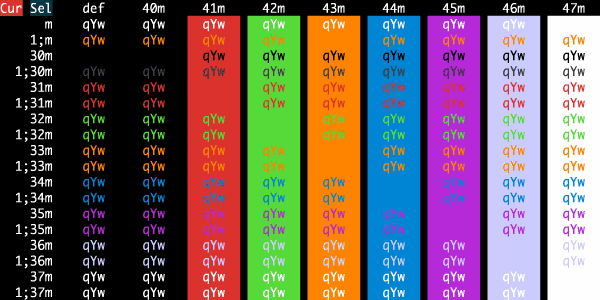
Syncopation
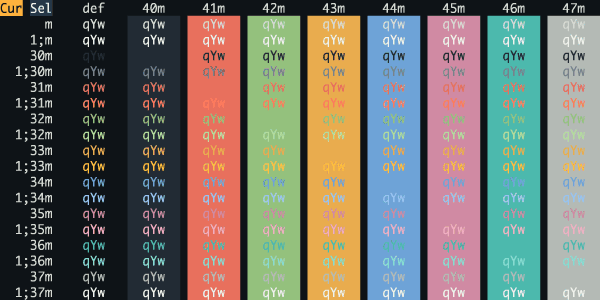
Synthwave Alpha
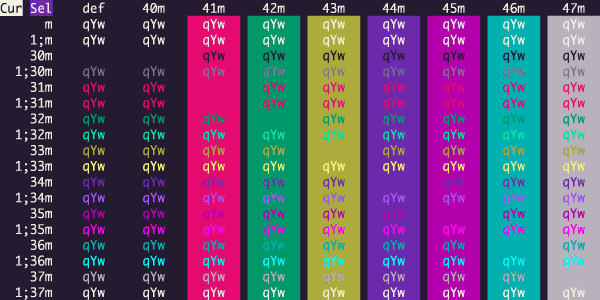
Synthwave Everything
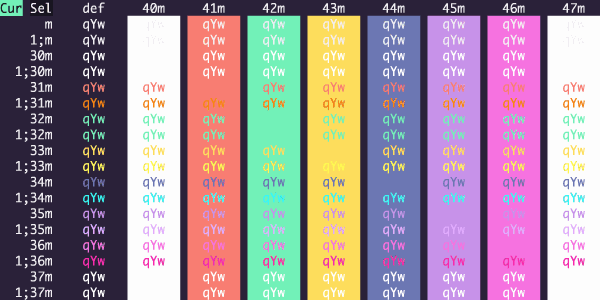
Synthwave
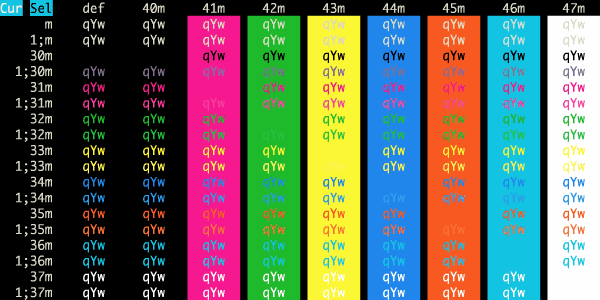
Tailwind Dark
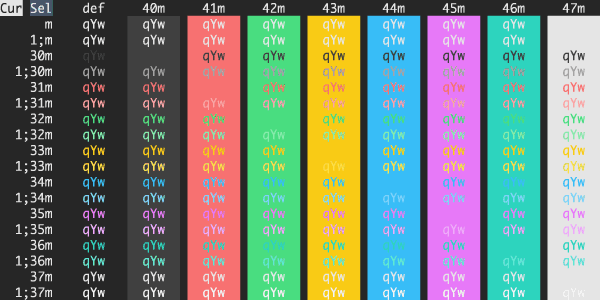
Tearout
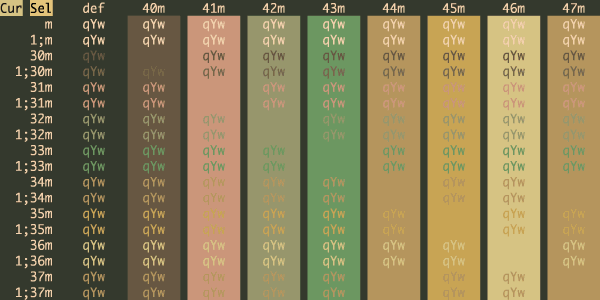
Teerb
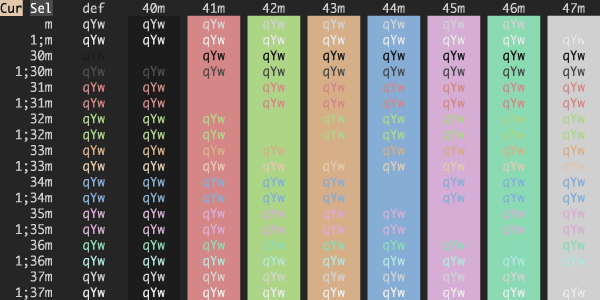
Terafox
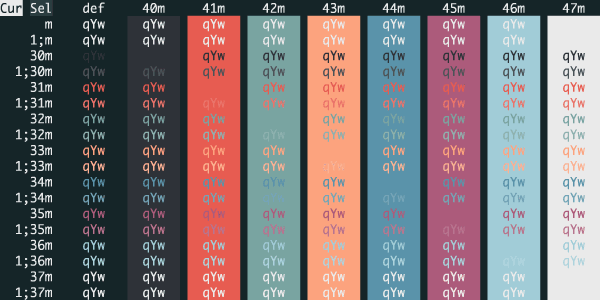
Terminal Basic Dark
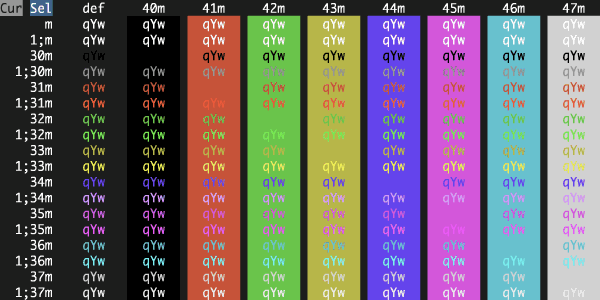
Terminal Green 1999
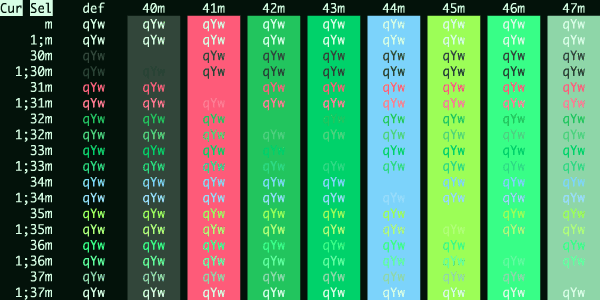
Thayer Bright
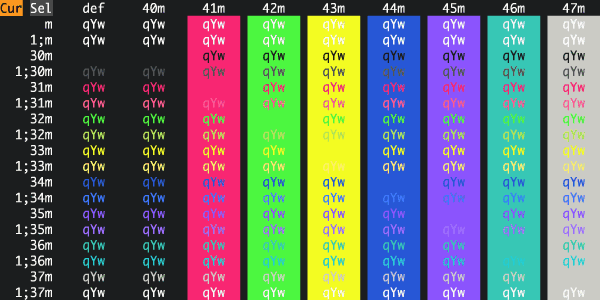
The Fog
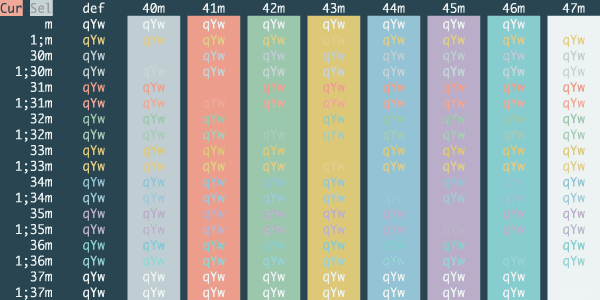
The Hulk
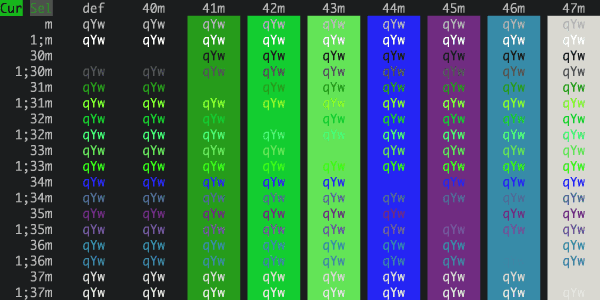
Thirteen
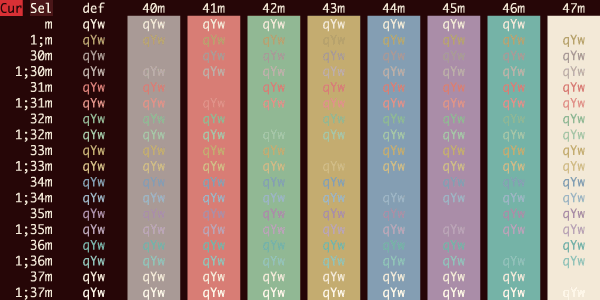
Tinacious Design Dark
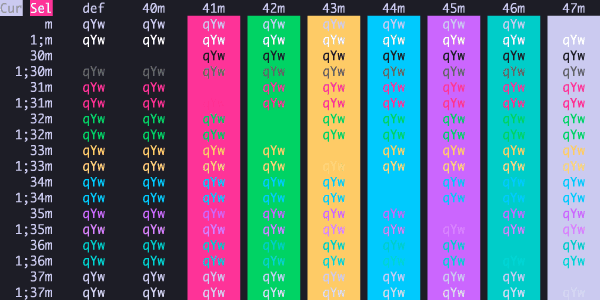
Token Dark
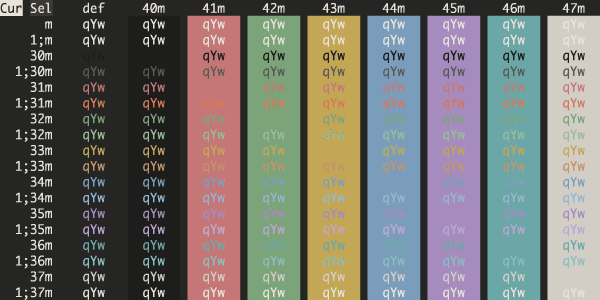
TokyoNight Moon
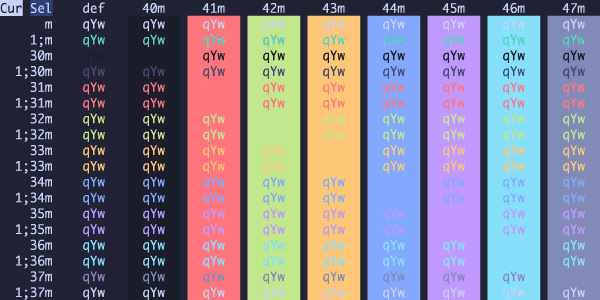
TokyoNight Night
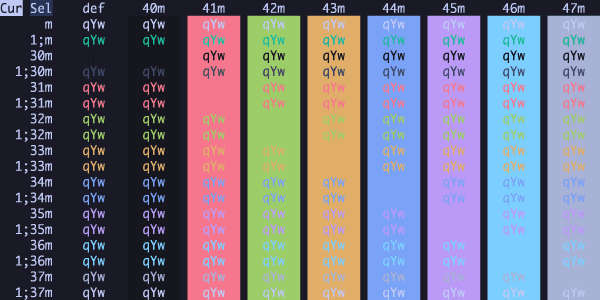
TokyoNight Storm
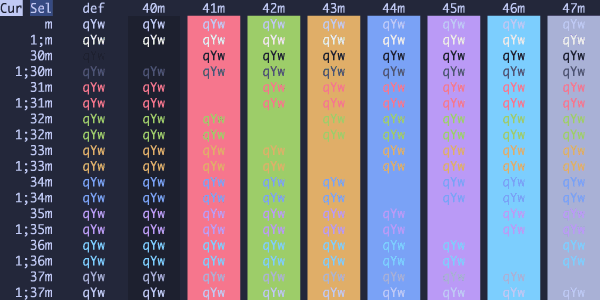
TokyoNight
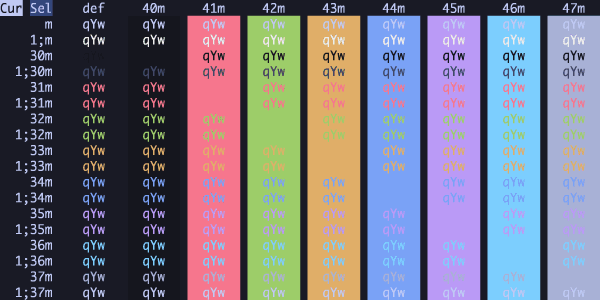
Tomorrow Night Blue
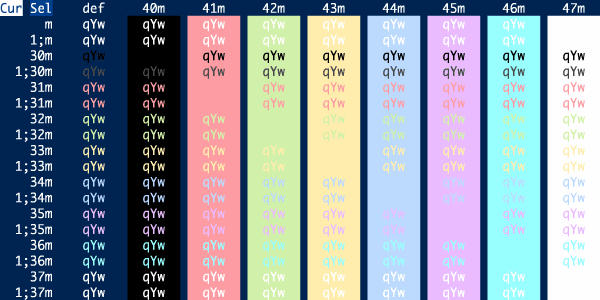
Tomorrow Night Bright
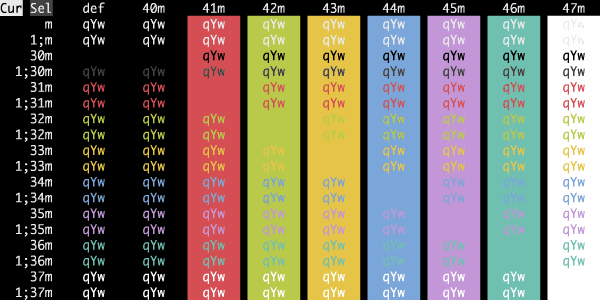
Tomorrow Night Burns
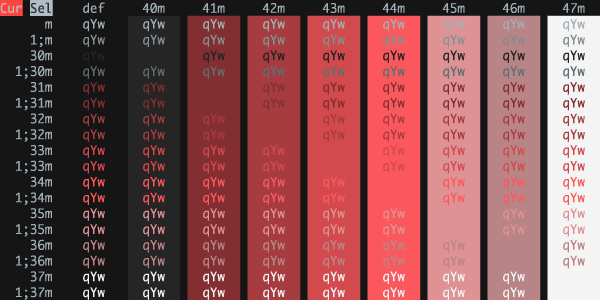
Tomorrow Night Eighties
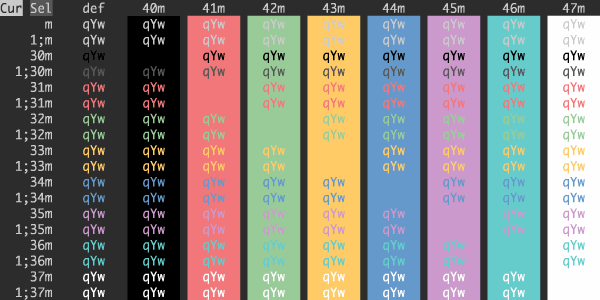
Tomorrow Night
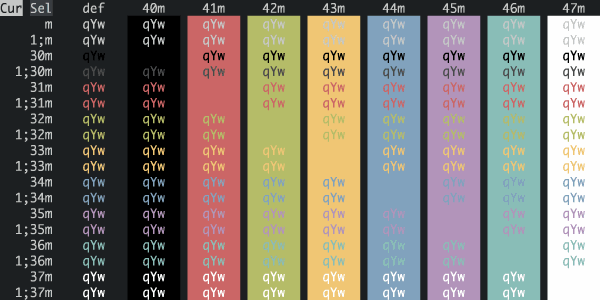
Toy Chest
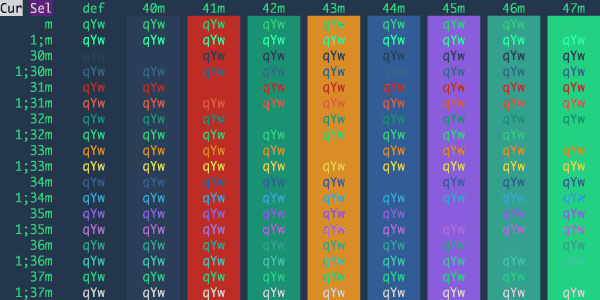
traffic
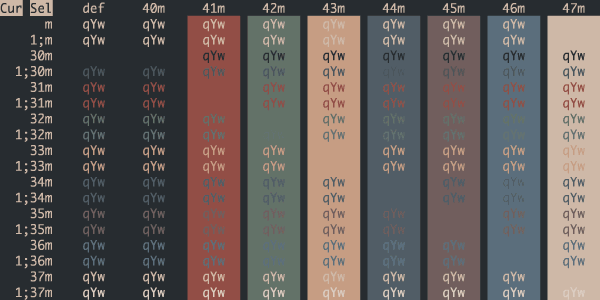
Trapped in Amber
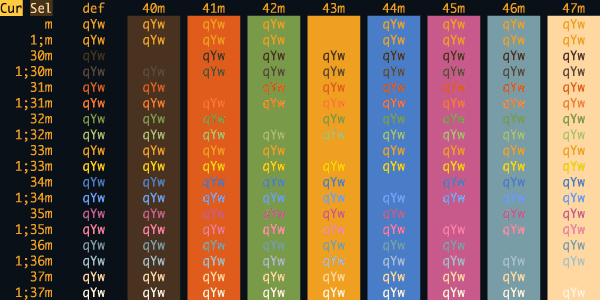
Treehouse
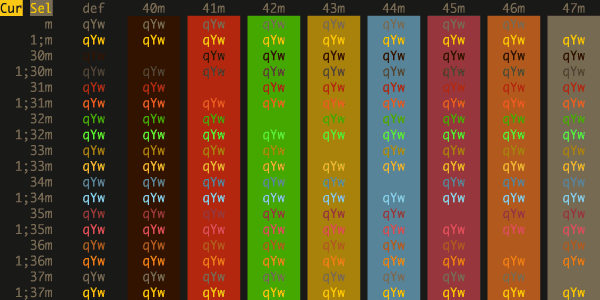
Trick or Treat
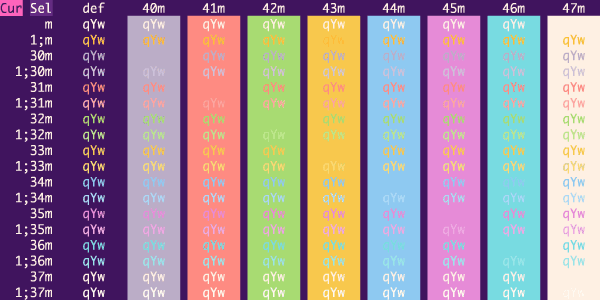
Tumbling Stones
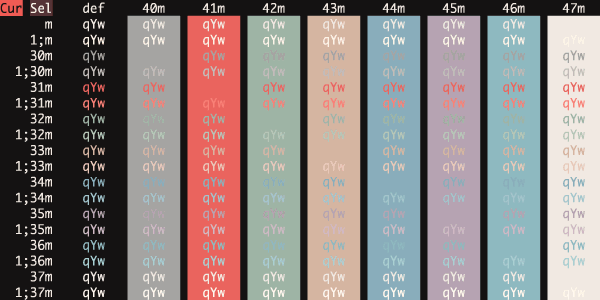
Turquoise Trail
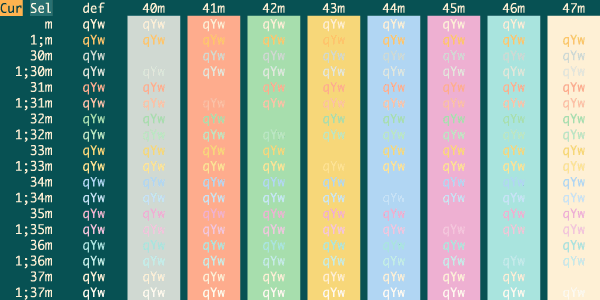
Twilight
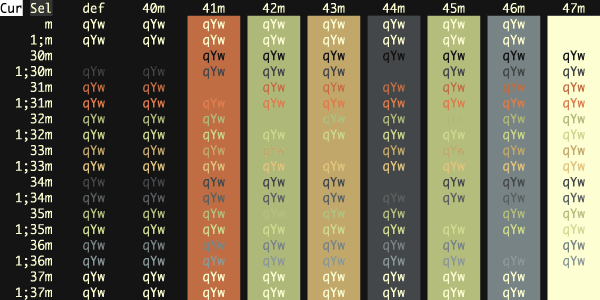
Ubuntu
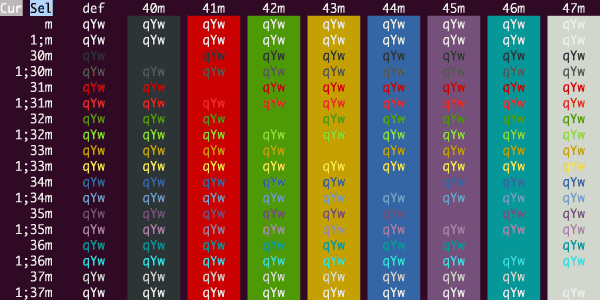
Ultra Dark
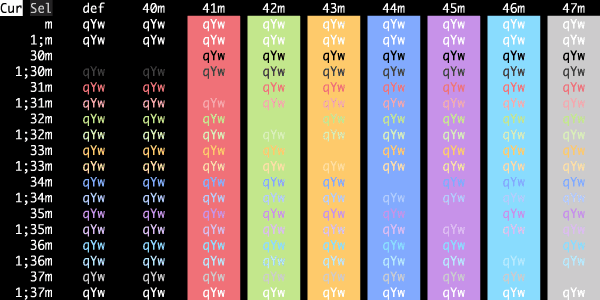
Ultra Violent
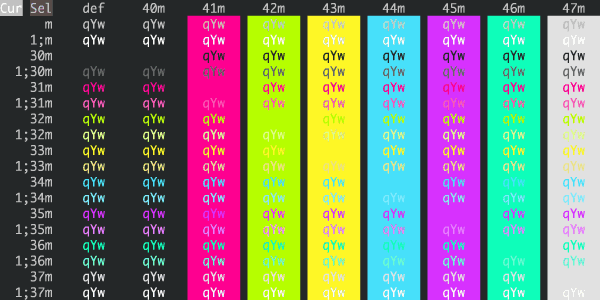
Unalive 'Em All
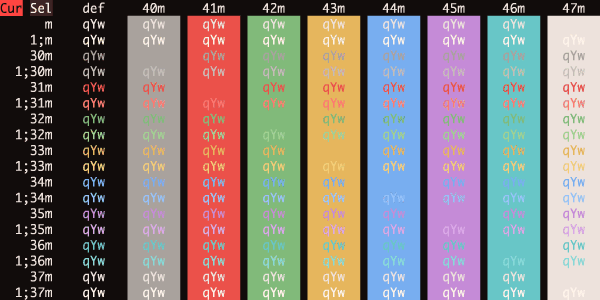
Undead
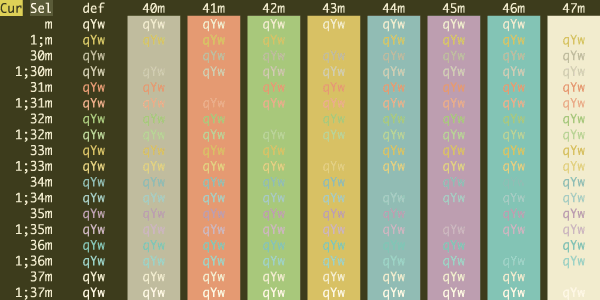
Under The Sea
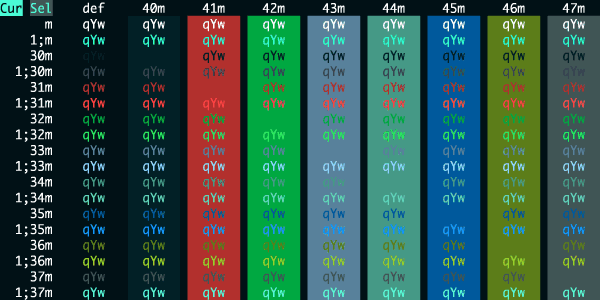
urban
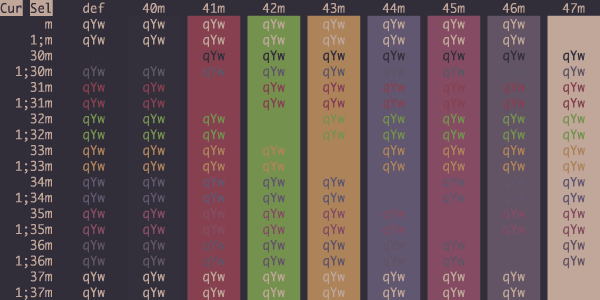
Urple
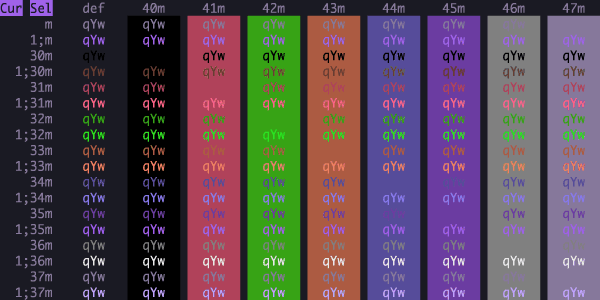
Vacuum Tube
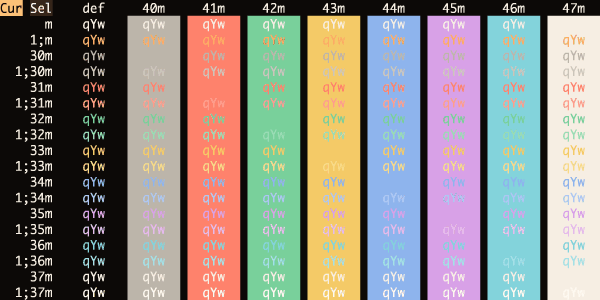
Vague
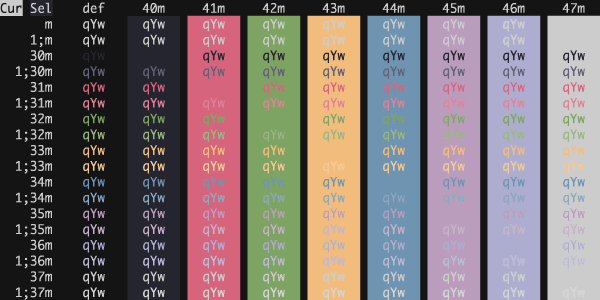
Vaporwave Sunset
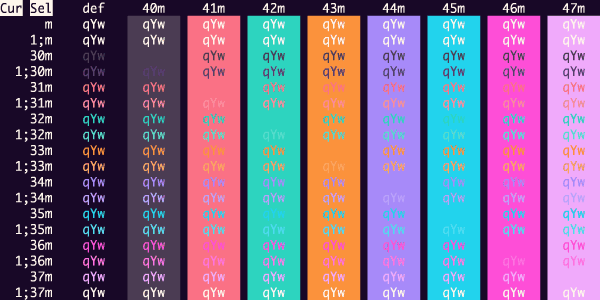
Vaughn
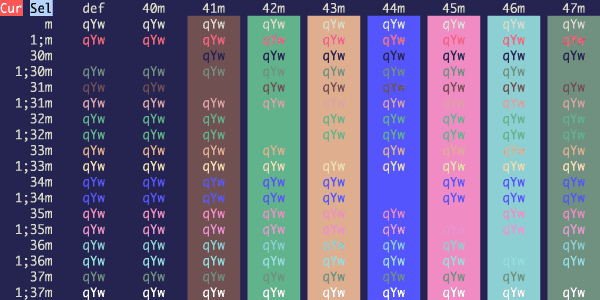
Velvet Court
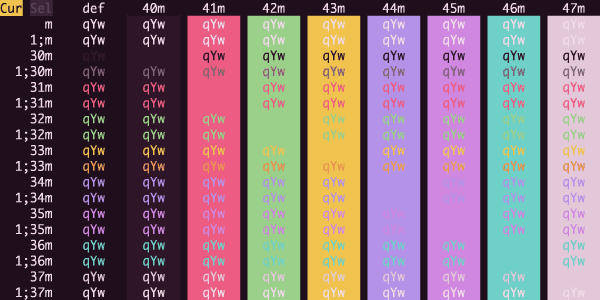
Vercel
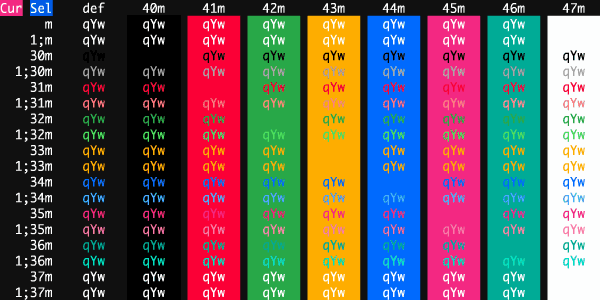
Verdigris
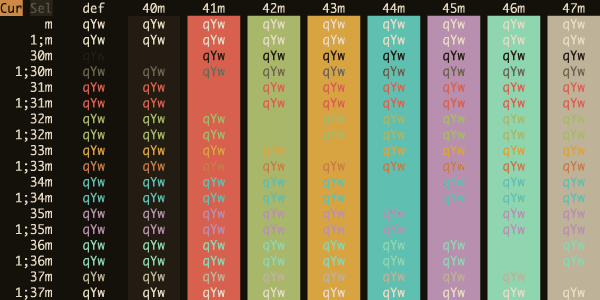
Vesper
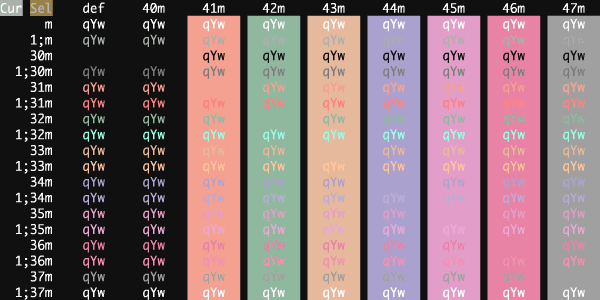
Vibrant Ink
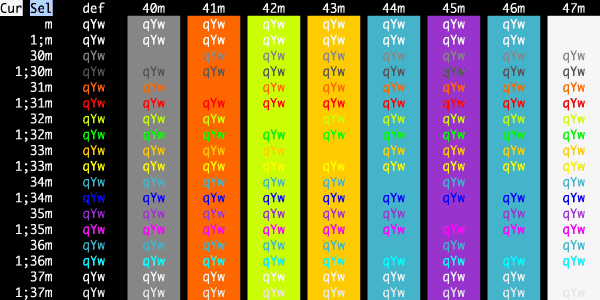
Violet Dark
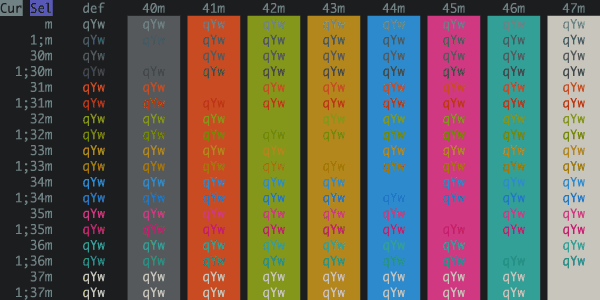
Violite
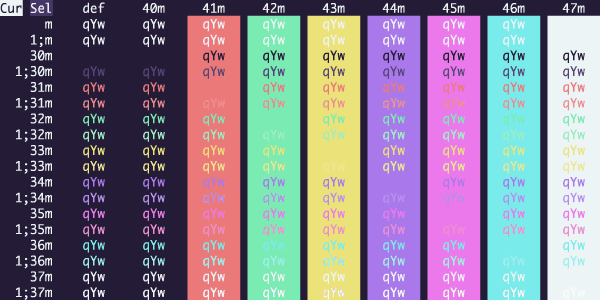
Warm Burnout Dark
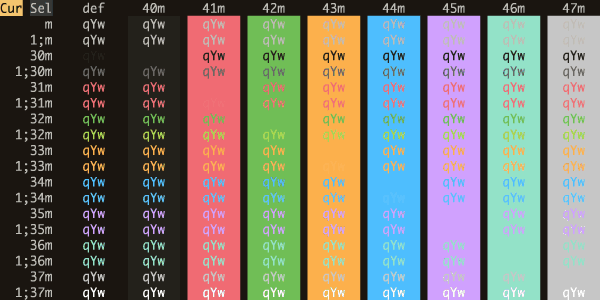
Warm Neon
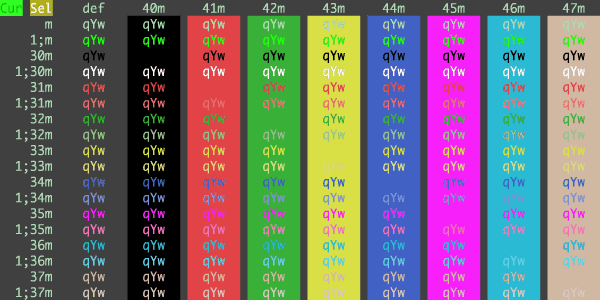
Wez
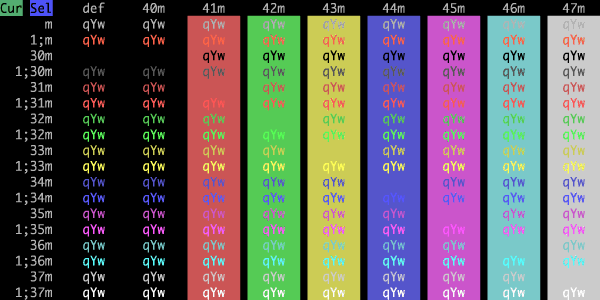
Whimsy
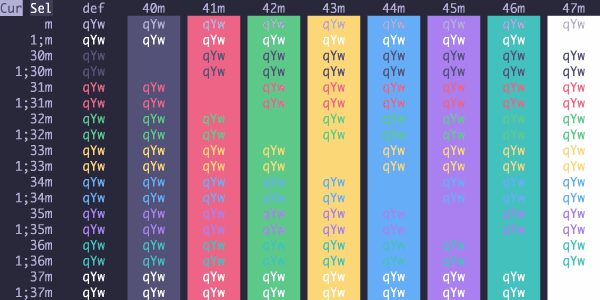
Wild Cherry
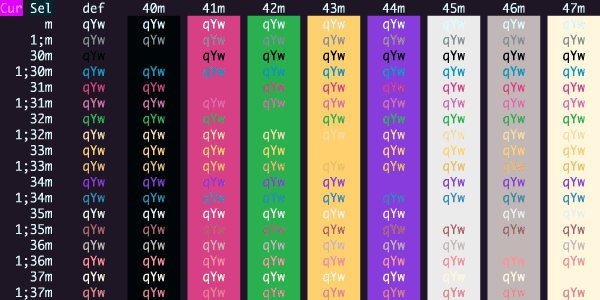
Wilmersdorf
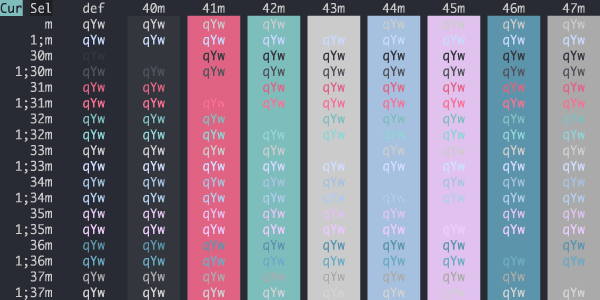
Witches' Brew
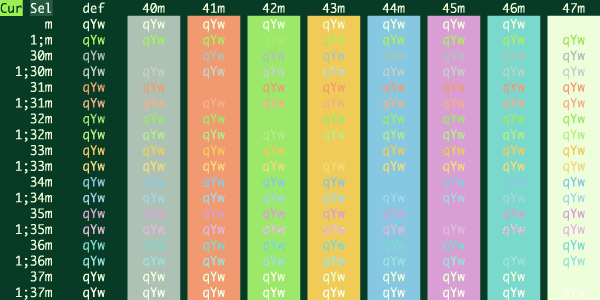
Witching Hour
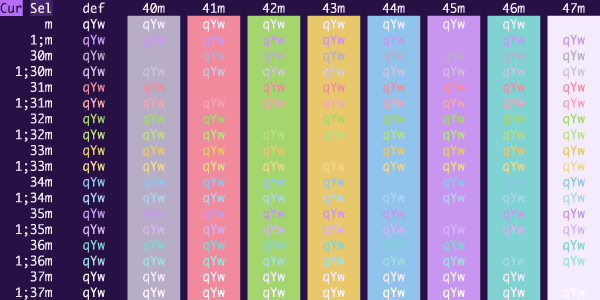
Wombat
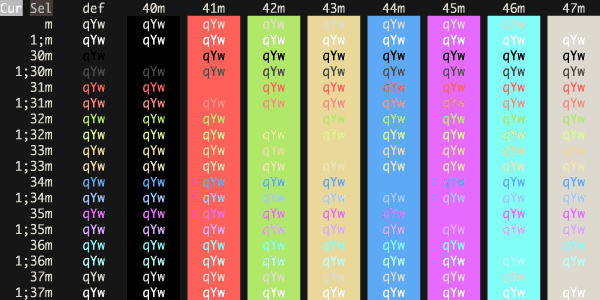
Wryan
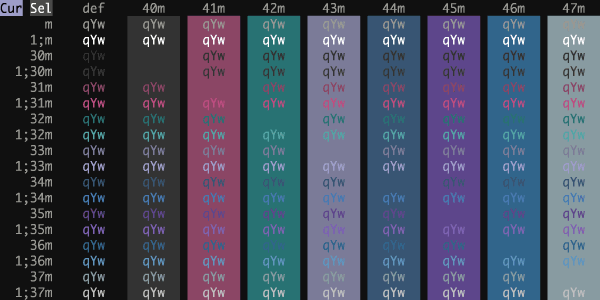
X Berlin
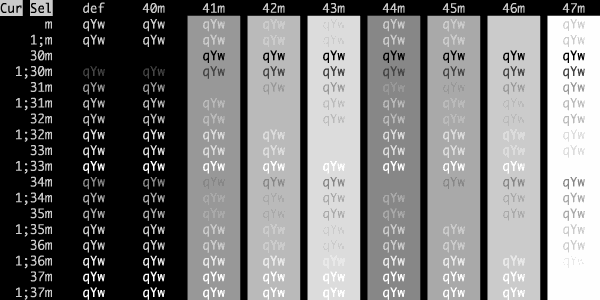
X Bogota
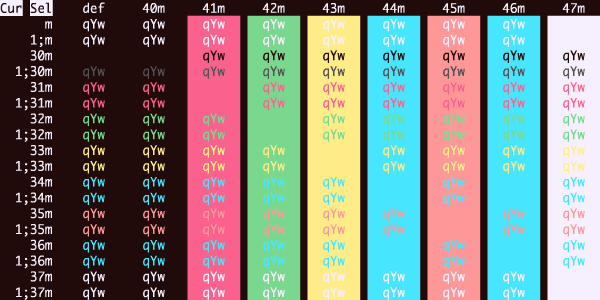
X Lahabana
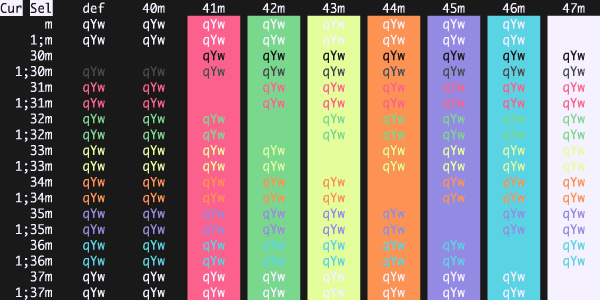
X Miami
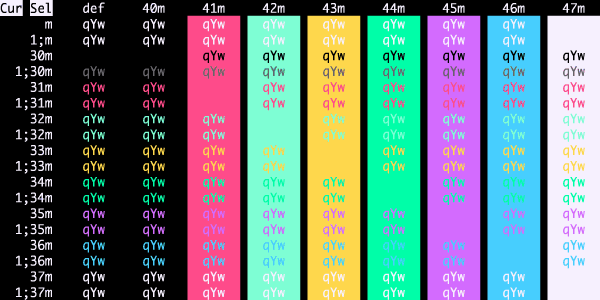
X Oslo
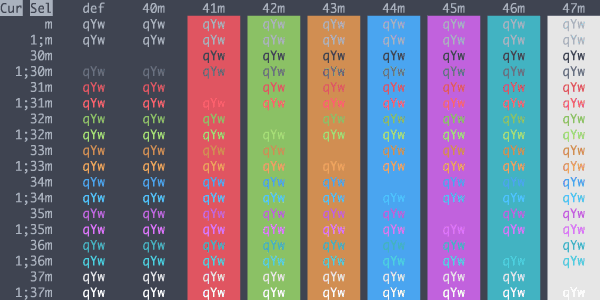
X Paris
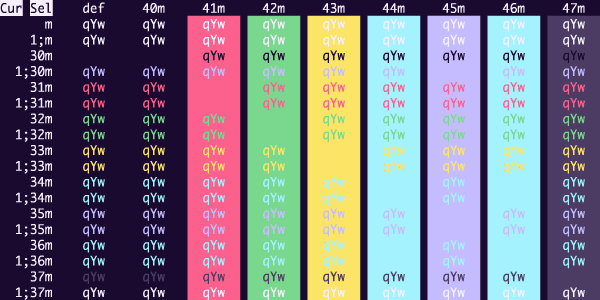
X Praha
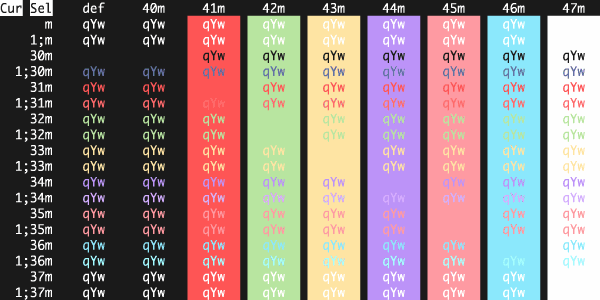
X Tokio
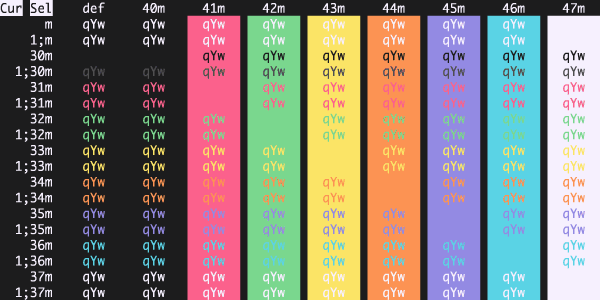
X
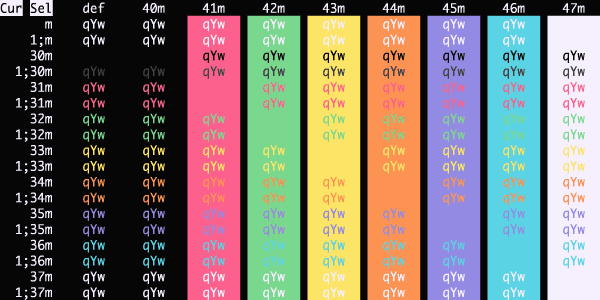
Xcode Dark hc
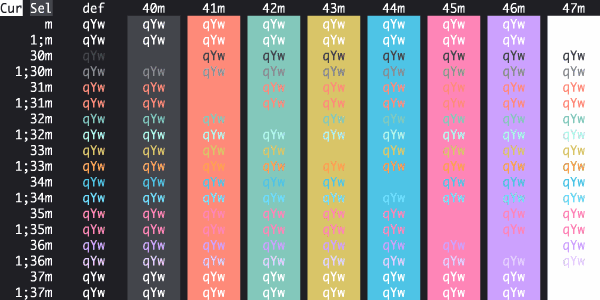
Xcode Dark
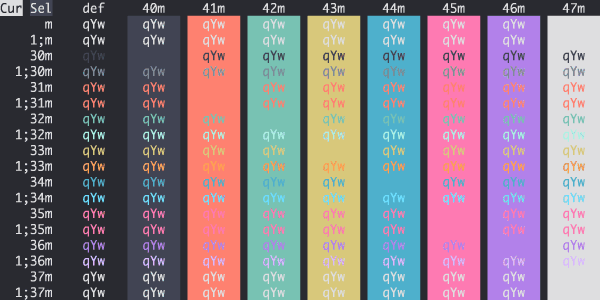
Xcode WWDC
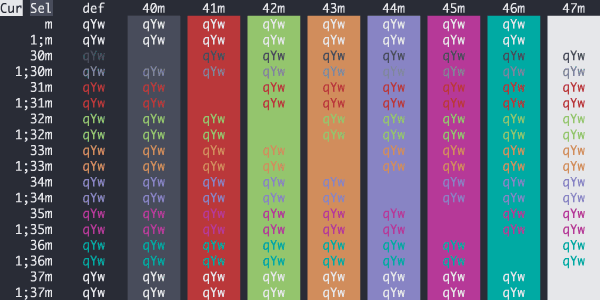
Zacess Dark
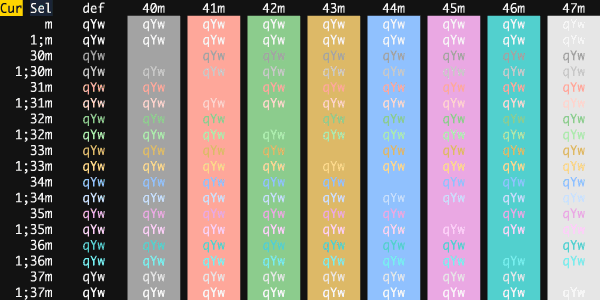
Zacess Yellow on Black
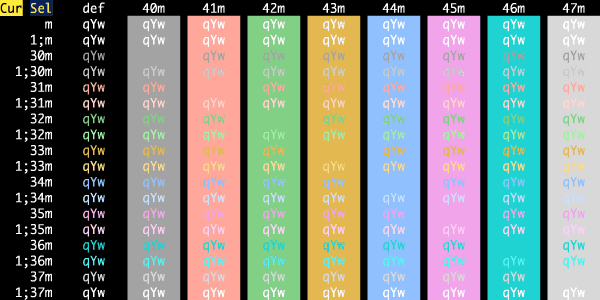
Zenbones Dark
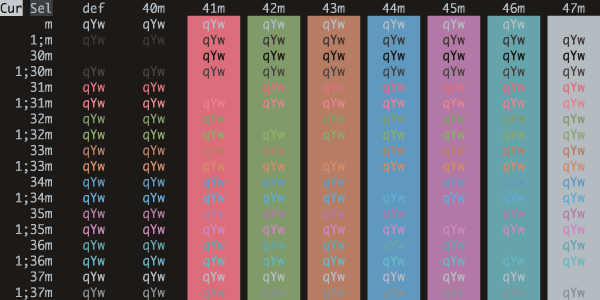
Zenburn
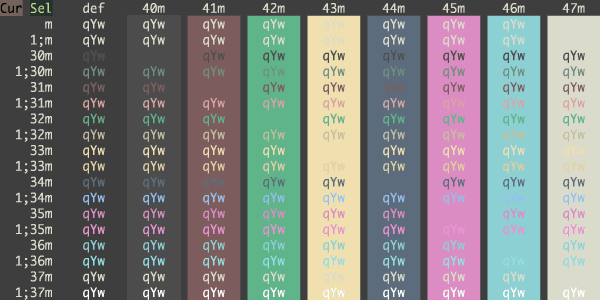
Zenburned
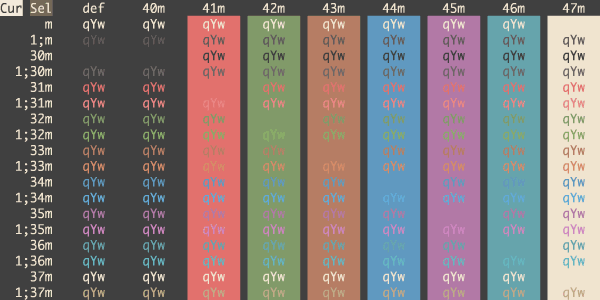
Zenwritten Dark
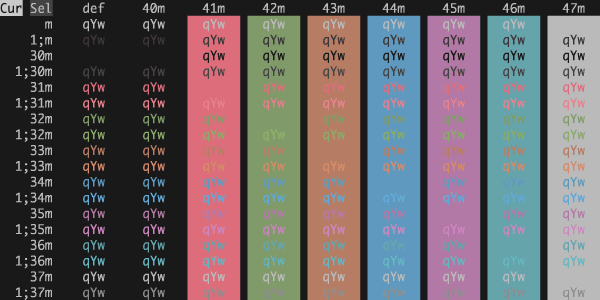
Light Themes
3024 Day
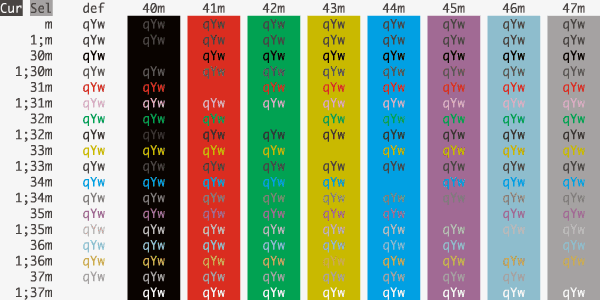
Adwaita
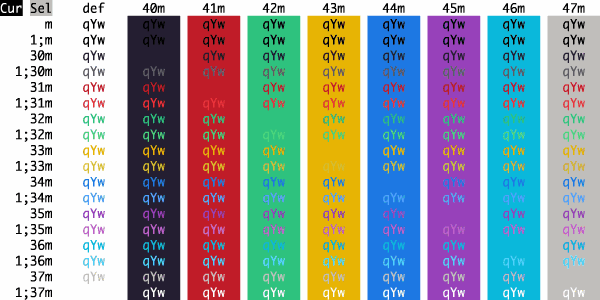
Afterimage
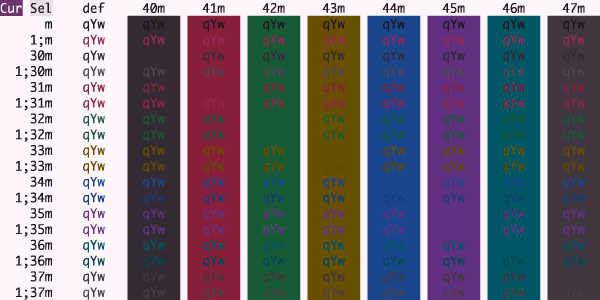
Aizen Light
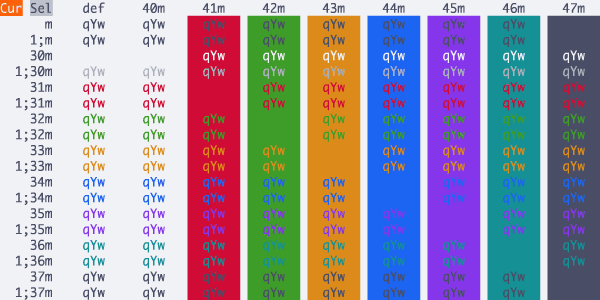
Alabaster
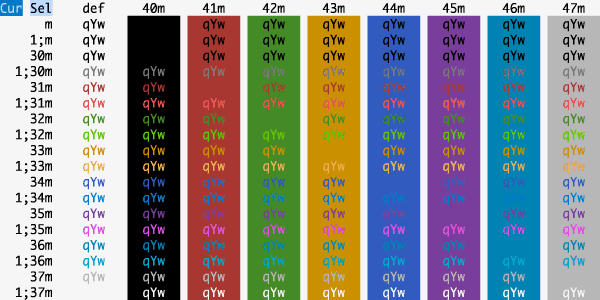
Analyzed Light
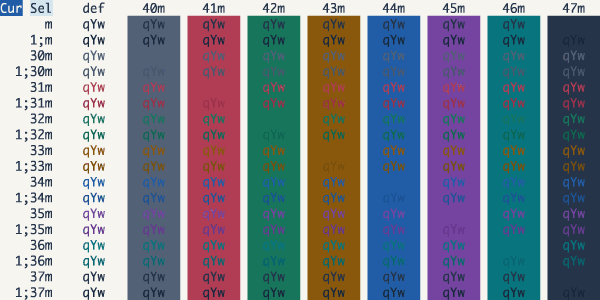
Apple System Colors Light
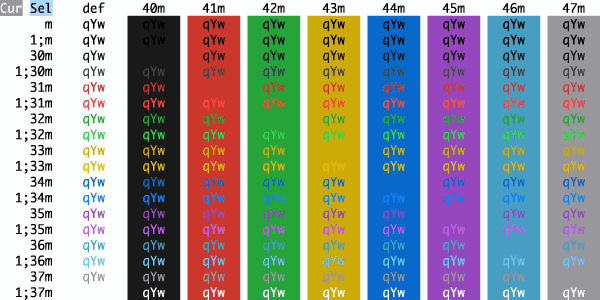
Atom One Light
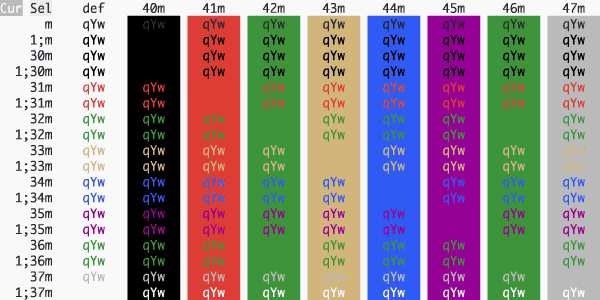
Aubade
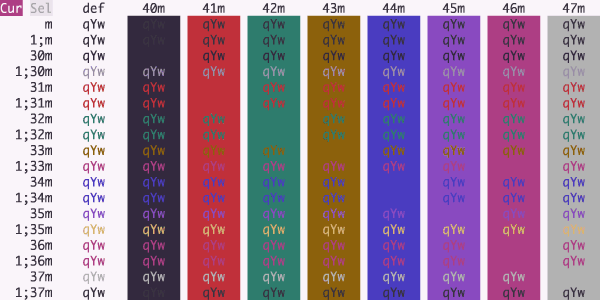
Ayu Light
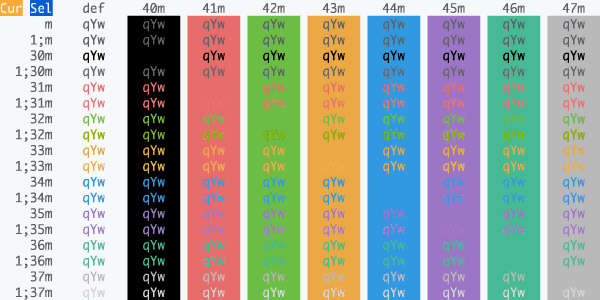
Belafonte Day
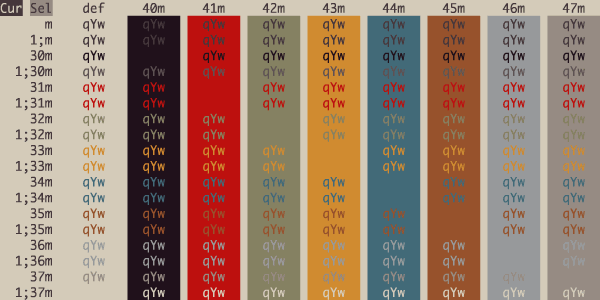
Blueprint
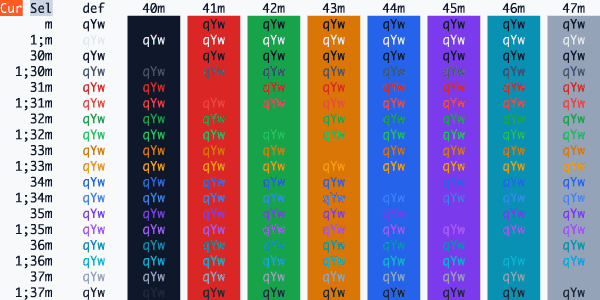
Bluloco Light
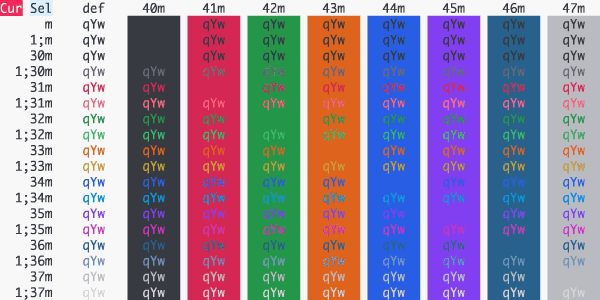
Bone Yard
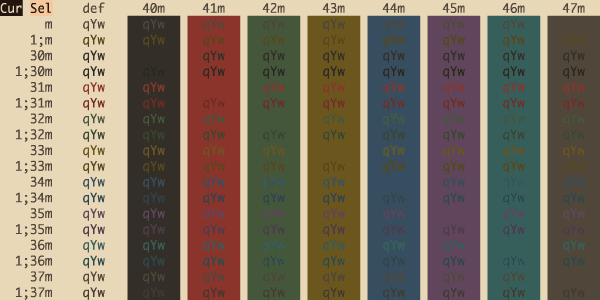
Breadog
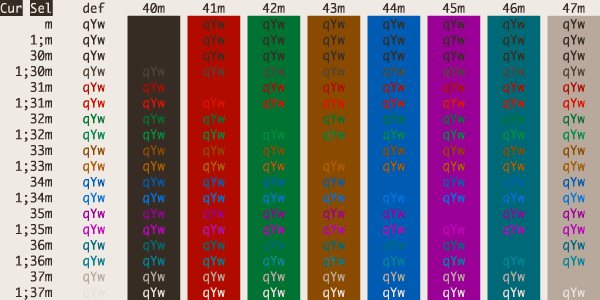
Builtin Light
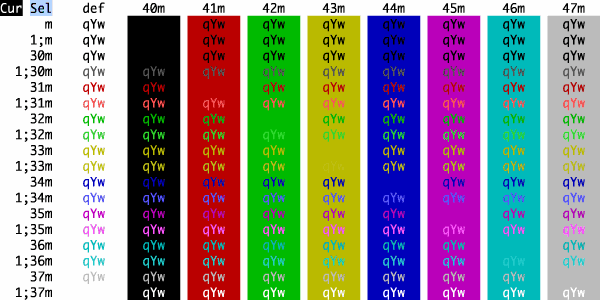
Builtin Tango Light
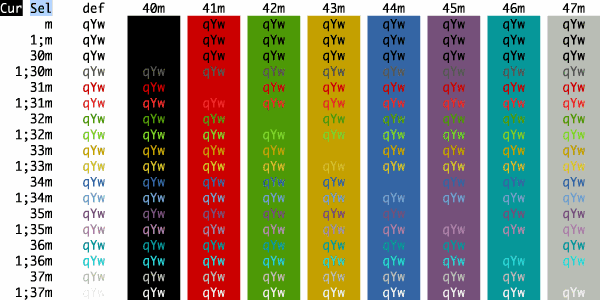
Cactus Bloom
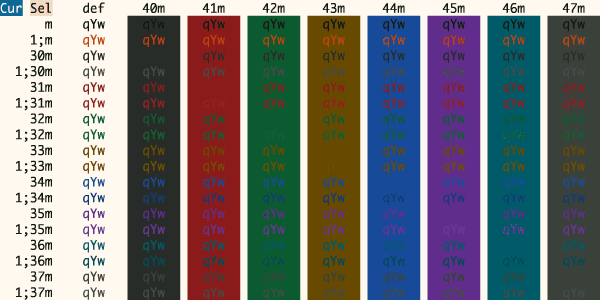
Callie Light
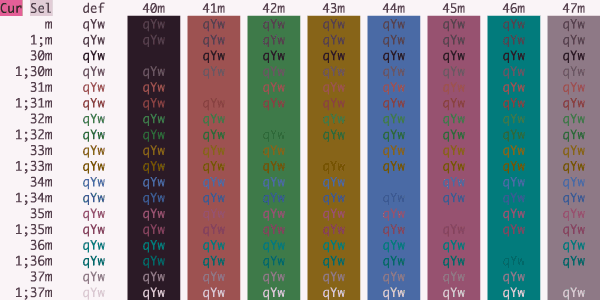
Candy Corn
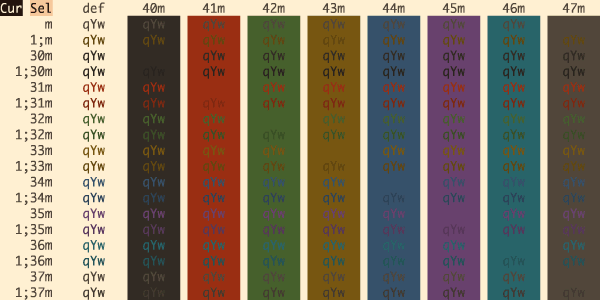
Carbon Paper
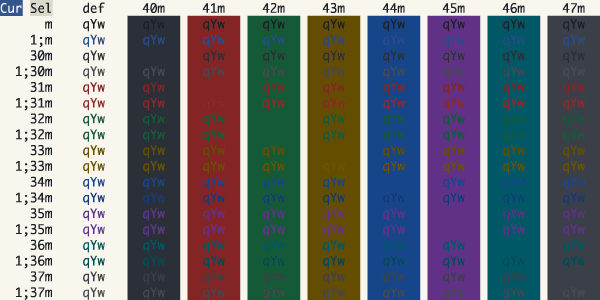
Cassette Tape
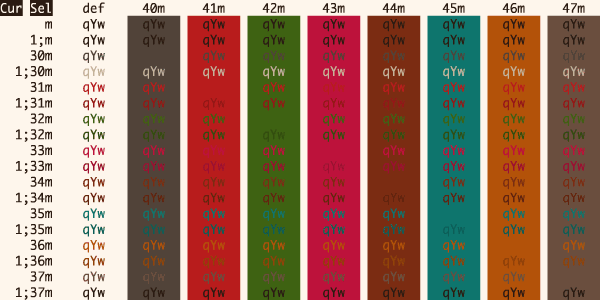
Catppuccin Latte
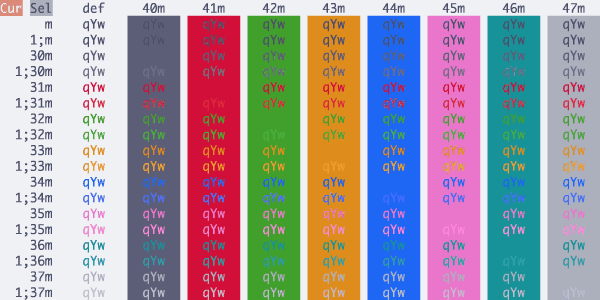
Claude Light
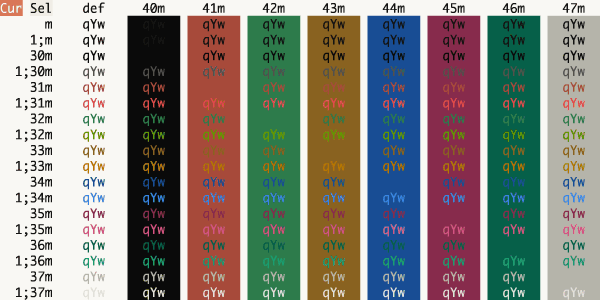
Claude
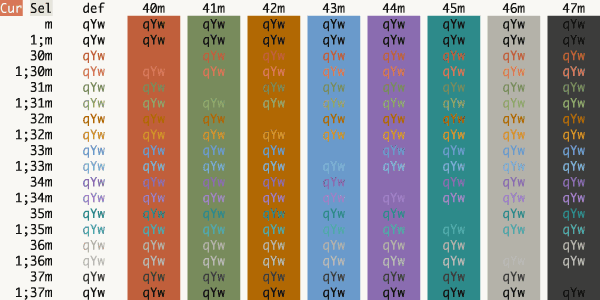
Clear Light
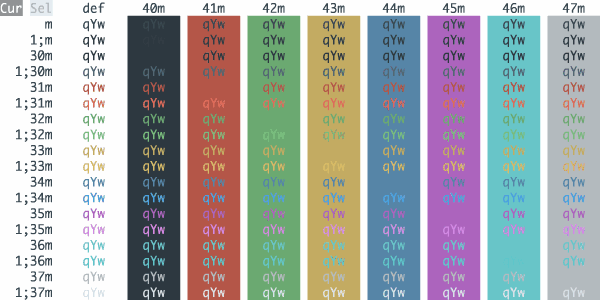
CLRS
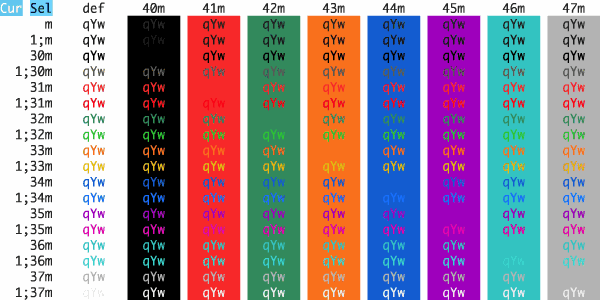
Coffee Theme
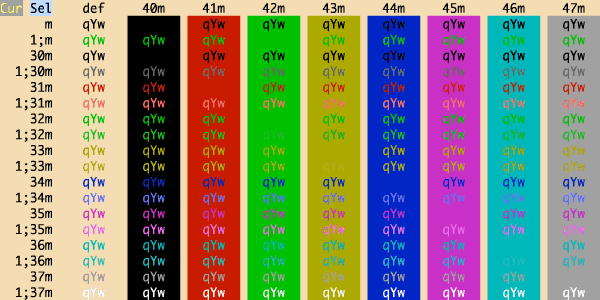
Cold Storage
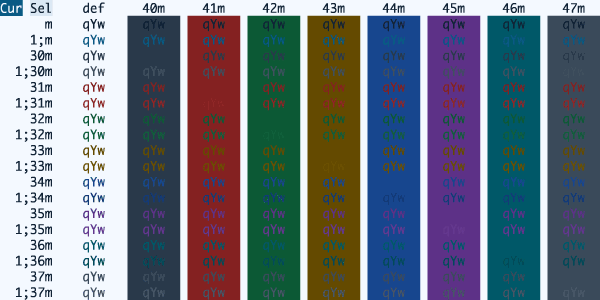
Cursor Light
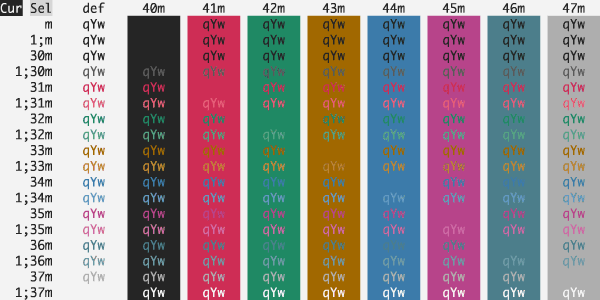
datum (light)
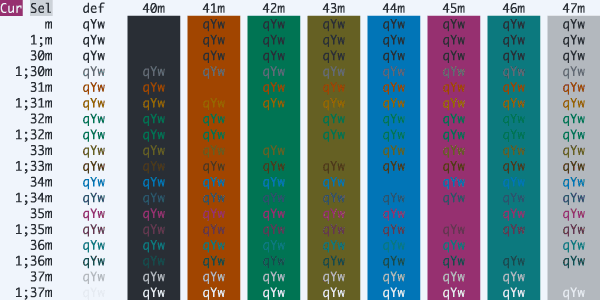
Dawnfox
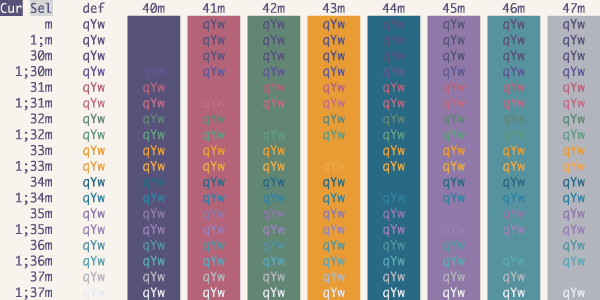
Daybreak
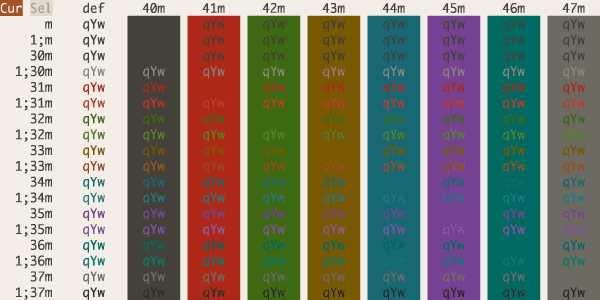
Daybreaker
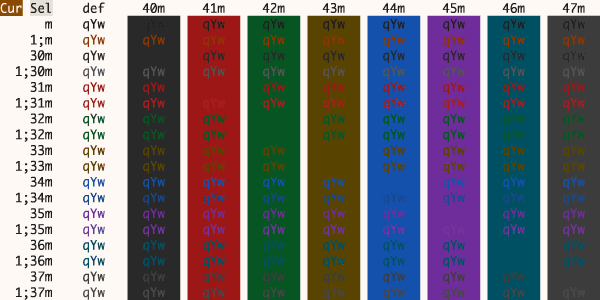
Dayfox
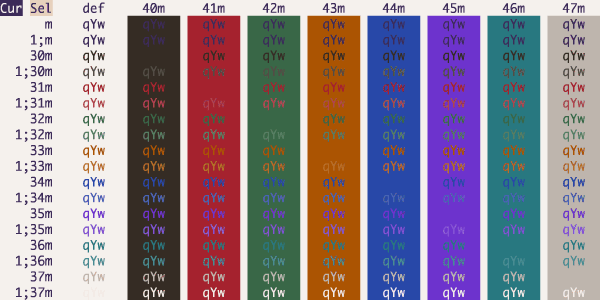
Desert Morning
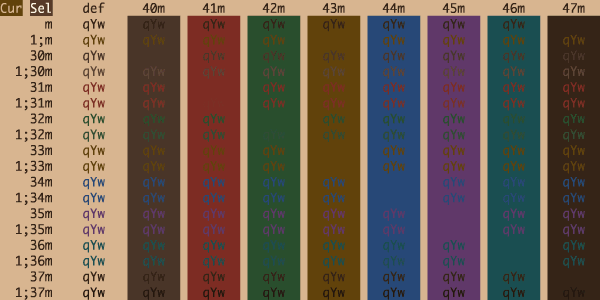
Earl Grey
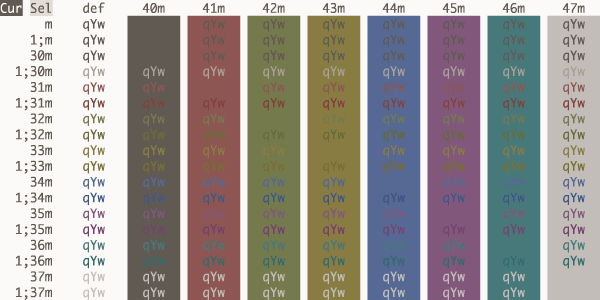
Electron Highlighter Day
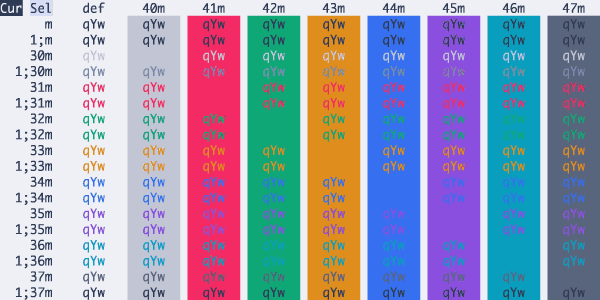
Everforest Light Hard
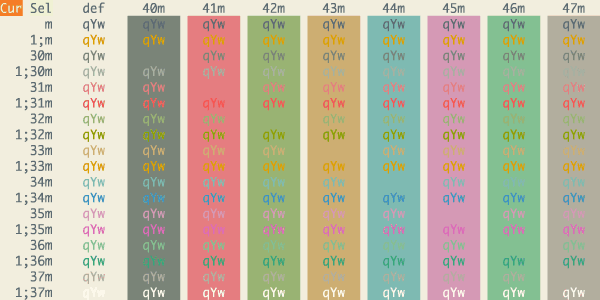
Everforest Light Med
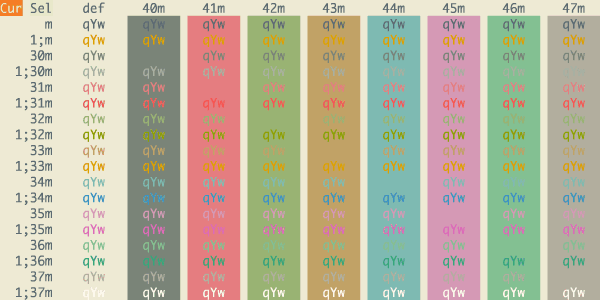
Everforest Light Soft
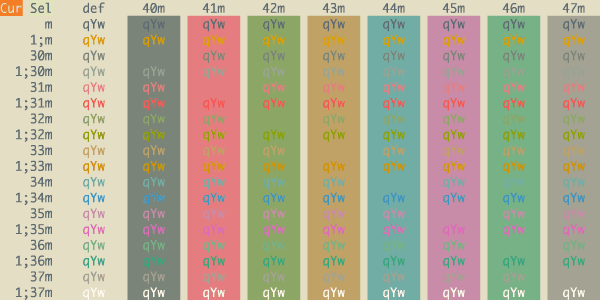
Farmhouse Light
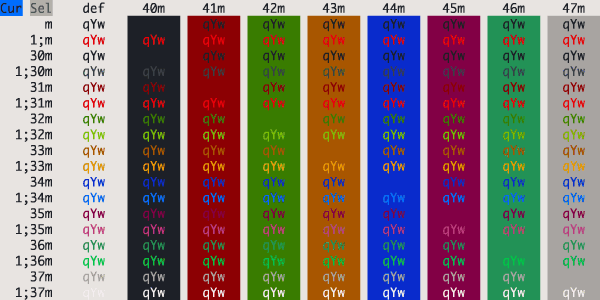
Flexoki Light
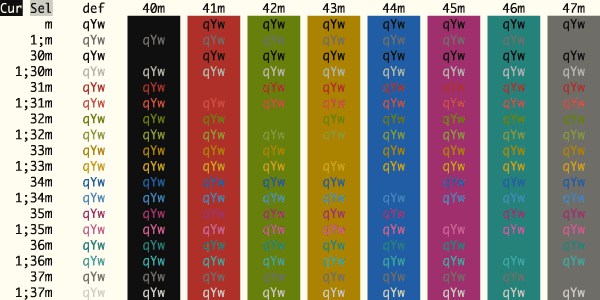
Frostbyte
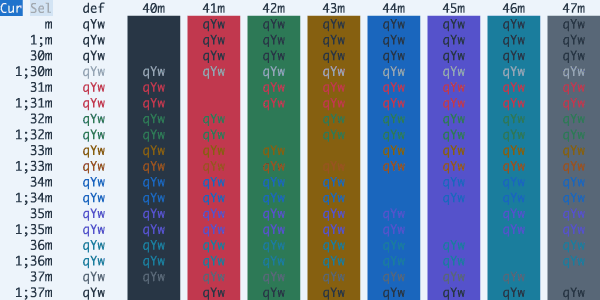
Frostline
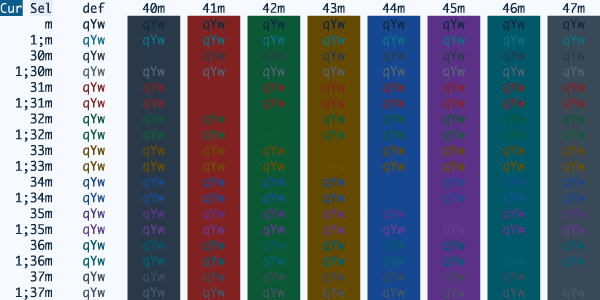
GitHub Light Colorblind
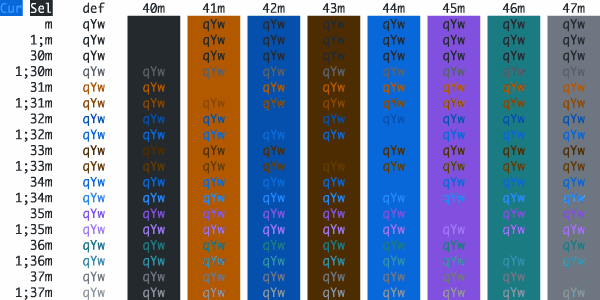
GitHub Light Default
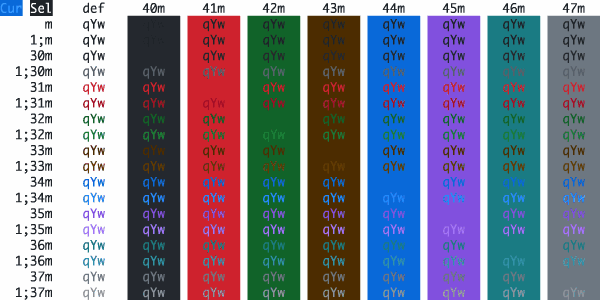
GitHub Light High Contrast
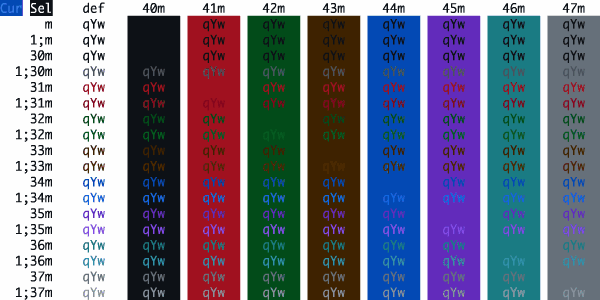
GitHub
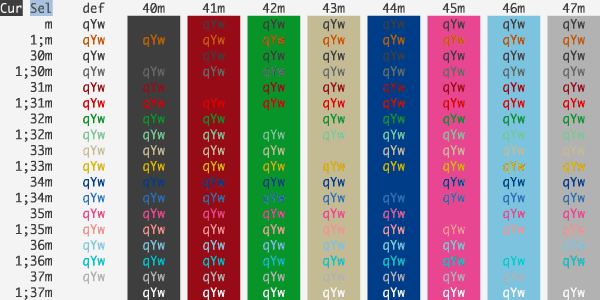
GitLab Light
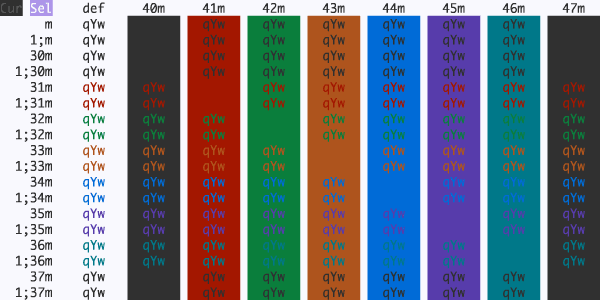
Golden Mischief
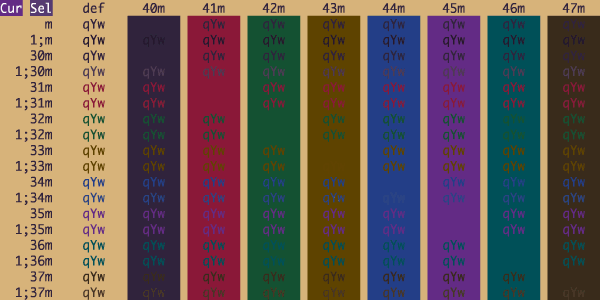
Golden Retriever Cream
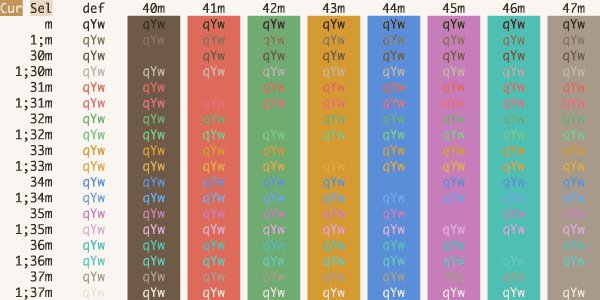
Golden Retriever Honey
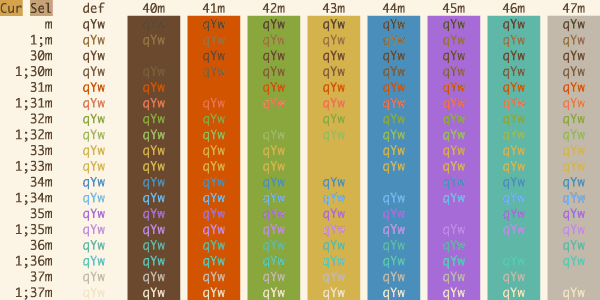
Golden Retriever Red
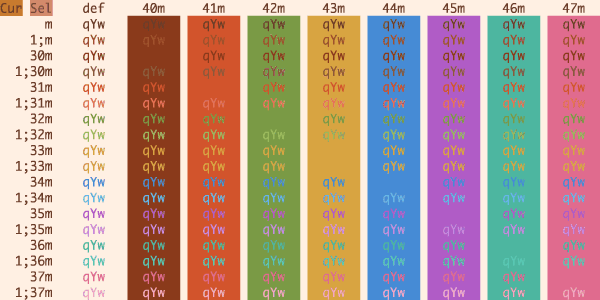
Great Pumpkin
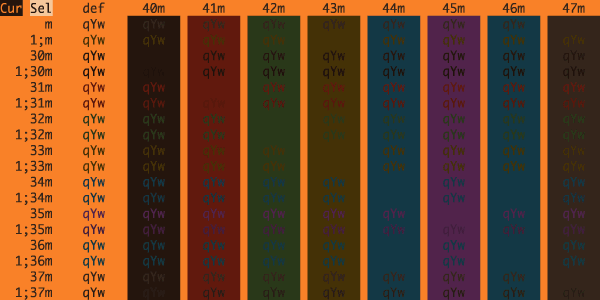
Grok Day
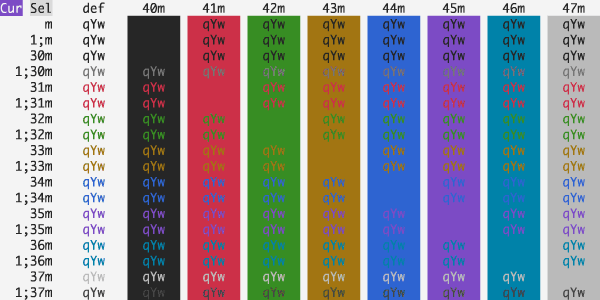
Gruvbox Light Hard
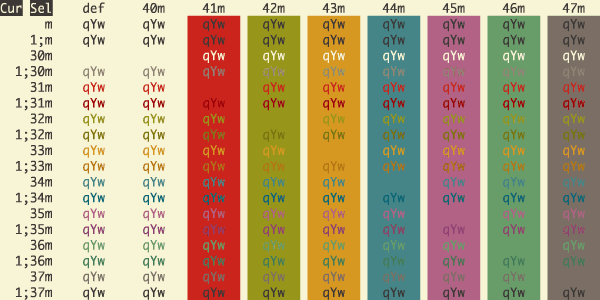
Gruvbox Light
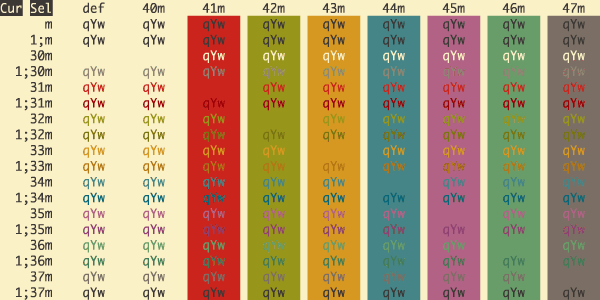
Gruvbox Material Light
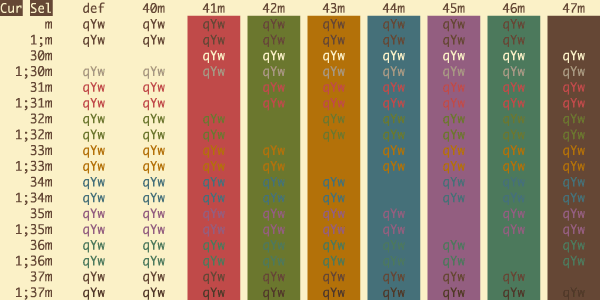
Havn Daggry
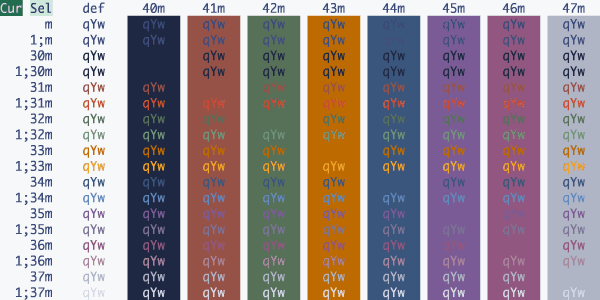
High Desert Snow
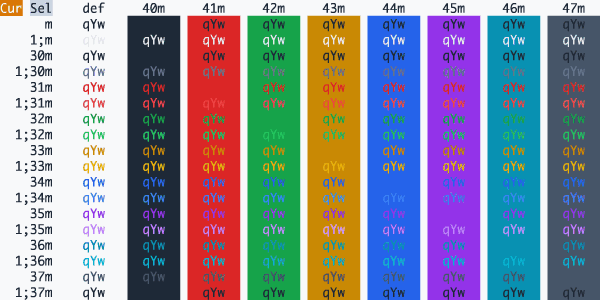
HN Classic
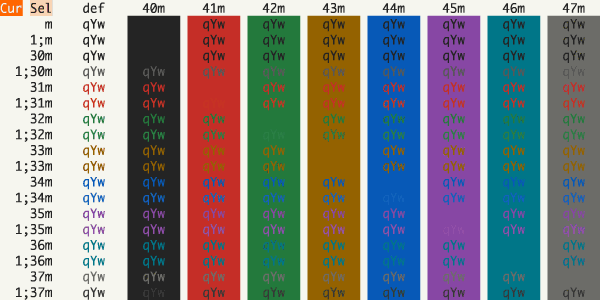
Horizon Bright
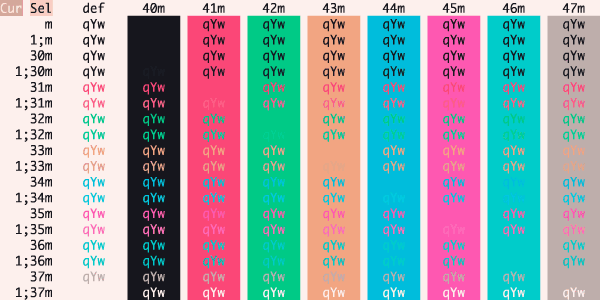
Horizons
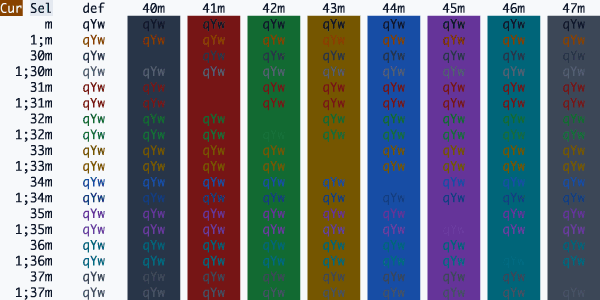
Hot Dog Stand (Mustard)
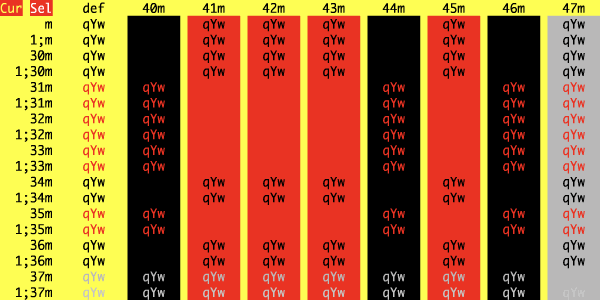
Iceberg Light
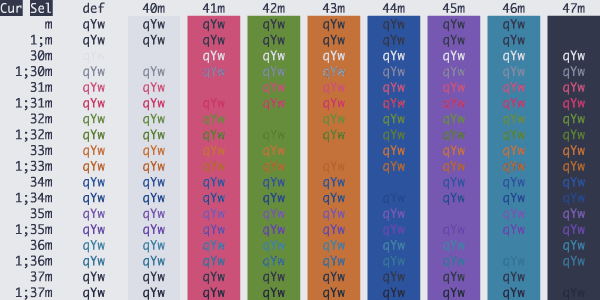
Icy Glacier
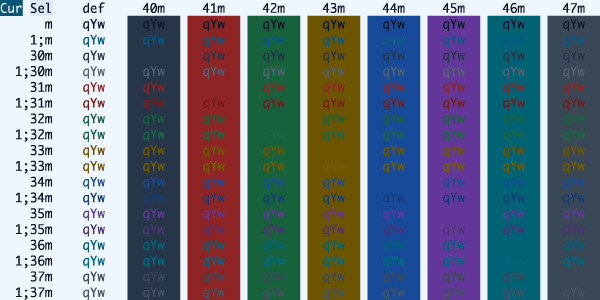
iglass Light
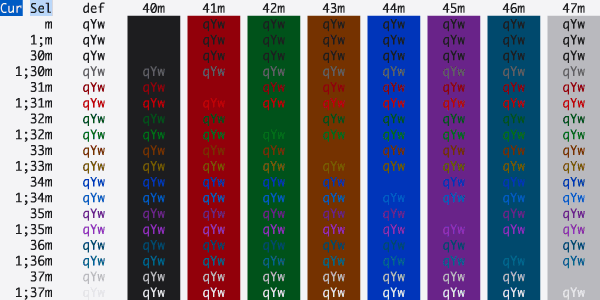
Isocon Light
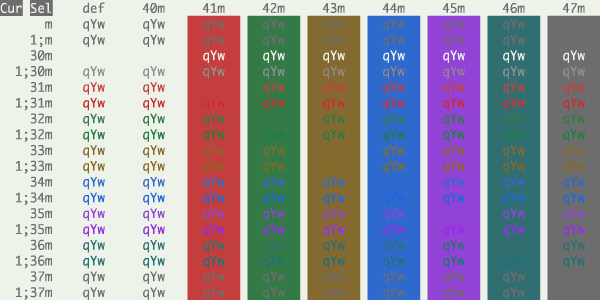
iTerm2 Light Background
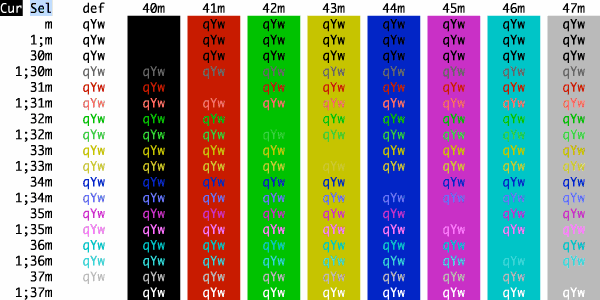
iTerm2 Solarized Light
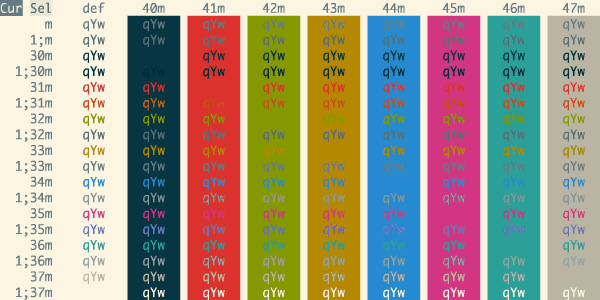
iTerm2 Tango Light
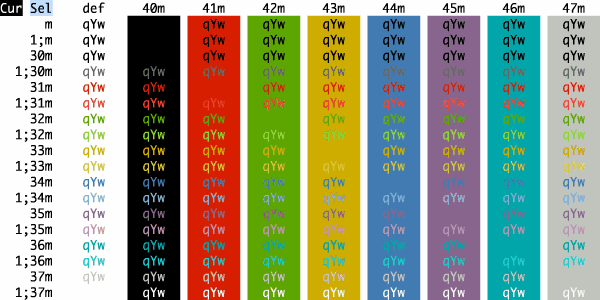
JetCalm Light
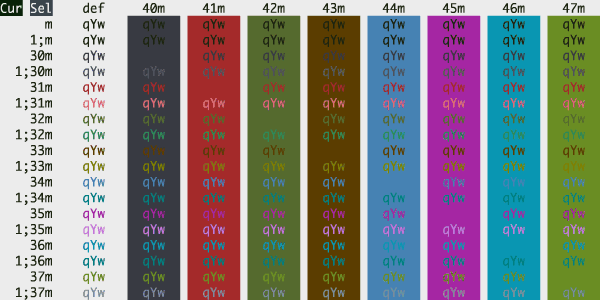
Kanagawa Lotus
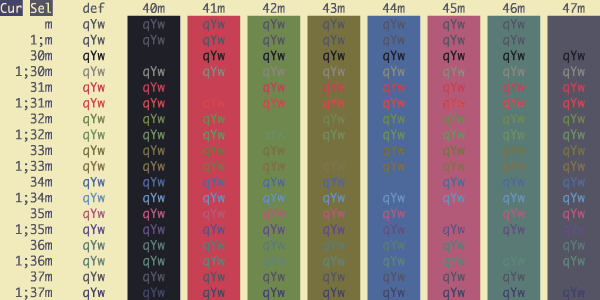
Kanso Pearl
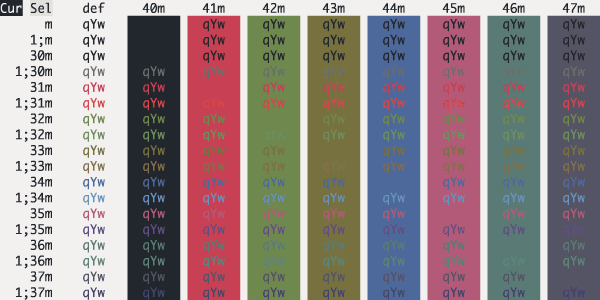
Karasu Snow
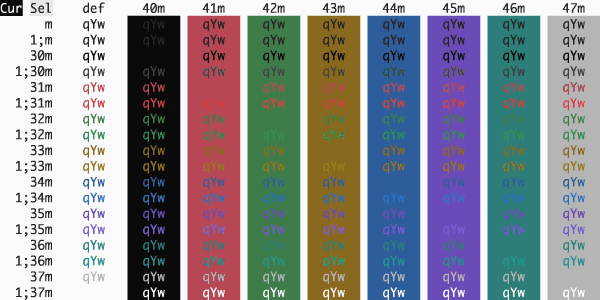
Karma Light Dimmed
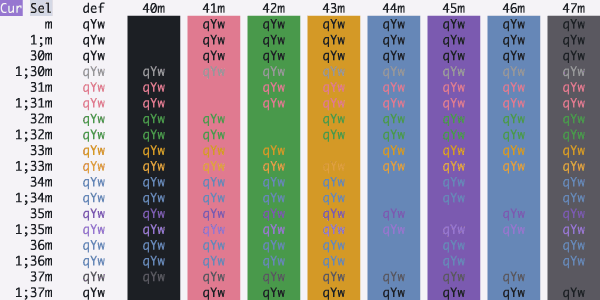
Karma Light HC
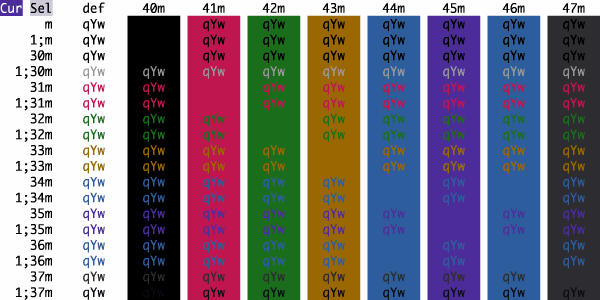
Karma Light
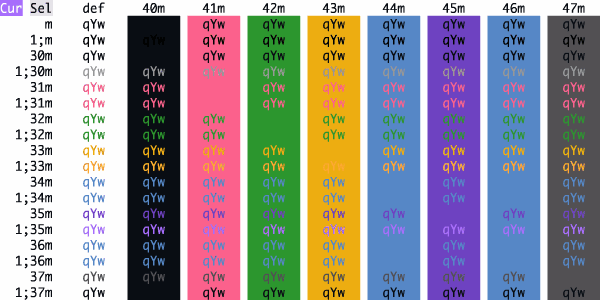
Letterpress
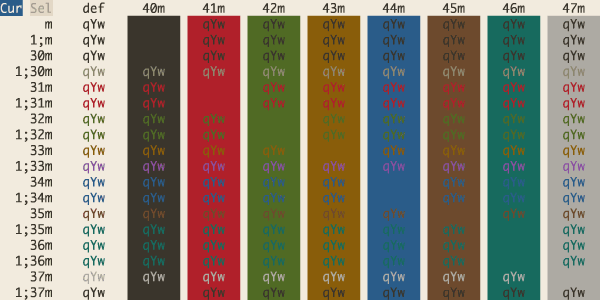
Light 2026
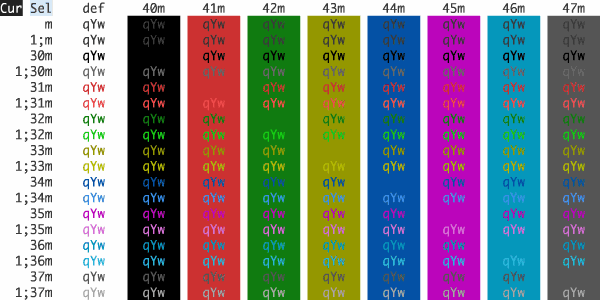
Light Owl
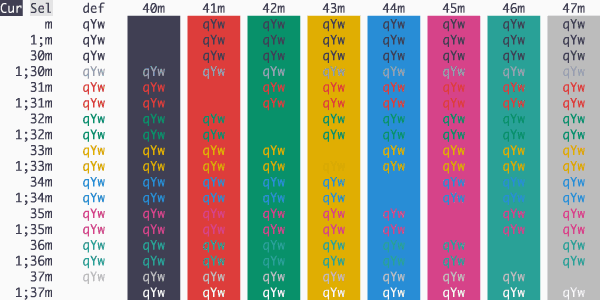
Lit Cell Light
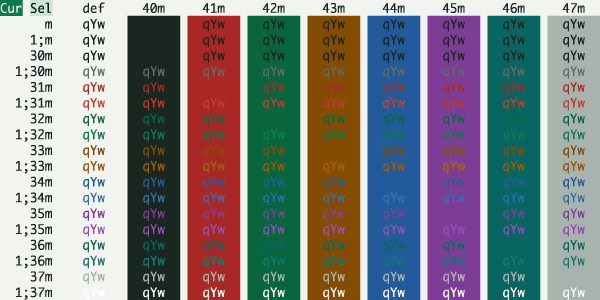
London Columbia Road
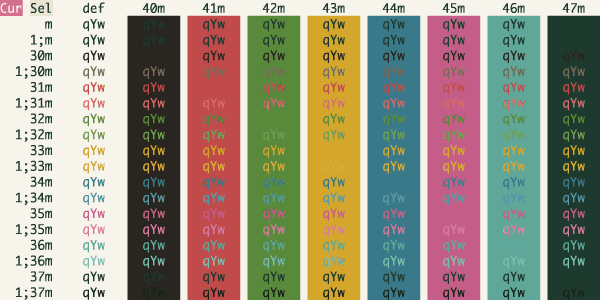
Lunar Dust
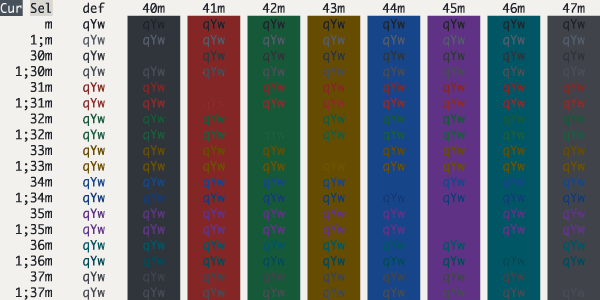
Man Page
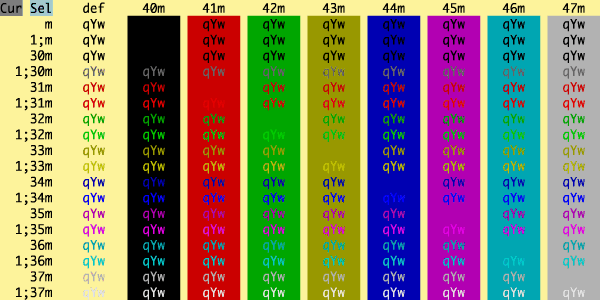
Matcha Zen
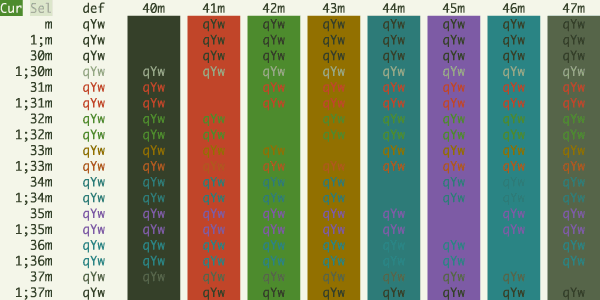
Material
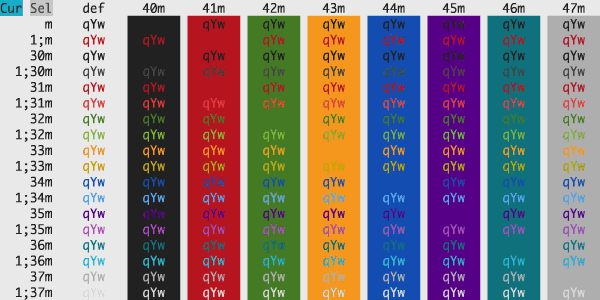
Melange Light
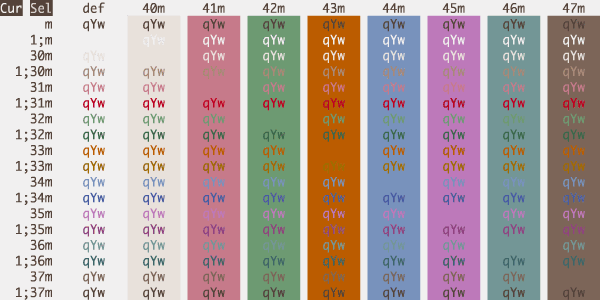
Modus Operandi Deuteranopia
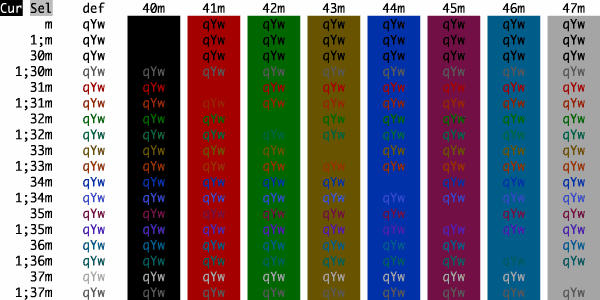
Modus Operandi Tinted
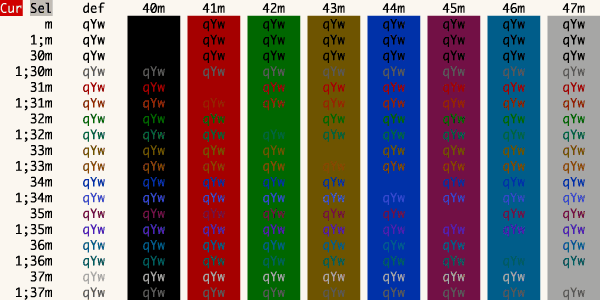
Modus Operandi Tritanopia
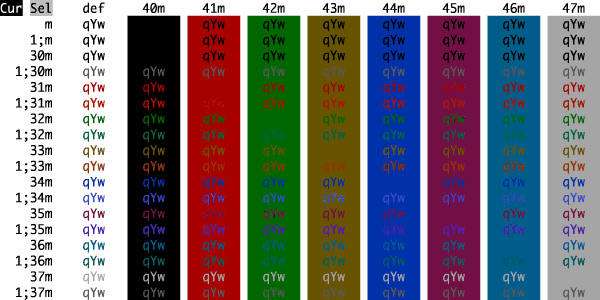
Modus Operandi
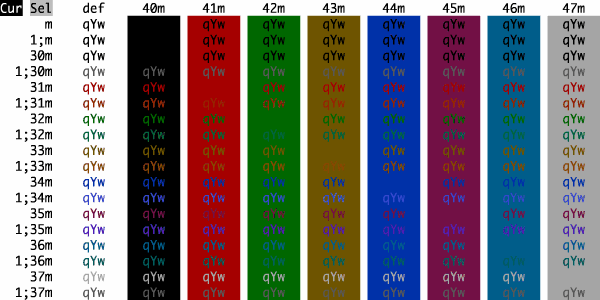
Monokai Pro Light Sun
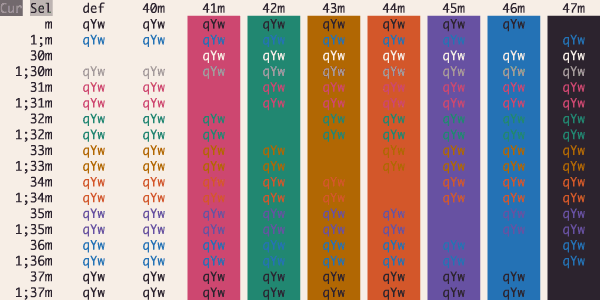
Monokai Pro Light
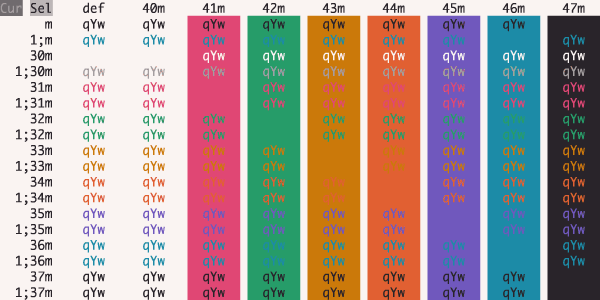
Monospace Light
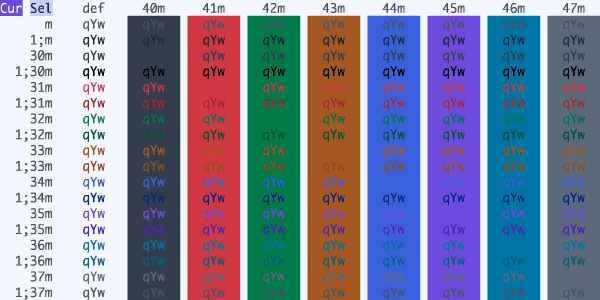
Moonwalk
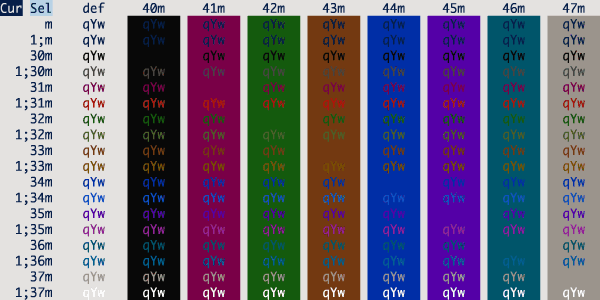
Neobones Light
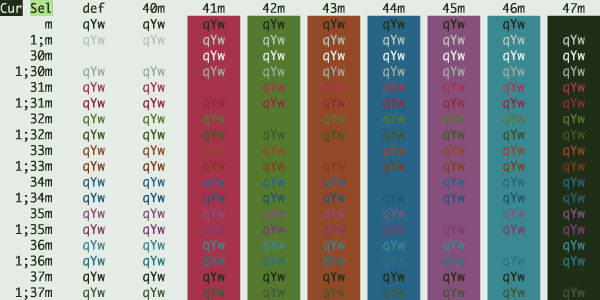
Night Owlish Light
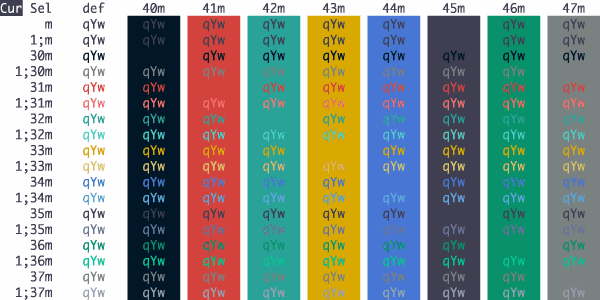
No Clown Fiesta Light
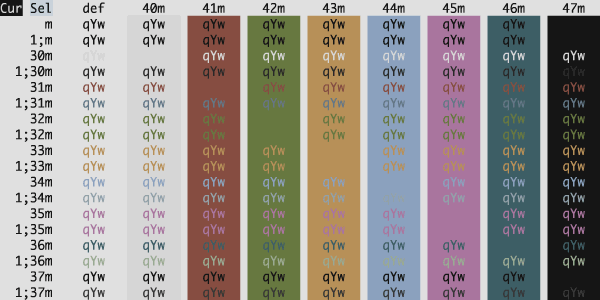
Noctis Hibernus
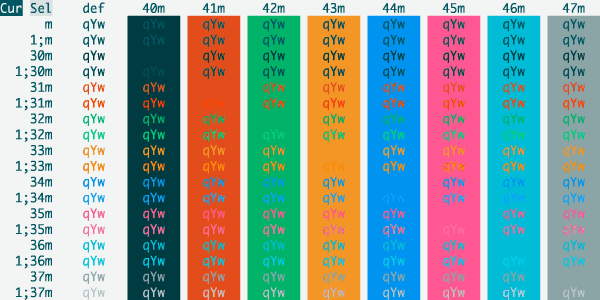
Noctis Lilac
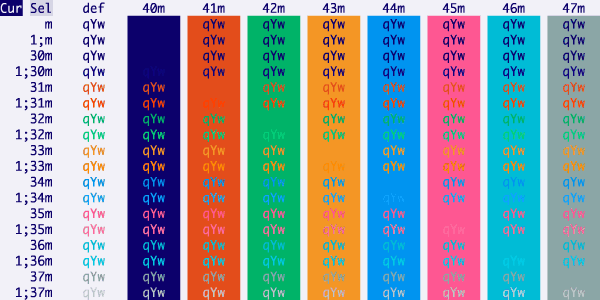
Noctis Lux
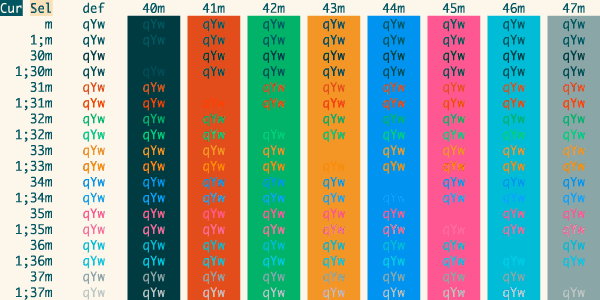
Nord Light
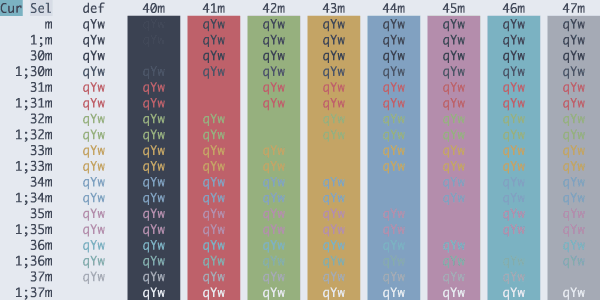
Novel
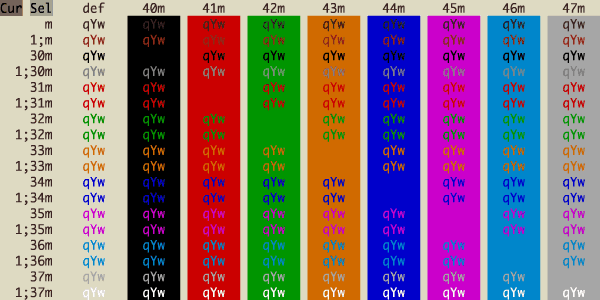
Nvim Light
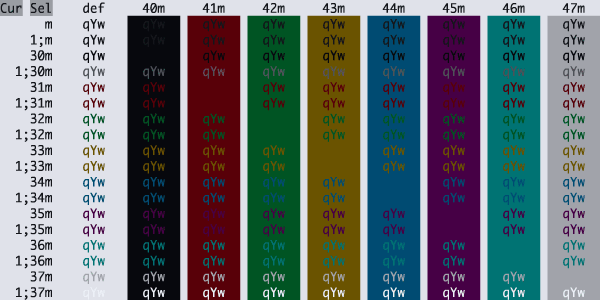
One Double Light
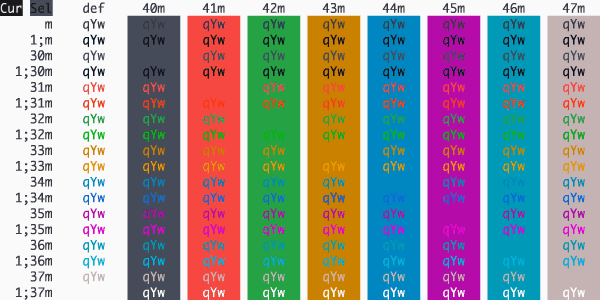
One Half Light
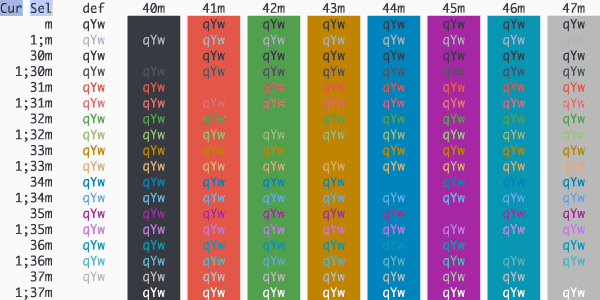
Onenord Light
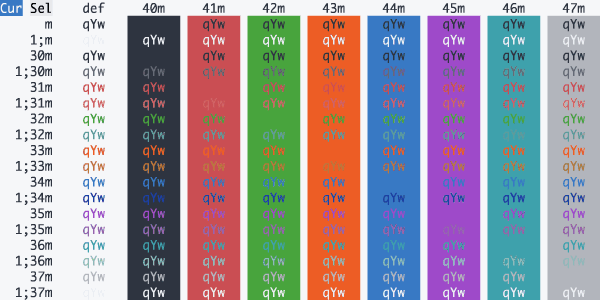
Paper Tiger
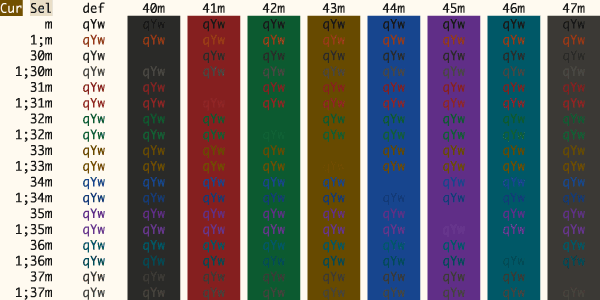
Parchment
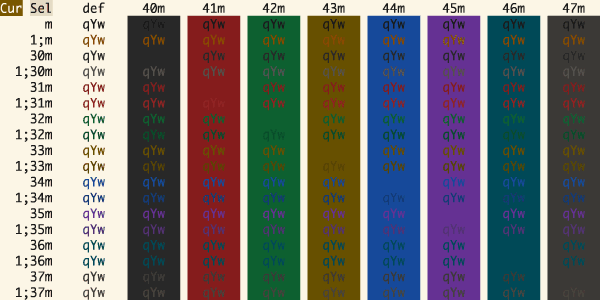
Patina Lichen
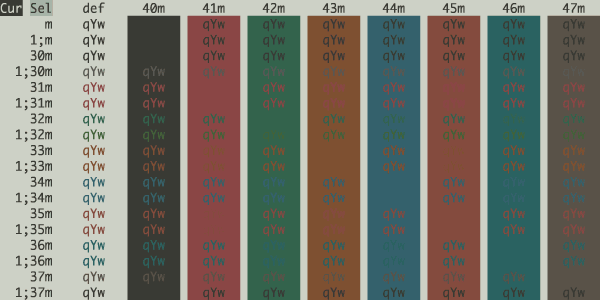
Patina Light
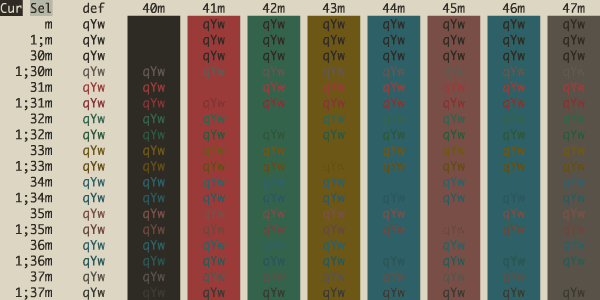
Patina Stellar
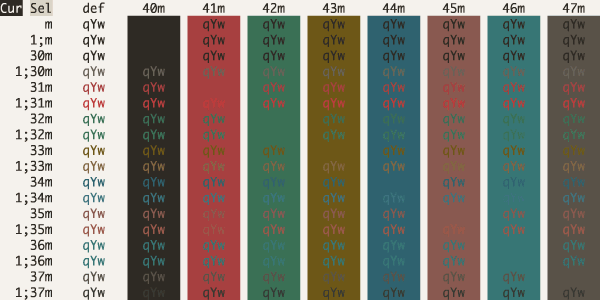
Pencil Light
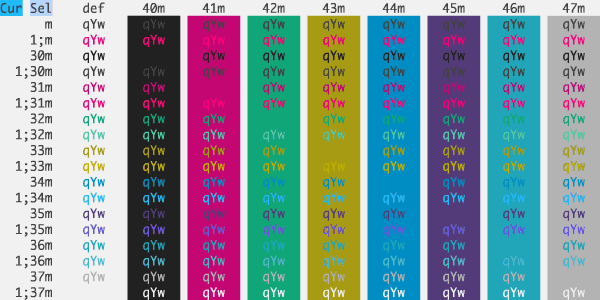
Piatto Light
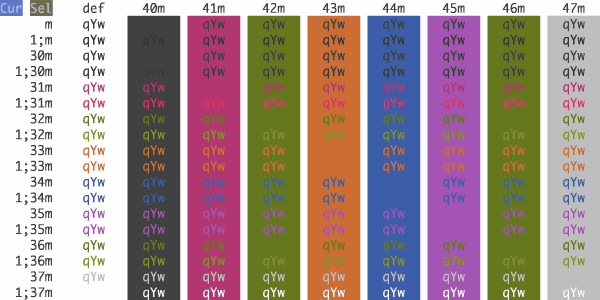
Pierre Light
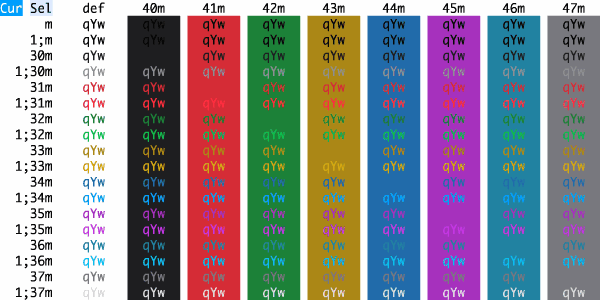
Poimandres White
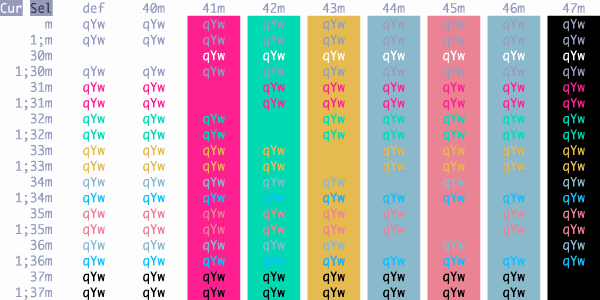
Porcelain
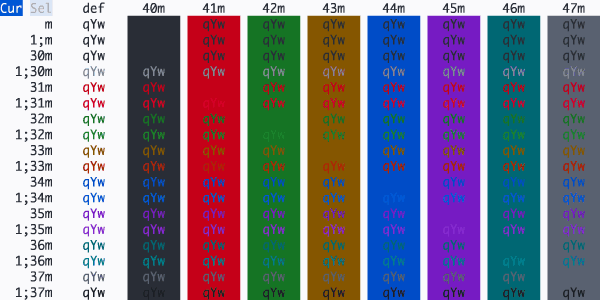
Primary
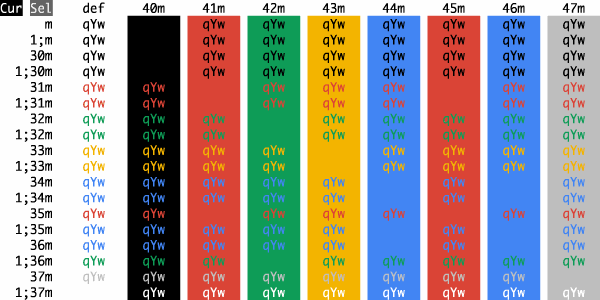
Pro Light
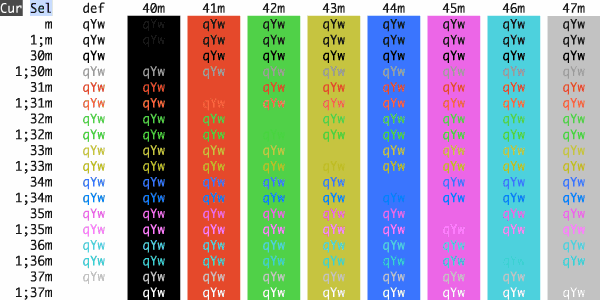
Pyrokai Light
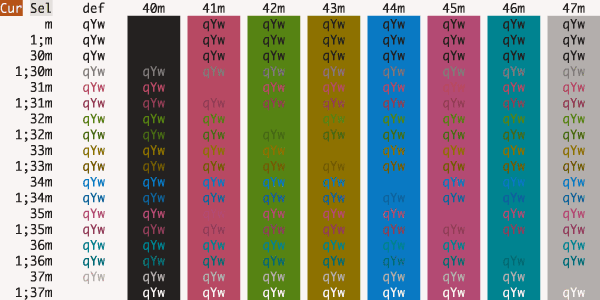
Raycast Light
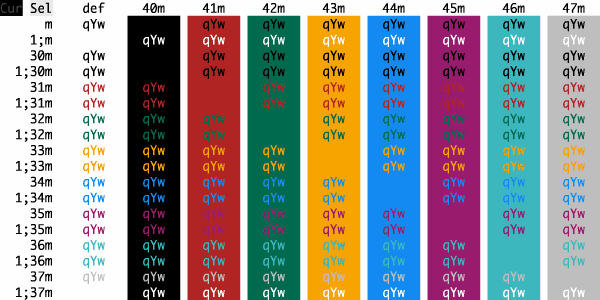
Redacted
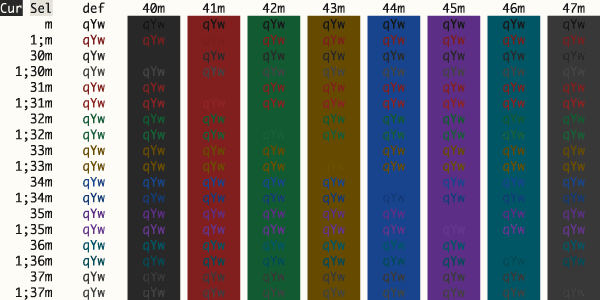
Rhoads Concord
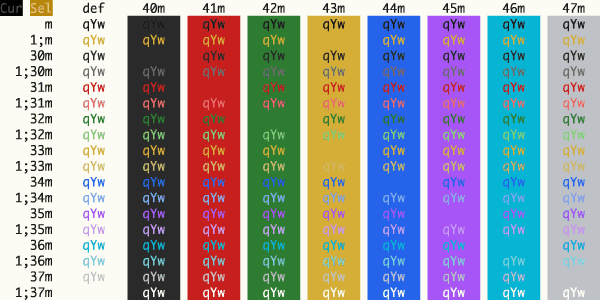
Rhoads LP
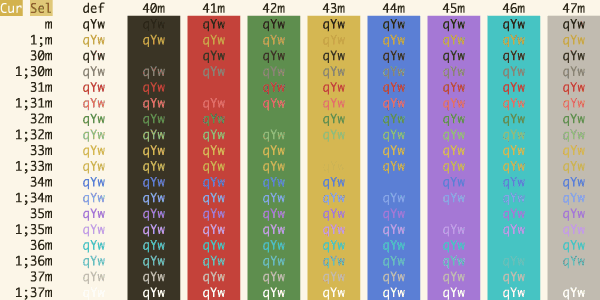
Rose Pine Dawn
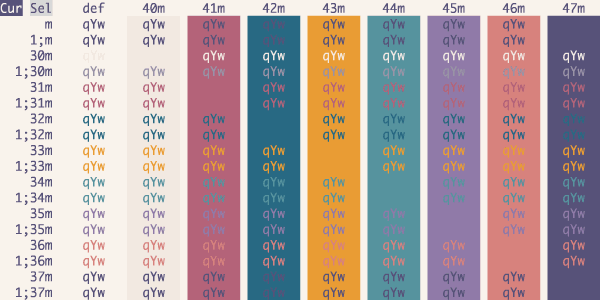
Royal Rhapsody
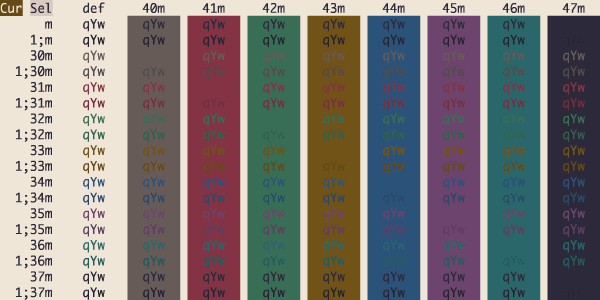
Safety Glass
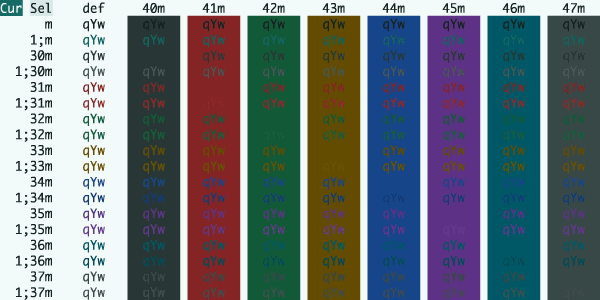
Sandstone Classic
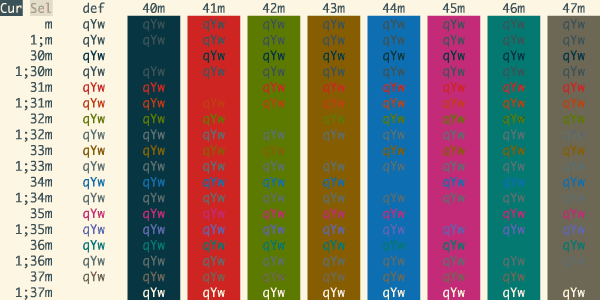
Sandstone Ink
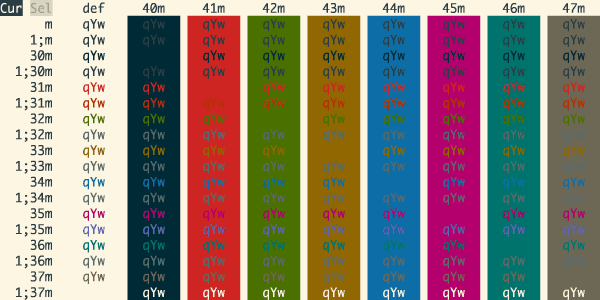
Sandstone Warm
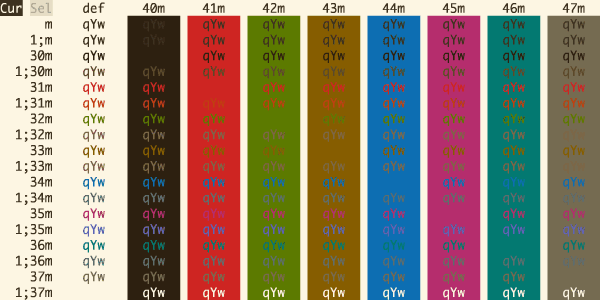
Sauber
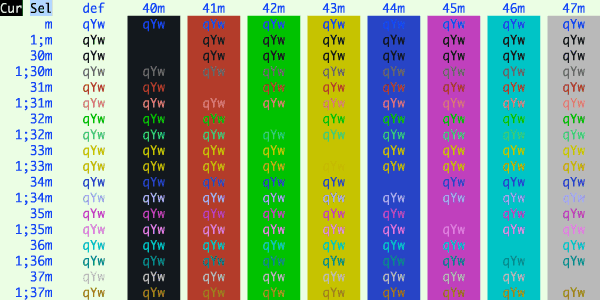
SeedFlip Amethyst
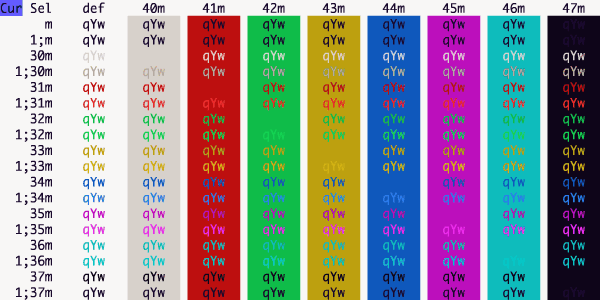
SeedFlip Carbon
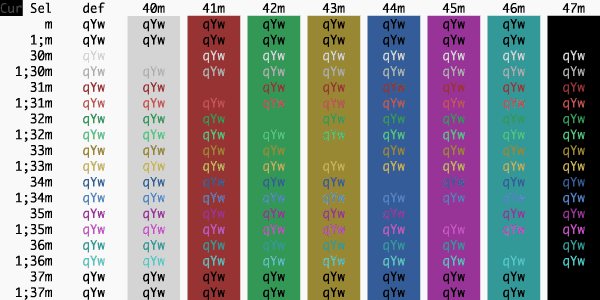
SeedFlip Coral
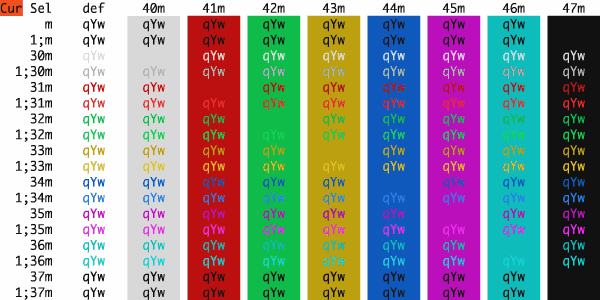
SeedFlip Glacier
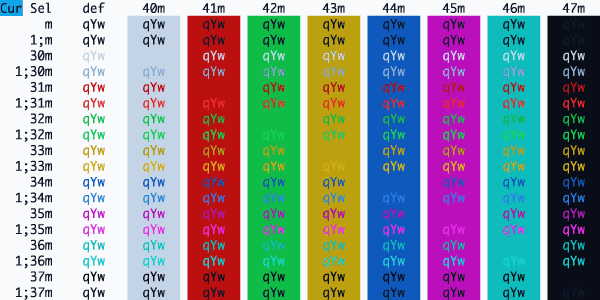
SeedFlip Ivory
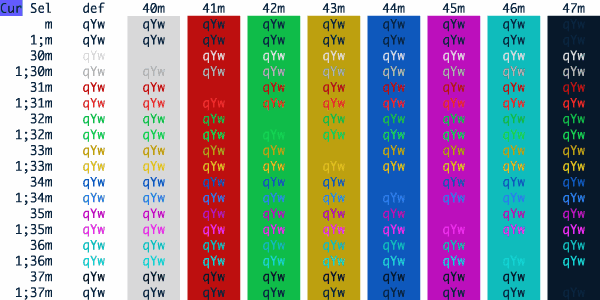
Selenized Light
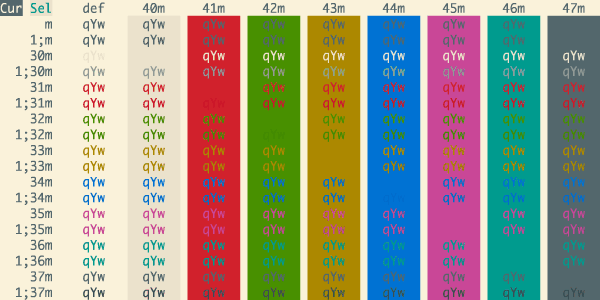
Seoulbones Light
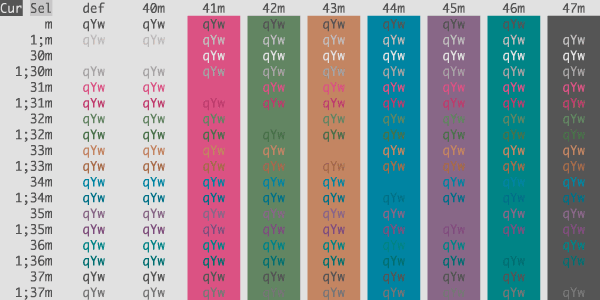
Sequoia Monochrome Light
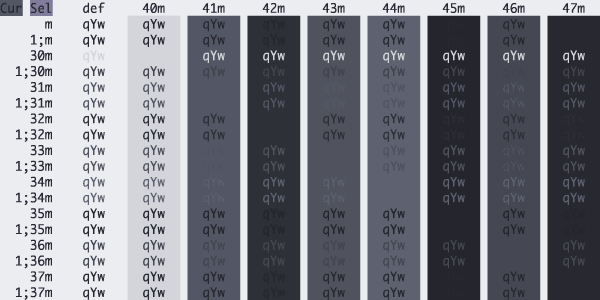
Sequoia Moonlight Light
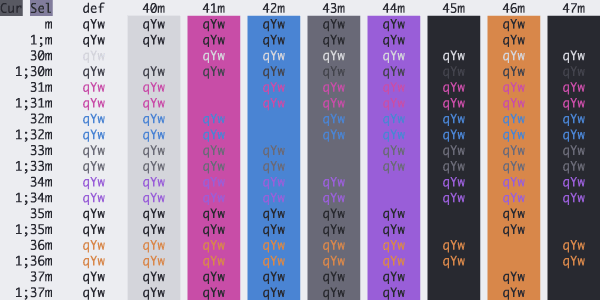
Sequoia Retro Light
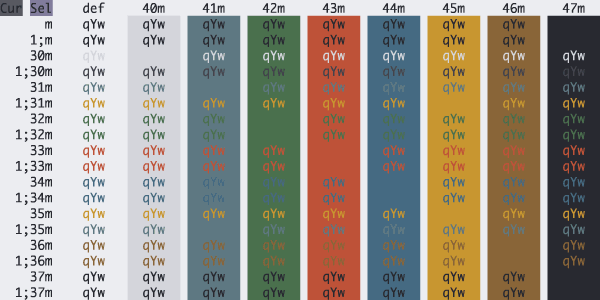
Serendipity Morning
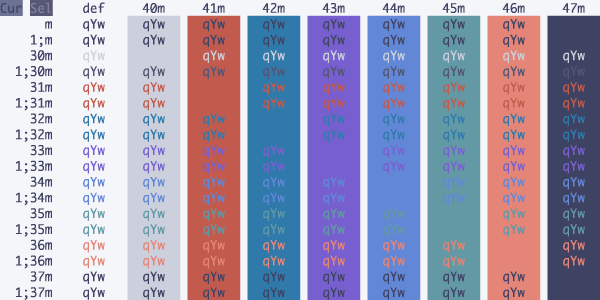
Shokunin
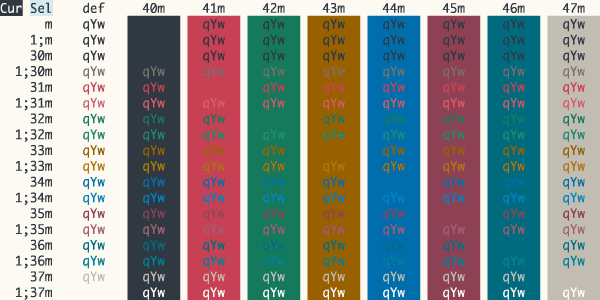
SilkCircuit Dawn
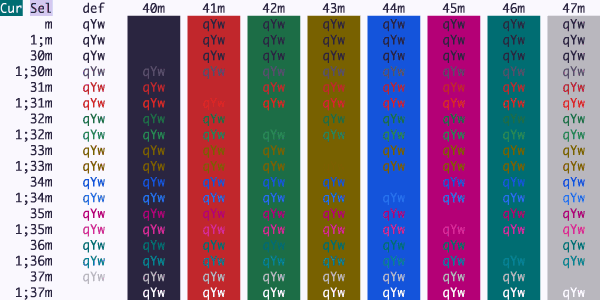
Solar Flare
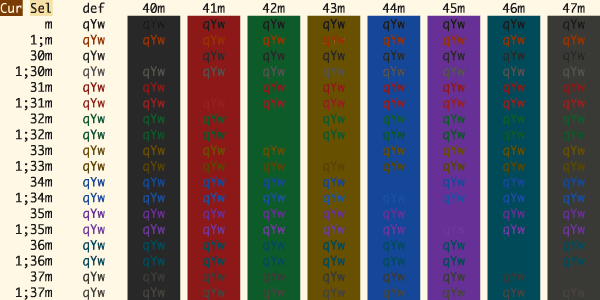
Spring
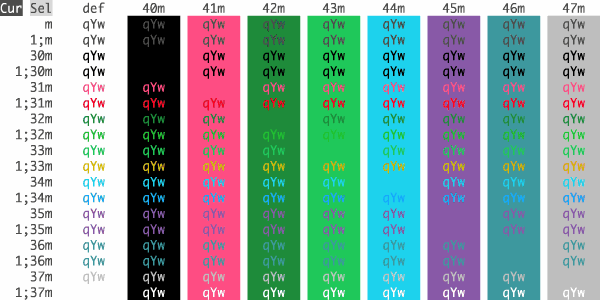
Springfield Resident Hight Contrast
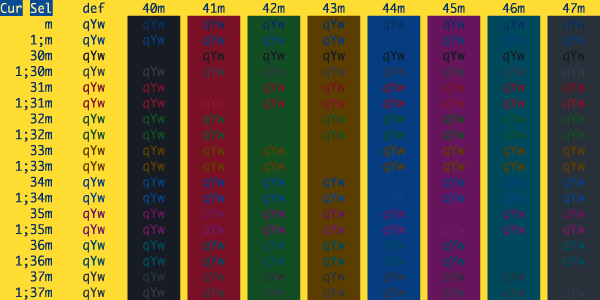
Springfield Resident
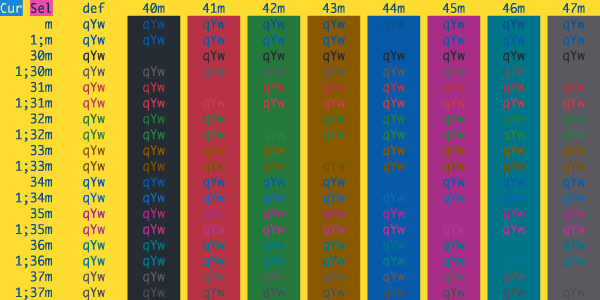
Squintless
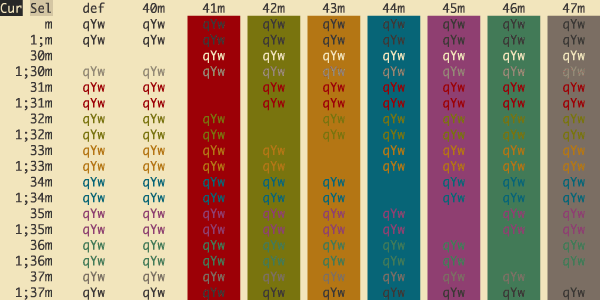
Stardust Voltage
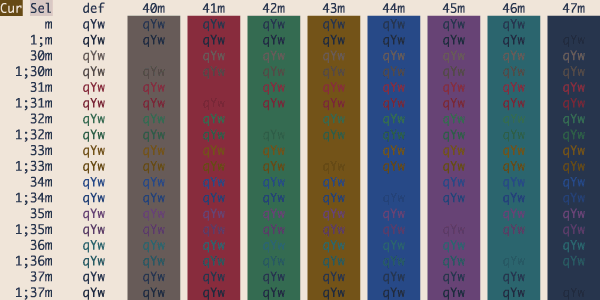
Static Memory
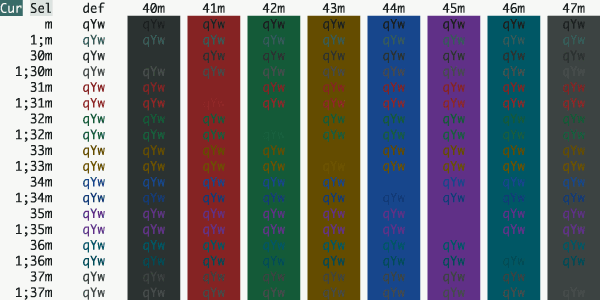
Sumi Linen
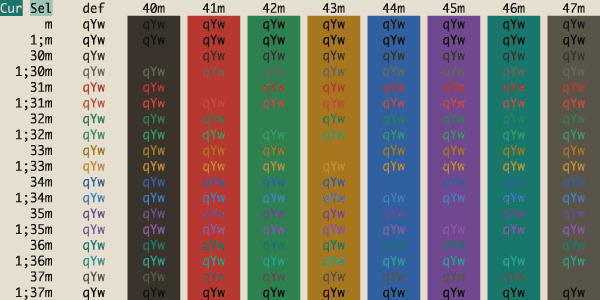
Sun Bleached
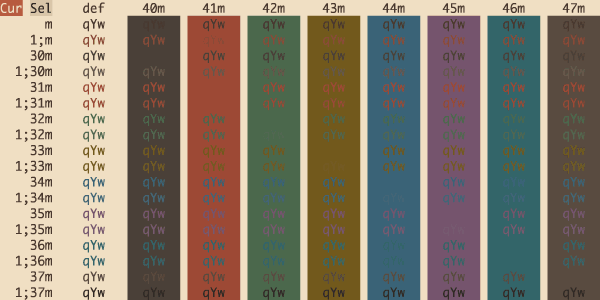
Tailwind Light
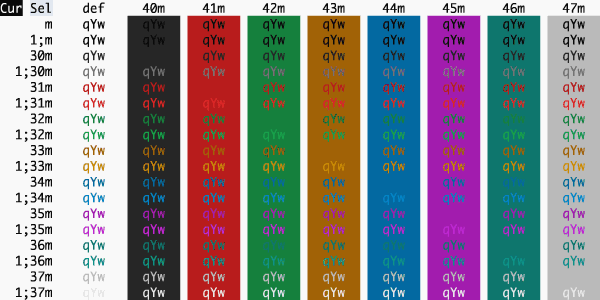
Tango Adapted
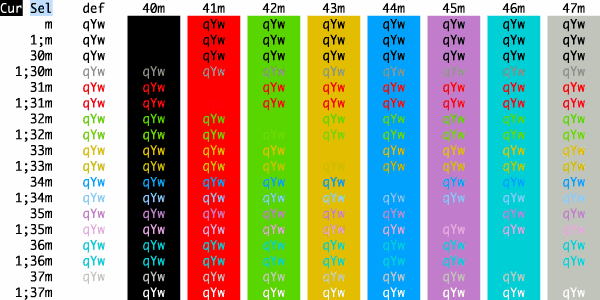
Tango Half Adapted
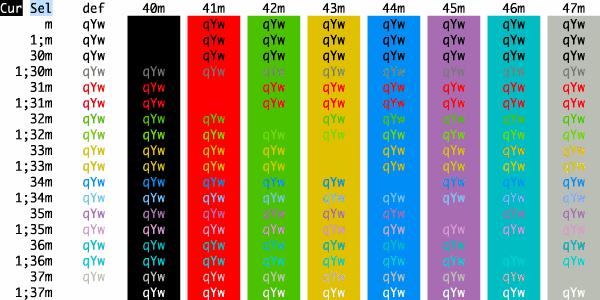
Terminal Basic
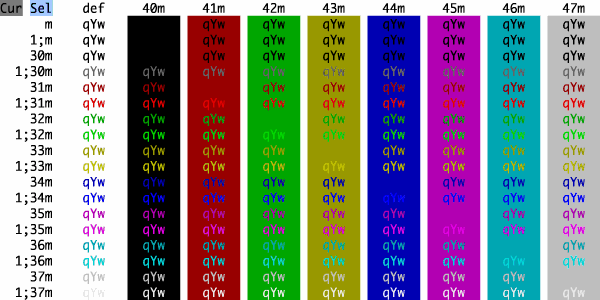
Thermal Receipt
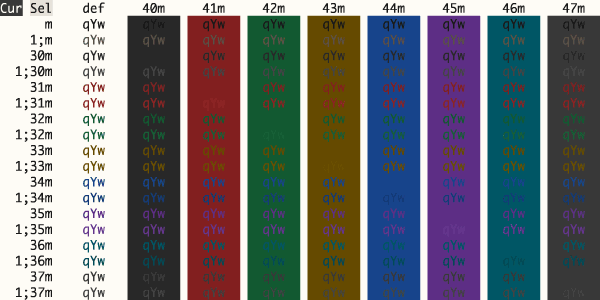
Tinacious Design Light
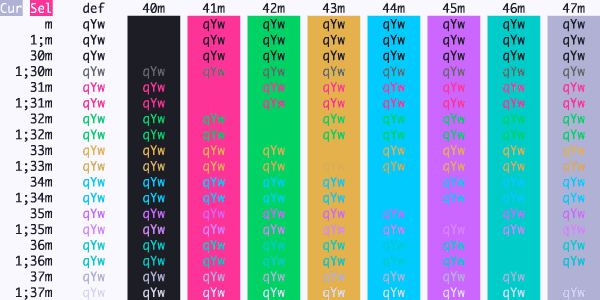
Token Light
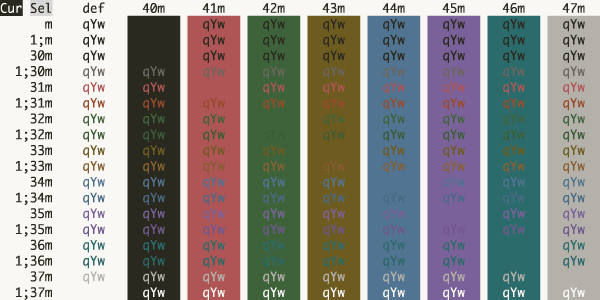
TokyoNight Day
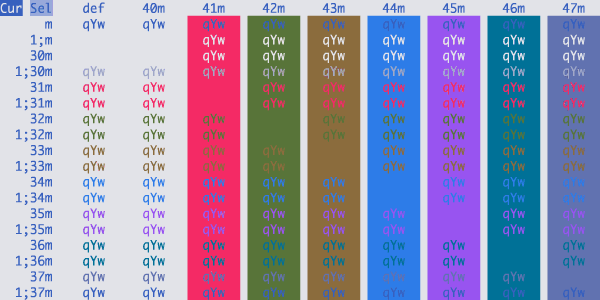
Tomorrow
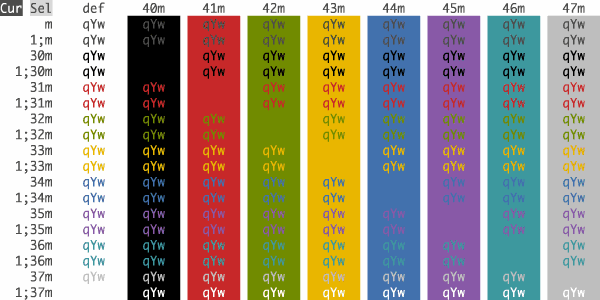
Unikitty
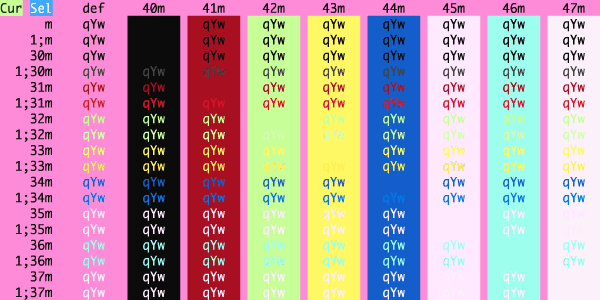
Vimbones
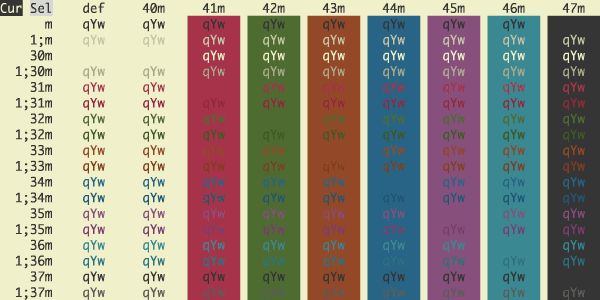
Violet Light
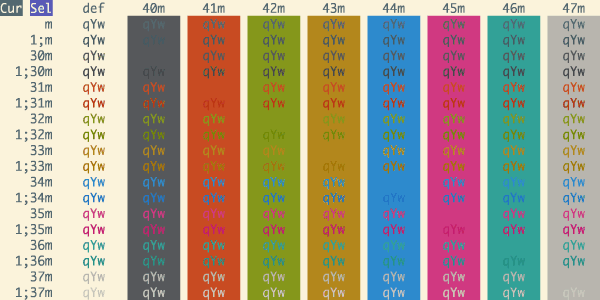
Warm Burnout Light
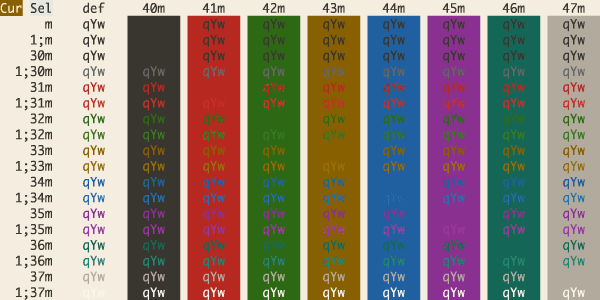
White Sands
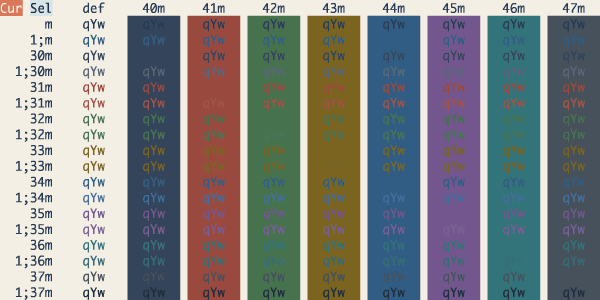
Willow Grove
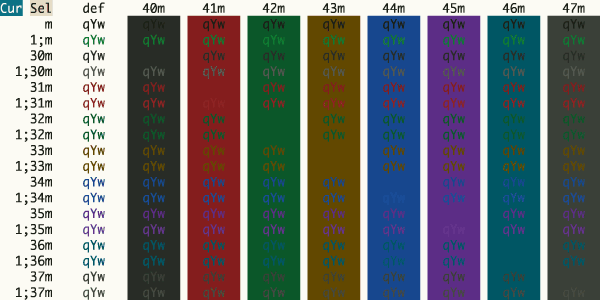
X Helsinki
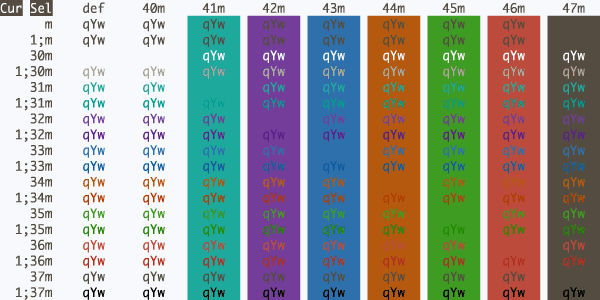
X London
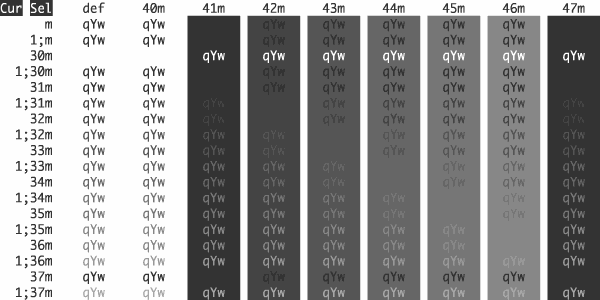
X Madrid
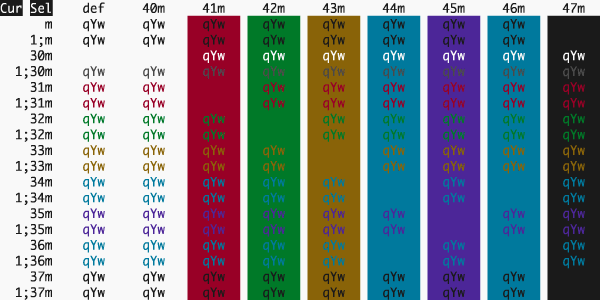
Xcode Light hc
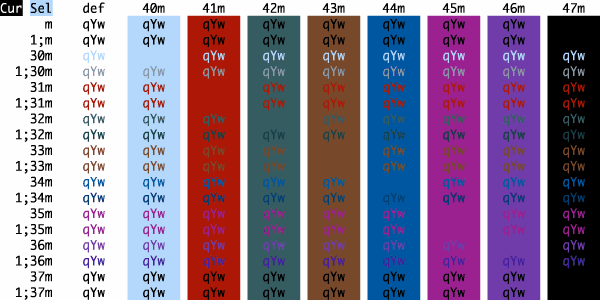
Xcode Light
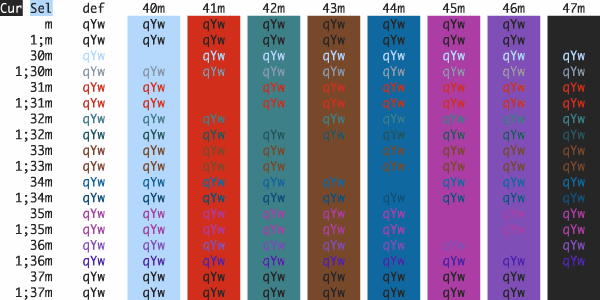
Y2K Chrome
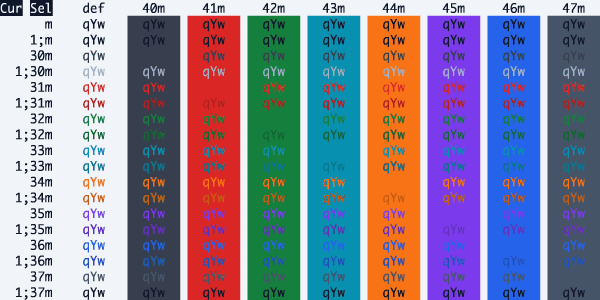
Yngwie's Strat
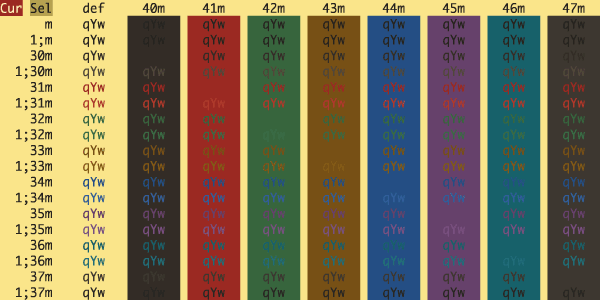
Zacess Cream
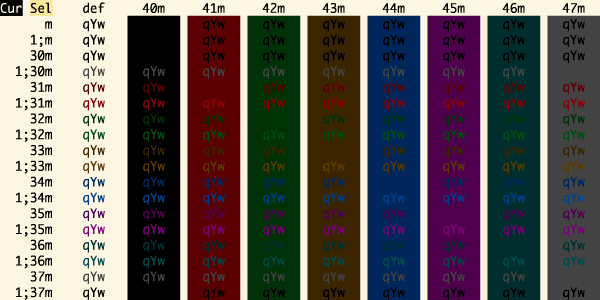
Zacess Light
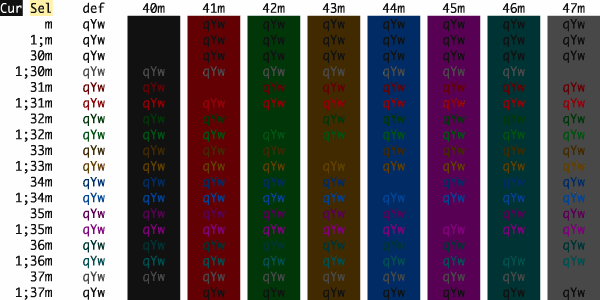
Zenbones Light
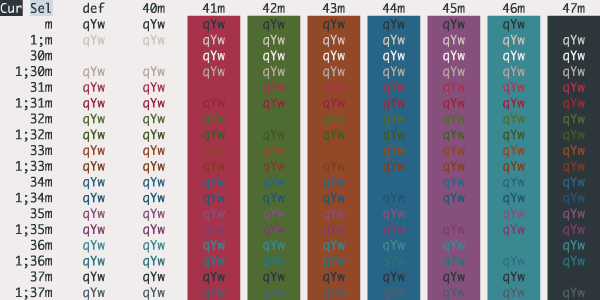
Zenbones
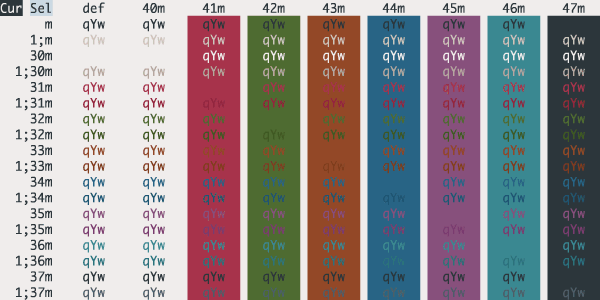
Zenwritten Light
Credits
- The schemes Novel, Espresso, Grass, Homebrew, Ocean, Pro, Man Page, Red Sands, and Terminal Basic are ports of the schemes of the same name included with the Mac Terminal application. All of Terminal's schemes have now been ported, with the exception of Solid Colors (random backgrounds, which iTerm doesn't support) and Aerogel (which is hideous).
- The schemes iTerm2 Default, iTerm2 Dark Background, iTerm2 Light Background, iTerm2 Pastel (Dark Background), iTerm2 Smoooooth, iTerm2 Solarized Dark, iTerm2 Solarized Light, iTerm2 Tango Dark, and iTerm2 Tango Light are ports from the built-in color schemes of iTerm2 (current source is iTerm2 v3.4.19).
- Credits for all other themes are listed in CREDITS.md
If there are other color schemes you'd like to see included, drop me a line!
Extra
X11 Installation
To install under the X Window System:
-
Import the .xrdb file of the scheme you'd like to use:
#include "/home/mbadolato/iTerm2-Color-Schemes/xrdb/Blazer.xrdb"
-
Use the
#defines provided by the imported .xrdb file:Rxvtcolor0: Ansi_0_Color Rxvtcolor1: Ansi_1_Color Rxvtcolor2: Ansi_2_Color Rxvtcolor3: Ansi_3_Color Rxvtcolor4: Ansi_4_Color Rxvtcolor5: Ansi_5_Color Rxvtcolor6: Ansi_6_Color Rxvtcolor7: Ansi_7_Color Rxvtcolor8: Ansi_8_Color Rxvtcolor9: Ansi_9_Color Rxvtcolor10: Ansi_10_Color Rxvtcolor11: Ansi_11_Color Rxvtcolor12: Ansi_12_Color Rxvtcolor13: Ansi_13_Color Rxvtcolor14: Ansi_14_Color Rxvtcolor15: Ansi_15_Color RxvtcolorBD: Bold_Color RxvtcolorIT: Italic_Color RxvtcolorUL: Underline_Color Rxvtforeground: Foreground_Color Rxvtbackground: Background_Color RxvtcursorColor: Cursor_Color
XTermcolor0: Ansi_0_Color XTermcolor1: Ansi_1_Color XTermcolor2: Ansi_2_Color XTermcolor3: Ansi_3_Color XTermcolor4: Ansi_4_Color XTermcolor5: Ansi_5_Color XTermcolor6: Ansi_6_Color XTermcolor7: Ansi_7_Color XTermcolor8: Ansi_8_Color XTermcolor9: Ansi_9_Color XTermcolor10: Ansi_10_Color XTermcolor11: Ansi_11_Color XTermcolor12: Ansi_12_Color XTermcolor13: Ansi_13_Color XTermcolor14: Ansi_14_Color XTermcolor15: Ansi_15_Color XTermcolorBD: Bold_Color XTermcolorIT: Italic_Color XTermcolorUL: Underline_Color XTermforeground: Foreground_Color XTermbackground: Background_Color XTermcursorColor: Cursor_Color
-
Store the above snippets in a file and pass it in:
xrdb -merge YOUR_FILE_CONTAINING_ABOVE_SNIPPETS
-
Open new XTerm or Rxvt windows to see the changes.
-
Adapt this procedure to other terminals as needed.
Terminator color schemes
Edit your Terminator configuration file (located in: $HOME/.config/terminator/config) and add the configurations for the theme(s) you'd like to use the [profiles] section. The terminator/ directory contains the config snippets you'll need. Just paste the configurations into the [profiles] sections, and you're good to go!
At a minimum, this is all you need. You can customize the fonts and other aspects as well, if you wish. See the Terminator documentation for more details.
An example config file that includes the code snippet for the Symfonic theme would look like this:
[global_config]
 [keybindings]
 [profiles]
   [[default]]
  palette = "#1a1a1a:#f4005f:#98e024:#fa8419:#9d65ff:#f4005f:#58d1eb:#c4c5b5:#625e4c:#f4005f:#98e024:#e0d561:#9d65ff:#f4005f:#58d1eb:#f6f6ef"
  background_image = None
  use_system_font = False
  cursor_color = "#f6f7ec"
  foreground_color = "#c4c5b5"
  font = Source Code Pro Light 11
  background_color = "#1a1a1a"
   [[Symfonic]]
  palette = "#000000:#dc322f:#56db3a:#ff8400:#0084d4:#b729d9:#ccccff:#ffffff:#1b1d21:#dc322f:#56db3a:#ff8400:#0084d4:#b729d9:#ccccff:#ffffff"
  background_color = "#000000"
  cursor_color = "#dc322f"
  foreground_color = "#ffffff"
  background_image = None
 [layouts]
   [[default]]
  [[[child1]]]
    type = Terminal
    parent = window0
  [[[window0]]]
    type = Window
    parent = ""
 [plugins]
Konsole color schemes
Copy the themes from the konsole directory to $HOME/.config/konsole (in some versions of KDE, the theme directory may be located at $HOME/.local/share/konsole), restart Konsole and choose your new theme from the profile preferences window.
If you want to make the themes available to all users, copy the .colorscheme files to /usr/share/konsole.
Terminal color schemes
Just double click on selected theme in terminal directory
PuTTY color schemes
New Session Method
This method creates a new blank session with JUST colors set properly.
Download the appropriate colorscheme.reg file and import the registry changes by right-clicking and choosing Merge. Choose "Yes" when prompted if you're sure. Color scheme will show up as a new PuTTY session with all defaults except entries at Window > Colours > Adjust the precise colours PuTTY displays.
Modify Session Method
This method modifies an existing session and changes JUST the color settings.
Download the appropriate colorscheme.reg file. Open the file with a text editor and change the color scheme portion (Molokai below) to match the session you want to modify:
[HKEY_CURRENT_USER\Software\SimonTatham\PuTTY\Sessions\Molokai]
- CHANGE TO (EXAMPLE) -
[HKEY_CURRENT_USER\Software\SimonTatham\PuTTY\Sessions\root@localhost]
NOTE: Some special characters will need to be changed to their Percent-encoded representation (IE, Space as %20). To quickly find the right session name view the top-level entries at HKEY_CURRENT_USER\Software\SimonTatham\PuTTY\Sessions\ with regedit.exe.
Other PuTTY Recommendations
Window > Appearance
 Font: Consolas, bold, 14-point
 Font quality:
  ( ) Antialiased   ( ) Non-Antialiased
  (O) ClearType    ( ) Default
Window > Colours
 [X] Allow terminal to specify ANSI colours
 [X] Allow terminal to use xterm 256-colour mode
 Indicate bolded text by changing:
  ( ) The font  (O) The colour   ( ) Both
 [ ] Attempt to use logical palettes
 [ ] Use system colours
Xfce Terminal color schemes
Copy the colorschemes folder to ~/.local/share/xfce4/terminal/ and restart Terminal.
FreeBSD vt color schemes
Append your favourite theme from freebsd_vt/ to /boot/loader.conf
or /boot/loader.conf.local and reboot.
MobaXterm color schemes
Copy the theme content from mobaxterm/ and paste the content to your MobaXterm.ini in the corresponding place ([Colors]).
LXTerminal color schemes
Copy the theme content from lxterminal/ and paste the content to your lxterminal in the corresponding place ([general]).
Visual Studio Code color schemes
Copy the theme content from vscode/ and paste the content to your UserSettings.json.
Windows Terminal color schemes
Copy the theme content from windowsterminal/ and paste the content to your profiles.json in the corresponding place ("schemes"). Then specify the name of your theme by "colorScheme" in "profiles".
Alacritty color schemes
Copy the theme content from alacritty/ and paste the content to your alacritty config file, at ~/.config/alacritty/alacritty.toml. You can also set your theme by adding the following line at your config's 1st line import = ["~/.config/alacritty/themes/mytheme.toml"].
If you still need a color scheme with .yml, you can get it here.
Ghostty color schemes
Copy theme files from ghostty/ into ~/.config/ghostty/themes/ (or paste the content into your Ghostty config). Set theme = <file name> in ~/.config/ghostty/config.
If Ghostty reports a theme not found after an upgrade, run ghostty +list-themes — Ghostty’s bundled theme names can change between releases (for example Ghostty 1.2.0). Themes from this repository keep stable file names under ghostty/.
Otty color schemes
Copy .ottytheme files from otty/ into ~/.config/otty/themes/ (Windows: %APPDATA%\otty\themes\), then pick the theme in Settings → Appearance → Themes, or set theme = <slug> in Otty’s config.
You can also import a file via Settings → Appearance → Import Theme → Otty, double-click an .ottytheme in Finder, or:
otty import ./otty/0x96f.ottytheme --activate
Otty can also import iTerm2, Kitty, Alacritty, and Ghostty theme files from this repository if you prefer those formats. See Otty theme docs.
Rio color schemes
Copy the theme file from rio/ and paste to your rio theme config directory (typically ~/.config/rio/themes/).
Then specify the name of your theme in the theme field in the config file.
Termux color schemes
Copy the theme content from termux/ and paste the content to ~/.termux directory as ~/.termux/colors.properties file and run termux-reload-settings to apply the theme.
Vim color schemes
Copy the theme content from vim/ and paste the content to ~/.vim/colors/ directory. In Vim, use :colorscheme <scheme_name> to apply the colorscheme.
Ptyxis color schemes
Copy the theme file(s) you want from ptyxis/ and paste into ~/.local/share/org.gnome.Ptyxis/palettes, then restart Ptyxis. The new theme(s) should now be available in the global palette list in Preferences > Appearance > Palette (may need to select 'Show All Palettes') and Preferences > Profiles > <profile_name> > Color > Palette.
Generic color schemes
These schemes work with any terminal emulator with support for the OSC 4 escape code (including the Linux console, GNOME Terminal, and more).
Copy the shell script from generic/ and paste the script to ~/bin/set-colors.sh, or wherever you prefer to put shell scripts.
Then add bash ~/bin/set-colors.sh to your shell's config file (~/.bashrc, ~/.zshrc, etc).
For GNOME’s modern terminal (Ptyxis), prefer the dedicated ptyxis/ palettes instead of OSC scripts.
Machine-readable schemes (JSONL)
Committed machine-readable sources:
yaml/*.yml— one YAML file per scheme (best for importers / Nix without XML)windowsterminal/*.json— Windows Terminal JSON objects
tools/gen.py also writes a local schemes.jsonl (gitignored): one JSON object per line with the full color map used by screenshot tooling. Run python tools/gen.py to regenerate it.
Previewing color schemes
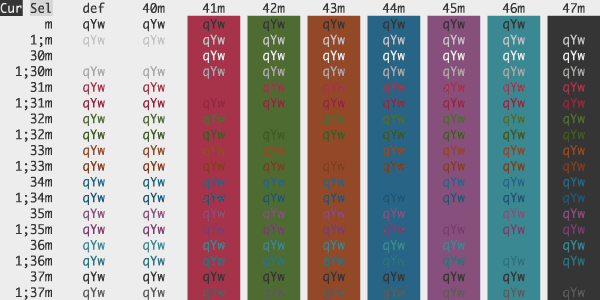
preview_theme.py renders a full visual preview in the terminal using inline truecolor escape codes. It does not modify your terminal palette — safe to run in any truecolor-capable terminal (iTerm2, Kitty, WezTerm, Ghostty, Cursor, etc.).
# Preview by scheme name
python3 tools/preview_theme.py -s "Your Theme Name"

# Preview from source files
python3 tools/preview_theme.py schemes/Molokai.itermcolors
python3 tools/preview_theme.py yaml/Clear Dark.yml

# Browse multiple themes: ← → navigate, q quit
python3 tools/preview_theme.py -s "Molokai" "Dracula"
The preview shows the ANSI palette, surface colors (foreground, background, selection, cursor), and semantic samples (errors, git status, directory listing).
Live palette preview (mutates terminal colors)
preview-generic.sh applies OSC 4 palette changes by
sourcing shell scripts from generic/. Use this only when you want the current
session recolored.
bash generic/Molokai.sh
./tools/preview-generic.sh generic/Molokai.sh generic/Dracula.sh
preview.rb is deprecated (broken on current .itermcolors
files). Prefer preview_theme.py.
iTerm Color Schemes | iTerm2 Color Schemes | iTerm 2 Color Schemes | iTerm Themes | iTerm2 Themes | iTerm 2 Themes
Related repositories
Windows Terminal is Microsoft's open-source terminal application, developed in the microsoft/terminal GitHub repository (MIT license) alongside the original Windows Console Host. It adds tabs, rich text, globalization, configurable profiles, and theming on top of the console infrastructure the same repo maintains, and can be installed from the Microsoft Store, GitHub Releases, winget, or the unofficial Chocolatey and Scoop packages.
Tabby is a cross-platform terminal emulator that combines SSH, SFTP, Telnet, and serial connectivity in one application — eliminating the need to swap between PuTTY, a dedicated serial terminal, and an SSH client. The feature set is broad: split panes, Zmodem file transfers, encrypted credential storage, Clink-powered tab completion on Windows, and an active plugin ecosystem that adds Docker integration, MCP server support, and workspace management. The README is unusually candid about the trade-off: Tabby is not lightweight, and if RAM matters, it explicitly suggests Conemu or Alacritty instead. For developers who want a unified hub for remote connections and serial work without assembling a patchwork of separate tools, Tabby fills a genuine gap — but the memory appetite is real and worth knowing before you commit.
The AI that really does things. Any OS. Any Platform. The lobster way. 🦞
Skills For Real Engineers packages Matt Pocock's own agent workflow into roughly 25 slash-command skills covering requirements-gathering, TDD, debugging, and codebase-architecture review. Install the managed Claude Code plugin to track his updates automatically, or pull editable files via skills.sh and fork them. It doesn't automate development for you — it disciplines the AI coding agent you already run.
Quick answers
How does mbadolato/iTerm2-Color-Schemes compare to other Developer Tools projects?
mbadolato/iTerm2-Color-Schemes is tracked by TopGit in the Developer Tools category, with 27.3k GitHub stars and written in Shell. Browse the Developer Tools topic page on TopGit to compare it against similar projects by stars and activity.
How many stars does mbadolato/iTerm2-Color-Schemes have?
mbadolato/iTerm2-Color-Schemes has 27.3k GitHub stars — refresh the page for the live number, or check github.com/mbadolato/iTerm2-Color-Schemes. TopGit mirrors GitHub's count but does not claim minute-by-minute accuracy.
Is mbadolato/iTerm2-Color-Schemes open source?
TopGit's metadata for mbadolato/iTerm2-Color-Schemes does not record a license. Most public repositories on GitHub ARE open source, but the exact terms vary — verify by opening the LICENSE file directly.
What else is in the Developer Tools space?
mbadolato/iTerm2-Color-Schemes is tracked by TopGit under the Developer Tools category, alongside 20 GitHub-tagged topics. Trending and Topics pages list peer repositories of comparable stars and language.
What is mbadolato/iTerm2-Color-Schemes?
mbadolato/iTerm2-Color-Schemes (mbadolato/iTerm2-Color-Schemes) is a Shell project on GitHub. From the project's own README: Our next-generation, interactive app is currently in beta! Come try it out at terminalthemes.com! Over 750 terminal color schemes/themes for iTerm, with ports to Terminal, Konsole, PuTTY, Xresources, XRDB, Remmina, Termite, XFCE, Tilda, FreeBSD VT, Terminator, Kitty, Windows, Visual Studio,, Ghostty, and dozens more
Where can I see mbadolato/iTerm2-Color-Schemes in action?
The project maintains a homepage at https://terminalthemes.com. The README tab on this page also usually contains screenshots and a quickstart.
Where do I read more about mbadolato/iTerm2-Color-Schemes?
This TopGit page is a snapshot — the READ ME tab shows the project's own README content (links stripped, images preserved). The GitHub repository at github.com/mbadolato/iTerm2-Color-Schemes is the definitive source.
Read full README in the tab above.
Want a second opinion on iTerm2-Color-Schemes?
Ask an AI that can read this page — one click and you get its take on iTerm2-Color-Schemes.