parallax/svg-animation-tools is a Python project with 328 stars in the UI / UX space. An awesome workflow for animated SVGs with Adobe Illustrator
Snapshot summary built from the project's own GitHub metadata — there's no written TopGit review yet. The page will update automatically when a full review is published.
WHY NO REVIEW YET
TopGit writes full reviews for the most-starred, most-requested repositories. This page is a snapshot until then — see the READ ME tab for the original README in full.
A simple set of python functions to help working with animated SVGs exported from Illustrator. More features coming soon!
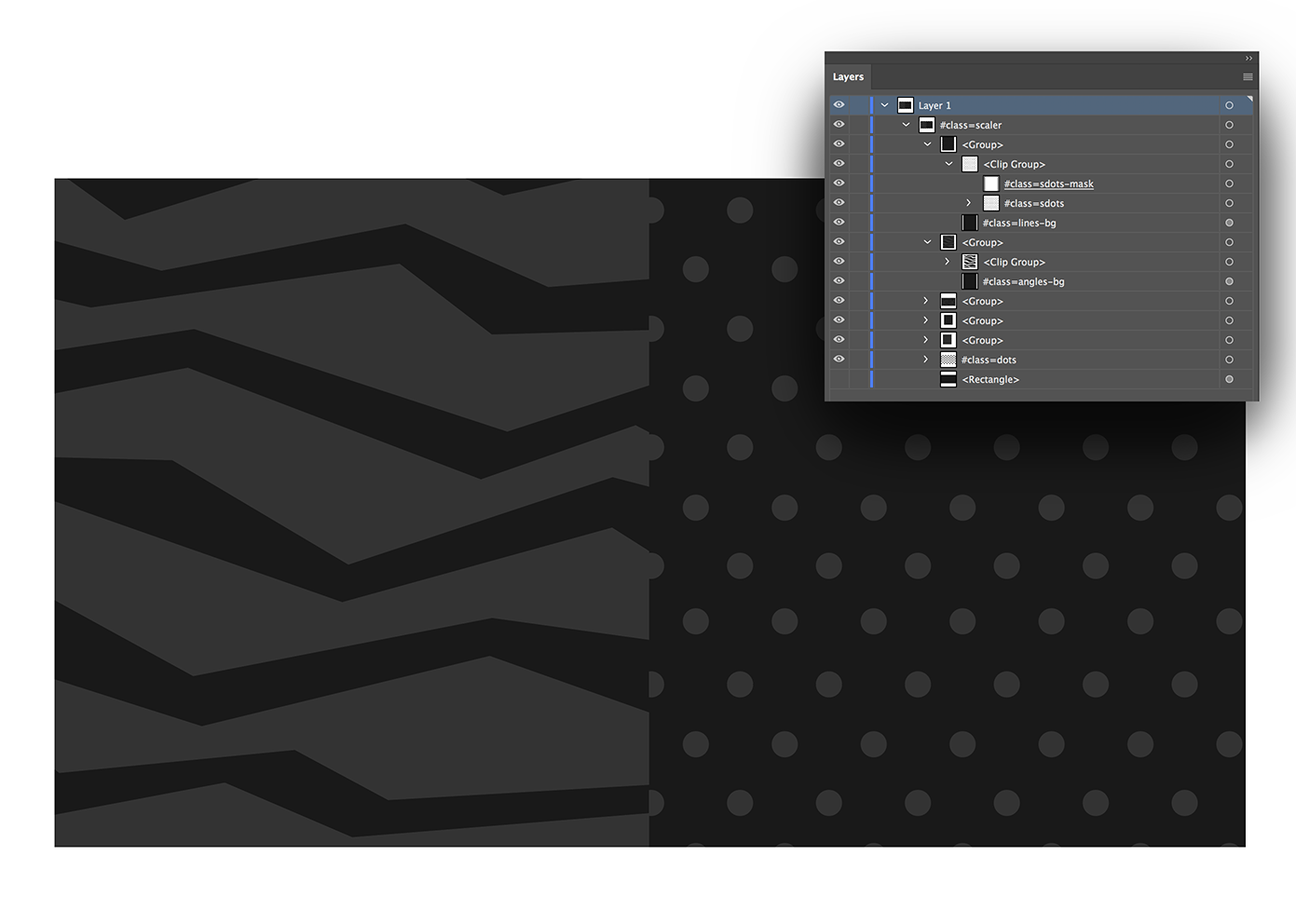
We used it to create animations like this.
Viva La Velo
Overview
Part of animating with SVGs is getting references to elements in code and passing them to animation functions. For complicated animations this becomes difficult and hand editing SVG code is slow and gets overwritten when your artwork updates. We decided to write a post-processer for SVGs produced by Illustrator to help speed this up. Layer names are used to create attributes, classes and ID's making selecting them in JS or CSS far easier.
This is the what the svg code looks like before and after the processing step.
Download the svg tools and unzip them into your project folder.
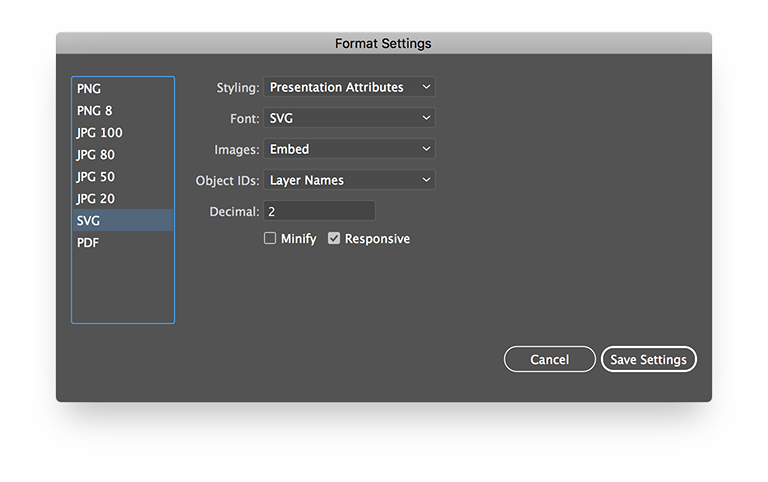
Create an Illustrator file, add an element and change its layer name to say #class=my-element. Export the SVG using the File > Export > Export for Screens option with the following settings. Call the svg animation.svg.
Create a HTML file as below. The import statements inline the SVG inline into our HTML file so we don't have to do any copy and pasting. Not strictly neccessary but makes the workflow a little easier. Save it as animation.html.
Open the file called run.py. Here you can edit how the SVGs will be processed. The default looks like this. The sections below describe what the various options do.
Open the command line and navigate to your project folder. Call the script using python parallax_svg_tools/run.py. You should see a list of processed files (or just one in this case) printed to the console if everything worked correctly. Note that the script must be called from a directory that has access to the svg files.
There should now be a folder called output containing an animation.html file with your processed SVG in it. All that is left to do is animate it with your tool of choice (ours is GSAP).
Functions
process_svg(src_path, dst_path, options)
Processes a single SVG and places it in the supplied destination directory. The following options are available.
process_layer_names:
Converts layer names as defined in Illustator into attributes. Begin the layer name with a '#' to indicate the layer should be parsed.
For example #id=my-id, class=my-class my-other-class, role=my-role ...etc.
This is useful for fetching elements with Javascript as well as marking up elements for accessibility - see this CSS Tricks Accessible SVG article.
NOTE: Requires using commas to separate the attributes as that makes the parsing code a lot simpler :)
expand_origin:
Allows you to use origin=100 100 to set origins for rotating/scaling with GSAP (expands to data-svg-origin).
namespace:
Appends a namespace to classes and IDs if one is provided. Useful for avoiding conflicts with other SVG files for things like masks and clipPaths.
nowhitespace:
Removes unneeded whitespace. We don't do anything fancier than that so as to not break animations. Use the excellent SVGO if you need better minification.
attributes:
An object of key:value strings that will be applied as attributes to the root SVG element.
title:
Sets the title or removes it completely when set to false
description:
Sets the description or removes it completely when set to false
convert_svg_text_to_html:
Converts SVG text in HTML text via the foriegn object tag reducing file bloat and allowing you to style it with CSS. Requires the text be grouped inside a rectangle with the layer name set to #TEXT.
spirit:
Expands #spirit=my-id to data-spirit-id when set to true for use with the Spirit animation app
inline_svg(src_path, dst_path)
In order to animate SVGs markup needs to be placed in-line with HTML. This function will look at the source HTML file and include any references defined by //import statements to SVGs that it finds.
Does parallax/svg-animation-tools have a project website?
No homepage URL was recorded for parallax/svg-animation-tools in TopGit's last sync. The README tab above frequently contains screenshots and demo links, or check the repository description on GitHub.
How active is development on parallax/svg-animation-tools?
The most recent commit recorded on parallax/svg-animation-tools was 8.5 years ago, based on the GitHub push timestamp. The repository has 31 forks — one of the better signals of community interest.
Is parallax/svg-animation-tools open source?
Yes — parallax/svg-animation-tools ships under the MIT license, which makes its source code freely readable (and, depending on license terms, forkable and reusable). Source: github.com/parallax/svg-animation-tools.
What license does parallax/svg-animation-tools use?
parallax/svg-animation-tools is released under the MIT license. Always verify the LICENSE file directly on GitHub for the authoritative terms — license strings can be edited out of sync with a project's actual stance.
What topics is parallax/svg-animation-tools associated with?
GitHub's repository topics for parallax/svg-animation-tools: "animation", "illustrator", "svg". TopGit's editorial category is UI / UX.
Where do I read more about parallax/svg-animation-tools?
This TopGit page is a snapshot — the READ ME tab shows the project's own README content (links stripped, images preserved). The GitHub repository at github.com/parallax/svg-animation-tools is the definitive source.
Read full README in the tab above.
Curious whether svg-animation-tools is right for you?
Let ChatGPT, Claude, or Perplexity look into it — click below and see what AI actually says about svg-animation-tools.