skydoves/ColorPickerView

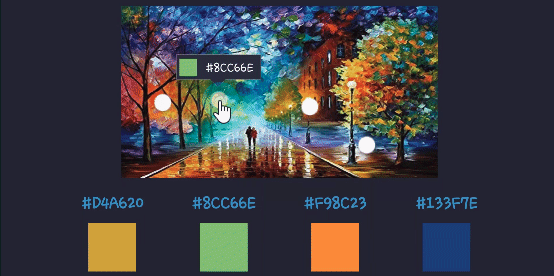
skydoves/ColorPickerView — a mobile project — sits at 1.7k GitHub stars in the Mobile space. 🎨 Android colorpicker for getting colors from any images by tapping on the desired color.
Snapshot summary built from the project's own GitHub metadata — there's no written TopGit review yet. The page will update automatically when a full review is published.
TopGit writes full reviews for the most-starred, most-requested repositories. This page is a snapshot until then — see the READ ME tab for the original README in full.
Snapshot
Top contributors
Show top contributors
ColorPickerView
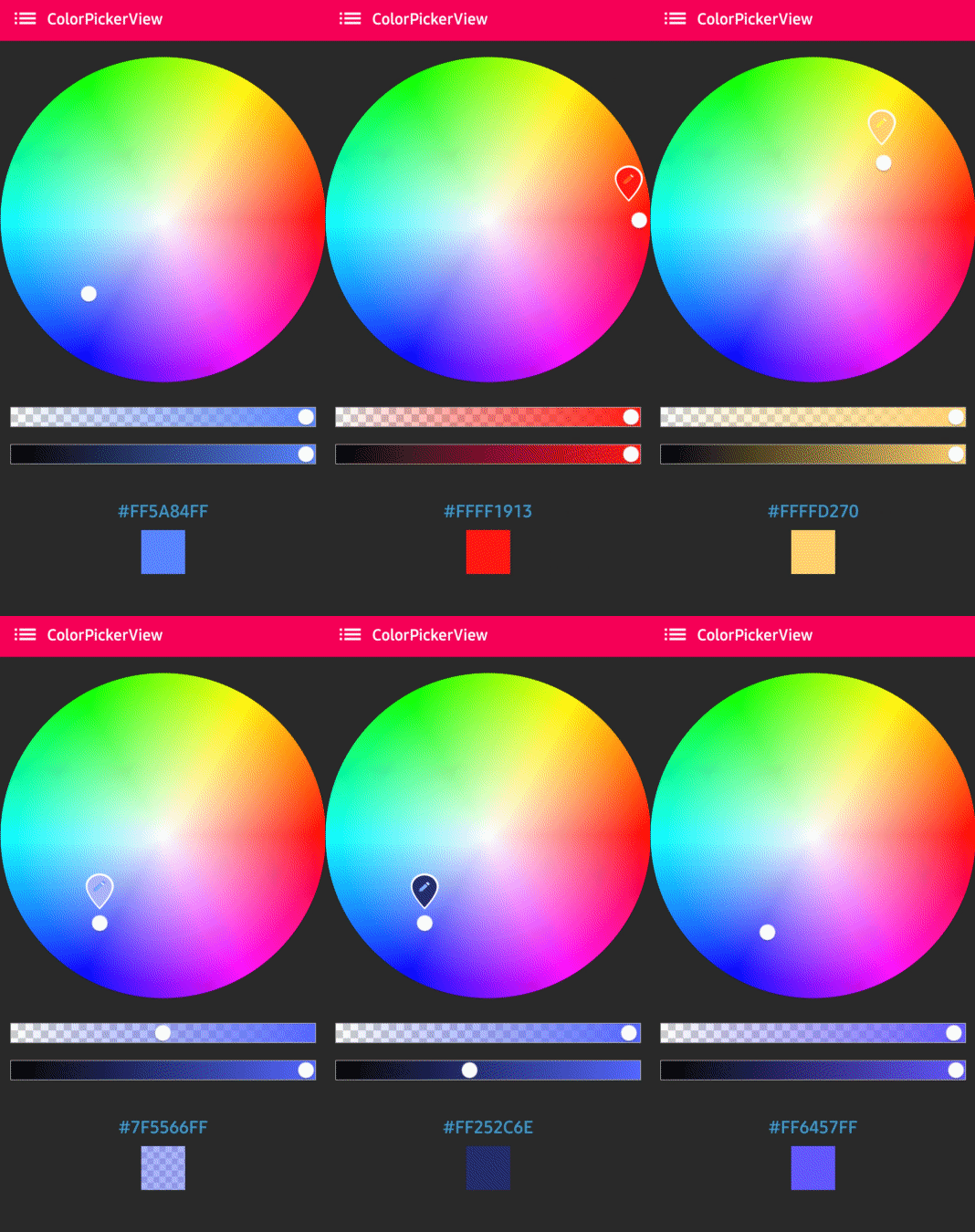
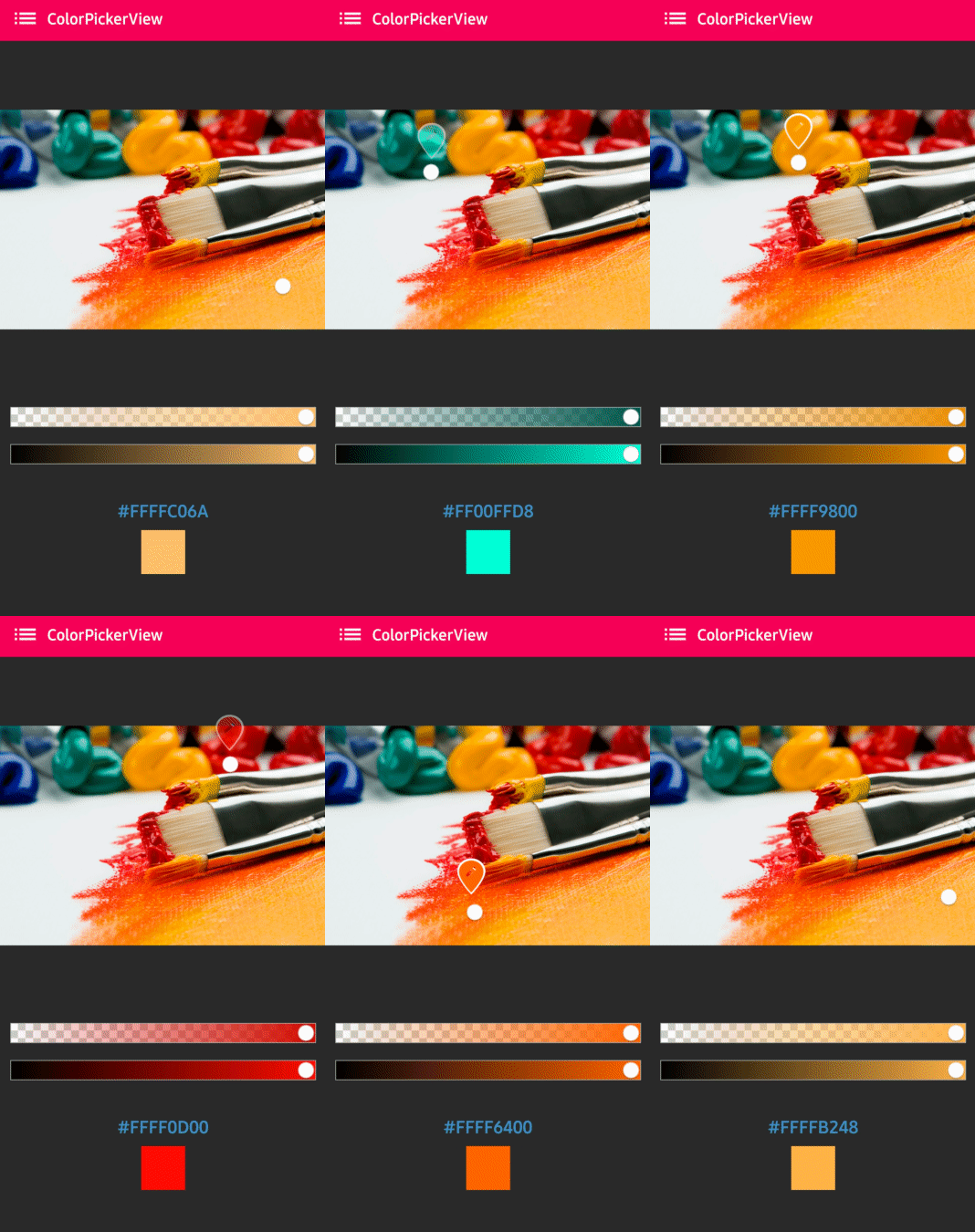
🎨 ColorPickerView enables you to obtain HSV colors, ARGB values, and Hex color codes from image drawables or your gallery pictures with a simple tap on the desired color. It offers additional features such as alpha and brightness slider bars, dialog support, and the ability to save and restore selected data.






ColorPicker Compose
If you're looking to implement a color picker in your Compose project, you can use colorpicker-compose instead.
Including in your project

Gradle
Add the dependency below to your module's build.gradle file:
dependencies {
    implementation("com.github.skydoves:colorpickerview:2.4.0")
}

Table of Contents
1. ColorPickerView
- ColorPickerView in layout
- ColorListener
- Palette
- ActionMode
- Debounce
- Create using builder
- Restore and save state
- Palette from Gallery
2. AlphaSlideBar
3. BrightnessSlideBar
4. ColorPickerDialog
5. FlagView
6. AlphaTileView
7. ColorPickerView Methods
8. Other Libraries
Usage
Add the following XML namespace inside your XML layout file.
xmlns:app="http://schemas.android.com/apk/res-auto"
ColorPickerView in XML layout
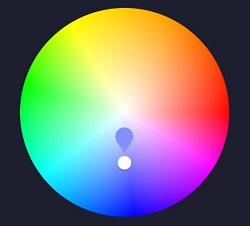
You can simply use ColorPickerView by defining it on your XML files. This ColorPickerView will be initialized with the default HSV color palette and the default selector.
<com.skydoves.colorpickerview.ColorPickerView
   android:id="@+id/colorPickerView"
   android:layout_width="300dp"
   android:layout_height="300dp" />
Attributes
You can customize the palette image and selector or various options using the below attributes:
app:palette="@drawable/palette" // sets a custom palette image.
app:selector="@drawable/colorpickerview_wheel" // sets a custom selector image.
app:selector_size="32dp" // sets a width & height size of the selector.
app:alpha_selector="0.8" // sets an alpha of the selector.
app:alpha_flag="0.8" // sets an alpha of the flag.
app:actionMode="last" // sets action mode 'always' or 'last'.
// set an initial position of the selector using a specific color. This attribute will work with only a default HSV palette.
app:initialColor="@color/colorPrimary"
app:preferenceName="MyColorPicker" // sets a preference name.
app:debounceDuration="200" // sets a debounce duration of the invoking color listener.
ColorListener
ColorListener is triggered when a user taps the ColorPickerView or when a position is selected using a function.
colorPickerView.setColorListener(new ColorListener() {
    @Override
    public void onColorSelected(int color, boolean fromUser) {
        LinearLayout linearLayout = findViewById(R.id.linearLayout);
        linearLayout.setBackgroundColor(color);
    }
});
ColorEnvelope
ColorEnvelope is a versatile wrapper class for color models, offering a wide range of color-related data. It provides access to HSV color values, Hex string codes, and ARGB values.
colorEnvelope.getColor() // returns a integer color.
colorEnvelope.getHexCode() // returns a hex code string.
colorEnvelope.getArgb() // returns a argb integer array.
ColorEnvelope Listener
ColorEnvelopeListener extends ColorListener and offers ColorEnvelope as a parameter, granting access to a variety of color values.
colorPickerView.setColorListener(new ColorEnvelopeListener() {
    @Override
    public void onColorSelected(ColorEnvelope envelope, boolean fromUser) {
        linearLayout.setBackgroundColor(envelope.getColor());
        textView.setText("#" + envelope.getHexCode());
    }
});
Palette
If you do not set any custom palette, the default palette will be the ColorHsvPalette.
You can manually select a specific point for the selector by specifying a particular color value using the following methods:
colorPickerView.selectByHsvColor(color);
colorPickerView.selectByHsvColorRes(R.color.colorPrimary);
You can change the default palette as a desired image drawable using the method below:
colorPickerView.setPaletteDrawable(drawable);
If you wish to revert to the default HSV palette, you can do so using the method below:
colorPickerView.setHsvPaletteDrawable();
ActionMode
ActionMode is an option that restricts the invocation of the ColorListener based on user actions.
colorPickerView.setActionMode(ActionMode.LAST); // ColorListener will be invoked when the finger is released.
Debounce
If you want to emit color values to the listener with a particular delay, you can utilize debounceDuration attribute in your XML layout file:
app:debounceDuration="150"
Or you can set it programmatically.
colorPickerView.setDebounceDuration(150);
Create using builder
You can create an instance of ColorPickerView using ColorPickerView.Builder class like the example below:
ColorPickerView colorPickerView = new ColorPickerView.Builder(context)
      .setColorListener(colorListener)
      .setPreferenceName("MyColorPicker")
      .setActionMode(ActionMode.LAST)
      .setAlphaSlideBar(alphaSlideBar)
      .setBrightnessSlideBar(brightnessSlideBar)
      .setFlagView(new CustomFlag(context, R.layout.layout_flag))
      .setPaletteDrawable(ContextCompat.getDrawable(context, R.drawable.palette))
      .setSelectorDrawable(ContextCompat.getDrawable(context, R.drawable.selector))
      .build();
Initial color
You can define an initial color and position the selector and slide bars based on that initial color. Please note that this function is compatible only with the default HSV palette. Additionally, if you set a preference name using the setPreferenceName method, this function will work only once.
app:initialColor="@color/colorPrimary"
Or you can use this method programmatically.
.setInitialColor(color);
.setInitialColorRes(R.color.colorPrimary);
Restore and save
This is how to restore the state of ColorPickerView.
setPreferenceName() method restores all of the saved states (selector, color) automatically.
colorPickerView.setPreferenceName("MyColorPicker");
This is how to save the states of ColorPickerView.
The setLifecycleOwner() method saves all of the states automatically when the lifecycleOwner is destroyed.
colorPickerView.setLifecycleOwner(this);
Or you can save the states manually using the method below:
ColorPickerPreferenceManager.getInstance(this).saveColorPickerData(colorPickerView);
Manipulate and clear
You can manipulate and clear the saved states using ColorPickerPreferenceManager.
ColorPickerPreferenceManager manager = ColorPickerPreferenceManager.getInstance(this);
manager.setColor("MyColorPicker", Color.RED); // manipulates the saved color data.
manager.setSelectorPosition("MyColorPicker", new Point(120, 120)); // manipulates the saved selector's position data.
manager.clearSavedAllData(); // clears all of the states.
manager.clearSavedColor("MyColorPicker"); // clears only saved color data.
manager.restoreColorPickerData(colorPickerView); // restores the saved states manually.
Palette from Gallery
Here is an example of how to get a bitmap drawable from the gallery image and set it to the palette.

Declare the permission below on your AndroidManifest.xml file:
<uses-permission android:name="android.permission.READ_EXTERNAL_STORAGE"/>
The codes below will start the Gallery and you can choose any desired images:
Intent photoPickerIntent = new Intent(Intent.ACTION_PICK);
photoPickerIntent.setType("image/*");
startActivityForResult(photoPickerIntent, REQUEST_CODE_GALLERY);
In the onActivityResult, you can get a bitmap drawable from the gallery and set it as the palette. You can also change the palette image of the ColorPickerView using the setPaletteDrawable method.
try {
  final Uri imageUri = data.getData();
  final InputStream imageStream = getContentResolver().openInputStream(imageUri);
  final Bitmap selectedImage = BitmapFactory.decodeStream(imageStream);
  Drawable drawable = new BitmapDrawable(getResources(), selectedImage);
  colorPickerView.setPaletteDrawable(drawable);
} catch (FileNotFoundException e) {
  e.printStackTrace();
}
AlphaSlideBar
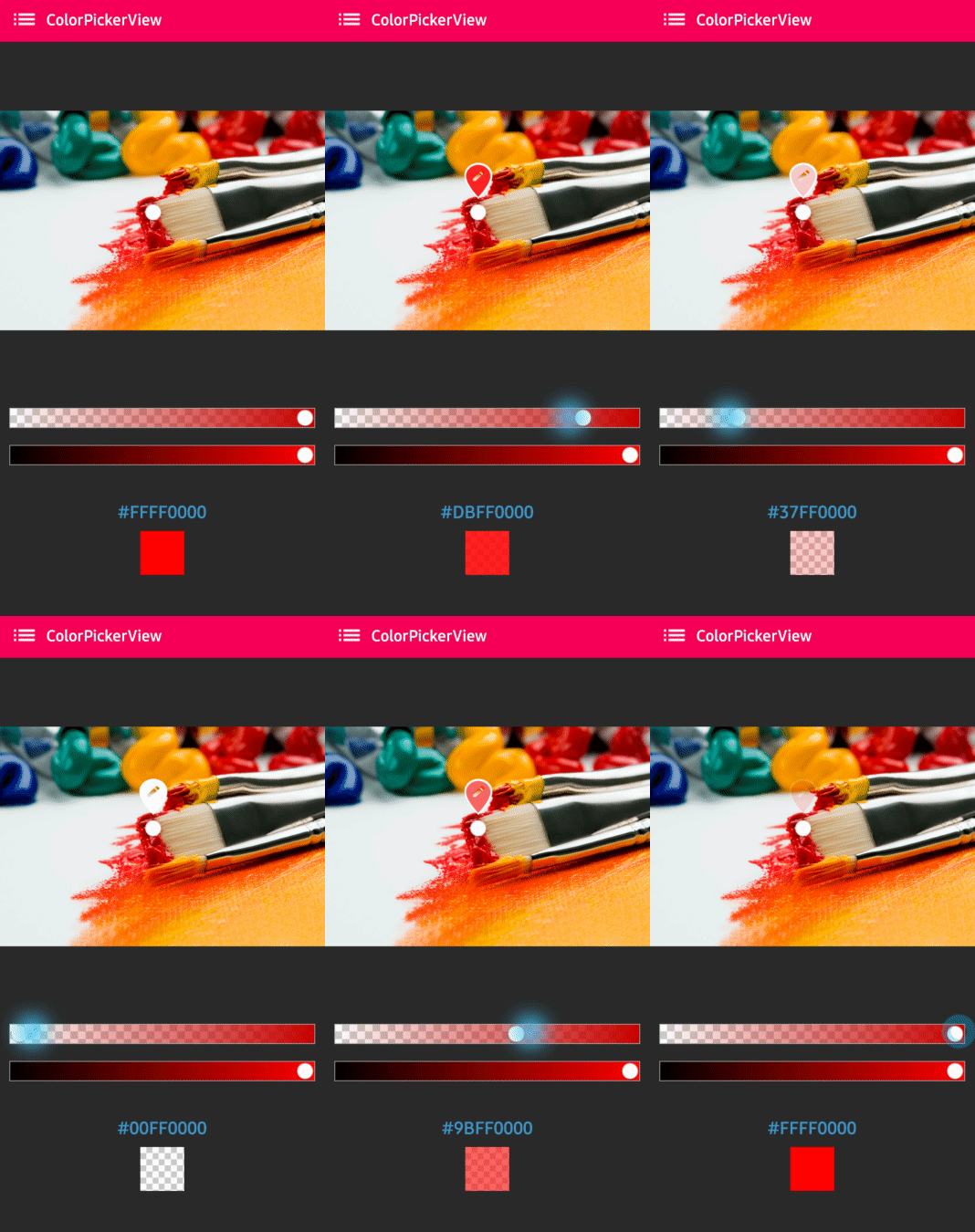
AlphaSlideBar adjusts the transparency value of the selected color.
AlphaSlideBar in XML layout
<com.skydoves.colorpickerview.sliders.AlphaSlideBar
   android:id="@+id/alphaSlideBar"
   android:layout_width="match_parent"
   android:layout_height="wrap_content"
   app:selector_AlphaSlideBar="@drawable/colorpickerview_wheel" // sets a customized selector drawable.
   app:borderColor_AlphaSlideBar="@android:color/darker_gray" // sets a color of the border.
   app:borderSize_AlphaSlideBar="5"/> // sets a size of the border.
You can attach and connect the AlphaSlideBar to your ColorPickerView using the attachAlphaSlider method.
AlphaSlideBar alphaSlideBar = findViewById(R.id.alphaSlideBar);
colorPickerView.attachAlphaSlider(alphaSlideBar);
If you want to implement a vertical style of sliders, you can achieve it with the rotation attributes.
android:layout_width="280dp" // width must set a specific width size.
android:layout_height="wrap_content"
android:rotation="90"
BrightnessSlideBar
BrightnessSlideBar adjusts the brightness of the selected color.
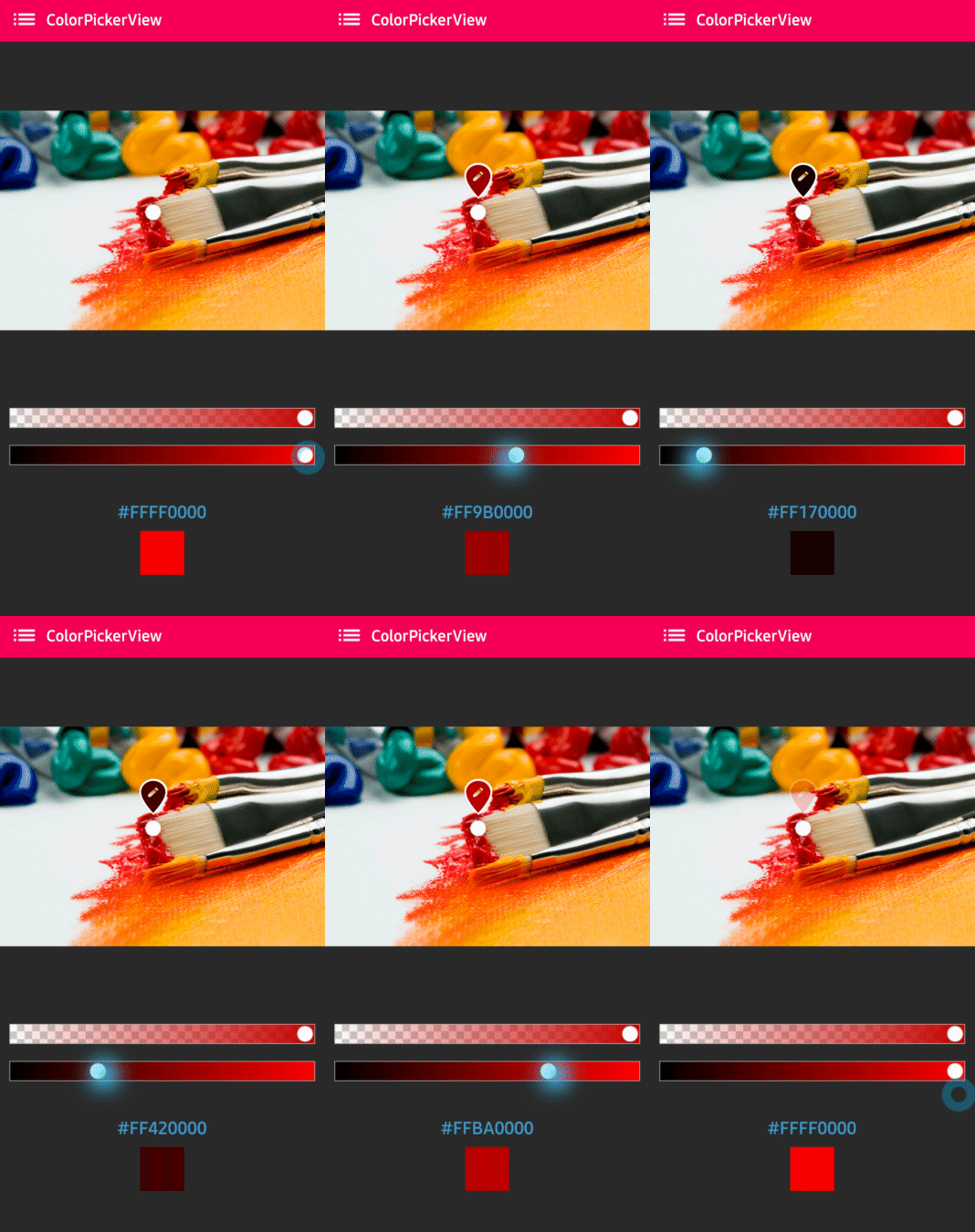
BrightnessSlideBar in XML layout
<com.skydoves.colorpickerview.sliders.BrightnessSlideBar
   android:id="@+id/brightnessSlide"
   android:layout_width="match_parent"
   android:layout_height="wrap_content"
   app:selector_BrightnessSlider="@drawable/colorpickerview_wheel" // sets a customized selector drawable.
   app:borderColor_BrightnessSlider="@android:color/darker_gray" // sets a color of the border.
   app:borderSize_BrightnessSlider="5"/> // sets a size of the border.
You can attach and connect the BrightnessSlideBar to your ColorPickerView using attachBrightnessSlider method.
BrightnessSlideBar brightnessSlideBar = findViewById(R.id.brightnessSlide);
colorPickerView.attachBrightnessSlider(brightnessSlideBar);
If you want to implement a vertical style of sliders, you can achieve it with the rotation attributes.
android:layout_width="280dp" // width must set a specific width size.
android:layout_height="wrap_content"
android:rotation="90"
ColorPickerDialog
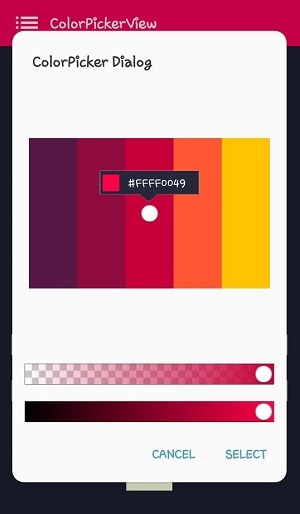
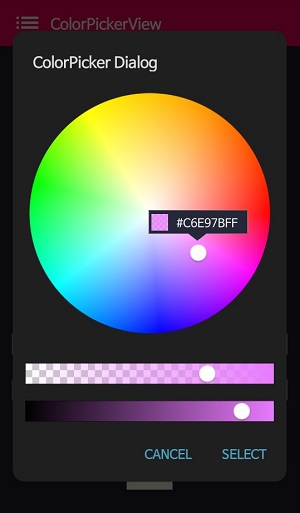
ColorPickerDialog can be used just like an AlertDialog and it provides colors by tapping from any drawable.
new ColorPickerDialog.Builder(this)
      .setTitle("ColorPicker Dialog")
      .setPreferenceName("MyColorPickerDialog")
      .setPositiveButton(getString(R.string.confirm),
          new ColorEnvelopeListener() {
              @Override
              public void onColorSelected(ColorEnvelope envelope, boolean fromUser) {
                  setLayoutColor(envelope);
              }
          })
       .setNegativeButton(getString(R.string.cancel),
          new DialogInterface.OnClickListener() {
              @Override
              public void onClick(DialogInterface dialogInterface, int i) {
                  dialogInterface.dismiss();
              }
           })
      .attachAlphaSlideBar(true) // the default value is true.
      .attachBrightnessSlideBar(true)  // the default value is true.
      .setBottomSpace(12) // set a bottom space between the last slidebar and buttons.
      .show();
You can get an instance of ColorPickerView from the ColorPickerView.Builder and customize it by your preferences.
ColorPickerView colorPickerView = builder.getColorPickerView();
colorPickerView.setFlagView(new CustomFlag(this, R.layout.layout_flag)); // sets a custom flagView
builder.show(); // shows the dialog
FlagView
You can implement displaying FlagView over the selector.
This library provides BubbleFlagView by default as you can see in the previews.
Here is an example code for displaying a bubble flag view, which indicates what color value was selected.
BubbleFlag bubbleFlag = new BubbleFlag(this);
bubbleFlag.setFlagMode(FlagMode.FADE);
colorPickerView.setFlagView(bubbleFlag);
You can also fully customize the FlagView like the example below:
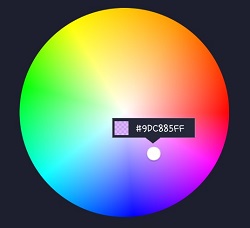
First, create a custom XML layout like the example below:
<?xml version="1.0" encoding="utf-8"?>
<LinearLayout xmlns:android="http://schemas.android.com/apk/res/android"
    xmlns:tools="http://schemas.android.com/tools"
    android:layout_width="100dp"
    android:layout_height="40dp"
    android:background="@drawable/flag"
    android:orientation="horizontal">

    <com.skydoves.colorpickerview.AlphaTileView
        android:id="@+id/flag_color_layout"
        android:layout_width="20dp"
        android:layout_height="20dp"
        android:layout_marginTop="6dp"
        android:layout_marginLeft="5dp"
        android:orientation="vertical"/>

    <TextView
        android:id="@+id/flag_color_code"
        android:layout_width="wrap_content"
        android:layout_height="wrap_content"
        android:layout_marginTop="6dp"
        android:layout_marginLeft="10dp"
        android:layout_marginRight="5dp"
        android:textSize="14dp"
        android:textColor="@android:color/white"
        android:maxLines="1"
        android:ellipsize="end"
        android:textAppearance="?android:attr/textAppearanceSmall"
        tools:text="#ffffff"/>
</LinearLayout>
Next, you should create a class that extends FlagView:
public class CustomFlag extends FlagView {

    private TextView textView;
    private AlphaTileView alphaTileView;

    public CustomFlag(Context context, int layout) {
        super(context, layout);
        textView = findViewById(R.id.flag_color_code);
        alphaTileView = findViewById(R.id.flag_color_layout);
    }

    @Override
    public void onRefresh(ColorEnvelope colorEnvelope) {
        textView.setText("#" + colorEnvelope.getHexCode());
        alphaTileView.setPaintColor(colorEnvelope.getColor());
    }
}
As you can see in the above code, you can observe and update the layout inside the onRefresh method. Lastly, set the FlagView to the ColorPickerView using the setFlagView method:
colorPickerView.setFlagView(new CustomFlag(this, R.layout.layout_flag));
FlagMode
FlagMode is an option that decides the visibility action of the FlagView.
colorPickerView.setFlagMode(FlagMode.ALWAYS); // showing always by tapping and dragging.
colorPickerView.setFlagMode(FlagMode.LAST); // showing only when finger released.
AlphaTileView
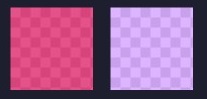
AlphaTileView visualizes ARGB colors over the view.
If we need to represent ARGB colors on the general view, it will not be showing accurately. Because a color will be mixed with the parent view's background color. so if we need to represent ARGB colors accurately, we can use the AlphaTileView.
<com.skydoves.colorpickerview.AlphaTileView
     android:id="@+id/alphaTileView"
     android:layout_width="55dp"
     android:layout_height="55dp"
     app:tileSize="20" // the size of the repeating tile
     app:tileEvenColor="@color/tile_even" // the color of even tiles
     app:tileOddColor="@color/tile_odd"/> // the color of odd tiles
ColorPickerView Methods
| Methods | Return | Description |
|---|---|---|
| getColor() | int | gets the last selected color. |
| getColorEnvelope() | ColorEnvelope | gets the ColorEnvelope of the last selected color. |
| setPaletteDrawable(Drawable drawable) | void | changes palette drawable manually. |
| setSelectorDrawable(Drawable drawable) | void | changes selector drawable manually. |
| setSelectorPoint(int x, int y) | void | selects the specific coordinate of the palette manually. |
| selectByHsvColor(@ColorInt int color) | void | changes selector's selected point by a specific color. |
| selectByHsvColorRes(@ColorRes int resource) | void | changes selector's selected point by a specific color using a color resource. |
| setHsvPaletteDrawable() | void | changes the palette drawable as the default drawable (ColorHsvPalette). |
| selectCenter() | void | selects the center of the palette manually. |
| setInitialColor(@ColorInt int color) | void | changes selector's selected point by a specific color initially. |
| setInitialColorRes(@ColorRes int resource) | void | changes selector's selected point by a specific color initially using a color resource. |
| setActionMode(ActionMode) | void | sets the color listener's trigger action mode. |
| setFlagView(FlagView flagView) | void | sets FlagView on ColorPickerView. |
| attachAlphaSlider | void | links an AlphaSlideBar to the ColorPickerView. |
| attachBrightnessSlider | void | links a BrightnessSlideBar to the ColorPickerView. |
Other Libraries
Here are other ColorPicker related libraries!
ColorPickerPreference
A library that let you implement ColorPickerView, ColorPickerDialog, ColorPickerPreference.
Multi-ColorPickerView
You can get colors using multi selectors.
At here you can get a more specialized library on multi-coloring.
Find this library useful? :heart:
Support it by joining stargazers for this repository. :star:
And follow me for my next creations! 🤩
License
Copyright 2017 skydoves (Jaewoong Eum)

Licensed under the Apache License, Version 2.0 (the "License");
you may not use this file except in compliance with the License.
You may obtain a copy of the License at

   http://www.apache.org/licenses/LICENSE-2.0

Unless required by applicable law or agreed to in writing, software
distributed under the License is distributed on an "AS IS" BASIS,
WITHOUT WARRANTIES OR CONDITIONS OF ANY KIND, either express or implied.
See the License for the specific language governing permissions and
limitations under the License.
Related repositories
Flutter is Google's open-source SDK, hosted at flutter/flutter on GitHub, for building user interfaces across mobile, web, and desktop from a single Dart codebase. The repo is licensed BSD-3-Clause, and its README documents stateful hot reload, a Skia/Impeller rendering pipeline, and Material/Cupertino widget sets as the core pieces developers work with.
scrcpy is an open-source application from Genymobile that mirrors an Android device's video and audio onto a Linux, Windows, or macOS desktop over USB or TCP/IP, and lets you control the device using the computer's keyboard and mouse. It runs without root access and without installing any companion app on the phone, per the README, and the project is available under an Apache-2.0 license.
Free Programming Books (Chinese) is justjavac's GitHub index of free programming books, translated manuals, and course notes in Chinese, organized under headings like AI, Go, C/C++, and version control. It's a link list, not a curriculum - entries range from full book translations to single blog posts, some flagged `:worried:` for dead links, and contribution happens only through pull requests.
Awesome Flutter (Solido/awesome-flutter) is a curated list of Flutter resources on GitHub: articles, blog posts, video tutorials, and UI packages sorted into topic sections instead of one long feed of links. It follows the standard awesome-list format, markdown headings with a one-line description and author credit per entry, and it leans toward UI widgets and components more than general Dart theory.
Quick answers
How active is development on skydoves/ColorPickerView?
The most recent commit recorded on skydoves/ColorPickerView was 6 months ago, based on the GitHub push timestamp. The repository has 229 forks — one of the better signals of community interest.
How many stars does skydoves/ColorPickerView have?
skydoves/ColorPickerView has 1.7k GitHub stars — refresh the page for the live number, or check github.com/skydoves/ColorPickerView. TopGit mirrors GitHub's count but does not claim minute-by-minute accuracy.
What else is in the Mobile space?
skydoves/ColorPickerView is tracked by TopGit under the Mobile category, alongside 9 GitHub-tagged topics. Trending and Topics pages list peer repositories of comparable stars and language.
What language is skydoves/ColorPickerView written in?
skydoves/ColorPickerView is written primarily in Java. GitHub's language field is based on the largest share of bytes in the default branch.
What topics is skydoves/ColorPickerView associated with?
GitHub's repository topics for skydoves/ColorPickerView: "android", "android-library", "android-ui", "argb", "color-picker", "colorpicker", "colorpickerdialog", "colorpickerview", "skydoves". TopGit's editorial category is Mobile.
Where do I read more about skydoves/ColorPickerView?
This TopGit page is a snapshot — the READ ME tab shows the project's own README content (links stripped, images preserved). The GitHub repository at github.com/skydoves/ColorPickerView is the definitive source.
Why is skydoves/ColorPickerView categorized under Mobile?
TopGit places skydoves/ColorPickerView in the Mobile category based on its GitHub topics and description (tagged: "android", "android-library", "android-ui"). Categories are assigned from real repository metadata, not editorial guesswork.
Read full README in the tab above.
Still deciding about ColorPickerView?
One click hands the question to an AI along with this page — see what it says about ColorPickerView.