On GitHub, sudheerj/docker-cheat-sheet has picked up 266 stars, Developer Tools. Quick reference guide for Docker commands
Snapshot summary built from the project's own GitHub metadata — there's no written TopGit review yet. The page will update automatically when a full review is published.
WHY NO REVIEW YET
TopGit writes full reviews for the most-starred, most-requested repositories. This page is a snapshot until then — see the READ ME tab for the original README in full.
Click :star:if you like the project. Pull Requests are highly appreciated. Follow me @SudheerJonna for technical updates.
Downloading PDF/Epub formats
You can download the PDF and Epub version of this repository from the latest run on the actions tab.
Table of Contents
No.
Questions
1
What is docker?
2
Why docker?
3
Installation
4
Registries and Repositories
5
Create,Run,Update and Delete containers
6
Start and stop containers
7
Networks
8
Cleanup commands
9
Utility commands
10
Docker Hub
11
Dockerfile
12
Docker Compose
13
Docker Swarm
What is docker?
Docker is a tool designed to make it easier to create, deploy, and run applications by using containers.
⬆ Back to Top
Why docker?
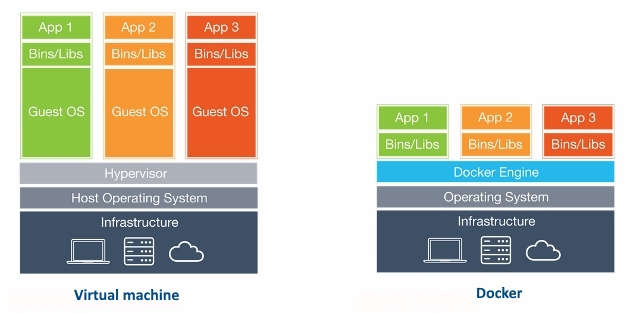
Docker is useful to automate the deployment of applications inside a software containers, which makes the applications easy to ship and run virtually anywhere (i.e, platform independent). The Docker container processes run on the host kernel, unlike VM which runs processes in guest kernel.
⬆ Back to Top
Installation
The docker desktop downloads are available for windows, mac and linux distributions.
Windows
It supports for Windows 10 64-bit: Home, Pro, Enterprise, or Education, version 1903 (Build 18362 or higher). You need to follow the below steps for installation.
Download docker desktop for windows from https://docs.docker.com/docker-for-windows/install/
Double-click Docker Desktop Installer.exe to run the installer.
Make sure Enable Hyper-V Windows Features option is selected
Mac
Download docker desktop for mac from https://docs.docker.com/docker-for-mac/install/
Double-click Docker.dmg to open the installer and drag it to the Applications folder.
Double-click Docker.app in the Applications folder to start Docker.
Linux
You can install from a package easily
Go to https://download.docker.com/linux/ubuntu/dists/, choose your Ubuntu version and then go to pool/stable/ to get .deb file
Install Docker Engine by referring the downloaded location of the Docker package.
$ sudo dpkg -i /path/to/package.deb
Verify the Docker Engine by running the hello-world image to check correct installation.
$ sudo docker run hello-world
⬆ Back to Top
Registries and Repositories
Registry:
Docker Registry is a service that stores your docker images. It could be hosted by a third party, as public or private registry. Some of the examples are,
Docker Hub,
Quay,
Google Container Registry,
AWS Container Registry
Repository:
A Docker Repository is a collection of related images with same name which have different tags. These tags are an alphanumeric identifiers(like 1.0 or latest) attached to images within a repository.
For example, if you want to pull golang image using docker pull golang:latest command, it will download the image tagged latest within the golang repository from the Docker Hub registry. The tags appeared on dockerhub as below,
Login
Login to a registry
> docker login [OPTIONS] [SERVER]

[OPTIONS]:
-u/--username username
-p/--password password

Example:

1. docker login localhost:8080 // Login to a registry on your localhost
2. docker login
Logout
Logout from a registry
> docker logout [SERVER]

Example:

docker logout localhost:8080 // Logout from a registry on your localhost
docker container run [OPTIONS] IMAGE [COMMAND] [ARG...]

Example:
docker container run -it --name golang -d sudheerj/golang
You can also run a command inside container
docker exec [OPTIONS] CONTAINER COMMAND [ARG...]

Example:
docker exec -it golang sh // Or use bash command if sh is failed
Update
Update configuration of one or more containers
docker container update [OPTIONS] CONTAINER [CONTAINER...]

Example:
docker container update --memory "1g" --cpuset-cpu "1" golang // update the golang to use 1g of memory and only use cpu core 1
Docker provides network commands connect containers to each other and to other non-Docker workloads. The usage of network commands would be docker network COMMAND
List networks
List down available networks
docker network ls
Connect a container to network
You can connect a container by name or by ID to any network. Once it connected, the container can communicate with other containers in the same network.
$ docker network ls
$ docker network ls | grep "bridge"
$ docker network rm $(docker network ls | grep "bridge" | awk '/ / { print $1 }')
⬆ Back to Top
Utility commands
⬆ Back to Top
Docker Hub
Docker Hub is a cloud-based repository provided by Docker to test, store and distribute container images which can be accessed either privately or publicly.
From
It initializes a new image and sets the Base Image for subsequent instructions. It must be a first non-comment instruction in the Dockerfile.
FROM <image>
FROM <image>:<tag>
FROM <image>@<digest>
Note: Both tag and digest are optional. If you omit either of them, the builder assumes a latest by default.
Dockerfile
Dockerfile is a text document that contains set of commands and instructions which will be executed in a sequence in the docker environment for building a new docker image.
FROM
This command Sets the Base Image for subsequent instructions
FROM <image>
FROM <image>:<tag>
FROM <image>@<digest>

Example:
FROM ubuntu:18.04
RUN
RUN instruction allows you to install your application and packages required for it. It executes any commands on top of the current image and creates a new layer by committing the results. It is quite common to have multiple RUN instructions in a Dockerfile.
It has two forms
Shell Form: RUN
RUN npm start
Exec form RUN ["", "", ""]
RUN [ "npm", "start" ]
ENTRYPOINT
An ENTRYPOINT allows you to configure a container that will run as an executable. It is used to run when container starts.
If an image has an ENTRYPOINT and pass an argument to it while running the container, it wont override the existing entrypoint but it just appends what you passed with the entrypoint. To override the existing ENTRYPOINT. you should user –entrypoint flag for the running container.
Let's see the behavior with the above dockerfile,
Build image:
docker build -t entrypointImage .

Run the image:
docker container run entrypointImage // Print ENTRYPOINT instruction of Exec Form

Override entrypoint:
docker run --entrypoint "/bin/echo" entrypointImage "Override ENTRYPOINT instruction" // Override ENTRYPOINT instruction
CMD
CMD instruction is used to set a default command, which will be executed only when you run a container without specifying a command. But if the docker container runs with a command, the default command will be ignored.
The main purpose of the CMD command is to launch the required software in a container. For example, running an executable .exe file or a Bash terminal as soon as the container starts.
Remember, if docker runs with executable and parameters then CMD instruction will be overridden(Unlike ENTRYPOINT).
docker run executable parameters
Note: There should only be one CMD command in your Dockerfile. Otherwise only the last instance of CMD will be executed.
COPY
The COPY instruction copies new files or directories from source and adds them to the destination filesystem of the container.
COPY [--chown=<user>:<group>] <src>... <dest>
COPY [--chown=<user>:<group>] ["<src>",... "<dest>"]

Example:
COPY test.txt /absoluteDir/
COPY tes? /absoluteDir/ // Copies all files or directories starting with test to destination container
The path must be relative to the source directory that is being built. Whereas is an absolute path, or a path relative to WORKDIR.
ADD
The ADD instruction copies new files, directories or remote file URLs from source and adds them to the filesystem of the image at the destination path. The functionality is similar to COPY command and supports two forms of usage,
ADD [--chown=<user>:<group>] <src>... <dest>
ADD [--chown=<user>:<group>] ["<src>",... "<dest>"]

Example:
ADD test.txt /absoluteDir/
ADD tes? /absoluteDir/ // Copies all files or directories starting with test to destination container
ADD commands provides additional features such as downloading remote resources, extracting TAR files etc.
1. Download an external file and copy to the destination
ADD http://source.file/url  /destination/path

2. Copies compressed files and extract the content in the destination
ADD source.file.tar.gz /temp
ENV
The ENV instruction sets the environment variable to the value . It has two forms,
The first form, ENV <key> <value>, will set a single variable to a value.
The second form, ENV <key>=<value> ..., allows for multiple variables to be set at one time.
ENV <key> <value>
ENV <key>=<value> [<key>=<value> ...]

Example:
ENV name="John Doe" age=40
ENV name John Doe
ENV age 40
EXPOSE
The EXPOSE instruction informs Docker that the container listens on the specified network ports at runtime. i.e, It helps in inter-container communication. You can specify whether the port listens on TCP or UDP, and the default is TCP.
But if you want to bind the port of the container with the host machine on which the container is running, use -p option of docker run command.
docker run -p <HOST_PORT>:<CONTAINER:PORT> IMAGE_NAME

Example:
docker run -p 80:80/udp myDocker
WORKDIR
The WORKDIR command is used to define the working directory of a Docker container at any given time for any RUN, CMD, ENTRYPOINT, COPY and ADD instructions that follow it in the Dockerfile.
WORKDIR /path/to/workdir

Example:
WORKDIR /c
WORKDIR d
WORKDIR e
RUN pwd  // /c/d/e
LABEL
The LABEL instruction adds metadata as key-value pairs to an image. Labels included in base or parent images (images in the FROM line) are inherited by your image.
How active is development on sudheerj/docker-cheat-sheet?
The most recent commit recorded on sudheerj/docker-cheat-sheet was 2.1 years ago, based on the GitHub push timestamp. The repository has 149 forks — one of the better signals of community interest.
How many stars does sudheerj/docker-cheat-sheet have?
sudheerj/docker-cheat-sheet has 266 GitHub stars — refresh the page for the live number, or check github.com/sudheerj/docker-cheat-sheet. TopGit mirrors GitHub's count but does not claim minute-by-minute accuracy.
What else is in the Developer Tools space?
sudheerj/docker-cheat-sheet is tracked by TopGit under the Developer Tools category, alongside 4 GitHub-tagged topics. Trending and Topics pages list peer repositories of comparable stars and language.
What language is sudheerj/docker-cheat-sheet written in?
TopGit's last sync did not record a primary language for sudheerj/docker-cheat-sheet. Open the repository on GitHub to see the full breakdown by file extension.
What topics is sudheerj/docker-cheat-sheet associated with?
GitHub's repository topics for sudheerj/docker-cheat-sheet: "cheatsheet", "docker", "docker-commands", "docker-container". TopGit's editorial category is Developer Tools.
Where do I read more about sudheerj/docker-cheat-sheet?
This TopGit page is a snapshot — the READ ME tab shows the project's own README content (links stripped, images preserved). The GitHub repository at github.com/sudheerj/docker-cheat-sheet is the definitive source.
Why is sudheerj/docker-cheat-sheet categorized under Developer Tools?
TopGit places sudheerj/docker-cheat-sheet in the Developer Tools category based on its GitHub topics and description (tagged: "cheatsheet", "docker", "docker-commands"). Categories are assigned from real repository metadata, not editorial guesswork.
Read full README in the tab above.
Still deciding about docker-cheat-sheet?
One click hands the question to an AI along with this page — see what it says about docker-cheat-sheet.
 /docker-cheat-sheet