adi1090x/termux-desktop hiện có 2.8k sao trên GitHub, viết chủ yếu bằng CSS. Setup A Beautiful Desktop/GUI In Termux
Tóm tắt dựng từ metadata GitHub của chính dự án — chưa có bài review TopGit. Trang sẽ tự động cập nhật khi bài review đầy đủ được xuất bản.
VÌ SAO CHƯA CÓ REVIEW
TopGit viết bài đầy đủ cho repo có nhiều sao nhất và được yêu cầu nhiều nhất. Trang này là snapshot trong thời gian chờ — xem README gốc ở tab READ ME.
Unmaintained : Due to Termux not working properly on new Android versions and also Termux not getting maintained properly.
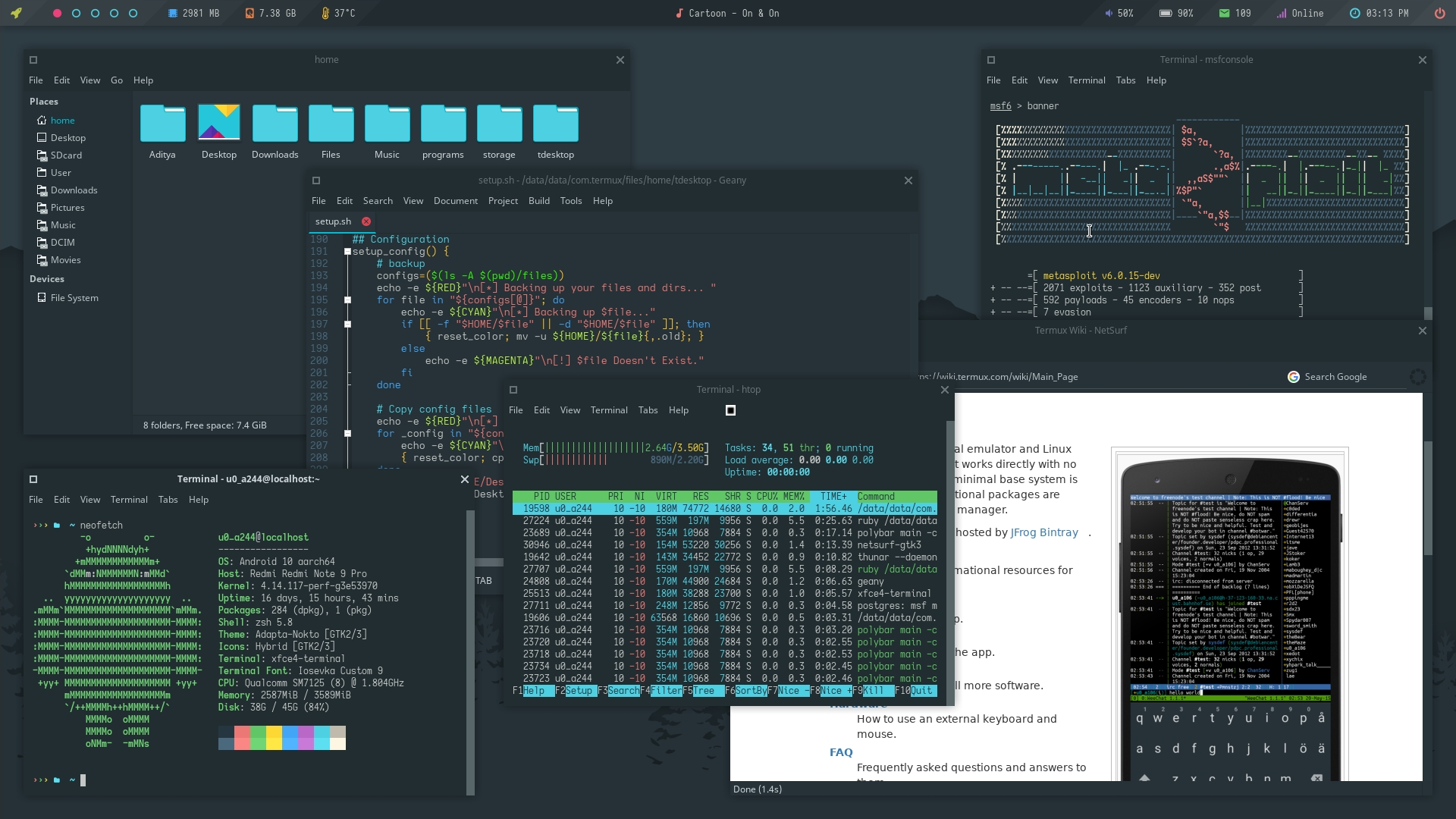
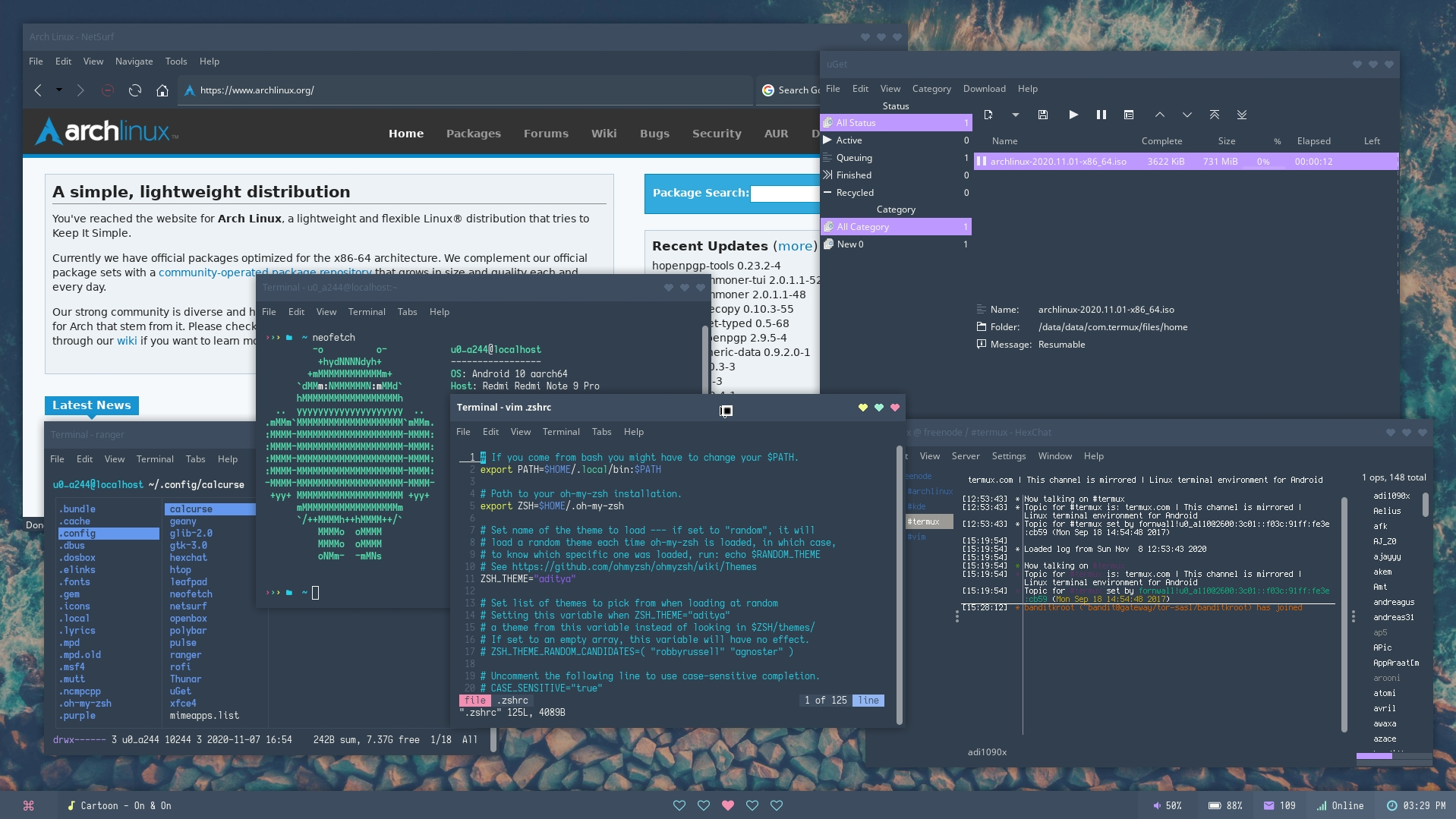
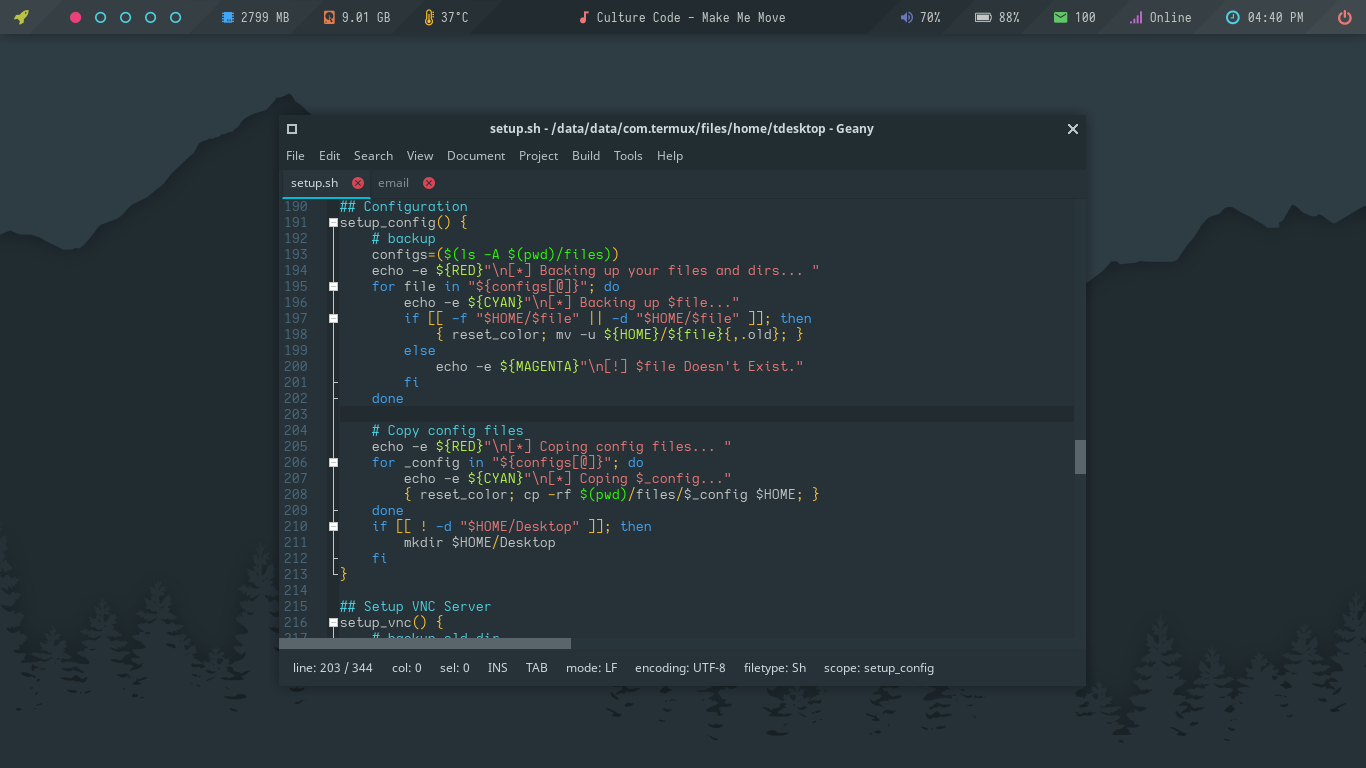
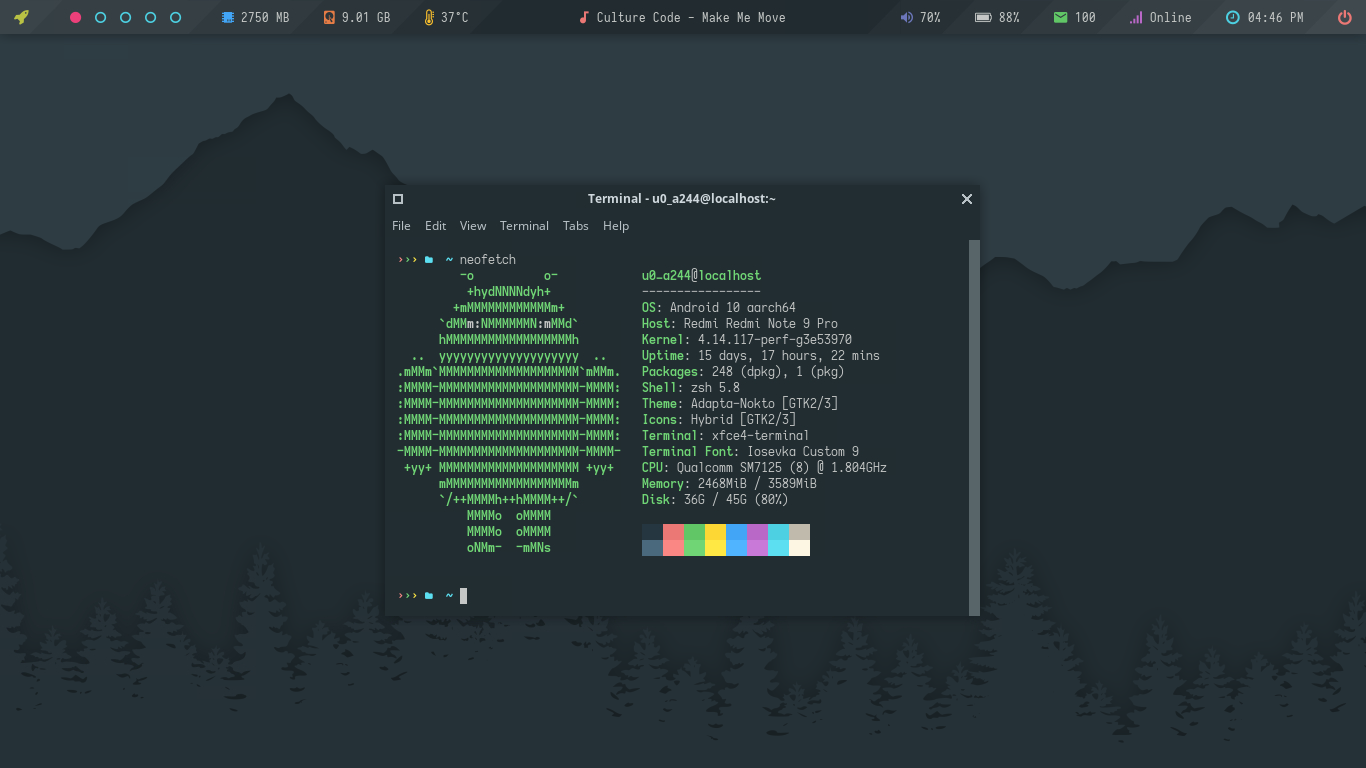
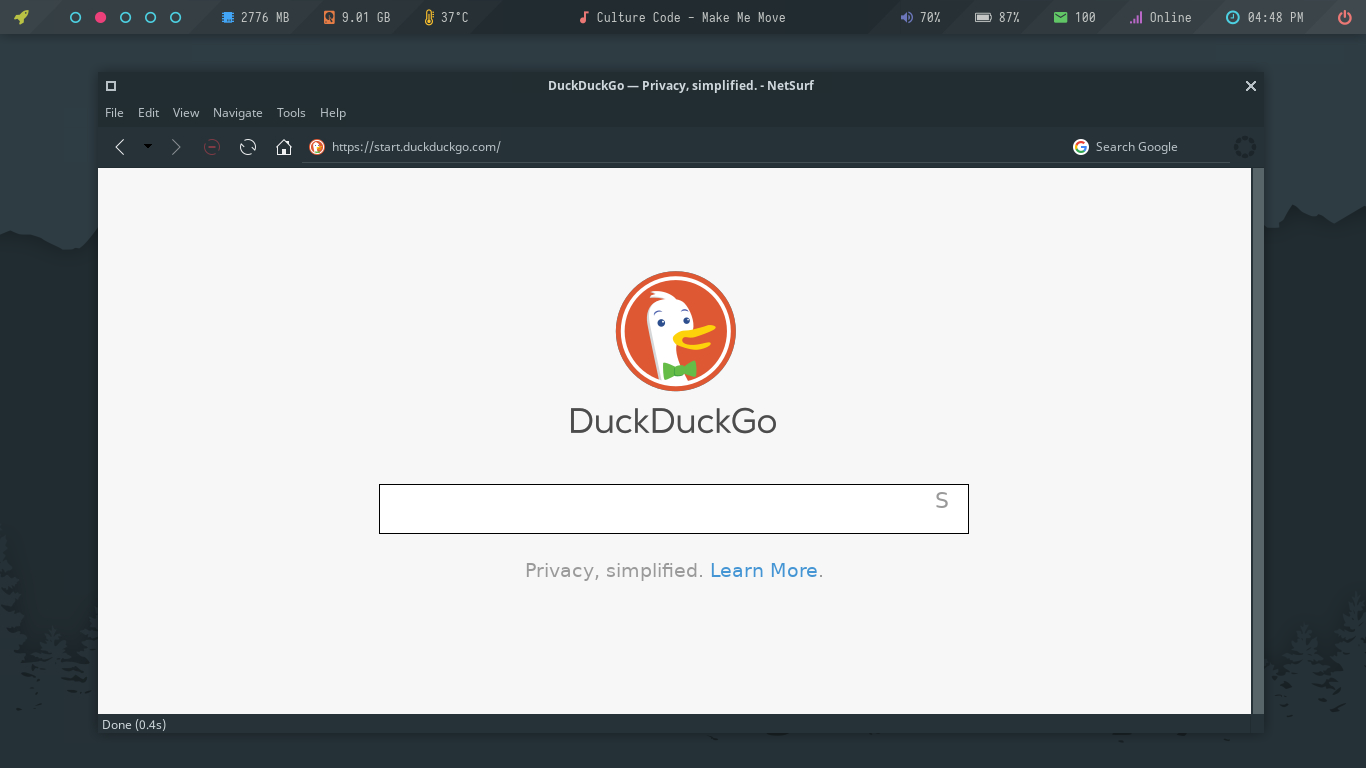
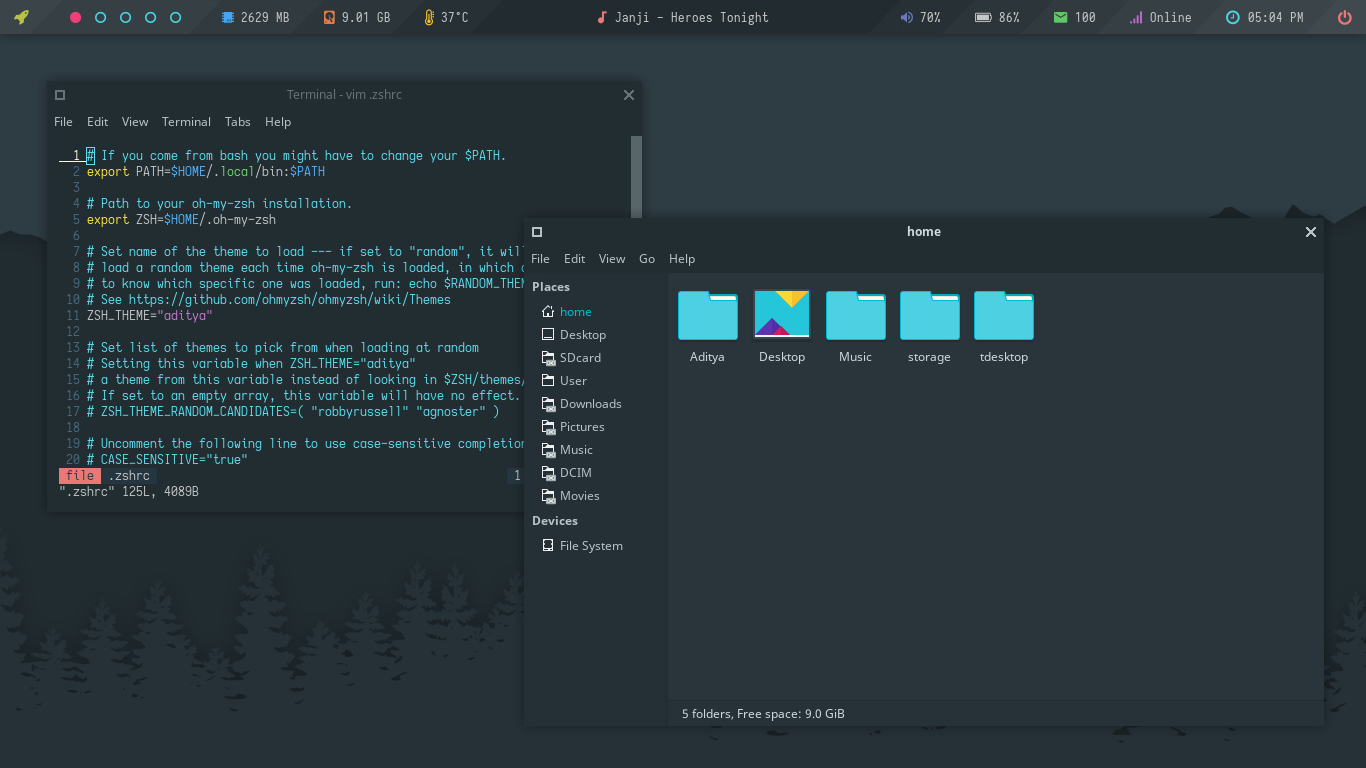
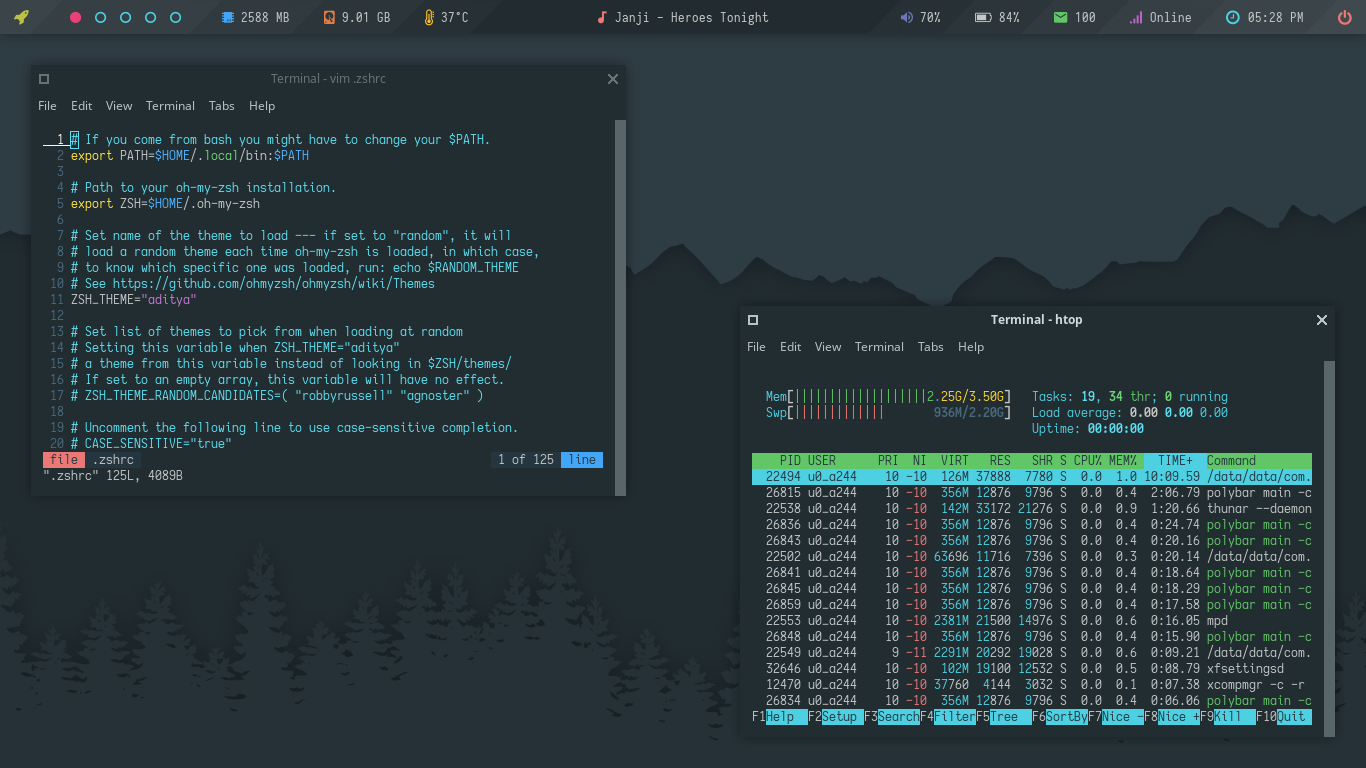
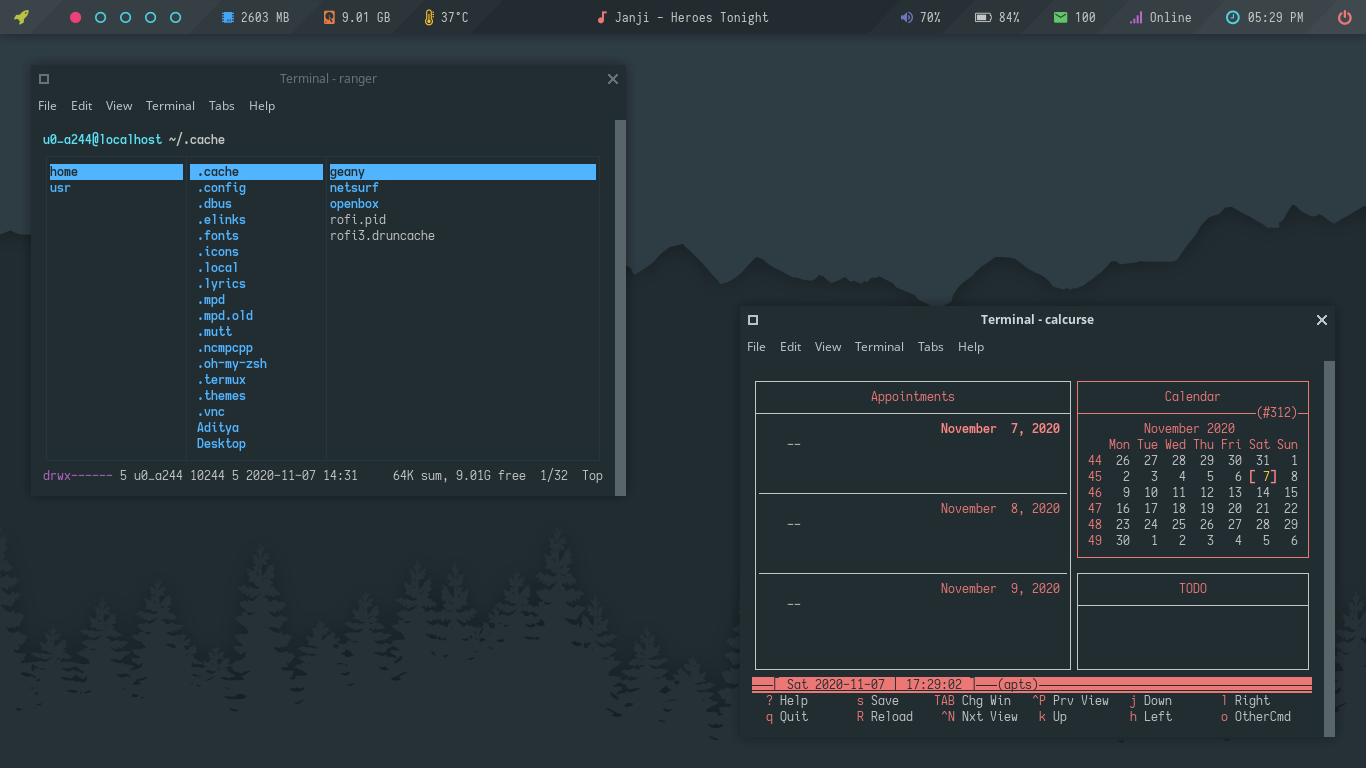
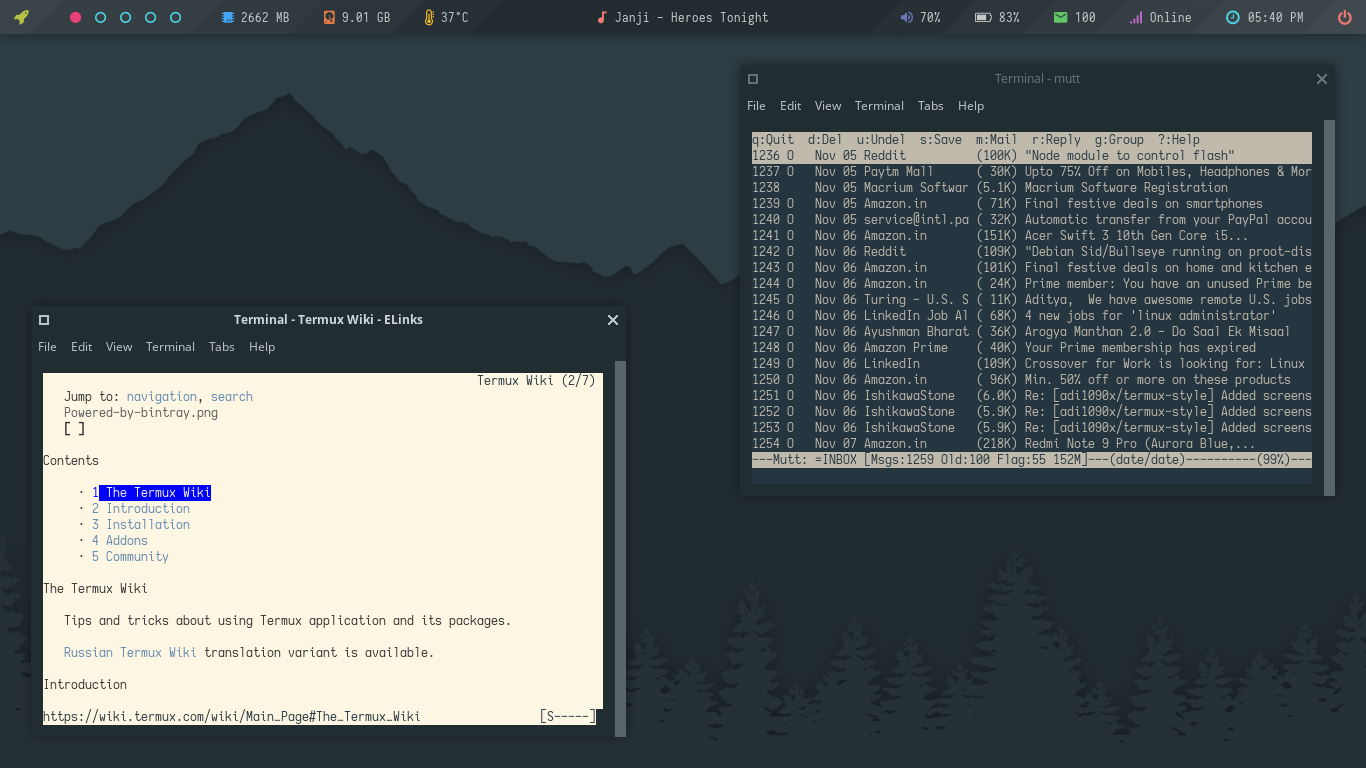
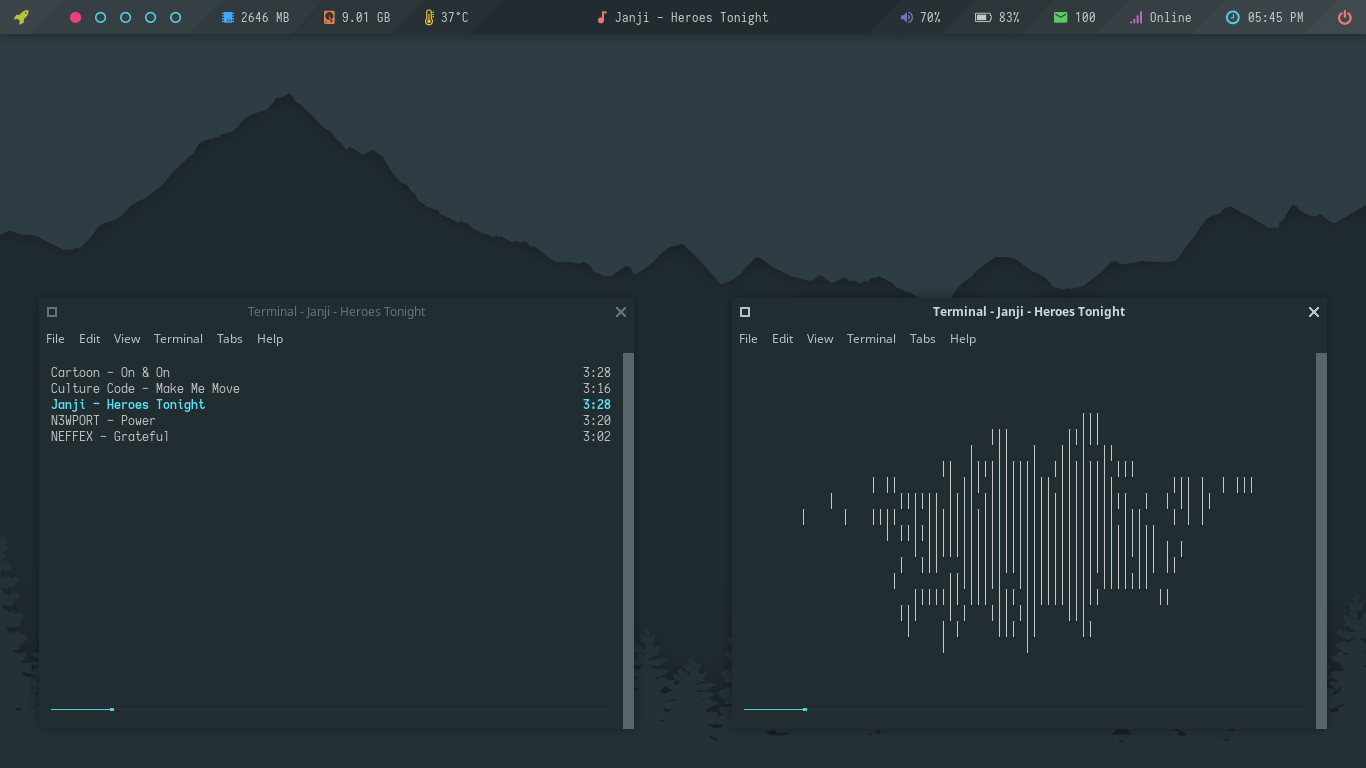
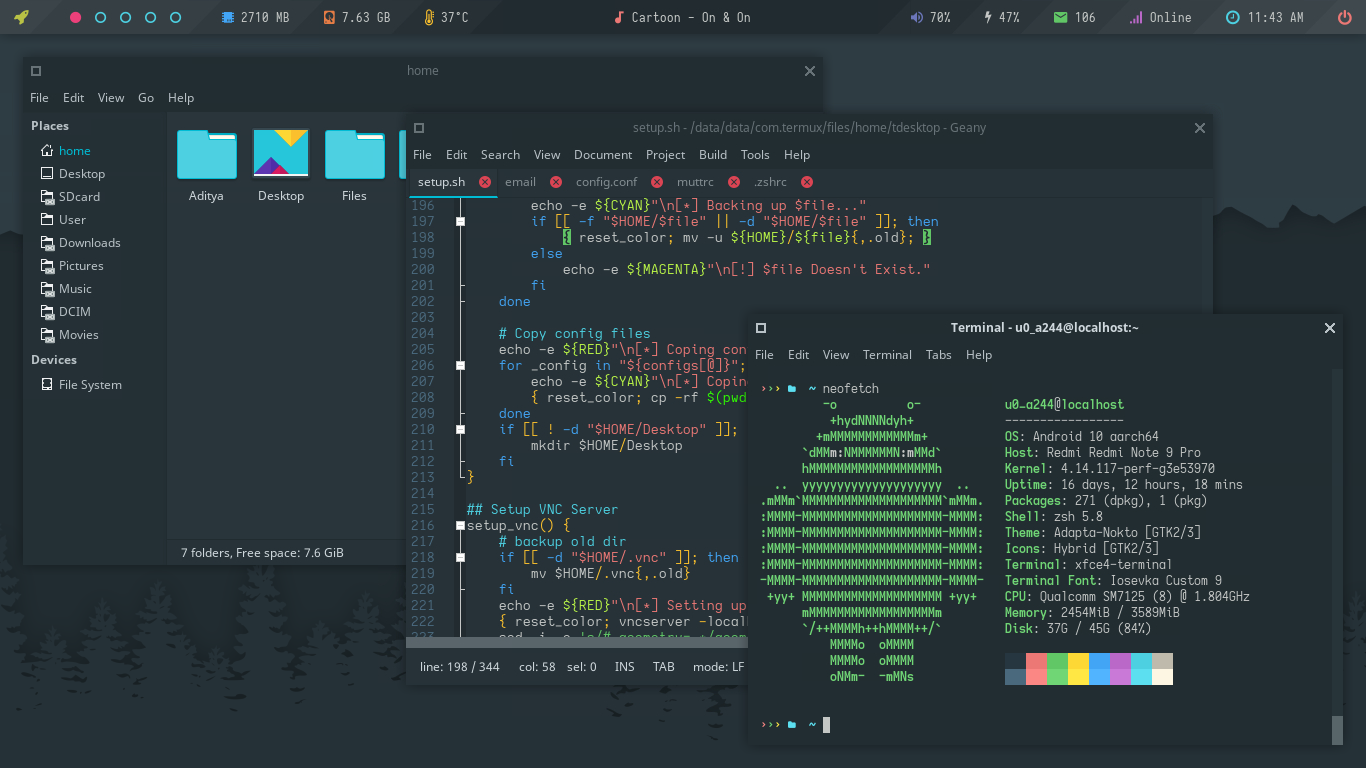
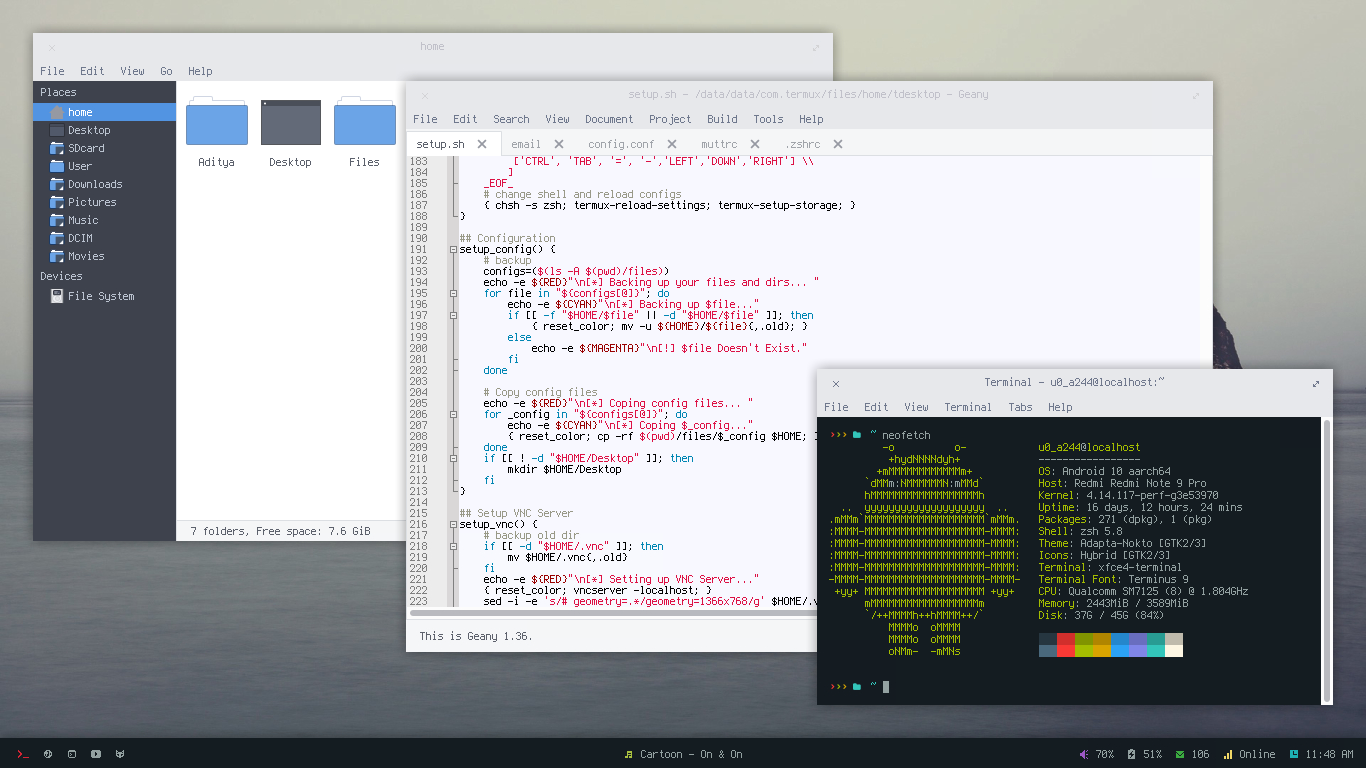
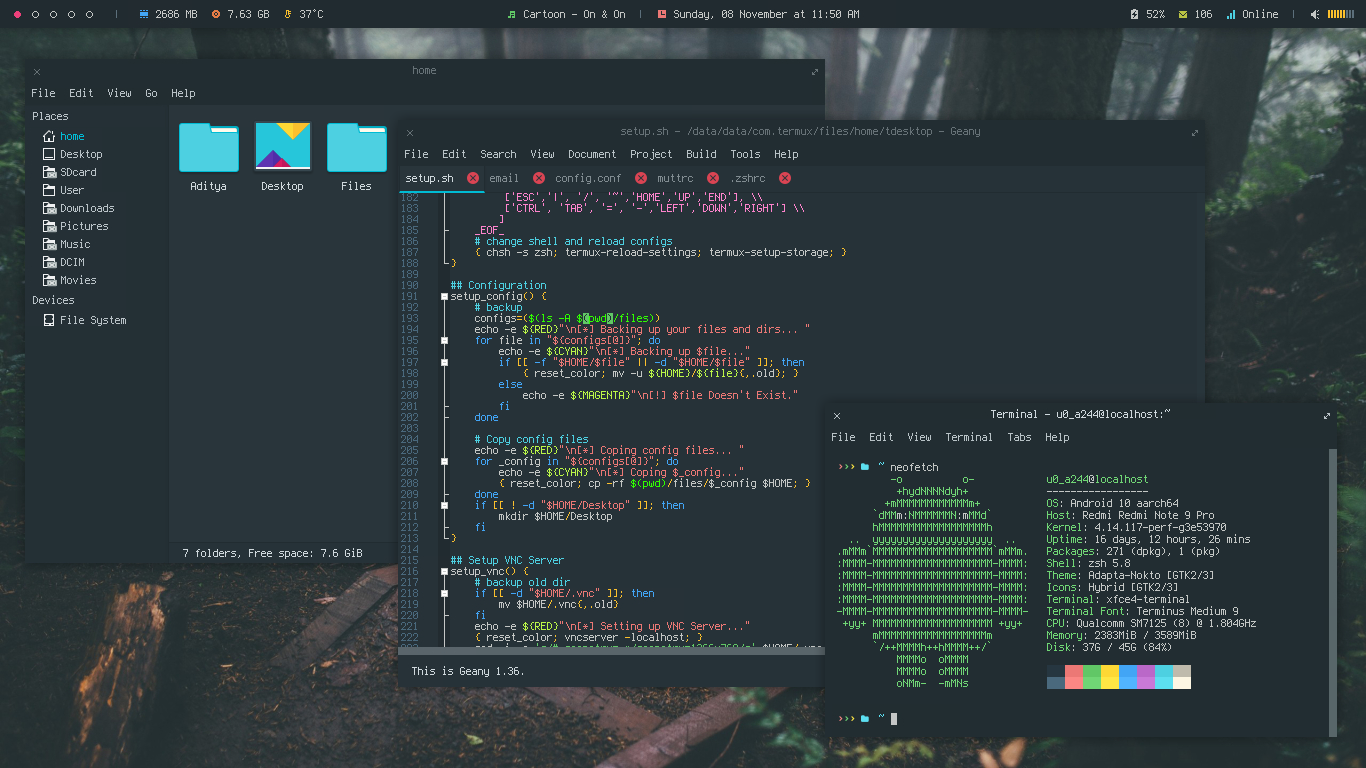
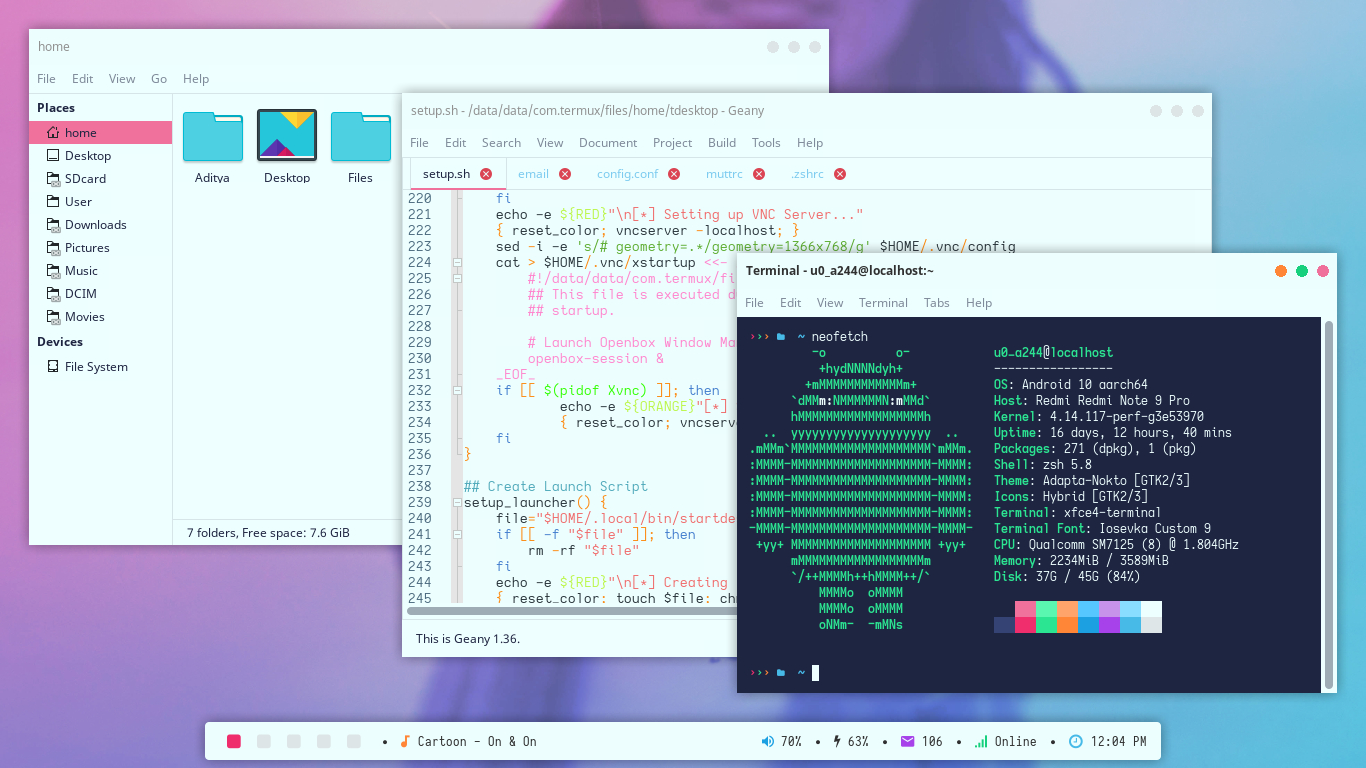
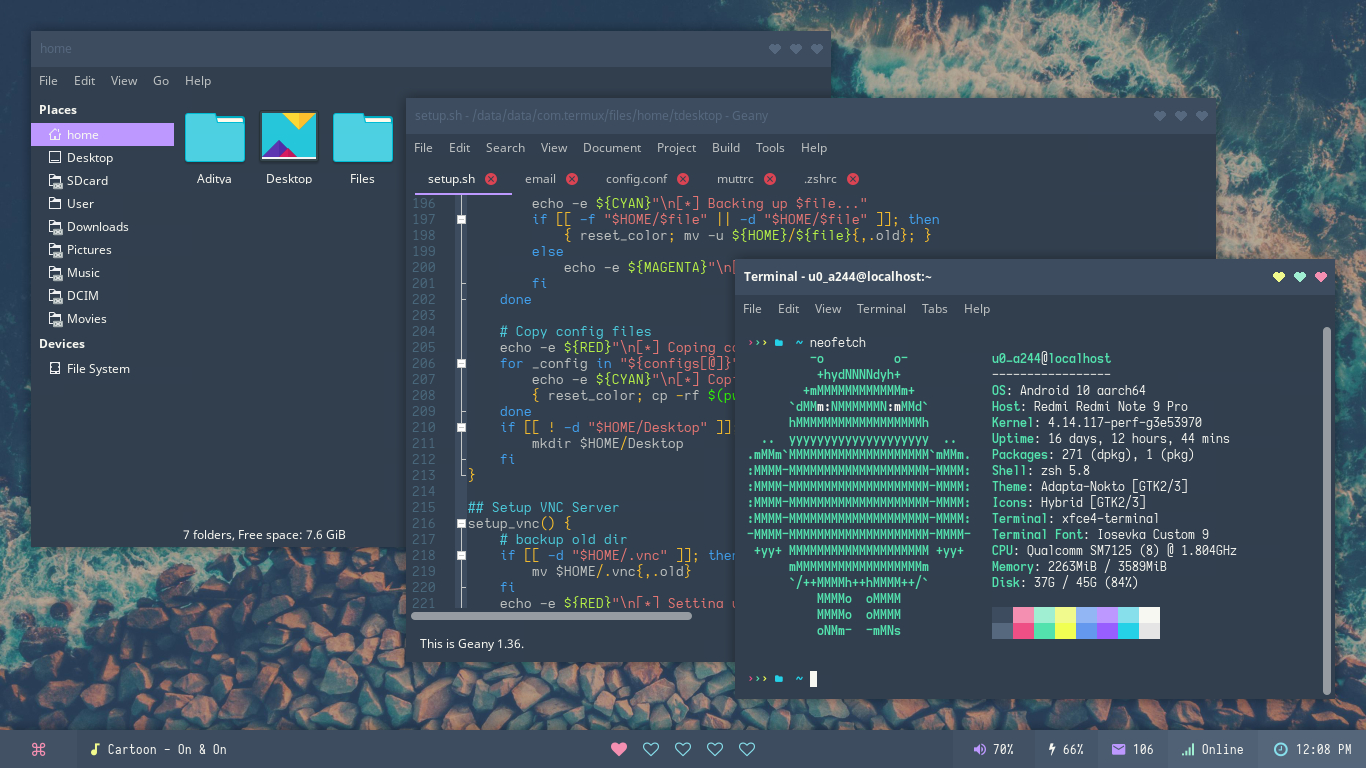
Alright, Lets just get this straight, these are just some dotfiles & scripts, which will help you to setup a graphical environment in termux. I've tried to make it as easy as possible to setup a beautiful linux desktop on your android device with termux, So follow the steps and you'll end up making it look like this -
Openbox WM
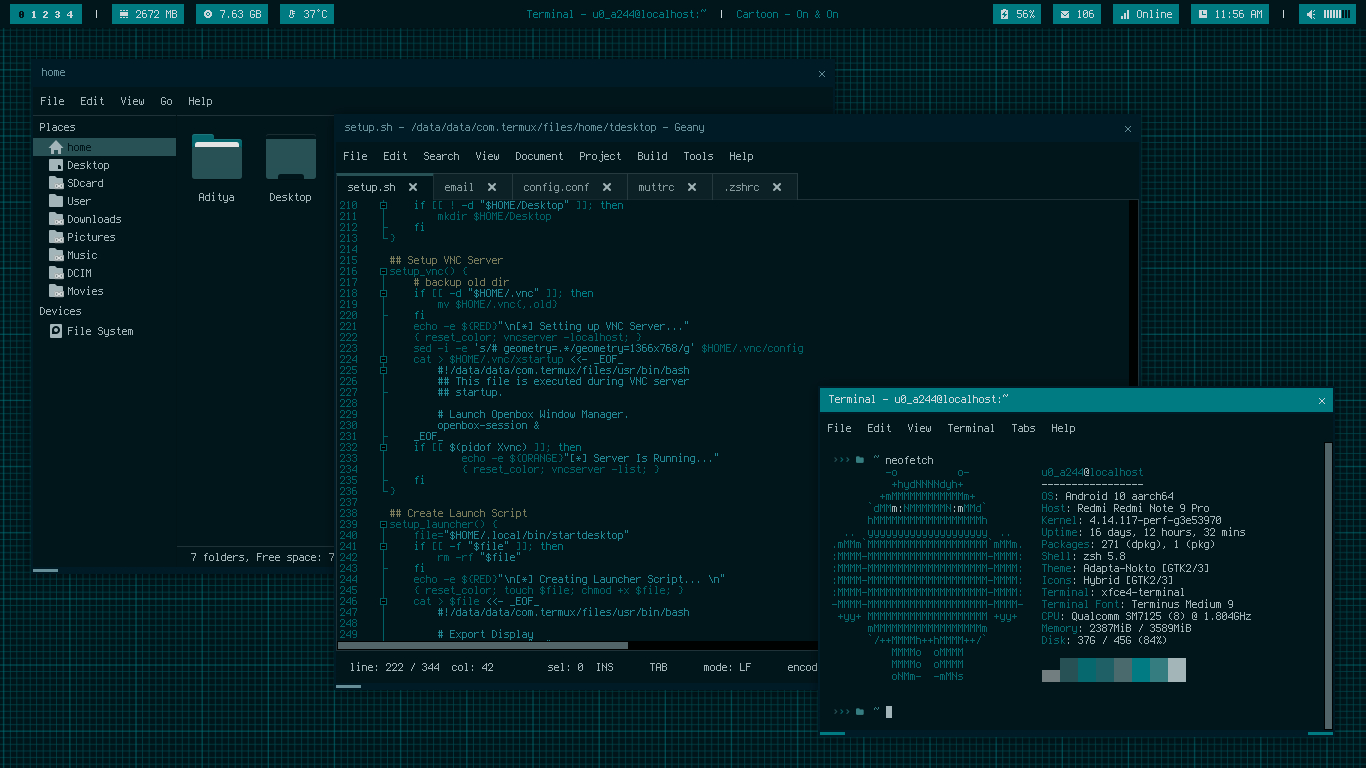
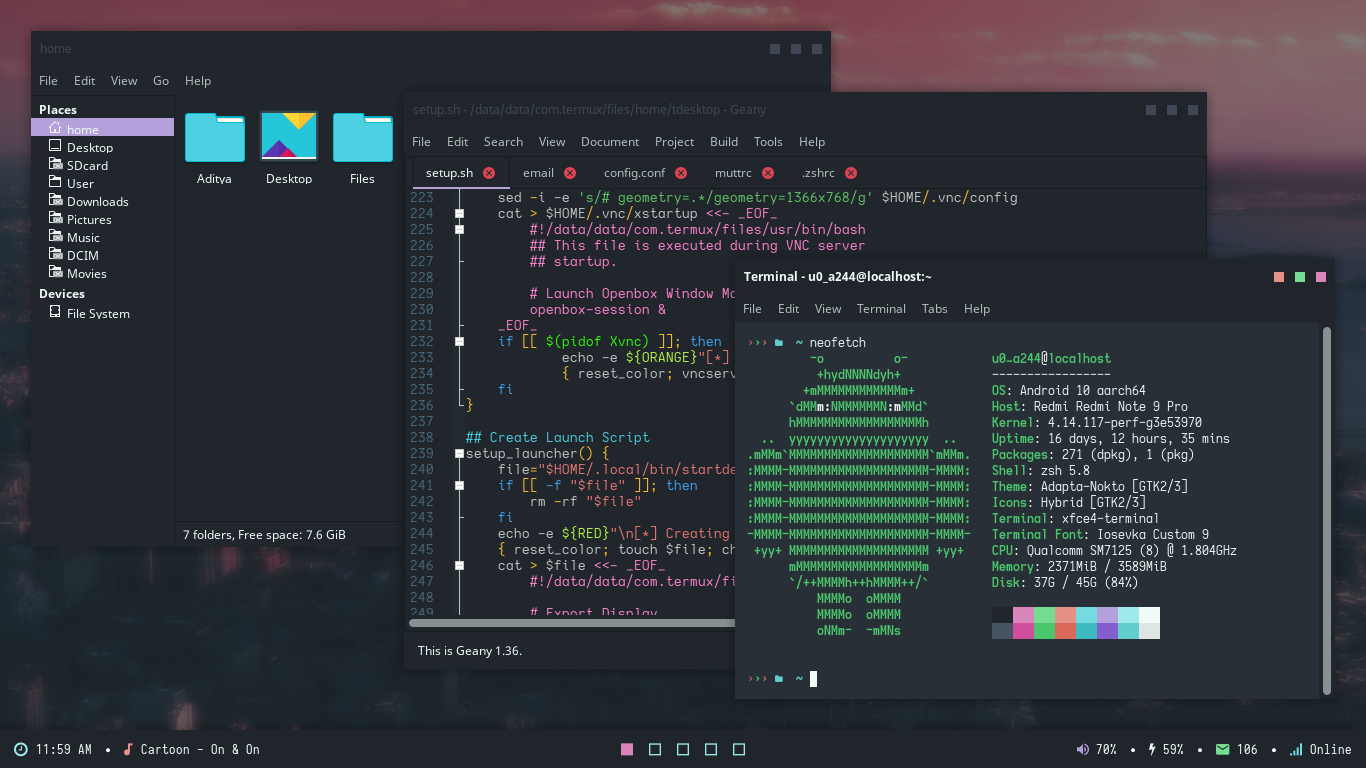
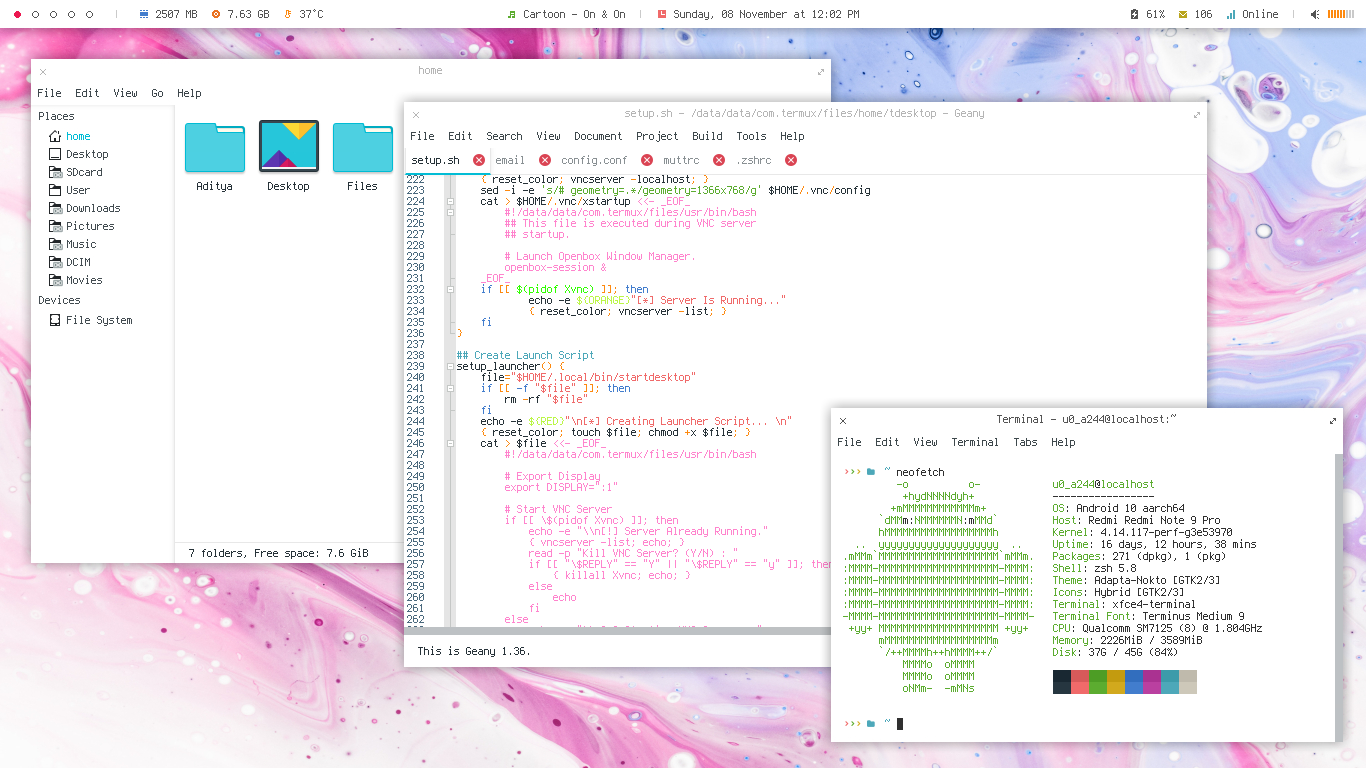
Another Style
Lets start from the beginning...
What is termux?
Termux is an Android terminal emulator and Linux environment app that works directly with no rooting or setup required. A minimal base system is installed automatically - additional packages are available using the PKG/APT package manager. More Here...
How To install termux?
You can install termux form google play store or from f-droid.
Get it on Github
Download from F-Droid
More information about installation is here
Preparation
Install Termux & Termux:API on your phone. It's recommended to install Termux API application as many desktop elements are dependent on it.
This setup is created and tested on :
Device - Redmi Note 9 Pro
Android - Android 10 (Q)
CPU Type - aarch64
Installation
After installing both applications above, open Termux and follow the steps below -
Warning : I'm assuming that you're doing this on a fresh termux install. If not, I'll suggest you to do so. However the setup.sh script backup every file it replace, It's still recommended that you manually backup your files in order to avoid conflicts.
Change to cloned directory and run setup.sh with --install option
cd termux-desktop
chmod +x setup.sh
./setup.sh --install
If script setup.sh fails during package installation (due to network issues), you can re-execute it again.
During installation, you'll be asked to set up password for VNC -
[*] Setting up VNC Server...

You will require a password to access your desktops.

Password:
Verify:
Would you like to enter a view-only password (y/n)? n
Note that passwords are not visible when you are typing them and minimum password length is 6 characters.
Remember the password you typed as it'll be required to connect via vnc client.
If everything is okay, you will see this message -
New 'localhost:1 ()' desktop is localhost:1

Creating default startup script /data/data/com.termux/files/home/.vnc/xstartup
Creating default config /data/data/com.termux/files/home/.vnc/config
Starting applications specified in /data/data/com.termux/files/home/.vnc/xstartup
Log file is /data/data/com.termux/files/home/.vnc/localhost:1.log

[*] Server Is Running...

TigerVNC server sessions:

X DISPLAY #     PROCESS ID
:1              XXXXX
It means that X (vnc) server is available on display 'localhost:1'.
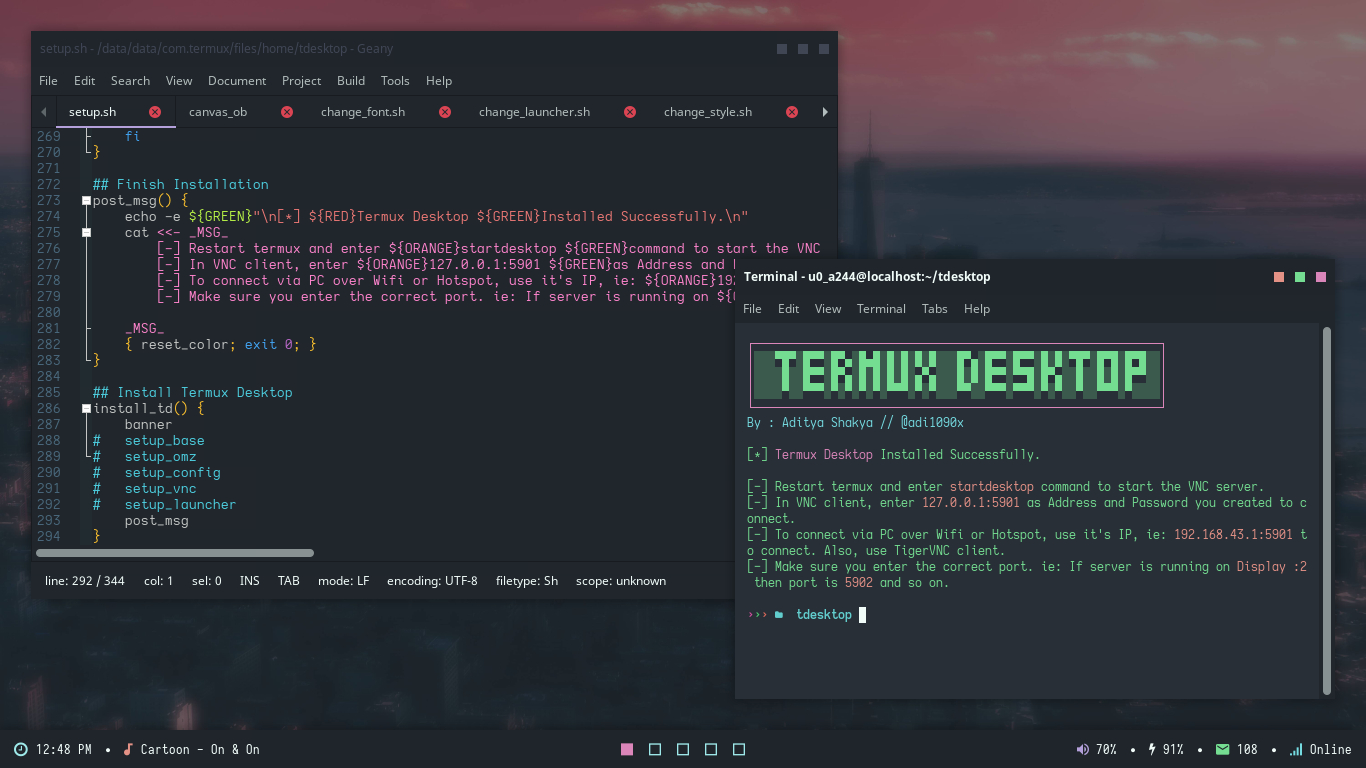
That's it. Termux Desktop is installed successfully. Restart Termux and enter startdesktop command to start vncserver and connect via VNC Client.
startdesktop

[*] Starting VNC Server...

New 'localhost:1 ()' desktop is localhost:1

Starting applications specified in /data/data/com.termux/files/home/.vnc/xstartup
Log file is /data/data/com.termux/files/home/.vnc/localhost:1.log
Uninstallation
If you ever want to uninstall Termux Desktop, just run setup.sh with --uninstall option. Just keep the setup.sh script and delete the cloned repository to save space. I'll create a separate uninstaller script later. The command below will remove all the packages and delete all the config files it installed, including the changes you've made. So, Be careful there...
./setup.sh --uninstall
VNC Client
Now you need a VNC client app to connect to server. I'm using this Android VNC client: VNC Viewer. You can use TigerVNC if you're trying to connect to server by a computer (Windows or Linux).
Determine port number on which VNC server listens. It can be calculated like this: 5900 + {display number}. So for display 'localhost:1' the port will be 5901.
Now open the VNC Viewer application and create a new connection with the following information (assuming that port is 5901) -
Address:
127.0.0.1:5901

Name:
Termux
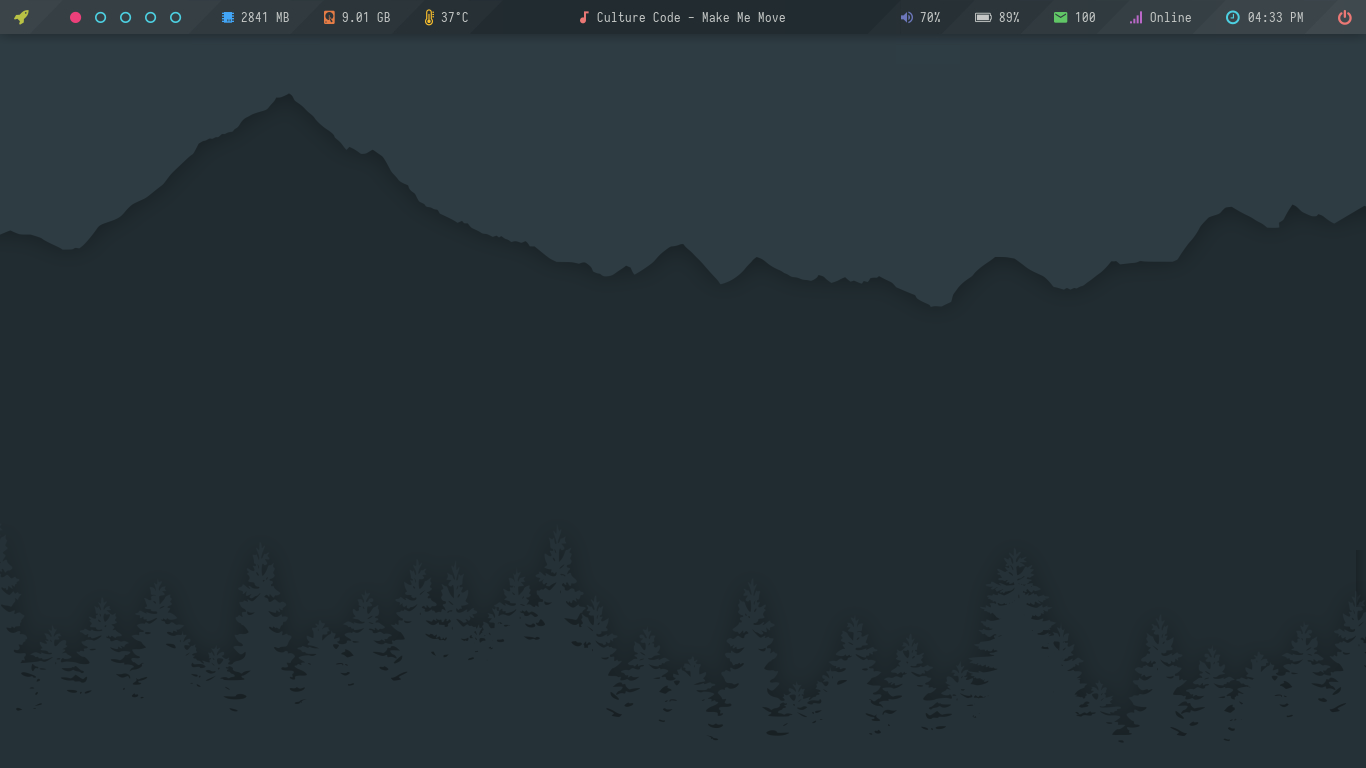
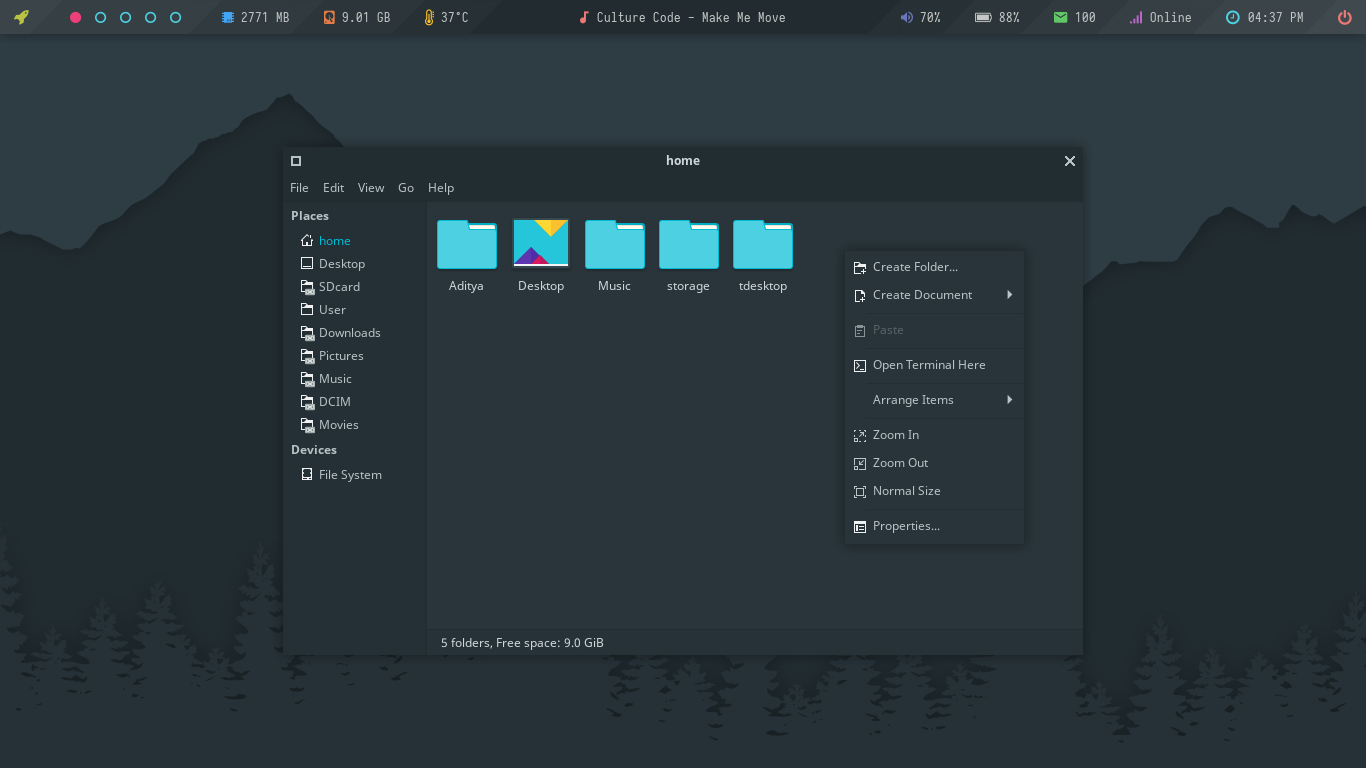
Now launch it. You will be prompted for password that you entered during installation. After entering password, you'll be headed directly to this desktop -
First Impression
Let's take a look at following installed programs you'll get here -
File Manager
Text Editor/IDE
Terminal Emulator
Web Browser
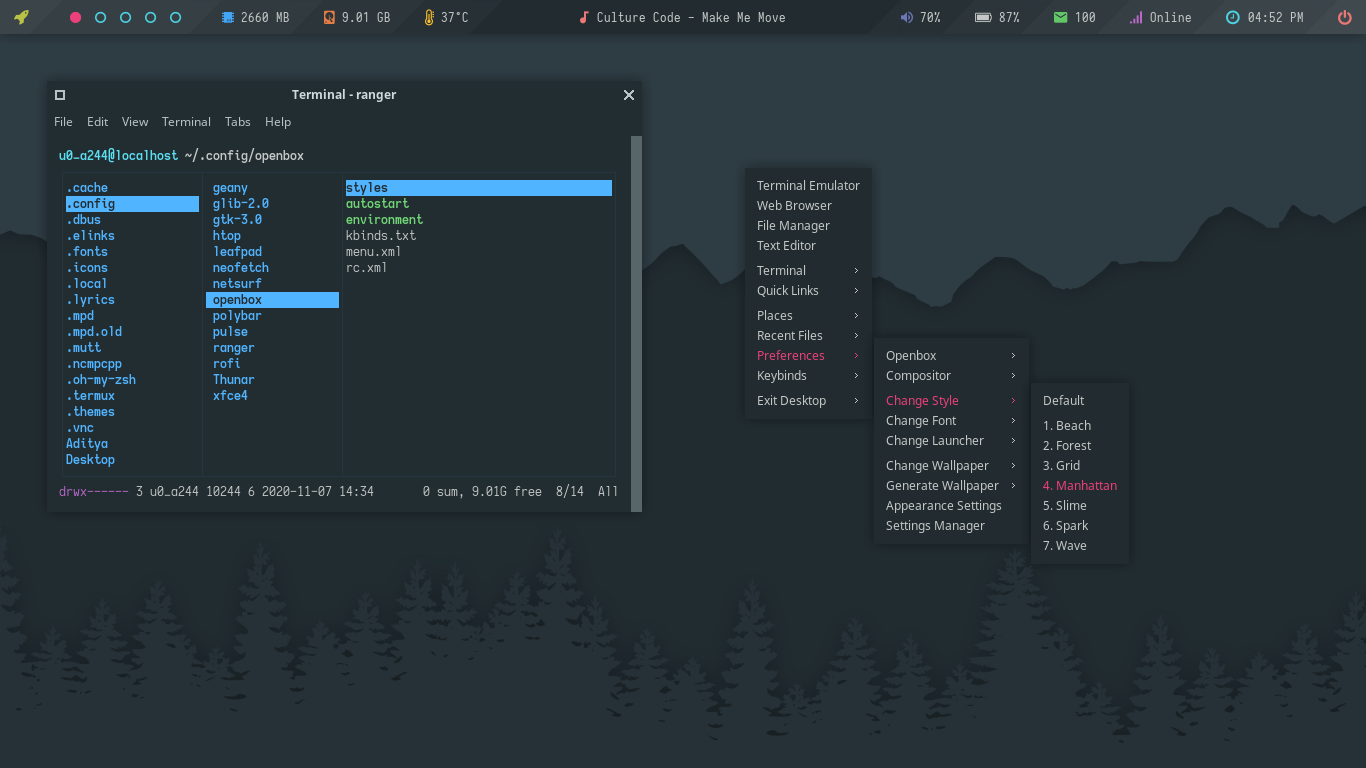
Openbox Menu
Many CLI based Programs
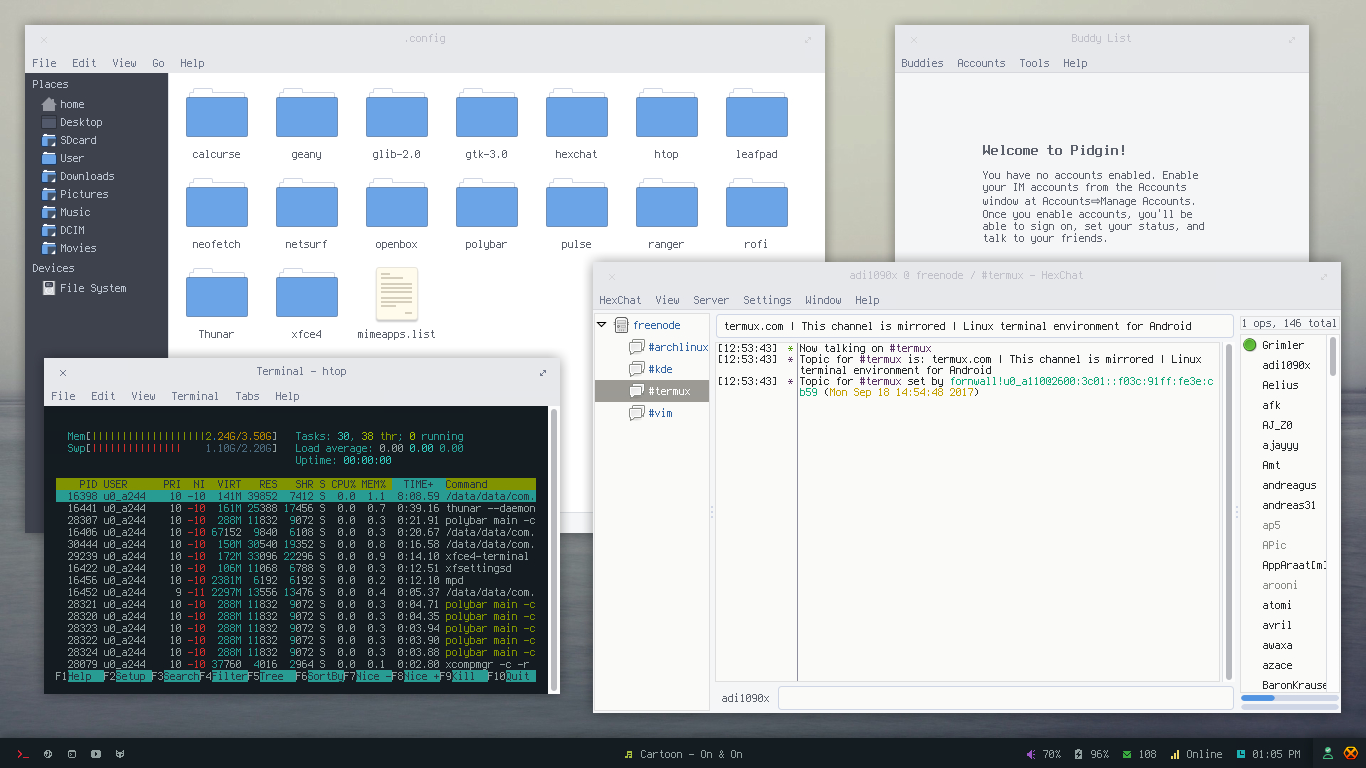
vim & htop
ranger & calcurse
mutt & elinks
mpd & ncmpcpp
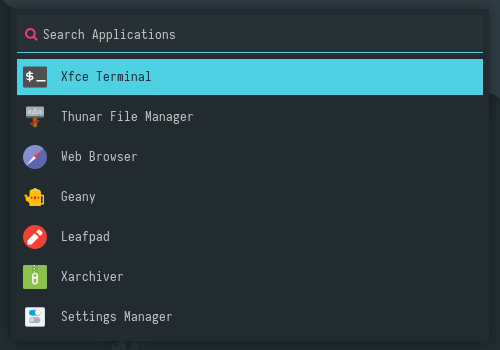
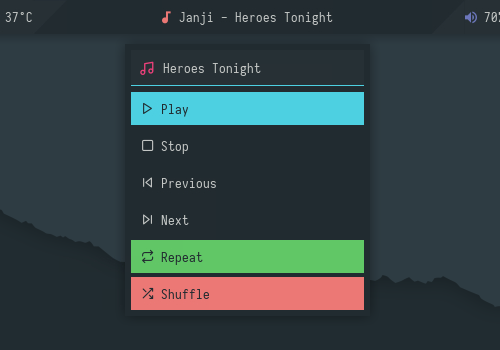
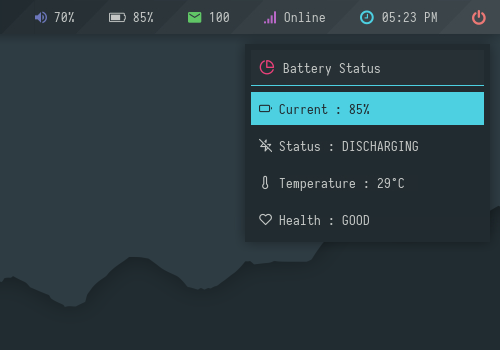
Rofi Application launcher and Applets -
App Launcher
Music Player
Battery Status
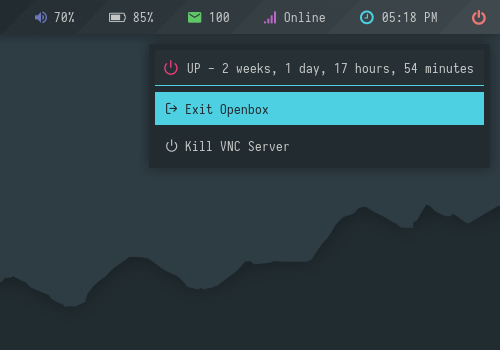
Exit Menu
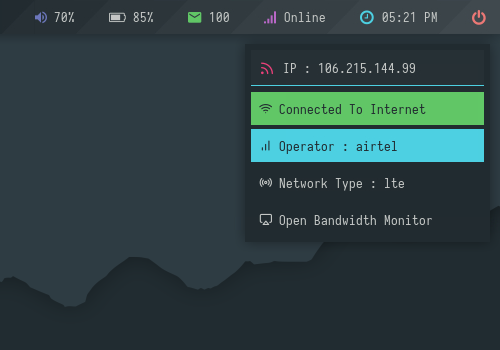
Network Info
Styles
There are total Eight different styles/themes available in this setup. To change style, Right click on desktop > Preferences > Change Style and select the one you want to apply.
Default
Beach
Forest
Grid
Manhattan
Slime
Spark
Wave
Applications of Termux Desktop
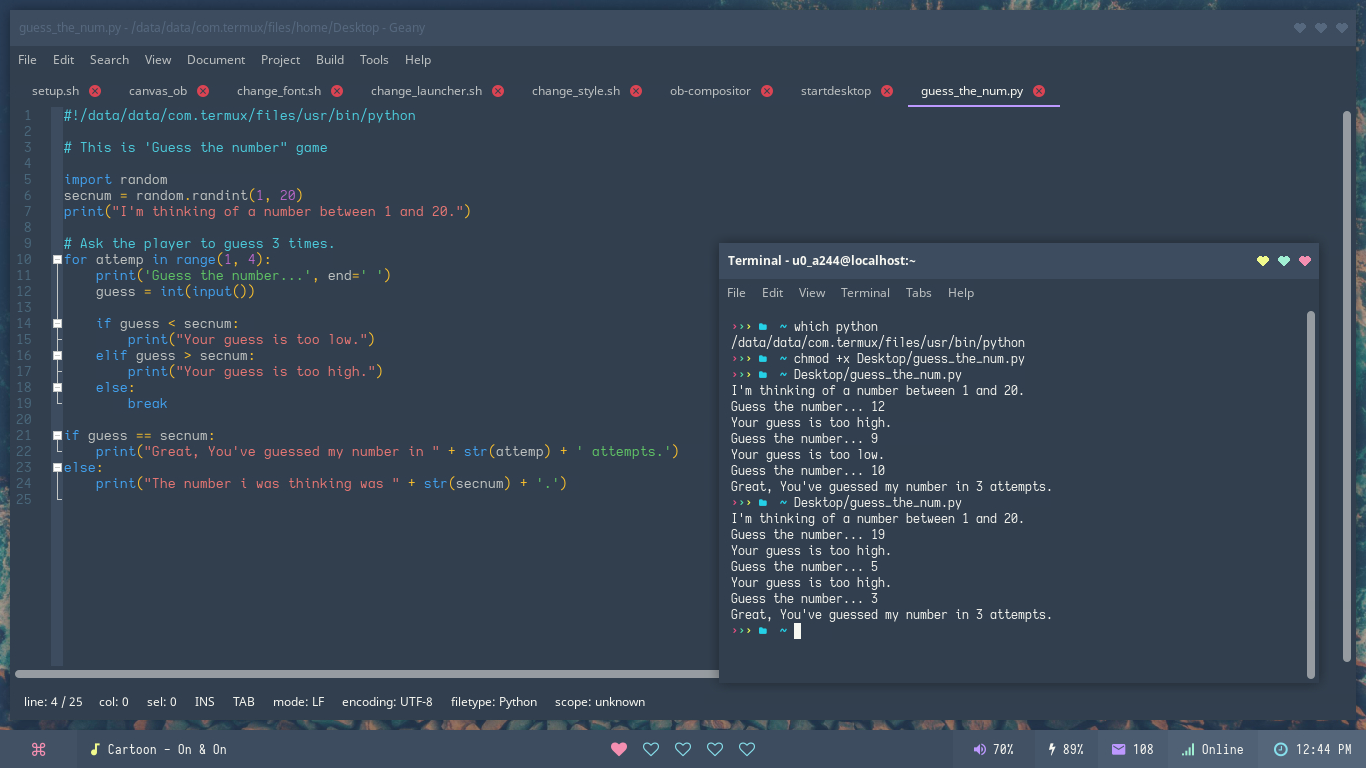
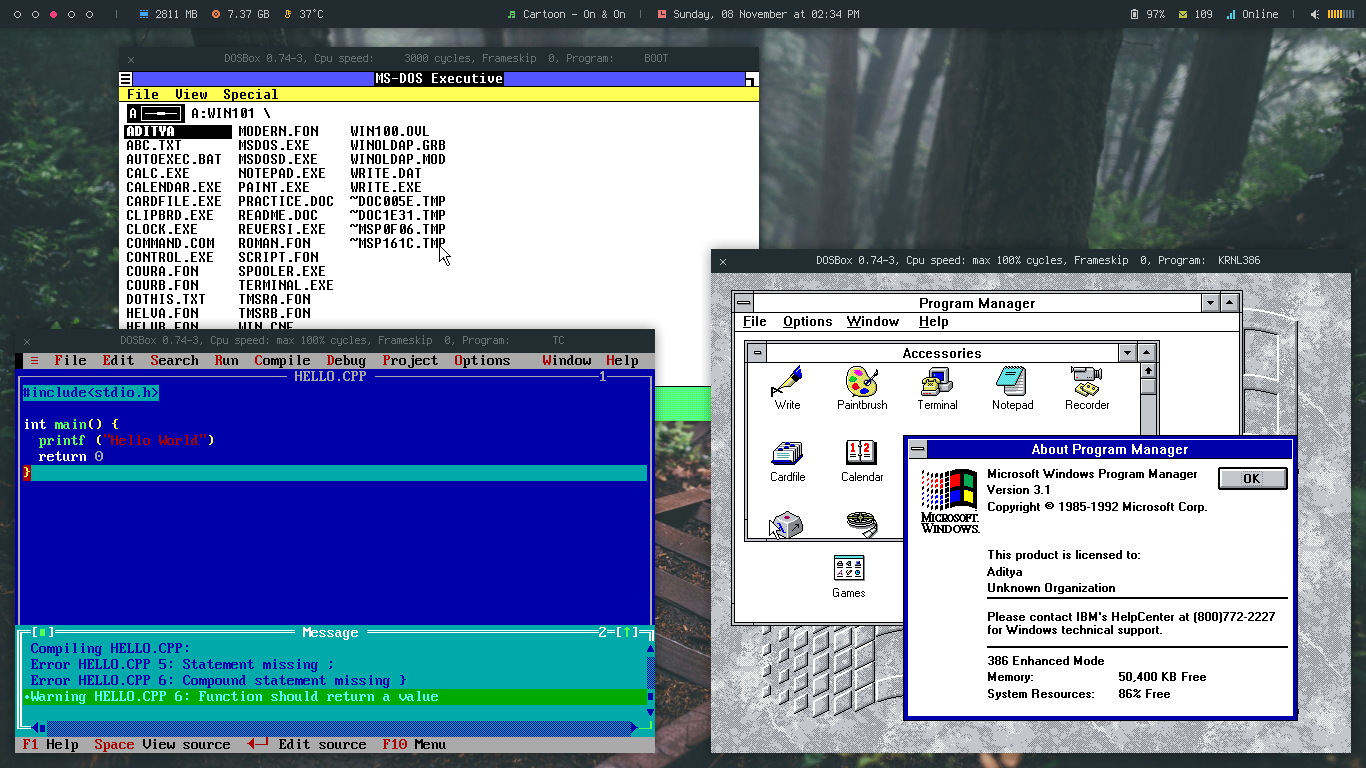
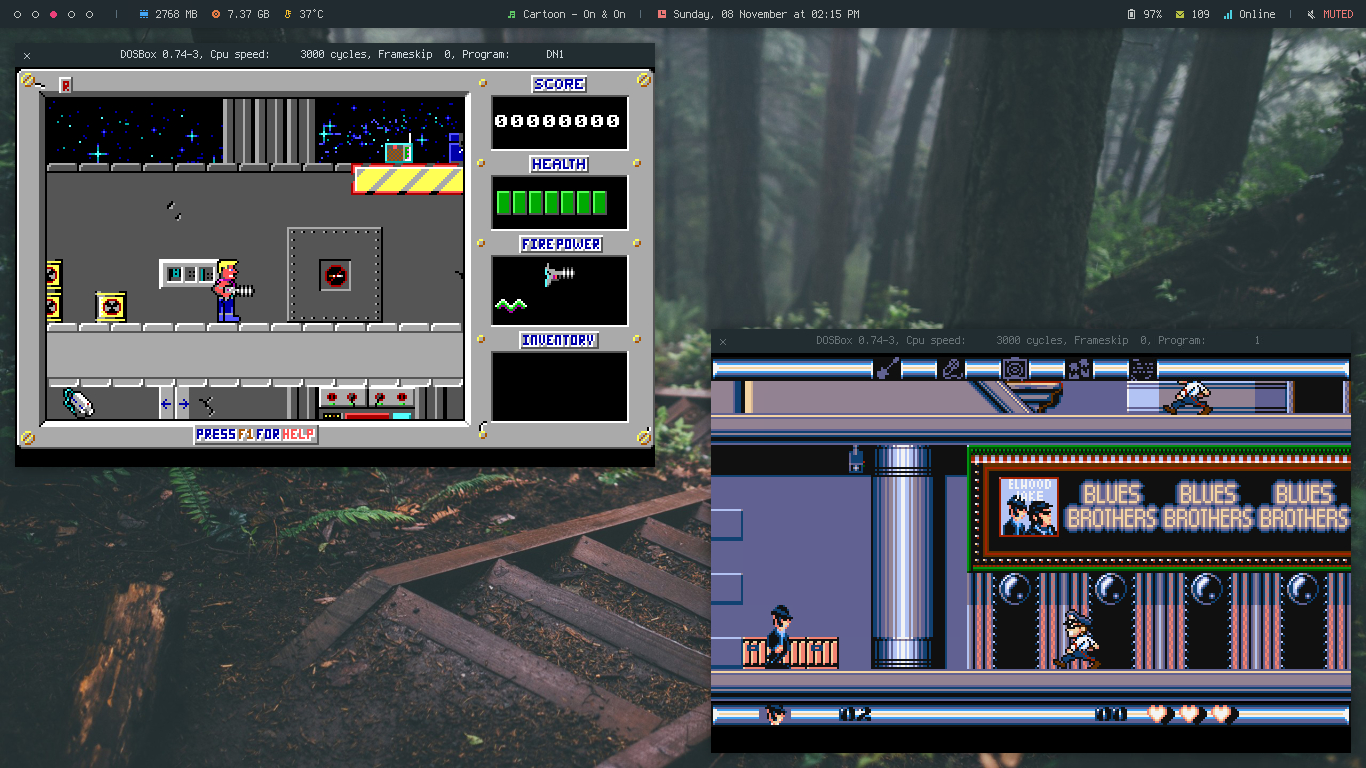
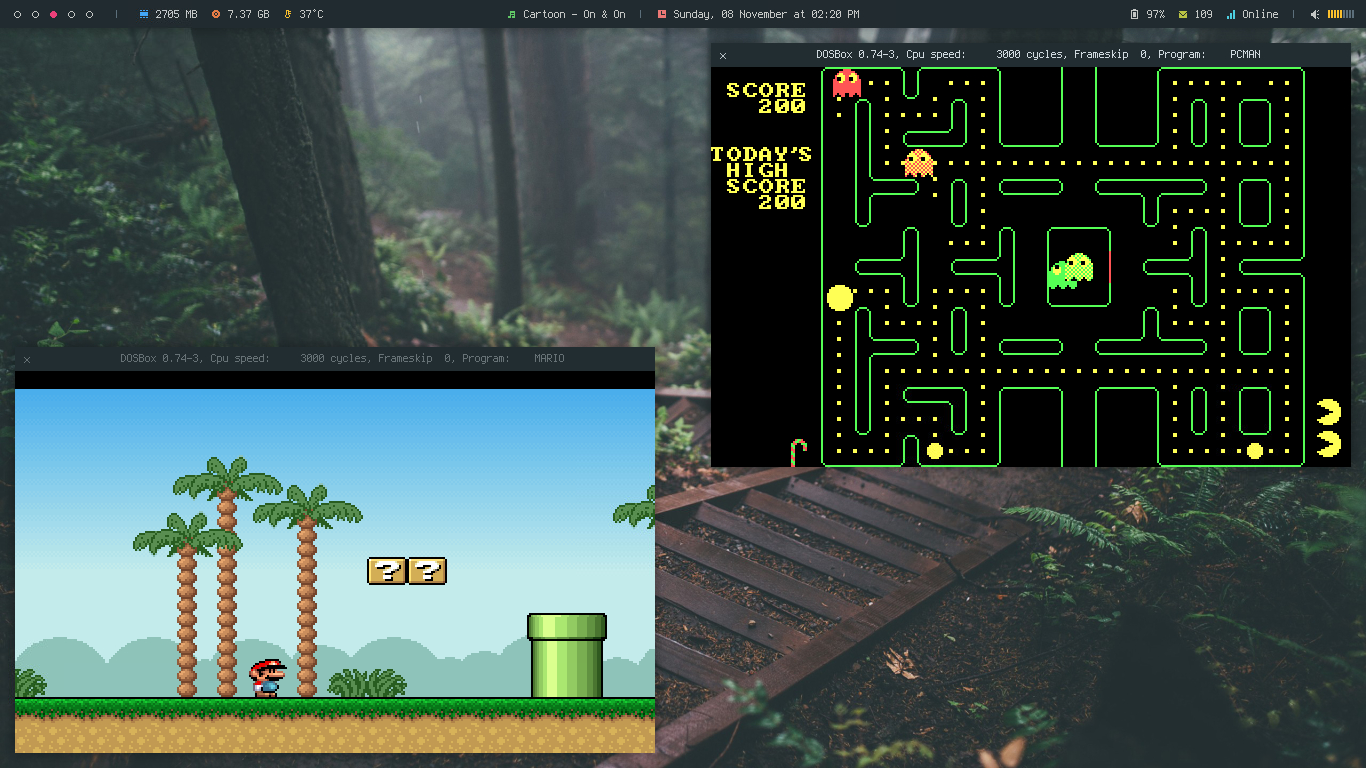
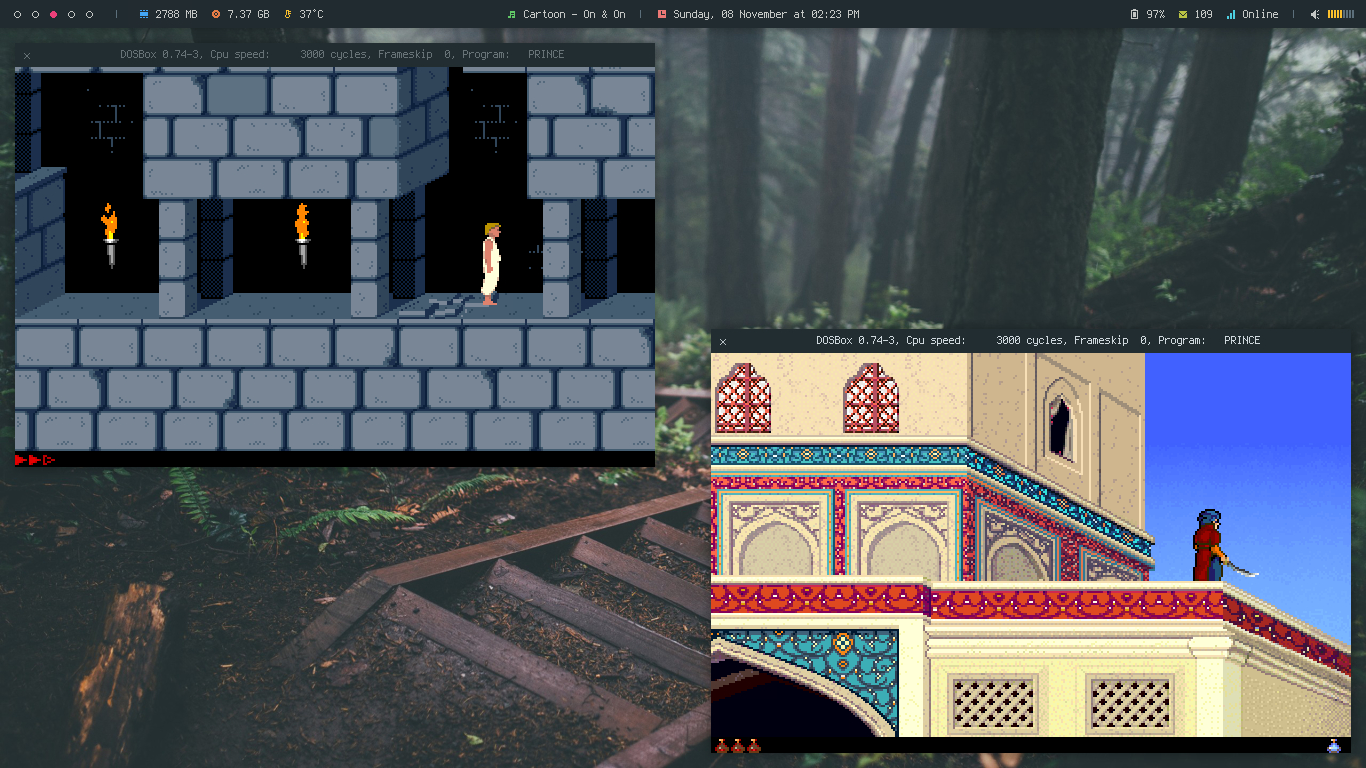
Well, These are some ideas or things you can do with termux desktop. From Learning coding to Penetration testing, Chatting over IRC to Browsing web and Downloading file, Playing classic retro games to run Windows from 90s.
Learn and practice you coding skill without having a laptop
Python
Bash
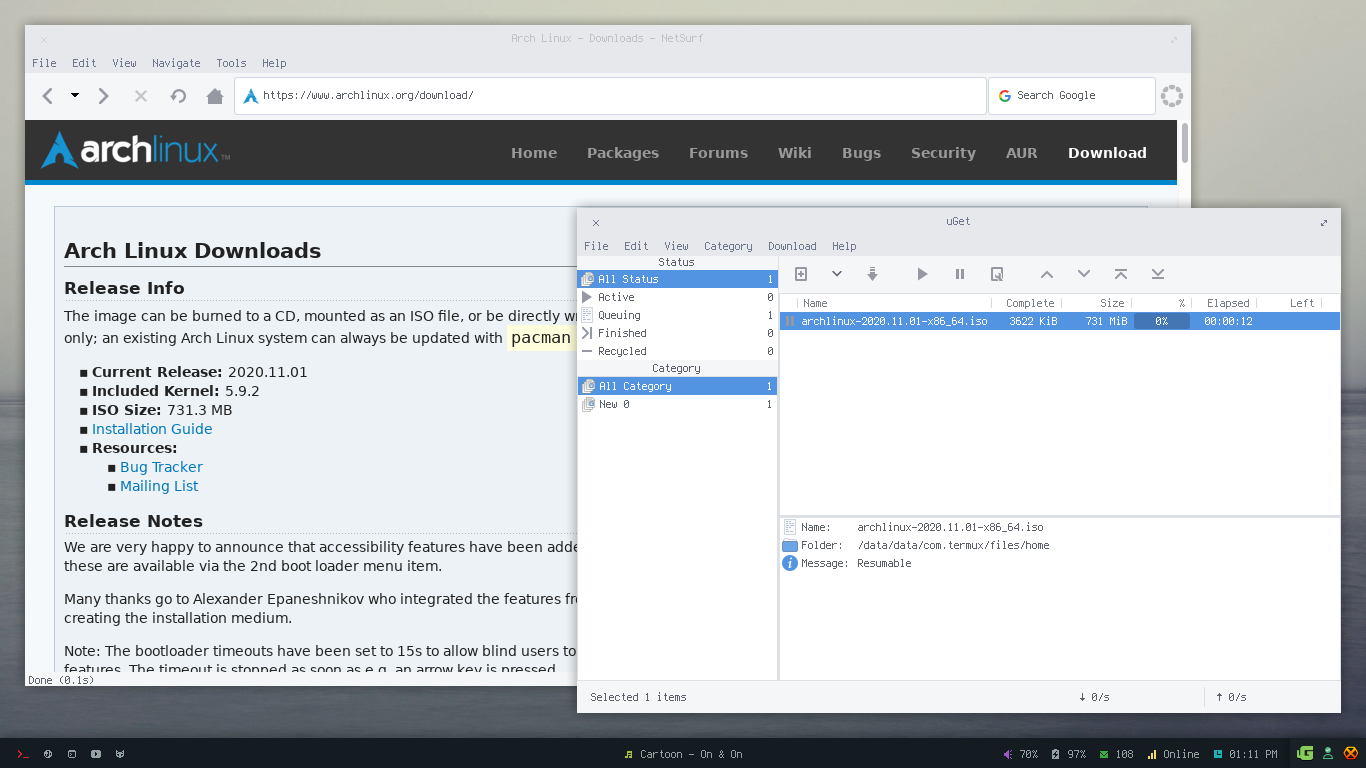
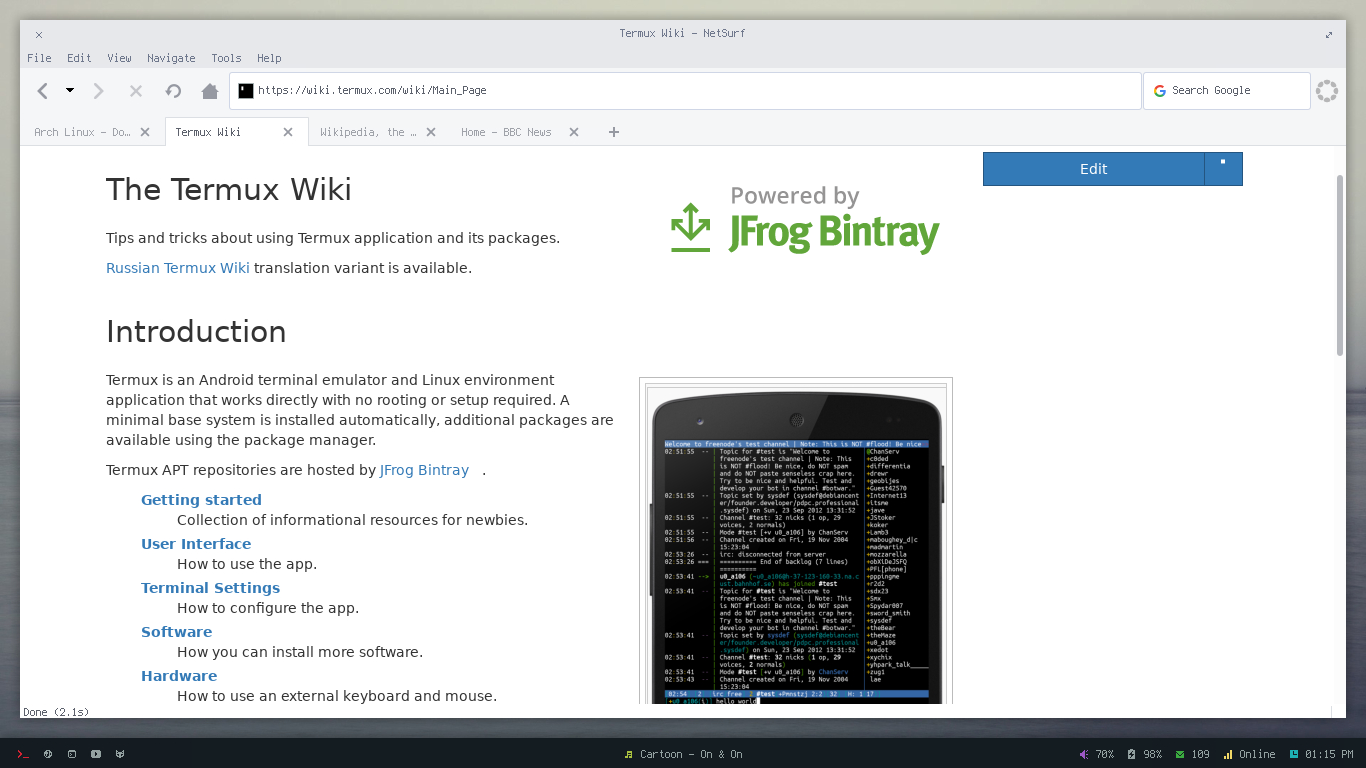
Chatting, Web Browsing and Downloading files
Hexchat & Pidgin
Netsurf & Uget
Browsing Wiki
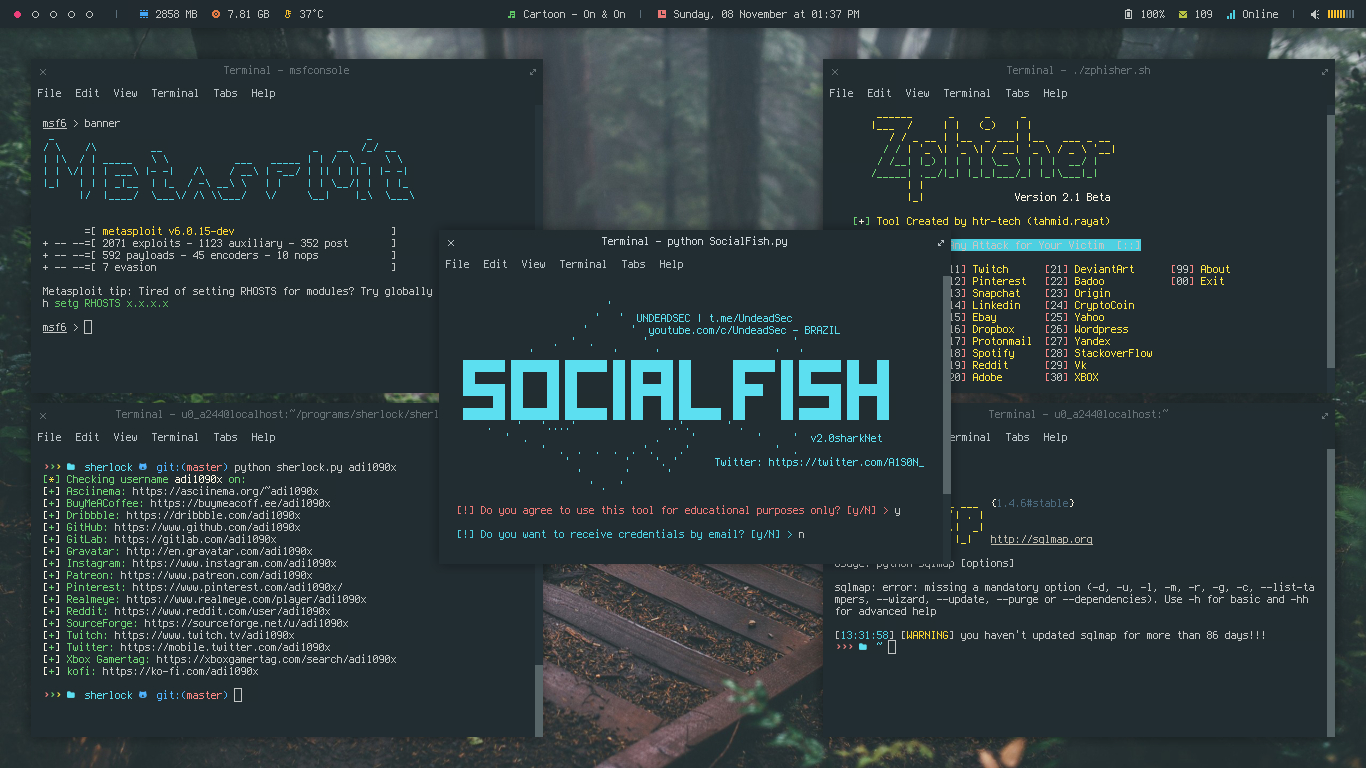
Penetration testing and Learn cyber security stuff
I'm not doing anything illegal or sponsoring any kind of Hacking and Cracking. Termux is a powerful tool, use it with responsibilities.
Metasploit - Sherlock - Socialfish - Zphisher - Sqlmap
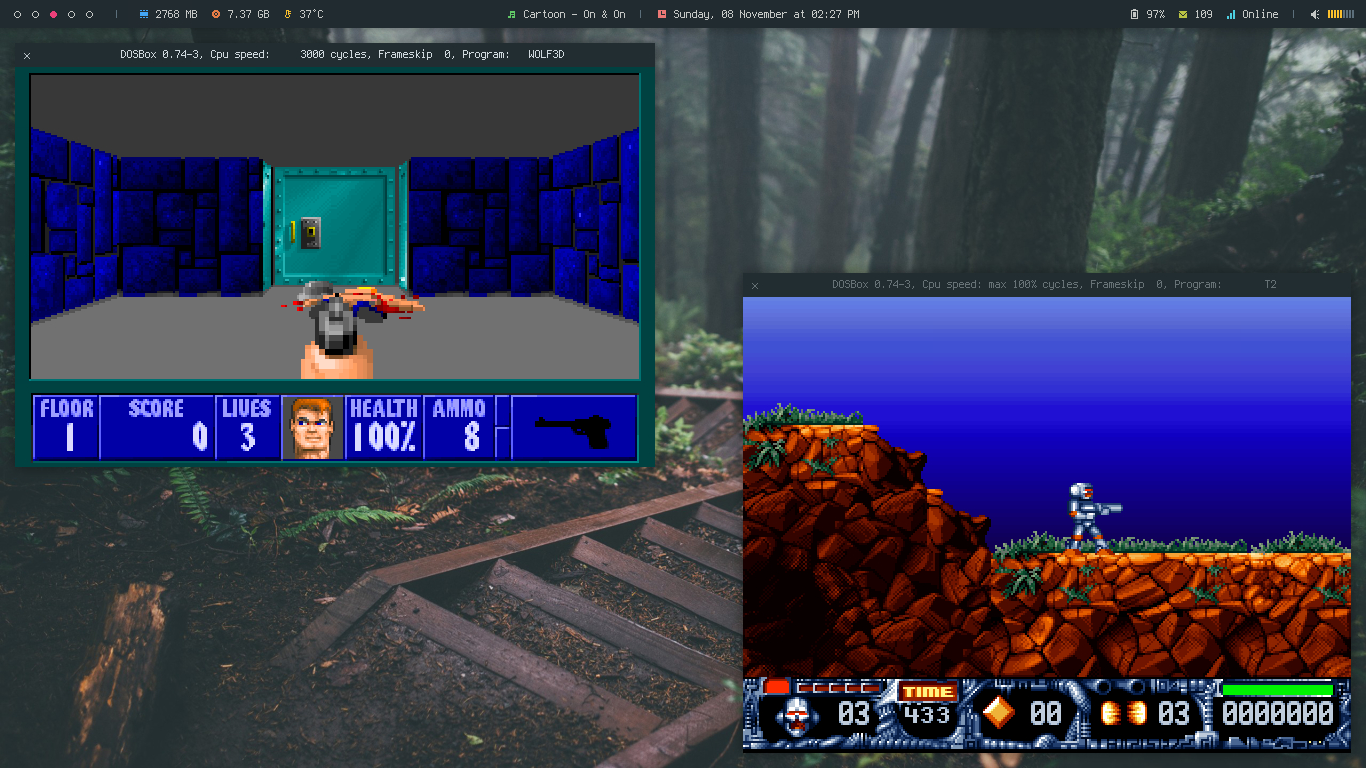
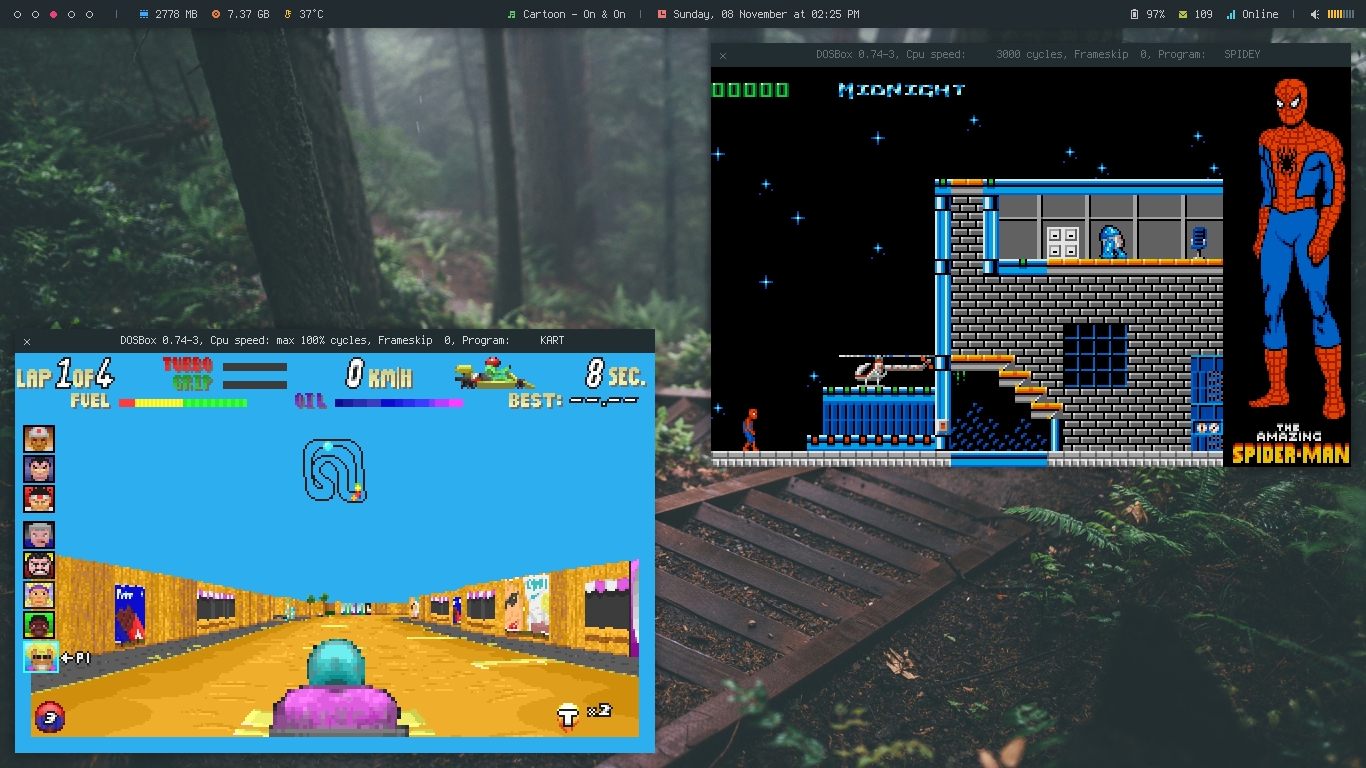
Play classic retro games or Run Microsoft Windows from 90s with Dosbox
Turbo C++, Windows 1 and Windows 3
Duke and Blue Brothers
Mario and Pacman
Prince of Persia (both)
Wolfenstein and Turrican2
SuperKarts and Spiderman
You'll probably get the idea of possible things you can do with Termux and how Termux Desktop makes it more easy.
Keybindings
Here's some shortcut keys you want to use to speed up your work. For more, Right click on desktop > Keybinds
Keys
Action
-----
Keys
Action
W-1
Go To Desktop 1
S-W-1
Send To Desktop 1
W-2
Go To Desktop 2
S-W-2
Send To Desktop 2
W-3
Go To Desktop 3
S-W-3
Send To Desktop 3
W-4
Go To Desktop 4
S-W-4
Send To Desktop 4
W-5
Go To Desktop 5
S-W-5
Send To Desktop 5
W-S-Left
Send To Prev Desktop
W-S-Right
Send To Next Desktop
A-Tab
Next Window (Current Workspace)
W-Tab
Next Window (All Workspaces)
W-h
Move to TopLeft
W-j
Move to BottomLeft
W-k
Move to TopRight
W-l
Move to BottomRight
W-Left
Move To Left Edge
W-Right
Move To Right Edge
W-Up
Maximized
W-Down
Unmaximized
W-q/c
Close Windows
A-r/m
Toggle Resize/Move
W-Space
Openbox Menu
W-p/A-F1
App Launcher
W-d
Toggle Desktop
W-v
Set Tasks
W-f
File Manager
W-e
Text Editor
W-t/return
Terminal
W-w
Web Browser
W-x
Exit Menu
W-m
Music Menu
W-b
Battery Menu
W-n
Network Menu
C-A-v
Vim
C-A-r
Ranger
C-A-h
Htop
C-A-n
Nano
Additional Tools
You can install additional tools for termux, to make it visually look good.
Oh my zsh, Setup zsh with oh-my-zsh framework. (Already Added in this setup)
Termux style, Change color and fonts in termux.
FYI
If you face any problem or get any error, you can create an issue & i'll try to help.
Edit ~/.local/bin/email and put your Email ID and Password (Use an App password) to show unread mails on polybar.
You may need to edit some config files accoring to your need (~/.mutt/muttrc, ~/.gitconfig)
Don't Email or DM me to ask how to hack, I ain't a Hacker.
Have Fun, Share this repository with your friends.
adi1090x/termux-desktop có 2.8k sao GitHub — tải lại trang để xem số mới nhất, hoặc xem trực tiếp github.com/adi1090x/termux-desktop. TopGit phản chiếu số sao của GitHub nhưng không cam kết đến từng phút.
adi1090x/termux-desktop có phải mã nguồn mở không?
Có — adi1090x/termux-desktop phát hành theo license GPL-3.0, nghĩa là mã nguồn mở để đọc, fork và (tùy license) tái sử dụng. Mã: github.com/adi1090x/termux-desktop.
adi1090x/termux-desktop có website riêng không?
TopGit chưa ghi nhận URL trang chủ cho adi1090x/termux-desktop. Phần README ở tab phía trên thường có link demo, hoặc xem mô tả GitHub của repo.
adi1090x/termux-desktop còn đang phát triển không?
Commit gần nhất trên adi1090x/termux-desktop là 3.0 năm trước (theo timestamp GitHub). Repo có 411 fork — một chỉ báo về mức độ quan tâm của cộng đồng.
Cùng nhóm Mobile còn repo nào?
adi1090x/termux-desktop thuộc nhóm Mobile trên TopGit, cùng 18 topic GitHub. Trang Trending và Topics liệt kê các repo cùng số sao và cùng ngôn ngữ để so sánh.
Đọc thêm về adi1090x/termux-desktop ở đâu?
Trang TopGit này là một snapshot — tab "Readme" hiển thị nguyên văn README của repo (đã bỏ link, giữ ảnh). Repo GitHub ở github.com/adi1090x/termux-desktop là nguồn chính thức.
Đọc đầy đủ README ở tab phía trên.
Vẫn đang phân vân về termux-desktop?
Một cú bấm sẽ gửi câu hỏi kèm trang này cho AI — xem AI nói gì về termux-desktop.
 /termux-desktop