5.1k sao GitHub và vẫn tăng — BingyanStudio/LapisCV là dự án CSS mà TopGit đang theo dõi trên nền tảng. 📄 Easily create your resume with Markdown on VSCode / Typora / Obsidian
Tóm tắt dựng từ metadata GitHub của chính dự án — chưa có bài review TopGit. Trang sẽ tự động cập nhật khi bài review đầy đủ được xuất bản.
VÌ SAO CHƯA CÓ REVIEW
TopGit viết bài đầy đủ cho repo có nhiều sao nhất và được yêu cầu nhiều nhất. Trang này là snapshot trong thời gian chờ — xem README gốc ở tab READ ME.
📄 Easily create resumes with Markdown on VSCode / Typora / Obsidian
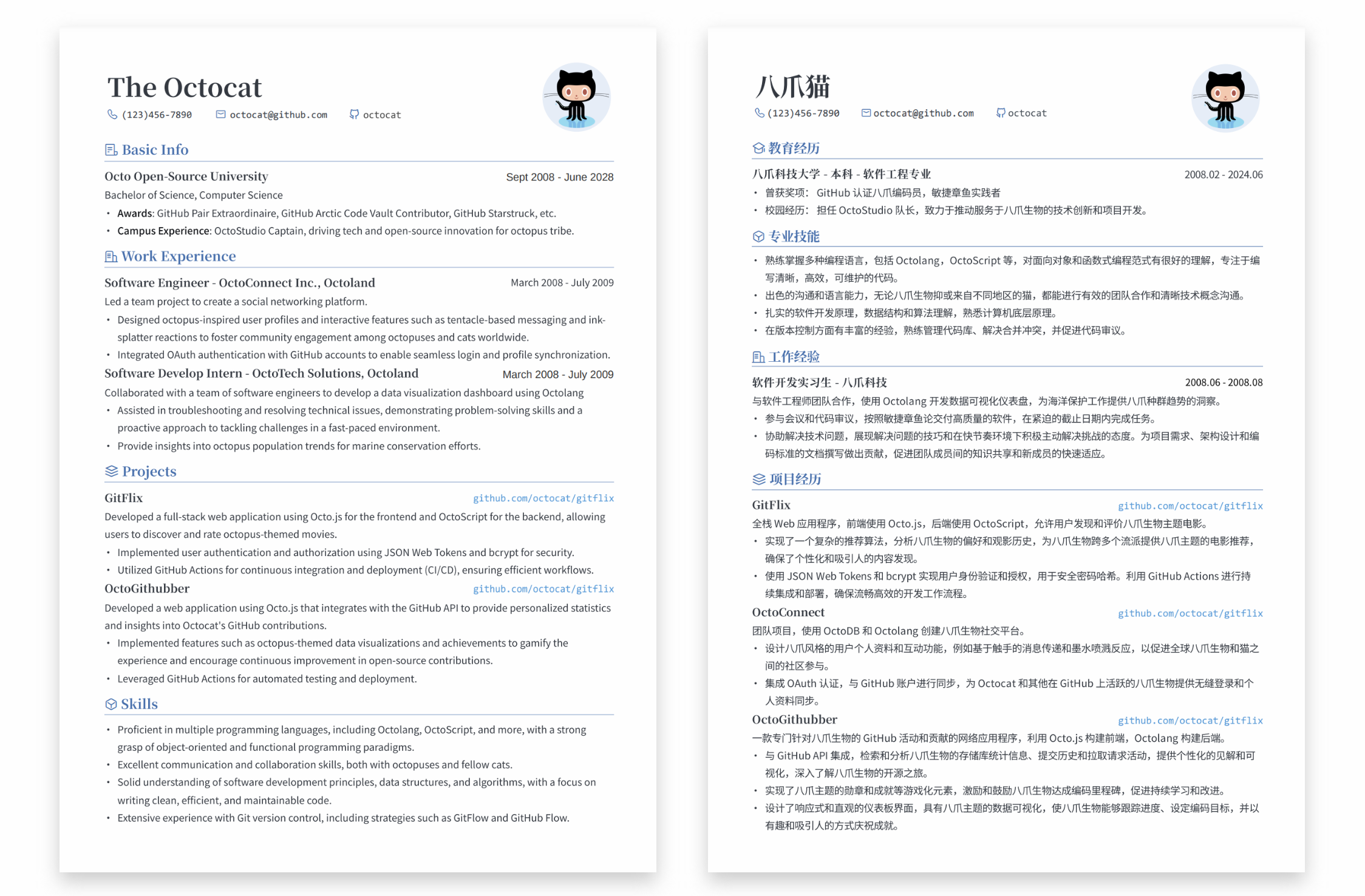
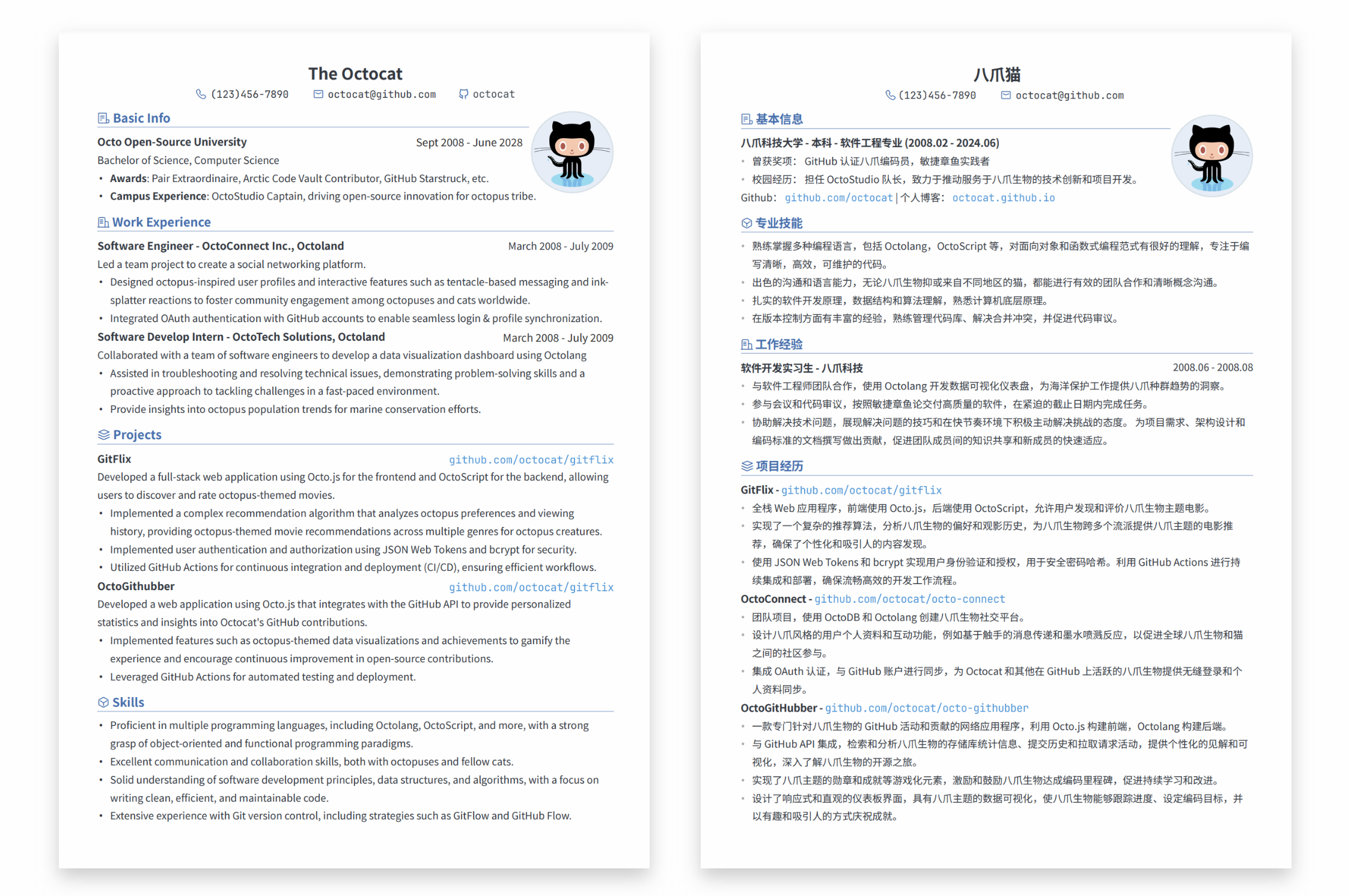
View Samples
LapisCV Serif (new in v2.0.0)
LapisCV
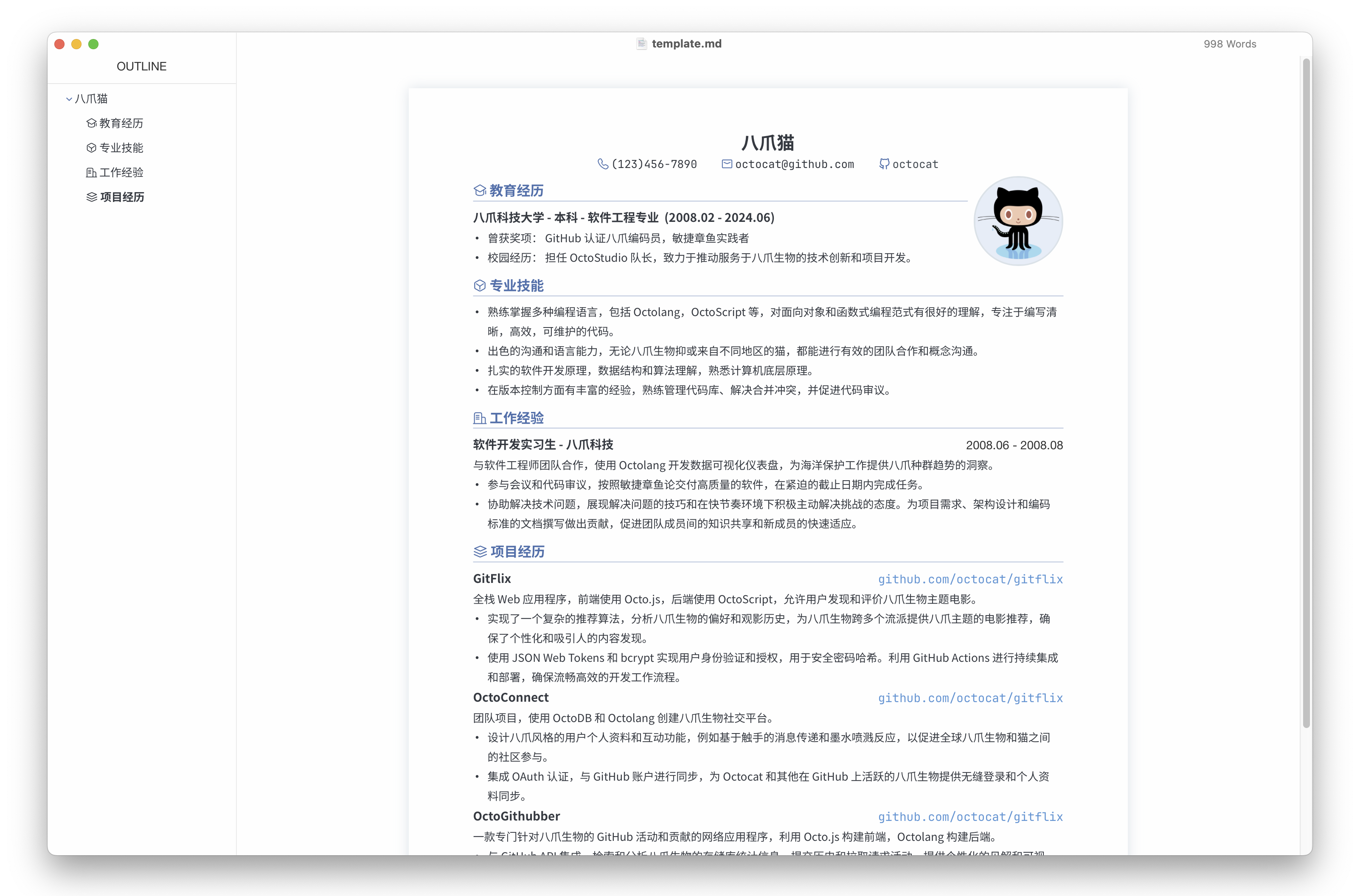
Typora Editor
Quick Start
Installation
Typora
Download Release and unzip, set the theme:
Open Typora theme folder: Preferences > Appearance > Open Theme Folder
Copy files to the theme folder: lapis-cv.css, lapis-cv-serif.css, lapis-cv directory
Restart Typora, select Lapis Cv / Lapis Cv Serif from the theme menu.
Open template file to edit.
File > Export > PDF to export the PDF file.
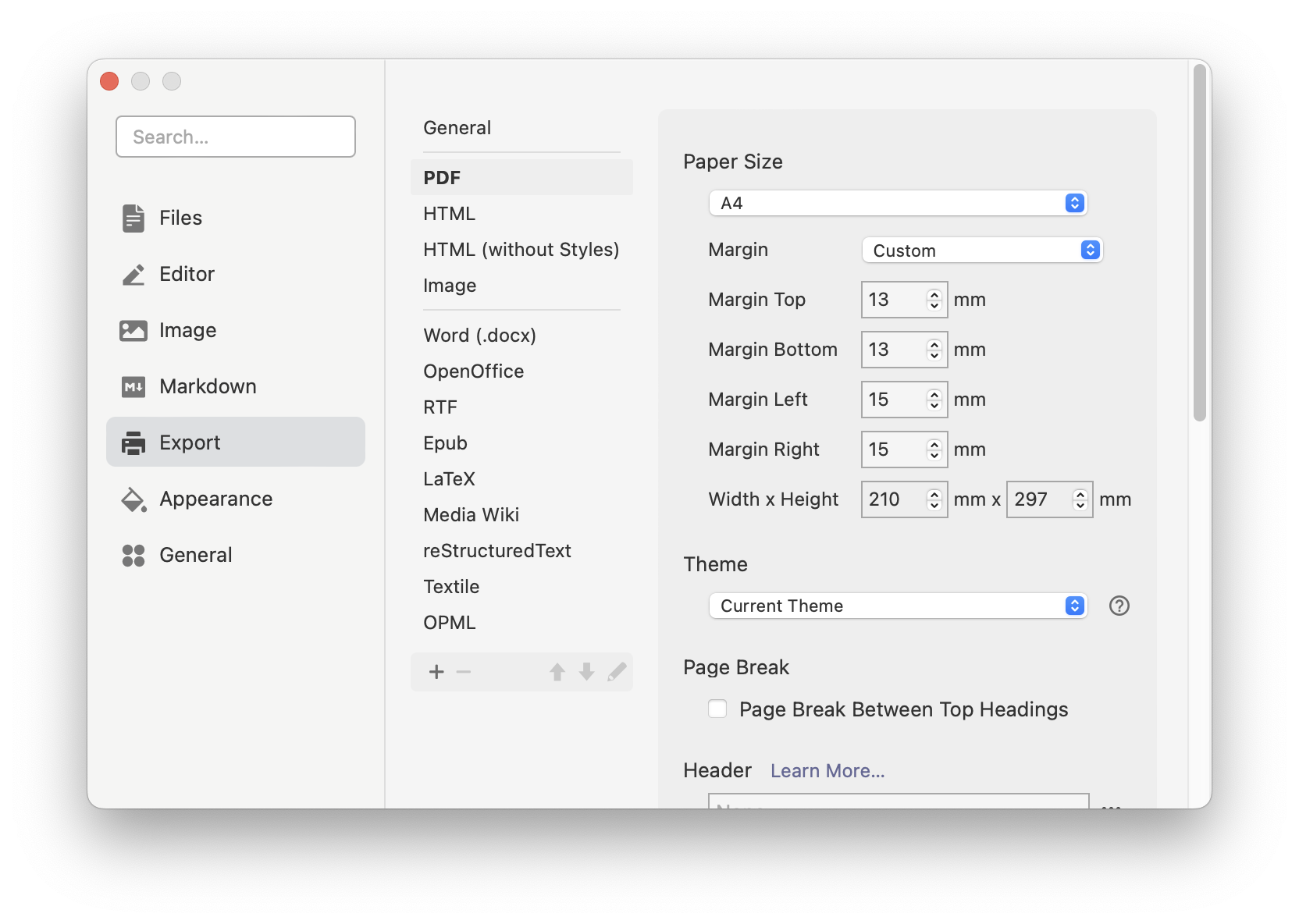
Before exporting, set the page size to A4 and margins to custom in Preferences > Export > PDF, with top and bottom margins of 13mm, and left and right margins of 15mm:
VSCode
Download Release and unzip, open the folder in VSCode.
Install the plugin Markdown PDF.
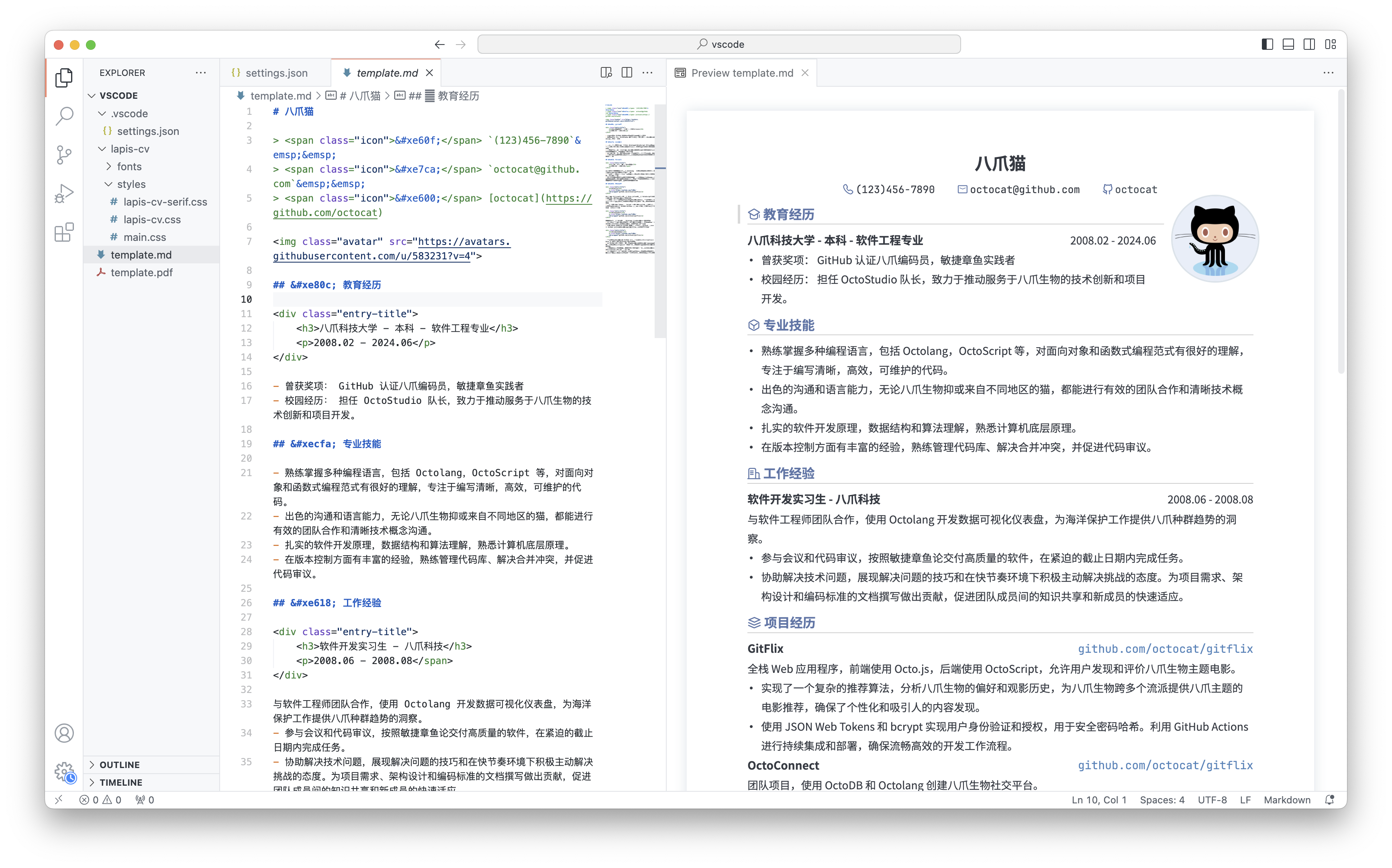
Open template file, click the preview icon in the top right to view the effect in real-time:
Right-click and select Markdown PDF - Export (pdf) to export the PDF file.
Switch themes:
Modify the style path in .vscode/settings.json:
"markdown.styles": [
    "./lapis-cv/styles/main.css",
    "./lapis-cv/styles/lapis-cv.css", // lapis-cv-serif.css for Serif
],
Other VSCode plugins may affect the style. If the effect is inconsistent, check if any plugins are interfering.
Obsidian
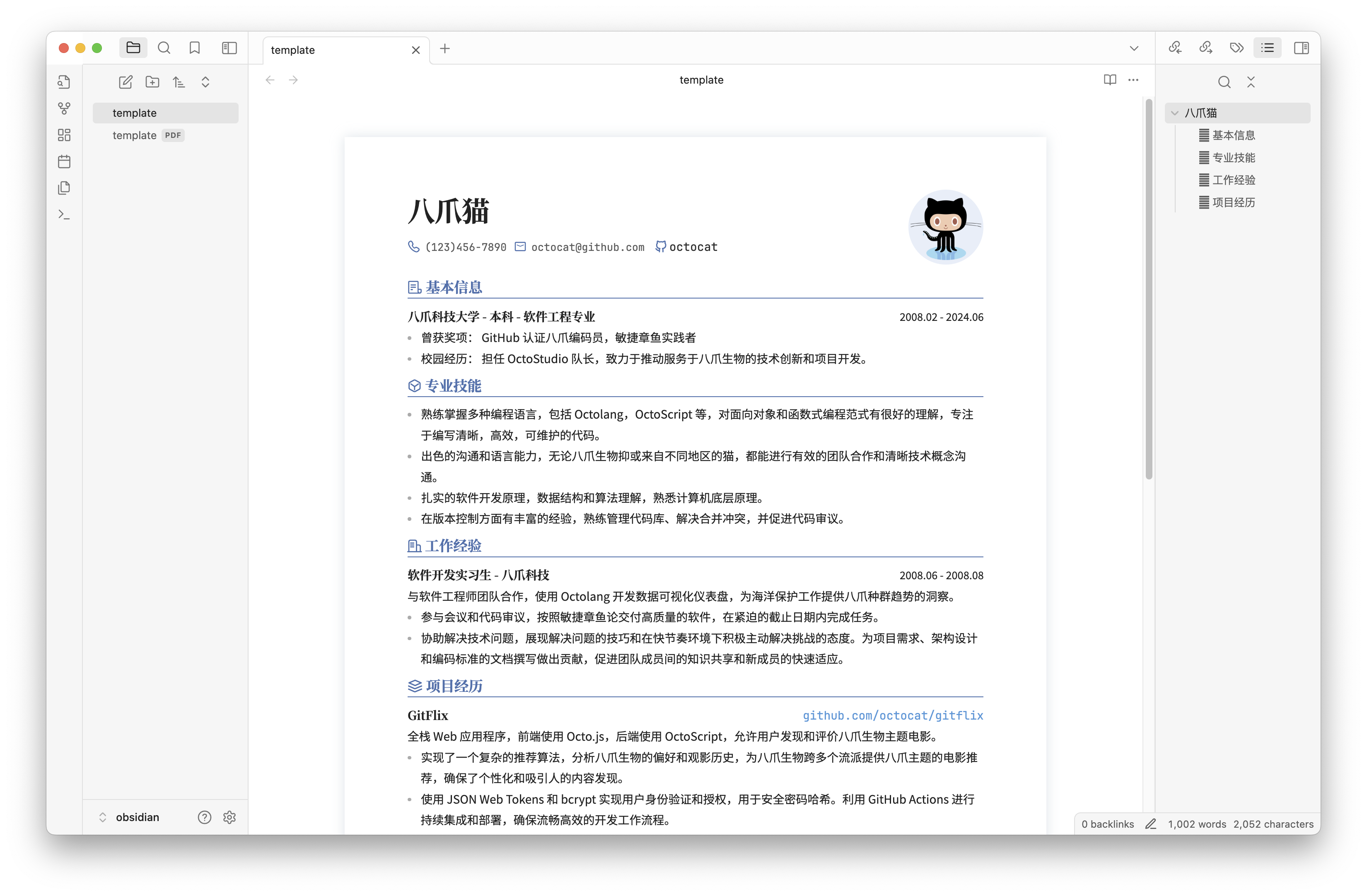
Download and unzip Release, open the lapis-cv-obsidian directory as a Vault in Obsidian, edit the template, and export the PDF file.
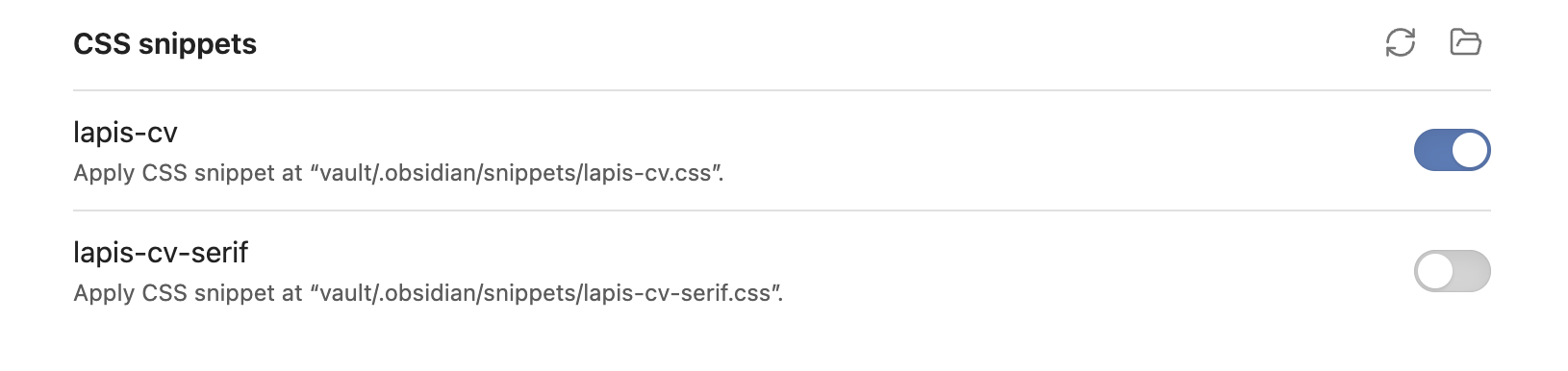
Switch themes in Options > Appearance > CSS snippets
Format and Style
Avatar
<img alt="avatar" src="...">
Replace the src image path when editing the avatar. Delete this line if no avatar is needed.
Obsidian cannot recognize local images inserted in HTML format, so it is recommended to upload the image as a link before inserting.
Icons
Supported Icons:
Icon
Escaped Unicode
Icon
Escaped Unicode
















Page Breaks & Page Numbers
Page Breaks
Insert --- at the position where a page break is needed.
Page Numbers
Typora
Set the footer in Preferences > Export > PDF, e.g., ${pageNo} / ${totalPages}
The software itself does not support adding page numbers directly. You can install plugins for this.
Margins
Typora
Preferences > Export > PDF
VSCode
Directly modify the markdown-pdf.margin related items in the .vscode/settings.json file.
Alternatively, modify via GUI:
Open VSCode settings, select the Workspace tab.
Search for Markdown-pdf › Margin, and modify the margins on all sides.
Obsidian
Modify --file-margins in the style file, see Custom Styles below.
Custom Styles
Custom styles can be used to adapt to different content volumes and adjust details according to preferences.
Modify variables in the corresponding editor's style file lapis-cv.css / lapis-cv-serif.css:
Style File Locations
Typora: Preferences > Appearance > Open Theme Folder
VSCode: lapis-cv/styles in the folder
Obsidian: Options > Appearance > CSS snippets > Right button - Open snippets folder
Meanings of Some Custom Variables
/* Custom Configs */

/* Basic Configs */
--text-size: 10pt;                      /* Text font size */
--line-height: 1.8;                     /* Text line height */
--avatar-width: 29mm;                   /* Avatar width */

/* Font Configs */
--h1-size: 16pt;                        /* Level 1 heading font size */
--h2-size: 12pt;                        /* Level 2 heading font size */
--h3-size: 10.5pt;                      /* Level 3 heading font size */
--blockquote-size: 9.3pt;               /* Info block font size */

--text-font: 'SourceHanSansCN';         /* Text font */
--title-font: 'SourceHanSerifCN';       /* Title font */
--link-font: 'JetBrainsMono';           /* Link font */
--code-font: 'JetBrainsMono';           /* Code font */

/* Colors */
--color-accent: #4870ac;                /* Theme color */
--text-normal: #353a42;                 /* Text color, change to pure black if printing is needed */
--link-color: #0563c1;                  /* Link color */
Note: Some styles require restarting the application to take effect.
Contributing
Welcome to submit suggestions via Issues or participate in development via Pull Request!
How to build from source code
git clone [email protected]:BingyanStudio/LapisCV.git
cd LapisCV
make
ls build
GitHub topics của BingyanStudio/LapisCV: "obsidian", "resume-builder", "resume-template", "typora", "vscode-extension". TopGit xếp repo vào nhóm Developer Tools.
BingyanStudio/LapisCV có phải mã nguồn mở không?
Có — BingyanStudio/LapisCV phát hành theo license MIT, nghĩa là mã nguồn mở để đọc, fork và (tùy license) tái sử dụng. Mã: github.com/BingyanStudio/LapisCV.
BingyanStudio/LapisCV có trang demo không?
Dự án có trang chủ ở https://lapis-cv.bingyan.net. Tab "Readme" ở trang này thường có ảnh chụp và hướng dẫn bắt đầu nhanh.
BingyanStudio/LapisCV còn đang phát triển không?
Commit gần nhất trên BingyanStudio/LapisCV là 4 tháng trước (theo timestamp GitHub). Repo có 319 fork — một chỉ báo về mức độ quan tâm của cộng đồng.
BingyanStudio/LapisCV dùng license gì?
BingyanStudio/LapisCV phát hành theo license MIT. Nên mở file LICENSE trên GitHub để xác nhận — license metadata đôi khi lệch với thực tế dự án.
Đọc thêm về BingyanStudio/LapisCV ở đâu?
Trang TopGit này là một snapshot — tab "Readme" hiển thị nguyên văn README của repo (đã bỏ link, giữ ảnh). Repo GitHub ở github.com/BingyanStudio/LapisCV là nguồn chính thức.
Đọc đầy đủ README ở tab phía trên.
LapisCV có đáng để bạn bỏ thời gian?
ChatGPT, Claude và Perplexity đều đọc được trang này. Hỏi thử xem họ nghĩ gì về LapisCV.

 /LapisCV