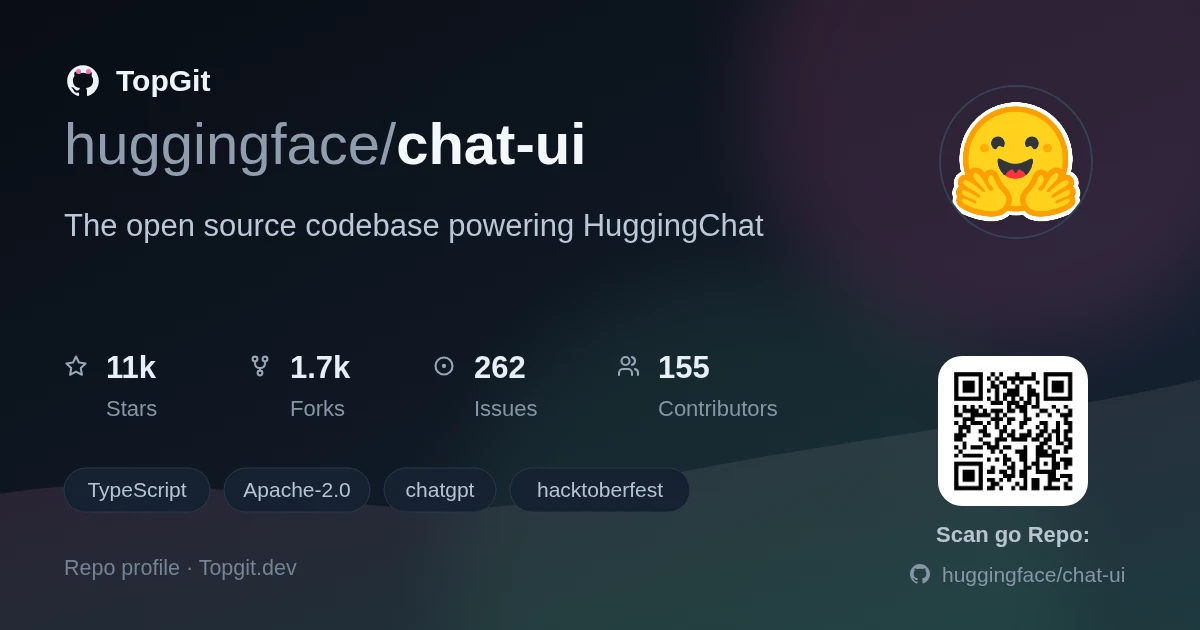
huggingface/chat-ui được TopGit xếp vào nhóm công cụ AI, với 11.0k sao trên GitHub, viết chủ yếu bằng TypeScript. The open source codebase powering HuggingChat
Tóm tắt dựng từ metadata GitHub của chính dự án — chưa có bài review TopGit. Trang sẽ tự động cập nhật khi bài review đầy đủ được xuất bản.
VÌ SAO CHƯA CÓ REVIEW
TopGit viết bài đầy đủ cho repo có nhiều sao nhất và được yêu cầu nhiều nhất. Trang này là snapshot trong thời gian chờ — xem README gốc ở tab READ ME.
A chat interface for LLMs. It is a SvelteKit app and it powers the HuggingChat app on hf.co/chat.
Quickstart
Database Options
Launch
Optional Docker Image
Extra parameters
ML Intern
Building
[!NOTE]
Chat UI only supports OpenAI-compatible APIs via OPENAI_BASE_URL and the /models endpoint. Provider-specific integrations (legacy MODELS env var, GGUF discovery, embeddings, web-search helpers, etc.) are removed, but any service that speaks the OpenAI protocol (llama.cpp server, Ollama, OpenRouter, etc.) will work by default.
[!NOTE]
The old version is still available on the legacy branch
Quickstart
Chat UI speaks to OpenAI-compatible APIs only. The fastest way to get running is with the Hugging Face Inference Providers router plus your personal Hugging Face access token.
OPENAI_API_KEY can come from any OpenAI-compatible endpoint you plan to call. Pick the combo that matches your setup and drop the values into .env.local:
Check the root .env template for the full list of optional variables you can override.
Step 2 – Install and launch the dev server:
git clone https://github.com/huggingface/chat-ui
cd chat-ui
npm install
npm run dev -- --open
You now have Chat UI running locally. Open the browser and start chatting.
Database Options
Chat history, users, settings, files, and stats all live in MongoDB. You can point Chat UI at any MongoDB 6/7 deployment.
[!TIP]
For quick local development, you can skip this section. When MONGODB_URL is not set, Chat UI falls back to an embedded MongoDB that persists to ./db.
MongoDB Atlas (managed)
Create a free cluster at mongodb.com.
Add your IP (or 0.0.0.0/0 for development) to the network access list.
Create a database user and copy the connection string.
Paste that string into MONGODB_URL in .env.local. Keep the default MONGODB_DB_NAME=chat-ui or change it per environment.
Atlas keeps MongoDB off your laptop, which is ideal for teams or cloud deployments.
Local MongoDB (container)
If you prefer to run MongoDB in a container:
docker run -d -p 27017:27017 --name mongo-chatui mongo:latest
Then set MONGODB_URL=mongodb://localhost:27017 in .env.local.
Launch
After configuring your environment variables, start Chat UI with:
npm install
npm run dev
The dev server listens on http://localhost:5173 by default. Use npm run build / npm run preview for production builds.
Optional Docker Image
The chat-ui-db image bundles MongoDB inside the container:
All environment variables accepted in .env.local can be provided as -e flags.
Extra parameters
Theming
You can use a few environment variables to customize the look and feel of chat-ui. These are by default:
PUBLIC_APP_NAME=ChatUI
PUBLIC_APP_ASSETS=chatui
PUBLIC_APP_DESCRIPTION="Making the community's best AI chat models available to everyone."
PUBLIC_APP_DATA_SHARING=
PUBLIC_APP_NAME The name used as a title throughout the app.
PUBLIC_APP_ASSETS Is used to find logos & favicons in static/$PUBLIC_APP_ASSETS, current options are chatui and huggingchat.
PUBLIC_APP_DATA_SHARING Can be set to 1 to add a toggle in the user settings that lets your users opt-in to data sharing with models creator.
Models
Models are discovered from ${OPENAI_BASE_URL}/models, and you can optionally override their metadata via the MODELS env var (JSON5). Legacy provider‑specific integrations and GGUF discovery are removed. Authorization uses OPENAI_API_KEY (preferred). HF_TOKEN remains a legacy alias.
LLM Router (Optional)
Chat UI can perform server-side smart routing using a local heuristic — no separate router service or selection model is called. The UI exposes a virtual model alias called "Omni" (configurable) that, when selected, chooses the best route/model for each message: image inputs go to a multimodal route, MCP-tool-enabled requests go to an agentic route, and everything else goes to a default route.
Provide a routes policy JSON via LLM_ROUTER_ROUTES_PATH. No sample file ships with this branch, so you must point the variable to a JSON array you create yourself (for example, commit one in your project like config/routes.chat.json). Each route entry needs name, description, primary_model, and optional fallback_models. The router recognizes the route names default, multimodal, and agentic.
The default route name is configurable via LLM_ROUTER_DEFAULT_ROUTE (default: default). If the selected route's models all fail, calls fall back to LLM_ROUTER_FALLBACK_MODEL.
Omni alias configuration: PUBLIC_LLM_ROUTER_ALIAS_ID (default omni), PUBLIC_LLM_ROUTER_DISPLAY_NAME (default Omni), and optional PUBLIC_LLM_ROUTER_LOGO_URL.
When you select Omni in the UI, Chat UI will:
Pick a route locally based on the request signals (image attached, MCP server enabled, or default).
Emit RouterMetadata immediately (route and actual model used) so the UI can display it.
Stream from the selected model via your configured OPENAI_BASE_URL. On errors, it tries route fallbacks in order, then LLM_ROUTER_FALLBACK_MODEL.
Tool and multimodal shortcuts:
Multimodal: If LLM_ROUTER_ENABLE_MULTIMODAL=true and the user sends an image, the router bypasses the policy file and uses the model specified in LLM_ROUTER_MULTIMODAL_MODEL. Route name: multimodal.
Tools: If LLM_ROUTER_ENABLE_TOOLS=true and the user has at least one MCP server enabled, the router bypasses the policy file and uses LLM_ROUTER_TOOLS_MODEL. If that model is missing or misconfigured, it falls back to the heuristic route. Route name: agentic.
MCP Tools (Optional)
Chat UI can call tools exposed by Model Context Protocol (MCP) servers and feed results back to the model using OpenAI function calling. You can preconfigure trusted servers via env, let users add their own, and optionally have the Omni router auto‑select a tools‑capable model.
Configure servers (base list for all users):
# JSON array of servers: name, url, optional headers
MCP_SERVERS=[
  {"name": "Web Search (Exa)", "url": "https://mcp.exa.ai/mcp"},
  {"name": "Hugging Face MCP Login", "url": "https://hf.co/mcp?login"}
]

# Forward the signed-in user's Hugging Face token to the official HF MCP login endpoint
# when no Authorization header is set on that server entry.
MCP_FORWARD_HF_USER_TOKEN=true
Enable router tool path (Omni):
Set LLM_ROUTER_ENABLE_TOOLS=true and choose a tools‑capable target with LLM_ROUTER_TOOLS_MODEL=<model id or name>.
The target must support OpenAI tools/function calling. Chat UI surfaces a “tools” badge on models that advertise this; you can also force‑enable it per‑model in settings (see below).
Use tools in the UI:
Open “MCP Servers” from the top‑right menu or from the + menu in the chat input to add servers, toggle them on, and run Health Check. The server card lists available tools.
When a model calls a tool, the message shows a compact “tool” block with parameters, a progress bar while running, and the result (or error). Results are also provided back to the model for follow‑up.
Per‑model overrides:
In Settings → Model, you can toggle “Tool calling (functions)” and “Multimodal input” per model. These overrides apply even if the provider metadata doesn’t advertise the capability.
ML Intern
ML Intern is an experimental mode that plans and runs machine-learning work on the Hugging Face Hub: reproducing papers, finetuning and evaluating models, building datasets, and deploying demos as Spaces. It reads papers, models and datasets, writes scripts, and runs them as Hugging Face Jobs and sandboxes, within a compute budget you set for each conversation.
Try it on HuggingChat at huggingface.co/chat/?mode=ml-intern.
Getting started with ML Intern: set up your account and billing, write your first task, and keep spending under control.
Running Chat UI with ML Intern locally: configure and run ML Intern in your own Chat UI, choose models, and find your way around the code.
ML Intern in Slack: add the bot to your workspace, connect your account, and work with it in threads. To run your own, see the Slack integration guide.
Building
To create a production version of your app:
npm run build
You can preview the production build with npm run preview.
To deploy your app, you may need to install an adapter for your target environment.
huggingface/chat-ui có 11.0k sao GitHub — tải lại trang để xem số mới nhất, hoặc xem trực tiếp github.com/huggingface/chat-ui. TopGit phản chiếu số sao của GitHub nhưng không cam kết đến từng phút.
huggingface/chat-ui có những chủ đề gì?
GitHub topics của huggingface/chat-ui: "chatgpt", "hacktoberfest", "huggingface", "llm", "svelte", "svelte-kit", "sveltekit", "tailwindcss", "typescript". TopGit xếp repo vào nhóm AI Tools.
huggingface/chat-ui còn đang phát triển không?
Commit gần nhất trên huggingface/chat-ui là 3 tháng trước (theo timestamp GitHub). Repo có 1.7k fork — một chỉ báo về mức độ quan tâm của cộng đồng.
huggingface/chat-ui là gì?
huggingface/chat-ui (huggingface/chat-ui) là dự án TypeScript trên GitHub. Theo mô tả gốc: The open source codebase powering HuggingChat
huggingface/chat-ui so với các dự án AI Tools khác thế nào?
huggingface/chat-ui được TopGit xếp vào nhóm AI Tools, với 11.0k sao GitHub và viết bằng TypeScript. Xem trang chủ đề AI Tools trên TopGit để so sánh với các dự án tương tự theo số sao và mức độ hoạt động.
huggingface/chat-ui viết bằng ngôn ngữ gì?
huggingface/chat-ui chủ yếu viết bằng TypeScript. Trường "language" của GitHub dựa trên phần lớn byte ở nhánh mặc định.
Vì sao huggingface/chat-ui được xếp vào nhóm AI Tools?
TopGit xếp huggingface/chat-ui vào nhóm AI Tools dựa trên GitHub topics và mô tả của repo (gắn thẻ: "chatgpt", "hacktoberfest", "huggingface"). Việc phân loại dựa trên metadata thật của repo, không phải đoán theo cảm tính biên tập.
Đọc đầy đủ README ở tab phía trên.
Vẫn đang phân vân về chat-ui?
Một cú bấm sẽ gửi câu hỏi kèm trang này cho AI — xem AI nói gì về chat-ui.

 /chat-ui