
hwdsl2/self-hosted-ai-stack

hwdsl2/self-hosted-ai-stack là một trong những repo tích hợp AI mà TopGit theo dõi, hiện có 180 sao, viết chủ yếu bằng Shell. Deploy a self-hosted AI stack with Docker Compose: local LLMs, chat, document parsing, embeddings, transcription, text-to-speech and MCP tools. Powered by Ollama, LiteLLM, AnythingLLM and more. Local-first with auto-configured authentication, lightweight stacks, optional HTTPS and NVIDIA GPU support. MIT licensed. Multi-arch: amd64, arm64.
Tóm tắt dựng từ metadata GitHub của chính dự án — chưa có bài review TopGit. Trang sẽ tự động cập nhật khi bài review đầy đủ được xuất bản.
TopGit viết bài đầy đủ cho repo có nhiều sao nhất và được yêu cầu nhiều nhất. Trang này là snapshot trong thời gian chờ — xem README gốc ở tab READ ME.
Snapshot
Cộng tác viên hàng đầu
Xem cộng tác viên hàng đầu
English | 简体中文 | 繁體中文 | Русский
Self-Hosted AI Stack



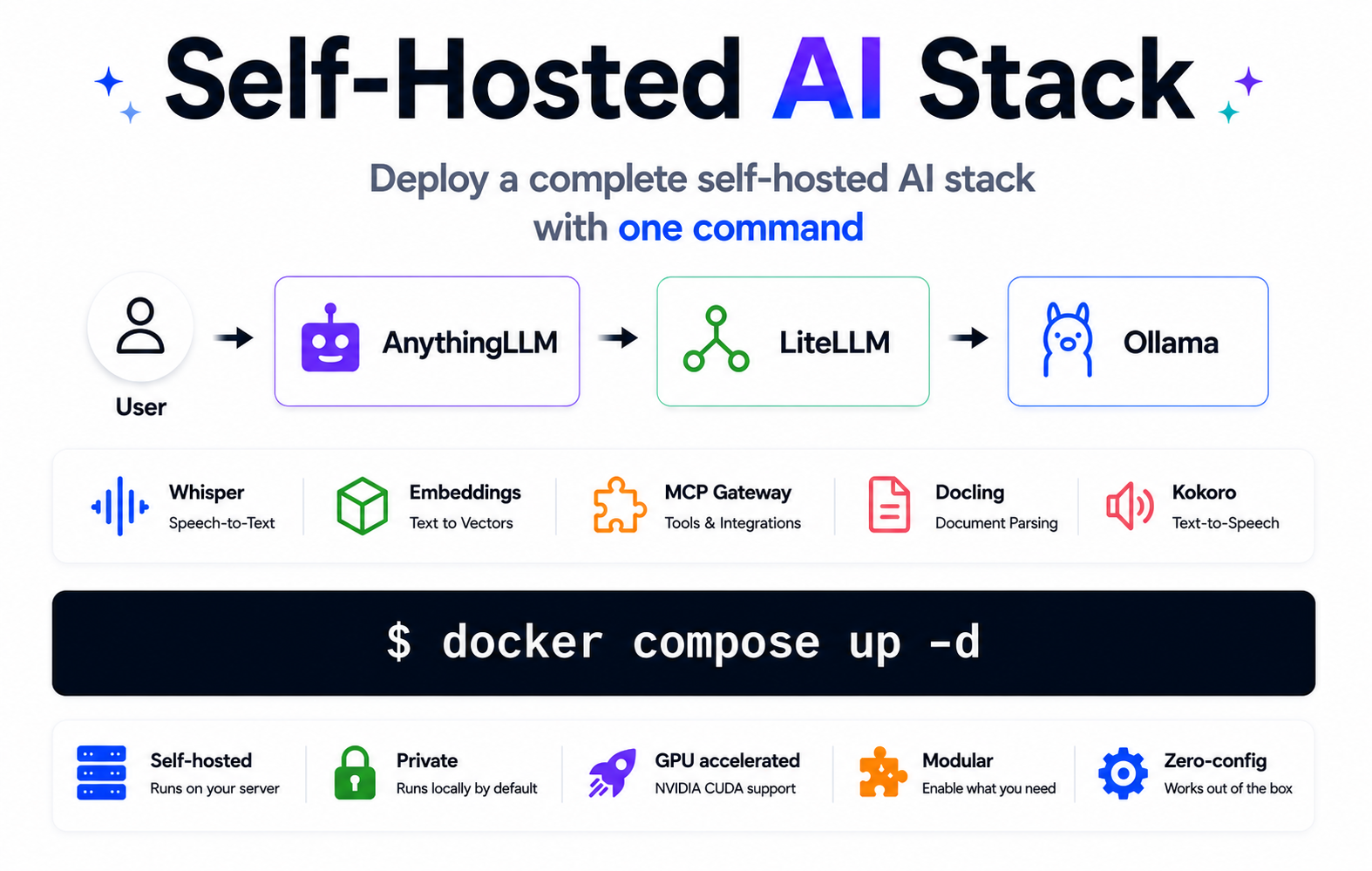
Run local AI models, chat with your documents, transcribe audio, and connect MCP tools with Docker Compose. Optional services add document parsing, text-to-speech, and real-time transcription.
Features:
- Zero-config: all services auto-configure on first start.
- Secure by default: AnythingLLM password protection is enabled, and bundled API services auto-generate keys.
- HTTPS-ready: optional Caddy overlay provides automatic TLS and binds direct HTTP ports to localhost.
- Local by default: runs locally, with optional external provider support via GatewayCrate.
- AI agent ready: connect goose on your workstation to GatewayCrate with the setup guide.
- Flexible configuration: customize models, ports, providers, and API keys with simple env files.
- Lightweight stacks: for lower memory requirements (as low as ~4.5 GB).
- GPU acceleration: via NVIDIA CUDA.
- Multi-architecture support:
linux/amd64,linux/arm64.
📘 The Self-Hosted AI Builder’s Guide is the hands-on companion to this stack, covering deployment, security, backups, and upgrades. Kindle · Google Play · paperback
Included services
| Service | Role | Default port |
|---|---|---|
| InferCrate (Ollama LLM) | Runs local LLM models (llama3, qwen, mistral, etc.) | 11434 |
| AnythingLLM | Web-based chat UI — password-protected by default | 3001 |
| GatewayCrate (LiteLLM) | AI gateway with Admin UI — routes requests to InferCrate and 100+ providers | 4000 |
| EmbedCrate (Hugging Face TEI) | Converts text to vectors for semantic search and RAG | 8000 |
| ScribeCrate (Whisper STT) | Transcribes spoken audio to text | 9000 |
| ScribeCrate Live (real-time STT) | Real-time speech-to-text transcription over WebSocket | 9090 |
| SpeakCrate (Kokoro TTS) | Converts text to natural-sounding speech | 8880 |
| UplinkCrate (MCPHub) | Provides MCP tools (filesystem, fetch, GitHub, search, databases) to AI clients | 3000 |
| ParseCrate (Docling) | Converts documents (PDF, DOCX, etc.) to structured text/Markdown | 5001 |
Quick start
Requirements:
- A Linux server (local or cloud) with Docker installed
- At least 8 GB of RAM (with small models). For larger LLM models (8B+), 16 GB or more is recommended.
- You can comment out services you don't need to reduce memory usage.
Start the full stack:
# Clone the repository to get the compose files
git clone https://github.com/hwdsl2/self-hosted-ai-stack
cd self-hosted-ai-stack
docker compose up -d
PostgreSQL credentials: Fresh installs and existing default installs are handled automatically. If you previously set a custom database password, see PostgreSQL credentials before starting.
Pull a model (required before making LLM requests):
docker exec ollama ollama_manage --pull llama3.2:3b
Run the health check to verify all services are working:
./stack-check.sh
Tip: On first start, services may take a few minutes to initialize. If any checks fail, wait and run
./stack-check.shagain. Usedocker compose logsto check progress.
For detailed troubleshooting, see the Troubleshooting guide.
Get the GatewayCrate master key (used to log into the Admin UI and for LLM requests):
docker exec litellm litellm_manage --showkey
Show core API keys (InferCrate, GatewayCrate, UplinkCrate)
docker exec ollama ollama_manage --showkey
docker exec litellm litellm_manage --showkey
docker exec mcp mcp_manage --showkey
Access AnythingLLM (Chat UI):
AnythingLLM is pre-configured to connect to your local LLM via GatewayCrate. On first start, it may take a few minutes to become available (check progress with docker logs anythingllm).
Password-protected by default. A random admin password is auto-generated on first start, printed once to docker logs anythingllm, and saved to /app/server/storage/.initial_admin_password inside the anythingllm-data volume. The seeded password persists across container upgrades. Change it any time from Settings → Security; after you do, .initial_admin_password may no longer match the current login password.
Retrieve the auto-generated password:
# At any time from the data volume:
docker exec anythingllm cat /app/server/storage/.initial_admin_password

# Or from the live logs (only shown on first start):
docker compose logs anythingllm | grep -A4 "FIRST RUN"
Open http://<server-ip>:3001 in your browser and log in with the password above.
[!NOTE] When exposing AnythingLLM beyond
localhostor a trusted LAN, use the included Caddy HTTPS overlay so the password is encrypted in transit and direct HTTP ports are bound to localhost. See Internet-facing deployments below.
Access GatewayCrate's LiteLLM Admin UI:
Open http://<server-ip>:4000/ui in your browser. Log in with username admin and your GatewayCrate master key as the password. The UI provides virtual key management, spend tracking, and model configuration.
Tip: In the Admin UI, click Playground in the left menu. Select a local model (e.g.,
ollama-chat/llama3.2:3b) from the dropdown and start chatting — a quick way to verify your local LLM is working end-to-end.
Use the stack with goose:
Install goose on your workstation and connect it to the stack's GatewayCrate endpoint for supervised agent and coding tasks. The goose setup guide covers native installation, a restricted GatewayCrate key, local-model expectations, permissions, testing, and optional UplinkCrate access.
Stop the stack:
# Stop and remove all containers (data is preserved in Docker volumes)
docker compose down
Community
- 📬 Get project updates and free deployment guides (1–2 emails/month)
- 💬 Join the r/selfhostedstack community for discussions and showcases
- ⭐ Star the repository if you find it useful — it helps others discover it
Self-Hosted AI Stack is maintained by the author of Setup IPsec VPN (28k+ stars).
GPU acceleration (NVIDIA CUDA)
For NVIDIA GPU acceleration, use the CUDA compose file:
docker compose -f docker-compose.cuda.yml up -d
Tip: To avoid adding
-f docker-compose.cuda.ymlto every subsequentdocker composecommand (down,pull,logs, etc.), set it once for your shell session:export COMPOSE_FILE=docker-compose.cuda.ymlThen run plain
docker composecommands as usual. To make it persistent, addCOMPOSE_FILE=docker-compose.cuda.ymlto a.envfile in this directory. Rununset COMPOSE_FILEto switch back to the CPU configuration.
Requirements: NVIDIA GPU, NVIDIA driver 575.57.08+ (Linux) or 576.57+ (Windows), and the NVIDIA Container Toolkit installed on the host. CUDA images are linux/amd64 only.
[!IMPORTANT] The Compose
deploy:GPU block is ignored by Podman. Use CDI instead — see Using Podman.
Lightweight stacks
Don't need the full stack? Use a pre-configured subset from the stacks/ folder:
[!IMPORTANT] The lightweight stacks share default container names, ports, and Docker volume names. Run one stack variant at a time with the default compose files; stop the current variant before switching to another. To combine capabilities, use the full stack or customize Compose project names, container names, ports, and volumes.
| Stack | Services | Memory | Use case |
|---|---|---|---|
| chat-ui | InferCrate + GatewayCrate + AnythingLLM | ~5 GB | Web-based ChatGPT-like chat interface |
| voice-pipeline | ScribeCrate + InferCrate + GatewayCrate + SpeakCrate | ~6 GB | Speech-to-text → LLM → text-to-speech |
| voice-chat | ScribeCrate + InferCrate + GatewayCrate + SpeakCrate + AnythingLLM | ~6.5 GB | Chat UI with voice input/output |
| rag-pipeline | InferCrate + GatewayCrate + EmbedCrate | ~5 GB | Semantic search + LLM Q&A |
| rag-pipeline-full | InferCrate + GatewayCrate + EmbedCrate + ParseCrate | ~6 GB | Document parsing + semantic search + LLM Q&A |
| code-assistant | InferCrate + GatewayCrate + UplinkCrate + EmbedCrate | ~5 GB | AI coding with tools + semantic code search |
| ai-tools | InferCrate + GatewayCrate + UplinkCrate | ~5 GB | AI coding assistant with tool access |
| chat-only | InferCrate + GatewayCrate | ~4.5 GB | Minimal local ChatGPT replacement |
git clone https://github.com/hwdsl2/self-hosted-ai-stack
cd self-hosted-ai-stack/stacks/chat-ui  # or voice-pipeline, voice-chat, rag-pipeline, rag-pipeline-full, code-assistant, ai-tools, chat-only
docker compose up -d
Architecture
graph LR
    A["🎤 Audio input"] -->|transcribe| W["ScribeCrate<br/>(speech-to-text)"]
    D["📄 Documents"] -->|parse| DC["ParseCrate<br/>(document → text)"]
    DC -->|embed| E["EmbedCrate<br/>(text → vectors)"]
    E -->|store| VDB["pgvector<br/>(in shared Postgres)"]
    W -->|query| E
    VDB -->|context| L["GatewayCrate<br/>(AI gateway)"]
    W -->|text| L
    L -->|routes to| O["InferCrate<br/>(local LLM)"]
    L -->|response| T["SpeakCrate TTS<br/>(text-to-speech)"]
    T --> B["🔊 Audio output"]
    C["🤖 AI client<br/>(goose, Cline, Claude, etc.)"] -->|MCP tools| M["UplinkCrate<br/>(MCP endpoint)"]
    C -->|chat| L
    L -->|MCP protocol| M
    U["👤 User"] -->|chat| AN["AnythingLLM<br/>(chat UI)"]
    AN -->|LLM requests| L
    AN -->|MCP tools| M
    U -->|use| C
    U -->|speak| A
    U -->|upload| D
Notes:
- InferCrate's port (
11434) and UplinkCrate's port (3000) are internal to the Docker network and not exposed to the host by default. Access your LLM through GatewayCrate on port4000. - SpeakCrate (TTS), ParseCrate (document parsing), and ScribeCrate Live (real-time STT) are disabled by default to reduce memory usage. Uncomment these services in
docker-compose.ymlto enable them.
Running without Docker Compose
If you prefer using docker run commands directly, first create a shared network so services can communicate:
docker network create ai-stack
Then generate a PostgreSQL password and start each service on the shared network:
Note: With manual
docker run, start PostgreSQL first, then the model and tool services included in your stack. Wait for dependencies to be ready before starting GatewayCrate, then start AnythingLLM if included. The examples below generate one PostgreSQL password variable and reuse it for Postgres and GatewayCrate.
LITELLM_POSTGRES_PASSWORD=$(LC_ALL=C tr -dc 'A-Za-z0-9' </dev/urandom | head -c 32)

# PostgreSQL with pgvector (required by GatewayCrate; pgvector enables vector storage for RAG)
docker run -d --name litellm-db --restart always \
    --network ai-stack \
    -e POSTGRES_USER=litellm \
    -e POSTGRES_PASSWORD="$LITELLM_POSTGRES_PASSWORD" \
    -e POSTGRES_DB=litellm \
    -v litellm-db:/var/lib/postgresql \
    pgvector/pgvector:pg18-trixie

# InferCrate (LLM)
docker run -d --name ollama --restart always \
    --network ai-stack \
    -v ollama-data:/var/lib/ollama \
    -v ollama-shared:/var/lib/ollama-shared \
    hwdsl2/ollama-server

# UplinkCrate
docker run -d --name mcp --restart always \
    --network ai-stack \
    -v mcp-data:/var/lib/mcp \
    -v mcp-shared:/var/lib/mcp-shared \
    hwdsl2/mcp-gateway

# GatewayCrate (AI gateway)
docker run -d --name litellm --restart always \
    --network ai-stack \
    -p 4000:4000 \
    -e LITELLM_OLLAMA_BASE_URL=http://ollama:11434 \
    -e LITELLM_MCP_URL=http://mcp:3000/mcp \
    -e LITELLM_DATABASE_URL="postgresql://litellm:${LITELLM_POSTGRES_PASSWORD}@litellm-db:5432/litellm" \
    -v litellm-data:/etc/litellm \
    -v ollama-shared:/var/lib/ollama-shared:ro \
    -v mcp-shared:/var/lib/mcp-shared:ro \
    -v litellm-shared:/var/lib/litellm-shared \
    hwdsl2/litellm-server

# EmbedCrate
docker run -d --name embeddings --restart always \
    --network ai-stack \
    -p 127.0.0.1:8000:8000 \
    -v embeddings-data:/var/lib/embeddings \
    hwdsl2/embeddings-server

# ScribeCrate (Whisper STT)
docker run -d --name whisper --restart always \
    --network ai-stack \
    -p 127.0.0.1:9000:9000 \
    -v whisper-data:/var/lib/whisper \
    hwdsl2/whisper-server

# ScribeCrate Live (real-time STT)
docker run -d --name whisper-live --restart always \
    --network ai-stack \
    -p 127.0.0.1:9090:9090 \
    -v whisper-live-data:/var/lib/whisper-live \
    hwdsl2/whisper-live-server

# AnythingLLM (chat UI)
docker run -d --name anythingllm --restart always \
    --network ai-stack \
    -p 3001:3001 \
    -e STORAGE_DIR=/app/server/storage \
    -e LLM_PROVIDER=generic-openai \
    -e GENERIC_OPEN_AI_BASE_PATH=http://litellm:4000/v1 \
    -e GENERIC_OPEN_AI_MODEL_PREF=ollama/llama3.2:3b \
    -e GENERIC_OPEN_AI_MODEL_TOKEN_LIMIT=131072 \
    -e ANYTHINGLLM_DEFAULT_CHAT_MODE=chat \
    -e EMBEDDING_ENGINE=native \
    -e DISABLE_TELEMETRY=true \
    -v anythingllm-data:/app/server/storage \
    -v litellm-shared:/var/lib/litellm-shared:ro \
    -v "$(pwd)/chat-ui-bootstrap.sh:/usr/local/bin/chat-ui-bootstrap.sh:ro" \
    --entrypoint /bin/bash \
    mintplexlabs/anythingllm:1.18.0 \
    /usr/local/bin/chat-ui-bootstrap.sh

# SpeakCrate (TTS)
docker run -d --name kokoro --restart always \
    --network ai-stack \
    -p 127.0.0.1:8880:8880 \
    -v kokoro-data:/var/lib/kokoro \
    hwdsl2/kokoro-server

# ParseCrate (document parsing)
docker run -d --name docling --restart always \
    --network ai-stack \
    -p 127.0.0.1:5001:5001 \
    -v docling-data:/var/lib/docling \
    hwdsl2/docling-server
Note: The shared network allows services to reach each other by container name (e.g., GatewayCrate connects to InferCrate via http://ollama:11434). You can start only the services you need — they don't all have to run together.
Pull a model (required before making LLM requests):
docker exec ollama ollama_manage --pull llama3.2:3b
Using Podman
The stack runs under Podman on a best-effort basis. The CPU compose files work as-is; GPU acceleration and SELinux-enabled hosts need a couple of extra steps described below. Podman 4.1+ is recommended.
1. Install the Docker CLI shim. So that the docker commands in this README and the stack-check.sh health check work unchanged, install the podman-docker package (provides a docker → podman wrapper):
# Fedora / RHEL / CentOS Stream
sudo dnf install -y podman-docker

# Debian / Ubuntu
sudo apt-get install -y podman-docker
[!NOTE] A shell
alias docker=podmanis not sufficient — aliases are not seen by scripts such asstack-check.sh. Use thepodman-dockerpackage (or adocker→podmansymlink in yourPATH) instead. Alternatively,stack-check.shauto-detects Podman; you can also force it withCONTAINER_ENGINE=podman ./stack-check.sh.
2. Install a Compose provider. podman compose delegates to an external provider. Install either podman-compose or docker-compose:
# Fedora / RHEL / CentOS Stream
sudo dnf install -y podman-compose

# Debian / Ubuntu
sudo apt-get install -y podman-compose
3. Start the stack. With the shim installed, every command in this README works unchanged. Without it, substitute podman for docker:
git clone https://github.com/hwdsl2/self-hosted-ai-stack
cd self-hosted-ai-stack
podman compose up -d
Run the health check (auto-detects the engine):
./stack-check.sh
GPU acceleration (CDI). Podman does not read the Compose deploy.resources GPU block. Instead, use the Container Device Interface (CDI). After installing the NVIDIA Container Toolkit, generate a CDI spec:
sudo nvidia-ctk cdi generate --output=/etc/cdi/nvidia.yaml
Then expose the GPU to the relevant services. For podman compose, replace the deploy: block in docker-compose.cuda.yml with a devices: entry for the ollama (and whisper) services:
    devices:
      - nvidia.com/gpu=all
For a plain podman run command, add --device nvidia.com/gpu=all.
SELinux. On SELinux-enabled hosts (Fedora, RHEL, CentOS Stream), bind-mounted files need a relabel suffix, or the container will be denied access. Add :z (shared) to the chat-ui-bootstrap.sh bind mount:
- In
docker-compose.yml: change./chat-ui-bootstrap.sh:/usr/local/bin/chat-ui-bootstrap.sh:roto./chat-ui-bootstrap.sh:/usr/local/bin/chat-ui-bootstrap.sh:ro,z - In the
podman runcommand above: change"$(pwd)/chat-ui-bootstrap.sh:/usr/local/bin/chat-ui-bootstrap.sh:ro"to"$(pwd)/chat-ui-bootstrap.sh:/usr/local/bin/chat-ui-bootstrap.sh:ro,z"
Named volumes do not need relabeling.
Next steps: Pull a model and access the services — follow the instructions in Quick start starting from "Pull a model." With the podman-docker shim installed, all commands work unchanged.
Connect UplinkCrate to GatewayCrate
GatewayCrate and UplinkCrate are automatically wired when using the compose files in this repository — no manual key setup is needed.
API keys are shared automatically between services via Docker shared volumes:
- InferCrate generates an API key on first start and copies it to a shared volume
- UplinkCrate does the same
- GatewayCrate reads both keys from the shared volumes on startup
The LITELLM_MCP_URL=http://mcp:3000/mcp and LITELLM_OLLAMA_BASE_URL=http://ollama:11434 environment variables are pre-configured in the compose files, so all services are connected automatically with a single docker compose up -d.
Once connected, AI clients that call GatewayCrate can use MCP tools (filesystem, fetch, GitHub, etc.) directly through the GatewayCrate proxy.
Voice pipeline example
Transcribe a spoken question, get a local LLM response via InferCrate, and convert it to speech:
Note: SpeakCrate (TTS) is disabled by default. To use this example, first uncomment the kokoro service in docker-compose.yml, then run docker compose up -d.
Tip: Need a sample audio file? Download this English speech sample (WAV, MIT License) from the Azure Samples repository:
curl -L -o sample_speech.wav \
    "https://github.com/Azure-Samples/cognitive-services-speech-sdk/raw/master/sampledata/audiofiles/katiesteve.wav"
gateway_master_key="$(docker exec litellm litellm_manage --getkey)"
scribe_api_key="$(docker exec whisper whisper_manage --getkey)"
speak_api_key="$(docker exec kokoro kokoro_manage --getkey)"

# Step 1: Transcribe audio to text (ScribeCrate)
TEXT=$(curl -s http://localhost:9000/v1/audio/transcriptions \
    -H "Authorization: Bearer $scribe_api_key" \
    -F file=@sample_speech.wav -F model=whisper-1 | jq -r .text)

# Step 2: Send text to InferCrate via GatewayCrate and get a response
RESPONSE=$(curl -s http://localhost:4000/v1/chat/completions \
    -H "Authorization: Bearer $gateway_master_key" \
    -H "Content-Type: application/json" \
    -d "{\"model\":\"ollama/llama3.2:3b\",\"messages\":[{\"role\":\"user\",\"content\":\"$TEXT\"}]}" \
    | jq -r '.choices[0].message.content')

# Step 3: Convert the response to speech (SpeakCrate TTS)
curl -s http://localhost:8880/v1/audio/speech \
    -H "Content-Type: application/json" \
    -H "Authorization: Bearer $speak_api_key" \
    -d "{\"model\":\"tts-1\",\"input\":\"$RESPONSE\",\"voice\":\"af_heart\"}" \
    --output response.mp3
Vector database
The stack's PostgreSQL ships with the pgvector extension, so you can store and query embeddings in the same database that GatewayCrate uses — no separate vector database required.
Enable the extension once (the database persists, so this only needs to be done a single time):
docker exec litellm-db psql -U litellm -d litellm -c 'CREATE EXTENSION IF NOT EXISTS vector;'
Verify it is enabled:
docker exec litellm-db psql -U litellm -d litellm -c "SELECT extname, extversion FROM pg_extension WHERE extname='vector';"
You can then create a table with a vector column (use the dimension of your embedding model — e.g. 384 for the default BAAI/bge-small-en-v1.5) and run similarity search with the <=> operator. For larger-scale or hybrid search, you can run a dedicated vector database such as Qdrant or Chroma instead.
RAG pipeline example
Embed documents for semantic search, retrieve context, then answer questions with a local InferCrate model:
gateway_master_key="$(docker exec litellm litellm_manage --getkey)"
embed_api_key="$(docker exec embeddings embed_manage --getkey)"

# Step 1: Embed a document chunk and store the vector in your vector DB
curl -s http://localhost:8000/v1/embeddings \
    -H "Content-Type: application/json" \
    -H "Authorization: Bearer $embed_api_key" \
    -d '{"input": "Docker simplifies deployment by packaging apps in containers.", "model": "text-embedding-ada-002"}' \
    | jq '.data[0].embedding'
# → Store the returned vector alongside the source text in pgvector (included in the stack's Postgres), or another vector DB such as Qdrant or Chroma.

# Step 2: At query time, embed the question, retrieve the top matching chunks from
#          the vector DB, then send the question and retrieved context to InferCrate via GatewayCrate.
curl -s http://localhost:4000/v1/chat/completions \
    -H "Authorization: Bearer $gateway_master_key" \
    -H "Content-Type: application/json" \
    -d '{
      "model": "ollama/llama3.2:3b",
      "messages": [
        {"role": "system", "content": "Answer using only the provided context."},
        {"role": "user", "content": "What does Docker do?\n\nContext: Docker simplifies deployment by packaging apps in containers."}
      ]
    }' \
    | jq -r '.choices[0].message.content'
MCP tools example
Use UplinkCrate to give your AI assistant access to files, web, and GitHub:
UplinkCrate is internal to the Docker network by default. Before using http://localhost:3000/mcp from a host-side AI client or host-side curl, uncomment the 3000:3000/tcp port mapping for the mcp service in docker-compose.yml and restart it.
uplink_api_key="$(docker exec mcp mcp_manage --getkey)"

# Use MCP endpoint with an AI client (e.g., Cline in VS Code)
# Set the MCP server URL: http://localhost:3000/mcp
# Set Authorization header: Bearer <api_key>

# Or test the MCP endpoint directly with an initialize request
curl -s http://localhost:3000/mcp \
    -X POST \
    -H "Authorization: Bearer $uplink_api_key" \
    -H "Content-Type: application/json" \
    -H "Accept: application/json, text/event-stream" \
    -d '{"jsonrpc":"2.0","id":1,"method":"initialize","params":{"protocolVersion":"2025-03-26","capabilities":{},"clientInfo":{"name":"test","version":"1.0"}}}'
Usage counts
Self-Hosted AI Stack uses anonymous, aggregate GitHub release asset download counts to help understand usage and prioritize future improvements. It does not send a telemetry payload or use a private collector.
To disable usage counts when starting the stack:
AI_STACK_DISABLE_USAGE_COUNTS=1 docker compose up -d
Customization
Each service can be configured with an optional env file. Copy the example env file from the respective repository, edit it, and uncomment the volume mount in docker-compose.yml:
| Service | Env file | Repository |
|---|---|---|
| InferCrate | ollama.env | infercrate |
| GatewayCrate | litellm.env | gatewaycrate |
| EmbedCrate | embed.env | embedcrate |
| ScribeCrate | whisper.env | ScribeCrate |
| ScribeCrate Live | whisper-live.env | ScribeCrate Live |
| SpeakCrate | kokoro.env | SpeakCrate |
| UplinkCrate | mcp.env | uplinkcrate |
| ParseCrate | docling.env | ParseCrate |
AnythingLLM is configured through its web UI at http://<server-ip>:3001. You can change the LLM provider, model, embedding engine, and other settings in Settings. See AnythingLLM docs for more details.
Use the stack's EmbedCrate service (optional). By default AnythingLLM embeds documents in-process with its bundled MiniLM model and stores the vectors in its own LanceDB. To use the stack's EmbedCrate (Hugging Face TEI) service (BAAI/bge-small-en-v1.5) and/or the stack's pgvector-enabled Postgres instead, edit the anythingllm service in docker-compose.yml: comment out EMBEDDING_ENGINE=native and uncomment the opt-in block beneath it. Also uncomment the depends_on note so the embeddings/db services start first.
When VECTOR_DB=pgvector is enabled and no PGVECTOR_CONNECTION_STRING is set, AnythingLLM uses the generated Postgres password from ai-stack-shared automatically. AnythingLLM auto-creates the vector extension and anythingllm_vectors table on first use.
[!CAUTION] Switching the embedder or vector store on an existing deployment makes previously embedded documents incompatible — re-embed your workspaces after the change.
For detailed configuration options, API reference, and model management, see the documentation in each service's repository.
Optional secret files
Services can read credentials from mounted files. This is optional; the default generated and shared credentials remain unchanged.
Use a compatible image and the override for that service. Apply it only to a service already in your stack, remove matching direct credential settings (including empty values), and keep your existing volumes.
Review the setup, rotation and rollback instructions below before changing credential sources.
Setup, rotation and rollback
Setup
Use a compatible published image, or optionally build one from the matching service revision. Older images ignore the new file inputs. The example below uses a local ScribeCrate image; see its build instructions. Set <SERVICE>_SECRET_IMAGE and <SERVICE>_SECRET_PATH for the selected service (for example, WHISPER_SECRET_IMAGE and WHISPER_SECRET_PATH).
Choose only an override for a service already present in your stack. Keep your existing project name, base CPU/CUDA file, proxy overlays, env-file arguments and volumes. Remove the corresponding direct variable everywhere, including an empty value in a mounted service env file. For example, from the repository root:
export WHISPER_SECRET_IMAGE=scribecrate:secret-files-candidate
export WHISPER_SECRET_PATH=/absolute/path/to/api-key
docker compose -f docker-compose.yml -f docs/examples/secrets/whisper.yml config
After reviewing config, start only the affected service with the same file set. For a service that uses a CUDA image in your stack, select a matching CUDA candidate. For a prebuilt stack, use its existing base file and an absolute path to the selected override. With HTTPS, append the secret override after the existing proxy overlay. Do not apply overlays for absent services: Compose would introduce those services. Live remains disabled/commented unless deliberately configured separately.
Credentials and access
Note: If a direct credential comes from Compose environment or env_file, remove it there and recreate only the affected service, keeping its volumes. Service documentation describes the unset workaround for shell-sourced bind-mounted env files. Docker --env-file and Compose env_file do not execute shell commands.
The overrides work with the existing root/prebuilt CPU/CUDA/proxy configurations. The existing PostgreSQL-password file, ai-stack-init, shared-key mounts, ports and optional-service choices are retained.
Files must be readable by the container user (ParseCrate uses UID 1001). Service docs describe all supported secondary inputs, source validation and persistence: ScribeCrate, ParseCrate, SpeakCrate, Live, EmbedCrate, InferCrate, UplinkCrate, GatewayCrate. Add secondary file inputs only to their owning service, with distinct secret definitions and mounts.
Rotation, backups and rollback
Rotation takes effect at startup. Make new bytes visible, restart/recreate only affected producers as needed, then refresh consumers that cache shared credentials. Existing AnythingLLM credentials and saved provider/admin/database settings are not automatically rotated. Atomic replacement of host bind-mounted files may leave an old inode visible until recreation. Preserve volumes and back up related database/credential state together. Before rollback, restore an old-image-supported direct/saved credential source and verify protected requests; file-only configuration is not a safe old-image rollback target.
Compatibility
Stack static and Compose-configuration checks passed. Related service images passed their own build, authentication and standalone Docker Compose secret-mount checks. Full-stack runtime, Podman/rootless operation, Podman Compose, Swarm, Kubernetes and GPU acceleration were not tested.
Internet-facing deployments
By default, all services listen over plain HTTP. For internet-facing deployments, use the included Caddy overlay to add automatic HTTPS. In proxy mode, Caddy is the only public listener on ports 80 and 443; the direct AnythingLLM and GatewayCrate ports are rebound to 127.0.0.1.
Prerequisites:
- Docker Compose
2.24.4+(required for the proxy overlay's port override) - A DNS
A/AAAArecord for your domain pointing to this server - Inbound
80/tcp,443/tcp, and ideally443/udpopen in your firewall/security group - No other service already using ports
80or443on the host
CPU stack:
DOMAIN=chat.example.com [email protected] \
  docker compose -f docker-compose.yml -f docker-compose.proxy.yml up -d
CUDA stack:
DOMAIN=chat.example.com [email protected] \
  docker compose -f docker-compose.cuda.yml -f docker-compose.proxy.yml up -d
Open https://chat.example.com (replace with your DOMAIN) to access AnythingLLM. In proxy mode, http://127.0.0.1:3001 and http://127.0.0.1:4000/ui remain available on the host, but the direct 3001 and 4000 ports are not reachable from outside the server.
The standard compose files publish GatewayCrate on port 4000. The proxy overlay changes that direct port to localhost-only, and the included Caddyfile routes only AnythingLLM by default. Uncommenting the optional GatewayCrate hostname block exposes GatewayCrate through Caddy, so keep the GatewayCrate master key secret.
Troubleshooting:
docker logs ai-stack-caddy
# Use the same -f files you used to start the stack
docker compose -f docker-compose.yml -f docker-compose.proxy.yml ps
If Caddy reports an unknown request_body directive, pull the current caddy:2 image and restart the overlay.
For older Docker Compose versions or Podman, use a host-based reverse proxy instead: bind direct HTTP ports to localhost in the compose file (for example, "127.0.0.1:3001:3001/tcp" and "127.0.0.1:4000:4000/tcp") and proxy to those localhost ports. For stack-specific Caddy and nginx examples, see the Chat UI manual reverse proxy section.
When exposing services to the internet, use the generated API keys where present. For existing no-key deployments, set API keys via the relevant env files before publishing those services.
Backup and restore
Your API keys, models, and configuration are stored in Docker volumes. Back up before upgrading or making changes:
# Export API keys (while containers are running)
docker exec ollama ollama_manage --getkey
docker exec litellm litellm_manage --getkey
docker exec mcp mcp_manage --getkey
# Optional services; ignored if the container is not enabled/running
docker exec whisper whisper_manage --getkey 2>/dev/null || true
docker exec whisper-live whisper_live_manage --getkey 2>/dev/null || true
docker exec kokoro kokoro_manage --getkey 2>/dev/null || true
docker exec embeddings embed_manage --getkey 2>/dev/null || true
docker exec docling docling_manage --getkey 2>/dev/null || true

# Back up all volumes (stop services first)
# Stop and remove all containers (data is preserved in Docker volumes)
docker compose down
mkdir -p backups
for vol in ollama-data litellm-data litellm-db ai-stack-shared embeddings-data whisper-data whisper-live-data kokoro-data mcp-data docling-data anythingllm-data caddy-data caddy-config; do
  docker volume inspect "$vol" >/dev/null 2>&1 && \
    docker run --rm -v "${vol}:/source:ro" -v "$(pwd)/backups:/backup" \
      alpine tar czf "/backup/${vol}.tar.gz" -C /source .
done
[!IMPORTANT] Back up
ai-stack-sharedwithlitellm-db; fresh installs store the generated PostgreSQL password there. Theollama-shared,mcp-shared, andlitellm-sharedvolumes are ephemeral key-sharing volumes and do not need to be backed up.
For restore instructions, server migration, and the full pre-upgrade checklist, see the Backup and Restore guide.
PostgreSQL credentials
Fresh Docker Compose installs generate a random PostgreSQL password automatically and store it in the ai-stack-shared volume. Existing default installs continue to use the legacy litellm database password for compatibility.
If you previously customized the database password, set LITELLM_POSTGRES_PASSWORD in your shell environment to that current password before running docker compose up -d, or keep an explicit LITELLM_DATABASE_URL override in litellm.env.
Update images
To update all services to the latest versions:
git pull
docker compose pull
docker compose up -d
./stack-check.sh
After the stack restarts, run ./stack-check.sh to confirm the services and generated credential wiring are healthy.
git pull updates all project files (including any changes to compose files); docker compose pull updates the service images. If you've customized docker-compose.yml, git pull will merge changes automatically, or prompt you to resolve conflicts on the same lines.
AnythingLLM is pinned to a stable release tag instead of latest because the upstream latest image tracks the master branch. When a newer AnythingLLM release is available, back up first, update the tag in the compose files, then run the commands above.
Your data is preserved in the Docker volumes. Always back up before upgrading.
License
Copyright (C) 2026 Lin Song
This work is licensed under the MIT License.
This project is an independent Docker configuration and is not affiliated with, endorsed by, or sponsored by Docker, Inc., Ollama, Berri AI (LiteLLM), Hugging Face, hexgrad (Kokoro), OpenAI, SYSTRAN, or MCPHub. Docker is a trademark or registered trademark of Docker, Inc.
Repo liên quan
User-friendly AI Interface (Supports Ollama, OpenAI API, ...)
Dify is an open-source LLM app platform that packages a visual workflow/agent builder, RAG pipeline, model provider management, and app-level APIs into one self-hostable (or cloud) stack, aimed at teams who want to skip stitching those pieces together themselves.
LangChain is a Python framework (MIT-licensed) for assembling LLM-powered apps and agents from standard components: model wrappers, prompts, retrieval, tools, and chain/graph orchestration handed off to LangGraph. It's for developers gluing together model providers and data sources, not for a single prompt-response call.
Firecrawl is an API and set of SDKs for turning any URL into Markdown, structured JSON, or a screenshot, handling JS rendering and proxy rotation itself. It's built for feeding AI agents and LLM pipelines clean web data, with dedicated search, crawl, map, and agent endpoints, an MCP server, and SDKs for nine languages.
Trả lời nhanh
Cùng nhóm AI Tools còn repo nào?
hwdsl2/self-hosted-ai-stack thuộc nhóm AI Tools trên TopGit, cùng 20 topic GitHub. Trang Trending và Topics liệt kê các repo cùng số sao và cùng ngôn ngữ để so sánh.
Đọc thêm về hwdsl2/self-hosted-ai-stack ở đâu?
Trang TopGit này là một snapshot — tab "Readme" hiển thị nguyên văn README của repo (đã bỏ link, giữ ảnh). Repo GitHub ở github.com/hwdsl2/self-hosted-ai-stack là nguồn chính thức.
hwdsl2/self-hosted-ai-stack có bao nhiêu sao?
hwdsl2/self-hosted-ai-stack có 180 sao GitHub — tải lại trang để xem số mới nhất, hoặc xem trực tiếp github.com/hwdsl2/self-hosted-ai-stack. TopGit phản chiếu số sao của GitHub nhưng không cam kết đến từng phút.
hwdsl2/self-hosted-ai-stack có phải mã nguồn mở không?
Có — hwdsl2/self-hosted-ai-stack phát hành theo license MIT, nghĩa là mã nguồn mở để đọc, fork và (tùy license) tái sử dụng. Mã: github.com/hwdsl2/self-hosted-ai-stack.
hwdsl2/self-hosted-ai-stack còn đang phát triển không?
Commit gần nhất trên hwdsl2/self-hosted-ai-stack là 5 ngày trước (theo timestamp GitHub). Repo có 35 fork — một chỉ báo về mức độ quan tâm của cộng đồng.
hwdsl2/self-hosted-ai-stack dùng license gì?
hwdsl2/self-hosted-ai-stack phát hành theo license MIT. Nên mở file LICENSE trên GitHub để xác nhận — license metadata đôi khi lệch với thực tế dự án.
hwdsl2/self-hosted-ai-stack là gì?
hwdsl2/self-hosted-ai-stack (hwdsl2/self-hosted-ai-stack) là dự án Shell trên GitHub. Theo mô tả gốc: Deploy a self-hosted AI stack with Docker Compose: local LLMs, chat, document parsing, embeddings, transcription, text-to-speech and MCP tools. Powered by Ollama, LiteLLM, AnythingLLM and more. Local-first with auto-configured authentication, lightweight stacks, optional HTTPS and NVIDIA GPU support. MIT licensed. Multi-arch: amd64, arm64.
hwdsl2/self-hosted-ai-stack viết bằng ngôn ngữ gì?
hwdsl2/self-hosted-ai-stack chủ yếu viết bằng Shell. Trường "language" của GitHub dựa trên phần lớn byte ở nhánh mặc định.
Đọc đầy đủ README ở tab phía trên.
self-hosted-ai-stack có đáng để bạn bỏ thời gian?
ChatGPT, Claude và Perplexity đều đọc được trang này. Hỏi thử xem họ nghĩ gì về self-hosted-ai-stack.