Một mục mã nguồn mở trong kho dữ liệu GitHub của TopGit: insidegui/VirtualBuddy, 8.9k sao, Swift. Virtualize macOS 12 and later on Apple Silicon, VirtualBuddy is a virtual machine GUI for macOS M1, M2, M3, M4
Tóm tắt dựng từ metadata GitHub của chính dự án — chưa có bài review TopGit. Trang sẽ tự động cập nhật khi bài review đầy đủ được xuất bản.
VÌ SAO CHƯA CÓ REVIEW
TopGit viết bài đầy đủ cho repo có nhiều sao nhất và được yêu cầu nhiều nhất. Trang này là snapshot trong thời gian chờ — xem README gốc ở tab READ ME.
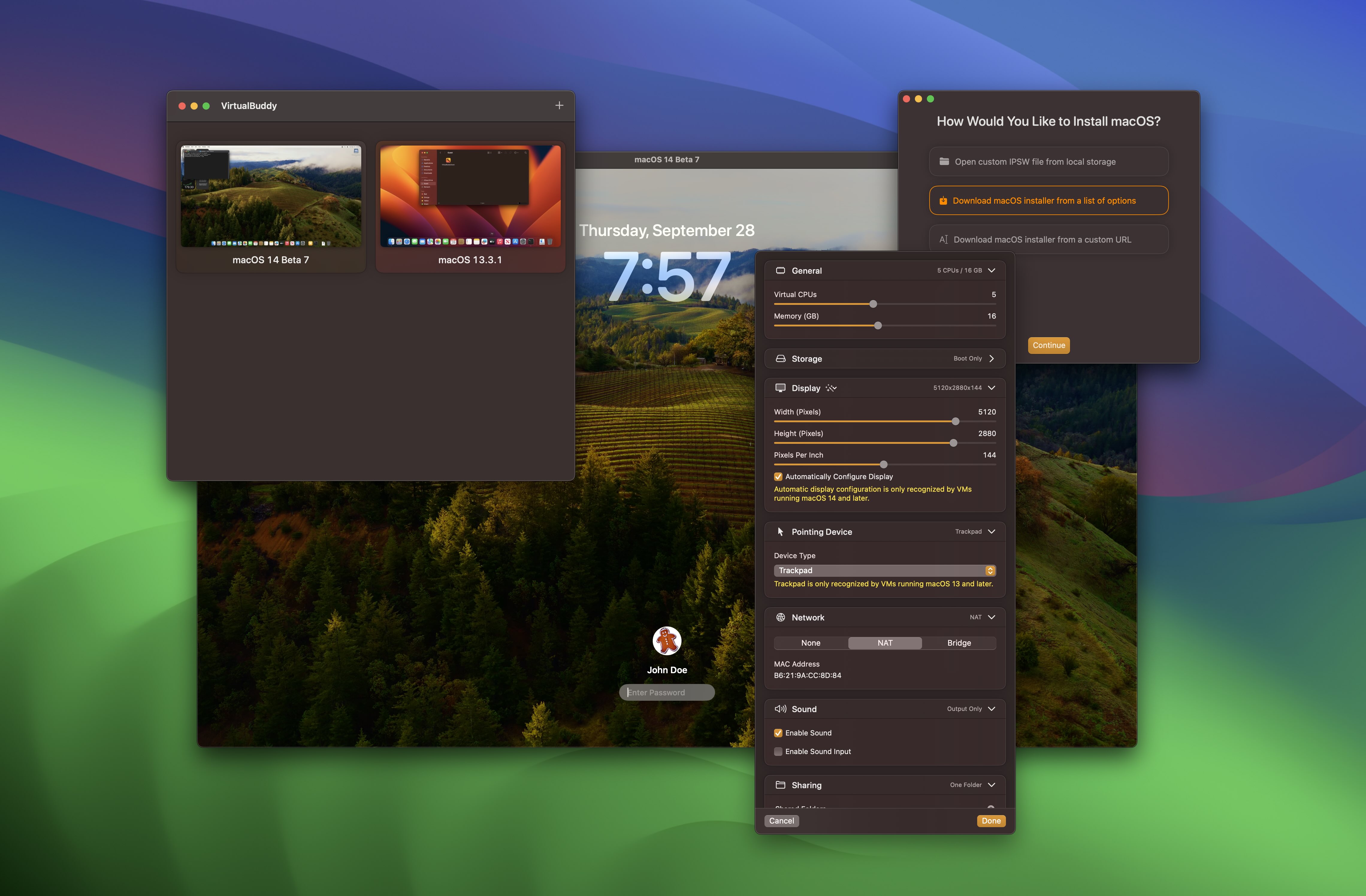
VirtualBuddy can virtualize macOS 12 and later on Apple Silicon, with the goal of offering features that are useful to developers who need to test their apps on multiple versions of macOS, especially betas.
System Requirements
Apple Silicon Mac
macOS 13 or later
Installing macOS
To install a macOS virtual machine, you can select from a list of macOS versions provided by VirtualBuddy, which will automatically download and install the selected version. You may also provide your own IPSW link or select from an IPSW you have already downloaded.
⚠️ Important Note About macOS Golden Gate
To install macOS Golden Gate beta on a macOS 26 host, make sure you are running VirtualBuddy 2.2 beta 2 or later and that you have downloaded and installed the latest device support files from Apple. If you already have the Xcode 27 beta installed, then you don't need to install the device support files separately.
Installing macOS Betas
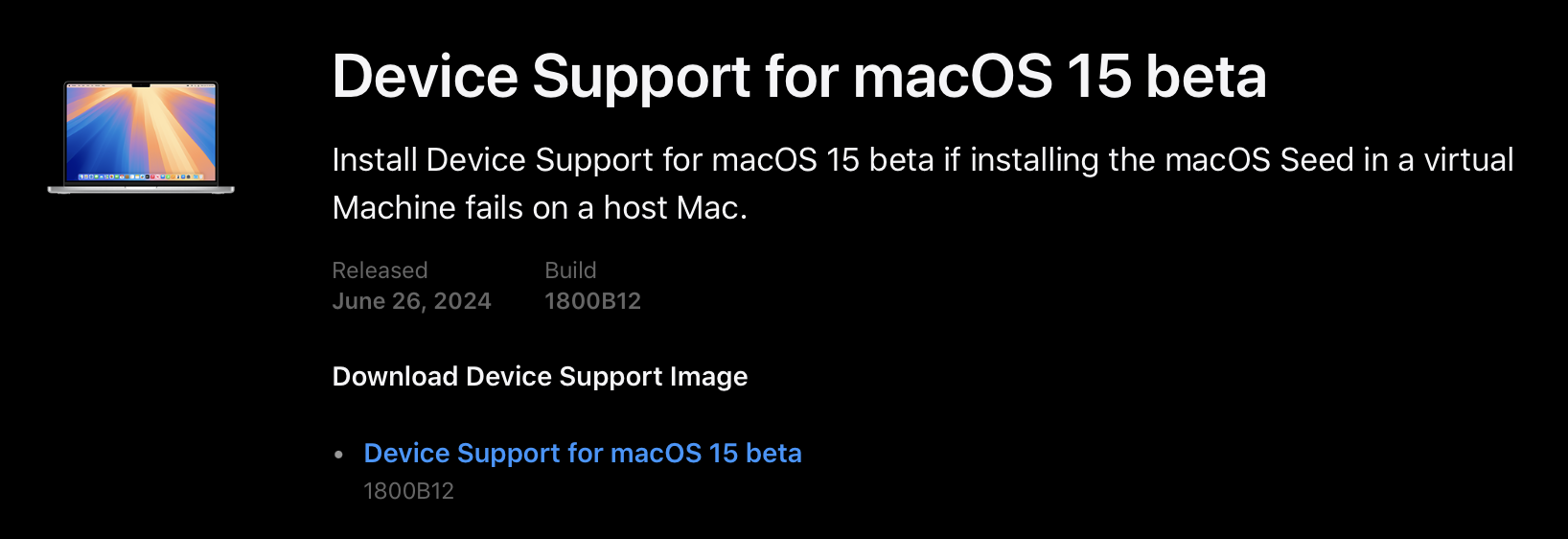
If you’d like to run a virtual machine with a macOS beta that’s more recent than the one you’re currently running, such as a macOS 15 virtual machine running in a macOS 14 host, then you’ll need the latest device support package from Apple.
Device support packages are sometimes made available by Apple directly, but they’re always included and installed automatically with the latest Xcode beta. These can be obtained from the Apple Developer portal.
Download
VirtualBuddy is free and open-source. If you’d like to support its development, you may purchase it on Gumroad or sponsor my work on GitHub.
If you’d just like to download the latest version, go to GitHub releases.
If you use homebrew, install with brew install --cask virtualbuddy.
Feature Checklist
Ability to boot any version of macOS 12 or macOS 13, including betas
Ability to boot some ARM-based Linux distros (tested with Ubuntu Server and Ubuntu Desktop)
Built-in installation wizard
Select from a collection of restore images available on Apple’s servers
Install the latest stable version of macOS
Local restore image IPSW file
Custom restore image URL
Install a Linux distro from a local .iso file
Select from a collection of Linux distros
Install Linux from URL
Boot into recovery mode (in order to disable SIP, for example)
Networking and file sharing support
Clipboard sharing
Customize virtual machine hardware configuration
Save and restore macOS virtual machine state
Tips and Tricks
VirtualBuddyGuest app
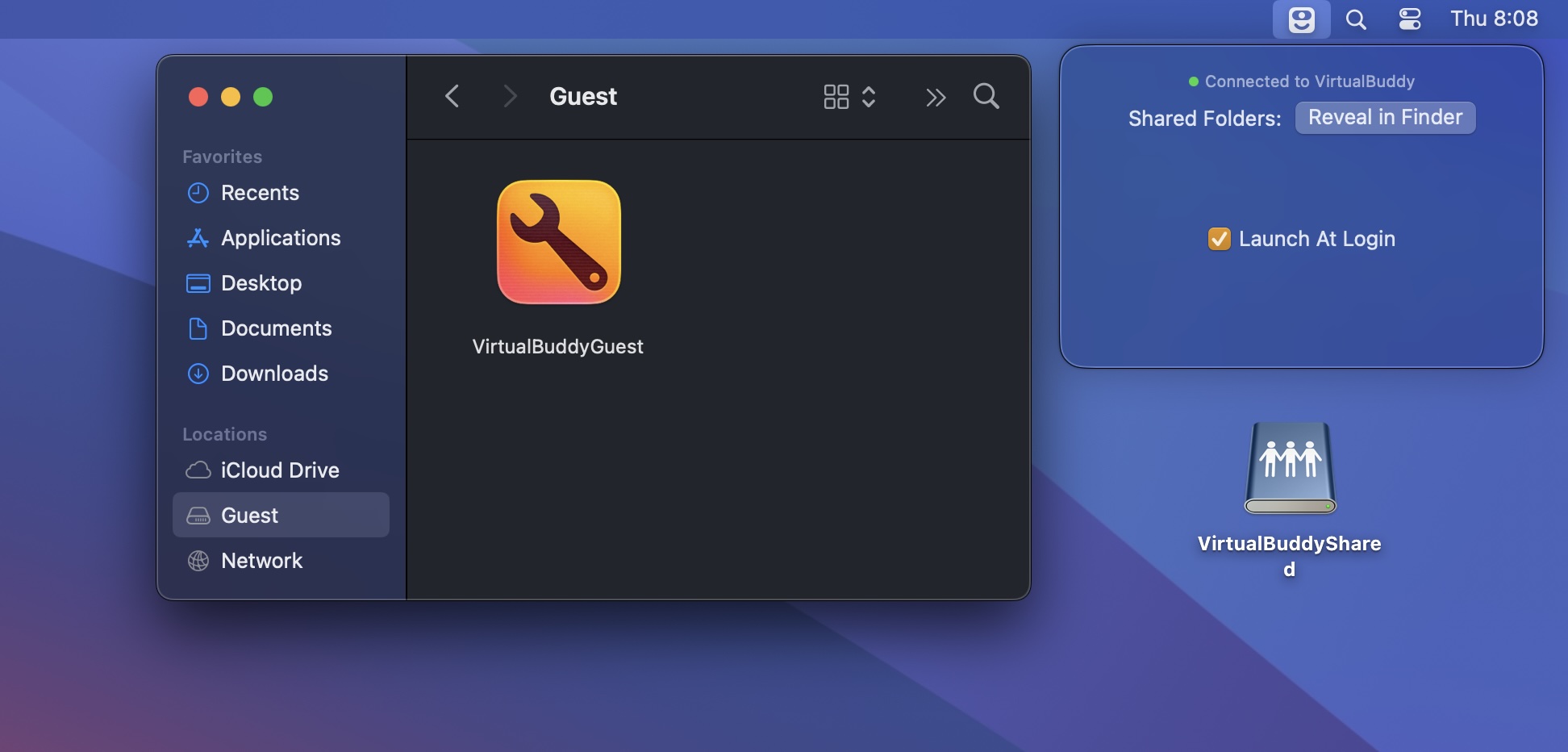
VirtualBuddy automatically mounts a disk image with the VirtualBuddyGuest app when you boot a supported macOS virtual machine with the guest app enabled. To install the VirtualBuddyGuest app, just select the “Guest” disk on Finder’s sidebar, then double-click the “VirtualBuddyGuest” app icon.
The latest VirtualBuddyGuest app requires macOS 14 or later and supports clipboard sharing and automatic mounting of shared folders. On macOS 13, the legacy guest app only mounts shared folders automatically; clipboard sharing is unavailable. VirtualBuddyGuest is not supported on macOS 12 or earlier.
Taking Advantage of APFS
Sometimes when trying things out in the OS installed in one of the virtual machines, things might break, requiring a full install of the guest operating system again, which is a pain.
Thanks to APFS cloning, though, you can just duplicate a virtual machine within your library folder (using Command + D in Finder), and the copy will take almost no additional disk space. This way you can have a “clean” copy of your VM, do whatever you want with a duplicate of it, and then throw the copy away and re-duplicate the clean version if things break.
Sharing Folders Between Host and Virtual Machine
You can share folders from your Mac to the Virtual Machine and vice versa using regular macOS file sharing that can be configured in System Preferences/Settings.
When both the Virtual Machine and the host are running macOS 13 or later, it’s possible to share folders directly by configuring them in the VM settings within VirtualBuddy before booting up the VM.
To mount shared folders in the VM, run the following command in the VM’s Terminal:
mkdir -p ~/Desktop/VirtualBuddyShared && mount -t virtiofs VirtualBuddyShared ~/Desktop/VirtualBuddyShared
Building
Xcode 16 is required for building on main.
Open the VirtualBuddy/Config/Signing.xcconfig file
Set the VB_BUNDLE_ID_PREFIX variable to something unique like com.yourname.
Select the VirtualBuddy project in the Xcode sidebar
Under "Targets", select "VirtualBuddy"
Go to the Signing & Capabilities tab and select your development team under Signing > Team
Repeat the same process for the "VirtualBuddyGuest" target
Build the VirtualBuddy scheme (the one that doesn't have (Managed) in its name)
Trang TopGit này là một snapshot — tab "Readme" hiển thị nguyên văn README của repo (đã bỏ link, giữ ảnh). Repo GitHub ở github.com/insidegui/VirtualBuddy là nguồn chính thức.
insidegui/VirtualBuddy có những chủ đề gì?
GitHub topics của insidegui/VirtualBuddy: "macos", "virtual-machine". TopGit xếp repo vào nhóm mã nguồn mở.
insidegui/VirtualBuddy có phải mã nguồn mở không?
Có — insidegui/VirtualBuddy phát hành theo license BSD-2-Clause, nghĩa là mã nguồn mở để đọc, fork và (tùy license) tái sử dụng. Mã: github.com/insidegui/VirtualBuddy.
insidegui/VirtualBuddy có website riêng không?
TopGit chưa ghi nhận URL trang chủ cho insidegui/VirtualBuddy. Phần README ở tab phía trên thường có link demo, hoặc xem mô tả GitHub của repo.
insidegui/VirtualBuddy còn đang phát triển không?
Commit gần nhất trên insidegui/VirtualBuddy là 12 ngày trước (theo timestamp GitHub). Repo có 263 fork — một chỉ báo về mức độ quan tâm của cộng đồng.
insidegui/VirtualBuddy dùng license gì?
insidegui/VirtualBuddy phát hành theo license BSD-2-Clause. Nên mở file LICENSE trên GitHub để xác nhận — license metadata đôi khi lệch với thực tế dự án.
Đọc đầy đủ README ở tab phía trên.
Vẫn đang phân vân về VirtualBuddy?
Một cú bấm sẽ gửi câu hỏi kèm trang này cho AI — xem AI nói gì về VirtualBuddy.

 /VirtualBuddy