klaudiosinani/taskbook hiện có 9.3k sao trên GitHub, viết chủ yếu bằng JavaScript. Tasks, boards & notes for the command-line habitat
Tóm tắt dựng từ metadata GitHub của chính dự án — chưa có bài review TopGit. Trang sẽ tự động cập nhật khi bài review đầy đủ được xuất bản.
VÌ SAO CHƯA CÓ REVIEW
TopGit viết bài đầy đủ cho repo có nhiều sao nhất và được yêu cầu nhiều nhất. Trang này là snapshot trong thời gian chờ — xem README gốc ở tab READ ME.
Tasks, boards & notes for the command-line habitat
Sponsored by:
Spot, Resolve, and Prevent Downtime.
Description
By utilizing a simple and minimal usage syntax, that requires a flat learning curve, taskbook enables you to effectively manage your tasks and notes across multiple boards from within your terminal. All data are written atomically to the storage in order to prevent corruptions, and are never shared with anyone or anything. Deleted items are automatically archived and can be inspected or restored at any moment.
Read this document in:
Albanian - Shqip, Polski, 简体中文, Русский, Français, Deutsch, Portuguese, 日本語, 한국어, Spanish, Bulgarian.
You can now support the development process through GitHub Sponsors.
Visit the contributing guidelines to learn more on how to translate this document into more languages.
Highlights
Organize tasks & notes to boards
Board & timeline views
Priority & favorite mechanisms
Search & filter items
Archive & restore deleted items
Lightweight & fast
Data written atomically to storage
Custom storage location
Progress overview
Simple & minimal usage syntax
Update notifications
Configurable through ~/.taskbook.json
Data stored in JSON file at ~/.taskbook/storage
Data location can be overwritten at runtime
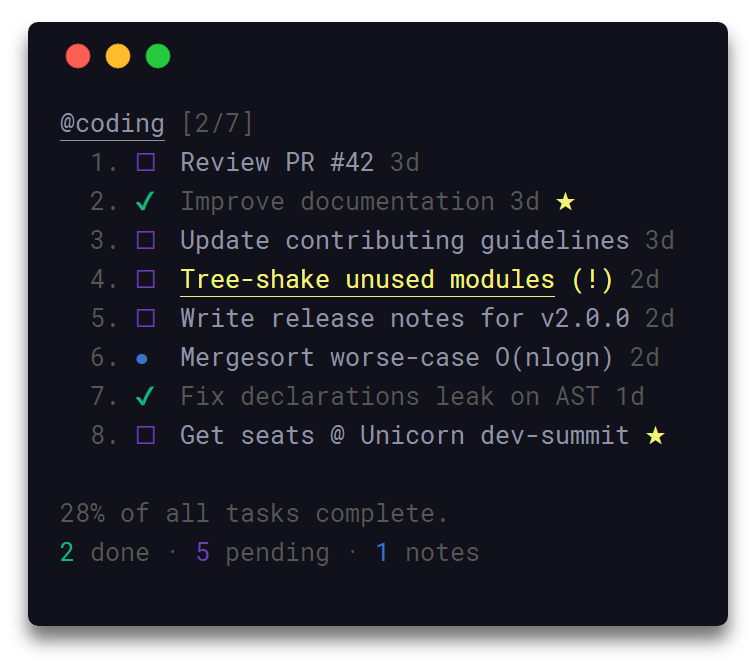
View highlights in a taskbook board.
Contents
Description
Highlights
Install
Usage
Views
Configuration
Flight Manual
Development
Related
Team
Sponsors
License
Install
Yarn
yarn global add taskbook
NPM
npm install --global taskbook
Snapcraft
snap install taskbook
snap alias taskbook tb # set alias
Note: Due to the snap's strictly confined nature, both the storage & configuration files will be saved under the $SNAP_USER_DATA environment variable instead of the generic $HOME one.
Invoking taskbook without any options will display all saved items grouped into their respective boards.
Timeline View
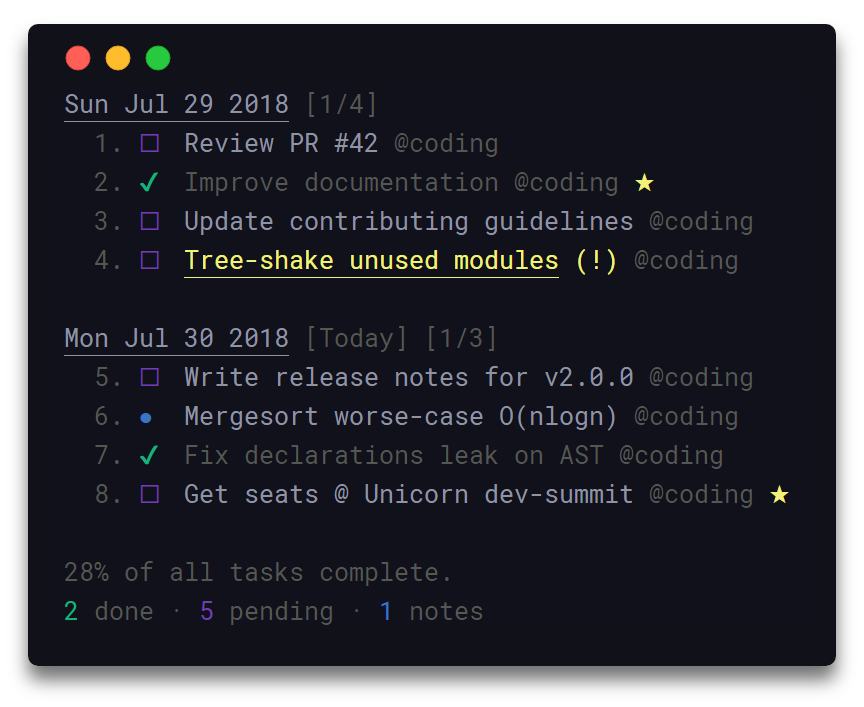
In order to display all items in a timeline view, based on their creation date, the --timeline/-i option can be used.
Configuration
To configure taskbook navigate to the ~/.taskbook.json file and modify any of the options to match your own preference. To reset back to the default values, simply delete the config file from your home directory.
The following illustrates all the available options with their respective default values.
Filesystem path where the storage will be initialized, i.e: /home/username/the-cloud or ~/the-cloud
If left undefined the home directory ~ will be used and taskbook will be set-up under ~/.taskbook/.
displayCompleteTasks
Type: Boolean
Default: true
Display tasks that are marked as complete.
displayProgressOverview
Type: Boolean
Default: true
Display progress overview below the timeline and board views.
Flight Manual
The following is a minor walkthrough containing a set of examples on how to use taskbook.
In case you spotted an error or think that an example is not to clear enough and should be further improved, please feel free to open an issue or pull request.
Create Task
To create a new task use the --task/-t option with your task's description following right after.
$ tb -t Improve documentation
Create Note
To create a new note use the --note/-n option with your note's body following right after.
$ tb -n Mergesort worse-case O(nlogn)
Create Board
Boards are automatically initialized when creating a new task or note. To create one or more boards, include their names, prefixed by the @ symbol, in the description of the about-to-be created item. As a result the newly created item will belong to all of the given boards. By default, items that do not contain any board names in their description are automatically added to the general purpose; My Board.
To mark a task as complete/incomplete, use the --check/-c option followed by the ids of the target tasks. Note that the option will update to its opposite the complete status of the given tasks, thus checking a complete task will render it as pending and a pending task as complete. Duplicate ids are automatically filtered out.
$ tb -c 1 3
Begin Task
To mark a task as started/paused, use the --begin/-b option followed by the ids of the target tasks. The functionality of this option is the same as the one of the above described --check option.
$ tb -b 2 3
Star Item
To mark one or more items as favorite, use the --star/-s option followed by the ids of the target items. The functionality of this option is the same as the one of the above described --check option.
$ tb -s 1 2 3
Copy Item Description
To copy to your system's clipboard the description of one or more items, use the --copy/-y option followed by the ids of the target items. Note that the option will also include the newline character as a separator to each pair of adjacent copied descriptions, thus resulting in a clear and readable stack of sentences on paste.
$ tb -y 1 2 3
Display Boards
Invoking taskbook without any options will display all of saved items grouped into their respective boards.
$ tb
Display Timeline
In order to display all items in a timeline view, based on their creation date, the --timeline/-i option can be used.
$ tb -i
Set Priority
To set a priority level for a task while initializing it, include the p:x syntax in the task's description, where x can be an integer of value 1, 2 or 3. Note that all tasks by default are created with a normal priority - 1.
1 - Normal priority
2 - Medium priority
3 - High priority
$ tb -t @coding Fix issue `#42` p:3
To update the priority level of a specific task after its creation, use the --priority/-p option along with the id the target task, prefixed by the @ symbol, and an integer of value 1, 2 or 3. Note that the order in which the target id and priority level are placed is not significant.
$ tb -p @1 2
Move Item
To move an item to one or more boards, use the --move/-m option, followed by the target item id, prefixed by the @ symbol, and the name of the destination boards. The default My board can be accessed through the myboard keyword. The order in which the target id and board names are placed is not significant.
$ tb -m @1 myboard reviews
Delete Item
To delete one or more items, use the --delete/-d options followed by the ids of the target items. Note that deleted items are automatically archived, and can be inspected or restored at any moment. Duplicate ids are automatically filtered out.
$ tb -d 1 2
Delete Checked Tasks
To delete/clear all complete tasks at once across all boards, use the --clear option. Note that all deleted tasks are automatically archived, and can be inspected or restored at any moment. In order to discourage any possible accidental usage, the --clear option has no available shorter alias.
$ tb --clear
Display Archive
To display all archived items, use the --archive/-a option. Note that all archived items are displayed in timeline view, based on their creation date.
$ tb -a
Restore Items
To restore one or more items, use the --restore/-r option followed by the ids of the target items. Note that the ids of all archived items can be seen when invoking the --archive/-a option. Duplicate ids are automatically filtered out.
$ tb -r 1 2
List Items
To list a group of items where each item complies with a specific set of attributes, use the --list/-l option followed by the desired attributes. Board names along with item traits can be considered valid listing attributes. For example to list all items that belong to the default myboard and are pending tasks, the following could be used;
$ tb -l myboard pending
The by default supported listing attributes, together with their respective aliases, are the following;
myboard - Items that belong to My board
task, tasks, todo - Items that are tasks.
note, notes - Items that are notes.
pending, unchecked, incomplete - Items that are pending tasks.
progress, started, begun - Items that are in-progress tasks.
done, checked, complete - Items that complete tasks.
star, starred - Items that are starred.
Search Items
To search for one of more items, use the --find/-f option, followed by your search terms.
$ tb -f documentation
Runtime taskbook directory override
To override the configured storage location, use the --taskbook-dir flag or TASKBOOK_DIR environment variable. While Taskbook is designed to provide a multiple board approach for all of your projects, these options enable alternative use cases. Setup per project storage or run multiple global boards like home and work.
Note, if both the flag and environment variable are present Taskbook will use the flag value.
$ tb --taskbook-dir .custom-taskbook-dir
$ TASKBOOK_DIR=~/hometasks tb
Development
For more info on how to contribute to the project, please read the contributing guidelines.
Fork the repository and clone it to your machine
Navigate to your local fork: cd taskbook
Install the project dependencies: npm install or yarn install
Lint the code for errors: npm test or yarn test
Related
signale - Highly configurable logging utility
qoa - Minimal interactive command-line prompts
hyperocean - Deep oceanic blue Hyper terminal theme
Team
Klaudio Sinani (@klaudiosinani)
Mario Sinani (@mariosinani)
Sponsors
A big thank you to all the people and companies supporting our Open Source work:
Better Stack: Spot, Resolve, and Prevent Downtime.
klaudiosinani/taskbook có 9.3k sao GitHub — tải lại trang để xem số mới nhất, hoặc xem trực tiếp github.com/klaudiosinani/taskbook. TopGit phản chiếu số sao của GitHub nhưng không cam kết đến từng phút.
klaudiosinani/taskbook có những chủ đề gì?
GitHub topics của klaudiosinani/taskbook: "board", "cli", "note", "task", "todo". TopGit xếp repo vào nhóm Developer Tools.
klaudiosinani/taskbook còn đang phát triển không?
Commit gần nhất trên klaudiosinani/taskbook là 9 tháng trước (theo timestamp GitHub). Repo có 395 fork — một chỉ báo về mức độ quan tâm của cộng đồng.
klaudiosinani/taskbook là gì?
klaudiosinani/taskbook (klaudiosinani/taskbook) là dự án JavaScript trên GitHub. Theo mô tả gốc: Tasks, boards & notes for the command-line habitat
klaudiosinani/taskbook so với các dự án Developer Tools khác thế nào?
klaudiosinani/taskbook được TopGit xếp vào nhóm Developer Tools, với 9.3k sao GitHub và viết bằng JavaScript. Xem trang chủ đề Developer Tools trên TopGit để so sánh với các dự án tương tự theo số sao và mức độ hoạt động.
klaudiosinani/taskbook viết bằng ngôn ngữ gì?
klaudiosinani/taskbook chủ yếu viết bằng JavaScript. Trường "language" của GitHub dựa trên phần lớn byte ở nhánh mặc định.
Vì sao klaudiosinani/taskbook được xếp vào nhóm Developer Tools?
TopGit xếp klaudiosinani/taskbook vào nhóm Developer Tools dựa trên GitHub topics và mô tả của repo (gắn thẻ: "board", "cli", "note"). Việc phân loại dựa trên metadata thật của repo, không phải đoán theo cảm tính biên tập.
Đọc đầy đủ README ở tab phía trên.
Vẫn đang phân vân về taskbook?
Một cú bấm sẽ gửi câu hỏi kèm trang này cho AI — xem AI nói gì về taskbook.
 /taskbook