Là một công cụ cho lập trình viên, marp-team/marp-vscode đã đạt 2.1k sao trên GitHub, ngôn ngữ TypeScript. Marp for VS Code: Create slide deck written in Marp Markdown on VS Code
Tóm tắt dựng từ metadata GitHub của chính dự án — chưa có bài review TopGit. Trang sẽ tự động cập nhật khi bài review đầy đủ được xuất bản.
VÌ SAO CHƯA CÓ REVIEW
TopGit viết bài đầy đủ cho repo có nhiều sao nhất và được yêu cầu nhiều nhất. Trang này là snapshot trong thời gian chờ — xem README gốc ở tab READ ME.
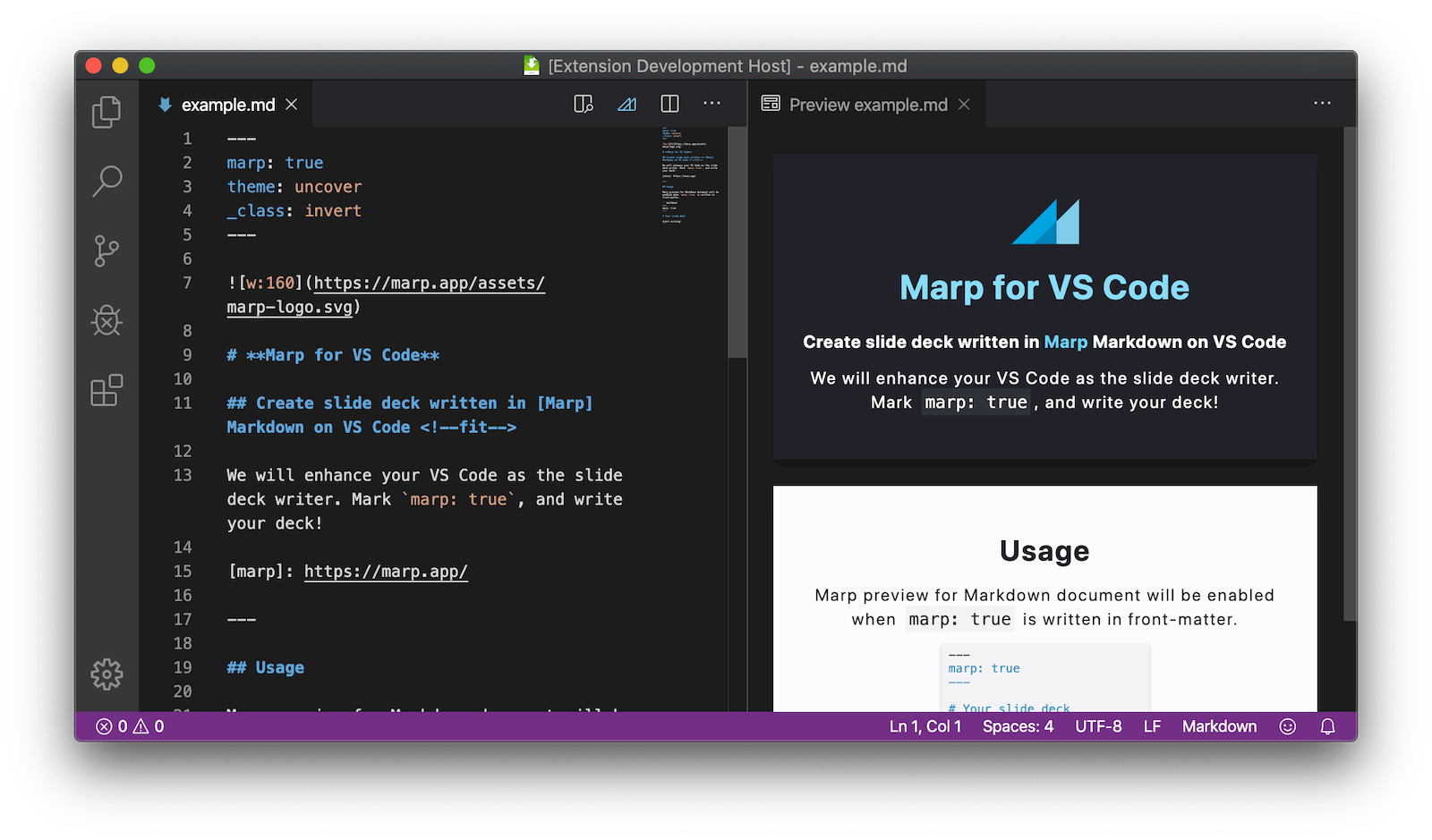
Create slide deck written in Marp Markdown on VS Code.
We will enhance your VS Code as the slide deck writer. Mark marp: true, and write your deck!
See the documentation of Marpit Markdown and the features of Marp Core about how to write.
Please refer https://marp.app/ for more details of Marp ecosystem. We have powerful tools for Marp Markdown: Marpit Framework, Marp Core, CLI tool and so on.
Usage
Marp features will be enabled when marp: true is written in a front-matter of Markdown document.
---
marp: true
---

# Your slide deck

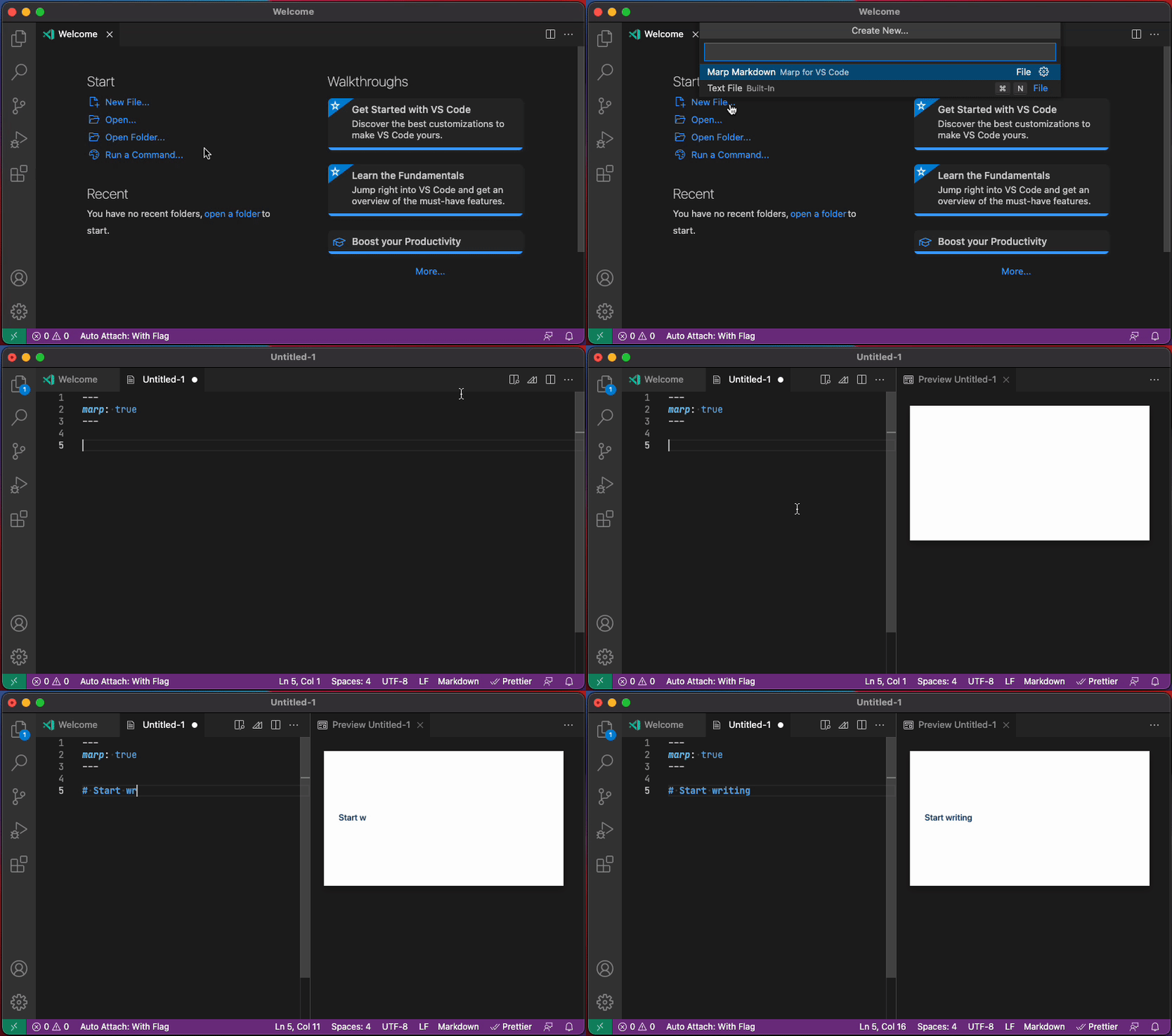
Start writing!
You can create a new Marp Markdown document from "New File..." menu (Alt + Ctrl + Win + N / Alt + Cmd + Ctrl + N) to start writing a slide deck quickly.
marp: true also can toggle by opening the quick picker from toolbar icon and selecting "Toggle Marp feature for current Markdown". (markdown.marp.toggleMarpFeature).
Features
Preview Marp Markdown
While enabled Marp features by marp: true, Marp for VS Code can preview your Marp Markdown with the same way as a built-in Markdown preview.
In the preview, an active slide is highlighted based on the current position of the editor, as like as the regular Markdown preview. To disable this highlight, you can set markdown.preview.markEditorSelection setting to false.
[!NOTE]
If you are not familiar with editing Markdown on VS Code, we recommend to learn what you can do in VS Code documentation at first.
IntelliSense for Marp directives
Directives, the inherited feature from Marpit framework, is an important syntax to write the deck in Marp.
If enabled Marp feature by marp: true, Marp for VS Code extends IntelliSense to support auto completion, syntax highlight, hover help, and diagnostics for Marp directives.
Auto completion
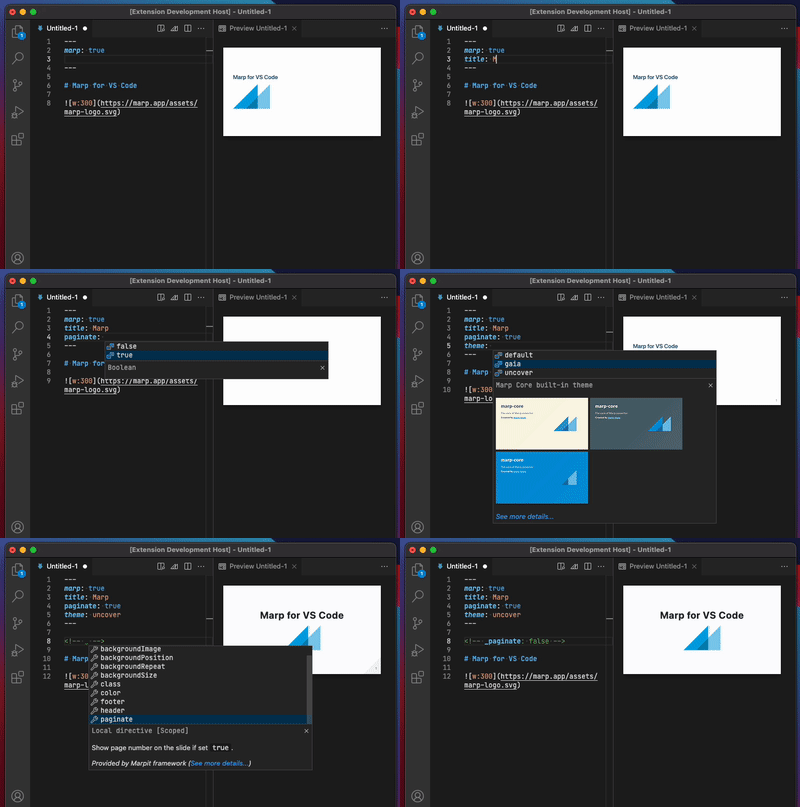
Marp for VS Code can suggest global/local directives supported by Marp ecosystem. We remember all so you may forget them! 😛
Hit Ctrl + Space within the front-matter or HTML comment to show the list of directives. You can peek the help of selected directive by hitting Ctrl + Space again.
Some directives such as theme and paginate are also supported auto completion for the value.
Highlight and hover help
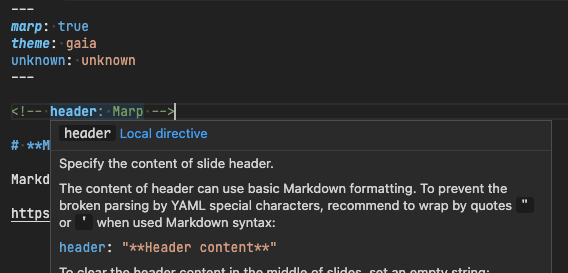
The key of recognized directives are highlighted in the different color from the around. This visualization may help to find out meaningless definitions.
And you can see the help of a defined directive by hovering cursor on the recognized directive.
Diagnostics
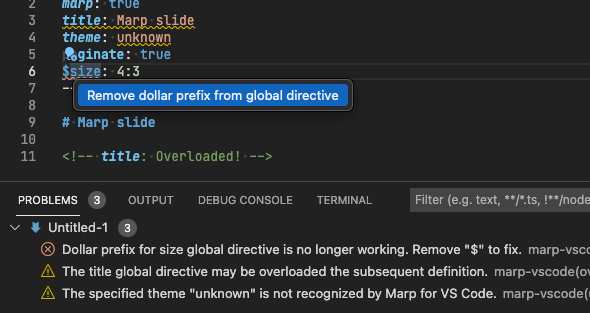
Marp for VS Code can detect some basic problems in Marp directives. Diagnostics will help following our recommended way for writing slides.
Name
Description
Quick Fix
define-math-global-directive
Recommend to declare math typesetting library via math global directive
✅
deprecated-color-setting-shorthand
Check obsoleted shorthands for setting slide colors
✅
deprecated-dollar-prefix
Check obsoleted directives prefixed by $
✅
ignored-math-global-directive
Report ignored math global directive if disabled math by the extension setting
overloading-global-directive
Find out overloaded global directives
unknown-size
Notify if the specified size preset was not defined in a theme
unknown-theme
Notify a not recognized theme name
Experimental diagnostics
Some of diagnostics are experimental. You can enable or disable them in the extension settings. Refer to "Experimental settings".
Name
Description
Quick Fix
🧪 slide-content-overflow
Warn when the slide content in a preview overflows the safe area defined by the slide’s padding
Export slide deck to HTML, PDF, PPTX, and image 🛡️
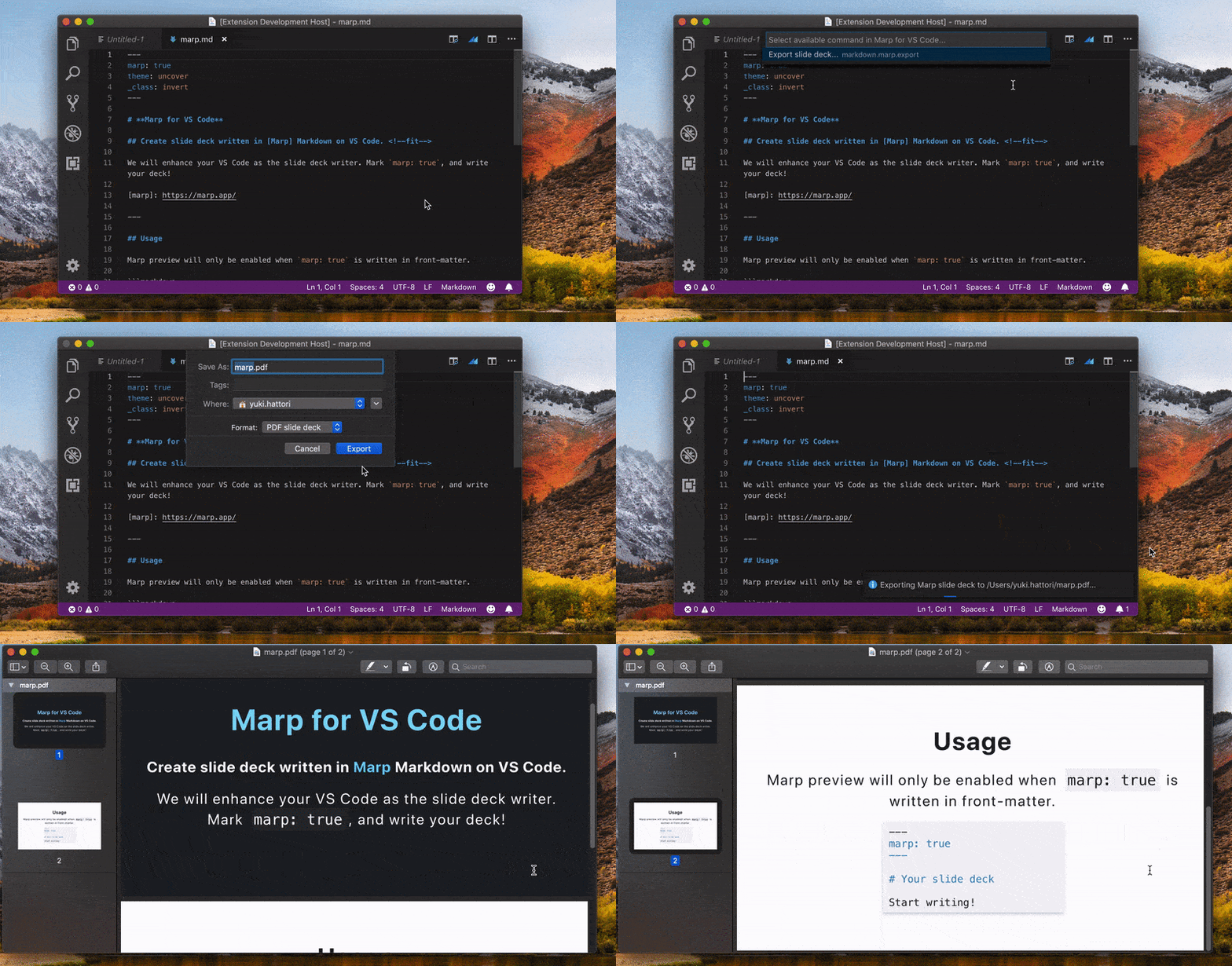
We have integrated Marp CLI to export your deck into several formats.
To export the content of active Markdown editor, open the quick pick from Marp icon on toolbar and select "Export slide deck...". (markdown.marp.export)
You can also execute command from the Command Palette (F1 or Ctrl/Cmd+Shift+P).
Supported file types
HTML
PDF
PPTX (PowerPoint document)
PNG (First slide only)
JPEG (First slide only)
TXT (Notes only)
Default file type can choose by the markdown.marp.exportType setting.
[!IMPORTANT]
Exporting PDF, PPTX, and image formats requires to install any one of Google Chrome, Chromium, Microsoft Edge, or Firefox. You may control using browser and the custom path for the browser by markdown.marp.browser and markdown.marp.browserPath settings.
[!NOTE]
A legacy setting markdown.marp.chromePath is deprecated since v2. Please use markdown.marp.browserPath instead.
Integration with AI agent
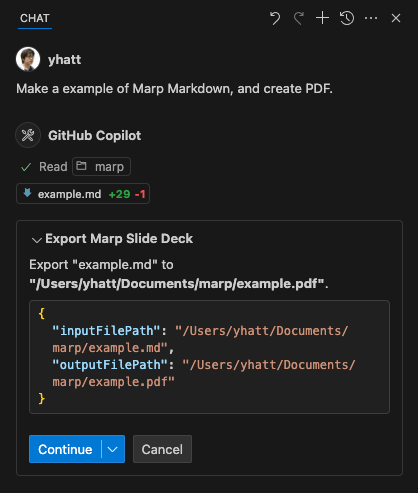
Marp for VS Code also provides the export tool to VS Code built-in AI agent.
By instructing in chat to export Markdown in the specified file format, AI agent can process the export using preferences in the current workspace.
Use custom theme CSS 🛡️
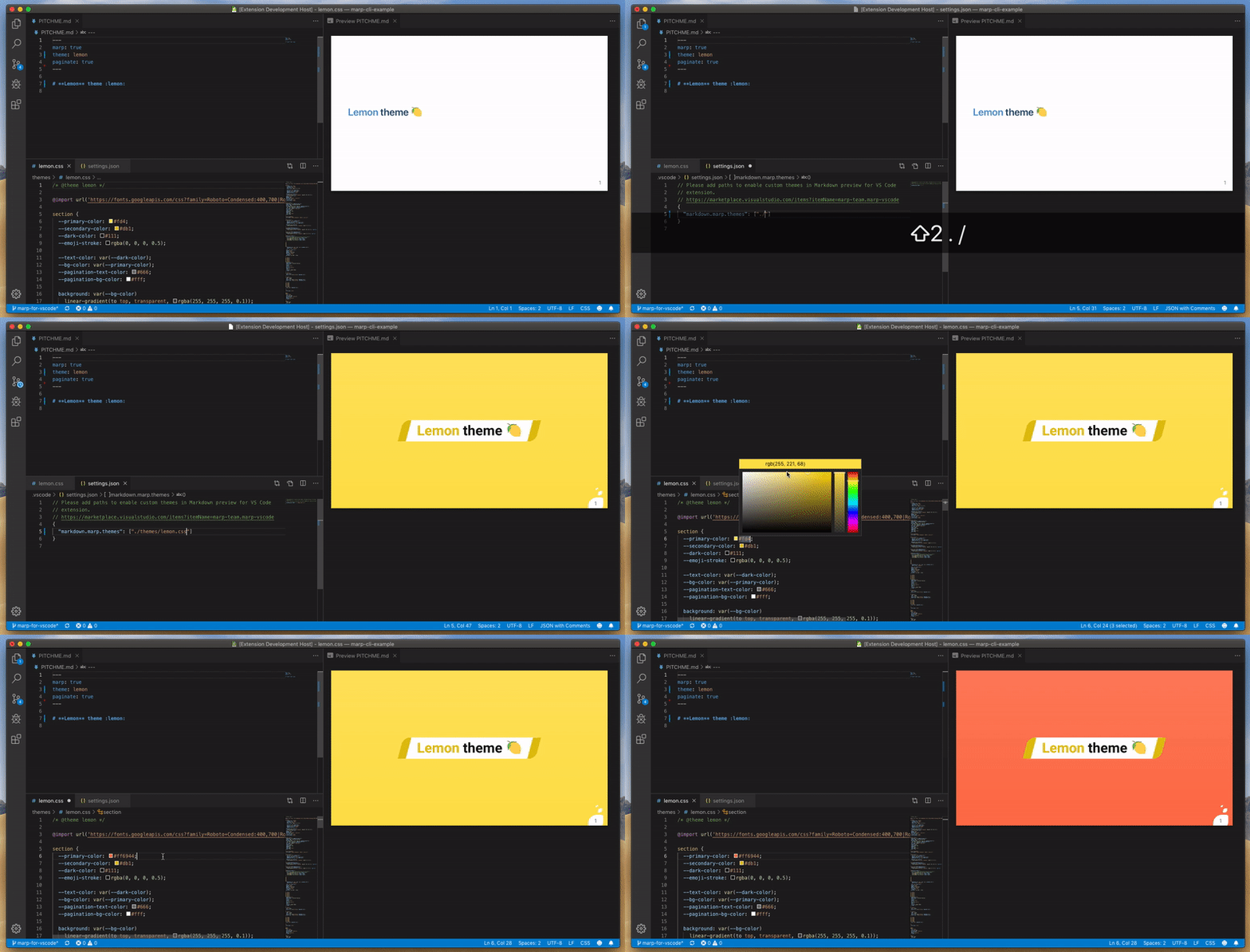
You can register and use custom theme CSS for Marpit / Marp Core by setting markdown.marp.themes, that includes remote URLs, or relative paths to local files in the current workspace.
// Please put `.vscode/settings.json` on your workspace
{
  "markdown.marp.themes": [
    "https://example.com/foo/bar/custom-theme.css",
    "./themes/your-theme.css"
  ]
}
It's very similar to a way for using custom styles in ordinary Markdown preview. The registered theme can use by specifying theme name in theme global directive.
---
marp: true
theme: your-theme
---

# Use your own theme
Markdown preview will reload updated theme CSS automatically when you edited the registered local CSS file. It's very useful for creating your own theme.
Outline extension
When Marp Markdown is enabled, you can use the extended outline view like following. They are enabled by default but you may disable by the markdown.marp.outlineExtension setting.
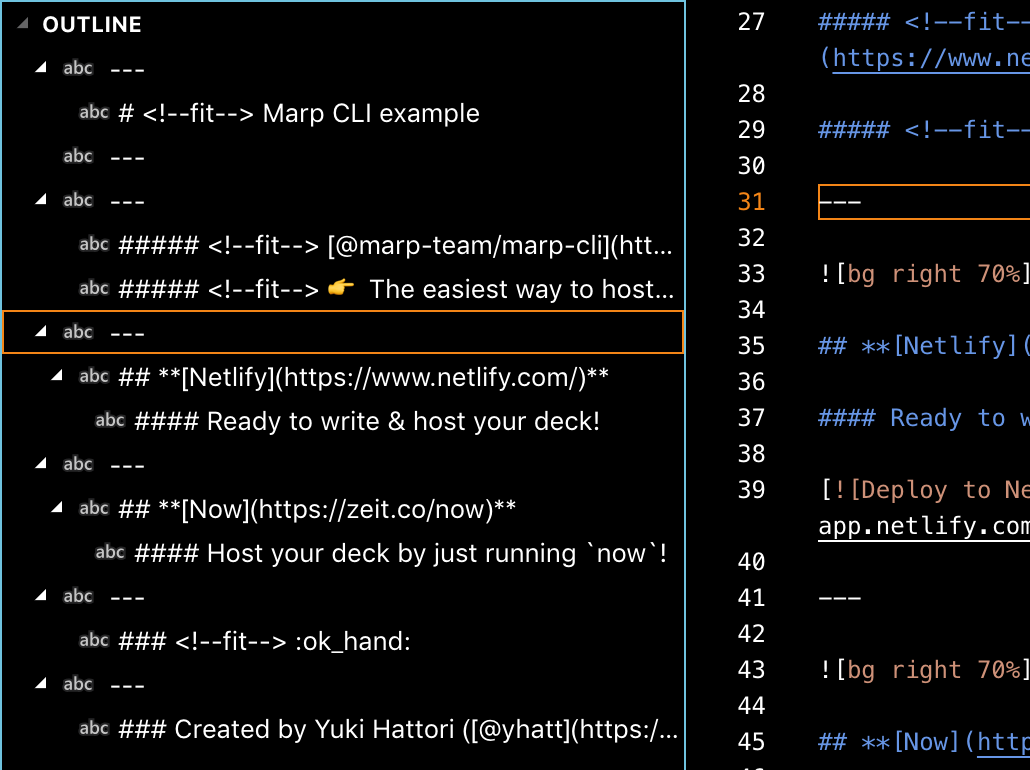
Outline view for each slide
We extend the outline view to support slide pages in Marp Markdown.
[!TIP]
Please choose Sort By: Position from context menu of its panel if you see incorrect slide order.
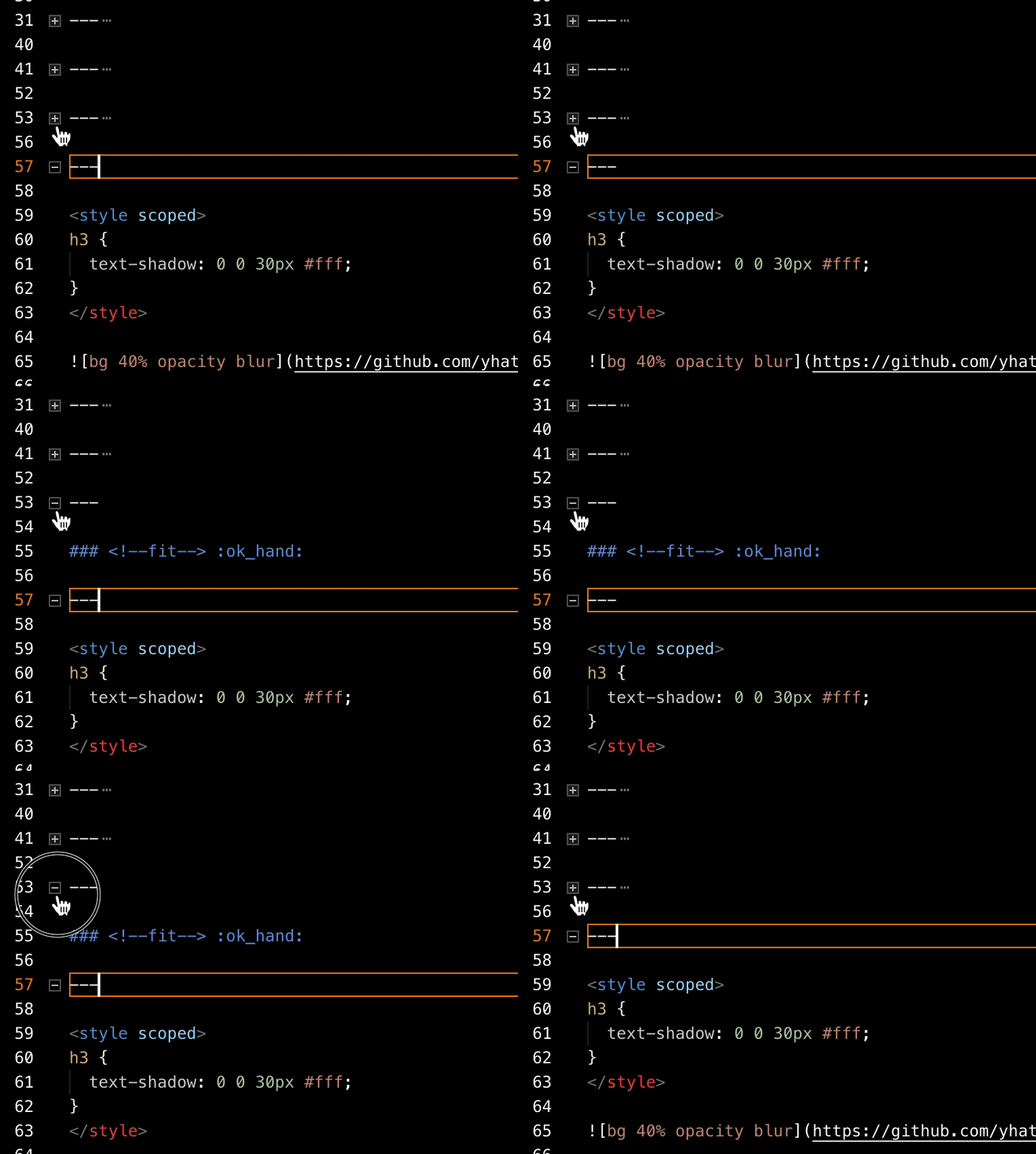
Slide folding in editor
You can fold the content of slide in editor while editing Marp Markdown.
Security
Workspace Trust
Some features that may met malicious are restricted in the untrusted workspace/window. Please read VS Code's user guide for details.
Features may be restricted are marked by the shield icon 🛡️ in this documentation. Marp for VS Code is available even if the current workspace is not trusted but you can use only a basic Marp preview and IntelliSense.
HTML elements in Markdown 🛡️
In the trusted workspace, if Marp Markdown was included HTML elements, only selectivity HTML elements by Marp can render by default. You can control which HTML elements will be rendered by setting the markdown.marp.html option,
You can control which HTML elements will be rendered by setting the markdown.marp.html option. You can set it as all to allow all HTML elements, but could allow script injection from untrusted Markdown files. Use with caution.
In the untrusted workspace, HTML elements in Marp Markdown will be always ignored regardless of the selected option in markdown.marp.html.
[!NOTE]
A legacy setting markdown.marp.enableHtml is deprecated since v2. Please use markdown.marp.html instead.
Experimental settings
Some of settings are marked as experimental. These feature may be unstable and change the spec in the future.
markdown.marp.diagnostics.slideContentOverflow
Enables a diagnostic that warns when slide content overflows the safe area defined by the slide’s padding. This diagnostic is only available while the Markdown preview is open.
It is helpful for identifying some potential presentation issues, such as cropped content, excessive content on a single page, and an unnatural layouts.
markdown.marp.openExportedHtmlInIntegratedBrowser
Use VS Code integrated browser to open the exported HTML file when markdown.marp.exportAutoOpen setting is enabled. It requires VS Code v1.109 and later. This allows users to play presentations in VS Code tabs or external windows.
off: The exported HTML will open in the external browser app.
tab: The exported HTML will open in VS Code integrated browser as a new tab.
window: The exported HTML will open in VS Code integrated browser as a new window.
Key features provided by the Marp CLI bespoke template, such as fragmented list support, presenter view, and transitions, also work in the VS Code integrated browser.
markdown.marp.pptx.editable
You can enable the experimental feature to export PPTX with editable contents, based on Marp CLI's corresponding experimental option. This feature requires to install both of the compatible browser and LibreOffice Impress.
If set this setting as smart, Marp for VS Code will try to export into editable PPTX first, and then fall back to the regular PPTX export (non-editable) if failed.
markdown.marp.strictPathResolutionDuringExport
This experimental setting is useful to improve the export result compatibility with VS Code preview. If enabled, the export command will try to resolve relative paths in Markdown from VS Code workspace that a Markdown file belongs.
If disabled, or the Markdown does not belong to any workspace, the export command will resolve paths based on the local file system. This behavior is same as Marp CLI.
Web extension
You can use Marp extension in VS Code for the Web environment like vscode.dev and github.dev. Try opening https://github.dev/marp-team/marp-vscode/blob/main/docs/example.md, with an environment that has installed Marp extension.
The web extension has some limitations:
Export command cannot use because it is depending on Marp CLI that is not designed for Web. Please use VS Code that is installed to your local environment, or use either VS Code Server or GitHub Codespaces if you wanted an environment working on Web.
Contributing
Are you interested in contributing? Please see CONTRIBUTING.md and the common contributing guideline for Marp team.
marp-team/marp-vscode thuộc nhóm Developer Tools trên TopGit, cùng 5 topic GitHub. Trang Trending và Topics liệt kê các repo cùng số sao và cùng ngôn ngữ để so sánh.
Đọc thêm về marp-team/marp-vscode ở đâu?
Trang TopGit này là một snapshot — tab "Readme" hiển thị nguyên văn README của repo (đã bỏ link, giữ ảnh). Repo GitHub ở github.com/marp-team/marp-vscode là nguồn chính thức.
marp-team/marp-vscode có phải mã nguồn mở không?
Có — marp-team/marp-vscode phát hành theo license MIT, nghĩa là mã nguồn mở để đọc, fork và (tùy license) tái sử dụng. Mã: github.com/marp-team/marp-vscode.
marp-team/marp-vscode là gì?
marp-team/marp-vscode (marp-team/marp-vscode) là dự án TypeScript trên GitHub. Theo mô tả gốc: Marp for VS Code: Create slide deck written in Marp Markdown on VS Code
marp-team/marp-vscode so với các dự án Developer Tools khác thế nào?
marp-team/marp-vscode được TopGit xếp vào nhóm Developer Tools, với 2.1k sao GitHub và viết bằng TypeScript. Xem trang chủ đề Developer Tools trên TopGit để so sánh với các dự án tương tự theo số sao và mức độ hoạt động.
Vì sao marp-team/marp-vscode được xếp vào nhóm Developer Tools?
TopGit xếp marp-team/marp-vscode vào nhóm Developer Tools dựa trên GitHub topics và mô tả của repo (gắn thẻ: "markdown", "marp", "visual-studio-code"). Việc phân loại dựa trên metadata thật của repo, không phải đoán theo cảm tính biên tập.
Đọc đầy đủ README ở tab phía trên.
Chưa chắc marp-vscode có hợp với bạn?
Để ChatGPT, Claude hoặc Perplexity tìm hiểu giúp — bấm bên dưới và xem AI nói gì về marp-vscode.
 /marp-vscode





 and selecting "Toggle Marp feature for current Markdown". (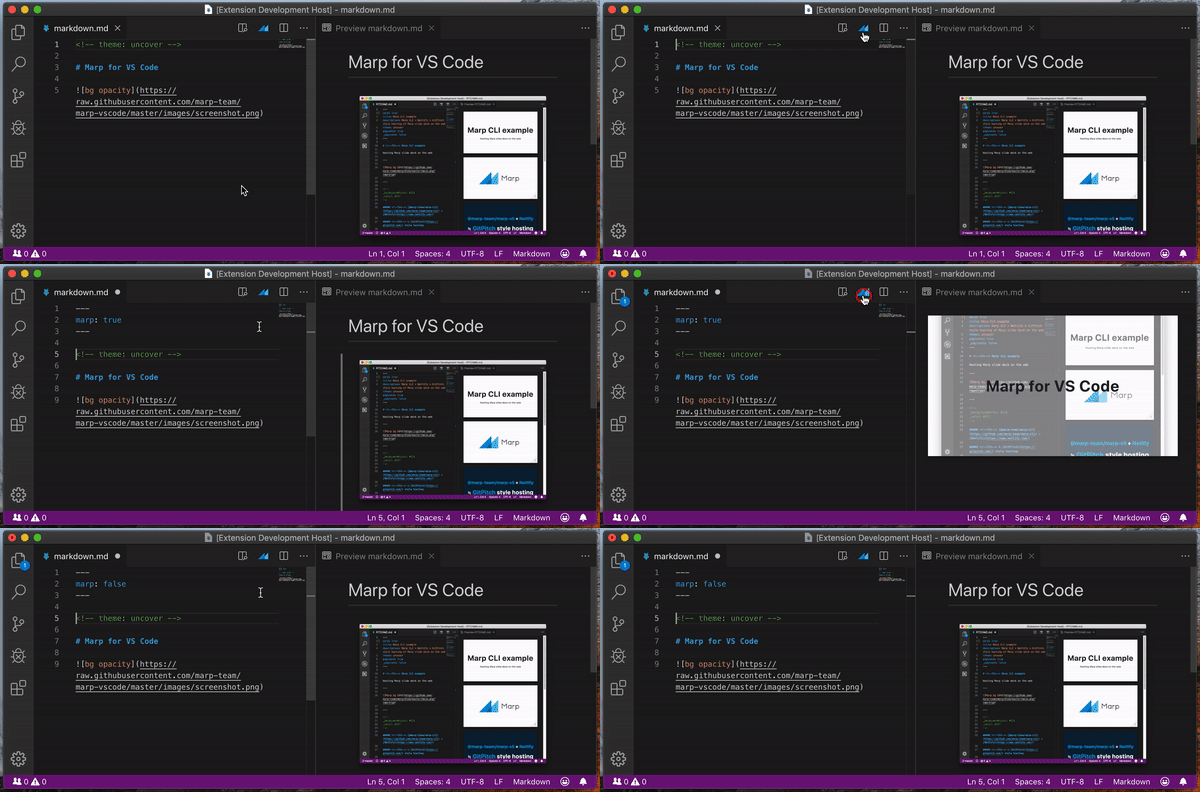
 Yuki Hattori (@yhatt)