Được TopGit lập chỉ mục từ metadata GitHub: microsoft/inshellisense có 10.8k sao, viết chủ yếu bằng TypeScript. IDE style command line auto complete
Tóm tắt dựng từ metadata GitHub của chính dự án — chưa có bài review TopGit. Trang sẽ tự động cập nhật khi bài review đầy đủ được xuất bản.
VÌ SAO CHƯA CÓ REVIEW
TopGit viết bài đầy đủ cho repo có nhiều sao nhất và được yêu cầu nhiều nhất. Trang này là snapshot trong thời gian chờ — xem README gốc ở tab READ ME.
inshellisense provides IDE style autocomplete for shells. It's a terminal native runtime for autocomplete which has support for 600+ command line tools. inshellisense supports Windows, Linux, & macOS.
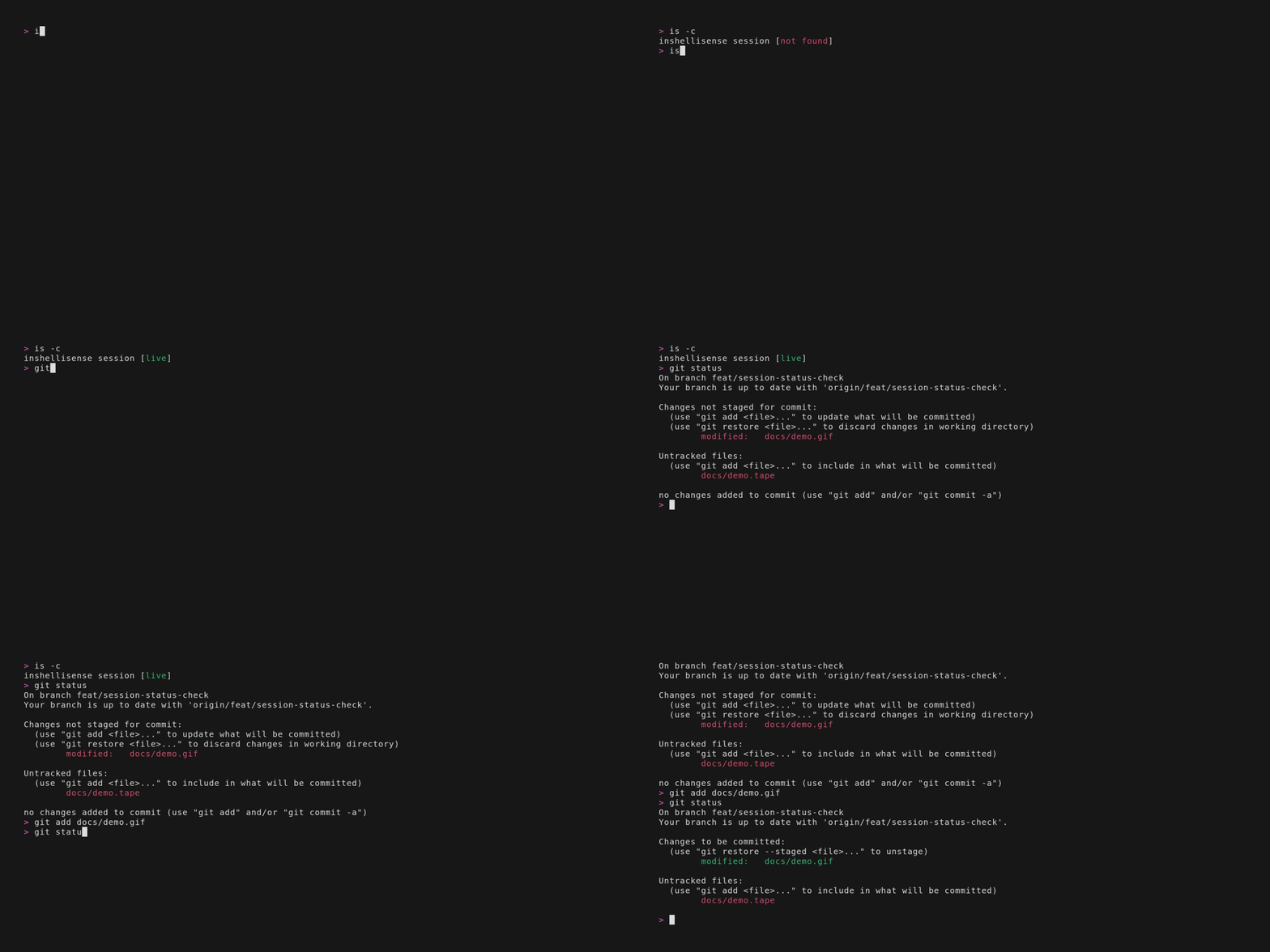
generated by tui-test
Getting Started
Installation
npm (recommended)
npm install -g @microsoft/inshellisense
is init
homebrew (macOS/linux)
brew tap microsoft/inshellisense https://github.com/microsoft/inshellisense
brew install inshellisense
is init
Updating
npm install -g @microsoft/inshellisense # OR brew upgrade inshellisense
is reinit
Quickstart
After completing the installation, run is doctor to verify your installation was successful. You can run is to start the autocomplete session for your desired shell. Additionally, inshellisense is also aliased under inshellisense after installation.
Shell Plugin
If you'd like to automatically start inshellisense when you open your shell, run the respective command for your shell. After running the command, inshellisense will automatically open when you start any new shell session:
# bash
is init bash >> ~/.bashrc

# zsh
is init zsh >> ~/.zshrc

# fish
is init fish >> ~/.config/fish/config.fish

# pwsh
is init pwsh | Add-Content $profile

# powershell
is init powershell | Add-Content $profile

# xonsh
is init xonsh >> ~/.xonshrc

# nushell
is init nu | save $nu.env-path --append
[!NOTE]
When updating your shell configuration in the future, make sure the inshellisense plugin is the last command in the file. Including commands after it may break the configuration (ex. initializing your shell plugin manager after the inshellisense plugin)
Usage
Action
Command
Description
Start
is
Start inshellisense session on the current shell
Stop
exit
Stop inshellisense session on the current shell
Check If Inside Inshellisense Session
is -c
Check if shell inside inshellisense session
Keybindings
All other keys are passed through to the shell. The keybindings below are only captured when the inshellisense suggestions are visible, otherwise they are passed through to the shell as well. These can be customized in the config.
Action
Keybinding
Accept Current Suggestion
tab
View Next Suggestion
↓
View Previous Suggestion
↑
Dismiss Suggestions
esc
Integrations
inshellisense supports the following shells:
bash
zsh
fish
pwsh
powershell (Windows Powershell)
cmd (experimental)
xonsh
nushell
Configuration
All configuration is done through a toml file. You can create this file at ~/.inshellisenserc or $XDG_CONFIG_HOME/inshellisense/rc.toml. When XDG_CONFIG_HOME is unset, empty, or not an absolute path, the XDG configuration path defaults to ~/.config/inshellisense/rc.toml. The JSON schema for the configuration file can be found here.
On new Unix-like installations, generated resources are stored under $XDG_DATA_HOME/inshellisense. When XDG_DATA_HOME is unset, empty, or non-absolute, it defaults to ~/.local/share as defined by the XDG specification. Existing installations continue using ~/.inshellisense when that directory is present so current shell plugins keep working; Windows also keeps using that location. Running is reinit migrates legacy resources to the XDG data directory.
Keybindings
You can customize the keybindings for inshellisense by adding a bindings section to your config file. The following is the default configuration for the keybindings:
[bindings.acceptSuggestion]
key = "tab"
# shift and control are optional and default to false
shift = false
control = false

[bindings.nextSuggestion]
key = "down"

[bindings.previousSuggestion]
key = "up"

[bindings.dismissSuggestions]
key = "escape"
Key names are matched against the Node.js keypress events.
Alias Expansion
Inshellisense supports expanding aliases for bash/zsh shells. You can enable alias expansion in your config file:
useAliases = true
Generated Spec Caching
Generated root specs are cached by spec and working directory while you edit a prompt. The cache is cleared between prompts, and specs with cache: false always regenerate. Argument suggestion generators continue to refresh according to their own settings. Failed or cancelled spec generation is not cached.
Caching is enabled by default. To regenerate root specs on every completion request, add this top-level setting to your config file:
cacheGeneratedSpecs = false
NerdFonts
If you are using a NerdFont patched font, you can enable the NerdFonts support in your config file:
Set truncateDescriptions = false to grow descriptions proportionally, then along the remaining dimension. Text is still truncated if it cannot fit.
Active Suggestion Background Color
You can customize the active suggestion's background with a #RRGGBB hex color.
activeSuggestionBackgroundColor = "#2E7D32"
Box Border Style
You can use square (the default) or rounded corners for suggestion and description boxes.
boxBorderStyle = "rounded"
Unsupported Specs
Specs for the az, gcloud, & aws CLIs are not supported in inshellisense due to their large size.
Contributing
This project welcomes contributions and suggestions. Most contributions require you to agree to a
Contributor License Agreement (CLA) declaring that you have the right to, and actually do, grant us
the rights to use your contribution. For details, visit https://cla.opensource.microsoft.com.
When you submit a pull request, a CLA bot will automatically determine whether you need to provide
a CLA and decorate the PR appropriately (e.g., status check, comment). Simply follow the instructions
provided by the bot. You will only need to do this once across all repos using our CLA.
This project has adopted the Microsoft Open Source Code of Conduct.
For more information see the Code of Conduct FAQ or
contact [email protected] with any additional questions or comments.
Trademarks
This project may contain trademarks or logos for projects, products, or services. Authorized use of Microsoft
trademarks or logos is subject to and must follow
Microsoft's Trademark & Brand Guidelines.
Use of Microsoft trademarks or logos in modified versions of this project must not cause confusion or imply Microsoft sponsorship.
Any use of third-party trademarks or logos are subject to those third-party's policies.
microsoft/inshellisense thuộc nhóm Developer Tools trên TopGit, cùng 13 topic GitHub. Trang Trending và Topics liệt kê các repo cùng số sao và cùng ngôn ngữ để so sánh.
Đọc thêm về microsoft/inshellisense ở đâu?
Trang TopGit này là một snapshot — tab "Readme" hiển thị nguyên văn README của repo (đã bỏ link, giữ ảnh). Repo GitHub ở github.com/microsoft/inshellisense là nguồn chính thức.
microsoft/inshellisense có bao nhiêu sao?
microsoft/inshellisense có 10.8k sao GitHub — tải lại trang để xem số mới nhất, hoặc xem trực tiếp github.com/microsoft/inshellisense. TopGit phản chiếu số sao của GitHub nhưng không cam kết đến từng phút.
microsoft/inshellisense còn đang phát triển không?
Commit gần nhất trên microsoft/inshellisense là 8 ngày trước (theo timestamp GitHub). Repo có 264 fork — một chỉ báo về mức độ quan tâm của cộng đồng.
microsoft/inshellisense viết bằng ngôn ngữ gì?
microsoft/inshellisense chủ yếu viết bằng TypeScript. Trường "language" của GitHub dựa trên phần lớn byte ở nhánh mặc định.
Vì sao microsoft/inshellisense được xếp vào nhóm Developer Tools?
TopGit xếp microsoft/inshellisense vào nhóm Developer Tools dựa trên GitHub topics và mô tả của repo (gắn thẻ: "autocomplete", "bash", "cli"). Việc phân loại dựa trên metadata thật của repo, không phải đoán theo cảm tính biên tập.
Đọc đầy đủ README ở tab phía trên.
Chưa chắc inshellisense có hợp với bạn?
Để ChatGPT, Claude hoặc Perplexity tìm hiểu giúp — bấm bên dưới và xem AI nói gì về inshellisense.

 /inshellisense