navidrome/discord-rich-presence-plugin là dự án Go với 179 sao. Displays your currently playing track in your Discord status
Tóm tắt dựng từ metadata GitHub của chính dự án — chưa có bài review TopGit. Trang sẽ tự động cập nhật khi bài review đầy đủ được xuất bản.
VÌ SAO CHƯA CÓ REVIEW
TopGit viết bài đầy đủ cho repo có nhiều sao nhất và được yêu cầu nhiều nhất. Trang này là snapshot trong thời gian chờ — xem README gốc ở tab READ ME.
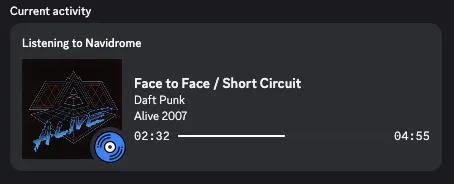
This plugin integrates Navidrome with Discord Rich Presence, displaying your currently playing track in your Discord status.
The goal is to demonstrate the capabilities of Navidrome's plugin system by implementing a real-time presence feature using Discord's Gateway API.
It demonstrates how a Navidrome plugin can maintain real-time connections to external services while remaining completely stateless.
Based on the Navicord project.
⚠️ WARNING: This plugin requires storing Discord user tokens, which may violate Discord's Terms of Service. Use at your own risk.
Features
Shows currently playing track with title, artist, and album art
Pause state with pause icon overlay and "paused for" elapsed timer
Playback rate-aware timestamps (correct elapsed/remaining for audiobooks at 2x, etc.)
Clickable track title and artist name link to Spotify (direct track link via ListenBrainz, falls back to Spotify search)
Clickable album art links to the Spotify track page
Customizable activity name: "Navidrome" is default, but can be configured to display track title, artist, or album
Displays playback progress with start/end timestamps
Automatic presence clearing when playback stops
Multi-user support with individual Discord tokens
Optional album art from Cover Art Archive for MusicBrainz-tagged music
Optional image hosting via uguu.se for non-public Navidrome instances
Installation
Step 1: Download and Install the Plugin
Download the discord-rich-presence.ndp file from the releases page
Copy it to your Navidrome plugins folder. Default location: <navidrome-data-directory>/plugins/
Step 2: Create a Discord Application
Go to the Discord Developer Portal
Click "New Application" and give it a name (e.g., "My Navidrome")
Note down the Application ID (Client ID) - you'll need this for configuration
Step 3: Get Your Discord User Token
⚠️ WARNING: This step involves using your Discord user token, which may violate Discord's Terms of Service. Proceed at your own risk.
We don't provide instructions for obtaining the token as it may violate Discord's policies. You can find guides online by searching for "how to get Discord user token".
Step 4: Configure the Plugin
Open Navidrome and go to Settings > Plugins > Discord Rich Presence
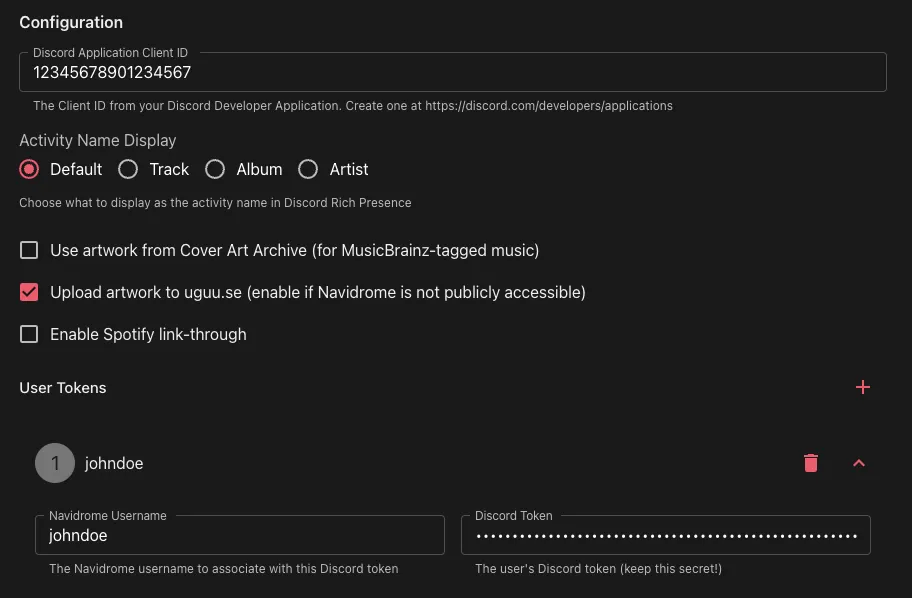
Fill in the configuration:
Client ID: Your Discord Application ID from Step 2
Activity Name Display: Choose what to show as the activity name (Default, Track, Album, Artist)
"Default" is recommended to help spread awareness of your favorite music server 😉, but feel free to choose the option that best suits your preferences
Use artwork from Cover Art Archive: Enable this if your music has MusicBrainz tags (see Album Art section below)
Upload to uguu.se: Enable this if your Navidrome isn't publicly accessible (see Album Art section below)
Enable Spotify link-through: Enable this to make track title and album art clickable links to Spotify
Users: Add your Navidrome username and Discord token from Step 3
Step 5: Enable Discord Activity Sharing
In Discord, ensure your activity is visible to others:
Go to User Settings (gear icon)
Navigate to Activity Privacy
Enable "Display current activity as a status message"
Step 6: Enable the Plugin
In Navidrome's plugin settings, toggle the plugin to Enabled
No restart required - check Navidrome logs for any initialization errors
Album Art Display
For album artwork to display in Discord, Discord needs to be able to access the image. Choose one of these options:
Option 1: Public Navidrome Instance
Use this if: Your Navidrome server can be reached from the internet
Setup:
Set the ND_BASEURL environment variable to your public URL:
# Example for Docker or Docker Compose
ND_BASEURL=https://music.yourdomain.com

# Example for navidrome.toml
BaseURL = "https://music.yourdomain.com"
Restart Navidrome (required for ND_BASEURL changes)
In plugin settings: Disable "Upload to uguu.se"
Option 2: Cover Art Archive (for MusicBrainz-tagged music)
Use this if: Your music is tagged with MusicBrainz IDs
Setup:
In plugin settings: Enable "Use artwork from Cover Art Archive"
No other configuration needed
How it works: The plugin checks the Cover Art Archive for album artwork using the track's MusicBrainz Release ID. If the specific release has no art, it falls back to the Release Group (which finds art from any edition of the same album). The resolved image URL is passed directly to Discord — no upload needed. Results are cached for 24 hours.
Note: This option takes priority over uguu.se and direct Navidrome URLs when enabled. It only works for tracks that have MusicBrainz IDs in their metadata — tracks without IDs will fall through to the next method.
Option 3: Private Instance with uguu.se Upload
Use this if: Your Navidrome is only accessible locally (home network, behind VPN, etc.)
Setup:
In plugin settings: Enable "Upload to uguu.se"
No other configuration needed
How it works: Album art is automatically uploaded to uguu.se (temporary, anonymous hosting service) so Discord can access it. Files are deleted after 3 hours.
Troubleshooting Album Art
No album art showing: Check Navidrome logs for errors
Using public instance: Verify ND_BASEURL is correct and Navidrome was restarted
Using Cover Art Archive: Verify your music has MusicBrainz IDs (check file tags for MUSICBRAINZ_ALBUMID)
Using uguu.se: Check that the option is enabled and your server has internet access
Configuration
Access the plugin configuration in Navidrome: Settings > Plugins > Discord Rich Presence
Configuration Fields
Client ID
What it is: Your Discord Application ID
How to get it:
Go to Discord Developer Portal
Create a new application or select an existing one
Copy the "Application ID" from the General Information page
Example: 1234567890123456789
Activity Name Display
What it is: Choose what information to display as the activity name in Discord Rich Presence
Options:
Default: Shows "Navidrome" (static app name)
Track: Shows the currently playing track title
Album: Shows the currently playing track's album name
Artist: Shows the currently playing track's artist name
Custom: Uses a template string with placeholders (see Custom Activity Name Template below)
Custom Activity Name Template
What it is: A template string used when Activity Name Display is set to Custom
Default: {artist} - {track}
Available placeholders:
{track} — The track title
{artist} — The track's primary artist name
{artists} — All track artists joined with • (e.g., Borgore • Miley Cyrus). Falls back to the value of {artist} when individual artist metadata is unavailable.
{album} — The album name
Use artwork from Cover Art Archive
When to enable: Your music is tagged with MusicBrainz IDs and you want album art from the Cover Art Archive
What it does: Checks the Cover Art Archive for artwork using MusicBrainz Release ID, with a fallback to Release Group ID. Takes priority over other artwork methods when enabled.
When to disable: Your music isn't tagged with MusicBrainz IDs
Upload to uguu.se
When to enable: Your Navidrome instance is NOT publicly accessible from the internet
What it does: Automatically uploads album artwork to uguu.se (temporary hosting) so Discord can display it
When to disable: Your Navidrome is publicly accessible and you've set ND_BASEURL
Enable Spotify Link-through
Default: Disabled
What it does: When enabled, clicking the track title or album art in Discord opens the corresponding Spotify page
How it works: Track URLs are resolved via ListenBrainz Labs for direct Spotify links, falling back to Spotify search when no match is found
Users
Add each Navidrome user who wants Discord Rich Presence. For each user, provide:
Username: The Navidrome login username (case-sensitive)
Token: The Discord user token (see Step 3 in Installation for how to obtain this)
How It Works
Plugin Capabilities
The plugin implements three Navidrome capabilities:
Capability
Purpose
Scrobbler
Receives PlaybackReport events for play/pause/stop state changes
Fetches track artwork data for image hosting upload
Flow
Playback starts — Navidrome sends a PlaybackReport with state playing
Plugin connects — If not already connected, establishes WebSocket to Discord gateway
Authentication — Sends identify payload with user's Discord token
Presence update — Sends activity with track info, timestamps, and processed artwork URL
Heartbeat loop — Recurring scheduler sends heartbeats every 41 seconds to keep connection alive
Playback paused — PlaybackReport with state paused updates presence with pause icon and "paused for" timer
Playback resumed — PlaybackReport with state playing restores running timestamps
Playback stopped — PlaybackReport with state stopped or expired clears presence and disconnects
Stateless Design
Navidrome plugins are stateless - each call creates a fresh instance. This plugin handles that by:
WebSocket connections: Managed by host, keyed by username
Sequence numbers: Stored in cache for heartbeat messages
Configuration: Reloaded on every method call
Artwork URLs: Cached after processing through Discord's external assets API
Image Processing
Discord requires images to be registered via their external assets API. The plugin resolves artwork URLs using a priority chain:
Cover Art Archive (if enabled): HEAD request to check for artwork by MusicBrainz Release ID, with fallback to Release Group ID. The resolved archive.org URL is used directly.
uguu.se (if enabled): Fetches artwork from Navidrome and uploads to temporary hosting.
Direct URL: Uses the Navidrome artwork URL directly (requires public instance).
The resolved URL is then registered with Discord's external assets API to get an mp: prefixed URL, which is cached (4 hours for track art, 48 hours for default image). Falls back to a default image if artwork is unavailable.
Spotify Linking
The plugin enriches the Discord presence with clickable Spotify links so others can easily find what you're listening to:
Track title → links to the Spotify track (or a Spotify search as fallback)
Artist name → links to a Spotify search for the artist
Album art → links to the Spotify track page
Track URLs are resolved via the ListenBrainz Labs API:
If the track has a MusicBrainz Recording ID (MBID), that is used for an exact lookup
Otherwise, artist name, track title, and album are used for a metadata-based lookup
If neither resolves, a Spotify search URL is used as a fallback
Resolved URLs are cached (30 days for direct track links, 4 hours for search fallbacks).
Files
File
Description
main.go
Plugin entry point, PlaybackReport state machine, scrobbler and scheduler implementations
Đọc thêm về navidrome/discord-rich-presence-plugin ở đâu?
Trang TopGit này là một snapshot — tab "Readme" hiển thị nguyên văn README của repo (đã bỏ link, giữ ảnh). Repo GitHub ở github.com/navidrome/discord-rich-presence-plugin là nguồn chính thức.
navidrome/discord-rich-presence-plugin có những chủ đề gì?
GitHub topics của navidrome/discord-rich-presence-plugin: "discord", "navidrome", "navidrome-plugin". TopGit xếp repo vào nhóm mã nguồn mở.
navidrome/discord-rich-presence-plugin có phải mã nguồn mở không?
Có — navidrome/discord-rich-presence-plugin phát hành theo license GPL-3.0, nghĩa là mã nguồn mở để đọc, fork và (tùy license) tái sử dụng. Mã: github.com/navidrome/discord-rich-presence-plugin.
navidrome/discord-rich-presence-plugin có trang demo không?
Dự án có trang chủ ở https://www.navidrome.org. Tab "Readme" ở trang này thường có ảnh chụp và hướng dẫn bắt đầu nhanh.
navidrome/discord-rich-presence-plugin còn đang phát triển không?
Commit gần nhất trên navidrome/discord-rich-presence-plugin là 5 tháng trước (theo timestamp GitHub). Repo có 19 fork — một chỉ báo về mức độ quan tâm của cộng đồng.
navidrome/discord-rich-presence-plugin dùng license gì?
navidrome/discord-rich-presence-plugin phát hành theo license GPL-3.0. Nên mở file LICENSE trên GitHub để xác nhận — license metadata đôi khi lệch với thực tế dự án.
Đọc đầy đủ README ở tab phía trên.
Chưa chắc discord-rich-presence-plugin có hợp với bạn?
Để ChatGPT, Claude hoặc Perplexity tìm hiểu giúp — bấm bên dưới và xem AI nói gì về discord-rich-presence-plugin.

 /discord-rich-presence-plugin