Snapshot của OfficeDev/generator-office: 959★ · TypeScript. Yeoman generator for building Microsoft Office related projects.
Tóm tắt dựng từ metadata GitHub của chính dự án — chưa có bài review TopGit. Trang sẽ tự động cập nhật khi bài review đầy đủ được xuất bản.
VÌ SAO CHƯA CÓ REVIEW
TopGit viết bài đầy đủ cho repo có nhiều sao nhất và được yêu cầu nhiều nhất. Trang này là snapshot trong thời gian chờ — xem README gốc ở tab READ ME.
This Yeoman generator creates a Node.js Office Add-in project that can be managed with Visual Studio Code or any other editor. You can use it to create Office Add-ins for:
Excel
OneNote
Outlook
PowerPoint
Project
Word
In addition you can use it to create add-ins that use single sign-on or Excel custom functions.
Like other Yeoman generators, this generator simply creates the scaffolding of files for your Office Add-in project. You can choose to create Office Add-in projects using plain HTML, CSS & JavaScript, or using React, and can choose between JavaScript and Typescript as well.
Note: While you can also use Visual Studio to create Office Add-in projects, the Yeoman generator provides more options in terms of the types of projects you can create. For example:
The Yeoman generator can create Office Add-in projects that use plain HTML, CSS & JavaScript, or React; whereas Visual Studio can only create Office Add-in projects that use plain HTML, CSS & JavaScript.
The Yeoman generator can create Office Add-ins projects that use either JavaScript or TypeScript; whereas Visual Studio only creates JavaScript projects which you would need to convert manually if you want to use TypeScript.
The Yeoman generator can create add-ins for Excel, OneNote, Outlook, PowerPoint, Project, and Word; whereas Visual Studio can only create add-ins for Excel, Outlook, PowerPoint, and Word.
For detailed information about installing and using the Yeoman generator to create Office Add-ins, see Create Office Add-in projects using the Yeoman Generator.
The generator is normally used in interactive mode, but you can use command line arguments and options as described in the sections below.
Usage
yo office [arguments] [options]
Command Line Arguments
The following command line arguments are supported. If using the command line arguments, you must use them in the order cited below, or the generator will prompt you for the values.
Example
yo office --projectType react --name "New Web AddIn" --host word --ts true
     _-----_     ╭──────────────────────────╮
    |       |    │   Welcome to the Office  │
    |--(o)--|    │   Add-in generator, by   │
   `---------´   │ @OfficeDev! Let's create │
    ( _´U`_ )    │    a project together!   │
    /___A___\   /╰──────────────────────────╯
     |  ~  |
   __'.___.'__
 ´   `  |° ´ Y `
--projectType
Specifies the project type to create.
Project Type
Description
taskpane
Task Pane add-in using HTML
react
Task Pane add-in using the React framework
excel-functions
Task Pane add-in with Excel Custom Functions
nested-app-auth
Taskpane add-in supporting Nested App Auth single sign-on
manifest
Manifest and related files for an Office Add-in
Type: String
Optional
--name
Title of the project - this is the display name that is written the manifest.xml file.
Type: String
Optional
Note: The Windows command prompt requires this argument to be in quotes (e.g. "My Office Add-in")
--host
The Microsoft Office client application that can host the add-in. The supported arguments include Excel (excel), OneNote (onenote), Outlook (outlook), PowerPoint (powerpoint), Project (project), and Word (word).
Type: String
Optional
Command Line Options
The following command line options are supported. If these are not specified, the generator will prompt you for the values before scaffolding the project. The options should be specified after the projectType, name and host arguments.
Specifying --output tells the generator to create the project in a specific location. If the output parameter is not specified, the project will be created in the current directory. If the output option specifies a non-empty folder,
the generator will inform you so you don't accidentally overwrite existing files.
Type: String
Optional
Specifying --js tells the generator to use JavaScript.
Type: Boolean
Default: False
Optional
Specifying --ts tells the generator to use TypeScript.
Type: Boolean
Default: False
Optional
Specifying --details tells the generator to provide detailed help, including all the accepted values for each project type and host,
Type: Boolean
Default: False
Optional
--skip-install
After scaffolding the project, the generator (and all sub generators) run all package management install commands such as npm install & typings install. Specifying --skip-install tells the generator to skip this step.
Type: Boolean
Default: False
Optional
Running the Generated Site
Launch the local HTTPS site on https://localhost:3000 by simply typing the following command in your console:
npm start
Note: Office Add-ins should use HTTPS, not HTTP, even when you are developing. If you are prompted to install a certificate after you run npm start, accept the prompt to install the certificate that the Yeoman generator provides.
Next, sideload the add-in in an Office application. See Sideload an Office Add-in for testing.
Validate manifest.xml
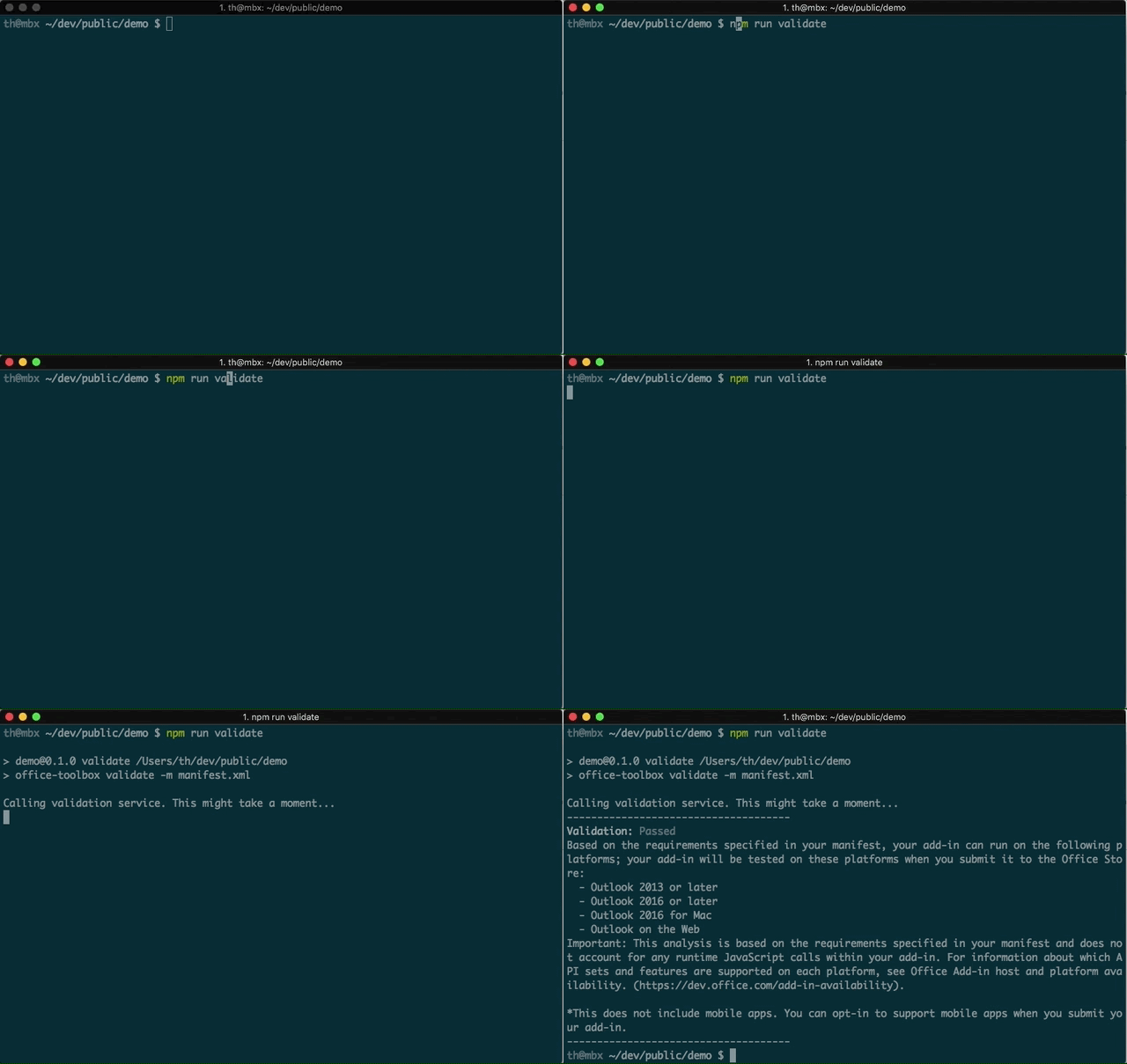
As you modify your manifest.xml file, use the included Office Toolbox to ensure that your XML file is correct and complete. It will also give you information on against what platforms to test your add-ins before submitting to the store.
To run Office Add-in Validator, use the following command in your project directory:
npm run validate
For more information on manifest validation, refer to our add-in manifests documentation.
Contributing
Contributing Guidelines
If you are interested in contributing, please start by reading the Contributing Guidelines.
Development
Prerequisites
Ensure you have Node.js (version 8.0.0 or later) installed.
Install Yeoman.
npm install -g yo
npm registry auth
Run the following command to get the authenticator for the first time:
Run artifacts-npm-credprovider to authenticate for the npm registry.
Initialize the repo
git clone https://github.com/OfficeDev/generator-office.git
cd generator-office
npm install
Make your desired changes
Project templates can be found under src/app/templates
Generator script can be found at src/app/index.ts
Build and link your changes
npm run build
npm link
cd ..
yo office
At this point, yo office will be running with your custom built office-generator changes.
Data usage
Yo Office collects anonymized usage data and sends it to Microsoft. This allows us to understand how Yo Office is used and how to improve it.
For more details on what we collect and how to turn it off, see our Data usage notice
Copyright (c) 2017 Microsoft Corporation. All rights reserved.
This project has adopted the Microsoft Open Source Code of Conduct. For more information, see the Code of Conduct FAQ or contact [email protected] with any additional questions or comments.
Trang TopGit này là một snapshot — tab "Readme" hiển thị nguyên văn README của repo (đã bỏ link, giữ ảnh). Repo GitHub ở github.com/OfficeDev/generator-office là nguồn chính thức.
OfficeDev/generator-office có bao nhiêu sao?
OfficeDev/generator-office có 959 sao GitHub — tải lại trang để xem số mới nhất, hoặc xem trực tiếp github.com/OfficeDev/generator-office. TopGit phản chiếu số sao của GitHub nhưng không cam kết đến từng phút.
OfficeDev/generator-office có phải mã nguồn mở không?
Có — OfficeDev/generator-office phát hành theo license MIT, nghĩa là mã nguồn mở để đọc, fork và (tùy license) tái sử dụng. Mã: github.com/OfficeDev/generator-office.
OfficeDev/generator-office có trang demo không?
Dự án có trang chủ ở https://www.npmjs.com/package/generator-office. Tab "Readme" ở trang này thường có ảnh chụp và hướng dẫn bắt đầu nhanh.
OfficeDev/generator-office là gì?
OfficeDev/generator-office (OfficeDev/generator-office) là dự án TypeScript trên GitHub. Theo mô tả gốc: Yeoman generator for building Microsoft Office related projects.
Đọc đầy đủ README ở tab phía trên.
Muốn nghe thêm một ý kiến về generator-office?
Hỏi một AI đọc được trang này — một cú bấm là có ngay nhận định về generator-office.

 /generator-office