PowerShell/PowerShellEditorServices là dự án hướng lập trình viên trên GitHub với 767 sao, viết chủ yếu bằng C#. A common platform for PowerShell development support in any editor or application!
Tóm tắt dựng từ metadata GitHub của chính dự án — chưa có bài review TopGit. Trang sẽ tự động cập nhật khi bài review đầy đủ được xuất bản.
VÌ SAO CHƯA CÓ REVIEW
TopGit viết bài đầy đủ cho repo có nhiều sao nhất và được yêu cầu nhiều nhất. Trang này là snapshot trong thời gian chờ — xem README gốc ở tab READ ME.
PowerShell Editor Services is a PowerShell module that provides common
functionality needed to enable a consistent and robust PowerShell development
experience in almost any editor or integrated development environment (IDE).
Language Server Protocol clients using PowerShell Editor Services
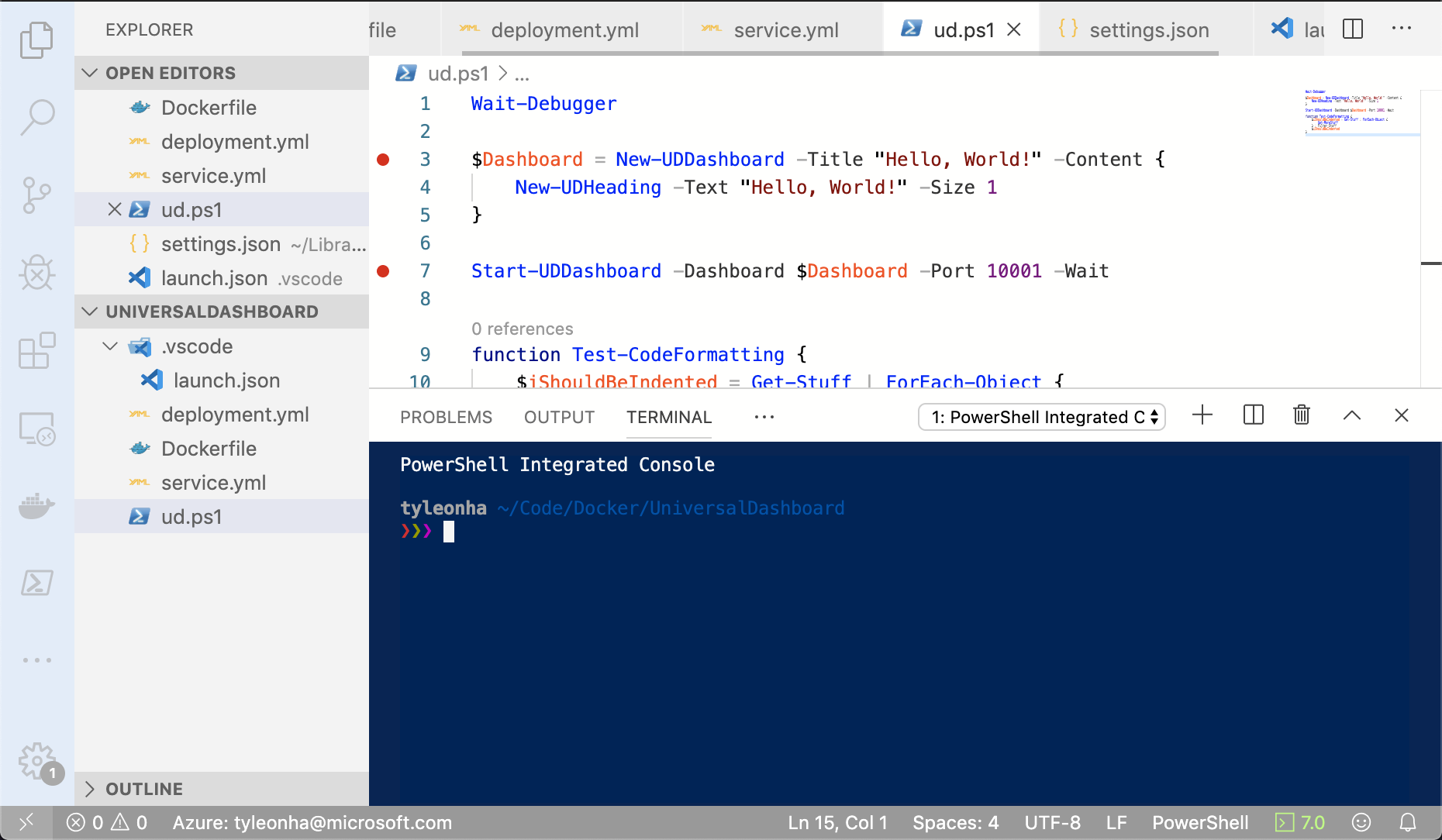
PowerShell for Visual Studio Code
[!NOTE]
PowerShell for Azure Data Studio will no longer be updated or maintained.
The functionality in PowerShell Editor Services is available in the following editor extensions:
[!WARNING]
These clients are community maintained and may be very out of date.
It is recommended to use a generic LSP plugin with your client if possible.
lsp-pwsh, an Emacs PowerShell plugin
intellij-powershell, adds PowerShell language support to IntelliJ-based IDEs
coc-powershell, a Vim and Neovim plugin
powershell.nvim a Neovim plugin
Supported PowerShell Versions
PSES runs as a PowerShell Module in currently supported versions of PowerShell 7+.
Windows PowerShell 5.1 is supported on a best-effort basis.
Features
The Language Service provides common editor features for the PowerShell language:
Code navigation actions (find references, go to definition)
Statement completions (IntelliSense)
Real-time semantic analysis of scripts using PowerShell Script Analyzer
The Debugging Service simplifies interaction with the PowerShell debugger (breakpoints, variables, call stack, etc.)
The $psEditor API enables scripting of the host editor
A full, Extension Terminal experience for interactive development and debugging
Usage
If you're looking to integrate PowerShell Editor Services into your Language Server Protocol compliant editor or client,
we support two ways of connecting.
Named Pipes / Unix Domain Sockets
If you're looking for a more feature-rich experience,
named pipes (AKA sockets) are the way to go.
They give you all the benefits of the Language Server Protocol with extra capabilities that you can take advantage of:
The PowerShell Extension Terminal
Debugging using the Debug Adapter Protocol
The typical command to start PowerShell Editor Services using named pipes / sockets is as follows:
The start script, Start-EditorServices.ps1, is found in the PowerShellEditorServices folder instead the PowerShellEditorServices.zip downloaded from the GitHub releases.
The session details (which named pipes were created) will be written to the given session details path,
and the client needs to point to these in order to connect.
The Visual Studio Code, Vim, Neovim, and IntelliJ extensions use named pipes.
Standard Input and Output
Connecting to PSES over standard input and output (stdio) is the simplest option in most LSP clients.
[!NOTE]
Some features are not available over stdio, such as the debugger and Extension
Terminal, because they require their own IO streams and stdio provides a single
pair of streams.
[!IMPORTANT]
Adjust the path to Start-EditorServices.ps1 as needed. The command above assumes
that the current directory is set to the folder where you expanded the PSES ZIP
archive to.
Depending on your editor, set the environment variables NO_COLOR and TERM
before issuing the command above to improve the readability of any error messages
pwsh may output. See Disabling ANSI Output
for more details.
For examples of tested end-to-end configurations, see:
emacs-simple-test.el
emacs-test.el
vim-simple-test.vim
vim-test.vim
They use eglot for Emacs and LanguageClient-neovim.
Advanced Usage
If you are trying to automate the service in PowerShell, you can also run it under Start-Process to prevent hanging your script.
It also gives you access to process automation features like $process.Close() or $process.Kill().
The Start-EditorServices.ps1 script takes many more optional arguments, but they no longer need to be specified.
Once the command is run,
PowerShell Editor Services will wait until the client connects to the named pipe.
The session.json will contain the paths of the named pipes that you will connect to.
There will be one you immediately connect to for Language Server Protocol messages,
and once you connect to when you launch the debugger for Debug Adapter Protocol messages.
PowerShell Extension Terminal
The PowerShell Extension Terminal uses the host process' stdio streams for console input and output.
Please note that this is mutually exclusive from using stdio for the Language Server Protocol messages.
If you want to take advantage of the PowerShell Extension Terminal,
you must include the -EnableConsoleRepl switch when calling Start-EditorServices.ps1.
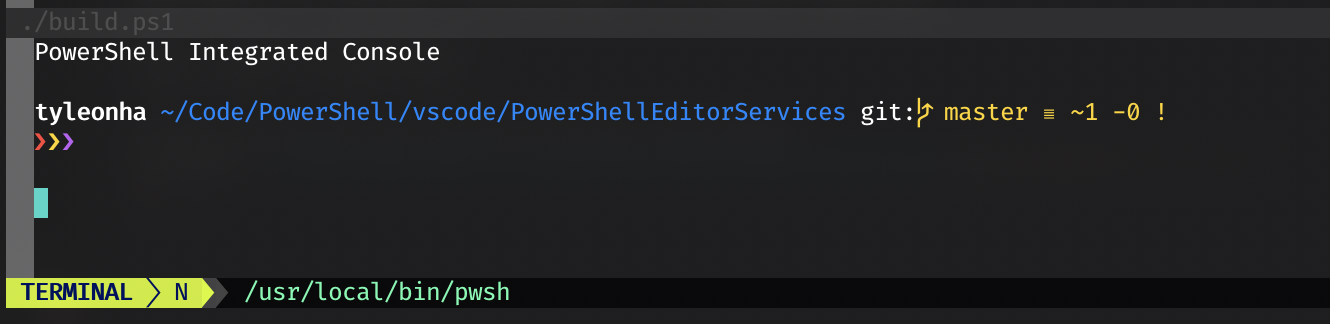
This is typically used if your client can create arbitrary terminals in the editor like below:
The Visual Studio Code, Vim, and IntelliJ extensions currently use the PowerShell Extension Terminal.
Debugging
Debugging support is also exposed with PowerShell Editor Services.
It is handled within the same process as the Language Server Protocol.
This provides a more integrated experience for end users but is something to note as not many other language servers work in the same way.
If you want to take advantage of debugging,
your client must support the Debug Adapter Protocol.
Your client should use the path to the debug named pipe found in the session.json file talked about above.
The debugging functionality in PowerShell Editor Services is available in the following editor extensions:
PowerShell for Visual Studio Code
nvim-dap-powershell for Neovim
powershell.nvim for Neovim
intellij-powershell
Rename Disclaimer
PowerShell is not a statically typed language. As such, the renaming of functions, parameters, and other symbols can only be done on a best effort basis. While this is sufficient for the majority of use cases, it cannot be relied upon to find all instances of a symbol and rename them across an entire code base such as in C# or TypeScript.
There are several edge case scenarios which may exist where rename is difficult or impossible, or unable to be determined due to the dynamic scoping nature of PowerShell.
The focus of the rename support is on quick updates to variables or functions within a self-contained script file. It is not intended for module developers to find and rename a symbol across multiple files, which is very difficult to do as the relationships are primarily only computed at runtime and not possible to be statically analyzed.
👍 Implemented and Tested Rename Scenarios <- Link to Tests
🤚 Unsupported Scenarios
❌ Renaming can only be done within a single file. Renaming symbols across multiple files is not supported, even if those are dotsourced from the source file.
❌ Functions or variables must have a corresponding definition within their scope or above to be renamed. If we cannot find the original definition of a variable or function, the rename will not be supported.
❌ Dynamic Parameters are not supported
❌ Dynamically constructed splat parameters will not be renamed/updated (e.g. $splat = @{};$splat.a = 5;Do-Thing @a)
❌ Scoped variables (e.g. $SCRIPT:test) are not currently supported
❌ Renaming a variable inside of a scriptblock that is used in unscoped operations like Foreach-Parallel or Start-Job and the variable is not defined within the scriptblock is not supported and can have unexpected results.
❌ Scriptblocks part of an assignment are considered isolated scopes. For example $a = 5; $x = {$a}; & $x does not consider the two $a to be related, even though in execution this reference matches.
❌ Scriptblocks that are part of a parameter are assumed to not be executing in a different runspace. For example, the renaming behavior will treat ForEach-Object -Parallel {$x} the same as Foreach-Object {$x} for purposes of finding scope definitions. To avoid unexpected renaming, define/redefine all your variables in the scriptblock using a param block.
❌ A lot of the logic relies on the position of items, so for example, defining a variable in a begin block and placing it after a process block, while technically correct in PowerShell, will not rename as expected.
❌ Similarly, defining a function, and having the function rely on a variable that is assigned outside the function and after the function definition, will not find the outer variable reference.
❌ Get-Variable and Set-Variable are not considered and not currently searched for renames
📄 Filing a Rename Issue
If there is a rename scenario you feel can be reasonably supported in PowerShell, please file a bug report in the PowerShellEditorServices repository with the "Expected" and "Actual" being the before and after rename. We will evaluate it and accept or reject it and give reasons why. Items that fall under the Unsupported Scenarios above will be summarily rejected, however that does not mean that they may not be supported in the future if we come up with a reasonably safe way to implement a scenario.
API Usage
Please note that we only consider the following as stable APIs that can be relied on:
Language Server Protocol connection
Debug Adapter Protocol connection
Start-up mechanism
The types of PowerShell Editor Services can change at any moment and should not be linked against in a production environment.
Development Environment
[!TIP]
The easiest way to manually test changes you've made in PowerShellEditorServices is to follow the vscode-powershell development doc.
Our NuGet configuration uses a secure feed with allow-listed third party dependency packages. If your contribution requires any changes to the included NuGet packages, you must disable this secure feed.
First, run this command to prevent accidentally commiting changes to this file
git update-index --skip-worktree nuget.config
Then, either delete the file or remove the packagesources section to use nuget.org again. Your PR will fail automated build checks and you must inform us at the top of your PR so the appropriate packages can be added if approved.
Build PowerShell Editor Services
Now you're ready to build the code. You can do so in one of two ways:
PowerShell
PS C:\src\PowerShellEditorServices> Invoke-Build
Visual Studio Code
Open the PowerShellEditorServices folder that you cloned locally and press Ctrl+Shift+B
(or Cmd+Shift+B on macOS) which will run the default build task.
Code of Conduct
Please see our Code of Conduct before participating in this project.
Contributions Welcome
We would love to incorporate community contributions into this project. If you would like to
contribute code, documentation, tests, or bug reports, please read our Contribution Guide to learn more.
Security Note
For any security issues, please see here.
Maintainers
Andy Jordan - @andyleejordan
Patrick Meinecke - @SeeminglyScience
Sydney Smith - @SydneyhSmith
Justin Grote - @JustinGrote
Emeriti
Rob Holt - @rjmholt
Tyler Leonhardt - @TylerLeonhardt
David Wilson - @daviwil
License
This project is licensed under the MIT License. Please see the
third-party notices file for details on the third-party
binaries that we include with releases of this project.
PowerShell/PowerShellEditorServices thuộc nhóm Developer Tools trên TopGit, cùng 4 topic GitHub. Trang Trending và Topics liệt kê các repo cùng số sao và cùng ngôn ngữ để so sánh.
Đọc thêm về PowerShell/PowerShellEditorServices ở đâu?
Trang TopGit này là một snapshot — tab "Readme" hiển thị nguyên văn README của repo (đã bỏ link, giữ ảnh). Repo GitHub ở github.com/PowerShell/PowerShellEditorServices là nguồn chính thức.
PowerShell/PowerShellEditorServices có bao nhiêu sao?
PowerShell/PowerShellEditorServices có 767 sao GitHub — tải lại trang để xem số mới nhất, hoặc xem trực tiếp github.com/PowerShell/PowerShellEditorServices. TopGit phản chiếu số sao của GitHub nhưng không cam kết đến từng phút.
PowerShell/PowerShellEditorServices có phải mã nguồn mở không?
Có — PowerShell/PowerShellEditorServices phát hành theo license MIT, nghĩa là mã nguồn mở để đọc, fork và (tùy license) tái sử dụng. Mã: github.com/PowerShell/PowerShellEditorServices.
PowerShell/PowerShellEditorServices có website riêng không?
TopGit chưa ghi nhận URL trang chủ cho PowerShell/PowerShellEditorServices. Phần README ở tab phía trên thường có link demo, hoặc xem mô tả GitHub của repo.
PowerShell/PowerShellEditorServices là gì?
PowerShell/PowerShellEditorServices (PowerShell/PowerShellEditorServices) là dự án C# trên GitHub. Theo mô tả gốc: A common platform for PowerShell development support in any editor or application!
PowerShell/PowerShellEditorServices so với các dự án Developer Tools khác thế nào?
PowerShell/PowerShellEditorServices được TopGit xếp vào nhóm Developer Tools, với 767 sao GitHub và viết bằng C#. Xem trang chủ đề Developer Tools trên TopGit để so sánh với các dự án tương tự theo số sao và mức độ hoạt động.
Đọc đầy đủ README ở tab phía trên.
Chưa chắc PowerShellEditorServices có hợp với bạn?
Để ChatGPT, Claude hoặc Perplexity tìm hiểu giúp — bấm bên dưới và xem AI nói gì về PowerShellEditorServices.
 /PowerShellEditorServices