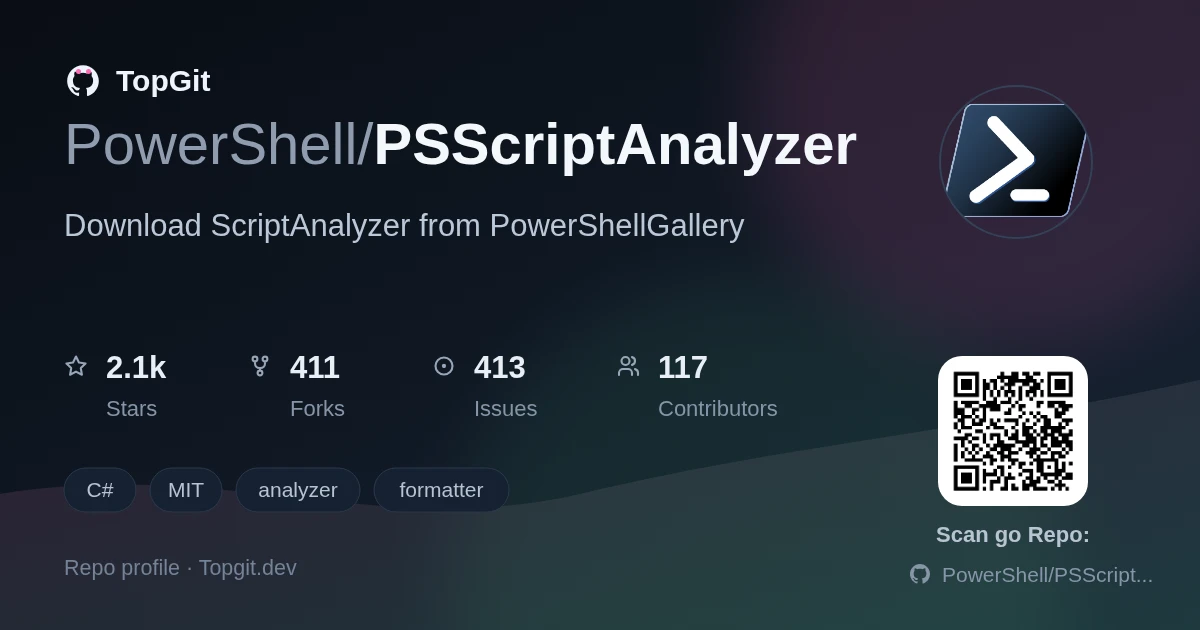
2.2k sao GitHub và vẫn tăng — PowerShell/PSScriptAnalyzer là dự án C# mà TopGit đang theo dõi trên nền tảng. Download ScriptAnalyzer from PowerShellGallery
Tóm tắt dựng từ metadata GitHub của chính dự án — chưa có bài review TopGit. Trang sẽ tự động cập nhật khi bài review đầy đủ được xuất bản.
VÌ SAO CHƯA CÓ REVIEW
TopGit viết bài đầy đủ cho repo có nhiều sao nhất và được yêu cầu nhiều nhất. Trang này là snapshot trong thời gian chờ — xem README gốc ở tab READ ME.
PSScriptAnalyzer is a static code checker for PowerShell modules and scripts. PSScriptAnalyzer
checks the quality of PowerShell code by running a set of rules. The rules are based
on PowerShell best practices identified by PowerShell Team and the community. It generates
DiagnosticResults (errors and warnings) to inform users about potential code defects and suggests
possible solutions for improvements.
PSScriptAnalyzer ships with a collection of built-in rules that check various aspects of
PowerShell code such as:
The presence of uninitialized variables
Use of PSCredential type
Use of Invoke-Expression
And many more
Back to ToC
DOCUMENTATION NOTICE
Conceptual user documentation has been moved out of the source code repository and into the
documentation repository so that it can be published on learn.microsoft.com.
The goal of this migration is to have the user documentation on learn.microsoft.com. The source code
repository should only contain documentation for the code base, such as how to build the code or how
to contribute to the code.
User documentation that has been migrated:
Most of the contents of this README can be found in the
PSScriptAnalyzer overview
For cmdlet reference, see
PSScriptAnalyzer
For rules, see
Rules overview
The PowerShellBestPractices.md content has been moved to
PSScriptAnalyzer rules and recommendations
The ScriptRuleDocumentation.md content has been moved to
Creating custom rules
There is one exception - the documentation for the rules and cmdlets will remain in the docs
folder to facilitate build testing and to be archived as part of each release. Only the
documentation for the latest release is published on on learn.microsoft.com.
Installation
To install PSScriptAnalyzer from the PowerShell Gallery, see
Installing PSScriptAnalyzer or simply open PowerShell in a Terminal and run:
Install-Module -Name PSScriptAnalyzer
To install PSScriptAnalyzer from source code:
Requirements
Latest .NET 8.0 SDK
If building for Windows PowerShell versions, then the .NET Framework 4.6.2 targeting pack (also referred to as developer/targeting pack) need to be installed. This is only possible on Windows.
Optional but recommended for development: Visual Studio 2022
Or Visual Studio Code
Pester v6 PowerShell module, available on PowerShell Gallery
PlatyPS PowerShell module, available on PowerShell Gallery
Steps
Obtain the source
Download the latest source code from the
release page OR
Building You can either build using the Visual Studio solution PSScriptAnalyzer.sln or build
using PowerShell specifically for your platform as follows:
The default build is for the currently used version of PowerShell
.\build.ps1
Windows PowerShell version 5.0
.\build.ps1 -PSVersion 5
PowerShell 7
.\build.ps1 -PSVersion 7
Rebuild documentation since it gets built automatically only the first time
.\build.ps1 -Documentation
Build all versions (PowerShell v5 and v7) and documentation
To confirm installation: run Get-ScriptAnalyzerRule in the PowerShell console to obtain the
built-in rules.
Adding/Removing resource strings
For adding/removing resource strings in the *.resx files, it is recommended to use
Visual Studio since it automatically updates the strongly typed *.Designer.cs files. The
Visual Studio 2017 Community Edition is free to use but should you not have/want to use
Visual Studio then you can either manually adapt the *.Designer.cs files or use the
New-StronglyTypedCsFileForResx.ps1 script although the latter is discouraged since it leads to a
bad diff of the *.Designer.cs files.
Tests
Pester-based ScriptAnalyzer Tests are located in path/to/PSScriptAnalyzer/Tests folder.
Ensure Pester of at least version 6.0 is installed
In the root folder of your local repository, run:
./build -Test
To retrieve the results of the run, you can use the tools which are part of the build module (build.psm1)
Import-Module ./build.psm1
Get-TestResults
To retrieve only the errors, you can use the following:
Import-Module ./build.psm1
Get-TestFailures
Back to ToC
Using PSScriptAnalyzer
The documentation in this section can be found in
Using PSScriptAnalyzer.
Contributions are welcome
There are many ways to contribute:
Open a new bug report, feature request or just ask a question by opening a
new issue.
Participate in the discussions of
issues,
pull requests and test fixes or new
features.
Submit your own fixes or features as a pull request but please discuss it beforehand in an issue.
Submit test cases.
Back to ToC
Creating a Release
Update changelog (changelog.md) with the new version number and change set. When updating the
changelog please follow the same pattern as that of previous change sets (otherwise this may break
the next step).
Import the ReleaseMaker module and execute New-Release cmdlet to perform the following actions.
Update module manifest (engine/PSScriptAnalyzer.psd1) with the new version number and change set
Update the version number in Engine/Engine.csproj and Rules/Rules.csproj
Trang TopGit này là một snapshot — tab "Readme" hiển thị nguyên văn README của repo (đã bỏ link, giữ ảnh). Repo GitHub ở github.com/PowerShell/PSScriptAnalyzer là nguồn chính thức.
PowerShell/PSScriptAnalyzer có bao nhiêu sao?
PowerShell/PSScriptAnalyzer có 2.2k sao GitHub — tải lại trang để xem số mới nhất, hoặc xem trực tiếp github.com/PowerShell/PSScriptAnalyzer. TopGit phản chiếu số sao của GitHub nhưng không cam kết đến từng phút.
PowerShell/PSScriptAnalyzer có phải mã nguồn mở không?
Có — PowerShell/PSScriptAnalyzer phát hành theo license MIT, nghĩa là mã nguồn mở để đọc, fork và (tùy license) tái sử dụng. Mã: github.com/PowerShell/PSScriptAnalyzer.
PowerShell/PSScriptAnalyzer còn đang phát triển không?
Commit gần nhất trên PowerShell/PSScriptAnalyzer là 4 tháng trước (theo timestamp GitHub). Repo có 415 fork — một chỉ báo về mức độ quan tâm của cộng đồng.
PowerShell/PSScriptAnalyzer là gì?
PowerShell/PSScriptAnalyzer (PowerShell/PSScriptAnalyzer) là dự án C# trên GitHub. Theo mô tả gốc: Download ScriptAnalyzer from PowerShellGallery
PowerShell/PSScriptAnalyzer so với các dự án Developer Tools khác thế nào?
PowerShell/PSScriptAnalyzer được TopGit xếp vào nhóm Developer Tools, với 2.2k sao GitHub và viết bằng C#. Xem trang chủ đề Developer Tools trên TopGit để so sánh với các dự án tương tự theo số sao và mức độ hoạt động.
Đọc đầy đủ README ở tab phía trên.
Muốn nghe thêm một ý kiến về PSScriptAnalyzer?
Hỏi một AI đọc được trang này — một cú bấm là có ngay nhận định về PSScriptAnalyzer.
 /PSScriptAnalyzer