twentyhq/favicon hiện có 438 sao trên GitHub, viết chủ yếu bằng TypeScript. 100% free and open-source favicon provider
Tóm tắt dựng từ metadata GitHub của chính dự án — chưa có bài review TopGit. Trang sẽ tự động cập nhật khi bài review đầy đủ được xuất bản.
VÌ SAO CHƯA CÓ REVIEW
TopGit viết bài đầy đủ cho repo có nhiều sao nhất và được yêu cầu nhiều nhất. Trang này là snapshot trong thời gian chờ — xem README gốc ở tab READ ME.
Looking for a company logo? Just fetch it from https://twenty-icons.com/airbnb.com
For example, if you're looking to display the Apple logo on your website, you can use: <img src="https://twenty-icons.com/apple.com" alt="Logo" />
You can also specify a size with an optional parameter https://twenty-icons.com/github.com/128.
We support and store [16x16, 32x32, 64x64, 128x128, 180x180, 192x192] sizes.
If no size is specified, the highest available supported size will be used.
Example
There are many other use-cases, mostly for B2B companies.
For example if you are a SaaS you could look at the domain when someone signups and automatically set their workspace logo based on that.
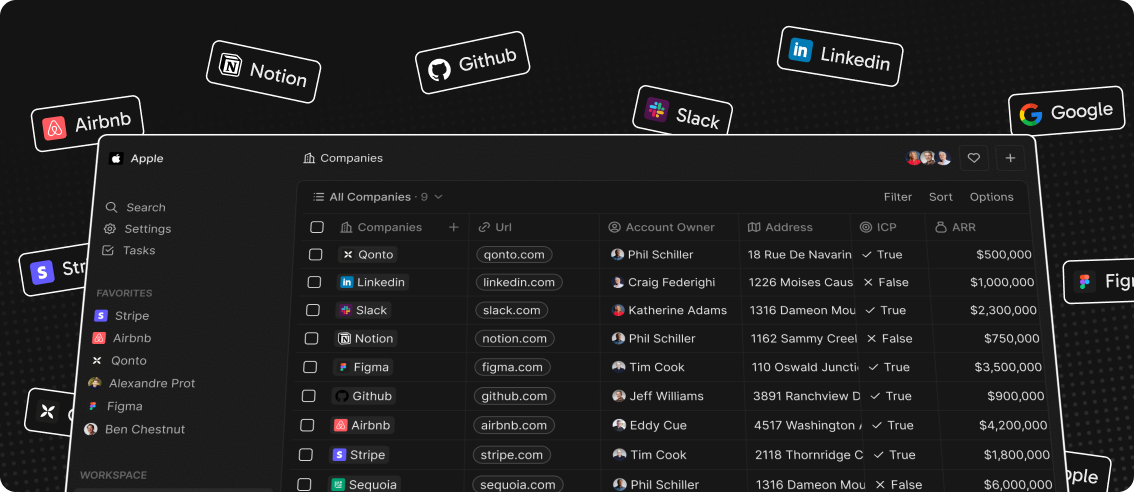
In our case, we built it because we needed it for our CRM Twenty:
Features
Fast delivery on the edge thanks to Cloudflare
Delivered securely via SSL
Support fetching larger icons, not just 16x16 favicons
Getting Started
To set up and run the Favicon package locally, follow these steps.
Pre-requisites
Before diving in, ensure your system is equipped with the following tools:
Node.js 24.5.0: Required for running the project (use .nvmrc for quick setup).
Git: Essential for version control and cloning the repository.
Yarn: A package manager for your dependencies (recommended over npm for this project).
Setting Up Locally
Clone the Repository:
Pull the project onto your local machine with the following command.
git clone https://github.com/twentyhq/favicon.git
Navigate to the Project Directory:
cd favicon
Install Dependencies:
Use the command below to fetch the required packages using Yarn.
yarn install
Start the Application:
Kickstart the NestJS application using:
yarn start
Once active, you can access the application at http://localhost:3000.
📌 Tip: To check the app's health, head over to http://localhost:3000/health. A 200 status indicates smooth operation.
Starting the App: Different Modes
Development Mode:
For starting the NestJS application in development mode with auto-refresh upon file modifications, use:
yarn start:dev
Debug Mode:
To boot the application in debug mode that also auto-restarts on changes:
yarn start:debug
This mode lets you latch a debugger, providing facilities like setting breakpoints, inspecting variables, and walking through the code.
Production Mode:
For production readiness, it's advised to build the application first and then initiate it. Execute the commands one after the other:
yarn build
yarn start:prod
Testing
Our application relies on Jest for unit and integration testing. Jest is renowned for its versatility and robustness, enabling a thorough evaluation of the codebase. Below are a set of scripts tailored for different testing scenarios:
Default Jest Testing:
To execute the default suite of Jest tests:
yarn test
Watch Mode:
If you're actively developing and need tests to run automatically upon file changes, use:
yarn test:watch
Coverage Report:
For a detailed analysis of test coverage across your codebase, execute:
yarn test:cov
Debugging:
To run Jest tests in debug mode, allowing for detailed code inspections via the Node Inspector:
yarn test:debug
End-to-End Testing:
To perform comprehensive end-to-end tests based on the configuration in test/jest-e2e.json:
yarn test:e2e
File Storage Options
Our application provides two distinct methods for favicon storage:
1. Local Storage
By default, during local development, favicons are stored in the .local-storage folder located at the root of the application. If you wish to alter this default path:
Update the STORAGE_LOCAL_PATH value in your .env file.
2. Amazon S3 Storage
For scalable and robust storage, the application also integrates with Amazon S3.
To configure Amazon S3 as your storage preference:
Modify the STORAGE_TYPE variable in the .env file to reflect s3.
Populate the Amazon S3-specific environment variables in the .env file:
Trang TopGit này là một snapshot — tab "Readme" hiển thị nguyên văn README của repo (đã bỏ link, giữ ảnh). Repo GitHub ở github.com/twentyhq/favicon là nguồn chính thức.
twentyhq/favicon có bao nhiêu sao?
twentyhq/favicon có 438 sao GitHub — tải lại trang để xem số mới nhất, hoặc xem trực tiếp github.com/twentyhq/favicon. TopGit phản chiếu số sao của GitHub nhưng không cam kết đến từng phút.
twentyhq/favicon có phải mã nguồn mở không?
Có — twentyhq/favicon phát hành theo license MIT, nghĩa là mã nguồn mở để đọc, fork và (tùy license) tái sử dụng. Mã: github.com/twentyhq/favicon.
twentyhq/favicon còn đang phát triển không?
Commit gần nhất trên twentyhq/favicon là hôm nay (theo timestamp GitHub). Repo có 58 fork — một chỉ báo về mức độ quan tâm của cộng đồng.
twentyhq/favicon dùng license gì?
twentyhq/favicon phát hành theo license MIT. Nên mở file LICENSE trên GitHub để xác nhận — license metadata đôi khi lệch với thực tế dự án.
twentyhq/favicon là gì?
twentyhq/favicon (twentyhq/favicon) là dự án TypeScript trên GitHub. Theo mô tả gốc: 100% free and open-source favicon provider
twentyhq/favicon viết bằng ngôn ngữ gì?
twentyhq/favicon chủ yếu viết bằng TypeScript. Trường "language" của GitHub dựa trên phần lớn byte ở nhánh mặc định.
Đọc đầy đủ README ở tab phía trên.
favicon có đáng để bạn bỏ thời gian?
ChatGPT, Claude và Perplexity đều đọc được trang này. Hỏi thử xem họ nghĩ gì về favicon.
 /favicon