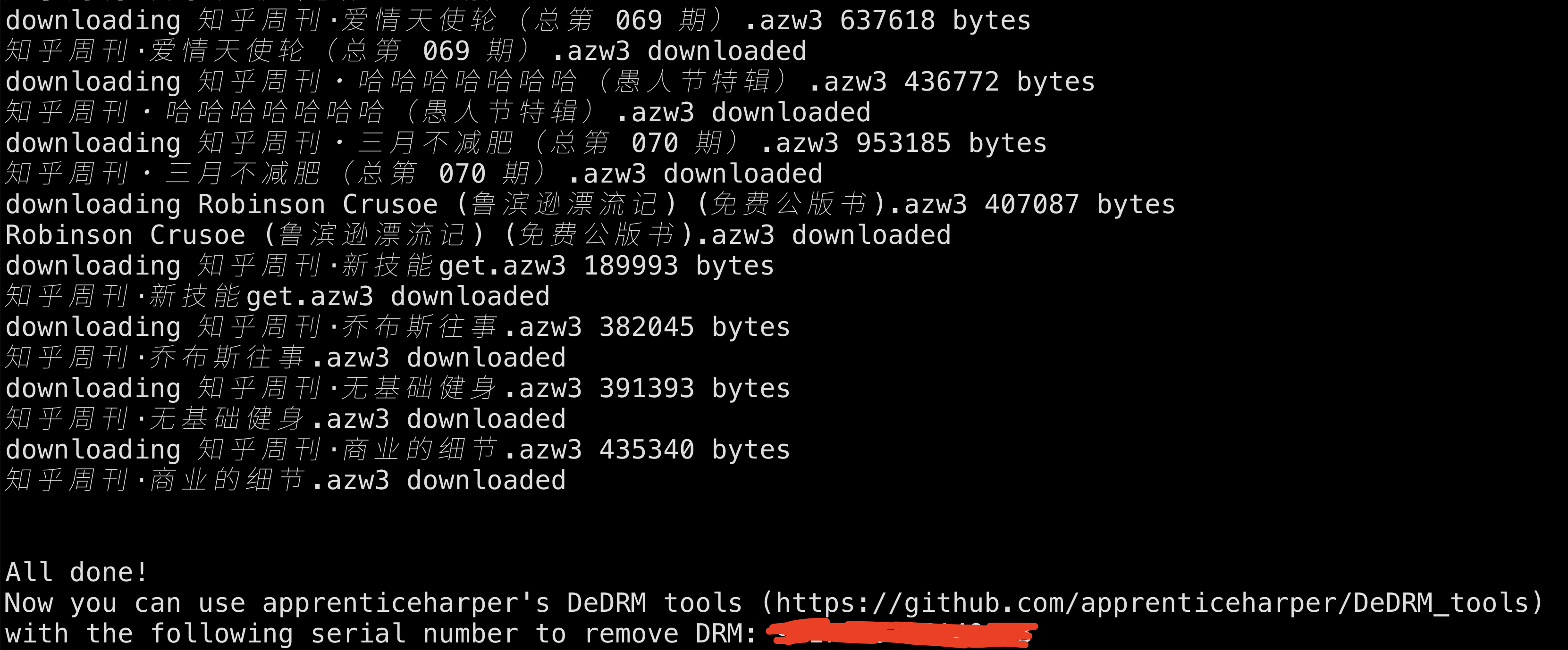
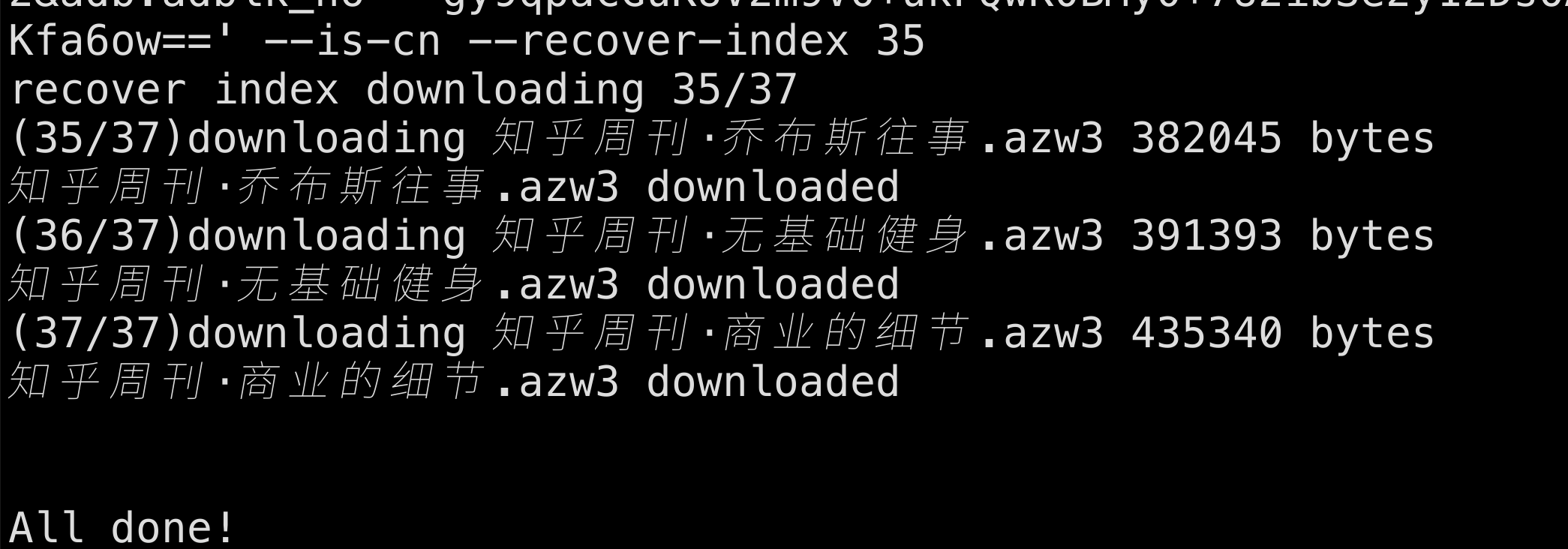
yihong0618/Kindle_download_helper được TopGit xếp vào nhóm dự án mã nguồn mở, với 2.7k sao trên GitHub, viết chủ yếu bằng Python. Download all your kindle books script.
Tóm tắt dựng từ metadata GitHub của chính dự án — chưa có bài review TopGit. Trang sẽ tự động cập nhật khi bài review đầy đủ được xuất bản.
VÌ SAO CHƯA CÓ REVIEW
TopGit viết bài đầy đủ cho repo có nhiều sao nhất và được yêu cầu nhiều nhất. Trang này là snapshot trong thời gian chờ — xem README gốc ở tab READ ME.
2024.01 Amazon has shut down the China storefront homepage. You can download your books by visiting this link: https://www.amazon.cn/hz/mycd/myx#/home/content/booksAll/dateDsc/
2023.06.26 If you don't have a physical Kindle device, you can use the following command. The downloaded EPUB files will be placed in the EPUB folder.
If you encounter the error AttributeError: 'NoneType' object has no attribute 'url', please refer to:
https://github.com/yihong0618/Kindle_download_helper/issues/155#issuecomment-1928677849
pip3 install -r requirements.txt
python no_kindle.py -e ${email} -p ${password}

# To download push books
python no_kindle.py -e ${email} -p ${password} --pdoc

# !!!!!! Amazon has taken down the China web storefront.
# You can generate the purchase records and notes of all your e-books for data analysis
python no_kindle.py -e ${email} -p ${password} --memory

# Supports exporting all bookmarks and reading information (Clipping data) #153
python no_kindle.py -e ${email} -p ${password} --bookmark
Installing Kindle_download_helper
GUI Application Download
Go to the Release page, download the binary file for your system and extract it.
Help
If you encounter issues opening the binary, please refer to #25
For Kindle download issues (triggered by Amazon risk control), see #69
Mac beginner's guide by @chongiscool, see #76
CLI Installation and Usage
python3
requirements
python3 --version # check python version
pip3 install kindle_download # install via pip
git clone https://github.com/yihong0618/Kindle_download_helper.git && cd Kindle_download_helper
pip3 install -r requirements.txt
python kindle.py -h # view usage parameters

usage: kindle.py [-h] [--cookie COOKIE | --cookie-file COOKIE_FILE] [--cn] [--jp] [--de] [--uk] [--resume-from INDEX] [--cut-length CUT_LENGTH] [-o OUTDIR] [-od OUTDEDRMDIR] [-s SESSION_FILE] [--pdoc]
                 [--resolve_duplicate_names] [--readme] [--dedrm] [--list] [--device_sn DEVICE_SN] [--mode MODE]
                 [csrf_token]

positional arguments:
  csrf_token            amazon or amazon cn csrf token

optional arguments:
  -h, --help            show this help message and exit
  --cookie COOKIE       amazon or amazon cn cookie
  --cookie-file COOKIE_FILE
                        load cookie local file
  --cn                  if your account is an amazon.cn account
  --jp                  if your account is an amazon.co.jp account
  --de                  if your account is an amazon.de account
  --uk                  if your account is an amazon.co.uk account
  --resume-from INDEX   resume from the index if download failed
  --cut-length CUT_LENGTH
                        truncate the file name
  -o OUTDIR, --outdir OUTDIR
                        download output dir
  -od OUTDEDRMDIR, --outdedrmdir OUTDEDRMDIR
                        download output dedrm dir
  -s SESSION_FILE, --session-file SESSION_FILE
                        The reusable session dump file
  --pdoc                to download personal documents or ebook
  --resolve_duplicate_names
                        Resolve duplicate names files to download
  --readme              If you want to generate kindle readme stats
  --dedrm               If you want to `dedrm` directly
  --list                just list books/pdoc, not to download
  --device_sn DEVICE_SN
                        Download file for device with this serial number
  --mode MODE           Mode of download, all : download all files at once, sel: download selected files
Downloading Kindle Books
Try to automatically retrieve cookie and csrfToken for download
python3 kindle.py --dedrm --cn ## --dedrm to remove DRM
(Recommended) Manually enter cookie and csrfToken for download
By default, all files are downloaded. To manually select which books to download, execute:
python3 kindle.py --mode sel # or "python3 kindle.py --pdoc --mode sel" for personal documents
After retrieving the book list, the program will prompt:
Input the index of books you want to download, split by space (q to quit, l to list books).
To quit, type "q" and press Enter; type "l" and press Enter to re-display the book list.
To download books, input the corresponding indices (e.g., 7 10 20):
7 10 20
Indices can also be specified with ranges, for example:
4 5 10:12 15
This downloads books 4, 5, 10, 11, 12, and 15.
Retrieving Cookie
If the cookie is reported as invalid by default, you can manually input it.
On the all books page, open the browser's developer tools (F12), go to the Network panel, locate any ajax request, and copy the Cookie from its request headers. The csrfToken can also be found in the Payload.
Then run:
python3 kindle.py --cn --cookie ${cookie}
You can also save the cookie to a text file and run python3 kindle.py --cookie-file ${cookie_file} to download books.
Retrieving CSRF Token
If the process fails to obtain the CSRF token, you can manually input it.
The csrfToken can be found in the page source on the all books page. Right-click, view the page source, and search for csrfToken to copy its value. Then run:
# CSRF Token
python3 kindle.py --cn ${csrfToken}
# Both cookie and CSRF Token
python3 kindle.py --cn --cookie ${cookie} ${csrfToken}
Automatically Retrieving Cookie
If you are running on your local machine, the project can use the browser-cookie3 library to automatically retrieve cookies from your browser.
Right-click the page source, search for csrfToken, and copy its value
Run: python3 kindle.py --jp
To download push files, run: python3 kindle.py --jp --pdoc
Notes
Cookie and CSRF token will expire; simply refresh the Amazon page.
The program will automatically create a DOWNLOADS directory in the current working directory; downloaded books will be stored there.
Supports directly dedrm-ing mobi files with --dedrm; processed files are saved in the DEDRMS folder.
If you use DeDRM_tools to decrypt, the key is stored in key.txt.
Alternatively, you can simply drag the file into Calibre (please google it).
If the process fails, you can use e.g. --resume-from ${num}
If a file name is too long, add --cut-length 70 to truncate it.
Supports downloading push files with --pdoc.
If there are many duplicate pdoc or book names, you can use --resolve_duplicate_names to resolve conflicts.
Error logs are recorded in .error_books.log.
Supports generating a README of recently finished books with --readme; the file is generated as my_kindle_stats.md.
Supports dedrm-ing mobi files directly using --dedrm; the output files are placed in DEDRMS.
The script dedrm.py is used to decrypt downloaded e-book files independently, outputting both azw and epub formats by default.
# For the latter three parameters, only specify if necessary. Usage: python3 dedrm.py <source_directory> <target_directory> <key> <output_format>
# For example, to decrypt files in the "ebook" directory and generate dedrm files in epub format only:
$ python3 dedrm.py ebook DeDRMed "key_string_from_key.txt" epub
Note
The cookie and csrf token will expire; just refresh the Amazon page.
The program automatically creates a DOWNLOADS directory in the working directory. Books are downloaded there.
If you use DeDRM_tools for decryption, the key is stored in key.txt.
Alternatively, just drop the file into Calibre—please google it.
If the process fails, you can use e.g. --resume-from ${num}
If file names are too long, add --cut-length 70 to truncate them.
Supports downloading push files with --pdoc
Use --resolve_duplicate_names to resolve conflicts with duplicate names.
Error logs are saved in .error_books.log.
Supports generating a README for recently finished books via --readme, which outputs to my_kindle_stats.md
Đọc thêm về yihong0618/Kindle_download_helper ở đâu?
Trang TopGit này là một snapshot — tab "Readme" hiển thị nguyên văn README của repo (đã bỏ link, giữ ảnh). Repo GitHub ở github.com/yihong0618/Kindle_download_helper là nguồn chính thức.
yihong0618/Kindle_download_helper có bao nhiêu sao?
yihong0618/Kindle_download_helper có 2.7k sao GitHub — tải lại trang để xem số mới nhất, hoặc xem trực tiếp github.com/yihong0618/Kindle_download_helper. TopGit phản chiếu số sao của GitHub nhưng không cam kết đến từng phút.
yihong0618/Kindle_download_helper có phải mã nguồn mở không?
Có — yihong0618/Kindle_download_helper phát hành theo license GPL-3.0, nghĩa là mã nguồn mở để đọc, fork và (tùy license) tái sử dụng. Mã: github.com/yihong0618/Kindle_download_helper.
yihong0618/Kindle_download_helper còn đang phát triển không?
Commit gần nhất trên yihong0618/Kindle_download_helper là 1.8 năm trước (theo timestamp GitHub). Repo có 229 fork — một chỉ báo về mức độ quan tâm của cộng đồng.
yihong0618/Kindle_download_helper dùng license gì?
yihong0618/Kindle_download_helper phát hành theo license GPL-3.0. Nên mở file LICENSE trên GitHub để xác nhận — license metadata đôi khi lệch với thực tế dự án.
yihong0618/Kindle_download_helper là gì?
yihong0618/Kindle_download_helper (yihong0618/Kindle_download_helper) là dự án Python trên GitHub. Theo mô tả gốc: Download all your kindle books script.
yihong0618/Kindle_download_helper viết bằng ngôn ngữ gì?
yihong0618/Kindle_download_helper chủ yếu viết bằng Python. Trường "language" của GitHub dựa trên phần lớn byte ở nhánh mặc định.
Đọc đầy đủ README ở tab phía trên.
Vẫn đang phân vân về Kindle_download_helper?
Một cú bấm sẽ gửi câu hỏi kèm trang này cho AI — xem AI nói gì về Kindle_download_helper.

 /Kindle_download_helper