Trên GitHub, YiiGuxing/TranslationPlugin đã đạt 11.8k sao, ngôn ngữ Kotlin. Translation plugin for IntelliJ-based IDEs/Android Studio.
Tóm tắt dựng từ metadata GitHub của chính dự án — chưa có bài review TopGit. Trang sẽ tự động cập nhật khi bài review đầy đủ được xuất bản.
VÌ SAO CHƯA CÓ REVIEW
TopGit viết bài đầy đủ cho repo có nhiều sao nhất và được yêu cầu nhiều nhất. Trang này là snapshot trong thời gian chờ — xem README gốc ở tab READ ME.
Download the plugin package on GitHub Releases or in
the JetBrains Plugin Repository.
Preferences(Settings) > Plugins > ⚙️ > Install plugin from disk... >
Select the plugin package and install (no need to unzip)
Restart the IDE after installation.
Using The Plugin
Sign up for a translation service (optional)
Most translation services require user registration to access their services
(such as OpenAI, DeepL, Youdao Translate, etc.).
Therefore, you may need to create an account, obtain an Authentication Key,
and then bind the Authentication Key within the plugin:Preferences(Settings) >
Tools >
Translation > General > Translation Engine > Configure...
Begin translating
Select a text or hover the mouse over the text > Right-click > Translate
Or use shortcuts for translation, as detailed in Actions.
Replace with Translation
Translate the target text and replace it. If the target language is English, the output has several formats: in
camel case, with a word separator (when the output contains multiple words, the separator can be configured in the
plugin configuration page: Translation Settings > Replace with Translation > Separator)
and in the original format.
Instructions: Select a text or hover the mouse over the text > Right-click > Replace with Translation (Or use shortcuts for translation, as detailed in Actions).
Translate Documentation
Quick Documentation and Inline Documentation can be translated via the context menu or shortcuts (detailed in Actions).
Translation Settings > Other > Automatically translate documentation: When you check this option, the Quick Documentation will be automatically translated when you view it.
Switch engines
Click the engine widget in the status bar or use the shortcut Ctrl + Shift + S
(macOS: Control + Meta + Y) to switch between
the translation engine and the TTS engine quickly.
Actions
Show Translation Dialog...
Open the translation dialog, which appears by default on the toolbar. Default shortcut:
Windows - Ctrl + Shift + O
macOS - Control + Meta + I
Translate
Extract words and translate them. If you have already selected a text, extract the words from the portion of the text
you'd like to translate. Otherwise, words are extracted automatically from the maximum range (this extraction can be
configured in Settings). This action is displayed by default in the editor's right-click context menu. Default
shortcut:
Windows - Ctrl + Shift + Y
macOS - Control + Meta + U
Translate(Inclusive)
Extract words and translate them. Automatically extract and translate all words from a specific range, ignoring
manually selected text. Default shortcut: (None)
Translate(Exclusive)
Extract words and translate them. Automatically extract the nearest single word, ignoring manually selected text.
Default shortcut: (None)
Replace with Translation
Replace the text with translation. The word extraction method works the same as when translating. Default shortcut:
Windows - Ctrl + Shift + X
macOS - Control + Meta + O
Translate Quick Documentation
Quickly display and translate the documentation of the symbol at the caret. When used in the Quick Documentation popup, you can toggle between the translated text and the original. Default shortcut:
Windows - Ctrl + Shift + Q
macOS - Control + Q
Translate Inline Documentation
Translate the contents of the editor's inline documentation rendered view. Displayed by default in the context menu of the inline documentation view and available within the inline documentation view. Default shortcut: (None)
Batch Translate Inline Documentation
Batch translate all inline documentation in the editor. Displayed by default on the editor inspections widget toolbar and available in Reader mode. Default shortcut: (None)
Translate Text Component
Translate selected text in some text components (e.g. Quick Docs, popup hints, input boxes...). This does not support
automatic word extraction. Default shortcut (same as translation shortcut):
Windows - Ctrl + Shift + Y
macOS - Control + Meta + U
Switch Engine
Quickly switch between translation engine and TTS engine. Default shortcut:
Windows - Ctrl + Shift + S
macOS - Control + Meta + Y
Word of the Day
Display the 'Word of the Day' dialog box. Default shortcut: (None)
Open dialog - Ctrl + Shift + Y / Control + Meta +
U
Quick Documentation window shortcuts:
Enable/disable automatic translation - Ctrl + Shift + Y / Control
Meta + U
FAQ
If you have any questions, please ask here.
What should I do if there is a network error or the network connection times out?
A:
Check the network environment and make sure the network is running smoothly.
Check whether a proxy is preventing the plugin from accessing the translation API.
Check the IDE proxy configuration to see if that is the cause of the problem.
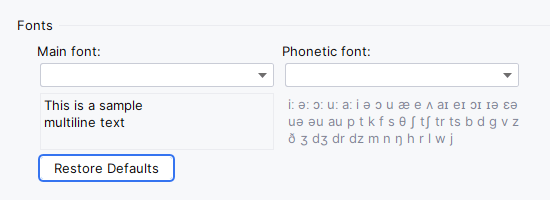
What should I do if the translated content appears garbled?
A: Garbled code generally appears when there is a lack of corresponding characters in the font. You can go to
the Settings page of the plugin to modify the font in order to fix the garbled code (as shown below).
What if I can't save the application key?
A: You can try changing the way passwords are saved to In KeePass (Settings > Appearance &
Behavior > System Settings > Passwords). For more details:
For macOS, please refer to #81
For Linux, please refer to #115
What if the shortcuts don't work?
A: The shortcut keys are most likely not working because they are being used in other plugins or external
applications. You can reset shortcut keys for the corresponding operations.
Support and Donations
You can contribute and support this project by doing any of the following:
Star the project on GitHub
Give feedback
Commit PR
Contribute your ideas/suggestions
Share the plugin with your friends/colleagues
If you love this plugin, please consider donating. It will inspire me to continue development on the project:
Open Collective
WeChat Pay
Alipay
Note
After using Alipay/WeChat to pay for your donation, please provide your name/nickname and website by leaving
a message or via email in the following format:
Name/Nickname [<website>][: message] (website and message are optional.)
Example: Yii.Guxing <github.com/YiiGuxing>: I like the plugin!
If you choose to send an email, please also provide the following information:
Trang TopGit này là một snapshot — tab "Readme" hiển thị nguyên văn README của repo (đã bỏ link, giữ ảnh). Repo GitHub ở github.com/YiiGuxing/TranslationPlugin là nguồn chính thức.
YiiGuxing/TranslationPlugin có bao nhiêu sao?
YiiGuxing/TranslationPlugin có 11.8k sao GitHub — tải lại trang để xem số mới nhất, hoặc xem trực tiếp github.com/YiiGuxing/TranslationPlugin. TopGit phản chiếu số sao của GitHub nhưng không cam kết đến từng phút.
YiiGuxing/TranslationPlugin có phải mã nguồn mở không?
Có — YiiGuxing/TranslationPlugin phát hành theo license MIT, nghĩa là mã nguồn mở để đọc, fork và (tùy license) tái sử dụng. Mã: github.com/YiiGuxing/TranslationPlugin.
YiiGuxing/TranslationPlugin có trang demo không?
Dự án có trang chủ ở https://intellij-translation.yiiguxing.top. Tab "Readme" ở trang này thường có ảnh chụp và hướng dẫn bắt đầu nhanh.
YiiGuxing/TranslationPlugin là gì?
YiiGuxing/TranslationPlugin (YiiGuxing/TranslationPlugin) là dự án Kotlin trên GitHub. Theo mô tả gốc: Translation plugin for IntelliJ-based IDEs/Android Studio.
Đọc đầy đủ README ở tab phía trên.
TranslationPlugin có đáng để bạn bỏ thời gian?
ChatGPT, Claude và Perplexity đều đọc được trang này. Hỏi thử xem họ nghĩ gì về TranslationPlugin.
 /TranslationPlugin
 TranslationPlugin