bwya77/vscode-dark-islands

bwya77/vscode-dark-islands is a AI Tools project on GitHub, written primarily in Shell. It has 8.6k stars. VSCode theme based off the easemate IDE and Jetbrains islands theme
Snapshot summary built from the project's own GitHub metadata — there's no written TopGit review yet. The page will update automatically when a full review is published.
TopGit writes full reviews for the most-starred, most-requested repositories. This page is a snapshot until then — see the READ ME tab for the original README in full.
Snapshot
Top contributors
Show top contributors
Islands Dark


A dark color theme for VS Code-compatible editors, including VSCodium, inspired by the easemate IDE. Features floating glass-like panels, rounded corners, smooth animations, and a deeply refined UI.
- easemate
- easemate Nav
- easemate effects
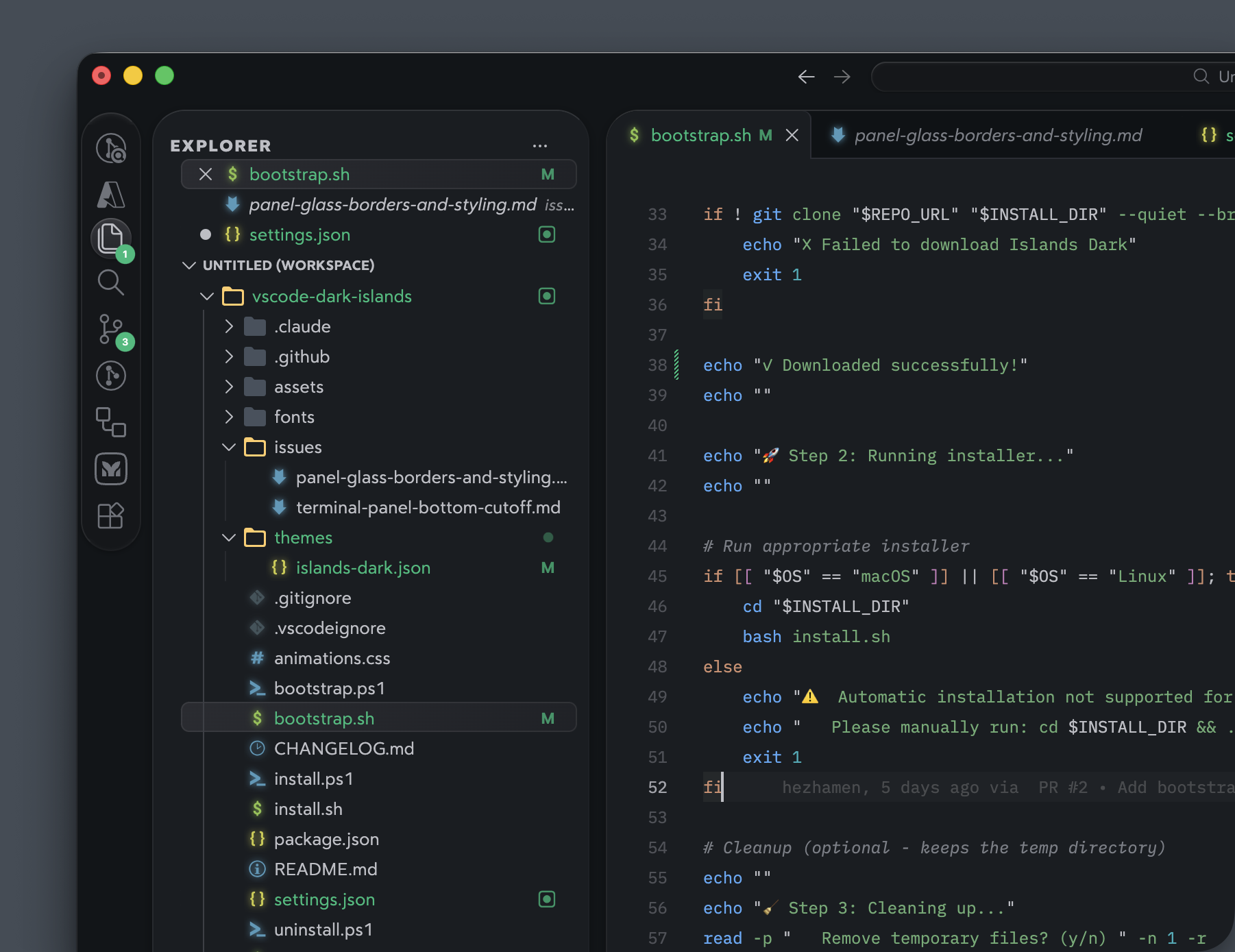
Features
- Deep dark canvas (
#131217) with floating panels - Glass-effect borders with directional light simulation (brighter top/left, subtle bottom/right)
- Rounded corners on all panels, notifications, command palette, and sidebars
- Pill-shaped activity bar with glass selection indicators
- Breadcrumb bar and status bar that dim when not hovered
- Tab close buttons that fade in on hover
- Smooth transitions on sidebar selections, scrollbars, and status bar
- Pill-shaped scrollbar thumbs
- Color-matched icon glow effect (works best with Seti Folder icon theme)
- Warm syntax highlighting with comprehensive language support (JS/TS, Python, Go, Rust, HTML/CSS, JSON, YAML, Markdown)
- IBM Plex Mono in the editor, FiraCode Nerd Font Mono in the terminal
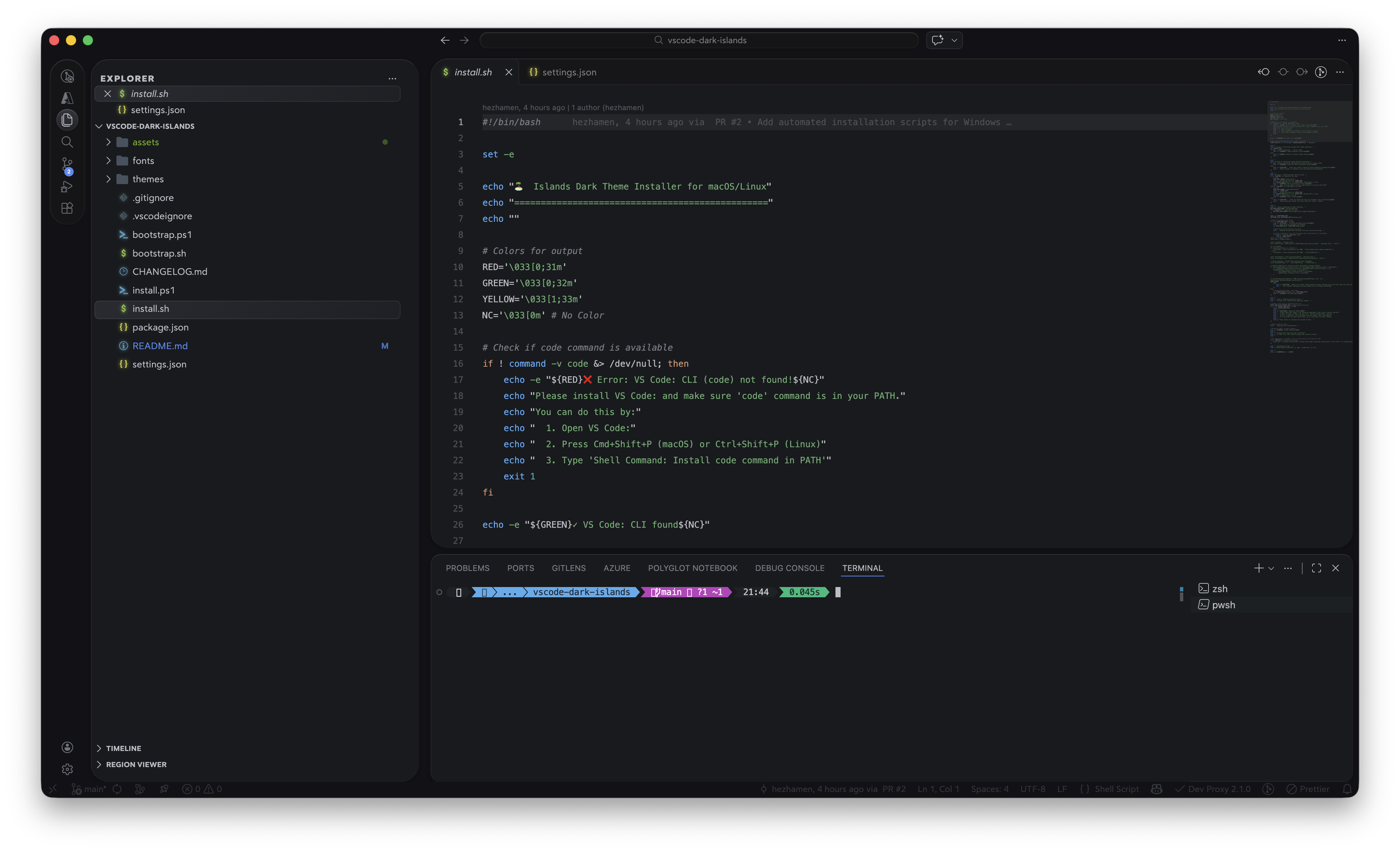
Installation
This theme has two parts: a color theme and CSS customizations that create the floating glass panel look.
One-Liner Install (Recommended)
The fastest way to install:
macOS/Linux (VS Code)
curl -fsSL https://raw.githubusercontent.com/bwya77/vscode-dark-islands/main/bootstrap.sh | bash
Windows (VS Code)
irm https://raw.githubusercontent.com/bwya77/vscode-dark-islands/main/bootstrap.ps1 | iex
macOS/Linux (VSCodium)
curl -fsSL https://raw.githubusercontent.com/bwya77/vscode-dark-islands/main/bootstrap.sh | bash -s -- --vscodium
Windows (VSCodium)
$env:ISLANDS_DARK_EDITOR = "vscodium"; irm https://raw.githubusercontent.com/bwya77/vscode-dark-islands/main/bootstrap.ps1 | iex
Manual Clone Install
If you prefer to clone first:
macOS/Linux (VS Code)
git clone https://github.com/bwya77/vscode-dark-islands.git islands-dark
cd islands-dark
./install.sh
Windows (VS Code)
git clone https://github.com/bwya77/vscode-dark-islands.git islands-dark
cd islands-dark
.\install.ps1
macOS/Linux (VSCodium)
git clone https://github.com/bwya77/vscode-dark-islands.git islands-dark
cd islands-dark
./install.sh --vscodium
Windows (VSCodium)
git clone https://github.com/bwya77/vscode-dark-islands.git islands-dark
cd islands-dark
.\install.ps1 -Editor vscodium
The scripts will automatically:
- ✅ Install the Islands Dark theme extension
- ✅ Install the Custom UI Style extension
- ✅ Install Bear Sans UI fonts
- ✅ Back up your existing settings and apply Islands Dark settings
- ✅ Reload VS Code or VSCodium
Important: After the script finishes and your editor reloads, you need to activate the CSS styling once:
- Press
Cmd+Shift+P(macOS) orCtrl+Shift+P(Windows/Linux)- Type Custom UI Style: Reload and press Enter
- VS Code or VSCodium will reload with the full theme applied
You only need to do this once (or after editor updates).
Note: IBM Plex Mono and FiraCode Nerd Font Mono must be installed separately (the script will remind you).
Nix Flake Install
If you use Nix, you can run a pre-configured instance of VS Code (or VSCodium) with the theme, extensions, and fonts already bundled.
To run it directly without installing:
# Run VS Code
nix run github:bwya77/vscode-dark-islands#vscode

# Or run VSCodium
nix run github:bwya77/vscode-dark-islands#vscodium
To use it in your NixOS or Home Manager configuration, add it to your flake inputs:
{
  inputs.islands-dark.url = "github:bwya77/vscode-dark-islands";

  outputs = { self, nixpkgs, islands-dark, ... }: {
    # Then you can add and use it:
    # islands-dark.packages.${pkgs.stdenv.hostPlatform.system}.vscode
    # islands-dark.packages.${pkgs.stdenv.hostPlatform.system}.vscodium
  };
}
Note: The Nix flake automatically includes the Custom UI Style extension, Seti Folder icon theme, and all required fonts (Bear Sans UI, IBM Plex Mono, and FiraCode Nerd Font). It will also copy the recommended
settings.jsonon the first run.
VSCodium
The standard installers support VSCodium via --vscodium on macOS/Linux and -Editor vscodium on Windows. They target VSCodium-specific paths and use the codium CLI:
- Extensions:
~/.vscode-oss/extensions/on macOS/Linux and%USERPROFILE%\.vscode-oss\extensions\on Windows - Settings:
~/Library/Application Support/VSCodium/User/on macOS,~/.config/VSCodium/User/on Linux, and%APPDATA%\VSCodium\User\on Windows
Use ./install.sh --vscodium or .\install.ps1 -Editor vscodium for local installs, and ./uninstall.sh --vscodium or .\uninstall.ps1 -Editor vscodium to remove it.
Cursor (VS Code fork)
Islands Dark works on Cursor with two small adaptations baked into a dedicated set of scripts and a settings-cursor.json variant.
One-Liner Install (Cursor, macOS/Linux)
curl -fsSL https://raw.githubusercontent.com/bwya77/vscode-dark-islands/main/bootstrap-cursor.sh | bash
Manual Clone Install (Cursor, macOS/Linux)
git clone https://github.com/bwya77/vscode-dark-islands.git islands-dark
cd islands-dark
./install-cursor.sh
The Cursor installer is a parallel of install.sh that targets Cursor-specific paths (~/.cursor/extensions/, ~/Library/Application Support/Cursor/User/ on macOS, ~/.config/Cursor/User/ on Linux) and uses the cursor CLI instead of code. It applies settings-cursor.json, which is identical to settings.json plus two adjustments required for Cursor:
"custom-ui-style.webview.enable": false— Cursor's extension detail panel renders inside a webview with a stricter Content-Security-Policy than VS Code's; leaving the webview patch enabled triggers a CSP error and a blank panel (upstream issue).- A rule hiding
.titlebar-left .action-item:has(.codicon-panel-left)— Cursor renders a "Toggle Primary Side Bar" button at the top-left of the title bar that overlaps the sidebar's rounded corner.Cmd+Bcontinues to toggle the sidebar.
Note: Custom UI Style is not officially supported on Cursor, but works reliably from version
0.5.6onwards (see issue #40). After every Cursor update you'll need to re-run Custom UI Style: Reload from the command palette to reapply the CSS injection. The "corrupt installation" warning that appears after the first reload is expected and can be dismissed with Don't Show Again.
To uninstall:
./uninstall-cursor.sh
Antigravity (VS Code fork)
One-Liner Install (Recommended)
The fastest way to install:
macOS/Linux
curl -fsSL https://raw.githubusercontent.com/bwya77/vscode-dark-islands/main/bootstrap-antigravity.sh | bash
Manual Clone Install (Antigravity, macOS/Linux)
git clone https://github.com/bwya77/vscode-dark-islands.git islands-dark
cd islands-dark
./install-antigravity.sh
The Antigravity installer is a parallel of install.sh that targets Antigravity-specific paths (~/.antigravity-ide/extensions/, ~/Library/Application Support/Antigravity IDE/User/ on macOS, ~/.config/Antigravity IDE/User/ on Linux) and uses the agy-ide CLI instead of code.
Note: Older deprecated Antigravity versions (<2.0) used legacy config paths, which are not currently supported. If you use an older version, manually back up your settings, install the theme yourself, and copy the relevant parts of
settings.jsoninto your Antigravity settings.
To uninstall:
./uninstall-antigravity.sh
Manual Installation
If you prefer to install manually, follow these steps:
Step 1: Install the theme
Clone this repo and copy the extension files:
git clone https://github.com/bwya77/vscode-dark-islands.git islands-dark
cd islands-dark
mkdir -p ~/.vscode/extensions/bwya77.islands-dark-1.0.0
cp package.json ~/.vscode/extensions/bwya77.islands-dark-1.0.0/
cp -r themes ~/.vscode/extensions/bwya77.islands-dark-1.0.0/
For VSCodium, use ~/.vscode-oss/extensions/bwya77.islands-dark-1.0.0 instead of ~/.vscode/extensions/bwya77.islands-dark-1.0.0.
On Windows (PowerShell):
git clone https://github.com/bwya77/vscode-dark-islands.git islands-dark
cd islands-dark
$ext = "$env:USERPROFILE\.vscode\extensions\bwya77.islands-dark-1.0.0"
New-Item -ItemType Directory -Path $ext -Force
Copy-Item package.json $ext\
Copy-Item themes $ext\themes -Recurse
For VSCodium on Windows, use $env:USERPROFILE\.vscode-oss\extensions\bwya77.islands-dark-1.0.0.
Step 2: Install the Custom UI Style extension
The floating panels, rounded corners, glass borders, and animations are powered by the Custom UI Style extension.
- Open Extensions in VS Code: (
Cmd+Shift+X/Ctrl+Shift+X) - Search for Custom UI Style (by
subframe7536) - Click Install
Step 3: Install recommended icon theme
For the best experience with the color-matched icon glow effect, install the Seti Folder icon theme:
- Open Extensions in VS Code (
Cmd+Shift+X/Ctrl+Shift+X) - Search for Seti Folder (by
l-igh-t) - Click Install
- Set it as your icon theme: Command Palette > Preferences: File Icon Theme > Seti Folder
Step 5: Install fonts
This theme uses two fonts:
- IBM Plex Mono — used in the editor
- FiraCode Nerd Font Mono — used in the terminal
- Bear Sans UI — used in the sidebar, tabs, command center, and status bar (included in
fonts/folder)
To install Bear Sans UI:
- Open the
fonts/folder in this repo - Select all
.otffiles and double-click to open in Font Book (macOS) or right-click > Install (Windows)
If you prefer different fonts, update the editor.fontFamily, terminal.integrated.fontFamily, and font-family values in the settings.
Step 6: Apply the settings
Copy the contents of settings.json from this repo into your VS Code: settings:
- Open Command Palette (
Cmd+Shift+P/Ctrl+Shift+P) - Search for Preferences: Open User Settings (JSON)
- Merge the contents of this repo's
settings.jsoninto your settings file
Note: If you already have existing settings, merge carefully. The key settings are
workbench.colorTheme,custom-ui-style.stylesheet, and the font/indent preferences.
Step 7: Enable Custom UI Style
- Open Command Palette (
Cmd+Shift+P/Ctrl+Shift+P) - Run Custom UI Style: Enable
- VS Code will reload
Note: You may see a "corrupt installation" warning after enabling. This is expected since Custom UI Style injects CSS into VS Code. Click the gear icon on the warning and select Don't Show Again.
What the CSS customizations do
| Element | Effect |
|---|---|
| Canvas | Deep dark background (--islands-bg-canvas) behind all panels |
| Sidebar | Floating with rounded corners (--islands-panel-radius), glass borders, drop shadow |
| Editor | Floating with rounded corners (--islands-panel-radius), glass borders, browser-tab effect |
| Activity bar | Pill-shaped with glass inset shadows, circular selection indicator |
| Command center | Pill-shaped with glass effect |
| Bottom panel | Floating with rounded corners (--islands-panel-radius), glass borders |
| Right sidebar | Floating with rounded corners (--islands-panel-radius), glass borders |
| Notifications | Rounded corners (--islands-widget-radius), glass borders, deep drop shadow |
| Command palette | Rounded corners (--islands-widget-radius), glass borders, rounded list rows |
| Scrollbars | Pill-shaped thumbs with fade transition |
| Tabs | Browser-tab style (active tab open at bottom), close button fades in on hover |
| Breadcrumbs | Hidden until hover with smooth fade transition |
| Status bar | Dimmed text that brightens on hover |
| File icons | Color-matched glow via drop-shadow (best with Seti Folder icon theme) |
Customization
All key visual properties are controlled by CSS custom properties defined at the top of the custom-ui-style.stylesheet in settings.json. Edit the variables on .monaco-workbench to quickly adjust the look:
".monaco-workbench": {
    "--islands-panel-radius": "24px",
    "--islands-widget-radius": "14px",
    "--islands-input-radius": "12px",
    "--islands-item-radius": "6px",
    "--islands-panel-gap": "8px",
    "--islands-panel-top": "8px",
    "--islands-bg-canvas": "#121216",
    "--islands-bg-surface": "#181a1d",
    "background-color": "var(--islands-bg-canvas) !important"
}
Colors
| Variable | Default | Applies to |
|---|---|---|
--islands-bg-canvas | #121216 | Deep background behind all panels (workbench, title bar, status bar, activity bar) |
--islands-bg-surface | #181a1d | Panel/surface background (chat input, editor widgets) |
These two colors define the theme's depth. The canvas is the darker base layer visible between panels, while the surface is the slightly lighter color used for interactive elements. To override the theme's panel colors (sidebar, editor, terminal backgrounds), use VS Code's workbench.colorCustomizations in your settings.
Border Radius
| Variable | Default | Applies to |
|---|---|---|
--islands-panel-radius | 24px | Sidebar, editor, terminal/bottom panel, auxiliary bar |
--islands-widget-radius | 14px | Notifications, chat input, command palette |
--islands-input-radius | 12px | Search bars, SCM commit input, buttons, hover tooltips |
--islands-item-radius | 6px | List rows, tabs, pane headers, terminal tabs |
For example, to make everything sharper, set all values to 8px. For a fully rounded look, try 32px / 20px / 16px / 8px. Pill-shaped elements (activity bar, scrollbar thumbs, command center, badges) are not affected by these variables.
Panel Spacing
| Variable | Default | Applies to |
|---|---|---|
--islands-panel-gap | 8px | Horizontal spacing between sidebar, editor, chat/auxiliary bar, terminal, and notifications |
--islands-panel-top | 8px | Top margin of panels (space below the title bar) |
Increase to 12px or 16px for a more spaced-out layout, or reduce to 4px for a tighter look.
Troubleshooting
Changes aren't taking effect
Try disabling and re-enabling Custom UI Style:
- Command Palette > Custom UI Style: Disable
- Reload VS Code
- Command Palette > Custom UI Style: Enable
- Reload VS Code
"Corrupt installation" warning
This is expected after enabling Custom UI Style. Dismiss it or select Don't Show Again.
Previously used "Custom CSS and JS Loader" extension
If you previously used the Custom CSS and JS Loader extension (be5invis.vscode-custom-css), it may have injected CSS directly into VS Code's workbench.html that persists even after disabling. If styles conflict, reinstall VS Code to get a clean workbench.html, then use only Custom UI Style.
Uninstalling
Run the uninstall script to restore your editor to its previous state:
macOS/Linux:
# If you still have the repo cloned:
cd islands-dark
./uninstall.sh

# Or download and run directly:
curl -fsSL https://raw.githubusercontent.com/bwya77/vscode-dark-islands/main/uninstall.sh | bash
Windows (PowerShell):
# If you still have the repo cloned:
cd islands-dark
.\uninstall.ps1

# Or download and run directly:
irm https://raw.githubusercontent.com/bwya77/vscode-dark-islands/main/uninstall.ps1 | iex
VSCodium macOS/Linux:
# If you still have the repo cloned:
cd islands-dark
./uninstall.sh --vscodium

# Or download and run directly:
curl -fsSL https://raw.githubusercontent.com/bwya77/vscode-dark-islands/main/uninstall.sh | bash -s -- --vscodium
VSCodium Windows (PowerShell):
# If you still have the repo cloned:
cd islands-dark
.\uninstall.ps1 -Editor vscodium

# Or download and run directly:
$env:ISLANDS_DARK_EDITOR = "vscodium"; irm https://raw.githubusercontent.com/bwya77/vscode-dark-islands/main/uninstall.ps1 | iex
Cursor (macOS/Linux):
# If you still have the repo cloned:
cd islands-dark
./uninstall-cursor.sh
Antigravity (macOS/Linux):
# If you still have the repo cloned:
cd islands-dark
./uninstall-antigravity.sh
The uninstall script will:
- ✅ Restore your previous
settings.jsonfrom the backup (or surgically remove Islands Dark keys if no backup exists) - ✅ Remove the Islands Dark theme extension
- ✅ Restore your previous color theme and icon theme
- ✅ Remove Custom UI Style's CSS patches from VS Code or VSCodium workbench files
- ✅ Uninstall Custom UI Style (only if it wasn't installed before Islands Dark)
- ✅ Remove Bear Sans UI fonts (only if they weren't installed before Islands Dark)
- ✅ Clean up state files and reload VS Code or VSCodium
Everything is fully automated — no manual steps required after the script runs.
Credits
Inspired by the JetBrains Islands Dark UI theme.
License
MIT
Related repositories
A GPL-3.0 GitHub repo compiling system prompts, tool definitions, and model names for 25+ AI products, from Cursor and Claude Code to lesser-known agents like Cluely and Qoder.
Superpowers is an open-source (MIT) skills library and bootstrap instruction set that turns a coding agent's ad-hoc habits into a fixed pipeline: brainstorm a spec, write a plan, build under TDD, review, then close out the branch. Skills trigger automatically once installed, and the same methodology works across eleven different agent harnesses, each requiring its own install step.
An Open Source Machine Learning Framework for Everyone
DigitalPlat FreeDomain: Free Domain For Everyone
Quick answers
How does bwya77/vscode-dark-islands compare to other AI Tools projects?
bwya77/vscode-dark-islands is tracked by TopGit in the AI Tools category, with 8.6k GitHub stars and written in Shell. Browse the AI Tools topic page on TopGit to compare it against similar projects by stars and activity.
Is bwya77/vscode-dark-islands open source?
TopGit's metadata for bwya77/vscode-dark-islands does not record a license. Most public repositories on GitHub ARE open source, but the exact terms vary — verify by opening the LICENSE file directly.
What else is in the AI Tools space?
bwya77/vscode-dark-islands is tracked by TopGit under the AI Tools category, alongside 5 GitHub-tagged topics. Trending and Topics pages list peer repositories of comparable stars and language.
What is bwya77/vscode-dark-islands?
bwya77/vscode-dark-islands (bwya77/vscode-dark-islands) is a Shell project on GitHub. From the project's own README: VSCode theme based off the easemate IDE and Jetbrains islands theme
Where do I read more about bwya77/vscode-dark-islands?
This TopGit page is a snapshot — the READ ME tab shows the project's own README content (links stripped, images preserved). The GitHub repository at github.com/bwya77/vscode-dark-islands is the definitive source.
Why is bwya77/vscode-dark-islands categorized under AI Tools?
TopGit places bwya77/vscode-dark-islands in the AI Tools category based on its GitHub topics and description (tagged: "easemate", "jetbrains", "visual-studio-code"). Categories are assigned from real repository metadata, not editorial guesswork.
Read full README in the tab above.