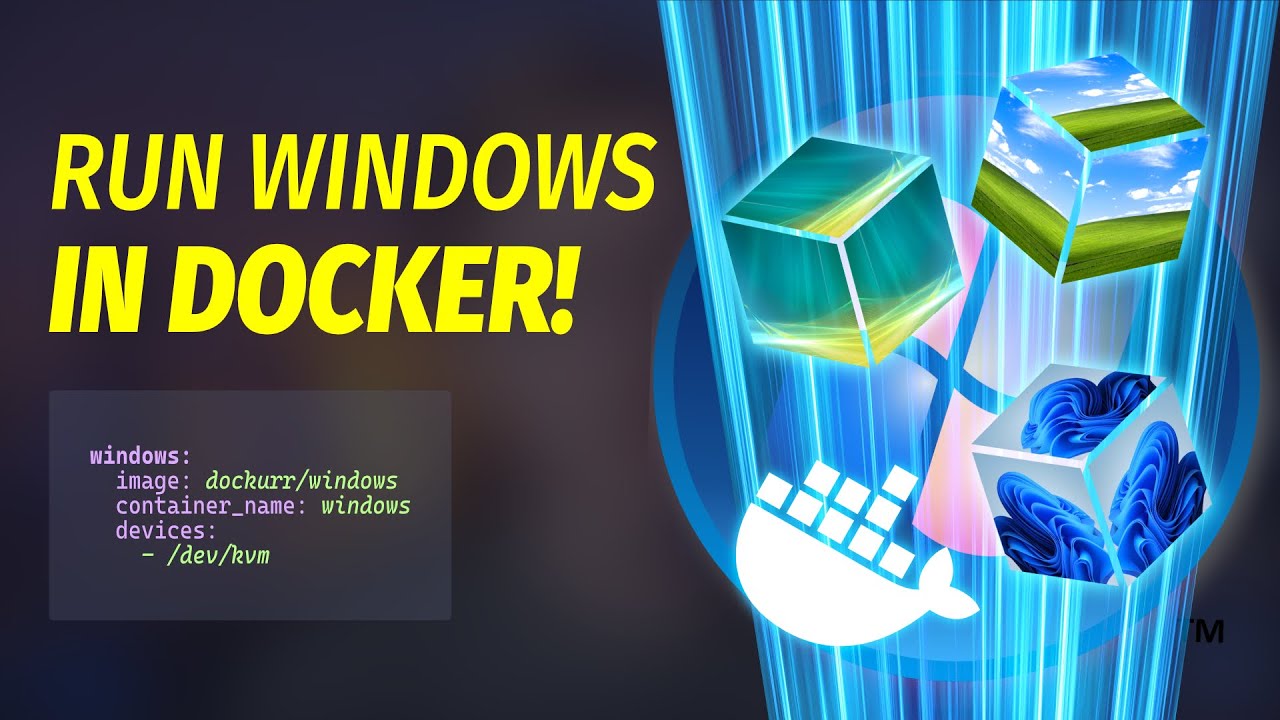
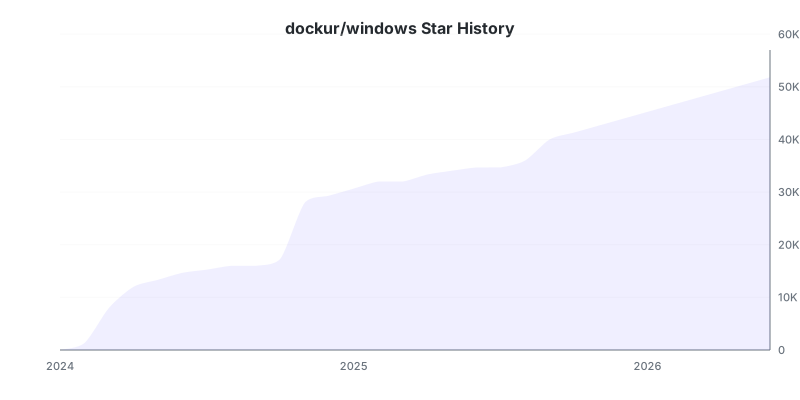
Indexed by TopGit from live GitHub metadata: dockur/windows has 52.8k stars, written primarily in Shell. Windows inside a Docker container.
Snapshot summary built from the project's own GitHub metadata — there's no written TopGit review yet. The page will update automatically when a full review is published.
WHY NO REVIEW YET
TopGit writes full reviews for the most-starred, most-requested repositories. This page is a snapshot until then — see the READ ME tab for the original README in full.
For a complete graphical desktop experience, see WinBoat, WinPodX, or WinApps. Each of these projects uses this container as its backend.
GitHub Codespaces:
Requirements ⚙️
Docker or Podman on a Linux host with KVM support.
Docker Desktop or Podman (Desktop) on Windows 11 with nested virtualization enabled.
At least 4 GB of available RAM.
At least 64 GB of free disk space.
[!NOTE]
Docker Desktop on Linux, macOS, and Windows 10 does not currently provide KVM access to containers and is therefore not supported.
FAQ 💬
How do I use it?
Very simple! These are the steps:
Start the container and connect to port 8006 using your web browser.
Sit back and relax while the magic happens, the whole installation will be performed fully automatically.
Once you see the desktop, your Windows installation is ready for use.
Enjoy your brand new machine, and don't forget to star this repo!
How do I select the Windows version?
By default, Windows 11 Pro will be installed. But you can add the VERSION environment variable to your compose file, in order to specify an alternative Windows version to be downloaded:
environment:
  VERSION: "10"
Select from the values below:
Value
Version
Size
11
Windows 11 Pro
7.9 GB
11l
Windows 11 LTSC
4.7 GB
11e
Windows 11 Enterprise
6.6 GB
10
Windows 10 Pro
5.7 GB
10l
Windows 10 LTSC
4.6 GB
10e
Windows 10 Enterprise
5.2 GB
8e
Windows 8.1 Enterprise
3.7 GB
7u
Windows 7 Ultimate
3.1 GB
vu
Windows Vista Ultimate
3.0 GB
xp
Windows XP Professional
0.6 GB
2k
Windows 2000 Professional
0.4 GB
2025
Windows Server 2025
7.6 GB
2022
Windows Server 2022
6.0 GB
2019
Windows Server 2019
5.3 GB
2016
Windows Server 2016
6.5 GB
2012
Windows Server 2012
4.3 GB
2008
Windows Server 2008
3.0 GB
2003
Windows Server 2003
0.6 GB
core11
Tiny11 Core
3.0 GB
tiny11
Tiny11
5.3 GB
tiny10
Tiny10
3.6 GB
reactos
ReactOS
0.1 GB
[!TIP]
To install ARM64 versions of Windows use dockur/windows-arm.
How do I change the storage location?
To change the storage location, include the following bind mount in your compose file:
volumes:
  - ./windows:/storage
Replace the example path ./windows with the desired storage folder or named volume.
How do I change the size of the disk?
To expand the default size of 64 GB, add the DISK_SIZE setting to your compose file and set it to your preferred capacity:
environment:
  DISK_SIZE: "256G"
[!TIP]
This can also be used to resize an existing disk to a larger capacity without any data loss. However, you will need to manually extend the disk partition afterwards, since the added disk space will appear as unallocated.
How do I share files with the host?
After installation there will be a folder called Shared on your desktop, which can be used to exchange files with the host machine.
To select a folder on the host for this purpose, include the following bind mount in your compose file:
volumes:
  -  ./example:/shared
Replace the example path ./example with your desired shared folder, which then will become visible as Shared on the desktop and as drive Z:.
How do I change the amount of CPU or RAM?
By default, Windows will be allowed to use 2 CPU cores and 4 GB of RAM.
If you want to adjust this, you can specify the desired amount using the following environment variables:
environment:
  RAM_SIZE: "8G"
  CPU_CORES: "4"
How do I enable audio?
Audio is disabled by default unless you are using RDP. To stream it to the browser, add the following environment variable:
environment:
  AUDIO: "Y"
Then enable Audio under Settings → Advanced in the web viewer. The stream is only active while this option is enabled, so it uses no extra bandwidth otherwise.
How do I connect using RDP?
The web viewer is mainly intended for use during installation, since it is less responsive than RDP and does not support features such as clipboard sharing.
So for a better experience you can connect using any Microsoft Remote Desktop client to the IP of the container, using the username Docker and password admin.
There is an RDP client for Android available from the Play Store and one for iOS in the Apple Store. For Linux you can use FreeRDP and on Windows just type mstsc in the search box.
How do I configure the username and password?
By default, a user called Docker is created and its password is admin.
If you want to set up different credentials during installation, you can configure them in your compose file:
environment:
  USERNAME: "bill"
  PASSWORD: "gates"
When DOMAIN is set, these variables are used as domain credentials instead.
How do I join an Active Directory domain?
Windows can automatically join an Active Directory domain during installation. Specify the domain name in your compose file:
Use the domain name, such as example.com, rather than a URL. The supplied account is added to the local Administrators group and automatically signed in after installation. DOMAIN_OU is optional and specifies where the computer account should be created.
Windows must be able to resolve and reach the domain controller through the domain's DNS server.
How do I select the Windows language?
By default, the English version of Windows will be downloaded.
But you can add the LANGUAGE environment variable to your compose file, in order to specify an alternative language to be downloaded:
If you want to set up a keyboard layout or locale that is not the default for your selected language, you can add KEYBOARD and REGION variables like this:
environment:
  REGION: "en-US"
  KEYBOARD: "en-US"
How do I install a custom image?
In order to download an unsupported ISO image, specify its URL in the VERSION environment variable:
To run a script or include additional files, create a file called install.bat and place it in a folder together with any files it needs, such as software to be installed.
Then bind that folder in your compose file like this:
volumes:
  - ./example:/oem
The example folder ./example will be copied to C:\OEM and the install.bat file inside it will be executed during the final step of the automatic installation.
How do I perform a manual installation?
It's recommended to stick to the automatic installation, as it adjusts various settings to prevent common issues when running Windows inside a virtual environment.
However, if you insist on performing the installation manually (at your own risk), add the following environment variable to your compose file:
environment:
  MANUAL: "Y"
How do I assign an individual IP address to the container?
By default, the container uses bridge networking, which shares the IP address with the host.
If you want to assign an individual IP address to the container, you can create a macvlan network as follows:
An added benefit of this approach is that you won't have to perform any port mapping anymore, since all ports will be exposed by default.
[!IMPORTANT]
This IP address won't be accessible from the Docker host due to the design of macvlan, which doesn't permit communication between the two. If this is a concern, you need to create a second macvlan as a workaround.
How can Windows acquire an IP address from my router?
After configuring the container for macvlan, it is possible for Windows to become part of your home network by requesting an IP from your router, just like a real PC.
To enable this mode, in which the container and Windows will have separate IP addresses, add the following lines to your compose file:
You can pass through disk devices or partitions directly by adding them to your compose file in this way:
devices:
  - /dev/sdb:/disk1
  - /dev/sdc1:/disk2
Use /disk1 if you want it to become your main drive (which will be formatted during installation), and use /disk2 and higher to add them as secondary drives (which will stay untouched).
How do I pass through a USB device?
To pass through a USB device, first look up its vendor and product IDs via the lsusb command, then add them to your compose file like this:
[!WARNING]
Adding a USB mass storage device before Windows Setup has finished may cause it to fail. Or worse: the drive can get formatted as the system disk, and all your data will be lost! So always keep them disconnected when launching the container for the first time.
How do I enable dynamic memory allocation?
By default, the VM is allocated the full amount of RAM configured via RAM_SIZE for its entire lifetime.
However, you can enable memory ballooning if you want the container to dynamically reclaim unused guest RAM based on host memory pressure.
Are these all available options?
No. For a complete overview of all supported settings, see the environment variables page.
How do I verify that KVM is available?
First, make sure your platform and container runtime meet the requirements listed above.
On a Linux host, install cpu-checker and run:
sudo apt install cpu-checker
sudo kvm-ok
A working configuration should report:
KVM acceleration can be used
You can also verify that the KVM device exists:
ls -l /dev/kvm
If KVM is unavailable, check whether:
Hardware virtualization (Intel VT-x or AMD-V) is enabled in your BIOS or UEFI.
Nested virtualization is enabled when the host itself is a virtual machine.
Your VPS or cloud provider supports nested virtualization.
If kvm-ok succeeds but the container still reports that KVM is unavailable, you can temporarily add privileged: true to your Compose file to rule out a permission or device-access issue.
How do I run macOS in a container?
You can use dockur/macos for that. It shares many of the same features, except for the automatic installation.
How do I run a Linux desktop in a container?
You can use qemus/qemu in that case.
Is this project legal?
Yes, this project contains only open-source code and does not distribute Windows itself. Any product keys found in the code are generic installation keys published by Microsoft for trial purposes and are not valid activation licenses.
You are responsible for ensuring that you have a valid Windows license and that your use complies with Microsoft's licensing terms.
Stars 🌟
Disclaimer ⚖️
The product names, logos, brands, and other trademarks referred to within this project are the property of their respective trademark holders. This project is not affiliated, sponsored, or endorsed by Microsoft Corporation.
No homepage URL was recorded for dockur/windows in TopGit's last sync. The README tab above frequently contains screenshots and demo links, or check the repository description on GitHub.
Is dockur/windows open source?
Yes — dockur/windows ships under the MIT license, which makes its source code freely readable (and, depending on license terms, forkable and reusable). Source: github.com/dockur/windows.
What else is in the AI Tools space?
dockur/windows is tracked by TopGit under the AI Tools category, alongside 8 GitHub-tagged topics. Trending and Topics pages list peer repositories of comparable stars and language.
What is dockur/windows?
dockur/windows (dockur/windows) is a Shell project on GitHub. From the project's own README: Windows inside a Docker container.
What license does dockur/windows use?
dockur/windows is released under the MIT license. Always verify the LICENSE file directly on GitHub for the authoritative terms — license strings can be edited out of sync with a project's actual stance.
Where do I read more about dockur/windows?
This TopGit page is a snapshot — the READ ME tab shows the project's own README content (links stripped, images preserved). The GitHub repository at github.com/dockur/windows is the definitive source.
Why is dockur/windows categorized under AI Tools?
TopGit places dockur/windows in the AI Tools category based on its GitHub topics and description (tagged: "docker", "docker-container", "virtualization"). Categories are assigned from real repository metadata, not editorial guesswork.
Read full README in the tab above.
Still deciding about windows?
One click hands the question to an AI along with this page — see what it says about windows.
 /windows