dunovank/jupyter-themes is one of the UI-focused repositories TopGit tracks, currently at 9.8k stars, written primarily in CSS. Custom Jupyter Notebook Themes
Snapshot summary built from the project's own GitHub metadata — there's no written TopGit review yet. The page will update automatically when a full review is published.
WHY NO REVIEW YET
TopGit writes full reviews for the most-starred, most-requested repositories. This page is a snapshot until then — see the READ ME tab for the original README in full.
This project is no longer active and the library is not being supported. Thank you to everyone who contributed to jupyter-themes!
JupyterLab Themes:
JupyterLab themes with similar style/design conventions to jupyter-themes:
JupyterLab v3.0
Legos Theme.
Darkside Theme.
JupyterLab v4.0
Darkside Theme.
JT Customizable Features
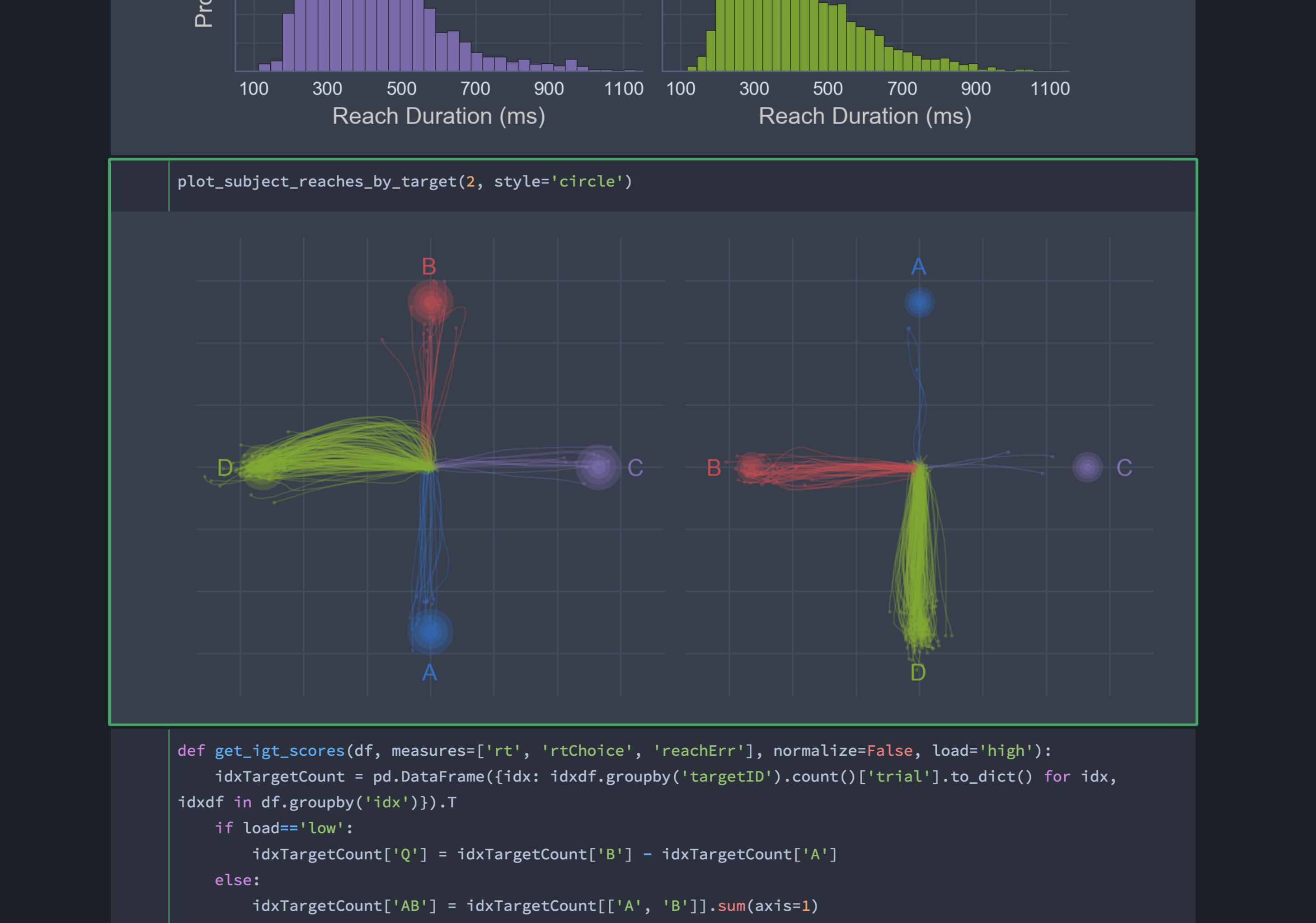
plotting style
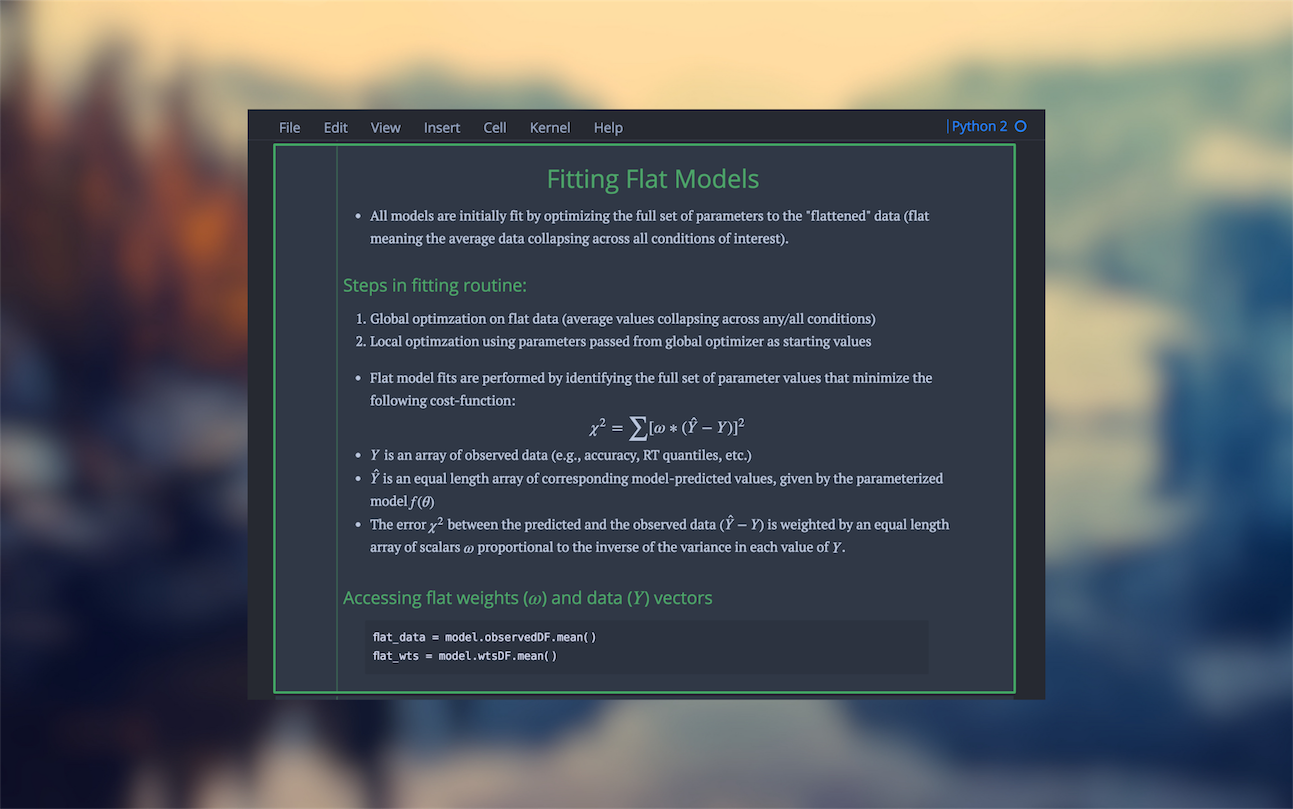
markdown/equations
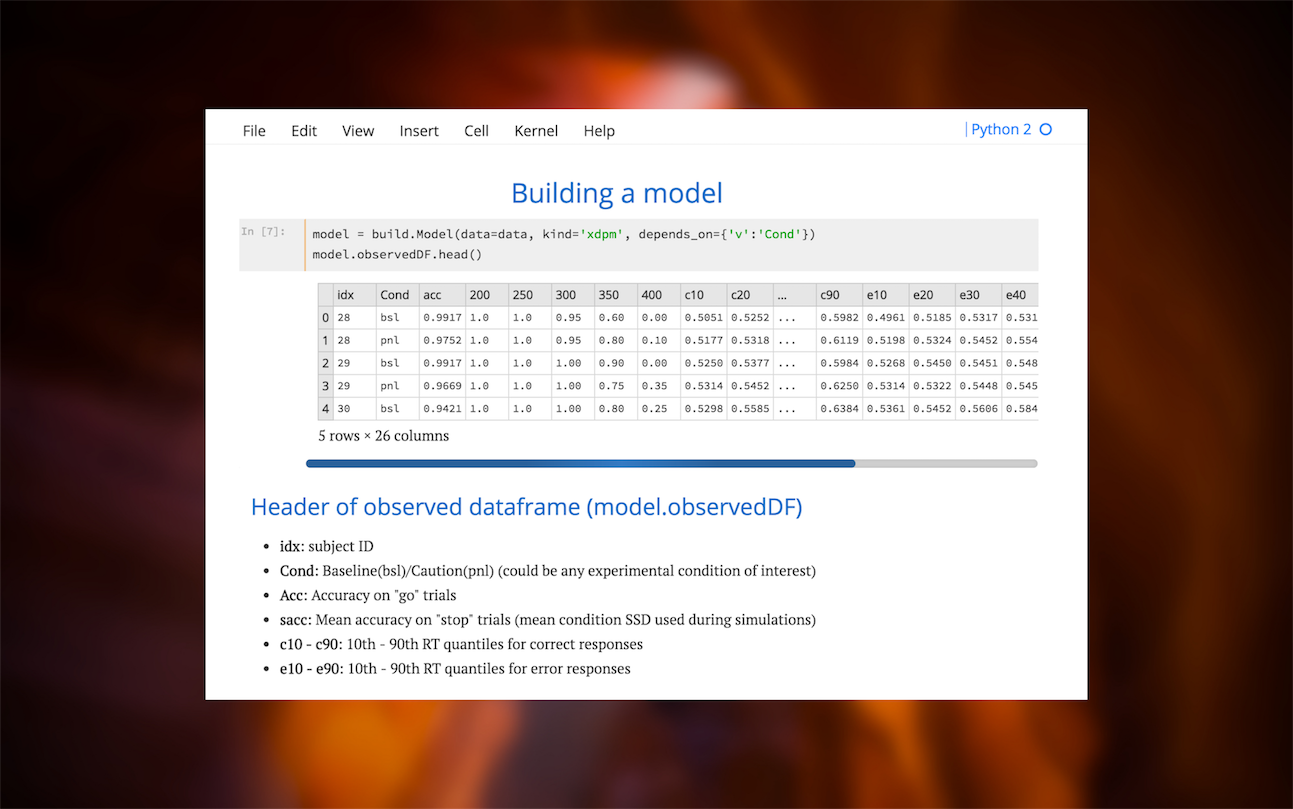
pandas dataframes
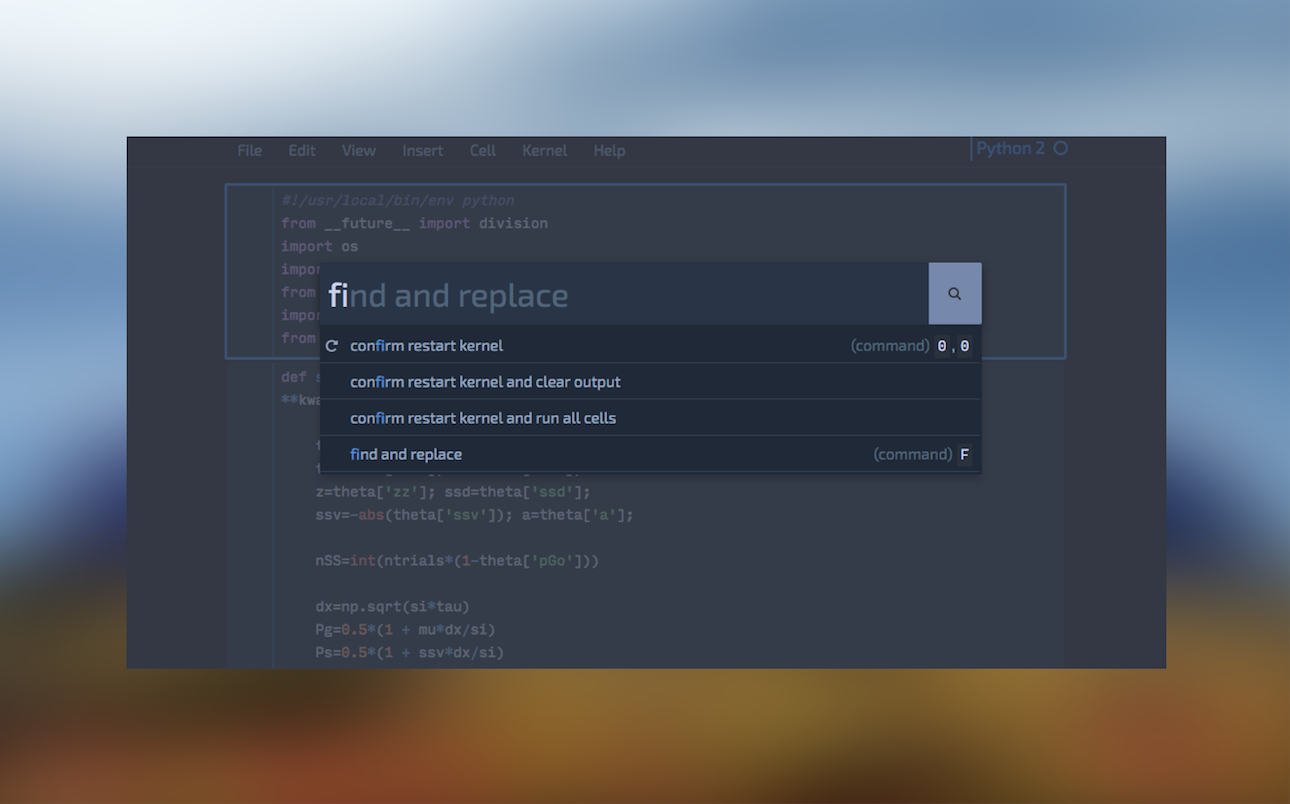
command palette
Links
jupyterthemes on PyPI
jupyterthemes on GitHub
Requirements
Python 3.4, 3.5, 3.6, 3.7 and 3.8
Jupyter (Anaconda recommended)
matplotlib
Install with pip
# install jupyterthemes
pip install jupyterthemes

# upgrade to latest version
pip install --upgrade jupyterthemes
Install with conda
# install jupyterthemes
conda install -c conda-forge jupyterthemes

# update to latest version
conda update jupyterthemes
Known issues
for best results: use notebook>=5.6.0 (pip install --upgrade notebook)
refreshing / removing / resetting: depending on your system, browser, etc., you may need to empty your browser cache after installing a new theme (-t) or attempting to restore the default (-r) in order for those changes to take effect. (see discussion here). At the very least you'll need to refresh your browser window (usually cmd+r or ctrl+r).
install issue: if you get an error saying jt is not recognized, try this fix.
# list available themes
# onedork | grade3 | oceans16 | chesterish | monokai | solarizedl | solarizedd
jt -l

# select theme...
jt -t chesterish

# restore default theme
# NOTE: Need to delete browser cache after running jt -r
# If this doesn't work, try starting a new notebook session.
jt -r

# toggle toolbar ON and notebook name ON
jt -t grade3 -T -N

# toggle kernel logo.  kernel logo is in same container as name
# toggled with -N.  That means that making the kernel logo visible is
# pointless without also making the name visible
jt -t grade3 -N -kl

# set code font to 'Roboto Mono' 12pt
# (see monospace font table below)
jt -t onedork -f roboto -fs 12

# set code font to Fira Mono, 11.5pt
# 3digit font-sizes get converted into float (115-->11.5)
# 2digit font-sizes > 25 get converted into float (85-->8.5)
jt -t solarizedd -f fira -fs 115

# set font/font-size of markdown (text cells) and notebook (interface)
# see sans-serif & serif font tables below
jt -t oceans16 -tf merriserif -tfs 10 -nf ptsans -nfs 13

# adjust cell width (% screen width) and line height
jt -t chesterish -cellw 90% -lineh 170

# or set the cell width in pixels by leaving off the '%' sign
jt -t solarizedl -cellw 860

# fix the container-margins on the intro page (defaults to 'auto')
jt -t monokai -m 200

# adjust cursor width (in px) and make cursor red
# options: b (blue), o (orange), r (red), p (purple), g (green), x (font color)
jt -t oceans16 -cursc r -cursw 5

# choose alternate prompt layout (narrower/no numbers)
jt -t grade3 -altp

# my two go-to styles
# dark
jt -t onedork -fs 95 -altp -tfs 11 -nfs 115 -cellw 88% -T
# light
jt -t grade3 -fs 95 -altp -tfs 11 -nfs 115 -cellw 88% -T
Set Plotting Style (from within notebook)
jtplot.style() makes changes to matplotlib's rcParams dictionary so that figure aesthetics match those of a chosen jupyterthemes style. In addition to setting the color scheme, jtplot.style() allows you to control various figure properties (spines, grid, font scale, etc.) as well as the plotting "context" (borrowed from seaborn).
Note, these commands do not need to be re-run every time you generate a new plot, just once at the beginning of your notebook or whenever style changes are desired after that.
Pro-tip: Include the following two lines in ~/.ipython/profile_default/startup/startup.ipy file to set plotting style automatically whenever you start a notebook:
# import jtplot submodule from jupyterthemes
from jupyterthemes import jtplot

# currently installed theme will be used to
# set plot style if no arguments provided
jtplot.style()
jtplot.style() Examples
# import jtplot module in notebook
from jupyterthemes import jtplot

# choose which theme to inherit plotting style from
# onedork | grade3 | oceans16 | chesterish | monokai | solarizedl | solarizedd
jtplot.style(theme='onedork')

# set "context" (paper, notebook, talk, poster)
# scale font-size of ticklabels, legend, etc.
# remove spines from x and y axes and make grid dashed
jtplot.style(context='talk', fscale=1.4, spines=False, gridlines='--')

# turn on X- and Y-axis tick marks (default=False)
# turn off the axis grid lines (default=True)
# and set the default figure size
jtplot.style(ticks=True, grid=False, figsize=(6, 4.5))

# reset default matplotlib rcParams
jtplot.reset()
How active is development on dunovank/jupyter-themes?
The most recent commit recorded on dunovank/jupyter-themes was 1.4 years ago, based on the GitHub push timestamp. The repository has 1.0k forks — one of the better signals of community interest.
How many stars does dunovank/jupyter-themes have?
dunovank/jupyter-themes has 9.8k GitHub stars — refresh the page for the live number, or check github.com/dunovank/jupyter-themes. TopGit mirrors GitHub's count but does not claim minute-by-minute accuracy.
Is dunovank/jupyter-themes open source?
Yes — dunovank/jupyter-themes ships under the MIT license, which makes its source code freely readable (and, depending on license terms, forkable and reusable). Source: github.com/dunovank/jupyter-themes.
What else is in the Frontend space?
dunovank/jupyter-themes is tracked by TopGit under the Frontend category, alongside 6 GitHub-tagged topics. Trending and Topics pages list peer repositories of comparable stars and language.
What is dunovank/jupyter-themes?
dunovank/jupyter-themes (dunovank/jupyter-themes) is a CSS project on GitHub. From the project's own README: Custom Jupyter Notebook Themes
What language is dunovank/jupyter-themes written in?
dunovank/jupyter-themes is written primarily in CSS. GitHub's language field is based on the largest share of bytes in the default branch.
What license does dunovank/jupyter-themes use?
dunovank/jupyter-themes is released under the MIT license. Always verify the LICENSE file directly on GitHub for the authoritative terms — license strings can be edited out of sync with a project's actual stance.
Where do I read more about dunovank/jupyter-themes?
This TopGit page is a snapshot — the READ ME tab shows the project's own README content (links stripped, images preserved). The GitHub repository at github.com/dunovank/jupyter-themes is the definitive source.
Read full README in the tab above.
Is jupyter-themes worth your time?
ChatGPT, Claude and Perplexity can all read this page. Ask one of them what it makes of jupyter-themes.

 /jupyter-themes