mob-sakai/ParticleEffectForUGUI sits at 6.0k stars on GitHub, written primarily in C#. Render particle effect in UnityUI(uGUI). Maskable, sortable, and no extra Camera/RenderTexture/Canvas.
Snapshot summary built from the project's own GitHub metadata — there's no written TopGit review yet. The page will update automatically when a full review is published.
WHY NO REVIEW YET
TopGit writes full reviews for the most-starred, most-requested repositories. This page is a snapshot until then — see the READ ME tab for the original README in full.
This package uses the new APIs MeshBake/MeshTrailBake (introduced in Unity 2018.2) to render particles through CanvasRenderer.
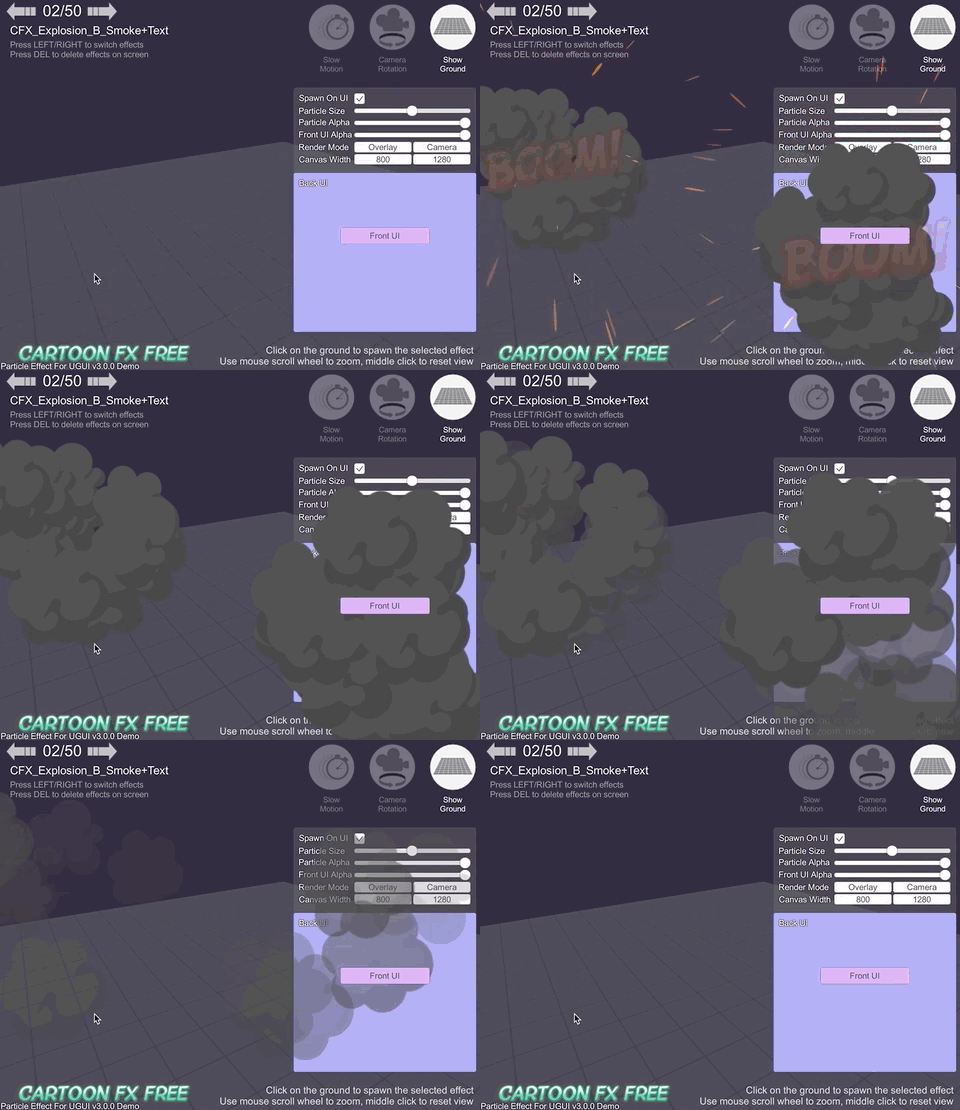
You can render, mask, and sort your ParticleSystems for UI without the need for an additional Camera, RenderTexture, or Canvas.
📌 Key Features
🎮 Demo
⚙ Installation
Install via OpenUPM
Install via UPM (with Package Manager UI)
Install via UPM (Manually)
Install as Embedded Package
🚀 Usage
Component: UIParticle
Basic Usage
Usage with Your Existing ParticleSystem Prefab
Usage with Mask or RectMask2D Component
Usage with Script
Component: UIParticleAttractor
Component: ParticleSystemPreviewer
Project Settings
🛠 Development Note
Compares the Baking mesh approach with the conventional approach
Performance test results
🔍 FAQ: Why Are My UIParticles Not Displayed Correctly?
Shader Limitation
Built-in shaders are not supported
(Unity 2018 or 2019) UV.zw components will be discarded
(Unity 2018 or 2019) Custom vertex streams
Overheads
How to Make a Custom Shader to Support Mask and RectMask2D Component
🤝 Contributing
Issues
Pull Requests
Support
License
Author
See Also
📌 Key Features
Easy to use: The package is ready to use out of the box.
Sortable: Sort particle effects and other UI elements by sibling index.
Maskable: Supports Mask or RectMask2D.
No extra components required: No need for an additional Camera, RenderTexture, or Canvas.
Trail module support: Fully supports the Trail module.
CanvasGroup alpha support: Integrates with CanvasGroup alpha.
No allocations: Efficiently renders particles without allocations.
Any canvas render mode support: Works with overlay, camera space, and world space.
Any Render pipeline support: Compatible with Universal Render Pipeline (URP) and High Definition Render Pipeline (HDRP).
Disabling domain reload support: Supports disabling Enter Play Mode Options > Reload Domain.
Animatable material properties: Supports changing material properties with AnimationClip (AnimatableProperty).
Multiple materials: Supports 8+ materials.
Correct positioning: Adjusts world space particle positions correctly when changing window size for standalone platforms (Windows, MacOSX, and Linux).
Adaptive scaling: Provides adaptive scaling for UI (AutoScalingMode).
Performance optimization: Mesh sharing group to improve performance.
Particle attractor: Includes a particle attractor component.
Emission position mode: Supports relative/absolute particle emission position modes.
To update the package, change suffix #{version} to the target version.
e.g. "com.coffee.ui-particle": "https://github.com/mob-sakai/ParticleEffectForUGUI.git#4.13.0",
Install as Embedded Package
Download a source code zip file from Releases and extract it.
Place it in your project's Packages directory.
If you want to fix bugs or add features, install it as an embedded package.
To update the package, you need to re-download it and replace the contents.
🚀 Usage
Component: UIParticle
UIParticle controls the ParticleSystems that are attached to its own game objects and child game objects.
Maskable: Does this graphic allow maskable.
Scale: Scale the rendering particles. When the 3D toggle is enabled, 3D scale (x, y, z) is supported.
Animatable Properties: If you want to update material properties (e.g., _MainTex_ST, _Color) in AnimationClip,
use this to mark as animatable.
[!TIPS]
(Unity 2021.1 or later) Custom Animatable Properties
From the Add Custom... menu in Animatable Properties, you can add fields located outside the Properties block in the shader as Animatable Properties.
This allows Matrix, Matrix Array, Float Array, and Vector Array values modified by the ParticleSystemRenderer.SetPropertyBlock method to be automatically reflected in UIParticle.
Mesh Sharing: Particle simulation results are shared within the same group. A large number of the same effects can
be displayed with a small load. When the Random toggle is enabled, it will be grouped randomly.
None: Disable mesh sharing.
Auto: Automatically select Primary/Replica.
Primary: Provides particle simulation results to the same group.
Primary Simulator: Primary, but do not render the particle (simulation only).
Replica: Render simulation results provided by the primary.
Position Mode: Emission position mode.
Absolute: The particles will be emitted from the world position.
Relative: The particles will be emitted from the scaled position.
Auto Scaling Mode: How to automatically adjust when the Canvas scale is changed by the screen size or reference resolution.
None: Do nothing.
Transform: Transform.lossyScale (=world scale) will be set to (1, 1, 1).
UIParticle: UIParticle.scale will be adjusted.
Use Custom View: Use this if the particles are not displayed correctly due to min/max particle size.
Custom view size: Change the bake view size.
Time Scale Multiplier: Time scale multiplier.
Rendering Order: The ParticleSystem list to be rendered. You can change the order and the materials.
[!TIPS]
Press the Refresh button to reconstruct the rendering order based on children ParticleSystem's sorting order
and z-position.
[!TIPS]
When a GameObject with this component is selected in the editor, a temporary ParticleSystem is added if needed so you can preview the effect in the Scene view.
The generated ParticleSystem is marked with HideFlags.DontSave, so it is neither saved nor included in builds.
Basic Usage
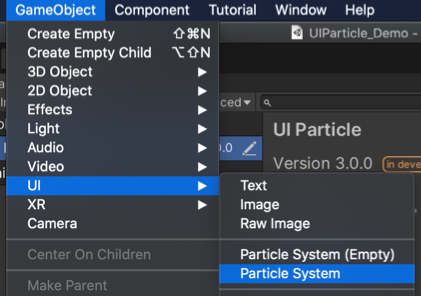
Select GameObject/UI/ParticleSystem to create UIParticle with a ParticleSystem.
Adjust the ParticleSystem as you like.
[!Tips]
Adding a UIParticle to the parent is the recommended setup rather than attaching it directly to the ParticleSystem.
When using ParticleSystem.emission.rateOverDistance, it is recommended to move the transform of UIParticle rather than the ParticleSystem.
Usage with Your Existing ParticleSystem Prefab
Select GameObject/UI/ParticleSystem (Empty) to create UIParticle.
Drag and drop your ParticleSystem prefab onto UIParticle.
Usage with Mask or RectMask2D Component
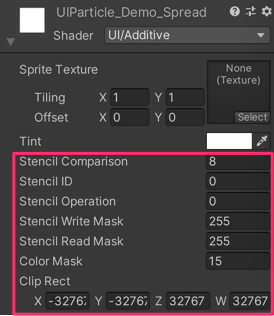
If you want to mask particles, set a stencil-supported shader (such as UI/UIAdditive) to the material for
ParticleSystem.
If you use some custom shaders, see
the How to Make a Custom Shader to Support Mask/RectMask2D Component
section.
Usage with Script
// Instantiate ParticleSystem prefab with UIParticle on runtime.
var go = GameObject.Instantiate(prefab);
var uiParticle = go.AddComponent<UIParticle>();
uiParticle.scale = 100;

// Control by ParticleSystem.
particleSystem.Play();
particleSystem.Emit(10);

// Control by UIParticle.
uiParticle.Play();
uiParticle.Stop();
Component: UIParticleAttractor
UIParticleAttractor attracts particles generated by the specified ParticleSystem.
Particle Systems: Attracts particles generated by the specified ParticleSystems.
Destination Radius: Once the particle is within the radius, the particle lifetime will become 0, and OnAttracted
will be called.
Delay Rate: Delay to start attracting. It is a percentage of the particle's start lifetime.
Max Speed: Maximum speed of attracting. If this value is too small, attracting may not be completed by the end of
the lifetime, and OnAttracted may not be called.
Movement: Attracting movement type. (Linear, Smooth, Sphere)
Sphere Curve Rate: When Movement = Sphere, the curve rate of the sphere movement.
0: Move in a straight line to the destination.
1: Move in a perfect sphere to the destination.
0 < x < 1: Move in a curve between straight and sphere.
Update Mode: Update mode.
Normal: Update with scaled delta time.
Unscaled Time: Update with unscaled delta time.
OnAttracted: An event called when attracting is complete (per particle).
Component: ParticleSystemPreviewer
ParticleSystemPreviewer is used to preview a ParticleSystem in the editor.
When a GameObject with this component is selected in the editor, a temporary ParticleSystem is added if needed so you can preview the effect in the Scene view.
The generated ParticleSystem is marked with HideFlags.DontSave, so it is neither saved nor included in builds.
This component will be removed in builds.
Project Settings
You can adjust the project-wide settings for UI Particle. (Edit > Project Settings > UI > UI Particle)
Settings
Enable Linear To Gamma: Automatically correct the color space of the mesh.
Default View Size For Baking: Default view size for baking particle systems.
Editor
Hide Generated Component: Automatically hide the generated UIParticleRenderer component and UIParticle BakingCamera.
Preview On Select: When selecting UIParticle, a temporary ParticleSystem is generated for preview.
🛠 Development Note
Compares the Baking mesh approach with the conventional approach
Baking mesh approach (=UIParticle)
✅ Rendered as is.
✅ Maskable.
✅ Sortable.
✅ Less objects.
Do nothing (=Plain ParticleSystem)
✅ Rendered as is.
❌ Looks like a glitch.
❌ Not maskable.
❌ Not sortable.
Convert particle to UIVertex (=UIParticleSystem)
✅ Maskable.
✅ Sortable.
❌ Adjustment is difficult.
❌ Requires UI shaders.
❌ Difficult to adjust scale.
❌ Force hierarchy scalling.
❌ Simulation results are incorrect.
❌ Trail, rotation of transform, time scaling are not supported.
❌ Generate heavy GC every frame.
Use Canvas to sort (Sorting By Canvas )
✅ Rendered as is.
✅ Sortable.
❌ You must to manage sorting orders.
❌ Not maskable.
❌ More batches.
❌ Requires Canvas.
Use RenderTexture
✅ Maskable.
✅ Sortable.
❌ Requires Camera and RenderTexture.
❌ Difficult to adjust position and size.
❌ Quality depends on the RenderTexture's setting.
Performance test results
Approach
FPS on Editor
FPS on iPhone6
FPS on Xperia XZ
Particle System
43
57
22
UIParticleSystem
4
3
0 (unmeasurable)
Sorting By Canvas
43
44
18
UIParticle
17
12
4
UIParticle with MeshSharing
44
45
30
🔍 FAQ: Why Are My UIParticles Not Displayed Correctly?
See this issue.
If ParticleSystem alone displays particles correctly but UIParticle does not, please check the following points:
Shader Limitation
Most cases can be solved by using UI/Additive or UI/Default.
Particles are not masked
UIParticle is maskable.
Use maskable/clipable shader (such as UI/Additive or UI/Default)
Set Mask or RectMask2D component properly.
Particles are too small
If particles are small enough, they will not appear on the screen.
Increase the Scale value.
If you don't want to change the apparent size depending on the resolution, try the Auto Scaling option.
Particles are too many
No more than 65535 vertices can be displayed (for mesh combination limitations).
Please set Emission module and Max Particles of ParticleSystem properly.
Particles are emitted off-screen.
When Position Mode = Relative, particles are emitted from the scaled position of the ParticleSystem, not from
the screen point of the ParticleSystem.
Place the ParticleSystem in the proper position or try Position Mode = Absolute.
Attaching UIParticle to the same object as ParticleSystem
Transform.localScale will be overridden by the Auto Scaling option.
It is recommended to place ParticleSystem under UIParticle.
If Transform.localScale contains 0, rendering will be skipped.
If you are using Shape module, please check whether the scale includes 0.
Displayed particles are in the correct position but too large/too small
If Trails.RibbonCount is greater than 1, the following error occurs frequently.
Failed setting triangles. Some indices are referencing out of bounds vertices. IndexCount: 660, VertexCount: 222
Adding a UIParticle to the parent is the recommended setup rather than attaching it directly to the ParticleSystem.
When using ParticleSystem.emission.rateOverDistance, it is recommended to move the transform of UIParticle rather than the ParticleSystem.
(v4.13.0, v5.0.0-preview.18) Try changing the Default View Size For Baking setting under ProjectSettings > UI > UI Particle to a value such as 100 or 1000.
Shader Limitation
The use of UI shaders is recommended.
If you need a simple Additive shader, use the UI/Additive shader instead.
If you need a simple alpha-blend shader, use the UI/Default shader instead.
If your custom shader does not work properly with UIParticle, consider creating a custom UI shader.
Built-in shaders are not supported
UIParticle does not support all built-in shaders except for UI/Default.
If their use is detected, an error is displayed in the inspector.
Use UI shaders instead.
(Unity 2018 or 2019) UV.zw components will be discarded
UIParticleRenderer renders the particles based on UIVertex.
Therefore, only the xy components are available for each UV in the shader. (zw components will be discarded).
So unfortunately, UIParticles will not work well with some shaders.
(Unity 2018 or 2019) Custom vertex streams
When using custom vertex streams, you can fill zw components with "unnecessary" data.
Refer to this issue for more information.
Overheads
UIParticle has some overheads, and the batching depends on uGUI.
When improving performance, keep the following in mind:
If you are displaying a large number of the same effect, consider the Mesh Sharing feature in
the UIParticle Component.
If you don't like the uniform output, consider the Random Group feature.
If you are using multiple materials, you will have more draw calls.
Consider a single material, atlasing the sprites, and using Sprite mode in the Texture Sheet Animation module
in the ParticleSystem.
How to Make a Custom Shader to Support Mask and RectMask2D Component
Ideas provide a valuable source of contributions that others can make.
Problems help identify areas where this project needs improvement.
Questions indicate where contributors can enhance the user experience.
Pull Requests
Pull requests offer a fantastic way to contribute your ideas to this repository.
Please refer to CONTRIBUTING.md
and develop branch for guidelines.
Support
This is an open-source project developed during my spare time.
If you appreciate it, consider supporting me.
Your support allows me to dedicate more time to development. 😊
How active is development on mob-sakai/ParticleEffectForUGUI?
The most recent commit recorded on mob-sakai/ParticleEffectForUGUI was 3 months ago, based on the GitHub push timestamp. The repository has 770 forks — one of the better signals of community interest.
How many stars does mob-sakai/ParticleEffectForUGUI have?
mob-sakai/ParticleEffectForUGUI has 6.0k GitHub stars — refresh the page for the live number, or check github.com/mob-sakai/ParticleEffectForUGUI. TopGit mirrors GitHub's count but does not claim minute-by-minute accuracy.
Is mob-sakai/ParticleEffectForUGUI open source?
Yes — mob-sakai/ParticleEffectForUGUI ships under the MIT license, which makes its source code freely readable (and, depending on license terms, forkable and reusable). Source: github.com/mob-sakai/ParticleEffectForUGUI.
What else is in the UI / UX space?
mob-sakai/ParticleEffectForUGUI is tracked by TopGit under the UI / UX category, alongside 8 GitHub-tagged topics. Trending and Topics pages list peer repositories of comparable stars and language.
What is mob-sakai/ParticleEffectForUGUI?
mob-sakai/ParticleEffectForUGUI (mob-sakai/ParticleEffectForUGUI) is a C# project on GitHub. From the project's own README: Render particle effect in UnityUI(uGUI). Maskable, sortable, and no extra Camera/RenderTexture/Canvas.
What language is mob-sakai/ParticleEffectForUGUI written in?
mob-sakai/ParticleEffectForUGUI is written primarily in C#. GitHub's language field is based on the largest share of bytes in the default branch.
What license does mob-sakai/ParticleEffectForUGUI use?
mob-sakai/ParticleEffectForUGUI is released under the MIT license. Always verify the LICENSE file directly on GitHub for the authoritative terms — license strings can be edited out of sync with a project's actual stance.
Where do I read more about mob-sakai/ParticleEffectForUGUI?
This TopGit page is a snapshot — the READ ME tab shows the project's own README content (links stripped, images preserved). The GitHub repository at github.com/mob-sakai/ParticleEffectForUGUI is the definitive source.
Read full README in the tab above.
Curious whether ParticleEffectForUGUI is right for you?
Let ChatGPT, Claude, or Perplexity look into it — click below and see what AI actually says about ParticleEffectForUGUI.
 /ParticleEffectForUGUI














 mob-sakai