You Don't Need GUI

中文版请看这里
It's for noobs :)
Graphical user interfaces are super friendly to computer users. They were introduced in reaction to the perceived steep learning curve of command-line interfaces (CLIs).
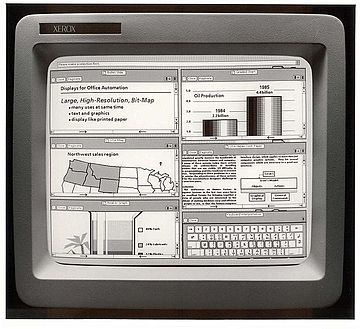
However, they often require more resources, are less powerful and hard to automate via scripting.
As a computer expert, we want to be more efficient and do our jobs better. We know that command words may not be easily discoverable or mnemonic, so we try to list some common tasks that you might be tempted to do in GUI.
Quick links
- copy a file
- duplicate a file
- copy a directory
- duplicate a directory
- move a file
- rename a file
- move a directory
- rename a directory
- merge directories
- create a new file
- create a new directory
- show file/directory size
- show file/directory info
- open a file with the default program
- open a file in any application
- zip a directory
- unzip a directory
- peek files in a zip file
- remove a file
- remove a directory
- remove all files of certain criteria
- list directory contents
- tree view a directory and its subdirectories
- find a stale file
- show a calendar
- find a future date
- use a calculator
- force quit a program
- check server response
- view content of a file
- search for a text in a file
- search in all files in current working directory, quickly (entire disk in less than 15 minutes)
- view an image
- show disk size
- check cpu usage, processes and RAM
- know whether your computer is under load, and whether it's due to memory or CPU
- poweroff or reboot your computer
- locate USB drives
- unmount USB drives
- format USB drives
- check USB format
- run command on all files of a directory
- check network connectivity to a remote address and port
- check DNS config of a domain
- check the ownership and registration of a domain
- Quick tips
- Hotkeys
- I can't remember these cryptic commands
copy a file
STOP DRAG AND DROPPING A FILE, OR CMD/CTRL + C, CMD/CTRL + V A FILE :-1:
Copy readme.txt to the documents directory
$ cp readme.txt documents/
Go to table of contents 🔼
duplicate a file
STOP RIGHT CLICKING AND DUPLICATE A FILE :-1:
$ cp readme.txt readme.bak.txt
More advanced:
$ cp readme{,.bak}.txt
# Note: learn how the {} works with touch foo{1,2,3}.txt and see what happens.
Go to table of contents 🔼
copy a directory
STOP DRAG AND DROPPING A DIRECTORY, OR CMD/CTRL + C, CMD/CTRL + V A DIRECTORY :-1:
Copy myMusic directory to the myMedia directory
$ cp -a myMusic myMedia/
# or
$ cp -a myMusic/ myMedia/myMusic/
Go to table of contents 🔼
duplicate a directory
STOP RIGHT CLICKING AND DUPLICATE A DIRECTORY :-1:
$ cp -a myMusic/ myMedia/
# or if `myMedia` folder doesn't exist
$ cp -a myMusic myMedia/
Go to table of contents 🔼
move a file
STOP DRAG AND DROPPING A FILE, OR CMD/CTRL + X, CMD/CTRL + V A FILE :-1:
$ mv readme.txt documents/
Always use a trailing slash when moving files, for this reason.
Go to table of contents 🔼
rename a file
STOP RIGHT CLICKING AND RENAME A FILE :-1:
$ mv readme.txt README.md
Go to table of contents 🔼
move a directory
STOP DRAG AND DROPPING A DIRECTORY, OR CMD/CTRL + X, CMD/CTRL + V A DIRECTORY :-1:
$ mv myMedia myMusic/
# or
$ mv myMedia/ myMusic/myMedia
Go to table of contents 🔼
rename a directory
STOP RIGHT CLICKING AND RENAME A DIRECTORY :-1:
$ mv myMedia/ myMusic/
Go to table of contents 🔼
merge directories
STOP DRAG AND DROPPING TO MERGE DIRECTORIES :-1:
$ rsync -a /images/ /images2/ # note: may over-write files with the same name, so be careful!
Go to table of contents 🔼
create a new file
STOP RIGHT CLICKING AND CREATE A NEW FILE :-1:
$ touch 'new file'    # updates the file's access and modification timestamp if it already exists
# or
$ > 'new file'        # note: erases the content if it already exists
Go to table of contents 🔼
create a new directory
STOP RIGHT CLICKING AND CREATE A NEW DIRECTORY :-1:
$ mkdir 'untitled folder'
# or
$ mkdir -p 'path/may/not/exist/untitled folder'
Go to table of contents 🔼
show file/directory size
STOP RIGHT CLICKING AND SHOW FILE/directory INFO :-1:
$ du -sh node_modules/
Go to table of contents 🔼
show file/directory info
STOP RIGHT CLICKING AND SHOW FILE/DIRECTORY INFO :-1:
$ stat -x readme.md   # on macOS
$ stat readme.md      # on Linux
Go to table of contents 🔼
open a file with the default program
STOP DOUBLE CLICKING ON A FILE :-1:
$ xdg-open file   # on Linux
$ open file       # on MacOS
$ start file      # on Windows
Go to table of contents 🔼
open a file in any application
STOP RIGHT CLICKING AND OPEN WITH :-1:
$ open -a appName file
Go to table of contents 🔼
zip a directory
STOP RIGHT CLICKING AND COMPRESS DIRECTORY :-1:
$ zip -r archive_name.zip folder_to_compress
Go to table of contents 🔼
unzip a directory
STOP RIGHT CLICKING AND UNCOMPRESS DIRECTORY :-1:
$ unzip archive_name.zip
Go to table of contents 🔼
decompress files of any format
STOP RIGHT CLICKING AND UNCOMPRESS DIRECTORY :-1:
$ unar archive_name.zip
$ unar archive_name.7z
$ unar archive_name.rar
$ unar archive_name.ISO
$ unar archive_name.tar.gz
Go to table of contents 🔼
peek files in a zip file
STOP USING WinRAR :-1:
$ zipinfo archive_name.zip
# or
$ unzip -l archive_name.zip
Go to table of contents 🔼
peek files in a compress file of any format
STOP USING WinRAR :-1:
$ lsar -l archive_name.zip
$ lsar -l archive_name.7z
$ lsar -l archive_name.ISO
$ lsar -l archive_name.rar
$ lsar -l archive_name.tar.gz
Go to table of contents 🔼
remove a file
STOP RIGHT CLICKING AND DELETE A FILE PERMANENTLY :-1:
$ rm my_useless_file
IMPORTANT: The rm command deletes my_useless_file permanently, which is equivalent to move my_useless_file to Recycle Bin and hit Empty Recycle Bin.
Go to table of contents 🔼
remove a directory
STOP RIGHT CLICKING AND DELETE A DIRECTORY PERMANENTLY :-1:
$ rm -r my_useless_folder
Go to table of contents 🔼
remove all files of certain criteria
$ find . -name "*.bak" -type f -delete
IMPORTANT: run find . -name "*.bak" -type f first to see exactly which files you will remove.
Go to table of contents 🔼
list directory contents
STOP OPENING YOUR FINDER OR FILE EXPLORER :-1:
$ ls my_folder        # Simple
$ ls -la my_folder    # -l: show in list format. -a: show all files, including hidden. -la combines those options.
$ ls -alrth my_folder # -r: reverse output. -t: sort by time (modified). -h: output human-readable sizes.
Go to table of contents 🔼
tree view a directory and its subdirectories
STOP OPENING YOUR FINDER OR FILE EXPLORER :-1:
$ tree                                                        # on Linux
$ find . -print | sed -e 's;[^/]*/;|____;g;s;____|; |;g'      # on MacOS
# Note: install homebrew (https://brew.sh) to be able to use (some) Linux utilities such as tree.
# brew install tree
Go to table of contents 🔼
find a stale file
STOP USING YOUR FILE EXPLORER TO FIND A FILE :-1:
Find all files modified more than 5 days ago
$ find my_folder -mtime +5
Go to table of contents 🔼
show a calendar
STOP LOOKING UP WHAT THIS MONTH LOOKS LIKE BY CALENDAR WIDGETS :-1:
Display a text calendar
$ cal
Display selected month and year calendar
$ cal 11 2018
Go to table of contents 🔼
find a future date
STOP USING WEBAPPS TO CALCULATE FUTURE DATES :-1:
What is today's date?
$ date +%m/%d/%Y
What about a week from now?
$ date -d "+7 days"                                           # on Linux
$ date -j -v+7d                                               # on MacOS
Go to table of contents 🔼
use a calculator
STOP USING CALCULATOR WIDGET :-1:
$ bc -l
Go to table of contents 🔼
force quit a program
STOP CTRL + ALT + DELETE and choose the program to kill :-1:
$ killall -9 program_name
Go to table of contents 🔼
check server response
STOP OPENING A BROWSER :-1:
$ curl -i umair.surge.sh
# curl's -i (--include) option includes HTTP response headers in its output.
Go to table of contents 🔼
view content of a file
STOP DOUBLE CLICKING A FILE :-1:
$ cat apps/settings.py
# if the file is too big to fit on one page, you can use a 'pager' (less) which shows you one page at a time.
$ less apps/settings.py
Go to table of contents 🔼
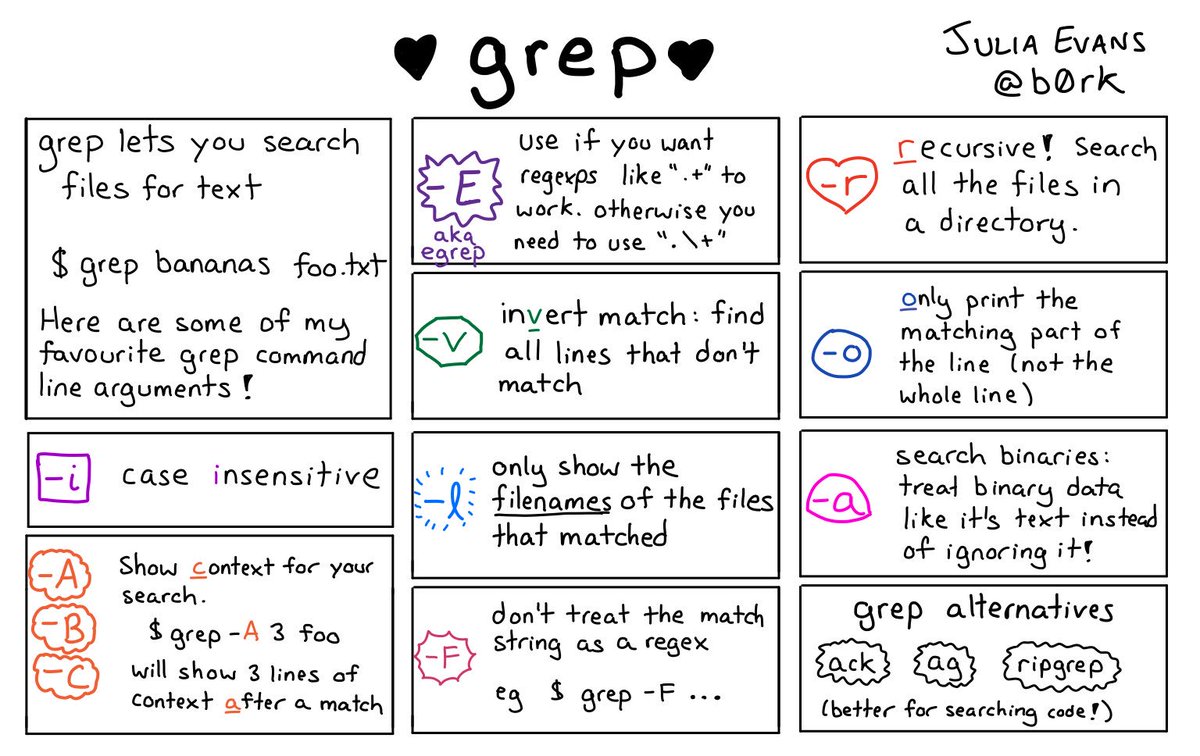
search for a text in a file
STOP CMD/CTRL + F IN A FILE :-1:
$ grep -i "Query" file.txt
Go to table of contents 🔼
search in all files in current working directory, quickly (entire disk in less than 15 minutes)
STOP CMD/CTRL + F IN A DIRECTORY :-1:
$ ripgrep -i "Query"
# brew install ripgrep
Go to table of contents 🔼
view an image
STOP USING PREVIEW :-1:
$ imgcat image.png
# Note: requires iTerm2 terminal.
Go to table of contents 🔼
show disk size
STOP RIGHT CLICKING DISK ICON OR OPENING DISK UTILITY :-1:
$ df -h
Go to table of contents 🔼
check cpu usage, processes and RAM
STOP OPENING YOUR ACTIVITY MONITOR OR TASK MANAGER :-1:
$ top
if you want some more details:
$ htop
Go to table of contents 🔼
know whether your computer is under load, and whether it's due to memory or CPU
$ glances
# brew install glances
Go to table of contents 🔼
poweroff or reboot your computer
This can be useful when you're patching a server that is accessed via SSH and you don't have a GUI.
# poweroff
$ sudo shutdown -h now
# reboot
$ sudo shutdown -r now
Go to table of contents 🔼
locate USB drives
$ df
Go to table of contents 🔼
unmount USB drives
$ sudo umount /dev/sdb1
Go to table of contents 🔼
format USB drives
# FAT32
$ sudo mkfs.vfat /dev/sdb1
# NTFS
$ sudo mkfs.ntfs /dev/sdb1
# exFAT
$ sudo mkfs.exfat /dev/sdb1
Go to table of contents 🔼
check USB format
$ sudo fsck /dev/sdb1
Go to table of contents 🔼
run command on all files of a directory
STOP CLICKING THE FILES ONE BY ONE :-1:
$ for FILE in *; do echo $FILE; done
Go to table of contents 🔼
check network connectivity to a remote address and port
STOP USING NETWORK UTILITY
$ nc -vz www.google.com 443
$ nc -vz 1.1.1.1 53
Go to table of contents 🔼
check DNS config of a domain
STOP USING NETWORK UTILITY
$ dig www.google.com
Go to table of contents 🔼
check the ownership and registration of a domain
STOP USING NETWORK UTILITY AND THE WEBSITE OF DOMAIN REGISTRATION PROVIDERS
$ whois www.google.com
Go to table of contents 🔼
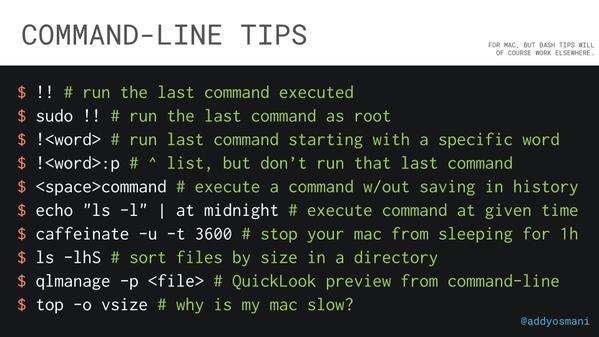
Quick tips
Go to table of contents 🔼
Hotkeys
| Hotkey | Description |
|---|
| Ctrl+A | Go to the beginning of the line you are currently typing on |
| Ctrl+E | Go to the end of the line you are currently typing on |
| Ctrl+L | Clears the Screen, similar to the clear command |
| Ctrl+U | Clears the line before the cursor position. If you are at the end of the line, clears the entire line. |
| Ctrl+H | Same as backspace |
| Ctrl+R | Lets you search through previously used commands |
| Ctrl+C | Kill whatever you are running |
| Ctrl+D | Exit the current shell |
| Ctrl+Z | Puts whatever you are running into a suspended background process. fg restores it. |
| Ctrl+W | Delete the word before the cursor |
| Ctrl+K | Clear the line after the cursor |
| Ctrl+T | Swap the last two characters before the cursor |
| Ctrl+F | Move cursor forward one character |
| Ctrl+B | Move cursor backward one character |
| Esc+T | Swap the last two words before the cursor |
| Alt+T | Same as Esc + T |
| Alt+F | Move cursor forward one word on the current line |
| Alt+B | Move cursor backward one word on the current line |
| Esc+F | Same as Alt + F |
| Esc+B | Same as Alt + B |
| Alt+. | Paste the last word of the most recently command |
| Tab | Auto-complete files and directory names |
| Go to table of contents 🔼 | |
I can't remember these cryptic commands
You can always google or man the commands you are not familiar with. Or, checkout tldr, a collection of simplified and community-driven man pages.
Go to table of contents 🔼
