Software Developer Master Portfolio 🔥
A clean, beautiful, responsive, and 100% customizable portfolio
template for Software Developers!











If you want to discuss about something, you can ask on my Discord Server.
:star: Star us on GitHub — it helps!
Sections 📚
✔️ Summary and About me
✔️ Skills
✔️ Open Source Projects Connected with Github
✔️ Experience
✔️ Certifications 🏆
✔️ Blogs
✔️ Education
✔️ Contact me
✔️ Resume Viewer
To view a live example, click here
Table of Contents
- Clone and Use
- Customizing
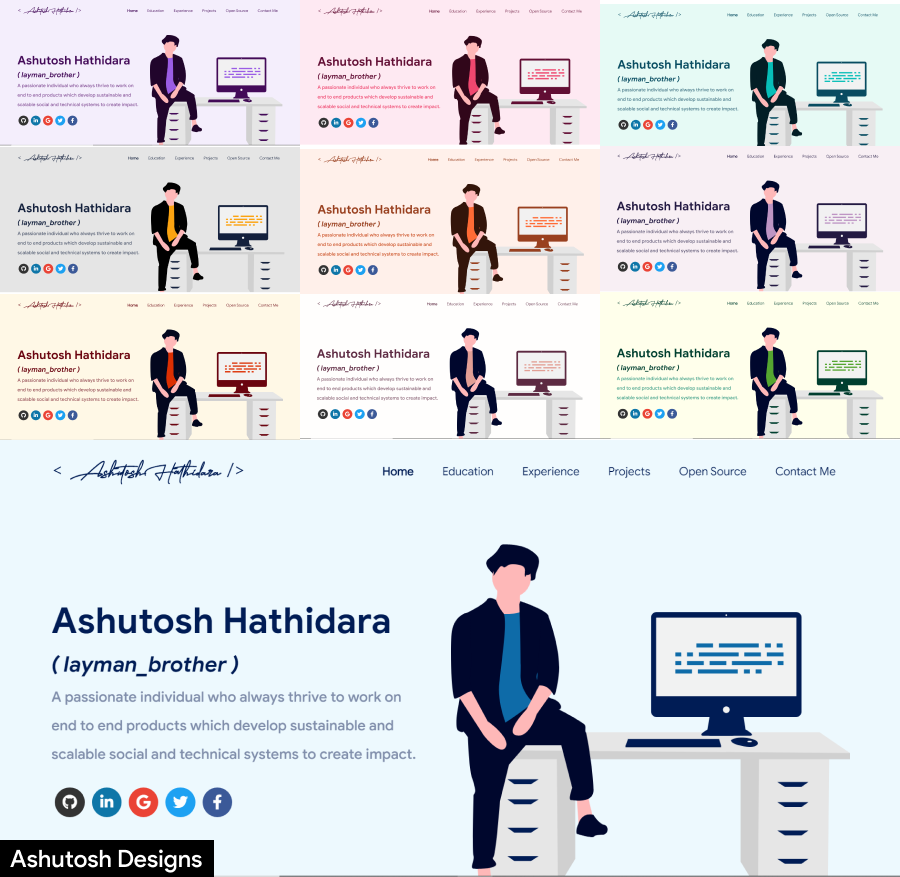
- Choose Theme
- Deployment
- Technologies Used
- Illustrations
- License
- Contributors
- References
Clone and Use 📋
Customize it to make your own portfolio ✏️
In this project, there are basically 4 things that you need to change to customize this to anyone else's portfolio: package.json, Personal Information, Github Information and Splash Logo.
package.json
Open this file, which is in the main cloned directory, choose any "name" and change "homepage " to https://<your-github-username>.github.io. Do not forget the https://, otherwise fonts will not load.
Personal Information
You will find src/portfolio.js file which contains the complete information about the user. The file looks something like below:
// Home Page
const greeting = {
    ...
}

// Social Media
const socialMediaLinks = {
    ...
}

...
You can change the personal information, experience, education, social media, certifications, blog information, contact information etc. in src/portfolio.js to directly reflect them in portfolio website.
How to change the icons on homepage under what i do section?
- This section pulls data from
skills in portfolio.js file.
- Visit this website: https://icon-sets.iconify.design/
- Search for the skill you are looking to add.
- Select the icon of your choice.
- Copy the text beside Selected Icon and replace it with
fontAwesomeClassName of that particular softwareSkill.
How to use custom images instead of Iconify Icons?
- Add a valid image file into the
public/skills folder
- Insert the image name into the
imageSrc attribute of the particular softwareSkill
- Remove the
fontAwesomeClassName property or leave it empty because it takes precedence over imageSrc
- Add custom styling to the
img using the style Property
How to Change the Icons on Education page under Basic Qualification and Certifications?
- The icons for this section are pulled from the
competitiveSites array in the portfolio.js file.
- Visit the Simple Icons website.
- Search for the competitive site you want to add an icon for.
- Select the icon you want to use.
- Copy the text beside Selected Icon and replace it with iconifyClassname of that particular competitive site.
How to Use Custom Images Instead of Simple Icons for Competitive Sites
- Place the custom image file in the
public/skills folder.
- Update the
imageSrc attribute of the corresponding competitive site with the name of your custom image (e.g., imageSrc: "customImage.png").
- Remove the
iconifyClassname property or leave it empty, as the imageSrc property takes precedence over iconifyClassname.
- Optionally, add custom styling to the
<img> tag using the style property to adjust size, positioning, etc.
Github Information
You will find git_data_fetcher.mjs file in the main directory of the repository. This file is used to fetch the data (Pull requests, Issues, Organizations, Pinned projects etc.) from your github.
In the project you will see a env.example file, create a new file named .env and copy contents of env.example into it. In that file, you will see the following environment variables
GITHUB_TOKEN = your_token;
GITHUB_USERNAME = your_username;
You can get a github token as described here. Give all permissions while generating token. Add your github username and the token generated in GITHUB_USERNAME and GITHUB_TOKEN variables in the .env file.
Now, you need to run following command. (Make sure you executed npm install before this)
Warning: Treat your tokens like passwords and keep them secret. When working with the API, use tokens as environment variables instead of hardcoding them into your programs.
node git_data_fetcher.mjs
This will fetch all the data from your github and it will automatically replace my data with yours.
Whenever you want to update the github related information on the website you need to run this command.
Splash Logo
Note here that if you click my portfolio, you can see animating the logo at the beginning. I have designed that logo in Figma and then animated it using css.
Therefore, this part of portfolio is not customizable. But don't worry we have a solution to this problem. You have below two alternatives:
-
If you want to design your own logo, then you can design it using Figma or Adobe XD or Adobe Illustrator or Inkscape. If you want to animate it, you can refer to ./src/components/Loader directory which contains js and css files which animates the logo
-
If you don't want Splash screen or you don't know how to design logo, then this option is for you
Other
- You need to change the website title and other descriptions in
public/index.html
- You can define your own favicon in
public/icons directory. If you don't have a favicon, you can generate favicons from Favicon Generator and Favicon IO
- You can also edit your website preview (known as description image). Run your site locally, take a screenshot and replace with
public/icons/desc.png. Note that your screenshot should be 1280x640 for better preview.
Choose Theme 🌈
- You can take a look at
src/theme.js file where all available themes are mentioned with their respective color codes
- At the bottom of this file you will see the below code:
export const chosenTheme = blueTheme;- You need to change the name from
blueTheme to whatever theme you want to set your website to
- You can define new theme similarly as other themes and you can assign name of that new defined theme to
chosenTheme
- That's it. You just need to change the theme name and the code will take care of everything else
- Run
npm start to check if everything is ok.
Resume 📃
- If you want to display your resume, go to the /src/assets/docs/ directory.
- Paste your resume there and copy your resume's file name.
- Also, keep in mind that your resume must be in A4 size.
- Now, go to /src/pages/resume/Resume.js.
- In the import section, find:
import myResumePdf from "../../assets/docs/Ashutosh_Hathidara_Resume_ML.pdf"
- and replace "Ashutosh_Hathidara_Resume_ML.pdf" with your resume file name.
- Launch the project and go to the route
/resume to view your resume.
Deployment 📦
- Once you are done with your setup and have successfully completed all steps above, you need to put your website online!
- I highly recommend using Github Pages to achieve this the EASIEST WAY.
- To deploy your website, you have two options. First you need to create a github repository with the name
<your-github-username>.github.io. Please don't give it any other name.
- Now, you need to generate a production build and deploy the website.
Option 1:
- Run
npm run build to generate the production build folder.
- Enter the build folder,
git init and push the generated code to the master branch of your new repository on github. That's it. It's Done.
- You may need to
git init and force push at every new build.
Option 2 (will not work with user pages):
- Run
npm run deploy to build and create a branch called gh-pages. It will push the build files to that branch.
- The last step in deploying is to enable
Github Pages in settings of the repository and select gh-pages branch.
Now, your website is successfully deployed and you can visit it at <your-github-username>.github.io.
If you are stuck somewhere and want to observe the deployment process in depth, then please watch below video.

Technologies used 🛠️
- React
- graphql
- apollo-boost
- baseui
- react-reveal
- styled-components
illustrations 🍥
License 📄
This project is licensed under the MIT License - see the LICENSE.md file for details.
Contributors ✨

Ashutosh Hathidara
💻 📖 🎨 🚧 🤔 | 
Daniel Marostica
📖 🎨 | 
Dinesh Nadimpalli
💻 | 
Jivthesh M R
📖 | 
Jatin Chauhan
💻 | 
Jainam Desai
💻 💬 | 
Miftaul Mannan
💻 |

Ashutosh Mishra
💻 | 
Tamojit
📖 💻 🎨 | 
Prabin Karki
💻 | 
Praveen Kumar Purushothaman
📖 | 
paul
💻 | 
Sandip Dhang
💻 | 
Jawad Moustadif
💻 |

Priyansh Khandelwal
💻 🎨 | 
Abdessalam Bahafid
💻 | 
Dhruv Krishna Vaid
💻 📖 🤔 💬 | 
KasRoudra
💻 | 
Albert Einstein
📖 | 
Suraj Pratap
📖 | 
Sai Teja
💻 📖 🚧 🤔 |

Anirudh Panda
💻 | 
Md Hidayat Rasool
📖 | 
Siddhant Sadangi
📖 | 
Anoop V
💻 | 
Aakash Singh
💻 | 
Angélica Herrera Alba
💻 | 
David Minkovski
🤔 💻 |

Carmine Di Gruttola
🤔 📣 | 
Vyom Rana
💻 | 
Parth Chawande
💻 | 
Armaan
📖 | 
Varun Dhand
💻 | 
VJS Pranavasri
💻 | 
Rahul Kushwaha
💻 |

Adam Bouhrara
💻 | 
Ratnesh Kumar
💻 📖 | 
Tobi
📖 | 
SAKSHAM JOSHI
🎨 💻 📖 |
References 👏🏻
- Some Design and Implementation Ideas are taken from Saad Pasta's Portfolio Project.
- The Logo of MasterPortfolio is inspired from prettier-logo for prettier designed by @ianstormtaylor.