jacklandrin/OnlySwitch

Là một công cụ AI, jacklandrin/OnlySwitch đã đạt 6.0k sao trên GitHub, ngôn ngữ Swift. 👑 The all-in-one macOS menu bar companion: customizable controls, system monitor, AI Agent, Shortcuts, widgets, remote control, and more.
Tóm tắt dựng từ metadata GitHub của chính dự án — chưa có bài review TopGit. Trang sẽ tự động cập nhật khi bài review đầy đủ được xuất bản.
TopGit viết bài đầy đủ cho repo có nhiều sao nhất và được yêu cầu nhiều nhất. Trang này là snapshot trong thời gian chờ — xem README gốc ở tab READ ME.
Snapshot
Cộng tác viên hàng đầu
Xem cộng tác viên hàng đầu



OnlySwitch
A smaller menu bar starts with one all-in-one switch.
OnlySwitch puts everyday macOS controls—such as hiding desktop icons, changing appearance, keeping the Mac awake, and managing the notch—into one customizable menu-bar app. Add, remove, and reorder switches and Shortcuts, assign keyboard shortcuts, or place controls on the desktop as widgets.
Installation
Homebrew
brew install only-switch
Manual download
Download the latest OnlySwitch DMG.
[!IMPORTANT] Automatic updating is broken in version 2.5.6 and earlier. If you are on one of those versions, update manually or reinstall with Homebrew.
Quick start
- Launch OnlySwitch and enable it under System Settings → Menu Bar if macOS does not show its icon.
- Click the OnlySwitch menu-bar icon to open the control list.
- Open settings to add, remove, and reorder switches or Shortcuts, configure hotkeys, and enable optional features.
- On supported macOS versions, add Only Widget from the widget gallery for desktop or Notification Center access.
To control OnlySwitch from an iPhone or iPad, install OnlyRemote from the App Store, then open iOS Remote in OnlySwitch settings to enable local-network access and pair the device.
Features
Highlights
- Import macOS Shortcuts into OnlySwitch and control switches and Shortcuts with keyboard shortcuts.
- Customize which controls appear and arrange them to fit your workflow. Built-in switches are grouped by category and can be searched by name.
- Manage every optional page from one place: OnlySwitch Settings → Tabs shows or hides tabs in the menu-bar list and Only Control.
- Use Apple Widgets on macOS Sonoma and later, including Evolution controls.
- Open the compact Only Control interface for a focused control panel.
- Control your Mac from iPhone or iPad with OnlyRemote.
- Enable the optional Desktop Pet, drag it anywhere, click it to show or dismiss Only Control, and skip to the next track or radio station with playback animations for Apple Music, Spotify, and Radio.
- Enable Turn off after sleep for Keep Awake to turn it off when you manually put your Mac to sleep.
Built-in switches
| Switch | Status | Switch | Status |
|---|---|---|---|
| Hide desktop | finished | Hide notch | has known issues |
| Dark mode | finished | Low power mode | requires initial authorization |
| Screen Saver | finished | Show Finder Path Bar | finished |
| Night Shift | finished | Mute mic | finished |
| Autohide Dock | finished | Small launchpad icon | finished |
| AirPods | finished | Pomodoro timer | finished |
| Bluetooth | finished | Show extension name | finished |
| Xcode cache | finished | Show user library folder | finished |
| Autohide Menu Bar | finished | Mute | finished |
| Show hidden files | finished | Empty pasteboard | finished |
| Radio Station | finished | Empty trash | finished |
| Keep awake | finished | Show Recent Apps on Dock | finished |
| Spotify | finished | Apple Music | finished |
| Screen Test & Clean | finished | Hide Menu Bar Icons | partially finished |
| FKey | finished | Back Noises | finished |
| Dim Screen | finished | Eject Discs | finished |
| Hide Windows | partially finished | True Tone | finished |
| Top Sticker | partially finished | Key Light | finished |
| Only Agent | finished | Natural Scrolling | finished |
| Show desktop pet | finished | Tailscale | requires official client |
| Dock Preview | requires Accessibility and Screen Recording |
Switches can be added to or removed from the list. Optional tabs (Authenticator, Sound Mixer, Brightness, Screenshots, System Monitor, Codex Usage, Claude Usage, Aphrodite, Xcode Cleaner, and App Uninstaller) are shown or hidden under OnlySwitch Settings → Tabs; switches that only toggled a tab have been replaced by this page.
Sound Mixer
Sound Mixer sets the volume and mute state of each app that is playing audio. On macOS 14.4 or later, each app can also expand its own 10-band equalizer (−12 to +12 dB, with a flat reset) and route its audio to one or more output devices at the same time. Equalizer settings and output selections are remembered per app; selecting no output follows the system default. If every selected device is disconnected, the app's original audio is restored until a selected device returns.
When the current output is an external display with speakers, the keyboard's volume up, volume down, and mute keys adjust the display's volume over DDC/CI and show a volume HUD. Holding Shift+Option steps in finer increments. Capturing these keys requires Accessibility permission.
Brightness
The Brightness tab shows one slider per active display. OnlySwitch uses native brightness control for Apple displays, DDC/CI for compatible external monitors, and a software dimming overlay when hardware control is unavailable; each row shows which method is in use. Options under OnlySwitch Settings → Display add smooth transitions, combined hardware and software dimming for an extra-dark range, synchronization with the built-in display, and an opt-in zero software brightness.
The keyboard's brightness keys adjust the external display under the pointer, using the same fine-step modifier as volume keys. On the built-in display, macOS behavior is unchanged. Software dimming changes image brightness rather than the physical backlight.
Screenshots
The Screenshots tab collects your screenshots in one list. Enable Collect System Screenshots under OnlySwitch Settings → Screenshots to save system captures, iOS Simulator screenshots, and Xcode Device Hub screenshots to ~/Pictures/OnlySwitch Screenshots; OnlySwitch backs up your previous screenshot settings and restores them when you turn collection off. New captures fly into the list automatically.
Click a screenshot to copy it, double-click to open it, drag it out to share it, or pin it to the top of the list. The built-in editor adds pen strokes, rectangles, ellipses, arrows, and blur, with undo and redo; saving overwrites the original file in its original format. Deleting moves files to the Trash, and Delete All keeps pinned items. Assign an optional keyboard shortcut on the Screenshots settings page to open or close the tab. Clipboard-only captures and screen recordings are not collected.
Dock Preview
Hover over an app in the Dock to see thumbnails of its open windows, then click a thumbnail to bring that window to the front. When you hover over Apple Music or Spotify, the preview also offers previous, play or pause, and next controls. Enable the Dock Preview switch and grant Accessibility and Screen Recording permissions when prompted.
Tailscale
Install and set up the official Tailscale client, then open OnlySwitch Settings → Tailscale to manage saved accounts, exit nodes, and supported network preferences. The Tailscale switch connects or disconnects the active account; its connected subtitle lets you copy your Mac's Tailscale IP.
Xcode Cleaner
Open OnlySwitch Settings → Xcode Cleaner, or show its tab in the menu-bar list or Only Control from Settings → Tabs. Scan your development data, review the selected items, and confirm cleanup. Supported items include DerivedData, Xcode and SwiftPM caches, simulator caches and logs, simulator devices and runtimes, and DeviceSupport files. Source projects and archives are excluded.
App Uninstaller
Open OnlySwitch Settings → App Uninstaller, or show its tab in the menu-bar list or Only Control from Settings → Tabs. Drop an app or choose one, review the application and matching related files, then confirm which items to move to Trash. Discovery covers supported locations matched by bundle identifier, so the results may not include every related file.
Dock Preview, Tailscale, Xcode Cleaner, and App Uninstaller are local Mac features and are unavailable in Only Widget or OnlyRemote. Screenshots is unavailable in Only Widget; OnlyRemote Plus can view, copy, drag, and delete screenshots but not edit them.
Shortcuts Gallery
Anyone can contribute macOS Shortcuts. See How to contribute to the Shortcuts Gallery.
| Shortcut | Remark | Shortcut | Remark |
|---|---|---|---|
| Toggle Scroll Direction | Monterey | Invert Scroll Direction (Ventura) | Ventura |
| DarkMode Switch | Network Details | ||
| Split-Screen Apps | Passwords | ||
| Google Translate | IP Address Information | ||
| Autohide menu bar in full screen | Monterey | Flush DNS Cache | |
| Do Not Disturb | Monterey or later | Upcoming Events | |
| S-GPT | works with S-GPT Encoder, needs OpenAI API key | S-GPT Encoder |
Shortcuts actions
| Action | Status |
|---|---|
| Get wallpaper image | has known issues |
| Get wallpaper URL | finished |
| Is dark mode | finished |
| Set dark mode | finished |
Evolution
Evolution lets you build custom switches and buttons backed by Shell or AppleScript, invoke them with hotkeys, and share them through the Evolution Gallery. Evolution requires macOS 13 or later, and its settings are implemented with The Composable Architecture.
Evolution scripts run locally with the permissions of OnlySwitch. Review scripts before saving or importing them, especially scripts that execute shell commands, Apple Events, or privileged operations.
Anyone can contribute an Evolution. See How to contribute to the Evolution Gallery.
| Evolution | Remark | Evolution | Remark |
|---|---|---|---|
| Stage Manager | Update Software | installed via App Store | |
| Hide desktop Widget | Sonoma | Hide Desktop Icons | Sonoma |
| Clamshell | Wi-Fi Switch |
Creating an Evolution
Evolution supports two types:
- A Button runs its script when you press Run.
- A Switch has four editable fields:
- Check status: runs when the OnlySwitch list appears or settings change. The debug button shows the script output.
- True condition: defines the output that represents the on state.
- Turn on: changes the state to on.
- Turn off: changes the state to off.
Every script must pass the built-in test before the Evolution can be saved.
Aphrodite
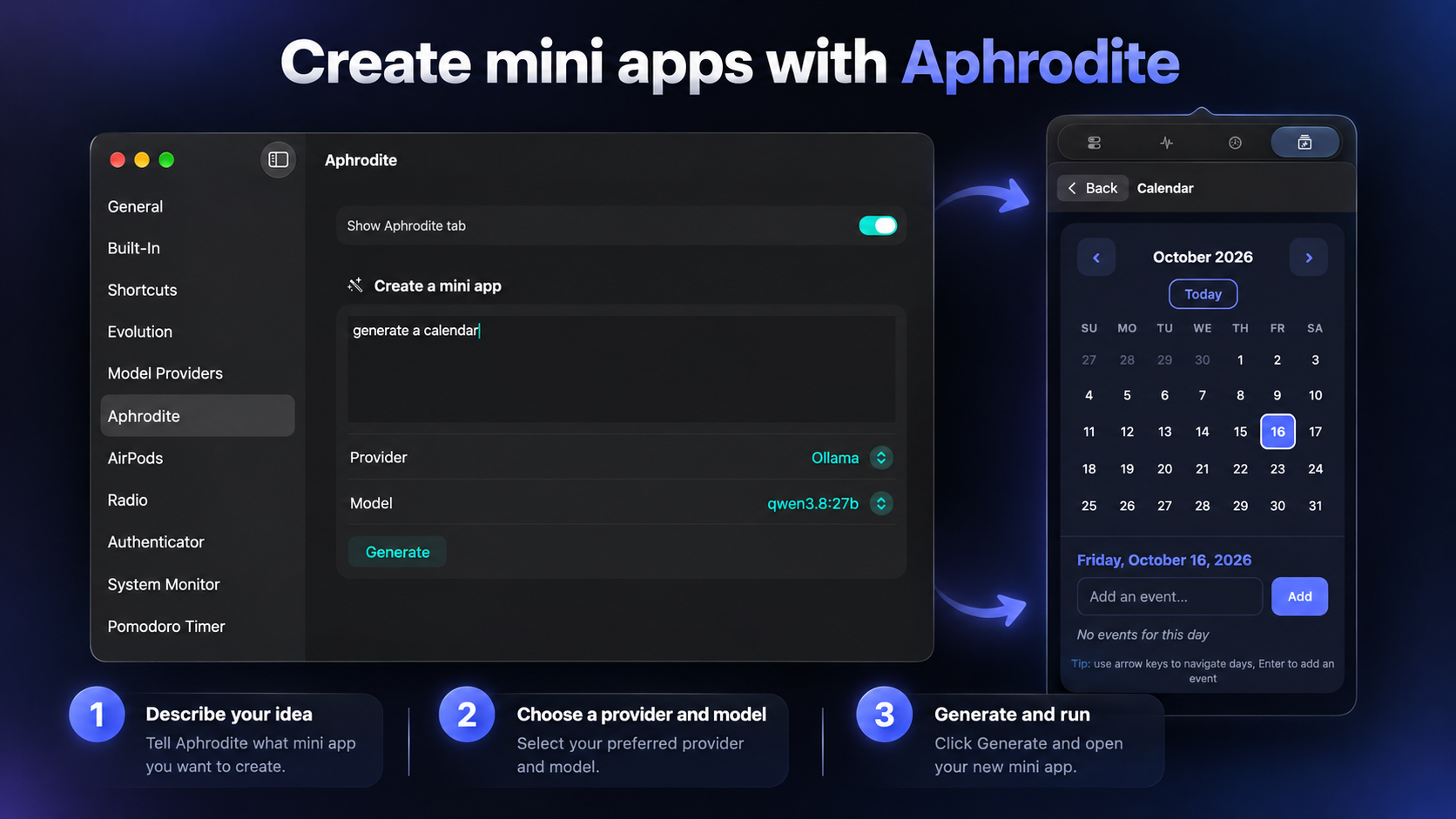
Aphrodite builds mini apps from natural language. Describe what you want, choose a configured AI provider and model, then generate, run, edit, save, share, or import the result. Aphrodite requires macOS 26 or later and uses the model-provider settings configured in OnlySwitch.
Only Agent and OpenClaw
Only Agent lets you describe a task in English and generates AppleScript to control your Mac. When Agent mode is enabled, the generated script is executed immediately. Only Agent supports Ollama, OpenAI, and Gemini providers and requires macOS 26 or later. Provider-backed requests may send your prompt to the provider you select; review both the prompt and generated script before enabling immediate execution.
You can also control OnlySwitch with natural language through OpenClaw. Say things like “empty trash”, “toggle keep awake”, or “turn on dark mode” to trigger the matching switch through a deeplink. See OpenClaw setup for installation as an extra skill directory or under ~/.openclaw/skills.
System Monitor
System Monitor shows live CPU, GPU, memory, disk, and network usage. Open its tab in Only Control, then choose dashboard cards and optional menu-bar indicators under OnlySwitch Settings → System Monitor. CPU and memory cards can expand to show the busiest processes. Network Details includes Wi-Fi or Ethernet information, local and public IP addresses, and—when macOS exposes them—SSID, signal strength, and link rate.
Enabled menu-bar indicators keep sampling while the Only Control popover is closed. The minimum sampling interval is one second. Public-IP lookup sends external requests to ipify's IPv4 and IPv6 endpoints; results are cached for up to five minutes.
Some values may be unavailable when the hardware or macOS does not expose them, including temperature readings. GPU reporting relies on private, undocumented macOS APIs and may stop working after a system update. Network usage is system-wide; per-process network rates are not available.
When a process is associated with a regular macOS application, click its row in the CPU or memory process list to activate that application. Protected or background-only processes may not be activatable.
Codex Usage and Claude Usage
Codex Usage is an optional built-in tab showing the signed-in Codex account's plan, remaining five-hour and weekly usage, reset times, available credits, and reset-credit information. It uses the existing local Codex sign-in, so OnlySwitch does not require a separate sign-in.
Claude Usage shows the Claude Code account's plan and its reported five-hour, weekly, model-specific, and extra usage. It reads your existing Claude Code sign-in; if the credentials have expired, sign in to Claude Code again.
Turn on Codex Usage or Claude Usage under OnlySwitch Settings → Tabs to show them in OnlySwitch and Only Control.
OnlyRemote
OnlyRemote controls OnlySwitch from iPhone or iPad over the local network. Open iOS Remote in OnlySwitch settings to enable access and pair a device. Choose which tabs appear under OnlyRemote's Settings → Tabs; Controls is always shown, while System Monitor, Codex Usage, Claude Usage, Sound Mixer, Brightness, Screenshots, and Aphrodite are optional.
OnlyRemote Plus unlocks the Sound Mixer tab (per-app volume, mute, equalizer, and output routing), the Brightness tab (per-display brightness), the Screenshots tab (view, copy, drag, and delete Mac screenshots), and Aphrodite. The Sound Mixer, Brightness, and Screenshots tabs need the latest OnlySwitch on the Mac. If the iPhone or iPad cannot find your Mac, both apps show the discovery error.
Only Widget
Only Widget can be configured with supported built-in switches and buttons and placed on the desktop or in Notification Center. Clicking a widget triggers the corresponding control. Evolution is supported in widgets.
Screen Test & Clean
Screen Test opens a full-screen solid-color view for checking dead pixels or cleaning the display. Use the left and right arrow keys to cycle through black, white, red, green, and blue.
Known limitations and troubleshooting
OnlySwitch icon missing from the menu bar
OnlySwitch is accessed through its menu-bar icon. On macOS 26.2, the app can appear not to open when it is disabled in the system menu-bar settings.
- Open System Settings → Menu Bar.
- Find OnlySwitch and enable it.
- Click the OnlySwitch icon in the menu bar.
If the icon is still missing, other items may be using all available space. Remove or hide some items. If you use OnlySwitch's collapsing feature, also review Hide Menu Bar Icons. If the issue continues, add your macOS version, OnlySwitch version, and menu-bar setting to issue #188.
Hide Menu Bar Icons
When enabled, items to the left of the divider (arrow) icon are hidden. Hold Command and drag menu-bar icons to configure the hidden section. Settings let you disable the feature or change its auto-hide interval. If the date becomes truncated, choose System Settings → Control Center → Clock Options → Show date → Always. The switch can also be controlled by right-clicking its icons.
On macOS 27 or later, OnlySwitch uses the system's native menu-bar visibility mechanism. The first collapse requests Accessibility permission so OnlySwitch can keep icons to the right of its divider visible. If permission is denied or a macOS update makes the integration unavailable, the menu bar remains unchanged and the switch stays off.
This macOS 27 integration relies on a private API, is not suitable for Mac App Store distribution, and may stop working after a macOS update. While active, macOS also hides Now Playing and may hide Camera, AirDrop, Focus, and Timer; OnlySwitch cannot exempt these system-level items.
For development testing on macOS 27, run the signed build from /Applications, not Xcode's DerivedData directory. The system visibility matcher may fail to recognize a DerivedData-launched app and hide OnlySwitch's icons. Quit the Xcode-run instance before launching the Applications copy.
If both OnlySwitch icons disappear after Command-dragging the divider, re-enable OnlySwitch under System Settings → Menu Bar → Allow in the Menu Bar. macOS 27 can disable the entire app when an older, non-removable status item is dragged; current builds mark both OnlySwitch items as removable to prevent this.
Hide notch
Hide notch appears only on the built-in display of M1 Pro/Max MacBook Pro models. It controls the current desktop rather than every workspace. Dynamic wallpapers are supported but take longer to process.
Low Power Mode
Low Power Mode uses commands that require root access. OnlySwitch asks for initial authorization to install or authorize its privileged helper; subsequent toggles do not prompt again while that authorization remains valid.
AirPods detection
OnlySwitch uses classOfDevice value 2360344 to identify AirPods Pro. Other AirPods generations may report a different value. Reports from AirPods 1–3 owners are welcome; battery-value count may be a possible fallback.
Radio Player
Radio Player supports M3U and AAC streams. If it crashes, include the crash log and stream URL in your report. Disabling the sound-wave effect in Radio settings uses the more stable AVPlayer path. Disabling Radio hides its switch and unregisters it from Now Playing, though macOS may introduce a short delay. Radio lists can be exported and imported.
Widget language after updating
After updating from version 2.5.0, you may need to reset the app language. If widgets do not follow the selected language, quit the Only Widget process so it reloads the setting.
Development
Start with ARCHITECTURE.md, the source of truth for project boundaries and engineering constraints.
OnlySwitch/is the main macOS menu-bar app and owns app-specific UI, persistence, audio, and system integrations.OnlyWidget/is the widget extension and uses extension-safe shared models and effects.OnlySwitchRemote/is the remote-control app and shares protocol contracts without importing main-app implementation details.Modules/is the primary Swift Package boundary for features, domain models, networking, remote transport, and shared utilities.OpenClaw/contains the deeplink-based natural-language integration and its setup documentation.
The app follows The Composable Architecture and uses injected dependencies for effects. Keep business logic out of SwiftUI views, preserve Swift 6 concurrency safety, and treat shell commands, Apple Events, keychain access, networking, system settings, and user permissions as explicit, testable boundaries.
Community and contributions
Join the Telegram group or Discord server.
Pull requests are welcome, especially for bug fixes and additional translations. If you have another idea, open an issue or send the maintainer an email.
Supported languages
English, Simplified Chinese, German, Croatian, Turkish, Polish, Filipino, Dutch, Italian, Russian, Spanish, Japanese, Somali, Korean, French, Ukrainian, Slovak, Portuguese (BR), and Czech.
Donate
If OnlySwitch is useful to you, support its development with a donation.
Press and mentions
| itopnews.de | Ifun.de | appgefahren.de | CASCHYS BLOG |
| softpedia | macupdate | v1tx | OSCHINA |
| Macken | AAPL Ch | appsofter | lifehacker.ru |
| appletechnikblog | All-in-One person | Mac Gadget | MaxiApple |
| insmac | tchgdns | insmac | macbff |
| korben | macg | korben | AlternativeTo |
| macsoft.jp | macgeneration | hdwh.de | MacKed |
| Mac Torrents | PCtipp | lifehacker | PHAPLUAT |
| Techgedöns | MacVince | onmymenubar |
Contributors
Translation
| Language | Contributor | Language | Contributor |
|---|---|---|---|
| German | @C0d3Br3aker | Italian | @bellaposa |
| Croatian | @milotype | Russian | @kirillyakopov |
| Turkish | @berkbatuhans | Spanish | @kant |
| Polish | @kpacholak | Japanese | @ShogoKoyama |
| Dutch | Alex | Somali | @abdorizak |
| Filipino | Rosel | Korean | @iosdevted |
| French | @BtKent and Ange Lefrère | Ukrainian | @andryua |
| Slovak | @Svec-Tomas | Portuguese (BR) | @EvertonCa |
| Czech | @ForksApps |
Additional thanks to:
- @wrngwrld for the Radio Player volume slider.
- @kant for syntax fixes.
- @Ryderwe for Authenticator.
- @lou1s19 for Claude models in Only Agent, Sound Mixer, and external-monitor dimming.
- @oecer for settings backup.
Acknowledgements
- Night Shift refers to Nocturnal.
- LaunchAtLogin.
- AirPods Battery refers to AirPods Battery Monitor For Mac OS.
- Dynamic-wallpaper processing refers to this article and wallpapper.
- AlertToast.
- AudioStreamer, modified for live streaming.
- AudioSpectrum, modified for AppKit.
- Alamofire.
- Sounds from Mixkit and Pixabay.
- KeyboardShortcuts.
- Apple Music and Spotify switches refer to SpotMenu.
- The Hide Menu Bar Icons concept comes from Hidden.
- FKey refers to Fluor.
- Hide Windows refers to Later.
- The Composable Architecture.
- Sparkle.
- True Tone refers to Shifty.
- swift-markdown-ui.
- Key Light refers to mac-brightnessctl.
- AIProxySwift.
- ollama-swift.
- CodexKit.
- The Codex Usage experience was inspired by CodexBar.
License
OnlySwitch is available under the MIT License.
Repo liên quan
Orca is a desktop, mobile, and VPS app written in TypeScript that runs several coding agents at once, each in its own git worktree, with a built-in terminal, a browser-based Design Mode, and a CLI for scripting the same workflow.
Agent skills that give coding agents taste: art direction, reference images and a browser check instead of generic AI pages
Firecrawl is an API and set of SDKs for turning any URL into Markdown, structured JSON, or a screenshot, handling JS rendering and proxy rotation itself. It's built for feeding AI agents and LLM pipelines clean web data, with dedicated search, crawl, map, and agent endpoints, an MCP server, and SDKs for nine languages.
A cross-platform desktop All-in-One assistant for Claude Code, Codex, OpenCode,DeepSeek Harness and more. Only official website: ccswitch.io
Trả lời nhanh
Cùng nhóm AI Tools còn repo nào?
jacklandrin/OnlySwitch thuộc nhóm AI Tools trên TopGit, cùng 20 topic GitHub. Trang Trending và Topics liệt kê các repo cùng số sao và cùng ngôn ngữ để so sánh.
Đọc thêm về jacklandrin/OnlySwitch ở đâu?
Trang TopGit này là một snapshot — tab "Readme" hiển thị nguyên văn README của repo (đã bỏ link, giữ ảnh). Repo GitHub ở github.com/jacklandrin/OnlySwitch là nguồn chính thức.
jacklandrin/OnlySwitch có bao nhiêu sao?
jacklandrin/OnlySwitch có 6.0k sao GitHub — tải lại trang để xem số mới nhất, hoặc xem trực tiếp github.com/jacklandrin/OnlySwitch. TopGit phản chiếu số sao của GitHub nhưng không cam kết đến từng phút.
jacklandrin/OnlySwitch có phải mã nguồn mở không?
Có — jacklandrin/OnlySwitch phát hành theo license MIT, nghĩa là mã nguồn mở để đọc, fork và (tùy license) tái sử dụng. Mã: github.com/jacklandrin/OnlySwitch.
jacklandrin/OnlySwitch có trang demo không?
Dự án có trang chủ ở https://onlyswitch.click/. Tab "Readme" ở trang này thường có ảnh chụp và hướng dẫn bắt đầu nhanh.
jacklandrin/OnlySwitch là gì?
jacklandrin/OnlySwitch (jacklandrin/OnlySwitch) là dự án Swift trên GitHub. Theo mô tả gốc: 👑 The all-in-one macOS menu bar companion: customizable controls, system monitor, AI Agent, Shortcuts, widgets, remote control, and more.
jacklandrin/OnlySwitch so với các dự án AI Tools khác thế nào?
jacklandrin/OnlySwitch được TopGit xếp vào nhóm AI Tools, với 6.0k sao GitHub và viết bằng Swift. Xem trang chủ đề AI Tools trên TopGit để so sánh với các dự án tương tự theo số sao và mức độ hoạt động.
Đọc đầy đủ README ở tab phía trên.
Vẫn đang phân vân về OnlySwitch?
Một cú bấm sẽ gửi câu hỏi kèm trang này cho AI — xem AI nói gì về OnlySwitch.