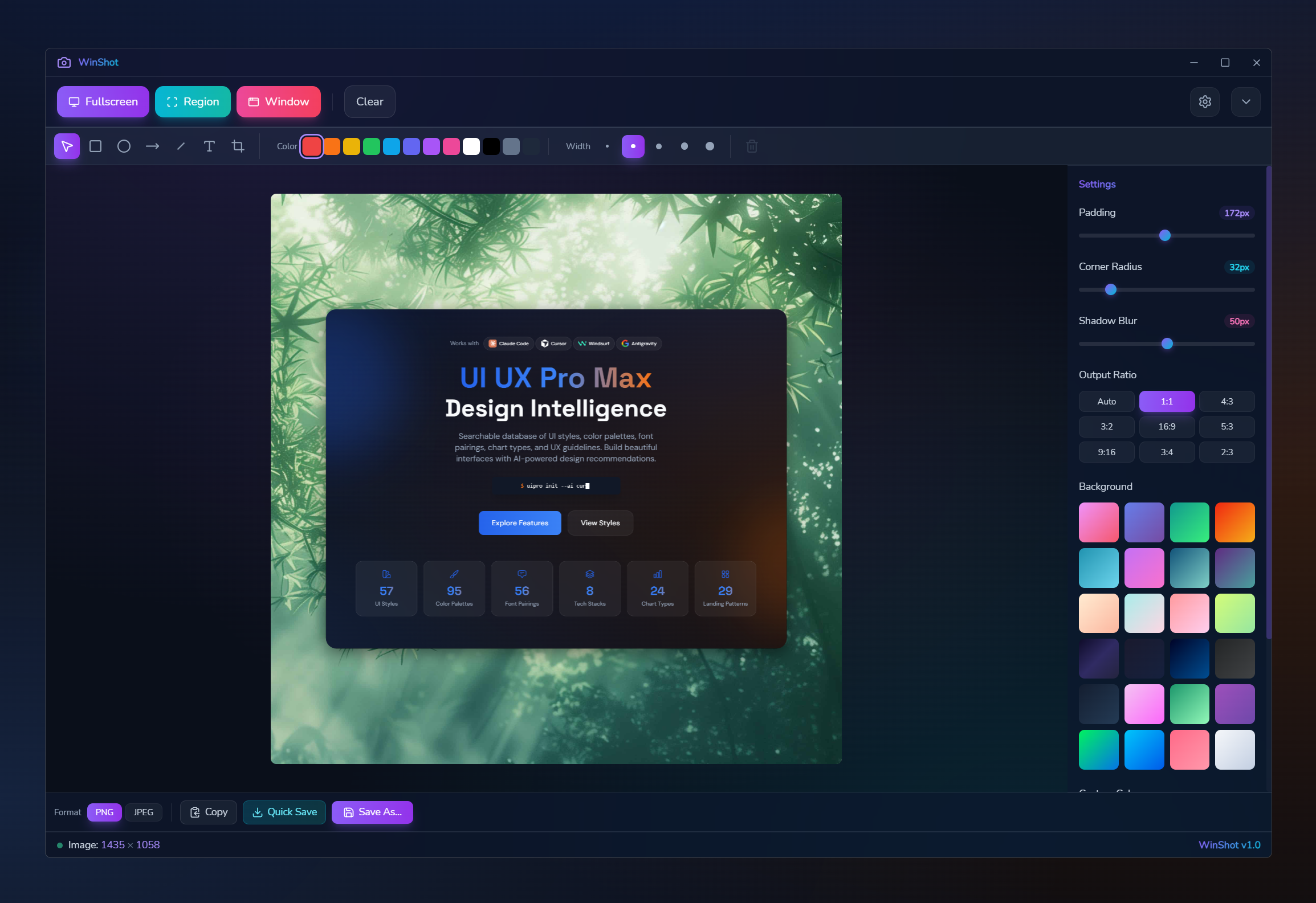
WinShot - Modern Screenshot Tool for Windows
A lightweight, feature-rich screenshot application built with Wails (Go + React). Capture, annotate, and export screenshots with a beautiful glassmorphism UI.
90% smaller than Electron (~10MB) | Native performance | Rich annotation tools
Features
Capture Modes
Fullscreen - Capture all displays in one imageRegion - Drag to select custom rectangleWindow - Automatically detect and capture active windowHotkey Triggered - Global shortcuts (Ctrl+PrintScreen, etc.)
Annotations
Shapes - Rectangle, ellipse (with fill/stroke control)Arrows & Lines - Directional callouts and custom linesText - Add text with customizable font, size, color, alignmentNumbers - Auto-incrementing numbered markers for step-by-step calloutsSpotlight - Highlight areas by dimming surroundingsTransforms - Move, resize, rotate all elementsNon-destructive - Edit or delete annotations anytime
Editor Features
Non-destructive cropping - Adjust bounds without losing dataAspect ratio presets - Free, 16:9, 4:3, 1:1, 9:16, 3:424 gradient backgrounds - Vibrant glassmorphism presetsReal-time preview - See changes instantlySettings persistence - Editor preferences saved across sessions
Export Options
Formats - PNG (lossless) and JPEG (with quality slider)Output ratios - 9 presets for different platformsQuick Save - Save to configured folder with auto-namingBackground control - Include or exclude gradient backgrounds
System Integration
System tray - Icon in taskbar for quick accessGlobal hotkeys - Customizable keyboard shortcutsAuto-start option - Launch on Windows startupMinimize to tray - Keep window out of the way
Installation
Option 1: Portable Executable (Recommended)
Download winshot.exe from GitHub Releases
Run directly - no installation required
Optionally pin to taskbar or create shortcut
Requirements:
Windows 10 or later
WebView2 runtime (pre-installed on Windows 11, automatic install on Windows 10)
Option 2: Installer
Download winshot_installer.exe from GitHub Releases
Run installer and follow prompts
Shortcuts created in Start menu and optional desktop
Quick Start
Basic Workflow
Launch WinShot (portable EXE or via Start menu)Capture screenshot using one of:
Click toolbar buttons (Fullscreen, Region, Window)
Press global hotkey (default: Ctrl+PrintScreen for region)
Right-click system tray icon
Annotate (optional):
Select annotation tool from toolbar
Draw on screenshot
Adjust colors and stroke width
Crop (optional):
Switch to crop mode
Select desired area and aspect ratio
Export :
Choose PNG or JPEG format
Click Export or Quick Save
Confirm location (or auto-save to configured folder)
Keyboard Shortcuts
Global Hotkeys (Customizable):
Shortcut Action Ctrl+PrintScreenRegion capture (default) PrintScreenFullscreen capture Ctrl+Shift+PrintScreenWindow capture
Customizable in Settings → Hotkeys
Editor Shortcuts (App Window):
Shortcut Action VSelect tool (pointer/move) RRectangle annotation EEllipse annotation AArrow annotation LLine annotation TText annotation NNumber annotation SSpotlight annotation CCrop tool Ctrl+ZUndo annotation Ctrl+Shift+Z or Ctrl+YRedo annotation Delete / BackspaceDelete selected annotation EscapeDeselect / cancel crop mode Ctrl+OImport image file Ctrl+VPaste image from clipboard Ctrl+SQuick save Ctrl+Shift+SExport with format dialog Ctrl+CCopy to clipboard
Configuration
Settings Dialog
Access via Settings icon in title bar (⚙️).
Tabs:
Hotkeys
Fullscreen - Default: PrintScreenRegion - Default: Ctrl+PrintScreenWindow - Default: Ctrl+Shift+PrintScreenCustom key combinations supported
Startup
Launch on startup - Auto-start WinShot on Windows bootMinimize to tray - Start minimized instead of maximizedShow notifications - Display toast when screenshot is saved
Quick Save
Folder - Default: %USERPROFILE%\Pictures\WinShotFilename pattern - Options: timestamp, date, increment
Export
Default format - PNG or JPEGJPEG quality - 0-100 slider (default: 95)
95+ = visually lossless
75-90 = balanced (recommended)
50-75 = compressed (smaller files)
Include background - Apply gradient to exported image
Editor Settings
Panel on right side of editor (collapsible):
Padding - Space around screenshotCorner radius - Rounded corners (0-50px)Shadow size - Drop shadow depth (0-30px)Background - Select from 24 gradient presets or custom color
All settings persist in browser localStorage and survive app restarts.
Development
Prerequisites
Go 1.24.0+Node.js 18+Wails CLI - Install: go install github.com/wailsapp/wails/v2/cmd/wails@latestWebView2 Runtime - Pre-installed on Windows 11, or manual install on Windows 10
Setup
# Clone repository
git clone https://github.com/[owner]/winshot.git
cd winshot

# Install frontend dependencies
cd frontend
npm install
cd ..

# Verify Wails setup
wails doctor
Development Server
# Run with hot reload
wails dev
This starts the app with:
Frontend: Vite dev server (auto-reload on code changes)
Backend: Recompile on Go file changes
Open in Wails dev window
Frontend only:
Backend only:
wails build
./winshot.exe
Build
Portable Executable:
wails build
# Output: ./build/bin/winshot.exe (~10-15MB)
Installer (NSIS):
wails build -nsis
# Output: ./build/bin/winshot_installer.exe
Release Build (optimized):
wails build -upx
# Smaller binary (~7-10MB) using UPX compression
Project Structure
.
├── app.go                          # Wails bindings (Go)
├── main.go                         # Entry point
├── wails.json                      # Wails config
├── go.mod / go.sum                 # Go dependencies
├── frontend/
│   ├── src/
│   │   ├── App.tsx                 # Root React component
│   │   ├── components/             # React components (14 total)
│   │   ├── types/                  # TypeScript interfaces
│   │   └── assets/                 # Images, fonts
│   ├── package.json
│   ├── vite.config.ts
│   ├── tailwind.config.js
│   └── tsconfig.json
├── internal/                       # Go packages
│   ├── config/                     # Config persistence
│   ├── hotkeys/                    # Global hotkey registration
│   ├── screenshot/                 # Screen/window capture
│   ├── tray/                       # System tray integration
│   └── windows/                    # Window enumeration
├── docs/                           # Documentation
└── build/                          # Build assets & output
Architecture
Backend (Go)
Key Packages:
internal/config - JSON config persistenceinternal/hotkeys - Global hotkey registration via Win32 APIinternal/screenshot - Multi-display screen captureinternal/tray - System tray icon + context menuinternal/windows - Window enumeration
Wails Bindings:
25+ methods exposed to frontend via automatic Go→TypeScript binding.
Frontend (React)
Technology Stack:
React 18.2 + TypeScript
react-konva 18.2 for canvas drawing
Tailwind CSS 3.4 for styling
Vite 3.0 for build tooling
Components:
App.tsx - Central state management14 specialized components for UI, toolbars, dialogs, canvas
State Management:
React hooks (useState, useEffect, useCallback) + localStorage for persistence.
Communication
Frontend ↔ Go via Wails IPC (automatic JSON serialization).
Example:
// Frontend
const result = await CaptureFullscreen()
// Automatically calls Go method, returns JSON-deserialized CaptureResult
See docs/system-architecture.md for detailed architecture diagrams.
Tech Stack
Layer Technology Purpose Framework Wails v2.10.2 Desktop app framework Backend Go 1.24.0 System APIs, screenshot capture Frontend React 18.2.0 UI framework Language TypeScript 5.3.0 Type-safe frontend Canvas react-konva 18.2.10 Shape drawing & editing Styling Tailwind CSS 3.4.0 Utility-first CSS Build Vite 3.0.7 Frontend bundler Screenshot kbinani/screenshot Multi-display capture
Contributing
Contributions welcome! Please:
Fork the repository
Create feature branch: git checkout -b feature/amazing-feature
Commit changes: git commit -m 'Add amazing feature'
Push to branch: git push origin feature/amazing-feature
Open Pull Request
Guidelines:
Follow code standards
Update tests for new features
Update documentation as needed
Keep commits focused and descriptive
Roadmap
v1.0 (Completed)
Basic capture modes
Simple annotations
PNG export
Configuration dialog
v1.2 (Completed)
Undo/redo ✓
Keyboard shortcuts ✓
Clipboard import ✓
JPEG quality control ✓
v1.3 (Planned)
Dark/light theme toggle
Batch export operations
Cloud sync for settings
v2.0 (Future)
Screen recording
OCR text extraction
Cloud sync for settings
macOS/Linux support
See docs/project-overview-pdr.md for detailed roadmap.
Troubleshooting
Common Issues
Global hotkeys not working
Ensure app has focus once (may require privilege elevation)
Check Settings → Hotkeys for conflicts with other apps
Try alternative key combinations
Screenshots appear blurry
Confirm DPI scaling in Windows Settings (125%, 150%)
App handles DPI automatically; if issues persist, file a bug report
Use JPEG export with lower quality for smaller files
App crashes on startup
Delete %APPDATA%\WinShot\config.json to reset configuration
Check if WebView2 runtime is installed (Windows 10)
Restart computer and try again
Export takes too long
Large images (4K+) may take 500-800ms
Reduce output size via aspect ratio control
Use JPEG format for faster export than PNG
Debug Mode
Enable debug logging:
wails dev # Prints Go errors and exceptions to console
License
BSD 3-Clause License
See LICENSE file for details.
Support & Feedback
Issues : GitHub IssuesDiscussions : GitHub DiscussionsReddit : /r/winshot (TBD)Discord : Invite link (TBD)
Acknowledgments
Wails - Desktop framework
kbinani/screenshot - Screen capture
react-konva - Canvas library
Tailwind CSS - Styling framework
Changelog
v1.2 (2025-12-24)
✨ Clipboard image import via Ctrl+V
✨ Configurable JPEG compression quality (0-100 scale)
✨ Comprehensive keyboard shortcuts for all tools
✨ Tool selection via single-key shortcuts (V, R, E, A, L, T, C)
✨ Editor annotations with Undo/Redo shortcuts
🚀 Performance improvements for clipboard operations
📝 Enhanced documentation with keyboard reference
v1.1 (2025-12-03)
✨ Add arrow and line annotations
✨ Add text annotation tool
✨ Implement non-destructive cropping
✨ Add 24 gradient background presets
✨ Support multiple output aspect ratios
✨ Copy file path button + auto-copy on quick save
🚀 Performance improvements for large images
📝 Complete documentation suite
v1.0 (2025-11-01)
🎉 Initial release
✅ Fullscreen, region, and window capture
✅ Rectangle and ellipse annotations
✅ PNG export
✅ Configuration dialog
✅ System tray integration
✅ Global hotkey support
Made with ❤️ for screenshot enthusiasts

 /winshot