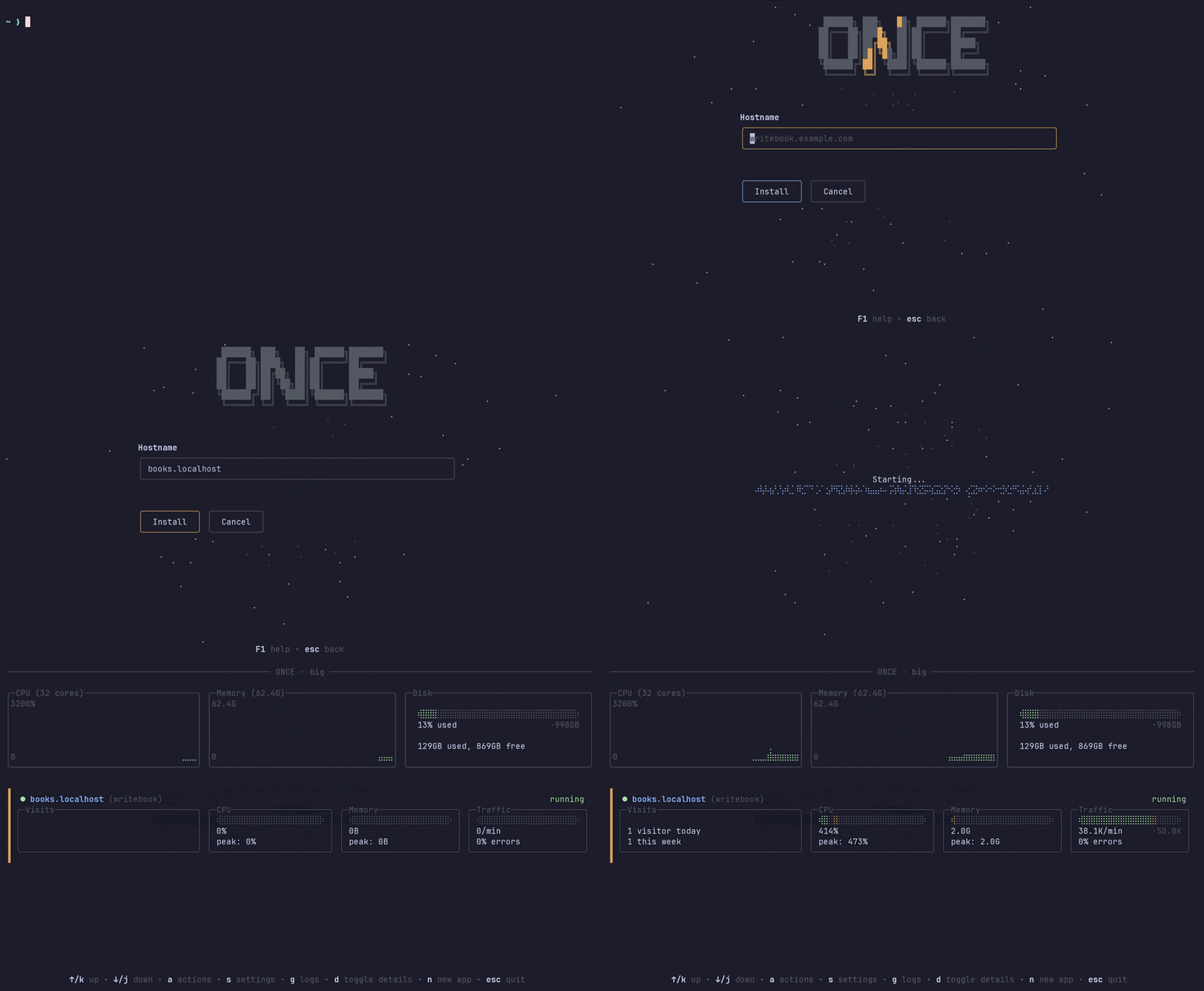
A look at basecamp/once: 1.9k stars on GitHub, written primarily in Go. Easy self-hosting for Docker-based web apps
Snapshot summary built from the project's own GitHub metadata — there's no written TopGit review yet. The page will update automatically when a full review is published.
WHY NO REVIEW YET
TopGit writes full reviews for the most-starred, most-requested repositories. This page is a snapshot until then — see the READ ME tab for the original README in full.
ONCE is a platform for installing and managing Docker-based web applications.
Its goal is to make self-hosting applications as simple as possible.
As well as simplifying the initial setup, ONCE also provides automatic updates, backups, and system information.
It has a TUI interface with a dashboard for monitoring and operating your applications, as well as CLI commands for common operations should you (or your AI agent) prefer that.
ONCE runs on Linux and macOS, and can be used to run applications on a variety of hardware: a physical server, a cloud VPS, a Raspberry Pi, or your laptop, are all suitable.
ONCE comes with a set of 37signals apps built-in, but you can use it to install any compatible Docker image as well.
Installing
The simplest way to get started with ONCE is to use the install snippet to bootstrap the tool and choose an app to install:
curl https://get.once.com | sh
This will download the appropriate binary for your platform, install it and its corresponding background service, and then launch it so you can do your first application install.
If the machine you're running this from doesn't already have Docker, it will install that too (on supported platforms).
Customizing the installer behaviour
If you want to install once without launching it (for example, for a scripted install), you can use ONCE_INTERACTIVE=false:
curl https://get.once.com | ONCE_INTERACTIVE=false sh
Installing manually
If you prefer to set ONCE up yourself, you can download the appropriate binary from the GitHub Releases page.
Then follow these steps to get it installed:
Install Docker (if it's not already installed) using your preferred package manager
Copy the once binary to wherever you'd like to run it from
Register the background service by running sudo once background install
Then run once to install an app, or once --help to see what commands are available.
Note that if you need to use sudo when running Docker commands (for example, if your user is not in the docker group) then you'll also need to use sudo whenever you run once.
Using ONCE to install and configure applications
On first run, ONCE will prompt you to choose an application to install.
You can pick from the built-in applications, or enter the path to a Docker image.
When entering an image path you can pick any application that works with ONCE (more on this below), so you can run additional applications or even your own custom forks of the built-in ones.
You'll need to enter a hostname for the application.
If you're installing onto a machine on the public Internet (like a cloud VPS), and you have a domain name, then you can use that.
It's a good idea to use a subdomain so that you can run multiple applications on the same domain.
For example, if you own example.com you might install Writebook to books.example.com.
Whatever hostname you choose, make sure you have a DNS entry for it which points to the machine you're installing to.
The details of how to do this will vary depending on which provider you use for your DNS, but generally you should have access to an admin interface where you can set up an A record with the hostname you've chosen, pointed to the IP address of your machine.
If you plan to install many applications on the same machine you could use a wildcard DNS entry for this.
[!TIP]
One tip if you're using Cloudflare: by default, DNS entries on Cloudflare will have the "proxy" option enabled, which means that traffic will pass through Cloudflare before reaching your server.
ONCE works well in this setup provided you have SSL enabled end-to-end.
So just be sure your Cloudflare SSL mode is set to "Strict (full)" if you're using its proxy option.
Once you've picked your application and entered the hostname, the rest is automatic.
ONCE will fetch, install, and boot the application, and then take you to the dashboard screen where you can monitor it.
Changing application settings
There are various extra settings you can change on your applications.
When you have an application selected on the dashboard, press s to view the settings menu, and choose an item from the menu to open that screen.
From there you can set up a location for automatic backups, update your hostname, switch to using your own fork's image, set up an email provider and more.
You can also use the action menu, a to start and stop applications, or remove them completely.
Customizing the once appearance
On first run, once shows an animated logo and background.
If you find this distracting, or it causes problems in your environment, you can suppress it with ONCE_REDUCED_MOTION=true:
ONCE_REDUCED_MOTION=true once
Making a ONCE-compatible application
Fundamentally, ONCE works with any web application that:
Is packaged as a Docker container
Serves HTTP on port 80
Has a healthcheck endpoint at /up that returns success
Keeps its persistent data in /storage
Any application that does these things should work with ONCE.
However, beyond this bare minimum, there are some additional scripts and environment variables that allow for better integration with the platform:
Storage paths
ONCE will mount a persistent volume into /storage.
For compatibility with standard Rails applications, it also mounts the same volume into /rails/storage.
That means Rails applications built with the default Dockerfile should work just fine.
Data in this volume persists across restarts, and is also the data that will be included in backups.
Hook scripts
ONCE uses a few optional hook scripts as integration points.
Currently supported hooks are:
/hooks/pre-backup -- Because ONCE can't assume that it's safe to backup the files of an application while they are in use, it will try to call this hook before starting a backup so the application can do anything it needs to generate a "safe" copy of the data.
If this script exists, and return success, ONCE assumes it's now safe to copy the files into the backup.
If it doesn't exist, or returns an error, ONCE will pause the application's container while it copies the file.
This means backups are always consistent in either case, but the hook gives the app a way to avoid the paused container introducing latency to in-flight requests while the backup runs.
An example of using pre-backup on a SQLite-based application would be to use SQLite's online backup feature to take a safe consistent copy of the database.
/hooks/post-restore -- The inverse of pre-backup, post-restore will be called after restoring the data from a backup, but before booting the application.
If an application needs to do any cleanup, such as move or rename files generated during pre-backup, it can do it in this hook.
Environment variables
Many of the configuration settings that you can do in the ONCE UI make their way into the application in the form of environment variables.
These include:
SECRET_KEY_BASE -- A unique identifier, generated at installation time, and kept for the life of the applications.
By convention, Rails applications use this as the base for cryptographic signing.
DISABLE_SSL -- This will be set to true if the app is running without SSL.
This can be useful for applications that generate redirects or URLs that would otherwise assume SSL is being used.
VAPID_PUBLIC_KEY/VAPID_PRIVATE_KEY -- For applications the use WebPush, unique VAPID credentials are automatically generated and passed in these variables.
SMTP_ADDRESS/SMTP_PORT/SMTP_USERNAME/SMTP_PASSWORD/MAILER_FROM_ADDRESS -- The values from the Email Settings screen are passed in these.
NUM_CPUS -- If an application is restricted with a CPU quota, this variable will contain the number of CPUs it has been allowed to use.
An application can use this to vary the number of worker processes it spawns to an appropriate number for that quota.
No homepage URL was recorded for basecamp/once in TopGit's last sync. The README tab above frequently contains screenshots and demo links, or check the repository description on GitHub.
Is basecamp/once open source?
Yes — basecamp/once ships under the MIT license, which makes its source code freely readable (and, depending on license terms, forkable and reusable). Source: github.com/basecamp/once.
What is basecamp/once?
basecamp/once (basecamp/once) is a Go project on GitHub. From the project's own README: Easy self-hosting for Docker-based web apps
What license does basecamp/once use?
basecamp/once is released under the MIT license. Always verify the LICENSE file directly on GitHub for the authoritative terms — license strings can be edited out of sync with a project's actual stance.
Where do I read more about basecamp/once?
This TopGit page is a snapshot — the READ ME tab shows the project's own README content (links stripped, images preserved). The GitHub repository at github.com/basecamp/once is the definitive source.
Read full README in the tab above.
Is once worth your time?
ChatGPT, Claude and Perplexity can all read this page. Ask one of them what it makes of once.
 /once
/once