Diolinux/PhotoGIMP is an open-source project on GitHub with 18.6k stars, written primarily in Python. A Patch for GIMP 3+ for Photoshop Users
Snapshot summary built from the project's own GitHub metadata — there's no written TopGit review yet. The page will update automatically when a full review is published.
WHY NO REVIEW YET
TopGit writes full reviews for the most-starred, most-requested repositories. This page is a snapshot until then — see the READ ME tab for the original README in full.
Want to add your language? Fork the repo, create a docs/README_xx.md file, and submit a pull request!
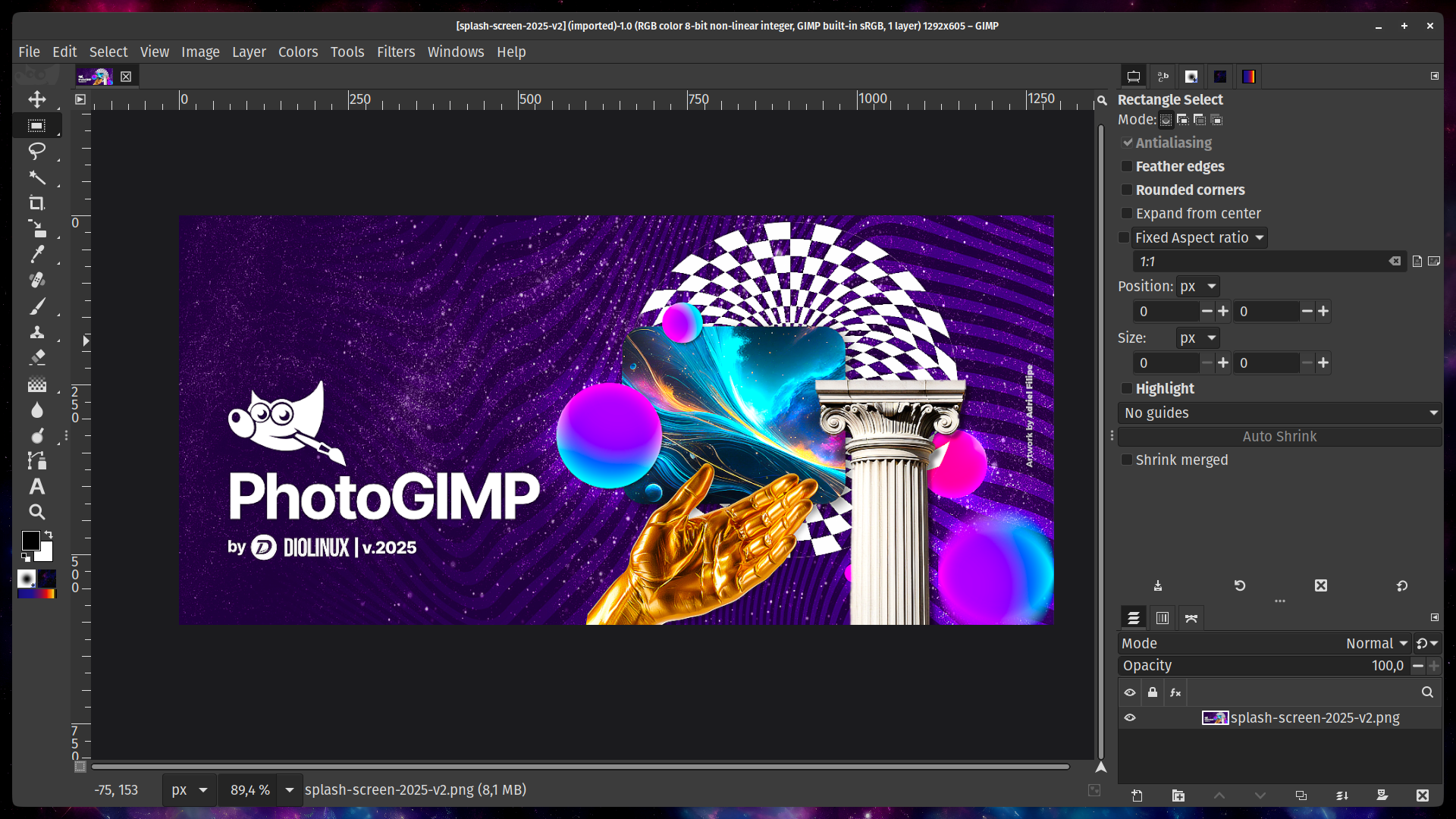
PhotoGIMP is a free, community-driven patch that transforms GIMP (GNU Image Manipulation Program) into a layout that feels familiar to Adobe Photoshop users. If you're switching from Photoshop to GIMP and want to feel at home right away, PhotoGIMP is for you.
New to GIMP? GIMP is a free and open-source image editor available for Linux, macOS, and Windows. It can do most things Photoshop can — photo retouching, image composition, graphic design, and more — all for free. PhotoGIMP just makes it look and feel more like Photoshop.
✨ Features
Photoshop-like tool layout — Tools are reorganized to mimic the positions you're used to in Adobe Photoshop.
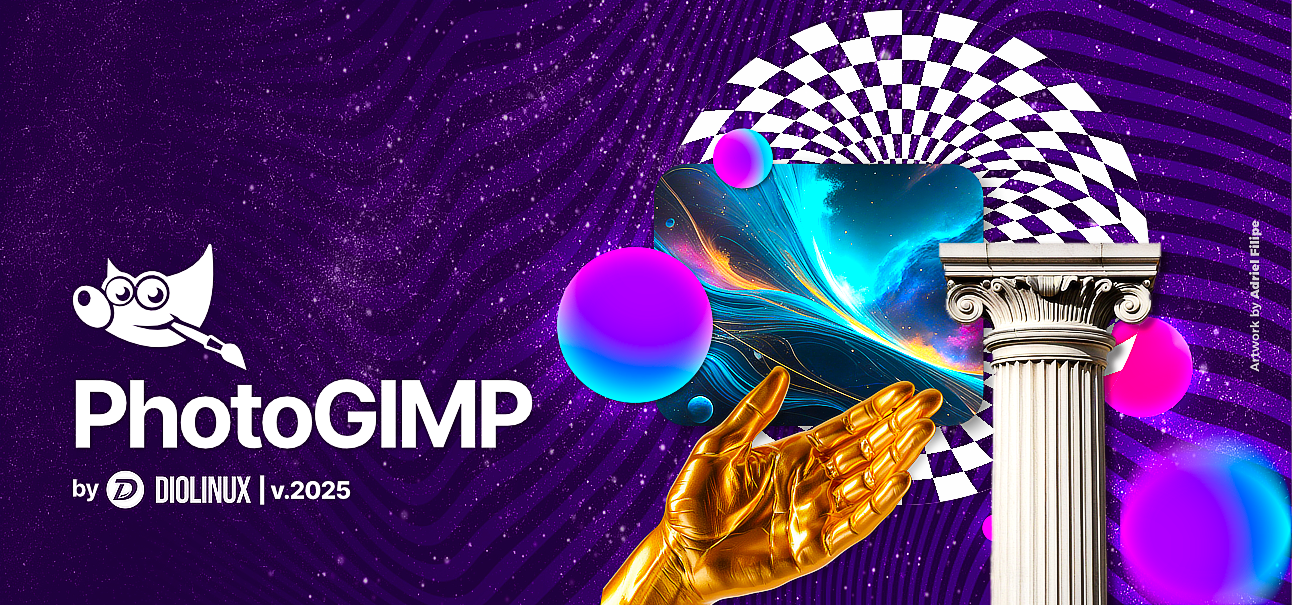
Custom Splash Screen — A unique PhotoGIMP splash screen greets you on startup.
Maximized canvas space — Default settings are optimized to give you the largest possible working area.
Photoshop keyboard shortcuts — Keyboard shortcuts follow Adobe's official documentation for the Windows version.
Custom icon & name — A dedicated .desktop file gives PhotoGIMP its own icon and app name in your system menu.
📷 Screenshots
Splash Screen
Application Window
PhotoGIMP Diolinux splash screen
PhotoGIMP 3
📋 Requirements
Before installing PhotoGIMP, make sure you have:
Requirement
Details
GIMP 3.0 or newer
Download from: gimp.org or Flathub (Linux)
Run GIMP at least once
GIMP needs to generate its config files before PhotoGIMP can overwrite them. Install GIMP → open it → close it → then install PhotoGIMP.
⚙ How to Install
[!WARNING]
Back up your current GIMP settings before installing! PhotoGIMP overwrites GIMP's configuration files. If you have custom settings you want to keep, save a backup copy first. See the backup instructions in each section below.
🐧 Flatpak (Linux)
Backup (optional)
The install.sh script used below backs up your current configuration automatically, so this step is only needed if you plan to copy the files by hand:
Make sure you already have GIMP installed from Flathub.
Open GIMP once, then close it — this creates the config folders that PhotoGIMP needs.
Download the latest release:
👉 Download PhotoGIMP for Linux (.zip)
Extract the .zip file anywhere (for example, your Downloads folder). It creates a folder named PhotoGIMP-linux/ containing .config, .local and install.sh.
⚠️ Extracting the .zipinto your home folder does not install PhotoGIMP — it only creates ~/PhotoGIMP-linux/. You still need step 5.
Run the included installer from inside that folder:
cd ~/Downloads/PhotoGIMP-linux
chmod +x install.sh
./install.sh
It detects whether your GIMP is a Flatpak or a native install, backs up your current configuration, and copies the files to the right place.
Open GIMP — you should see the new PhotoGIMP layout! 🎉
📂 Prefer to copy the files manually?
Copy the contents of .config and .local into your home folder — not the PhotoGIMP-linux folder itself. The trailing /. is what copies the hidden files:
cp -a ~/Downloads/PhotoGIMP-linux/.config/. ~/.config/
cp -a ~/Downloads/PhotoGIMP-linux/.local/.  ~/.local/
If you prefer your file manager:
The files must end up in ~/.config and ~/.local, which are hidden folders.
To see hidden folders in your file manager, press Ctrl + H.
When prompted about existing files, choose "Replace" or "Overwrite".
💡 Using a non-Flatpak GIMP?
If you installed GIMP from your distro's package manager (apt, dnf, pacman, etc.) instead of Flatpak, the config folder is in the same location (~/.config/GIMP/3.0), so the steps above still work. Just make sure you have GIMP version 3.0 or newer.
install.sh detects native installations too, and asks which one to patch if you have both Flatpak and native GIMP. For native installations it replaces the GIMP configuration only — the custom launcher and icons from .local are applied for Flatpak.
🪟 Windows
Backup (optional)
If you want to keep your current GIMP settings, back them up first:
Press Windows + R to open the Run dialog.
Type %APPDATA%\GIMP and press Enter.
Copy the entire version folder (e.g., 3.0, 3.2) to a safe location (e.g., your Desktop).
Install
Make sure you have GIMP installed from the official website.
Open GIMP once, then close it — this creates the config folders that PhotoGIMP needs.
Download the latest release:
👉 Download PhotoGIMP for Windows (.zip)
Extract the contents of PhotoGIMP.zip to any folder (e.g., your Desktop).
Open the extracted 3.0 folder and copy everything inside it. The same files work on every GIMP 3.x release.
Press Windows + R to open the Run dialog.
Type %APPDATA%\GIMP and press Enter — this opens GIMP's settings folder.
Open the folder that matches your GIMP version (e.g. 3.0 or 3.2) and paste the files there.
When prompted about existing files, select "Replace the files in the destination".
Open GIMP — you should see the new PhotoGIMP layout! 🎉
💡 Optional: Change the GIMP shortcut icon
You can also download photogimp.ico and update the icon on the GIMP shortcut located at:
If your installed GIMP uses a different version folder, change the
destination to match it (for example, use
~/Library/Application\ Support/GIMP/3.2/ for GIMP 3.2).
📦 What's Inside the Patch
PhotoGIMP replaces or adds the following files in GIMP's configuration directory:
File / Folder
What it does
shortcutsrc
Keyboard shortcuts mapped to match Photoshop
toolrc
Tool configuration and ordering
sessionrc
Window layout and panel positions
dockrc
Dock / panel configuration
gimprc
General GIMP preferences (canvas, grid, etc.)
contextrc
Active tool/color context settings
splashes/
Custom PhotoGIMP splash screen
theme.css
Minor UI theme adjustments
templaterc
Pre-defined canvas templates
On Linux, the patch also installs:
A custom .desktop file (app launcher with PhotoGIMP name and icon)
A custom application icon in ~/.local/share/icons/
🗑 How to Uninstall
To remove PhotoGIMP and restore GIMP to its default state, simply delete GIMP's config folder and reopen GIMP — it will regenerate fresh default settings.
Linux
rm -rf ~/.config/GIMP/3.0
Then open GIMP again — it will create a brand new default configuration.
If you made a backup earlier, restore it instead:
cp -r ~/GIMP-3.0-backup ~/.config/GIMP/3.0
Windows
Press Windows + R, type %APPDATA%\GIMP and press Enter.
Delete the 3.0 folder.
Open GIMP — it will recreate the default settings.
Or restore your backup by pasting the backed-up 3.0 folder back.
macOS
Open Finder, press Cmd + Shift + G.
Go to ~/Library/Application Support/GIMP.
Delete the 3.0 folder.
Open GIMP — it will recreate the default settings.
Or restore your backup by pasting the backed-up folder back.
❓ Troubleshooting / FAQ
[!CAUTION]
PhotoGIMP does not have an official website. The only official source for the project is its GitHub repository: https://github.com/Diolinux/PhotoGIMP/
PhotoGIMP didn't change anything — GIMP looks the same
Make sure you extracted the files to the correct location. The most common mistake is extracting to the wrong folder.
Linux: The .config and .local folders must be in your home directory (~). They are hidden — press Ctrl + H in your file manager to see them. If you have a ~/PhotoGIMP-linux/ folder, you extracted the archive but never installed it — open that folder and run ./install.sh.
Windows: The 3.0 folder must be inside %APPDATA%\GIMP, not next to it.
macOS: The 3.0 folder must be inside ~/Library/Application Support/GIMP.
Did you close GIMP before pasting the files? GIMP may overwrite incoming settings on exit.
I get an error when opening GIMP after installing PhotoGIMP
This usually means the GIMP version doesn't match. PhotoGIMP is built for GIMP 3.0+. If you're running GIMP 2.x, it won't be compatible.
Try deleting the config folder and reinstalling — see the How to Uninstall section.
Can I use PhotoGIMP with GIMP 2.10?
No. This version of PhotoGIMP is designed exclusively for GIMP 3.0 and newer. The configuration format changed significantly between GIMP 2.x and 3.x.
Will PhotoGIMP delete my custom brushes, fonts, or plug-ins?
No. PhotoGIMP only replaces configuration files (shortcuts, layout, preferences). Your personal brushes, fonts, gradients, and plug-ins remain untouched.
Can I customize the shortcuts after installing PhotoGIMP?
Absolutely! PhotoGIMP just sets a starting point. You can change any shortcut in GIMP via Edit → Keyboard Shortcuts.
How do I update PhotoGIMP to a new version?
Just download the latest release and follow the installation steps again — it will overwrite the previous PhotoGIMP configuration.
🤝 Contributing
Found a bug? Have a suggestion? We'd love your help!
Report an issue: Open an issue
Submit a fix: Create a pull request
Translate: Help us translate the README into more languages! See the Translations section.
🏆 Credits
This project would not be possible without the amazing GIMP team.
A BIG thanks to all Diolinux's supporters on YouTube.
Splash screen & icons from Adriel Filipe Design.
💙 Support the project
PhotoGIMP is maintained by people who contribute their time to keep the project available, documented, and compatible with current GIMP releases. You can support its continued development through its main contributors:
Dionatan Simioni (Diolinux) — creator of PhotoGIMP and the Diolinux community. Follow the Diolinux YouTube channel and visit the Diolinux blog.
Gabriel Almir — project maintainer since 2021. You can support his maintenance work on Ko-fi.
Code contributions, issue reports, translations, and documentation improvements are also valuable ways to help PhotoGIMP continue.
👥 Contributors
📄 License
PhotoGIMP is licensed under the GNU General Public License v3.0.
No homepage URL was recorded for Diolinux/PhotoGIMP in TopGit's last sync. The README tab above frequently contains screenshots and demo links, or check the repository description on GitHub.
Is Diolinux/PhotoGIMP open source?
Yes — Diolinux/PhotoGIMP ships under the GPL-3.0 license, which makes its source code freely readable (and, depending on license terms, forkable and reusable). Source: github.com/Diolinux/PhotoGIMP.
What is Diolinux/PhotoGIMP?
Diolinux/PhotoGIMP (Diolinux/PhotoGIMP) is a Python project on GitHub. From the project's own README: A Patch for GIMP 3+ for Photoshop Users
What license does Diolinux/PhotoGIMP use?
Diolinux/PhotoGIMP is released under the GPL-3.0 license. Always verify the LICENSE file directly on GitHub for the authoritative terms — license strings can be edited out of sync with a project's actual stance.
Where do I read more about Diolinux/PhotoGIMP?
This TopGit page is a snapshot — the READ ME tab shows the project's own README content (links stripped, images preserved). The GitHub repository at github.com/Diolinux/PhotoGIMP is the definitive source.
Read full README in the tab above.
Want a second opinion on PhotoGIMP?
Ask an AI that can read this page — one click and you get its take on PhotoGIMP.

 /PhotoGIMP