
microsoft/vscode-tips-and-tricks

microsoft/vscode-tips-and-tricks is a GitHub project with 9.1k stars. Collection of helpful tips and tricks for VS Code.
Snapshot summary built from the project's own GitHub metadata — there's no written TopGit review yet. The page will update automatically when a full review is published.
TopGit writes full reviews for the most-starred, most-requested repositories. This page is a snapshot until then — see the READ ME tab for the original README in full.
Snapshot
Top contributors
Show top contributors
VS Code Tips and Tricks
Note: Tips and Tricks has moved to the official Visual Studio Code documentation at code.visualstudio.com.
The content is now at vscode-docs. Pull requests and documentation issues are still greatly appreciated.
Table of Contents
- Basics
- Customization
- Extensions
- File and folder management
- Editing hacks
- IntelliSense
- Snippets
- Git integration
- Debugging
- Task runner
- Other Resources
The key bindings below may or may not be accurate with the latest build. See here for the latest keyboard shortcut reference.
Basics
Insider Version of VS Code
The Visual Studio Code team uses the Insiders version to test the latest features and bug fixes of VS Code. You can use this same version by downloading here.
- For Early Adopters - Insiders has the most recent code changes and may lead to the occasional broken build.
- Frequent Builds - New builds everyday with the latest bug fixes and features.
- Side-by-side install - Insiders installs next to the Stable build allowing you to use either independently.

Getting Started
Open the Welcome page to get started with the basics of VS Code. Help > Welcome.
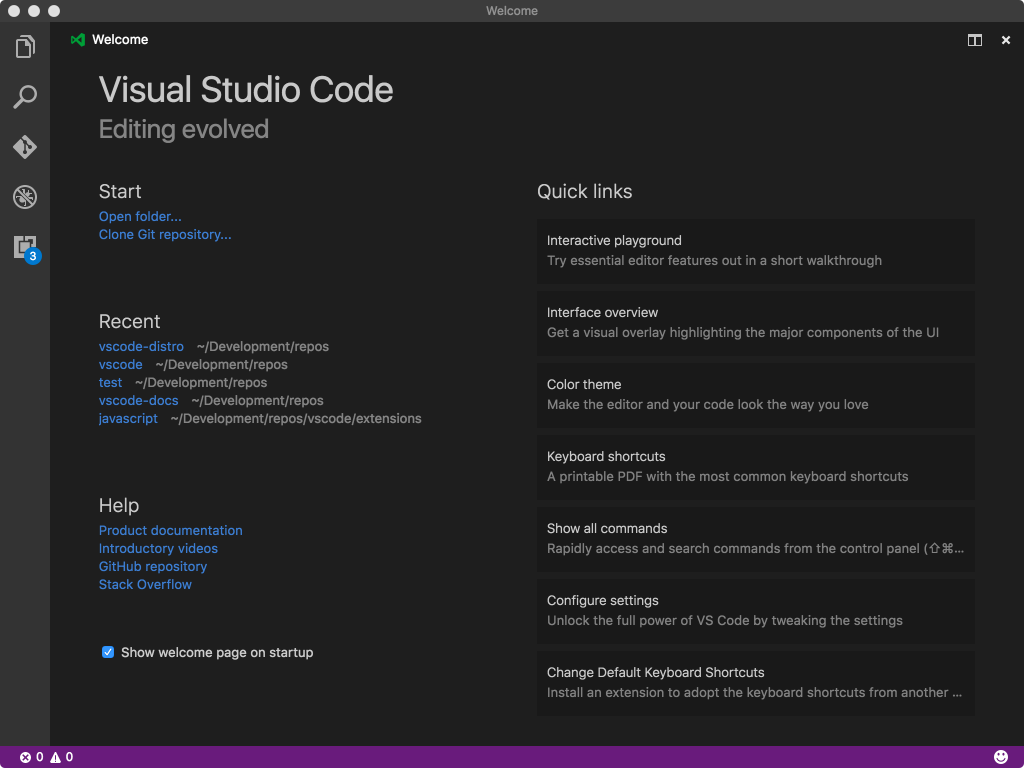
Includes the Interactive Playground.
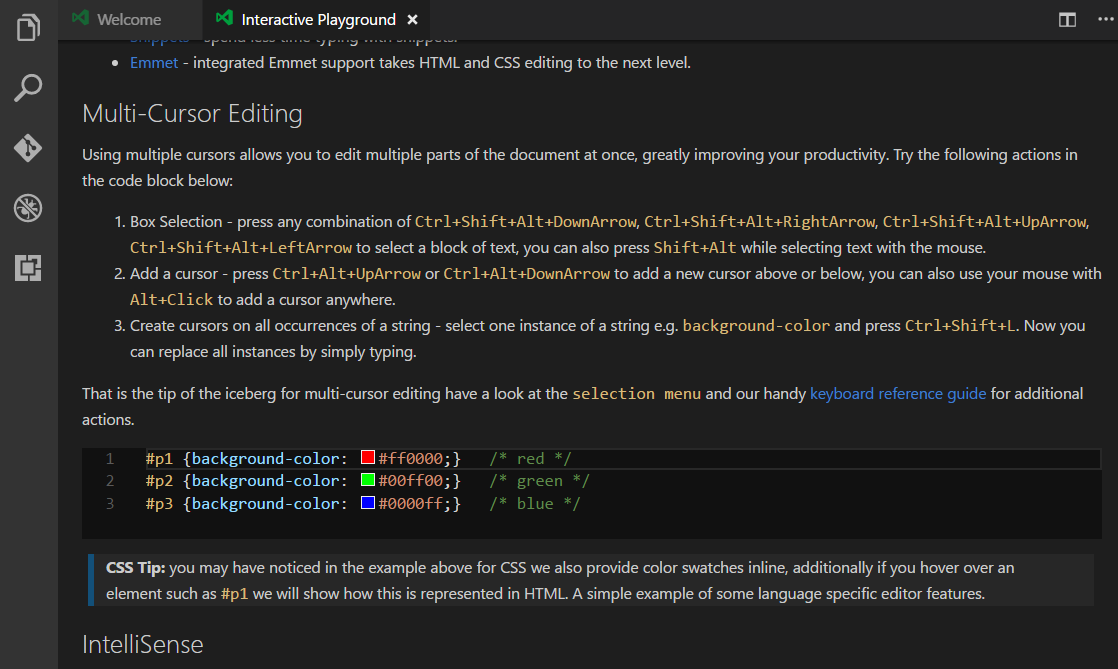
Command Palette
Access all available commands based on your current context.
Mac: cmd+shift+p or f1
Windows / Linux: ctrl+shift+p or f1
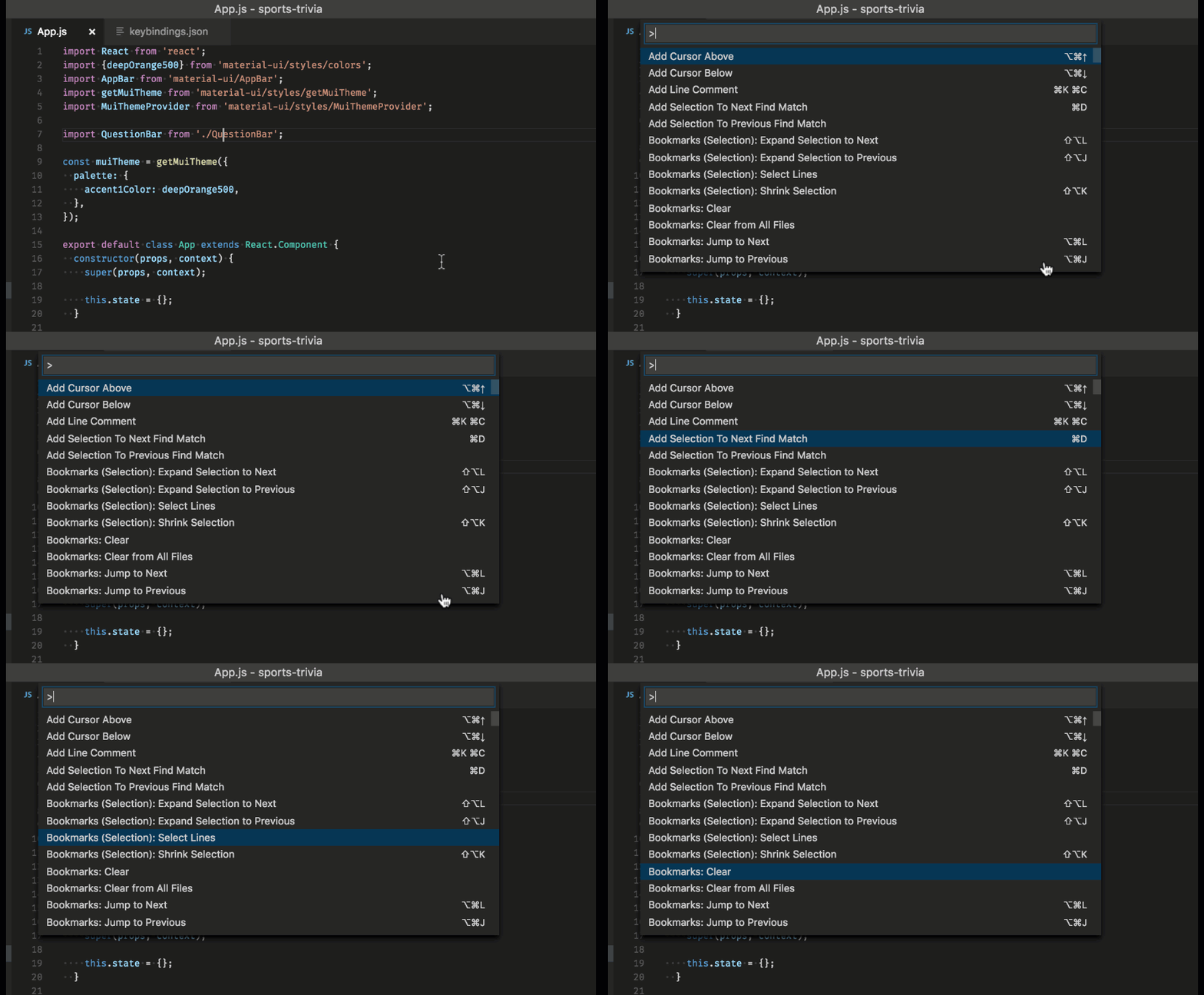
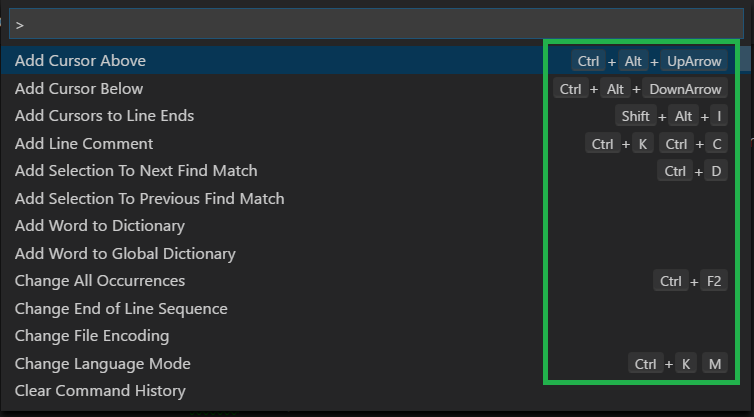
Reference keybindings
All of the commands are in the Command Palette with the associated key binding (if it exists). If you forget what the key binding is use the Command Palette to help you out.
Quick open
Quickly open files.
Mac: cmd+p
Windows / Linux: ctrl+p

Tip: Type "?" to view help suggestions.
Navigate between recently opened files
Repeat the Quick Open keyboard shortcut to cycle quickly between recently opened files.
Open multiple files from Quick Open
You can open multiple files from Quick Open by pressing the Right arrow key. This will open the currently selected file in the background and you can continue selecting files from Quick Open.
CLI tool
Linux: Follow instructions here.
Windows: Follow instructions here.
Mac: see below.
Open the Command Palette (F1) and type "shell command". Hit enter to execute Shell Command: Install 'code' command in PATH.

# open code with current directory
code .

# open the current directory in the most recently used code window
code -r .

# create a new window
code -n

# change the language
code --locale=es

# open diff editor
code --diff <file1> <file2>

# see help options
code --help

# disable all extensions
code --disable-extensions .

.vscode folder
Workspace specific files are in .vscode. For example, tasks.json for the Task Runner and launch.json for the debugger.
Status Bar decorations
Errors and Warnings
Mac: shift+cmd+m
Windows / Linux: ctrl+shift+m
Quickly jump to errors and warnings in the project.
Cycle through errors with f8 or shift+f8

You can filter problems by type ('errors', 'warnings') or text matching.
Change language mode
Mac: cmd+k m
Windows / Linux: ctrl+k m
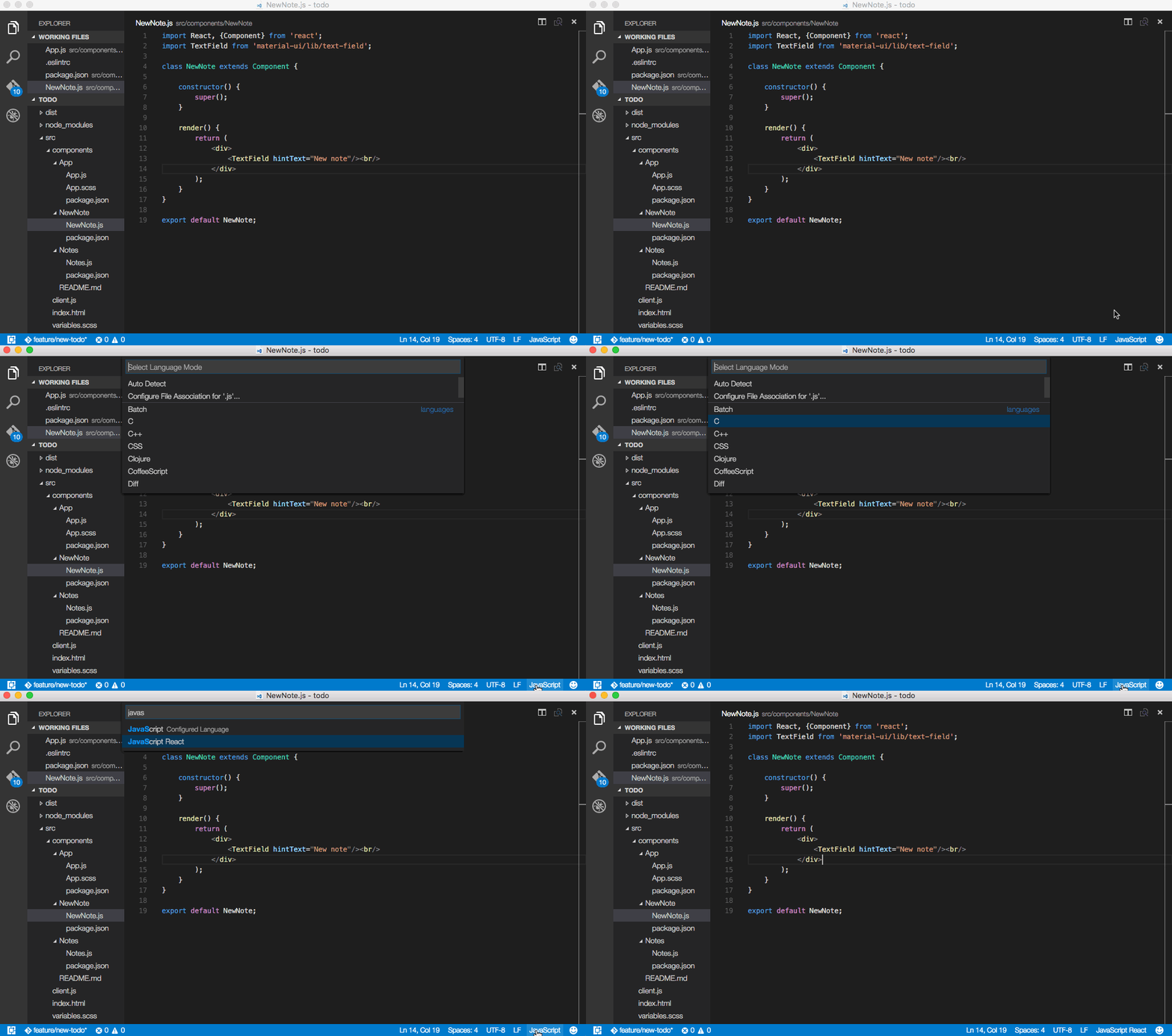
If you want to persist the new language mode for that file type, you can use the Configure File Association for ... command to associate the current file extension with an installed language.
Customization
There are many things you can do to customize VS Code.
- Change your theme
- Change your keyboard shortcuts
- Tune your settings
- Add JSON validation
- Create snippets
- Install extensions
Check out the full documentation.
Change your theme
Open the Command Palette and type "themes". You can install more themes from the extension Marketplace.
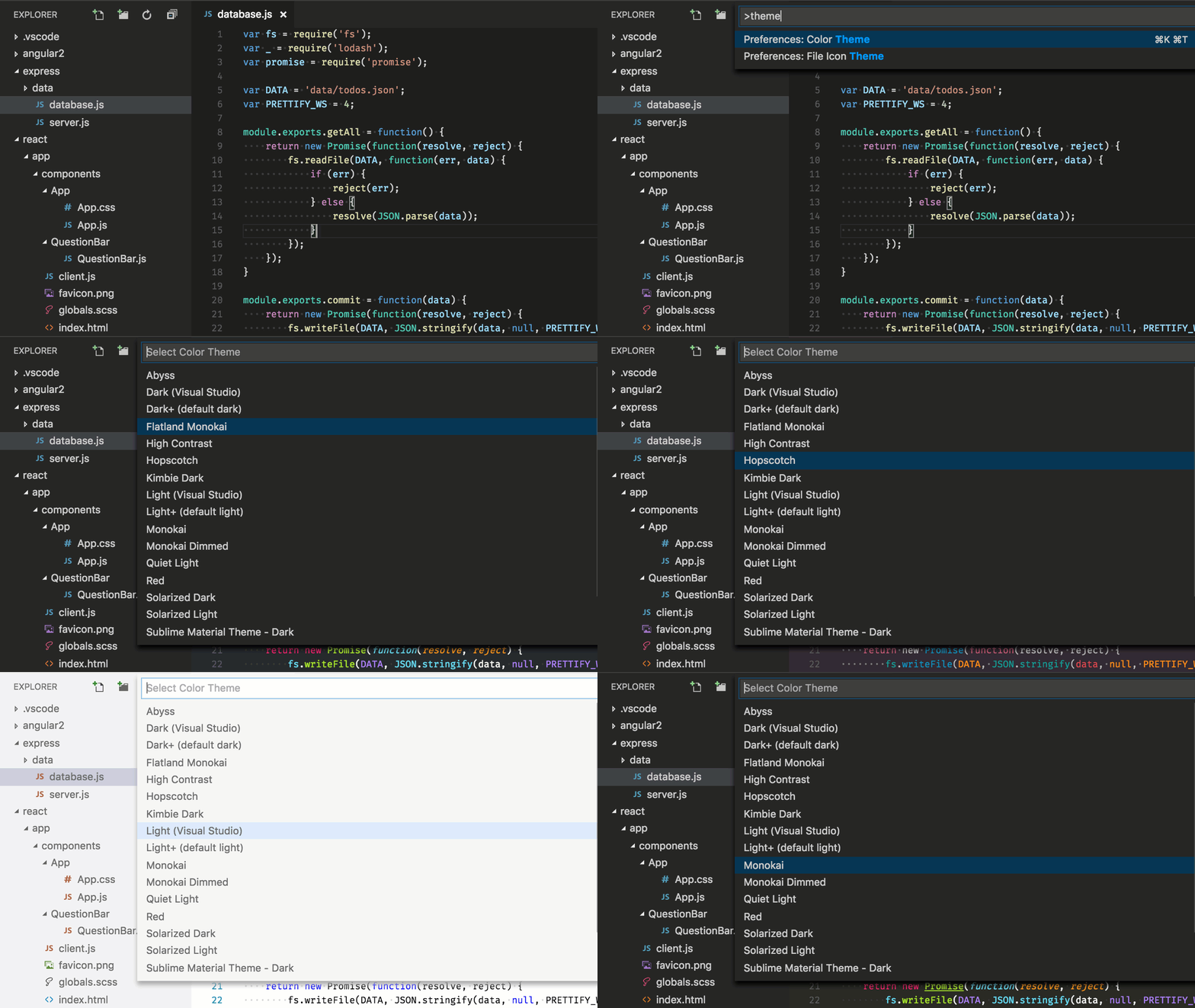
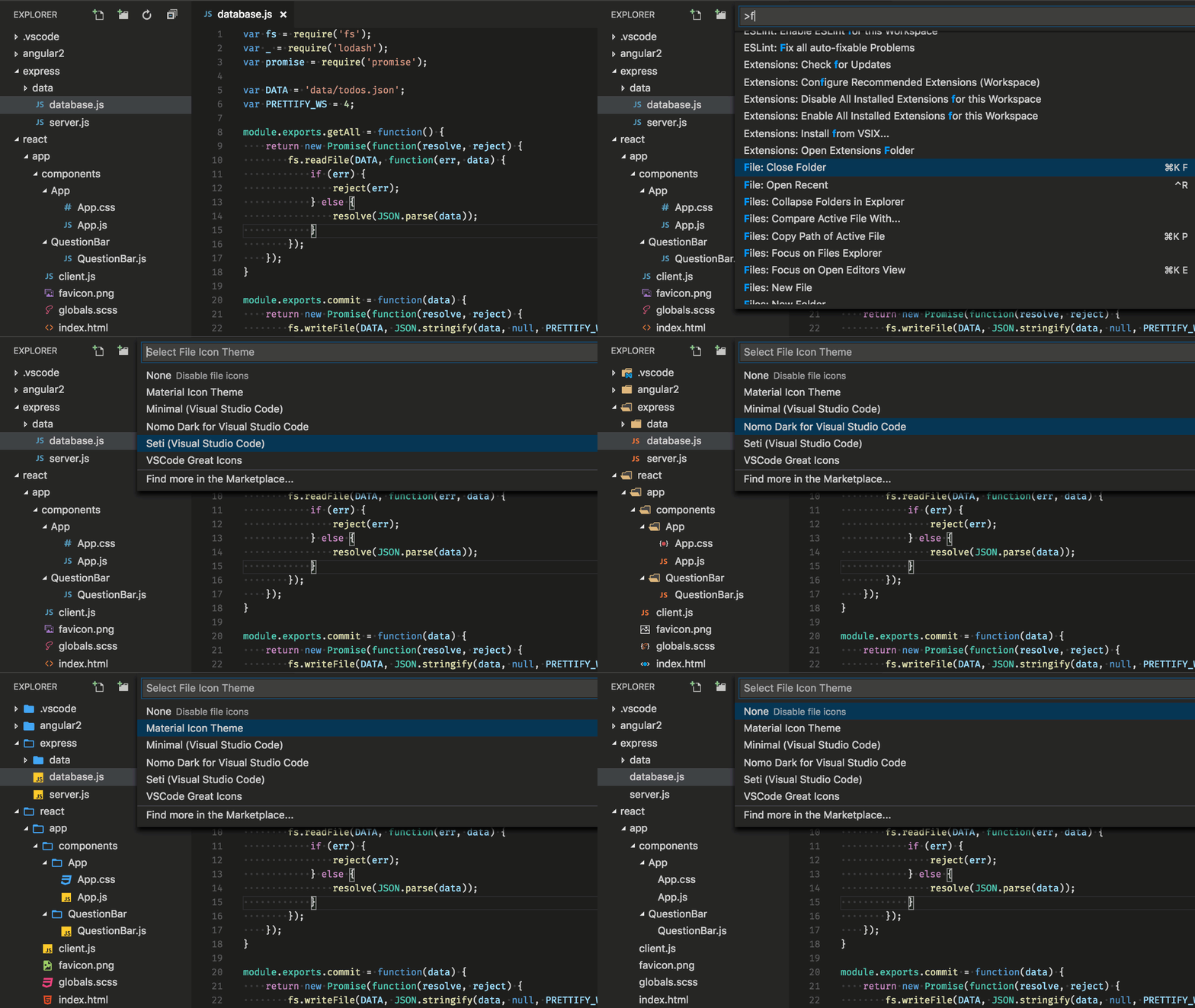
Additionally, you can install and change your File Icon themes.
Change your keyboard shortcuts
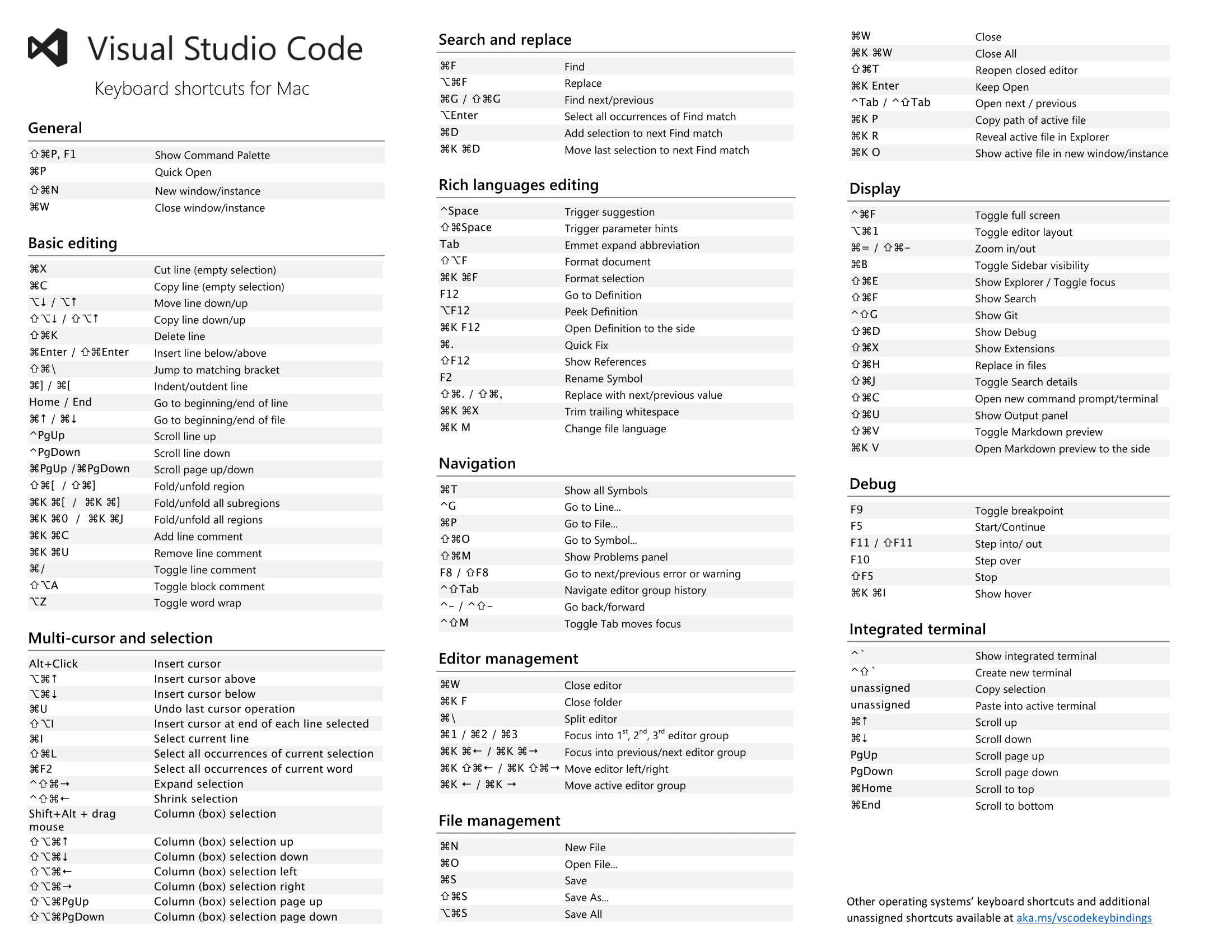
Keyboard Reference Sheets
Download the keyboard shortcut reference sheet for your platform (macOS, Windows, Linux).
Keymaps
Are you used to keyboard shortcuts from another editor? You can install a Keymap extension that brings the keyboard shortcuts from your favorite editor to VS Code. Go to Preferences > Keymap Extensions to see the current list on the Marketplace. Some of the more popular ones:
- Vim
- Sublime Text Keymap
- Emacs Keymap
- Atom Keymap
- Eclipse Keymap
Customize your keyboard shortcuts
Open the Command Palette and type "keyboard shortcuts." You can now add your own keybindings in the file on the right.
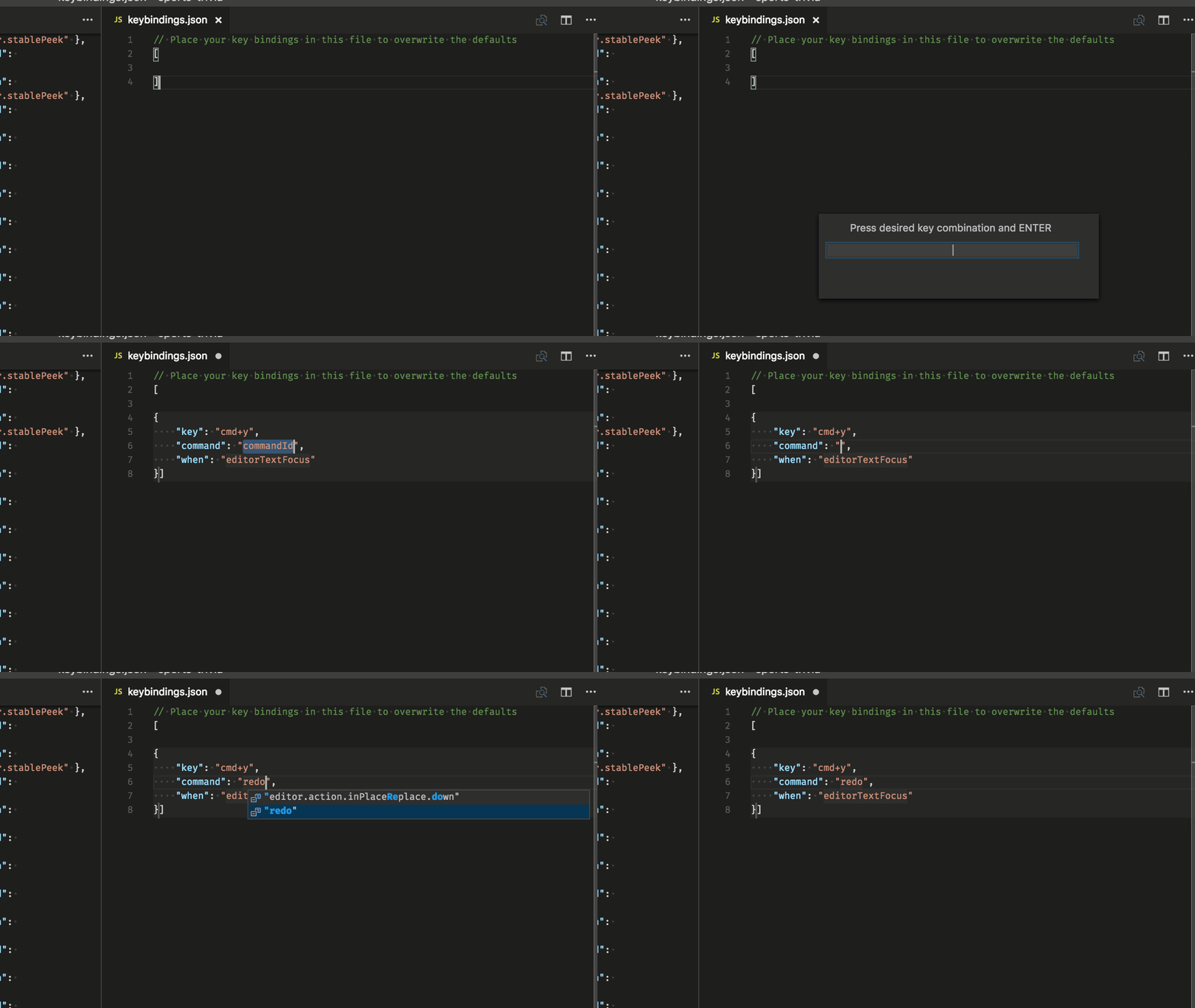
See more in Key Bindings for Visual Studio Code.
Tune your settings
Open settings.json
Mac: cmd+,
Windows / Linux: File > Preferences > Settings or ctrl+,
Format on paste
"editor.formatOnPaste": true
Change the font size
"editor.fontSize": 18
Change the zoom level
"window.zoomLevel": 5
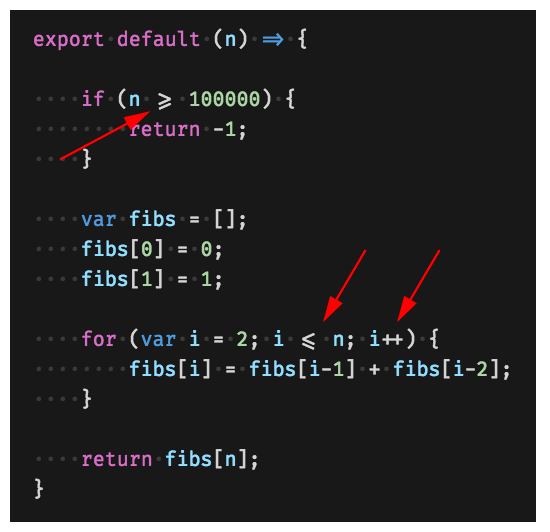
Font ligatures
"editor.fontFamily": "Fira Code",
"editor.fontLigatures": true
Tip: You will need to have a font installed that supports font ligatures. FiraCode is a popular font on the VS Code team.
Auto Save
"files.autoSave": "afterDelay"
You can also toggle Auto Save from the top-level menu with the File > Auto Save.
Format on save
"editor.formatOnSave": true,
Change the size of tab characters
"editor.tabSize": 4
Spaces or tabs
"editor.insertSpaces": true
Render whitespace
"editor.renderWhitespace": "all"
Ignore files / folders
Removes these files / folders from your editor window.
"files.exclude": {
        "somefolder/": true,
        "somefile": true
}
Remove these files / folders from search results.
"search.exclude": {
    "someFolder/": true,
    "somefile": true
}
And many, many others.
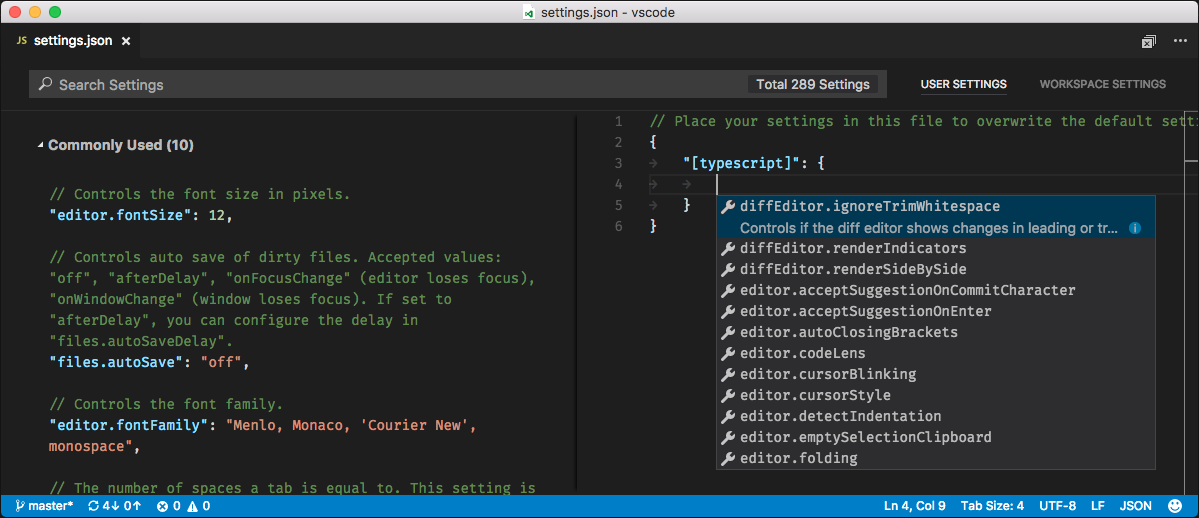
Language specific settings
For those settings you only want for specific languages.
"[languageid]": {

}
Tip: You can find the language ID by typing in the Command Palette "Configure language specific settings"
Add JSON Validation
Enabled by default for many files. Create your own schema and validation in settings.json
"json.schemas": [
    {
        "fileMatch": [
            "/bower.json"
        ],
        "url": "http://json.schemastore.org/bower"
    }
]
or for a schema defined in your workspace
"json.schemas": [
    {
        "fileMatch": [
            "/foo.json"
        ],
        "url": "./myschema.json"
    }
]
or a custom schema
"json.schemas": [
    {
        "fileMatch": [
            "/.myconfig"
        ],
        "schema": {
            "type": "object",
            "properties": {
                "name" : {
                    "type": "string",
                    "description": "The name of the entry"
                }
            }
        }
    },
See more in the documentation.
Extensions
Find extensions
- In the VS Code Marketplace.
- Search inside VS Code
- View extension recommendations
- Community curated extension lists, such as awesome-vscode
Install extensions
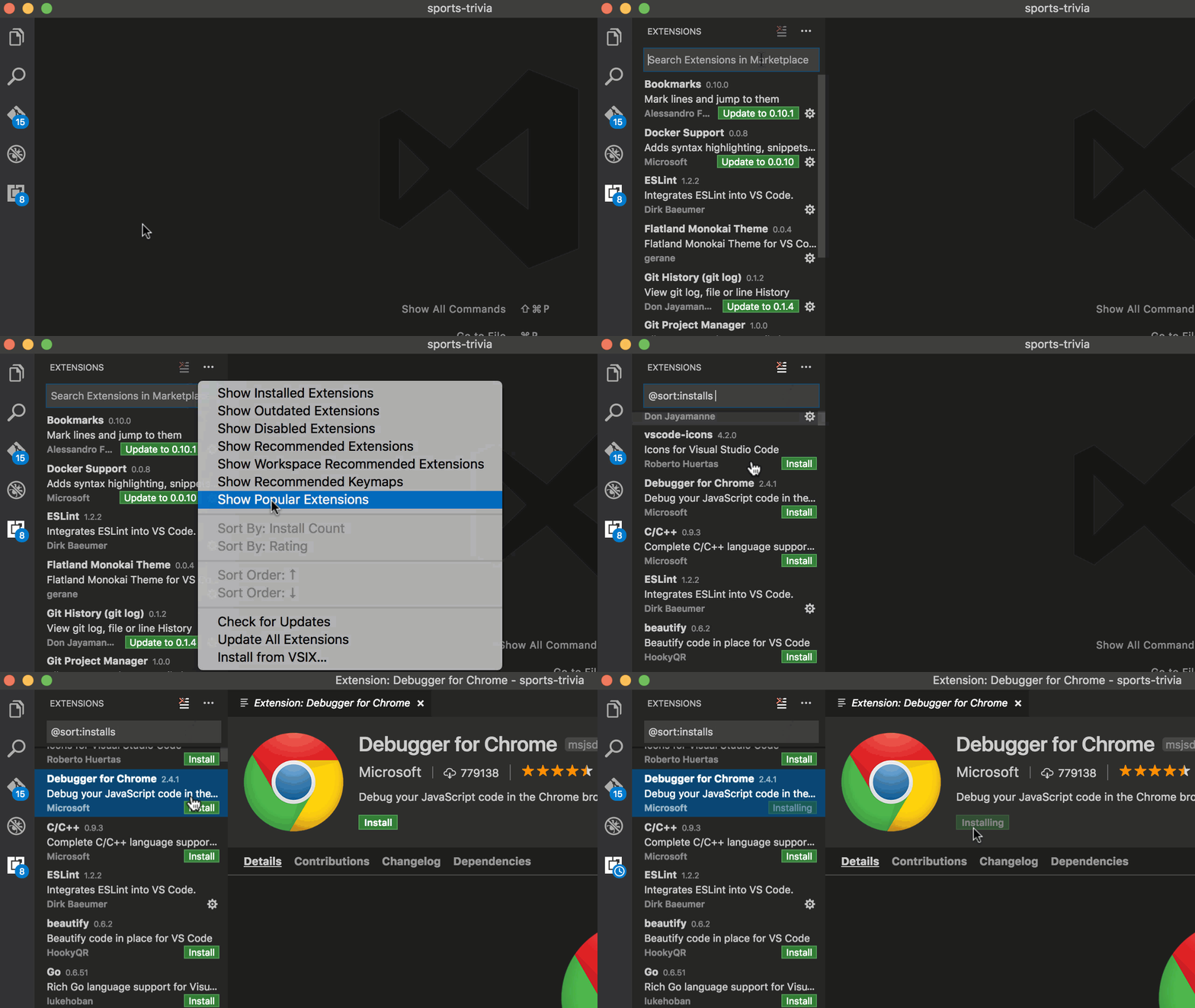
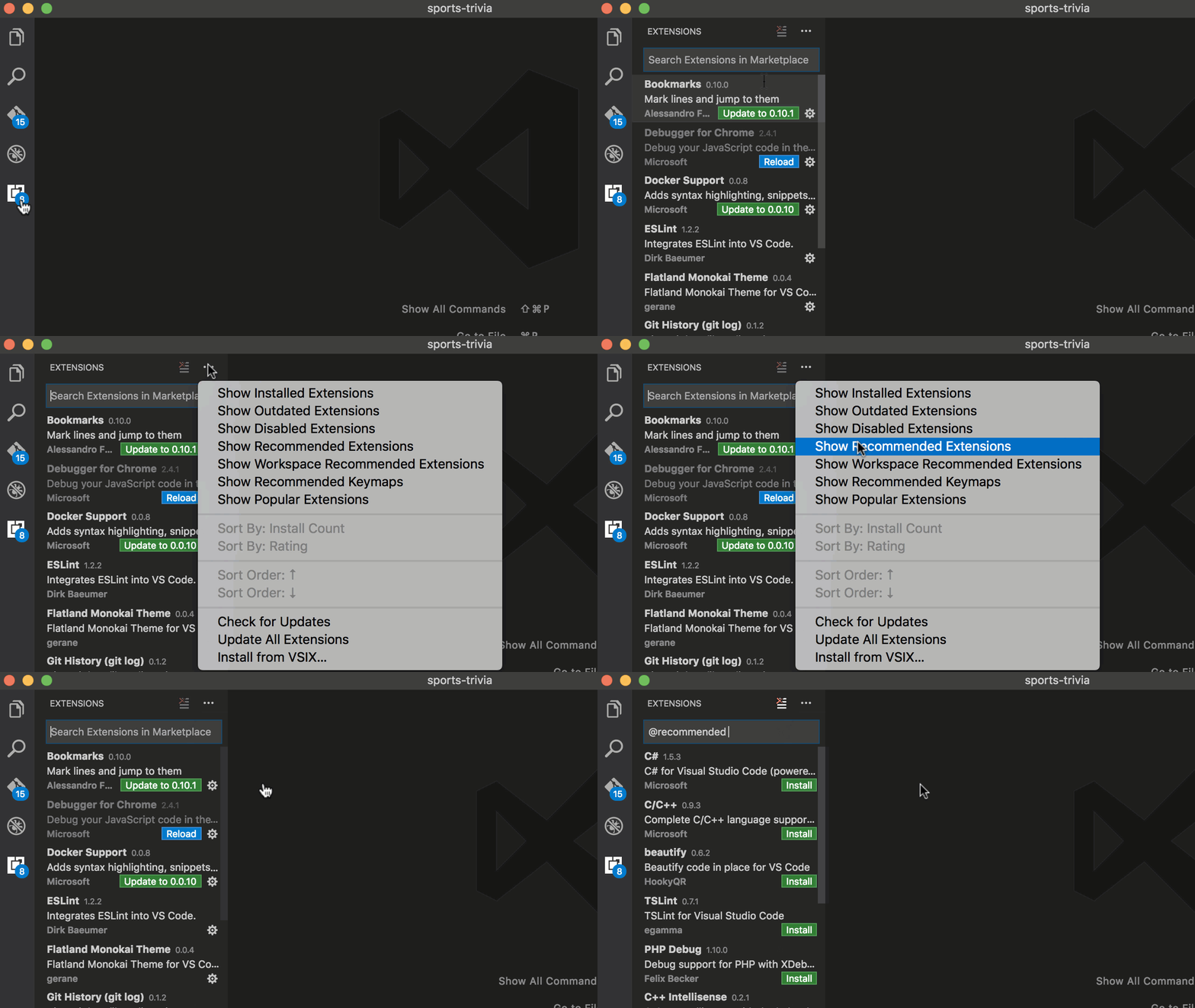
Click the Extensions Activity Bar button. You can search via the search bar or click the More (...) button to filter and sort by install count.
Extension recommendations
Click the Extensions Activity Bar button. Then click Show Recommended Extensions in the More (...) button menu.
Creating my own extension
Are you interested in creating your own extension? You can learn how to do this in the documentation, specifically check out the documentation on contribution points. A simple "Hello, world" tutorial can be found here.
- configuration
- commands
- keybindings
- languages
- debuggers
- grammars
- themes
- snippets
- jsonValidation
File and folder management
Integrated terminal
Windows / Linux / Mac: ctrl+`

Further reading:
- Official documentation
- Mastering VS Code's Terminal article
Auto Save
Open settings.json with cmd+,
"files.autoSave": "afterDelay"
You can also toggle Auto Save from the top-level menu with the File > Auto Save.
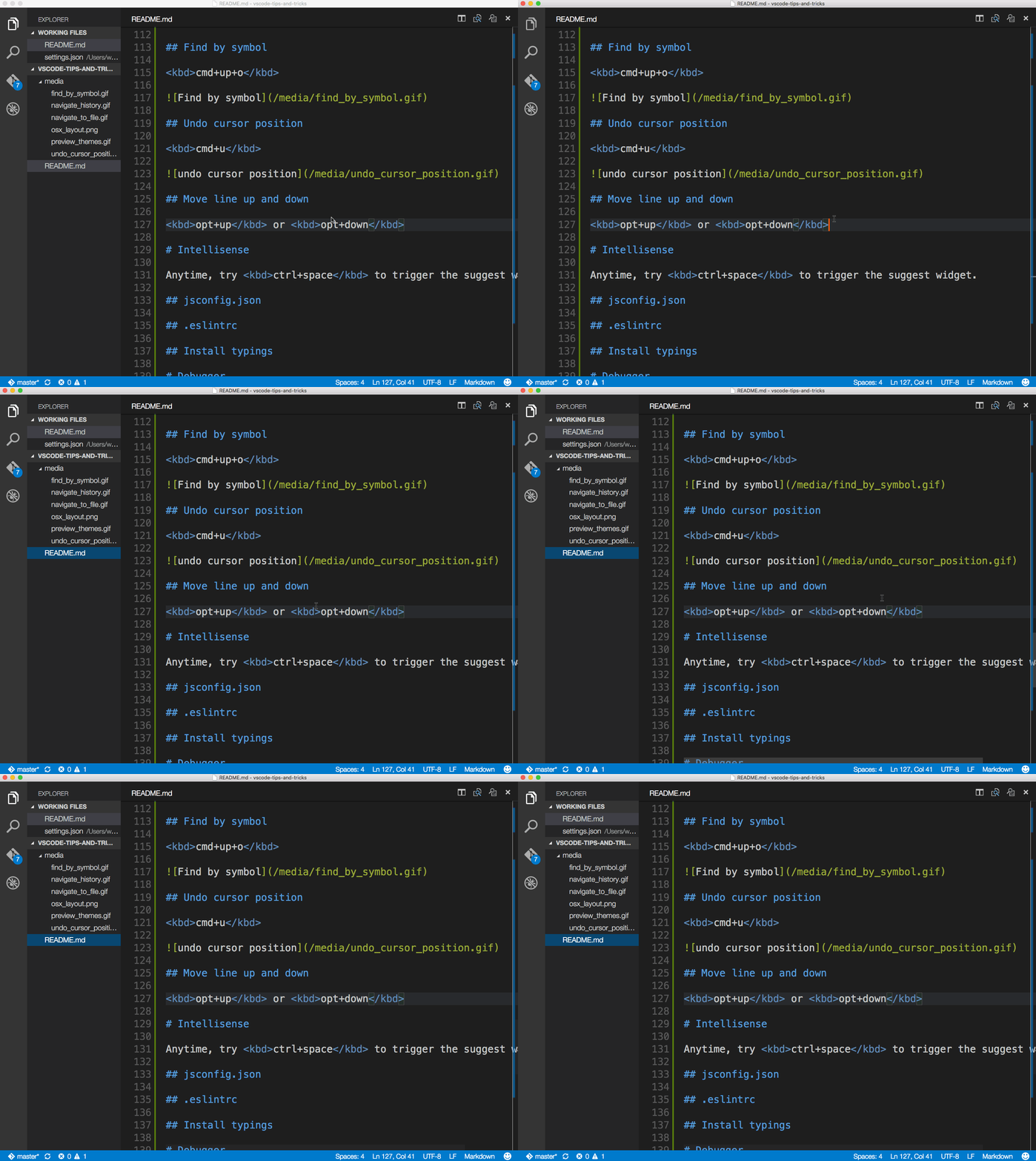
Toggle Sidebar
Mac: cmd+b
Windows / Linux: ctrl+b
Zen Mode
Mac: cmd+k z
Windows / Linux: ctrl+k z
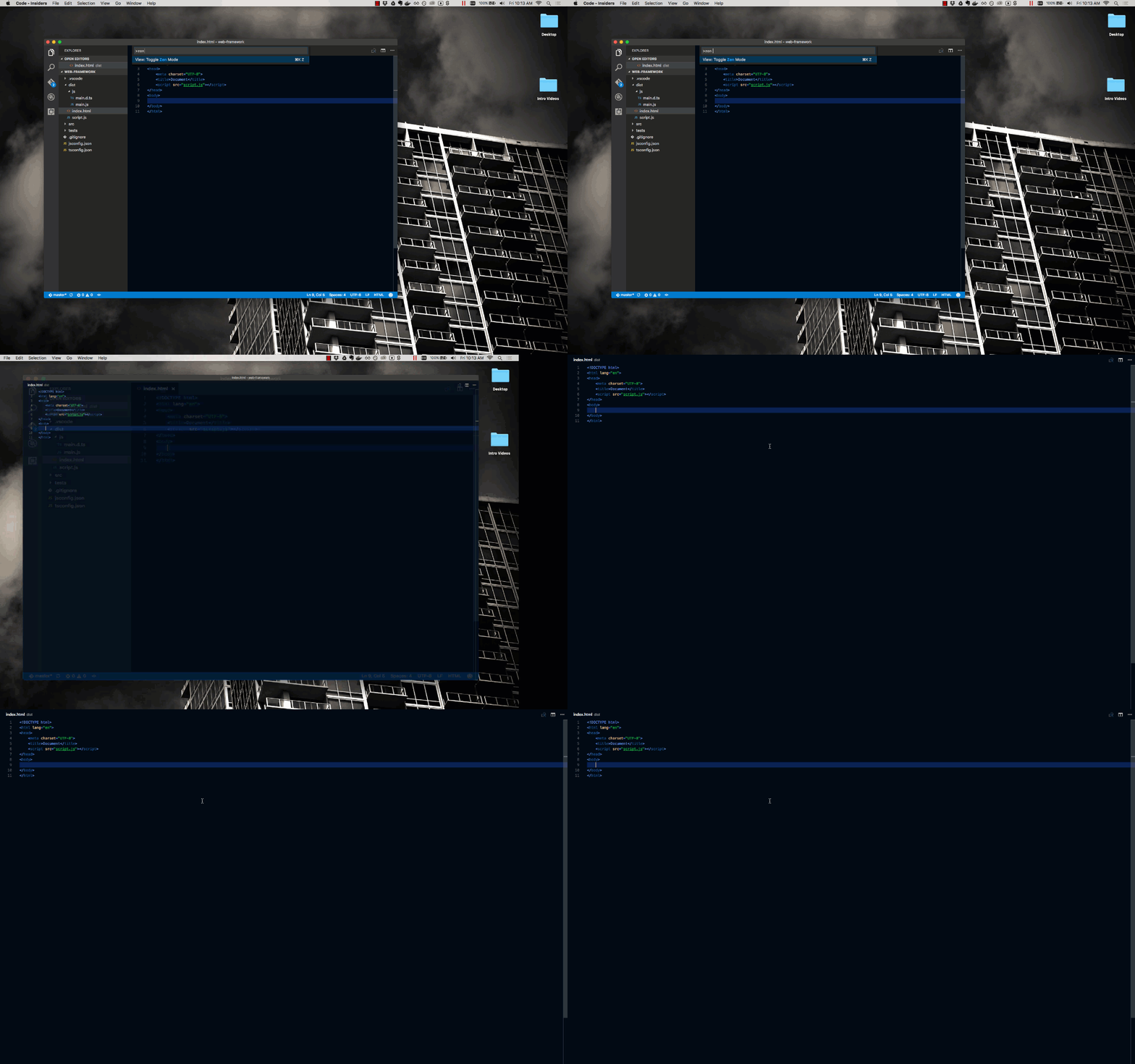
Enter distraction free Zen mode.
Side by side editing
Mac: cmd+\ or cmd then click a file from the File Explorer.
Windows / Linux: ctrl+\
Linux: ctrl+2
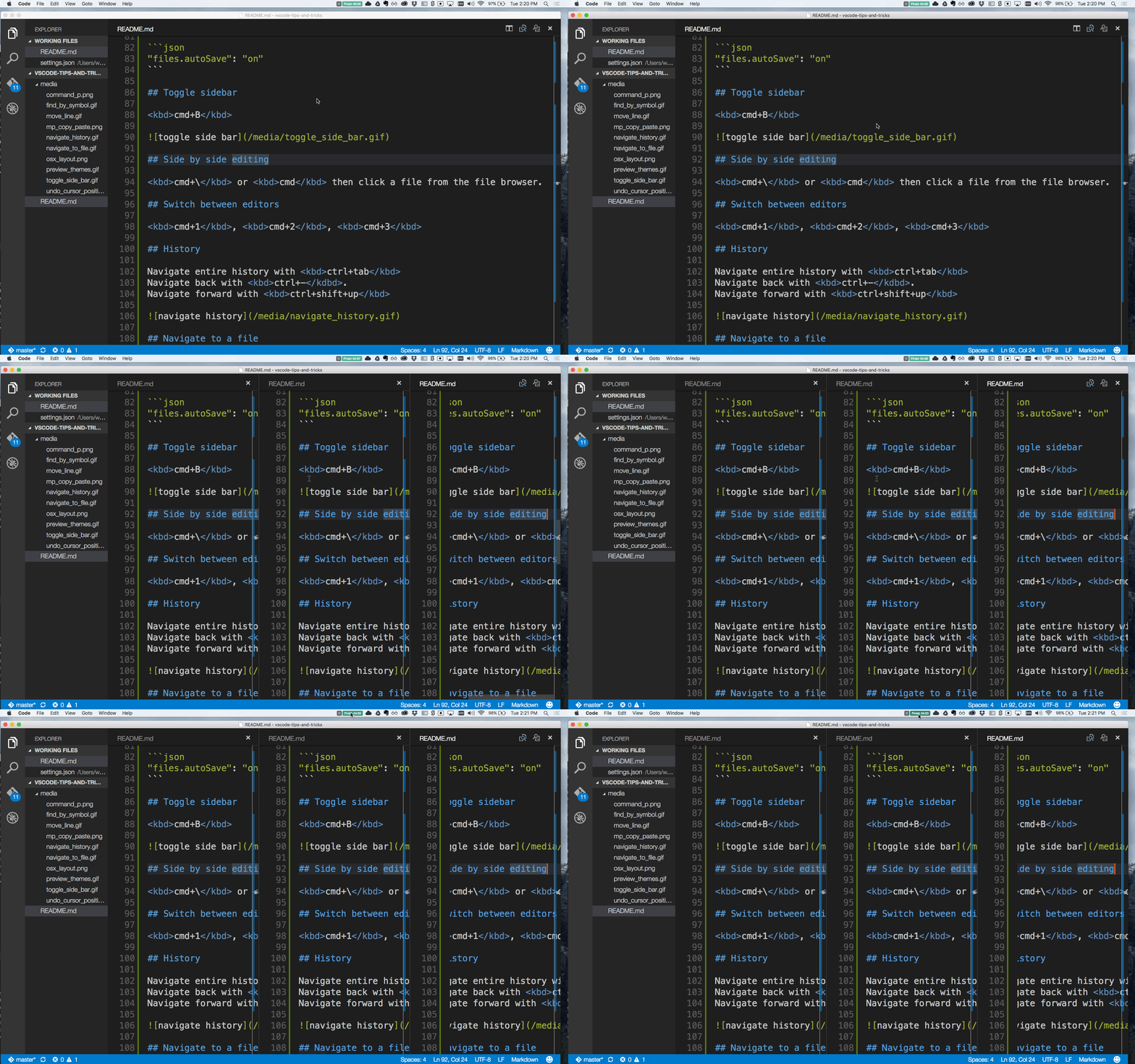
You can use drag and drop editors to create new editor groups and move editors between groups.
Switch between editors
Mac: cmd+1, cmd+2, cmd+3
Windows / Linux: ctrl+1, ctrl+2, ctrl+3

Move to Explorer window
Mac: cmd+shift+e
Windows / Linux: ctrl+shift+e
Create and open a file
Mac: cmd+click
Windows / Linux: ctrl+click
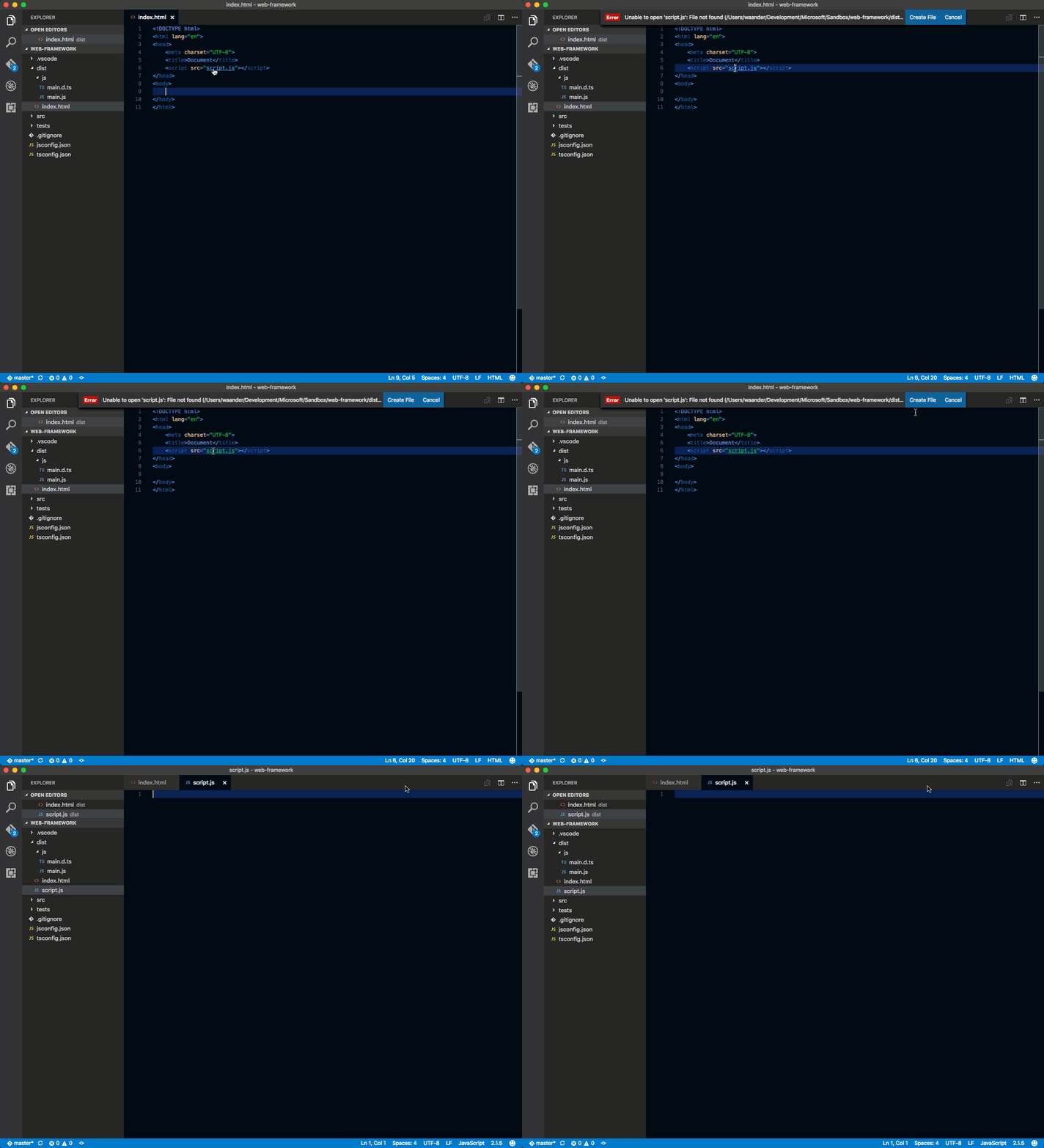
Close the currently opened folder
Mac: cmd+w
Windows / Linux: ctrl+k f
History
Navigate entire history with ctrl+tab
Navigate back.
Mac: ctrl+-
Windows / Linux: alt+left
Navigate Forward.
Mac: ctrl+shift+-
Windows / Linux: alt+right

Navigate to a file
Mac: cmd+e or cmd+p
Windows / Linux: ctrl+e or ctrl+p
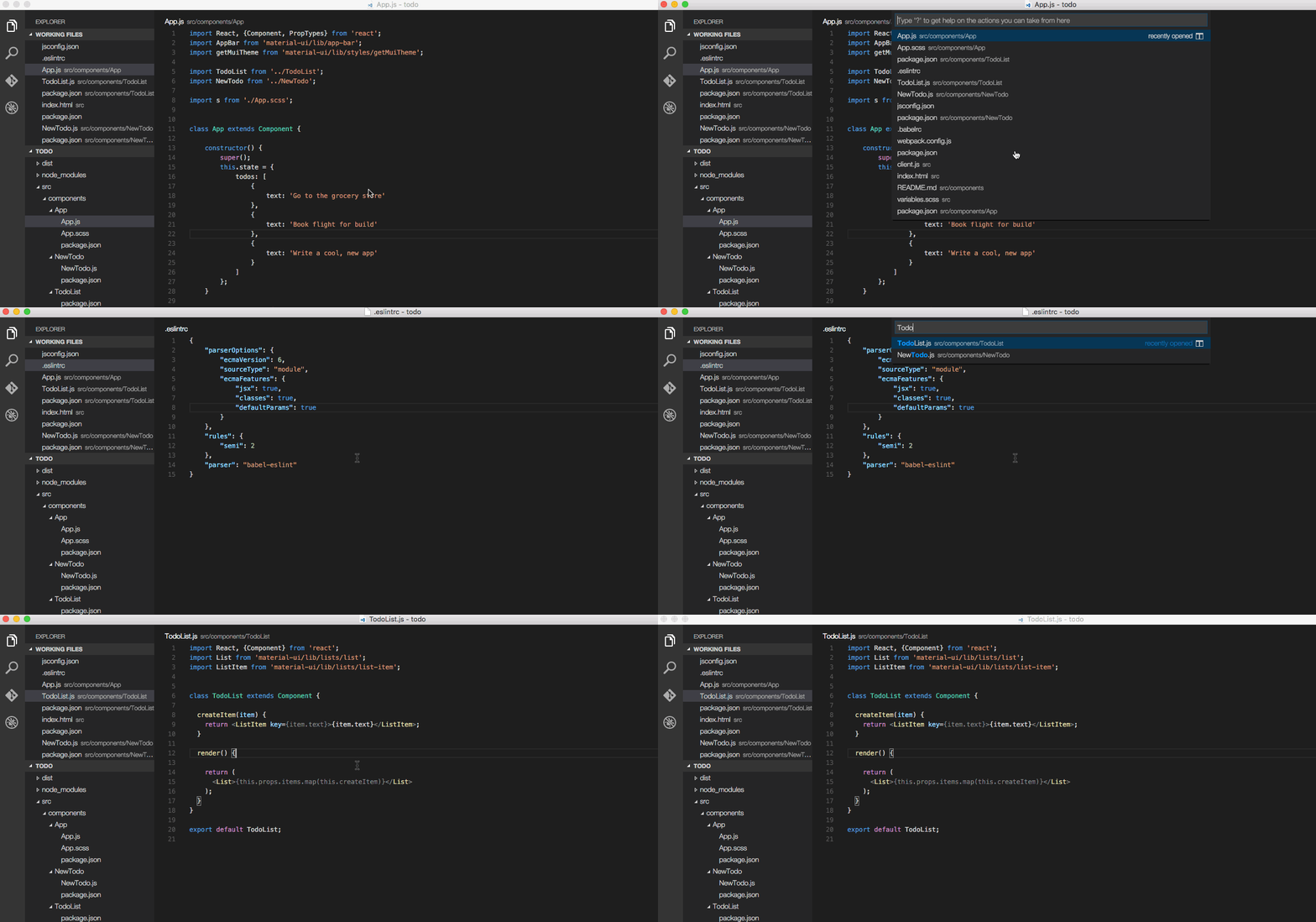
File associations
Create language associations for files that aren't detected accurately (for example, many config files are JSON).
"file.associations": {
    ".database": "json"
}
Editing hacks
Here are a selection of common features for editing code. If the keyboard shortcuts aren't comfortable for you, consider installing a Keymap extension for your old editor.
Multi cursor selection
Mac: opt+cmd+up or opt+cmd+down
Windows: ctrl+alt+up or ctrl+alt+down
Linux: alt+shift+up or alt+shift+down
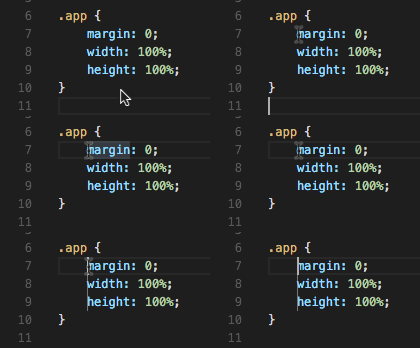

Add more cursors to current selection.
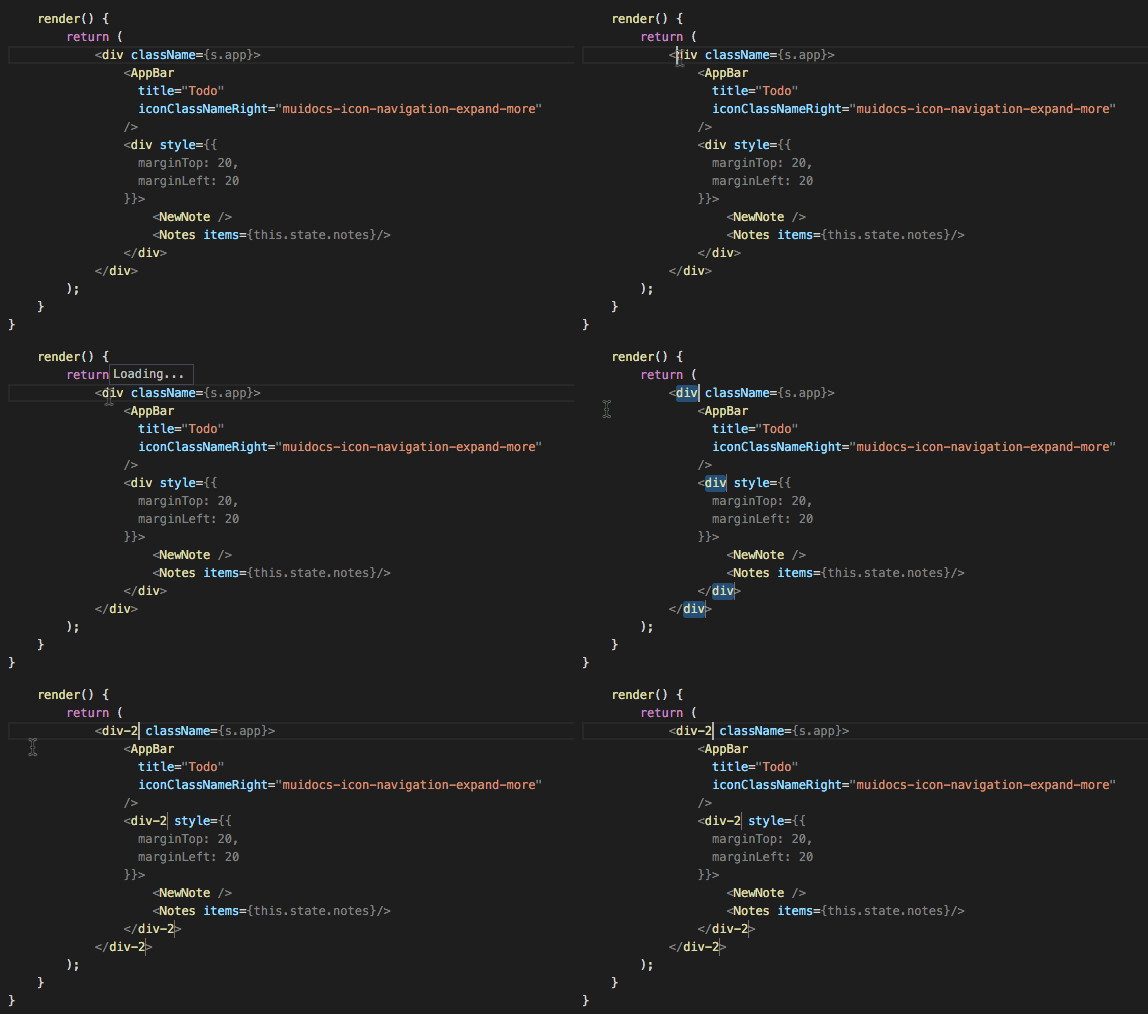
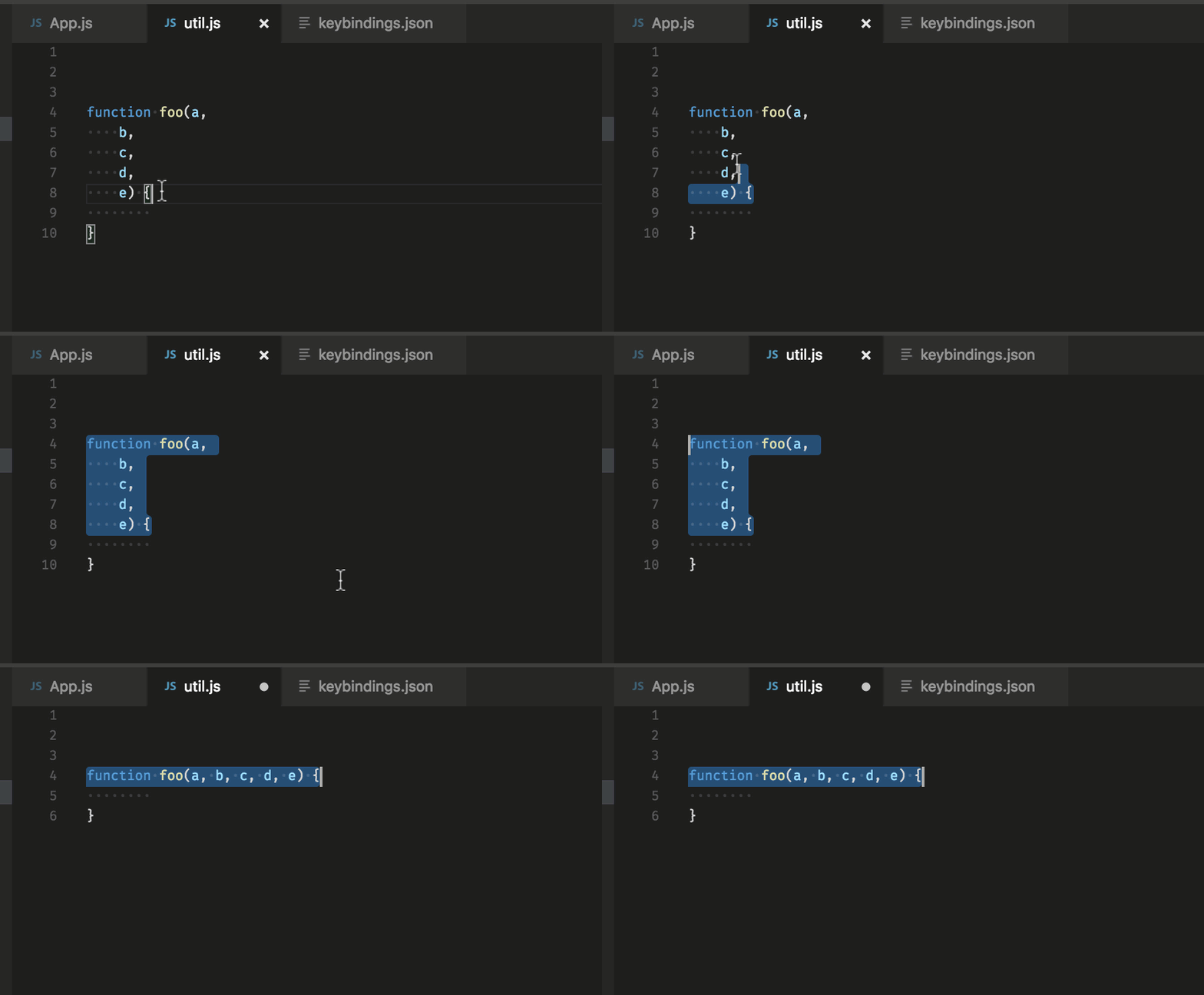
Join line
Mac: ctrl+j
Windows / Linux: Not bound by default. Open Keyboard Shortcuts and bind
editor.action.joinLinesto a shortcut of your choice.
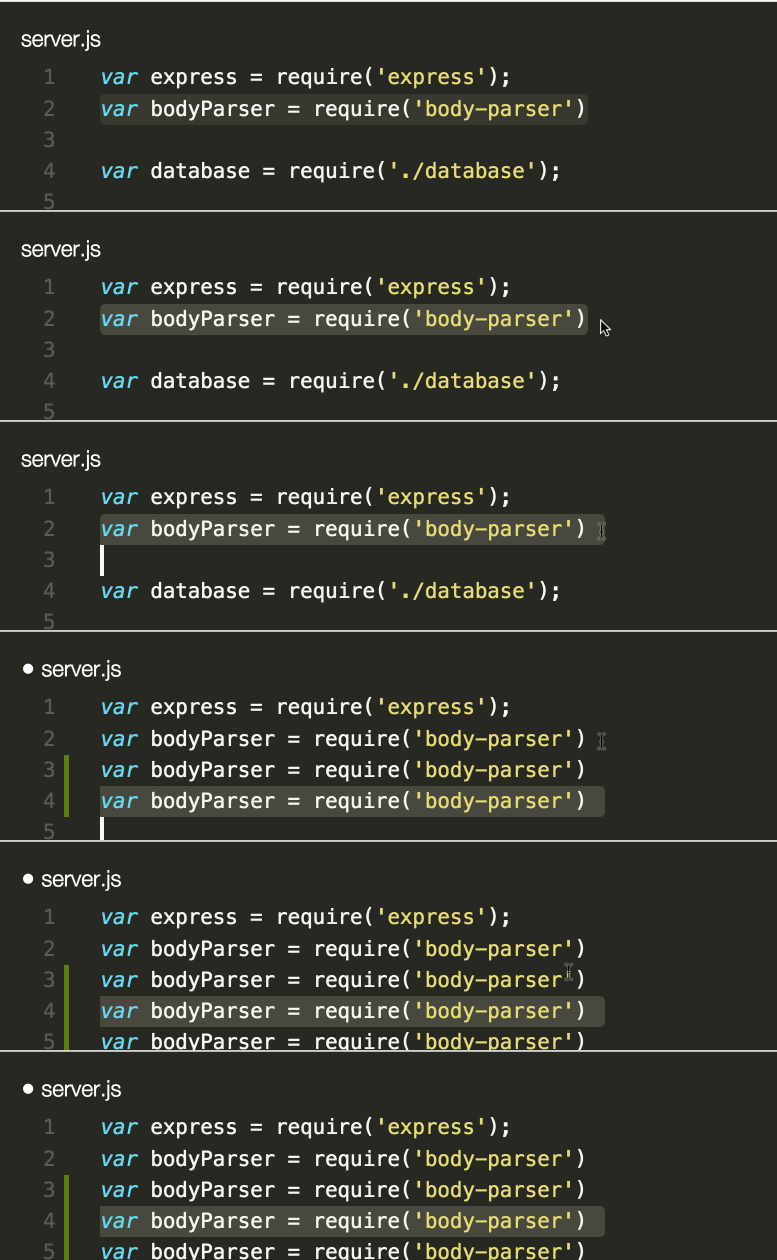
Copy line up / down
Mac: opt+shift+up or opt+shift+down
Windows / Linux(Issue #5363): shift+alt+down or shift+alt+up
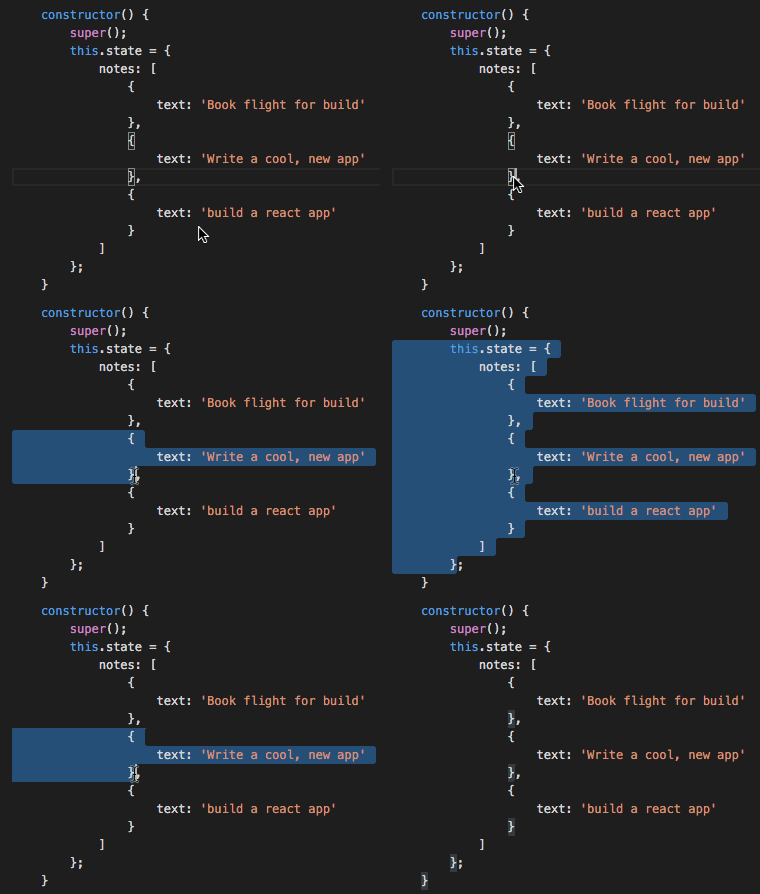
Shrink / expand selection
More in documentation
Mac: ctrl+shift+cmd+left or ctrl+shift+cmd+right
Windows / Linux: shift+alt+left or shift+alt+right
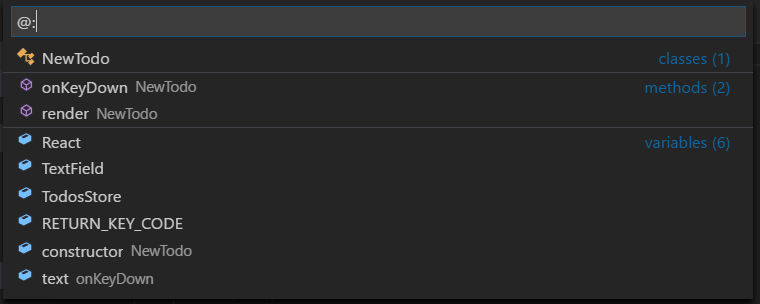
Go to Symbol in File
Mac: cmd+shift+o
Windows / Linux: ctrl+shift+o
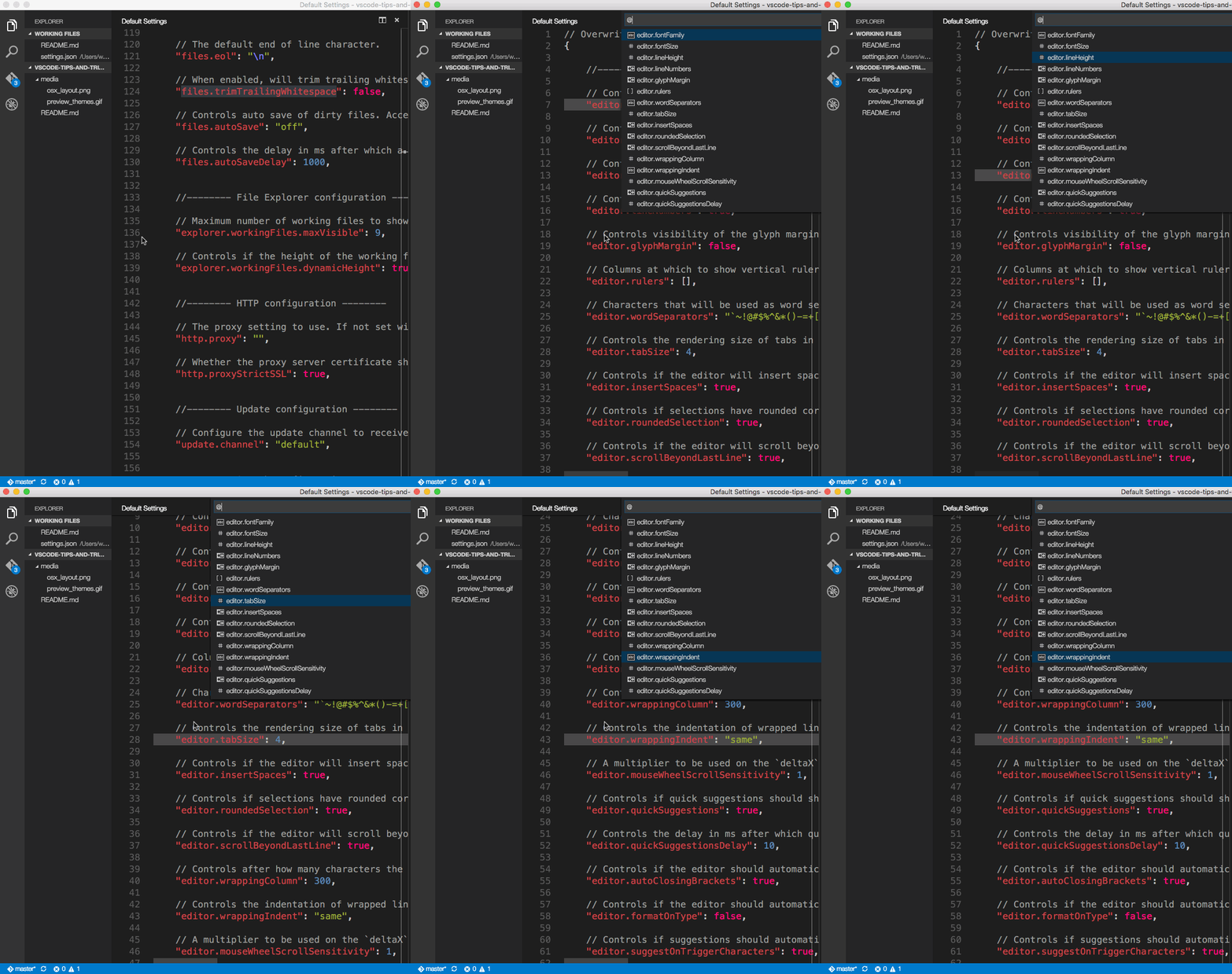
You can group the symbols by kind by adding a colon, @:.
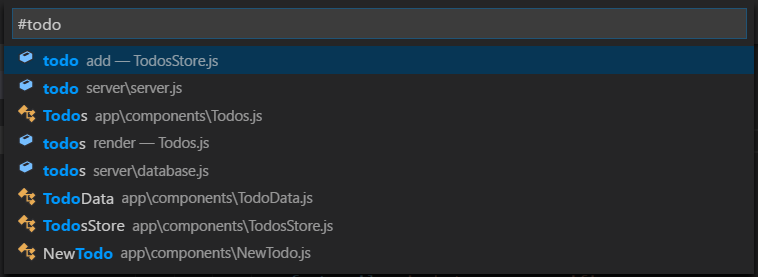
Go to Symbol in Workspace
Mac: cmd+t
Windows / Linux: ctrl+t
Navigate to a specific line
Mac: ctrl+g or cmd+p, :
Windows / Linux: ctrl+g

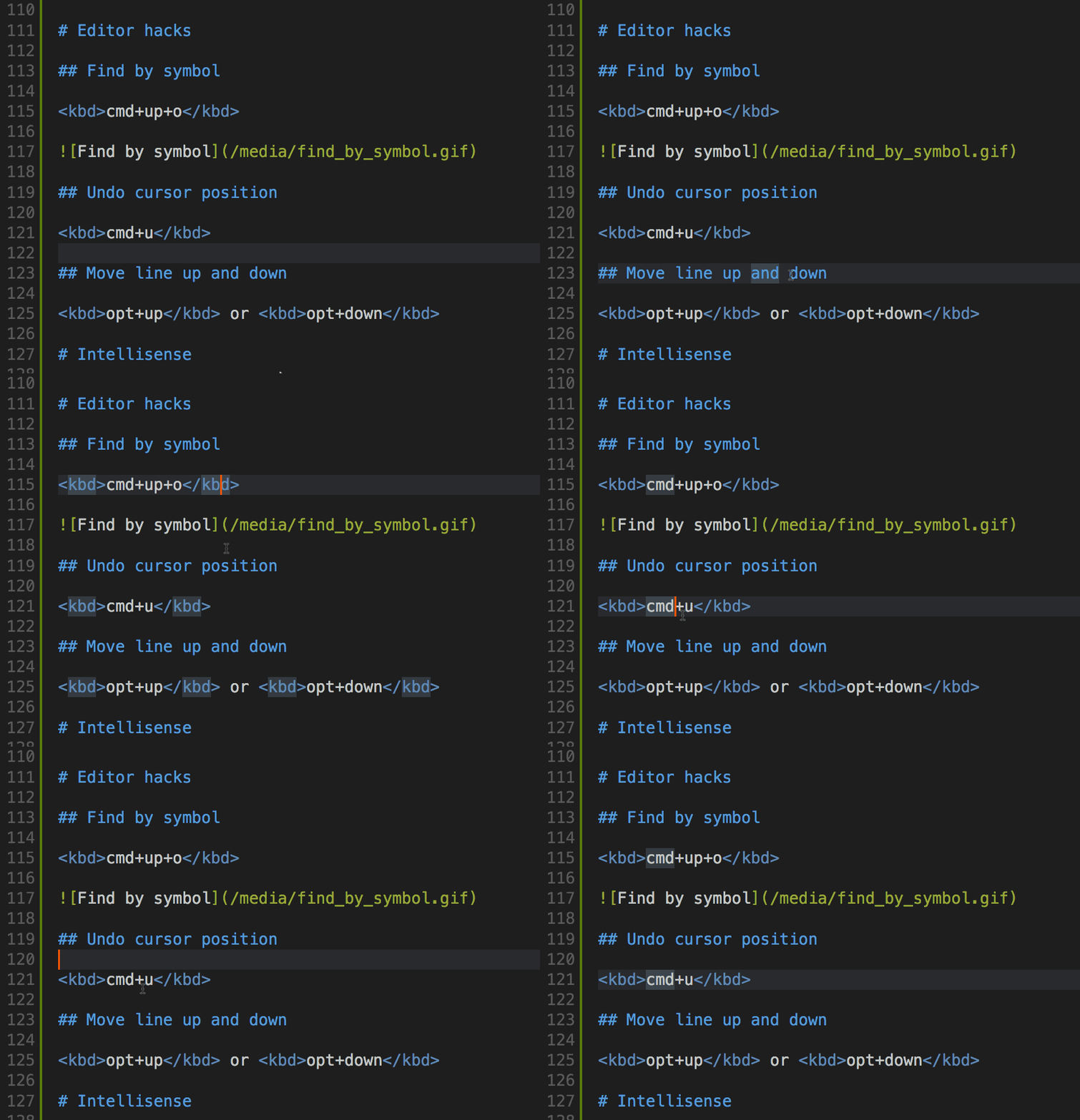
Undo cursor position
Mac: cmd+u
Windows / Linux: ctrl+u
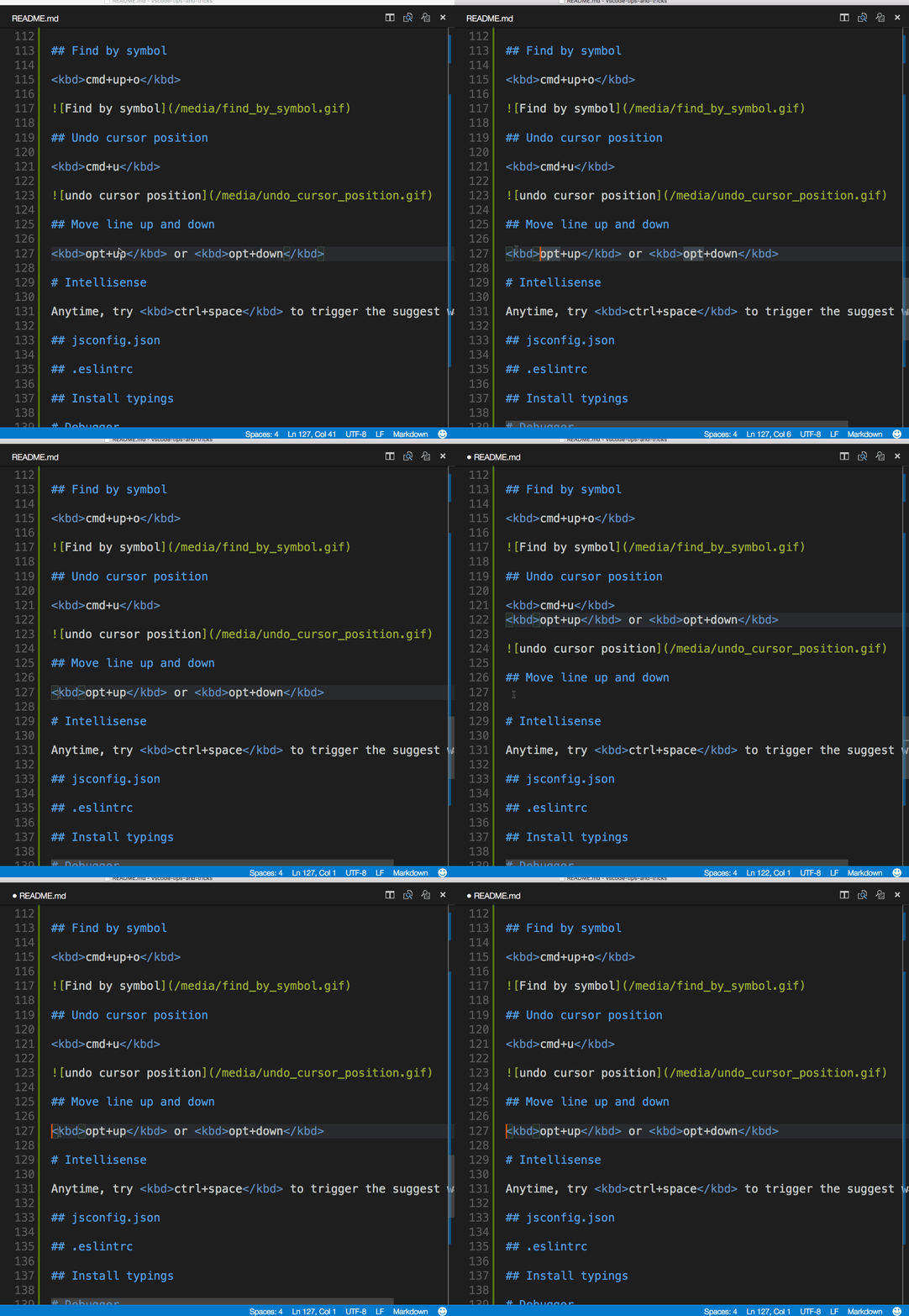
Move line up and down
Mac: opt+up or opt+down
Windows / Linux: alt+up or alt+down
Trim trailing whitespace
Mac: cmd+k cmd+x
Windows / Linux: ctrl+k ctrl+x
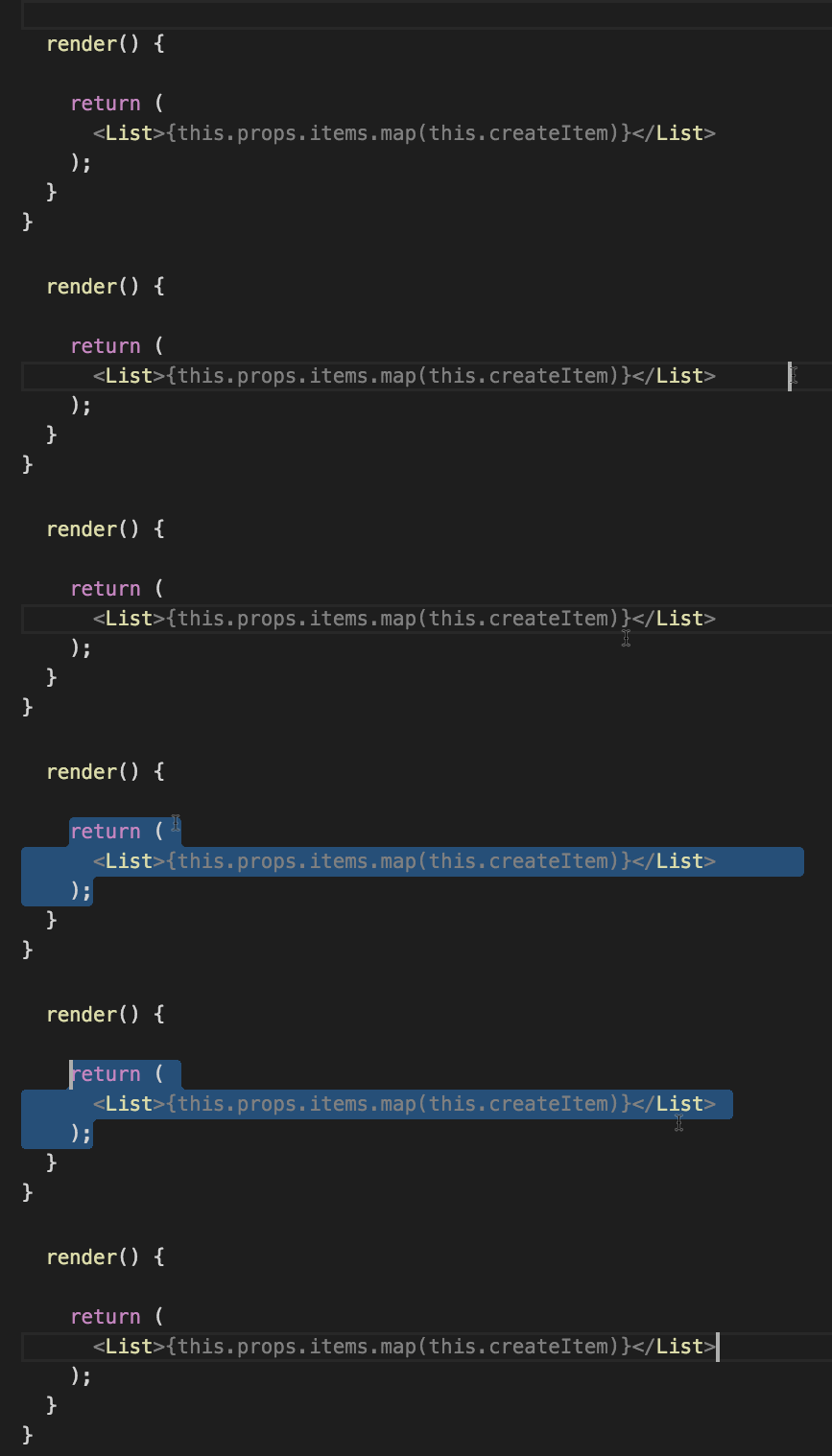
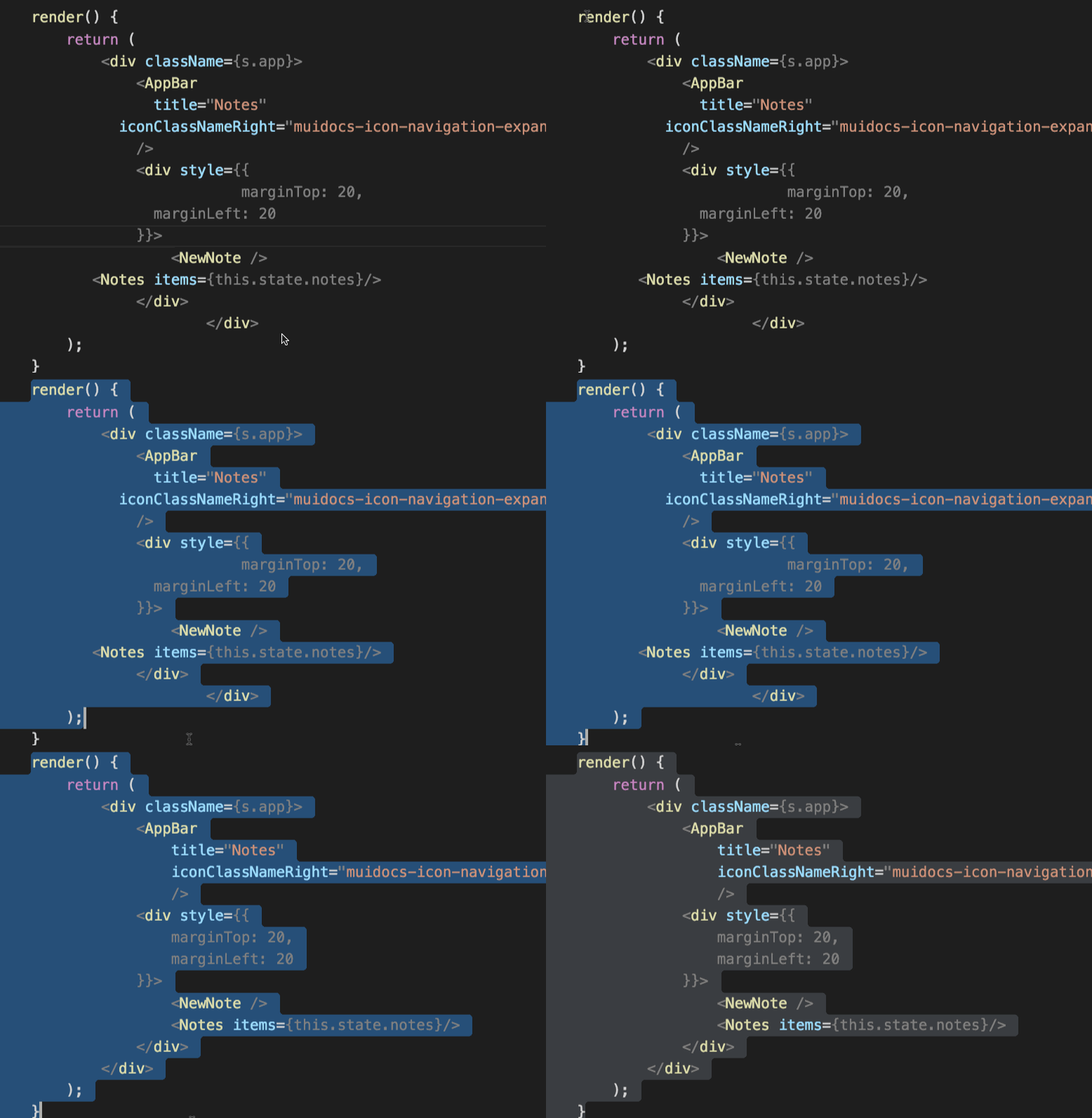
Code formatting
Currently selected source code
Mac: cmd+k, cmd+f
Windows / Linux: ctrl+k, ctrl+f
Whole document format
Windows / Linux: shift+alt+f
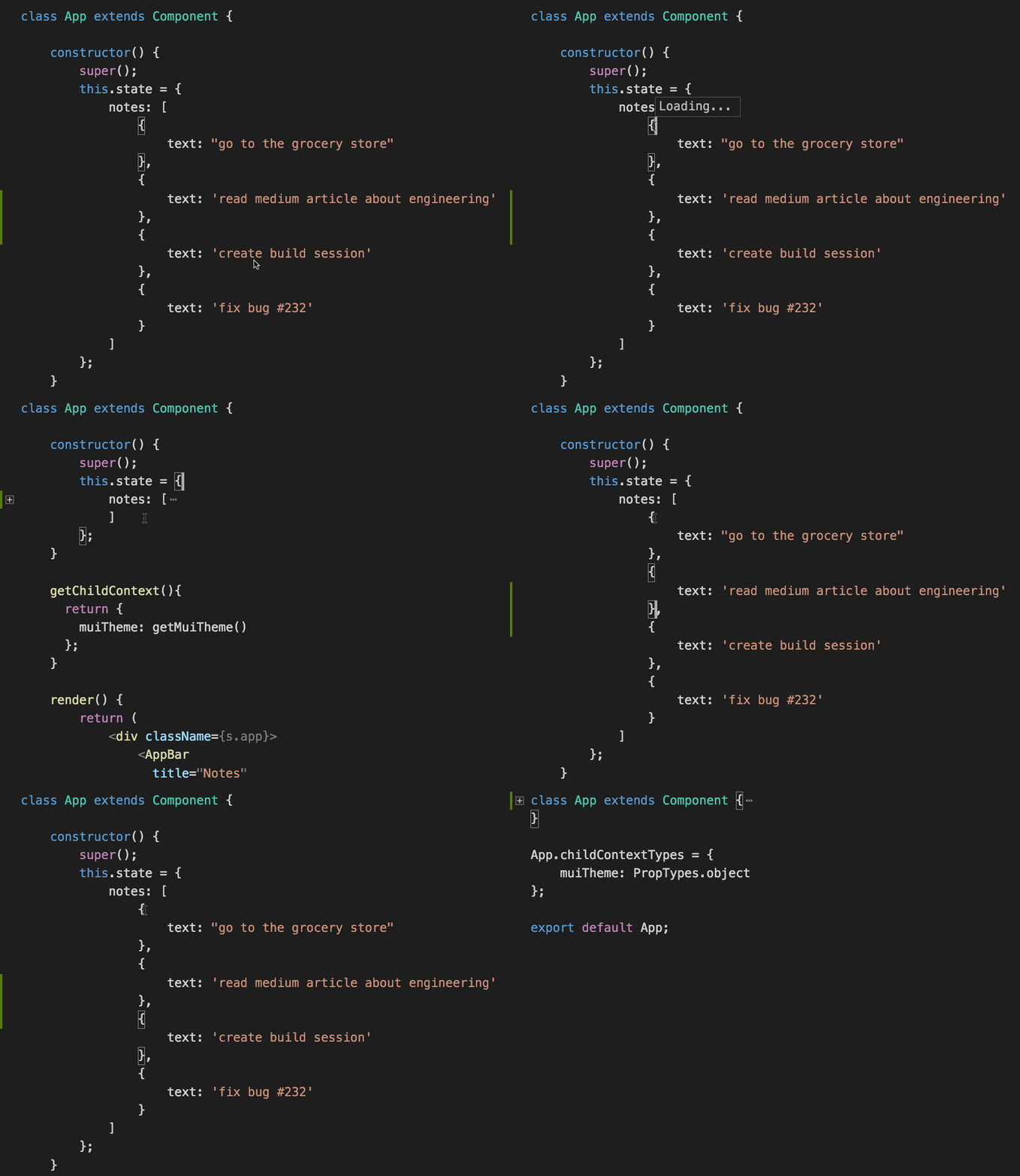
Code folding
Mac: alt+cmd+[ and alt+cmd+]
Windows / Linux: ctrl+shift+[ and ctrl+shift+]
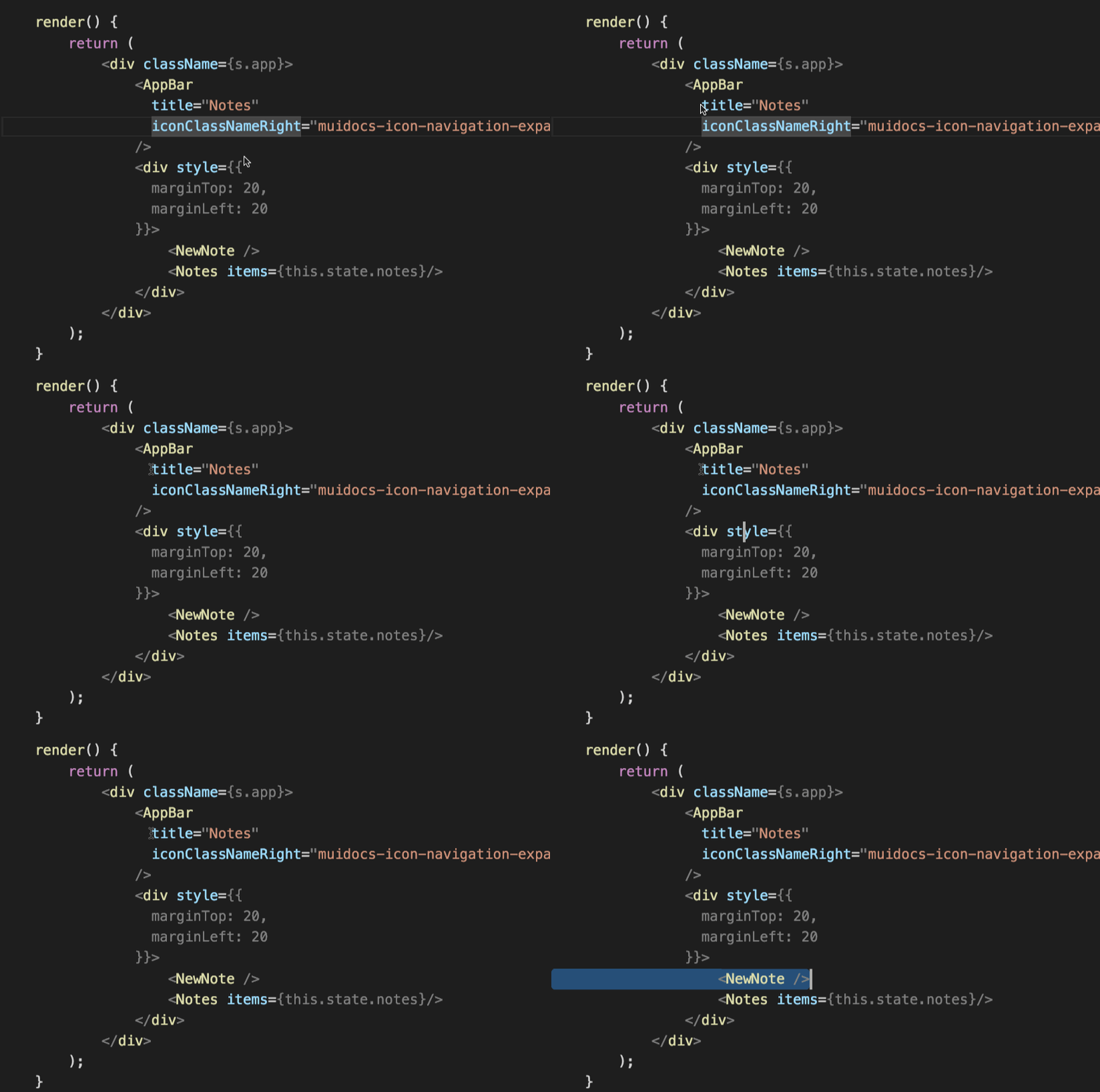
Select current line
Mac: cmd+i
Windows / Linux: ctrl+i
Navigate to beginning and end of file
Mac: cmd+up and cmd+down
Windows: ctrl+up and ctrl+down
Linux: ctrl+home and ctrl+end
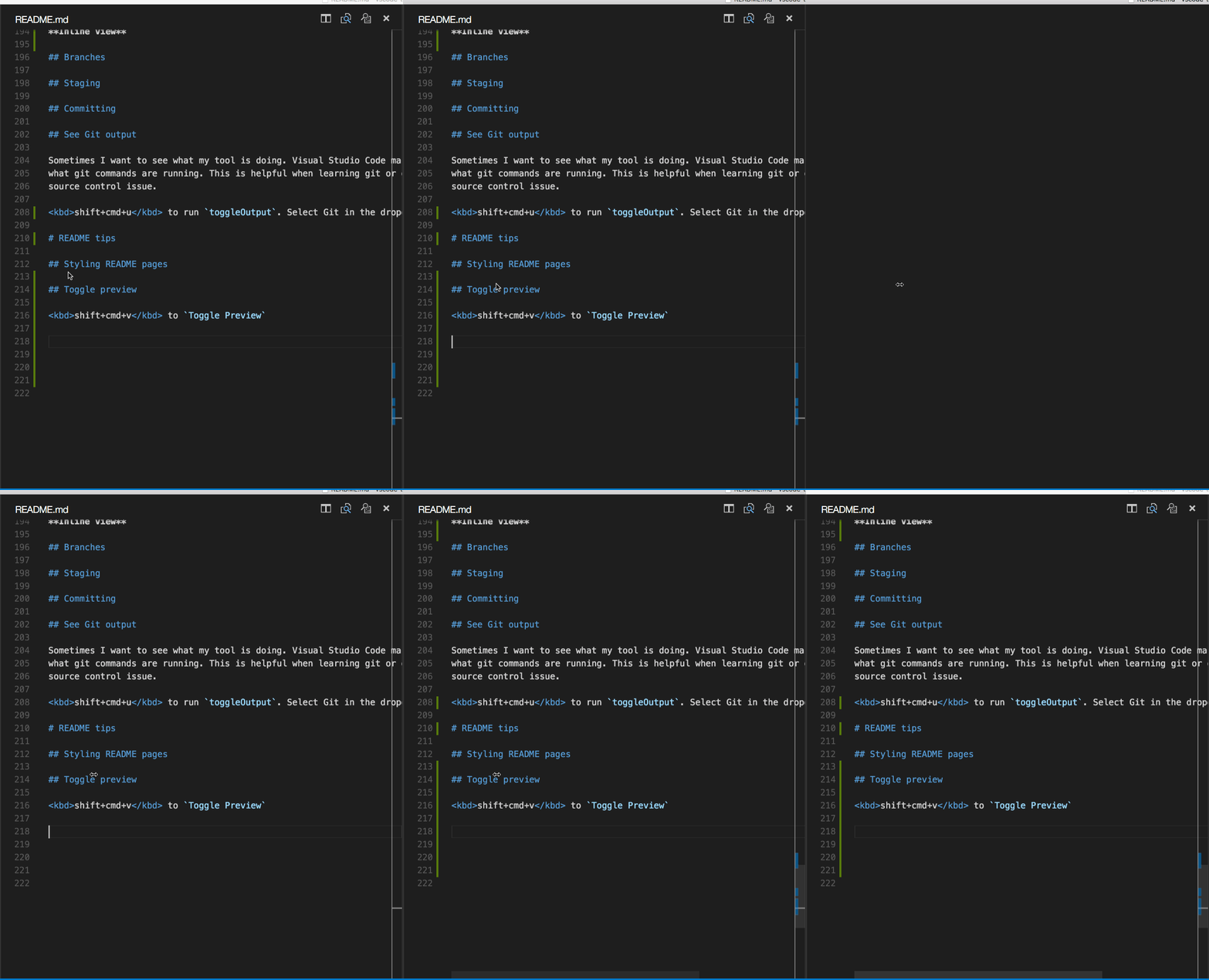
Open Markdown Preview
In a Markdown file, use
Mac: shift+cmd+v
Windows / Linux: ctrl+shift+v
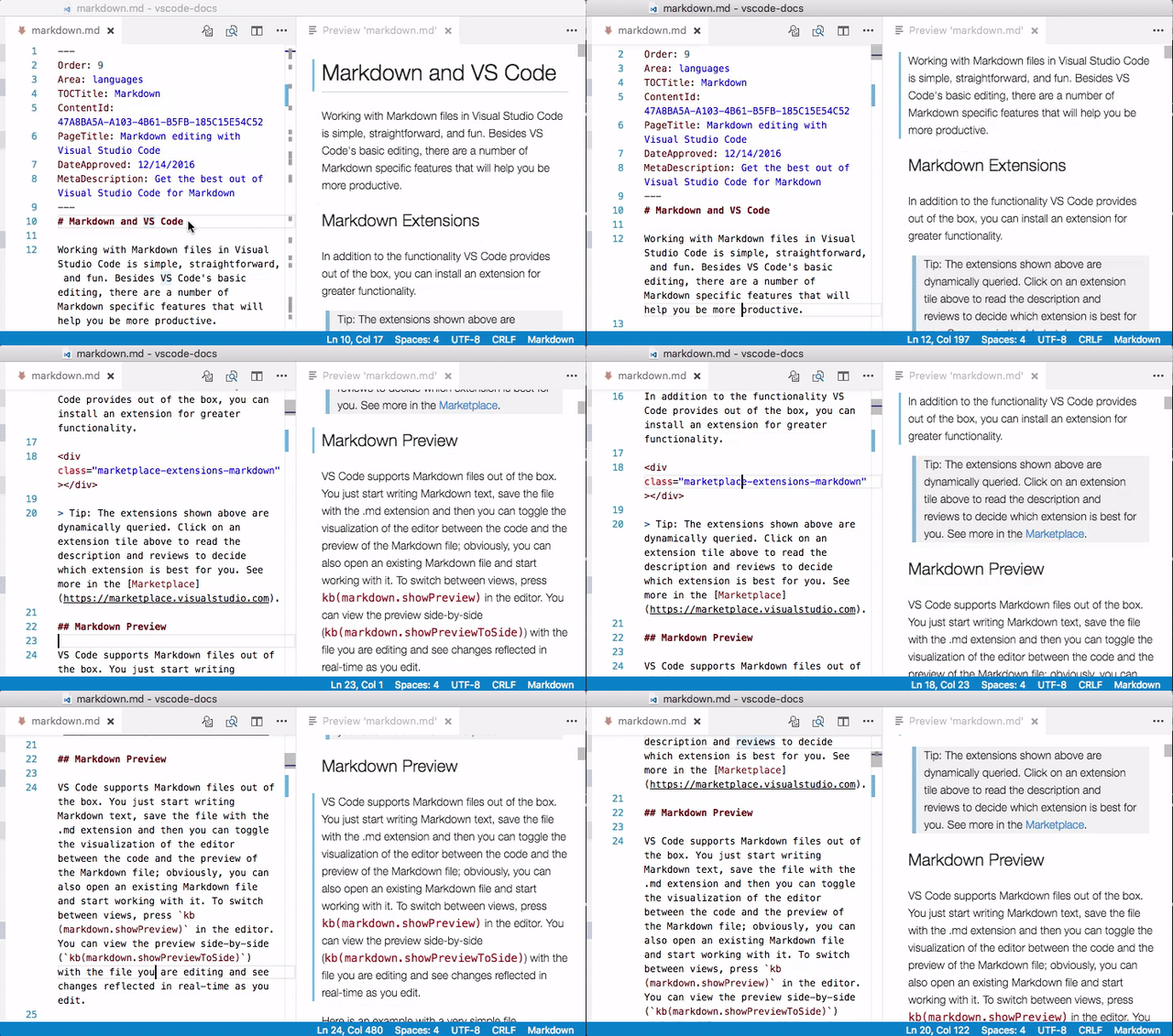
Side by Side Markdown Edit and Preview
In a Markdown file, use
Mac: cmd+k v
Windows / Linux: ctrl+k v
Special bonus: The preview will now sync.
IntelliSense
Anytime, try ctrl+space to trigger the Suggestions widget.
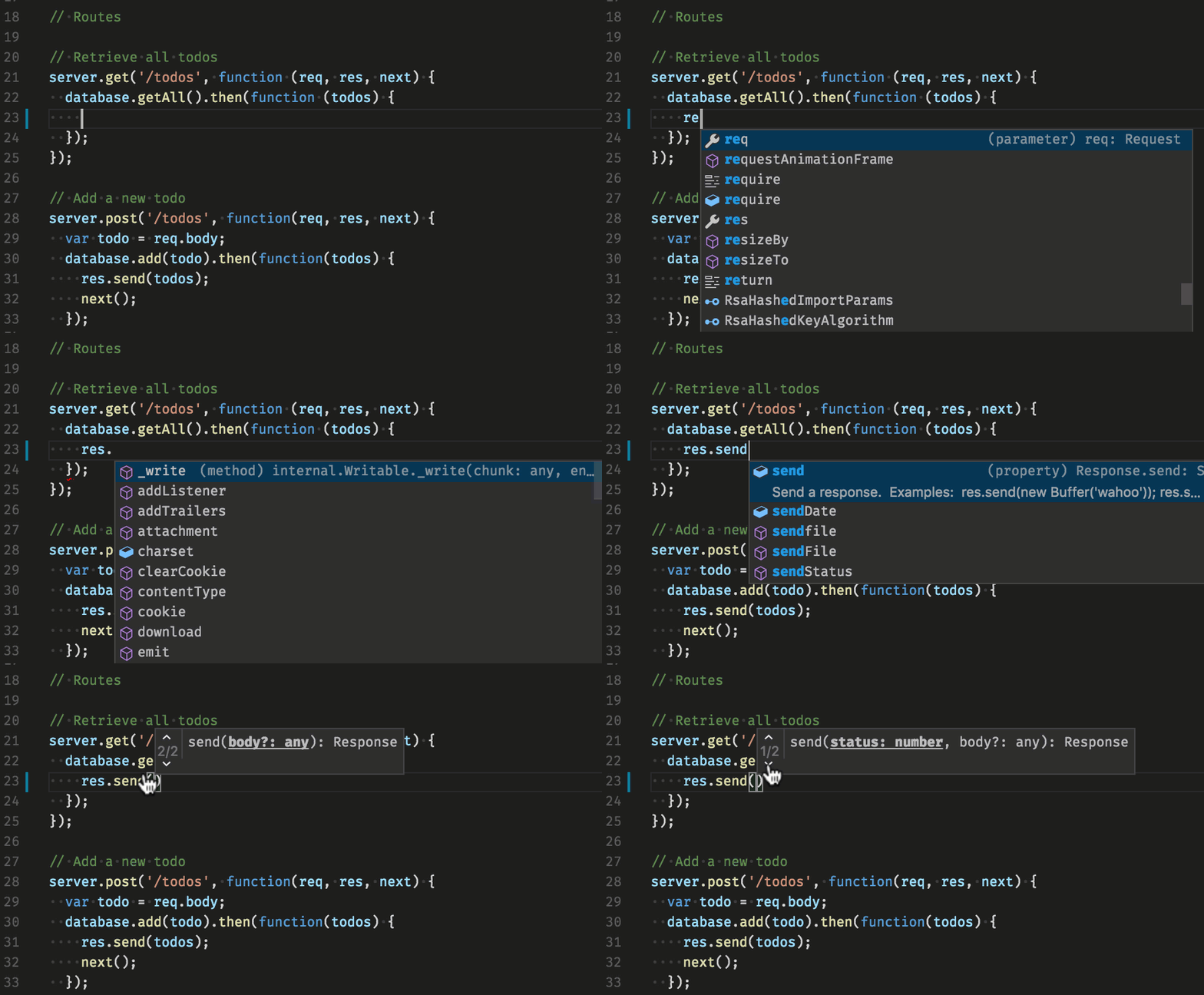
You can view available methods, parameter hints, short documentation, etc.
Peek
Select a symbol then type alt+f12. Alternatively, you can use the context menu.
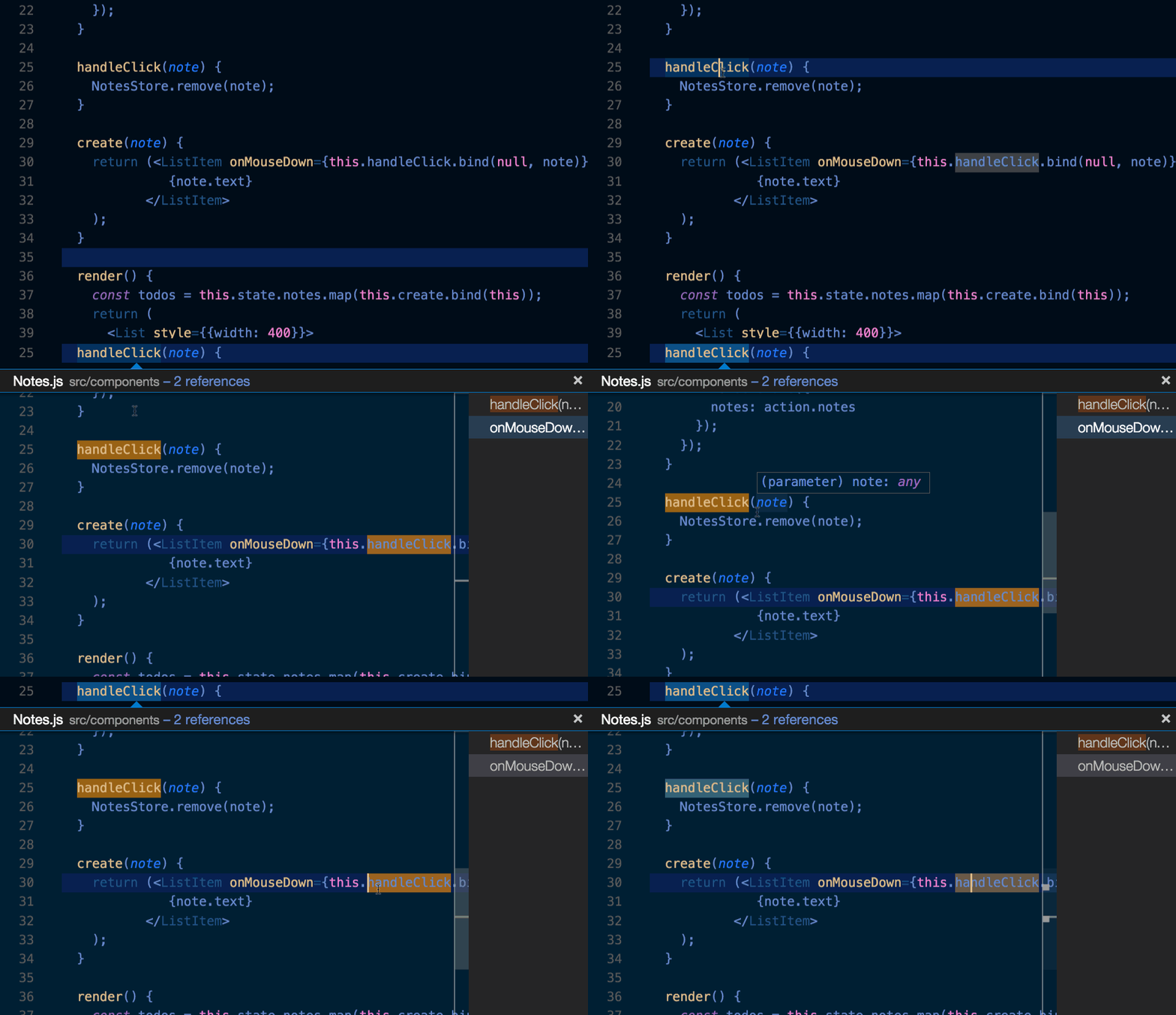
Go to Definition
Select a symbol then type f12. Alternatively, you can use the context menu or ctrl+click (cmd+click on macOS).
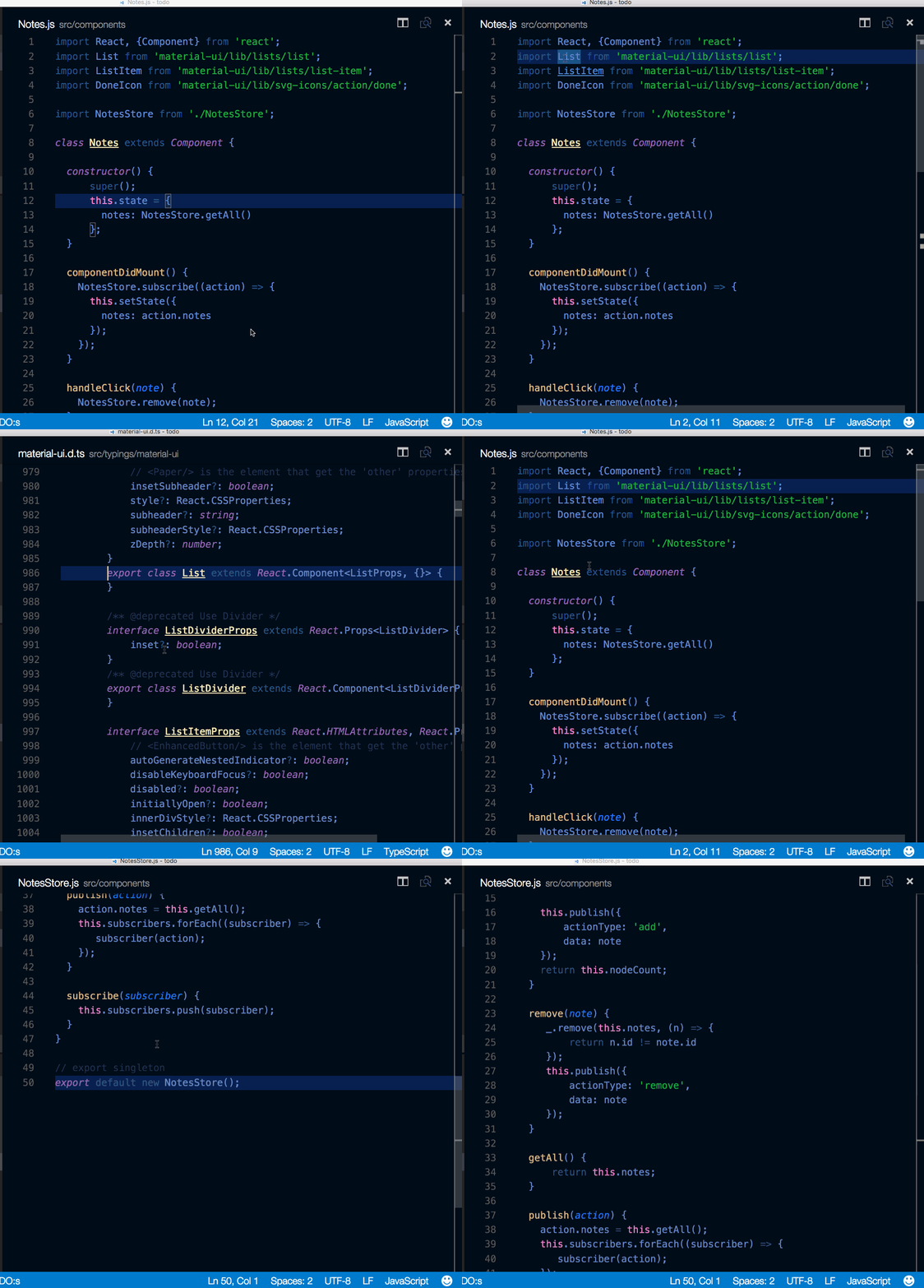
You can go back to your previous location with the Go > Back command or alt+left (ctrl+- on macOS).
Find All References
Select a symbol then type shift+f12. Alternatively, you can use the context menu.
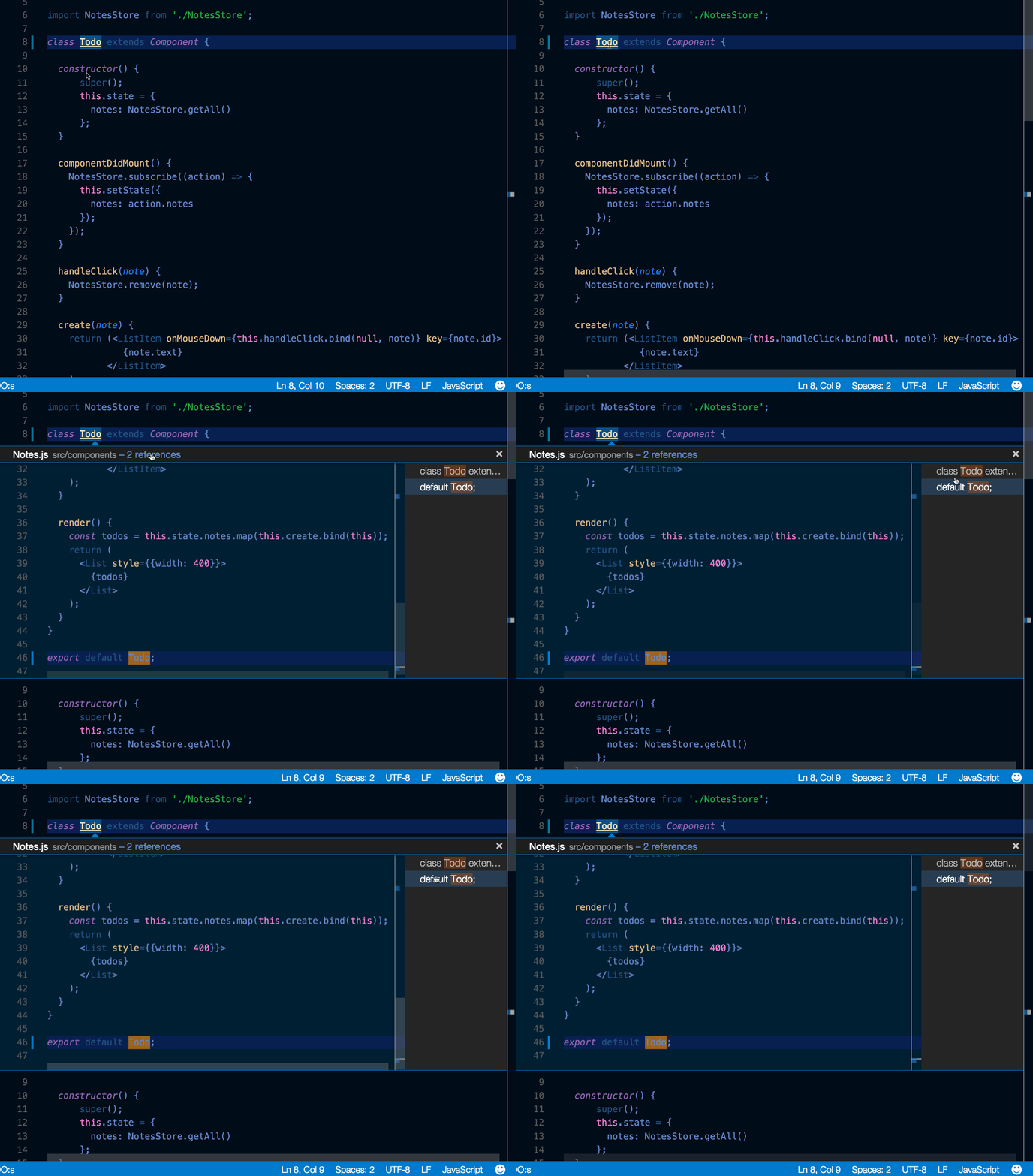
Rename Symbol
Select a symbol then type f2. Alternatively, you can use the context menu.

.eslintrc.json
Install the ESLint extension. Configure your linter however you'd like. Specification is here.
Here is configuration to use ES6.
{
    "env": {
        "browser": true,
        "commonjs": true,
        "es6": true,
        "node": true
    },
    "parserOptions": {
        "ecmaVersion": 6,
        "sourceType": "module",
        "ecmaFeatures": {
            "jsx": true,
            "classes": true,
            "defaultParams": true
        }
    },
    "rules": {
        "no-const-assign": 1,
        "no-extra-semi": 0,
        "semi": 0,
        "no-fallthrough": 0,
        "no-empty": 0,
        "no-mixed-spaces-and-tabs": 0,
        "no-redeclare": 0,
        "no-this-before-super": 1,
        "no-undef": 1,
        "no-unreachable": 1,
        "no-use-before-define": 0,
        "constructor-super": 1,
        "curly": 0,
        "eqeqeq": 0,
        "func-names": 0,
        "valid-typeof": 1
    }
}
package.json
See IntelliSense for your package.json file.
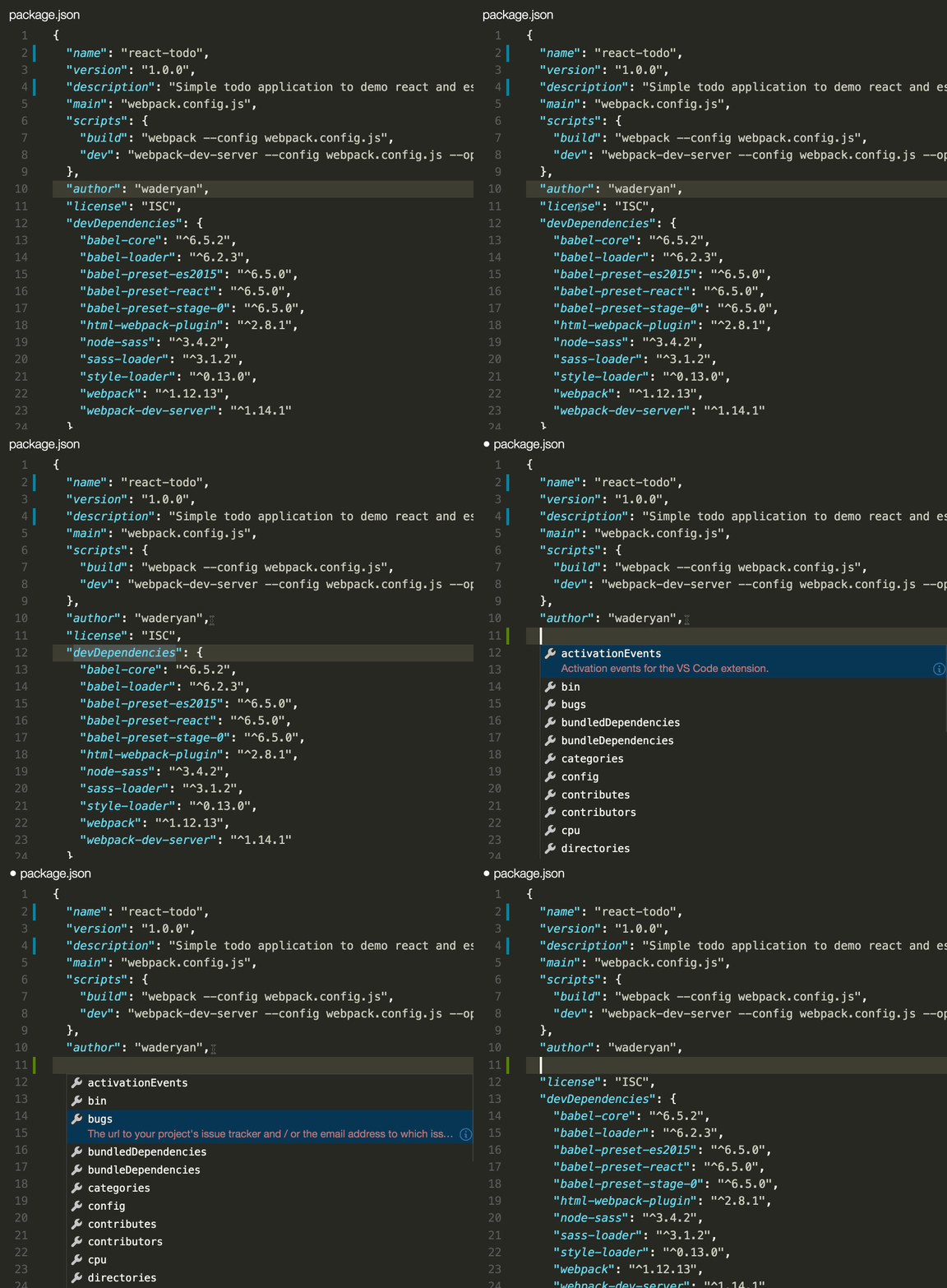
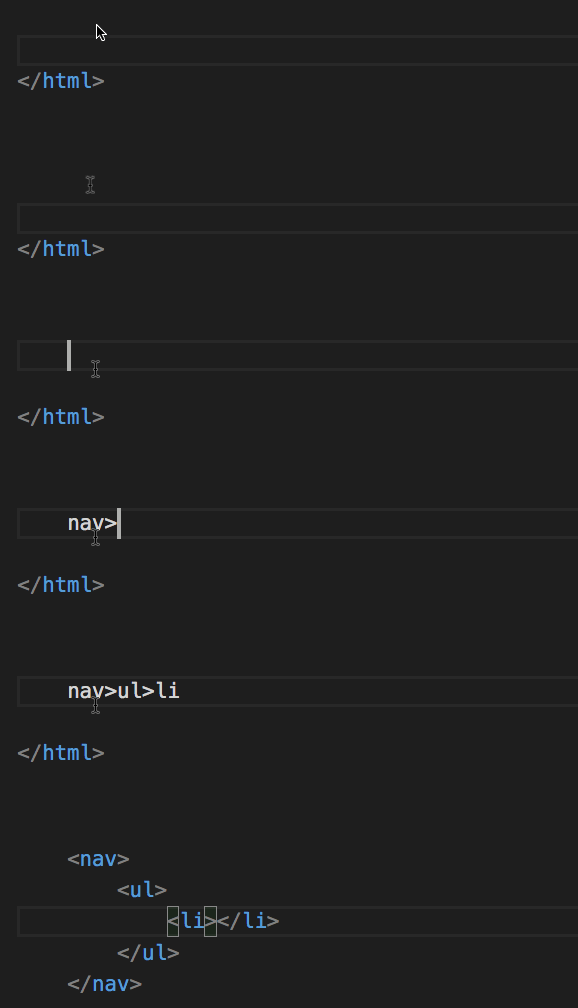
Emmet syntax
Support for Emmet syntax.
Snippets
Create custom snippets
File > Preferences > User Snippets, select the language, and create a snippet.
"create component": {
    "prefix": "component",
    "body": [
        "class $1 extends React.Component {",
        "",
        "	render() {",
        "		return ($2);",
        " 	}",
        "",
        "}"
    ]
},
See more details in Creating your own Snippets.
Git Integration
Git integration comes with VS Code "in-the-box". You can install other SCM provider from the extension Marketplace. This section describes the Git integration but much of the UI and gestures are shared by other SCM providers.
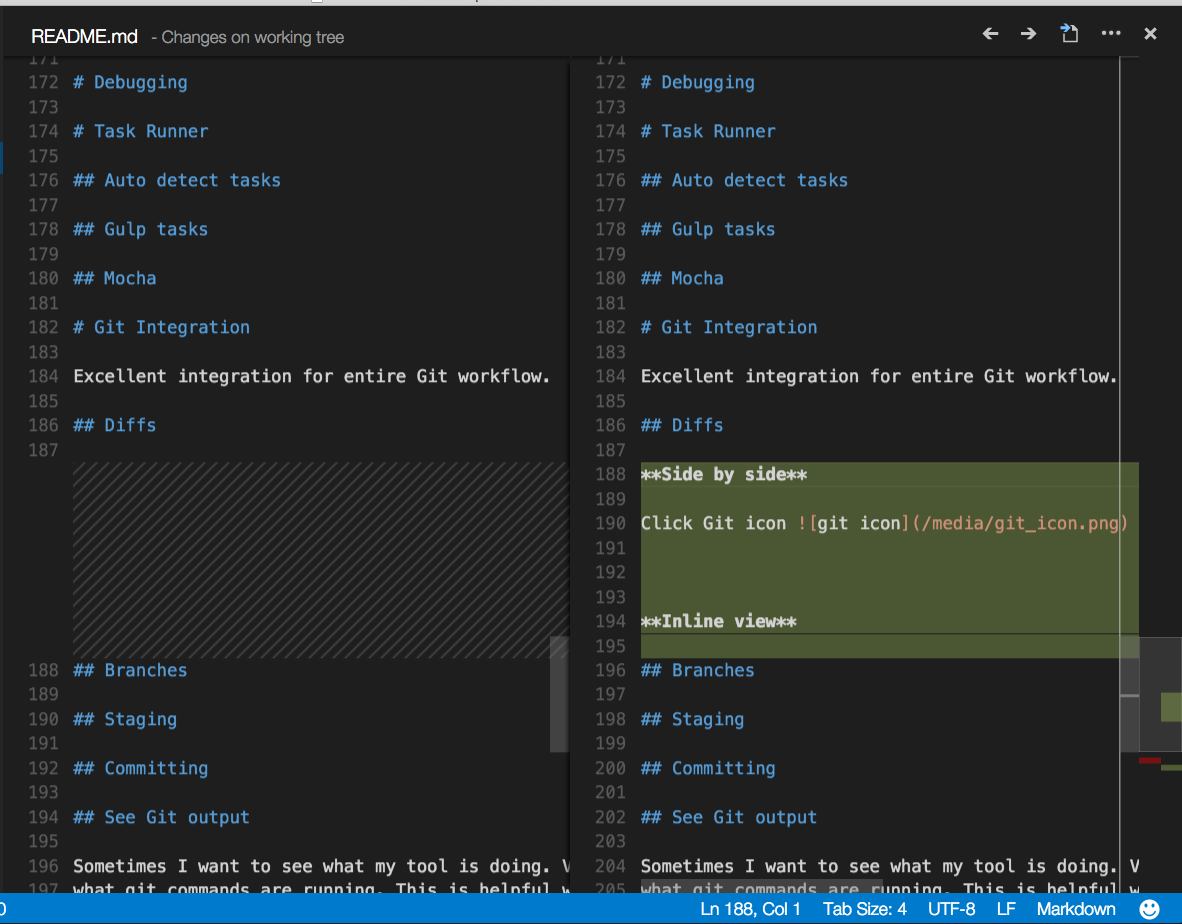
Diffs
Click the Source Control button in the Activity Bar then select the file to diff.

Side by side
Default is side by side diff.
Inline view
Toggle inline view by clicking the More (...) button in the top right and selecting Switch to Inline View.

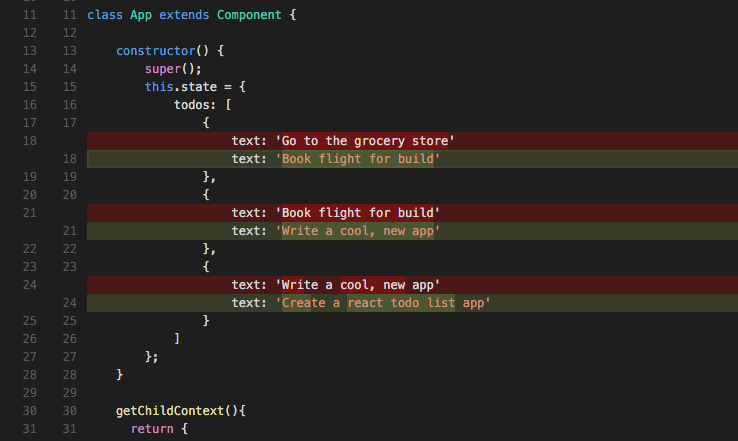
If you prefer the inline view, you can set "diffEditor.renderSideBySide": false.
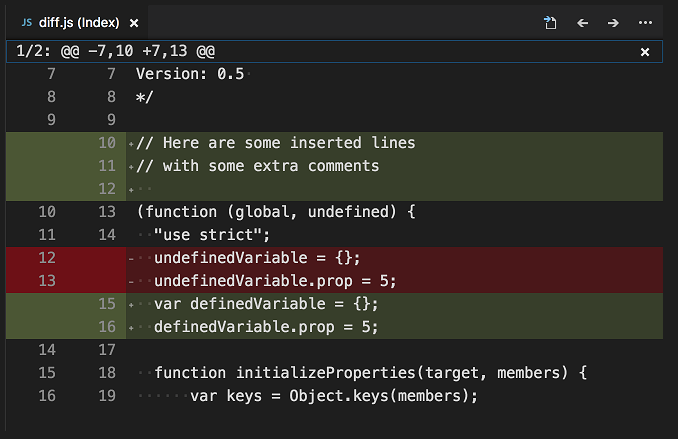
Review Pane
Navigate through diffs with F7 and Shift+F7. This will present them in a unified patch format.
Lines can be navigated with arrow keys and pressing Enter will jump back in the diff editor and the selected line.
Edit pending changes
You can make edits directly in the pending changes of the diff view.
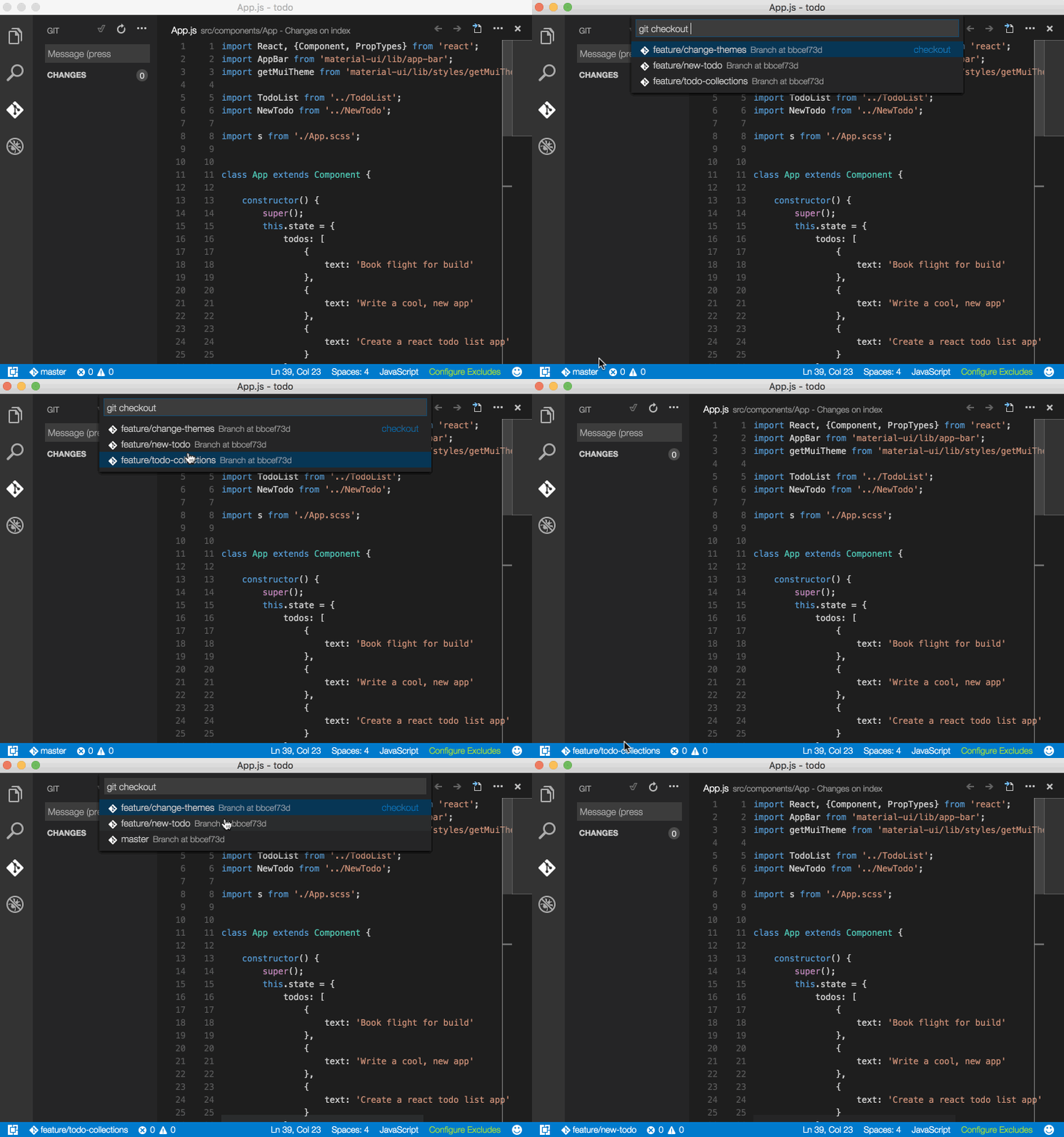
Branches
Easily switch between Git branches via the Status Bar.
Staging
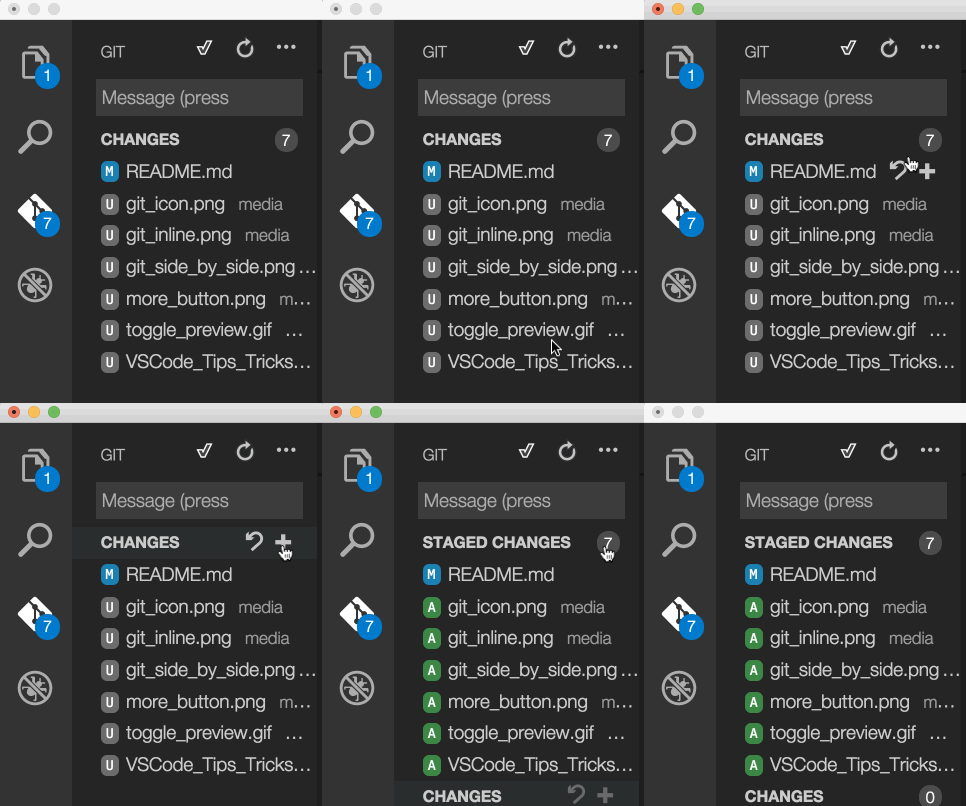
Stage all
Hover over the number of files and click the plus button.
Stage selected
Stage a portion of a file by selecting that file (using the arrows) and then choosing Stage Selected Ranges from the Command Palette.

Undo last commit
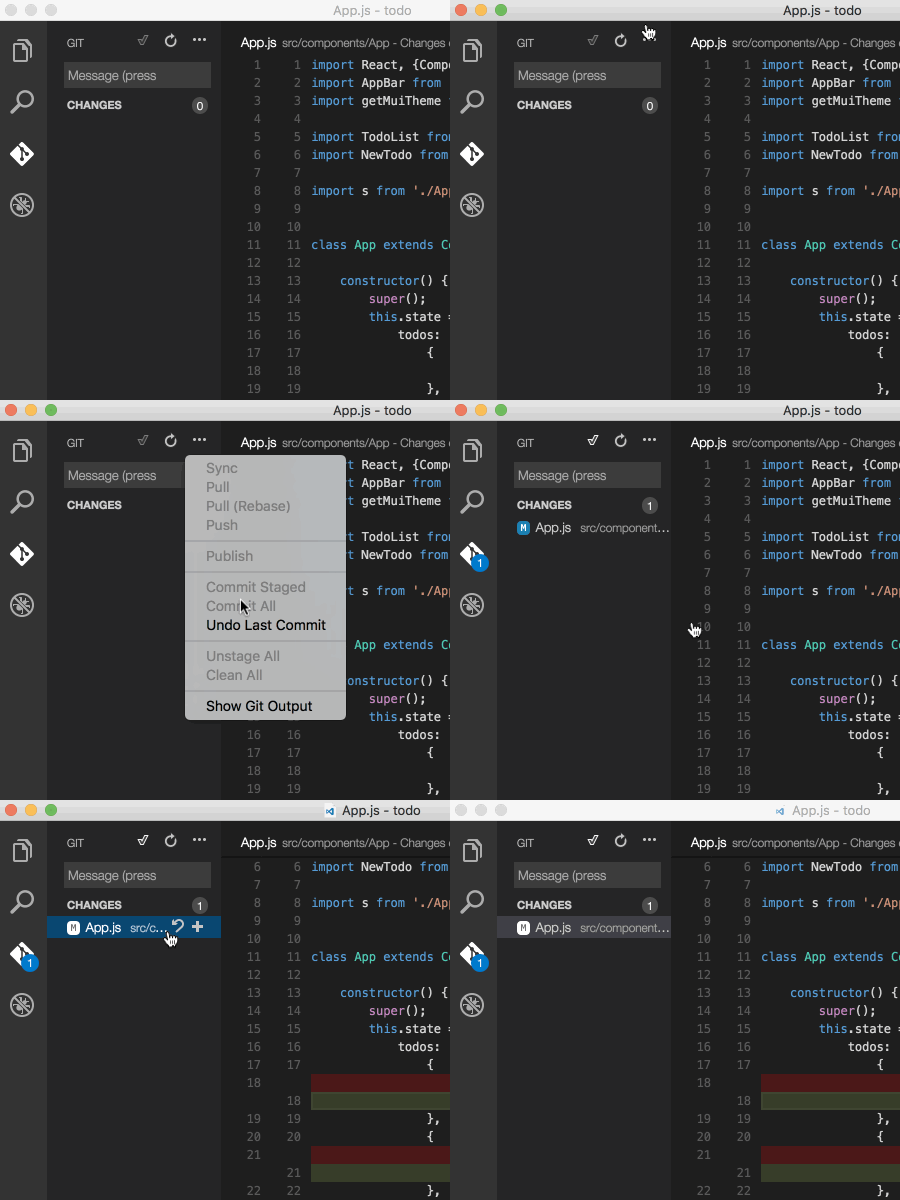
See Git output
VS Code makes it easy to see what Git commands are actually running. This is helpful when learning Git or debugging a difficult source control issue.
Mac: shift+cmd+u
Windows / Linux: ctrl+shift+u
to run toggleOutput. Select Git in the drop-down.
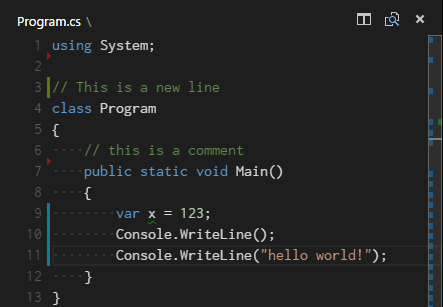
Gutter indicators
View diff decorations in editor. See documentation for more details.
Resolve merge conflicts
During a merge, click the Source Control button in the Activity Bar and make changes in the diff view. Select and accept current, incoming or both changes in just one click.
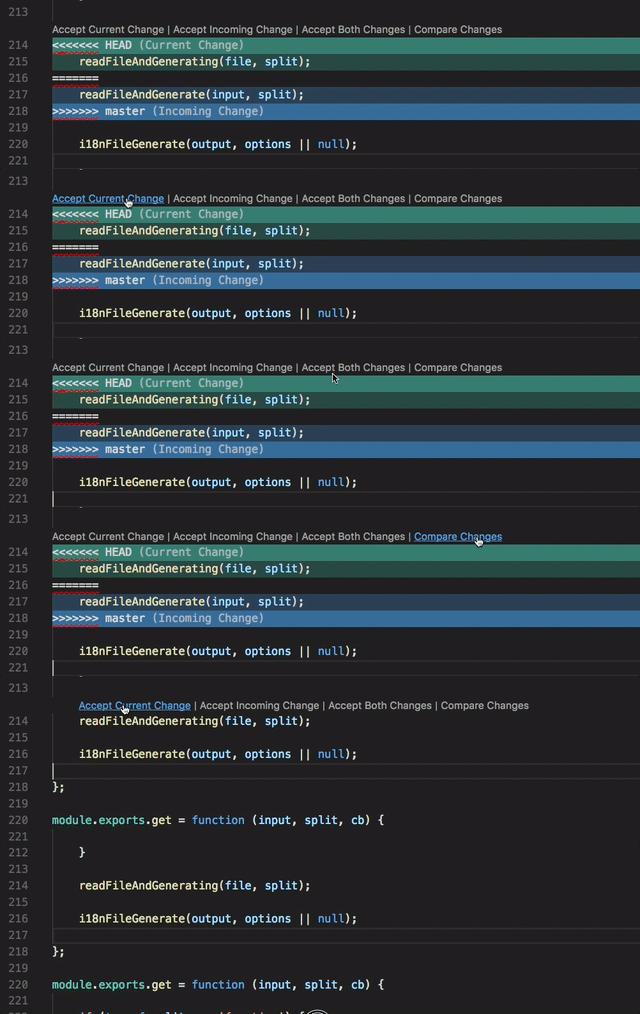
Setup VS Code as default merge tool
git config --global merge.tool code
Pull request extension
Review pull requests inside vscode vscode-pull-request-github
Debugging
Configure debugger
f1 and select Debug: Open launch.json, select the environment. This will generate a launch.json file. Works out of the box as expected for Node.js and other environments. May need some additional configuration for other languages. See documentation for more details.
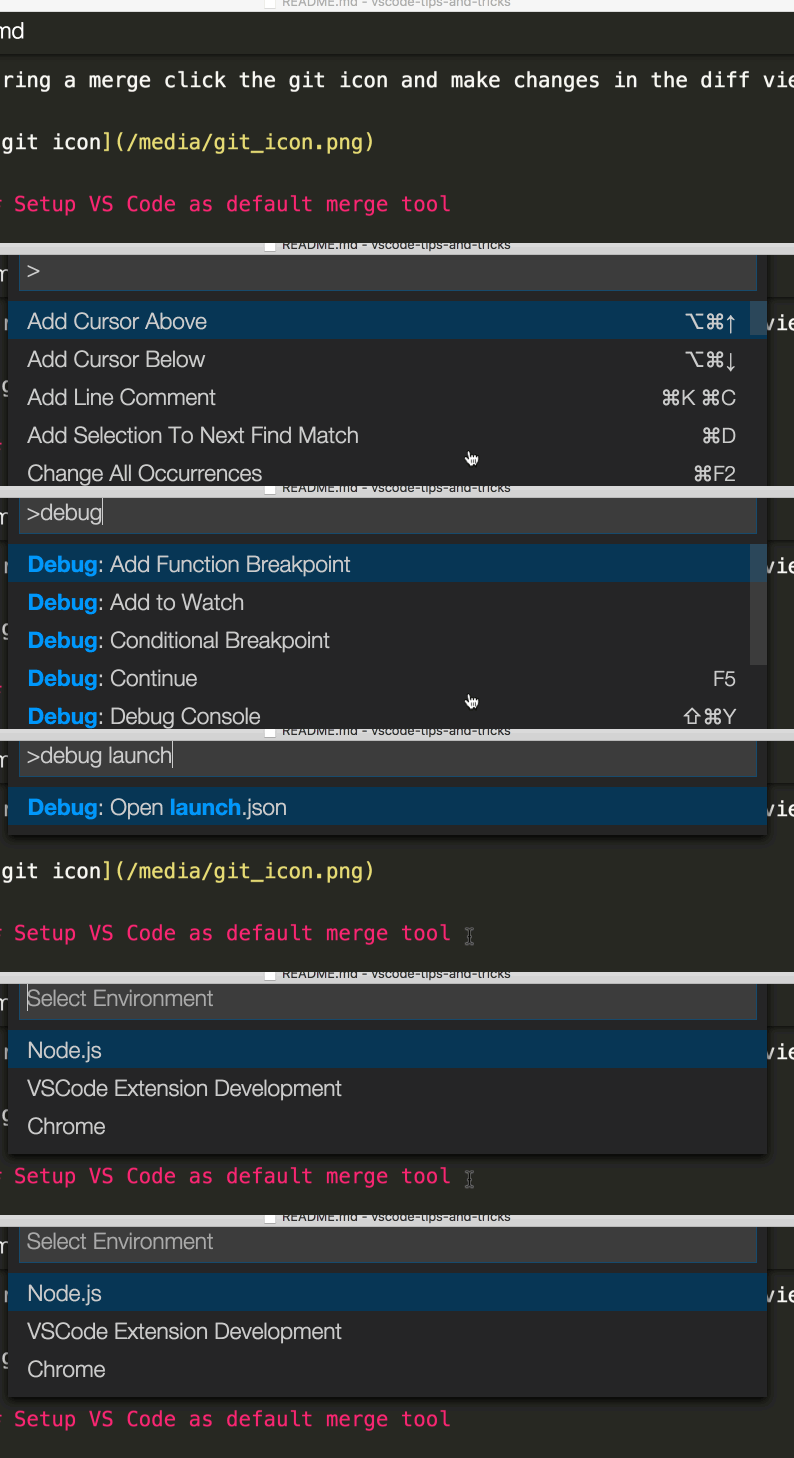
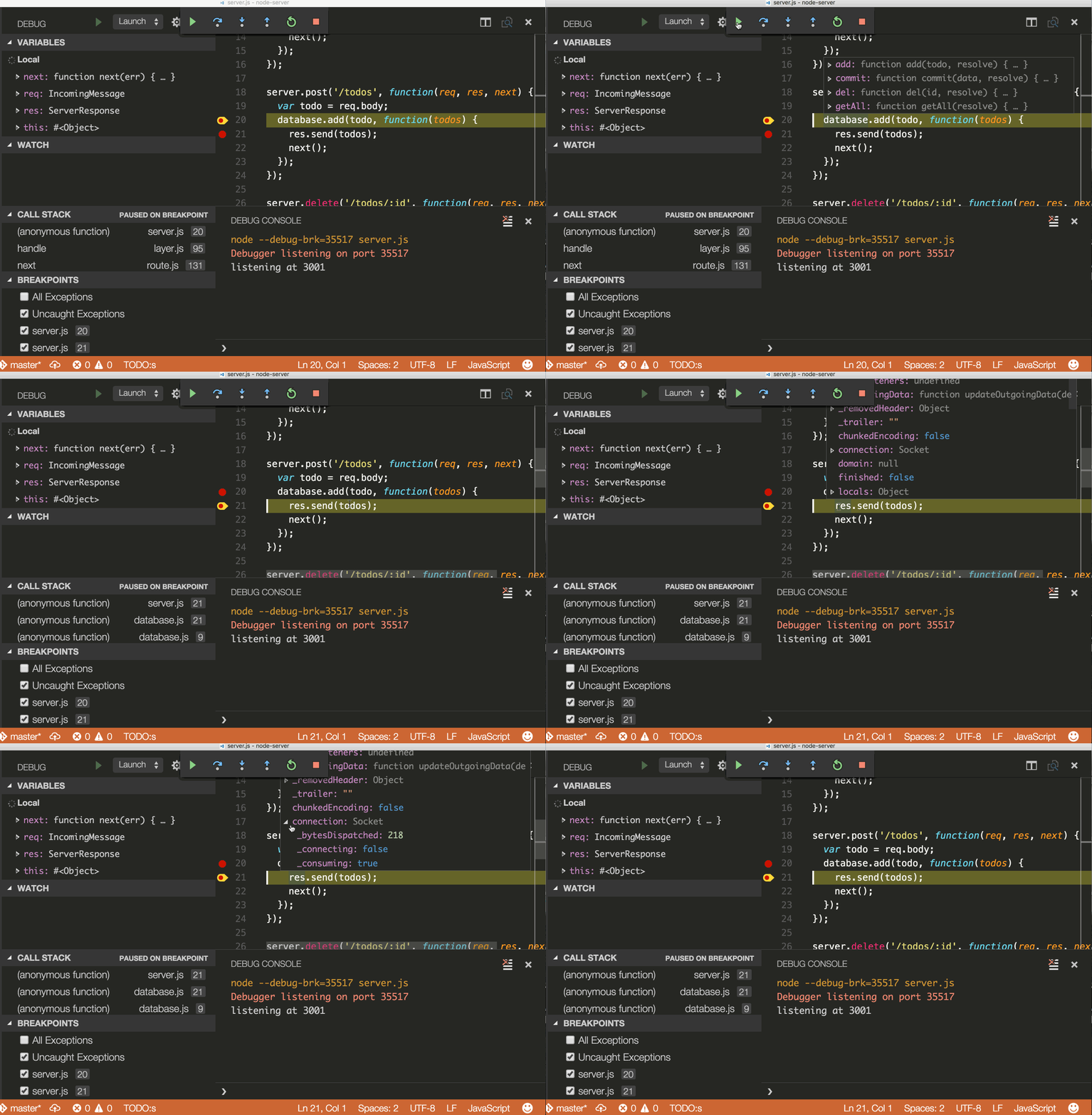
Breakpoints and stepping through
Place breakpoints next to the line number. Navigate forward with the Debug widget.
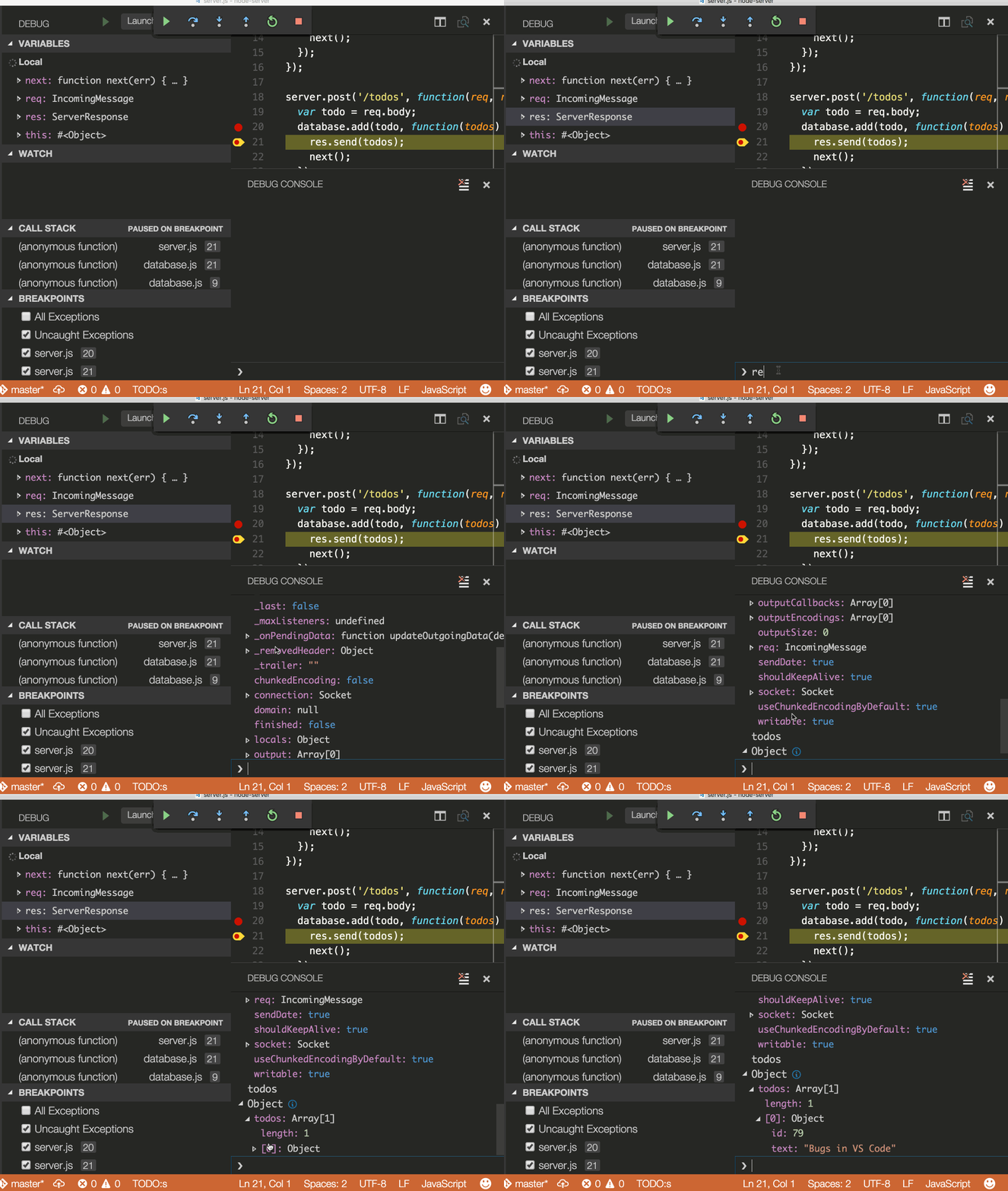
Data inspection
Inspect variables in the Debug panels and in the console.
Inline values
You can set "debug.inlineValues": true to see variable values inline in the debugger. This feature is experimental and disabled by default.
Task Runner
Auto detect tasks
Select Tasks from the top-level menu, run the command Configure Tasks..., then select the type of task you'd like to run.
This will generate a tasks.json file with content like the following. See the Tasks documentation for more details.
{
    // See http://go.microsoft.com/fwlink/?LinkId=733558
    // for the documentation about the tasks.json format
    "version": "0.1.0",
    "command": "npm",
    "isShellCommand": true,
    "showOutput": "always",
    "suppressTaskName": true,
    "tasks": [
        {
            "taskName": "install",
            "args": ["install"]
        },
        {
            "taskName": "build",
            "args": ["run", "build"]
        }
    ]
}
There are occasionally issues with auto generation. Check out the documentation for getting things to work properly.
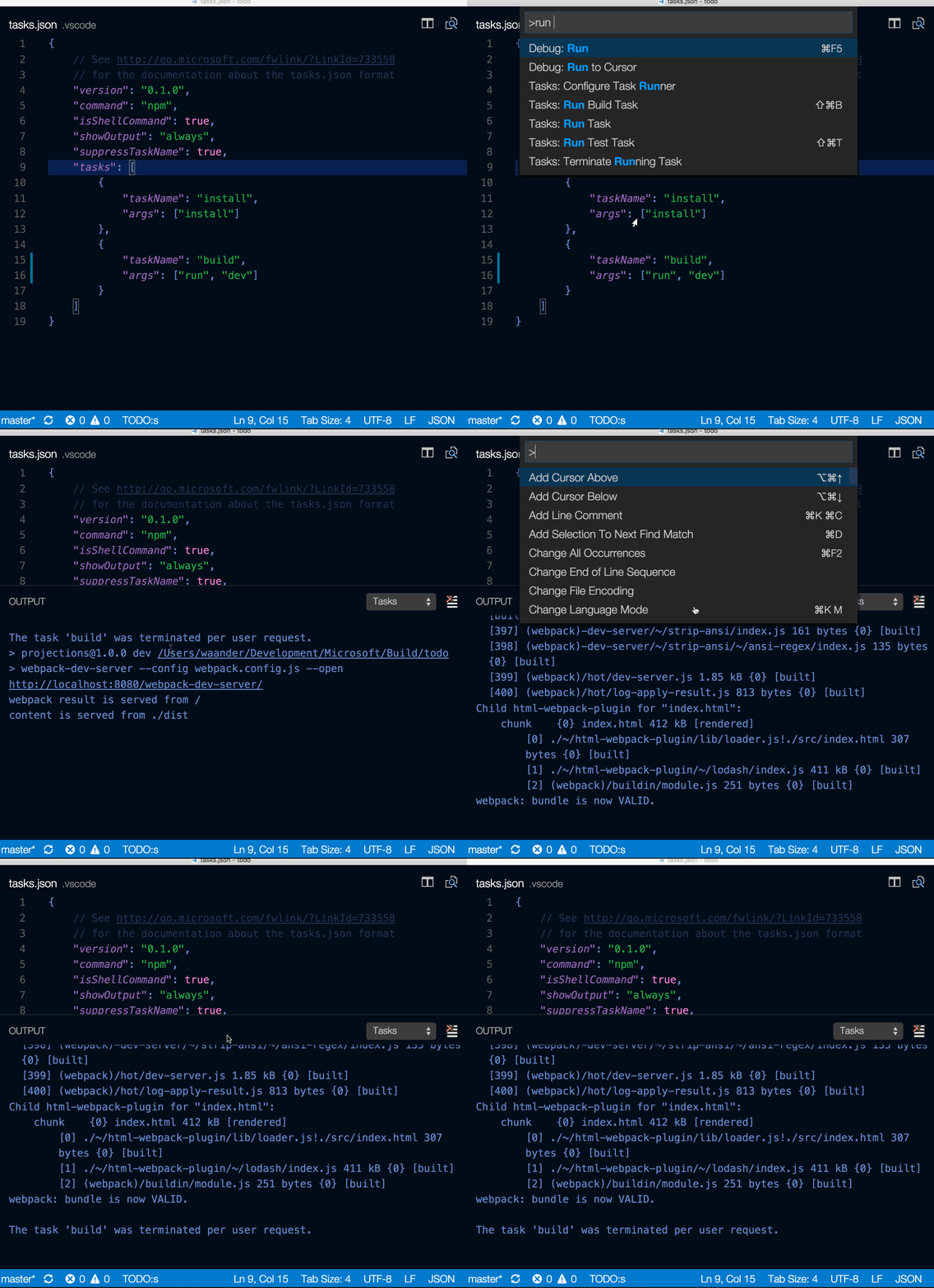
Run tasks from the Tasks menu
Select Tasks from the top-level menu, run the command Run Task..., and select the task you want to run. Terminate the running task by running the command Terminate Task...
Other Resources
- vscode official docs
- react sample app
- awesome vscode
- vscode can do that
Related repositories
Master programming by recreating your favorite technologies from scratch.
A curated meta-list of curated lists organized by technology domain. The repository acts as a directory pointing to hundreds of specialized awesome lists covering programming languages, platforms, frameworks, and tooling. All content is community-contributed under the CC0 public domain dedication.
Public APIs is a community-curated GitHub repository listing free, publicly accessible APIs across a wide range of categories, with auth type, HTTPS, and CORS noted for each entry. It's a browsable reference, not a library to install.
REA is an MCP server and CLI that gives AI coding agents the ability to reverse engineer binaries, JavaScript apps, .NET assemblies, and websites. It hooks into Hopper, Ghidra, or IDA Pro for native binary work, or runs static JavaScript analysis with just Node.js. Every investigation returns an Evidence bundle that includes what was found, what was not, and the reasoning path. Setup registers REA with supported agents and walks you through connecting an analysis engine. The CLI also works standalone for terminal-first workflows.
Quick answers
Does microsoft/vscode-tips-and-tricks have a project website?
No homepage URL was recorded for microsoft/vscode-tips-and-tricks in TopGit's last sync. The README tab above frequently contains screenshots and demo links, or check the repository description on GitHub.
Does microsoft/vscode-tips-and-tricks have any tags?
TopGit's last sync did not record any GitHub topics for microsoft/vscode-tips-and-tricks. GitHub topics appear in the right sidebar of a repository page; that's the authoritative place to check.
How active is development on microsoft/vscode-tips-and-tricks?
The most recent commit recorded on microsoft/vscode-tips-and-tricks was 6.5 years ago, based on the GitHub push timestamp. The repository has 685 forks — one of the better signals of community interest.
How many stars does microsoft/vscode-tips-and-tricks have?
microsoft/vscode-tips-and-tricks has 9.1k GitHub stars — refresh the page for the live number, or check github.com/microsoft/vscode-tips-and-tricks. TopGit mirrors GitHub's count but does not claim minute-by-minute accuracy.
What language is microsoft/vscode-tips-and-tricks written in?
TopGit's last sync did not record a primary language for microsoft/vscode-tips-and-tricks. Open the repository on GitHub to see the full breakdown by file extension.
Where do I read more about microsoft/vscode-tips-and-tricks?
This TopGit page is a snapshot — the READ ME tab shows the project's own README content (links stripped, images preserved). The GitHub repository at github.com/microsoft/vscode-tips-and-tricks is the definitive source.
Read full README in the tab above.
Want a second opinion on vscode-tips-and-tricks?
Ask an AI that can read this page — one click and you get its take on vscode-tips-and-tricks.