As an open-source project, mwaterfall/MWPhotoBrowser has picked up 8.7k stars on GitHub (Objective-C). A simple iOS photo and video browser with grid view, captions and selections.
Snapshot summary built from the project's own GitHub metadata — there's no written TopGit review yet. The page will update automatically when a full review is published.
WHY NO REVIEW YET
TopGit writes full reviews for the most-starred, most-requested repositories. This page is a snapshot until then — see the READ ME tab for the original README in full.
A simple iOS photo and video browser with optional grid view, captions and selections.
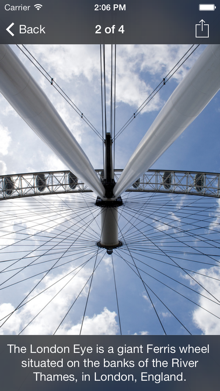
MWPhotoBrowser can display one or more images or videos by providing either UIImage objects, PHAsset objects, or URLs to library assets, web images/videos or local files. The photo browser handles the downloading and caching of photos from the web seamlessly. Photos can be zoomed and panned, and optional (customisable) captions can be displayed.
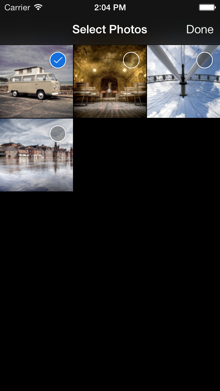
The browser can also be used to allow the user to select one or more photos using either the grid or main image view.
Works on iOS 7+. All strings are localisable so they can be used in apps that support multiple languages.
Usage
MWPhotoBrowser is designed to be presented within a navigation controller. Simply set the delegate (which must conform to MWPhotoBrowserDelegate) and implement the 2 required delegate methods to provide the photo browser with the data in the form of MWPhoto objects. You can create an MWPhoto object by providing a UIImage object, PHAsset object, or a URL containing the path to a file, an image online or an asset from the asset library.
MWPhoto objects handle caching, file management, downloading of web images, and various optimisations for you. If however you would like to use your own data model to represent photos you can simply ensure your model conforms to the MWPhoto protocol. You can then handle the management of caching, downloads, etc, yourself. More information on this can be found in MWPhotoProtocol.h.
See the code snippet below for an example of how to implement the photo browser. There is also a simple demo app within the project.
// Create array of MWPhoto objects
self.photos = [NSMutableArray array];

// Add photos
[photos addObject:[MWPhoto photoWithURL:[NSURL fileURLWithPath:[[NSBundle mainBundle] pathForResource:@"photo2l" ofType:@"jpg"]]]];
[photos addObject:[MWPhoto photoWithURL:[NSURL URLWithString:@"http://farm4.static.flickr.com/3629/3339128908_7aecabc34b.jpg"]]];
[photos addObject:[MWPhoto photoWithURL:[NSURL URLWithString:@"http://farm4.static.flickr.com/3590/3329114220_5fbc5bc92b.jpg"]]];

// Add video with poster photo
MWPhoto *video = [MWPhoto photoWithURL:[NSURL URLWithString:@"https://scontent.cdninstagram.com/hphotos-xpt1/t51.2885-15/e15/11192696_824079697688618_1761661_n.jpg"]];
video.videoURL = [[NSURL alloc] initWithString:@"https://scontent.cdninstagram.com/hphotos-xpa1/t50.2886-16/11200303_1440130956287424_1714699187_n.mp4"];
[photos addObject:video];

// Create browser (must be done each time photo browser is
// displayed. Photo browser objects cannot be re-used)
MWPhotoBrowser *browser = [[MWPhotoBrowser alloc] initWithDelegate:self];

// Set options
browser.displayActionButton = YES; // Show action button to allow sharing, copying, etc (defaults to YES)
browser.displayNavArrows = NO; // Whether to display left and right nav arrows on toolbar (defaults to NO)
browser.displaySelectionButtons = NO; // Whether selection buttons are shown on each image (defaults to NO)
browser.zoomPhotosToFill = YES; // Images that almost fill the screen will be initially zoomed to fill (defaults to YES)
browser.alwaysShowControls = NO; // Allows to control whether the bars and controls are always visible or whether they fade away to show the photo full (defaults to NO)
browser.enableGrid = YES; // Whether to allow the viewing of all the photo thumbnails on a grid (defaults to YES)
browser.startOnGrid = NO; // Whether to start on the grid of thumbnails instead of the first photo (defaults to NO)
browser.autoPlayOnAppear = NO; // Auto-play first video

// Customise selection images to change colours if required
browser.customImageSelectedIconName = @"ImageSelected.png";
browser.customImageSelectedSmallIconName = @"ImageSelectedSmall.png";

// Optionally set the current visible photo before displaying
[browser setCurrentPhotoIndex:1];

// Present
[self.navigationController pushViewController:browser animated:YES];

// Manipulate
[browser showNextPhotoAnimated:YES];
[browser showPreviousPhotoAnimated:YES];
[browser setCurrentPhotoIndex:10];
You can present the browser modally simply by wrapping it in a new navigation controller and presenting that. The demo app allows you to toggle between the two presentation types.
Videos
You can represent videos in MWPhoto objects by providing a standard MWPhoto image object with a videoURL. You can also use a PHAsset object or a URL to an assets library video.
// Video with URL including poster photo
MWPhoto *video = [MWPhoto photoWithURL:[NSURL URLWithString:@"https://scontent.cdninstagram.com/hphotos-xpt1/t51.2885-15/e15/11192696_824079697688618_1761661_n.jpg"]];
video.videoURL = [NSURL URLWithString:@"https://scontent.cdninstagram.com/hphotos-xpa1/t50.2886-16/11200303_1440130956287424_1714699187_n.mp4"];

// Video with PHAsset
MWPhoto *video = [MWPhoto photoWithAsset:asset targetSize:[UIScreen mainScreen].bounds.size]; // Example sizing

// Video with ALAsset
MWPhoto *video = [MWPhoto photoWithURL:asset.defaultRepresentation.url];
if ([asset valueForProperty:ALAssetPropertyType] == ALAssetTypeVideo) {
    photo.videoURL = asset.defaultRepresentation.url;
}

// Video with no poster photo
MWPhoto *video = [MWPhoto videoWithURL:[NSURL URLWithString:@"https://scontent.cdninstagram.com/hphotos-xfa1/t50.2886-16/11237510_945154435524423_2137519922_n.mp4"]];

// Video grid thumbnail
MWPhoto *videoThumb = [MWPhoto photoWithURL:[NSURL URLWithString:@"https://scontent.cdninstagram.com/hphotos-xaf1/t51.2885-15/s150x150/e15/11240463_963135443745570_1519872157_n.jpg"]];
videoThumb.isVideo = YES;

// Video grid thumbnail for video with no poster photo
MWPhoto *videoThumb = [MWPhoto new];
videoThumb.isVideo = YES;
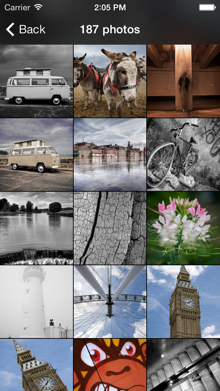
Grid
In order to properly show the grid of thumbnails, you must ensure the property enableGrid is set to YES, and implement the following delegate method:
- (id <MWPhoto>)photoBrowser:(MWPhotoBrowser *)photoBrowser thumbPhotoAtIndex:(NSUInteger)index;
The photo browser can also start on the grid by enabling the startOnGrid property.
Actions
By default, if the action button is visible then the image (and caption if it exists) are sent to a UIActivityViewController.
You can provide a custom action by implementing the following delegate method:
- (void)photoBrowser:(MWPhotoBrowser *)photoBrowser actionButtonPressedForPhotoAtIndex:(NSUInteger)index {
    // Do your thing!
}
Photo Captions
Photo captions can be displayed simply by setting the caption property on specific photos:
No caption will be displayed if the caption property is not set.
Custom Captions
By default, the caption is a simple black transparent view with a label displaying the photo's caption in white. If you want to implement your own caption view, follow these steps:
Optionally use a subclass of MWPhoto for your photos so you can store more data than a simple caption string.
Subclass MWCaptionView and override -setupCaption and -sizeThatFits: (and any other UIView methods you see fit) to layout your own view and set it's size. More information on this can be found in MWCaptionView.h
Implement the -photoBrowser:captionViewForPhotoAtIndex: MWPhotoBrowser delegate method (shown below).
The photo browser can display check boxes allowing the user to select one or more of the photos. To use this feature, simply enable the displaySelectionButtons property, and implement the following delegate methods:
MWPhotoBrowser is available through CocoaPods. To install
it, simply add the following line to your Podfile:
pod "MWPhotoBrowser"
Usage
To run the example project, clone the repo, and run pod install from the Example directory first.
Then import the photo browser into your source files (or into your bridging header if you're using with Swift and not using frameworks with Cocoapods):
#import "MWPhotoBrowser.h"
If you are using Swift and frameworks, then you can just import the browser into your Swift source file:
Does mwaterfall/MWPhotoBrowser have a project website?
No homepage URL was recorded for mwaterfall/MWPhotoBrowser in TopGit's last sync. The README tab above frequently contains screenshots and demo links, or check the repository description on GitHub.
Is mwaterfall/MWPhotoBrowser open source?
Yes — mwaterfall/MWPhotoBrowser ships under the MIT license, which makes its source code freely readable (and, depending on license terms, forkable and reusable). Source: github.com/mwaterfall/MWPhotoBrowser.
What is mwaterfall/MWPhotoBrowser?
mwaterfall/MWPhotoBrowser (mwaterfall/MWPhotoBrowser) is a Objective-C project on GitHub. From the project's own README: A simple iOS photo and video browser with grid view, captions and selections.
What license does mwaterfall/MWPhotoBrowser use?
mwaterfall/MWPhotoBrowser is released under the MIT license. Always verify the LICENSE file directly on GitHub for the authoritative terms — license strings can be edited out of sync with a project's actual stance.
Where do I read more about mwaterfall/MWPhotoBrowser?
This TopGit page is a snapshot — the READ ME tab shows the project's own README content (links stripped, images preserved). The GitHub repository at github.com/mwaterfall/MWPhotoBrowser is the definitive source.
Read full README in the tab above.
Is MWPhotoBrowser worth your time?
ChatGPT, Claude and Perplexity can all read this page. Ask one of them what it makes of MWPhotoBrowser.

 /MWPhotoBrowser