playcanvas/playcanvas-ar — 256★ on GitHub (JavaScript). Fast and Easy Augmented Reality for the Web :rocket:
Snapshot summary built from the project's own GitHub metadata — there's no written TopGit review yet. The page will update automatically when a full review is published.
WHY NO REVIEW YET
TopGit writes full reviews for the most-starred, most-requested repositories. This page is a snapshot until then — see the READ ME tab for the original README in full.
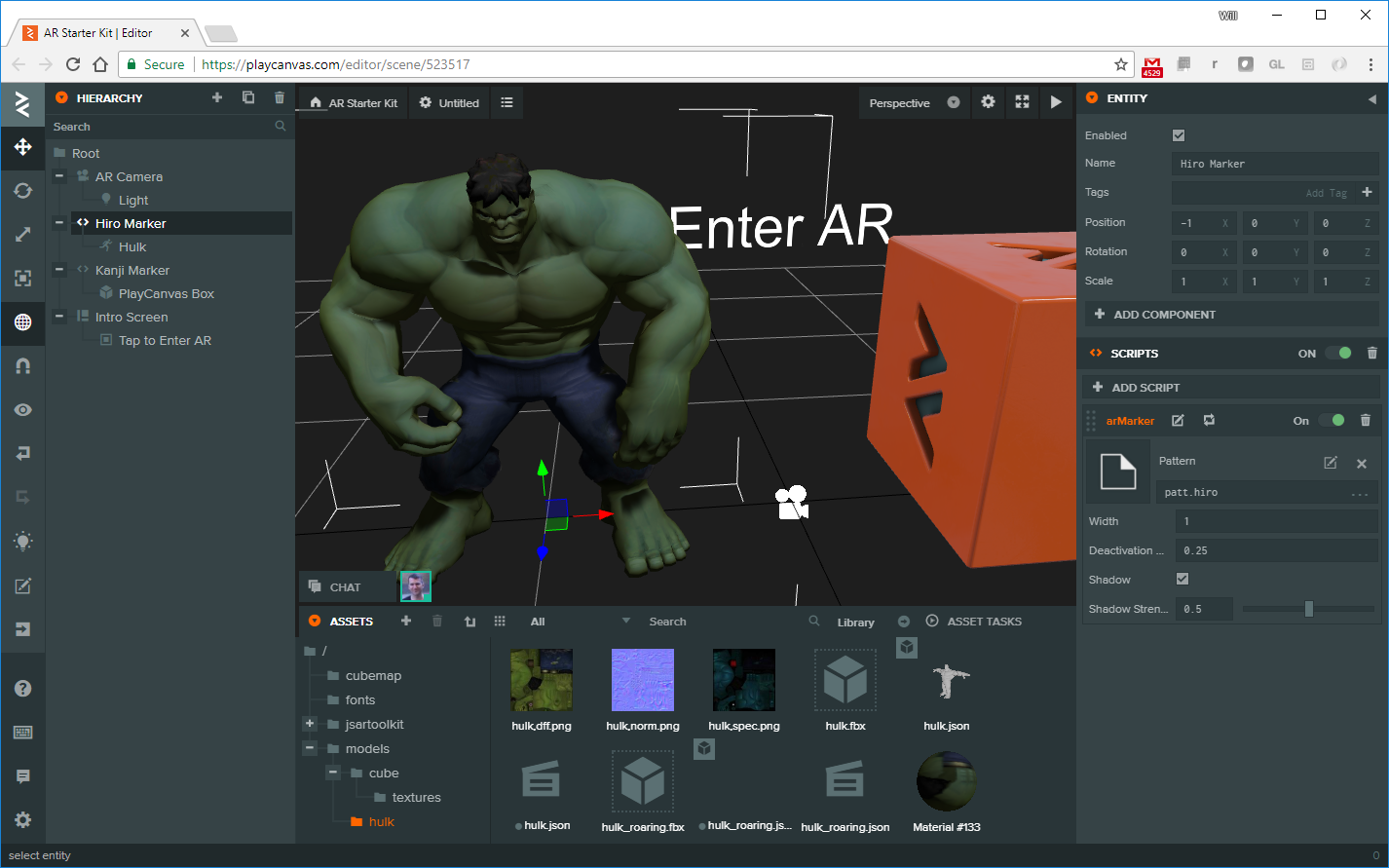
PlayCanvasAR makes it easy to build lightning fast augmented reality applications. With it, you can construct web-based AR applications with zero programming using the PlayCanvas Editor. Just drag in your 3D models and watch them appear in AR!
But if you want to create something more interactive, you can call on the full power of the PlayCanvas scripting API.
Demo
Before you begin, print out the following markers: Hiro and Kanji.
Now click here for a demonstration. We recommend running it on mobile. If you use iOS, you'll need to ensure you have upgraded to iOS 11, which is required to access the camera from Safari.
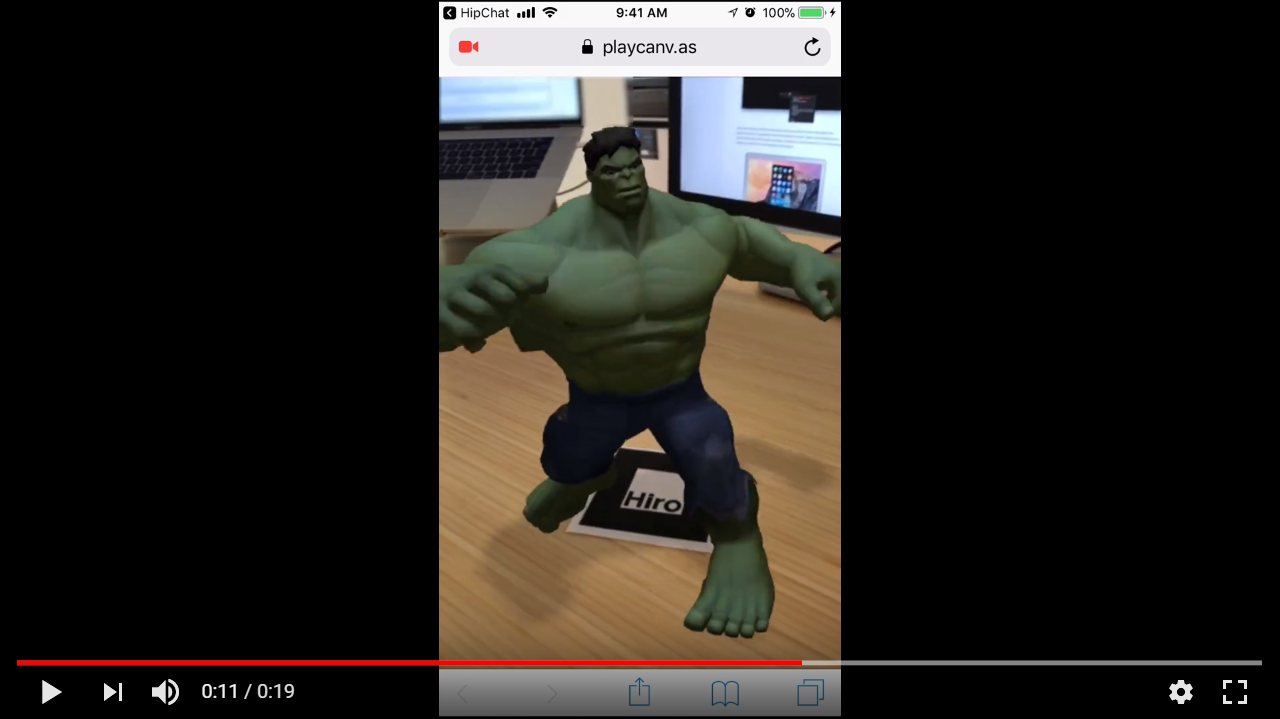
Or check out a little video:
Features
Amazing Performance - PlayCanvasAR delivers 60 frames per second, even on mobile.
Marker-based Tracking - PlayCanvasAR utilizes the amazing ARToolkit, an open source marker-based tracking library. Originally coded in C++, it has been ported to JavaScript using Emscripten.
Incredible Visuals - PlayCanvas provides an advanced WebGL graphics engine. It supports the latest WebGL 2 graphics API and implements Physically Based Rendering to achieve incredible visuals for your AR applications. And yes, that's open sourced too.
Getting Started with PlayCanvasAR
Create an account on playcanvas.com (if you haven't already).
Fork the AR Starter Kit project (which contains the latest version of playcanvas-ar.js).
Hit the launch button and see AR in action (we recommend using your mobile device!).
Configuring PlayCanvasAR in the Editor
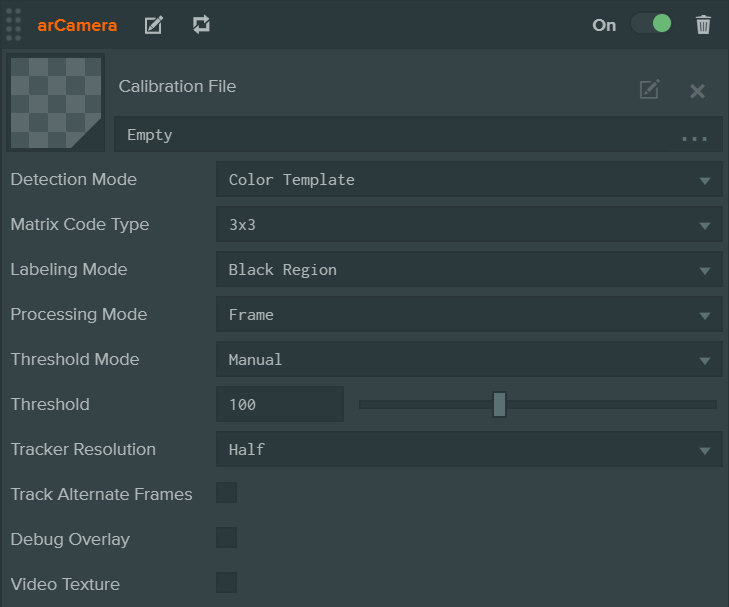
The playcanvas-ar.js script contains two script objects: arCamera and arMarker. The arCamera script renders a device's camera feed and tracks the feed image for AR markers. It can be added to an entity that has a camera component. The interface generated is as follows:
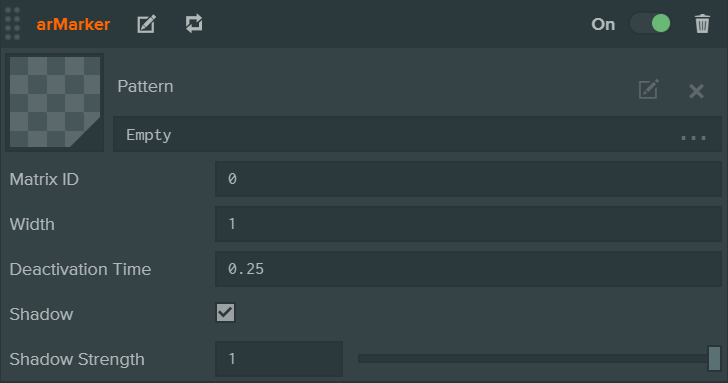
To create a new marker entity, simply add a script component and add the arMarker script. This will generate the following UI:
Scripting with PlayCanvasAR
The PlayCanvas Editor allows you to build your AR apps visually. But you may want to create AR powered entities programmatically. Or you may want to build AR apps by simply using the PlayCanvas Engine without the Editor. PlayCanvas AR exposes two script objects: 'arCamera' and 'arMarker'. 'Engine-only' scripting examples can be found in the examples folder.
arCamera
This code creates an AR-enabled camera:
var camera = new pc.Entity("AR Camera");
camera.addComponent("camera", {
    clearColor: new pc.Color(0, 0, 0, 0)
});
camera.addComponent("script");
camera.script.create("arCamera", {
    attributes: {
        cameraCalibration: asset,
        detectionMode: 0,     // Color Template
        matrixCodeType: 0,    // 3x3
        labelingMode: 1,      // Black Region
        processingMode: 0,    // Frame
        thresholdMode: 0,     // Manual
        threshold: 100,
        trackerResolution: 0, // Full
        trackAlternateFrames: false,
        debugOverlay: false,
        videoTexture: false
    }
});
app.root.addChild(camera);
Attribute
Type
Description
cameraCalibration
pc.Asset
Data file containing the calibration properties for the camera to be used.
detectionMode
Number
The pattern detection determines the method by which ARToolKit matches detected squares in the video image to marker templates and/or IDs. ARToolKit can match against pictorial "template" markers, whose pattern files are created with the mk_patt utility, in either colour or mono, and additionally can match against 2D-barcode-type "matrix" markers, which have an embedded marker ID. Two different two-pass modes are also available, in which a matrix-detection pass is made first, followed by a template-matching pass. Defaults to 0 (Color Template).
matrixCodeType
Number
Set the size and ECC algorithm to be used for matrix code (2D barcode) marker detection. When matrix-code (2D barcode) marker detection is enabled (see Detection Mode) then the size of the barcode pattern and the type of error checking and correction (ECC) with which the markers were produced can be set via this function. This setting is global to a given AR Camera; It is not possible to have two different matrix code types in use at once. Defaults to 0 (3x3).
labelingMode
Number
Select between detection of black markers and white markers.\n\nARToolKit's labelling algorithm can work with both black-bordered markers on a white background ('Black Region') or white-bordered markers on a black background ('White Region'). This property allows you to specify the type of markers to look for. Note that this does not affect the pattern-detection algorithm which works on the interior of the marker.
processingMode
Number
When the image processing mode is 'Frame', ARToolKit processes all pixels in each incoming image to locate markers. When the mode is 'Field', ARToolKit processes pixels in only every second pixel row and column. This is useful both for handling images from interlaced video sources (where alternate lines are assembled from alternate fields and thus have one field time-difference, resulting in a 'comb' effect) such as Digital Video cameras. The effective reduction by 75% in the pixels processed also has utility in accelerating tracking by effectively reducing the image size to one quarter size, at the cost of pose accuracy.
thresholdMode
Number
The thresholding mode to use. The standard ARToolKit options are available: Manual (0), Median (1), Otsu (2), Adaptive (3). Defaults to 0 (Manual).
threshold
Number
The binarization threshold is an 8-bit number that is in the range [0, 255], inclusive. The default value is 100, allowing ARToolKit to easily find markers in images that have good contrast. This value is only used when the mode is set to Manual. Defaults to 100.
trackerResolution
Number
Controls the resolution of the tracker image. Each video frame is copied to the tracker image for marker detection. Reducing the tracker image resolution will speed up marker detection but will also make it less precise. For example, a video camera source may have a resolution of 640x480. The tracker image will have the following resolutions based on the selected option: 'Full': 640x480, 'Three Quarters': 480x360, 'Half': 320x240, 'Quarter': 160x120.
trackAlternateFrames
Boolean
If selected, tracking is only performed on every other update. This can increase lag in tracking but will reduce CPU load.
debugOverlay
Boolean
Enables or disables the debug overlay. When enabled, a black and white debug image is generated during marker detection. The debug image is useful for visualizing the binarization process and choosing a threshold value. The image is displayed as an overlay on top of the 3D scene.
videoTexture
Boolean
Streams the camera feed to a video texture if enabled. Otherwise, a video DOM element is used. Defaults to false.
Does playcanvas/playcanvas-ar have a project website?
No homepage URL was recorded for playcanvas/playcanvas-ar in TopGit's last sync. The README tab above frequently contains screenshots and demo links, or check the repository description on GitHub.
How active is development on playcanvas/playcanvas-ar?
The most recent commit recorded on playcanvas/playcanvas-ar was 4.5 years ago, based on the GitHub push timestamp. The repository has 74 forks — one of the better signals of community interest.
How many stars does playcanvas/playcanvas-ar have?
playcanvas/playcanvas-ar has 256 GitHub stars — refresh the page for the live number, or check github.com/playcanvas/playcanvas-ar. TopGit mirrors GitHub's count but does not claim minute-by-minute accuracy.
What language is playcanvas/playcanvas-ar written in?
playcanvas/playcanvas-ar is written primarily in JavaScript. GitHub's language field is based on the largest share of bytes in the default branch.
What license does playcanvas/playcanvas-ar use?
playcanvas/playcanvas-ar is released under the MIT license. Always verify the LICENSE file directly on GitHub for the authoritative terms — license strings can be edited out of sync with a project's actual stance.
What topics is playcanvas/playcanvas-ar associated with?
GitHub's repository topics for playcanvas/playcanvas-ar: "augmented-reality", "html5", "playcanvas", "webar", "webgl", "webgl2", "webrtc". TopGit's editorial category is open-source.
Where do I read more about playcanvas/playcanvas-ar?
This TopGit page is a snapshot — the READ ME tab shows the project's own README content (links stripped, images preserved). The GitHub repository at github.com/playcanvas/playcanvas-ar is the definitive source.
Read full README in the tab above.
Want a second opinion on playcanvas-ar?
Ask an AI that can read this page — one click and you get its take on playcanvas-ar.
 /playcanvas-ar