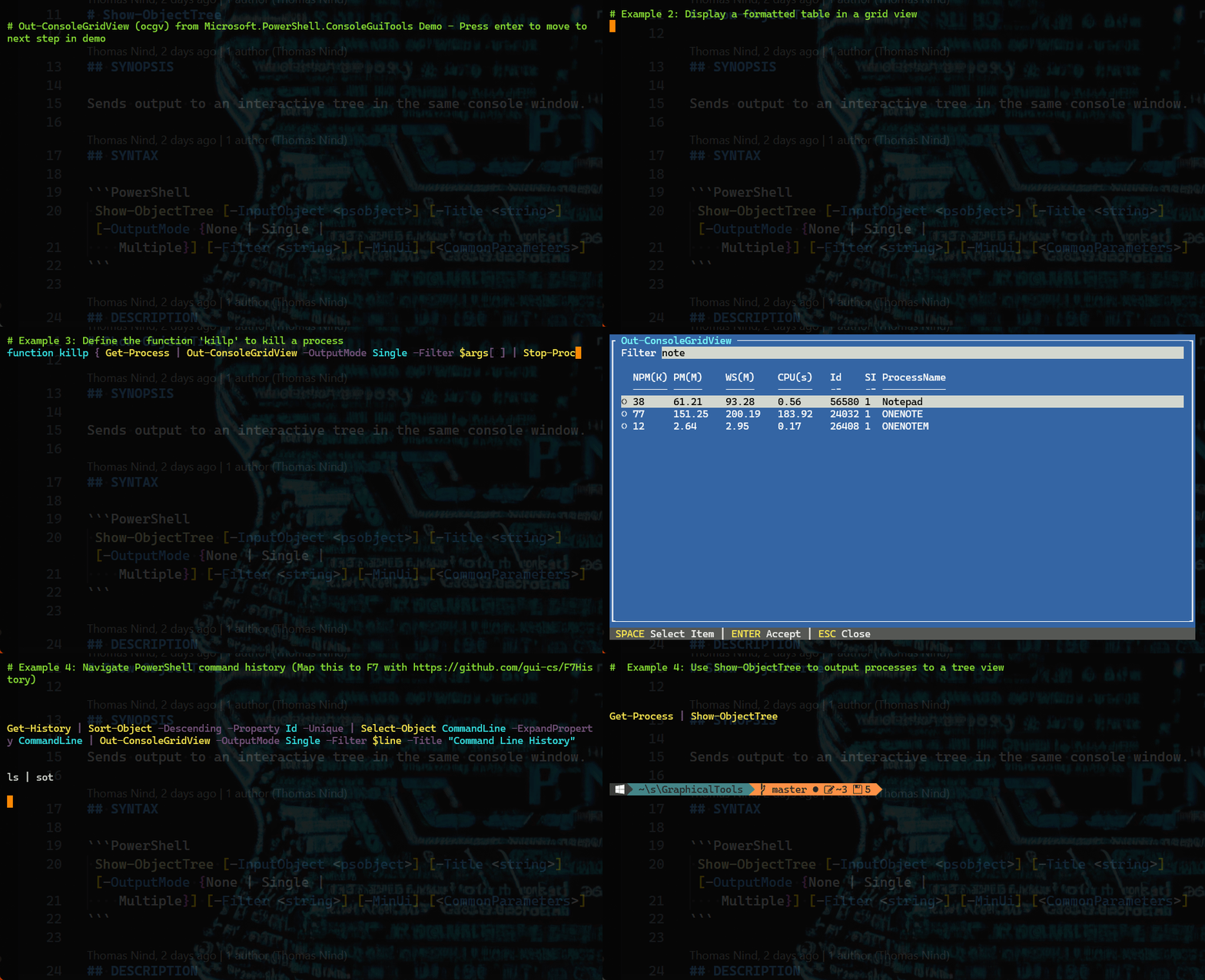
PowerShell/ConsoleGuiTools sits at 955 stars on GitHub, written primarily in C#. Modules that mix PowerShell and GUIs/CUIs!
Snapshot summary built from the project's own GitHub metadata — there's no written TopGit review yet. The page will update automatically when a full review is published.
WHY NO REVIEW YET
TopGit writes full reviews for the most-starred, most-requested repositories. This page is a snapshot until then — see the READ ME tab for the original README in full.
ConsoleGuiTools - Out-ConsoleGridView and Show-ObjectTree
[!IMPORTANT]
The PowerShell team has decided that Microsoft.PowerShell.ConsoleGuiTools is feature complete, so v0.7.7 is the last feature release.
@tig, the author of Terminal.Gui, is maintaining a community fork at tui-cs/PSTui. Users are encouraged to migrate to it going forward. We thank everyone for their contributions.
This repo contains the Out-ConsoleGridView
PowerShell Cmdlet providing console-based GUI experiences based on
Terminal.Gui (gui.cs).
Note: A module named Microsoft.PowerShell.GraphicalTools used to be built and published out of this repo, but per #101 it is deprecated and unmaintained until such time that it can be rewritten on top of .NET MAUI.
This command displays a formatted table in a grid view window.
It uses the Get-Process cmdlet to get the processes on the computer.
Then, it uses a pipeline operator (|) to send the process objects to the Select-Object cmdlet.
The command uses the Property parameter of Select-Object to select the Name, WorkingSet, and PeakWorkingSet properties to be displayed in the table.
Another pipeline operator sends the filtered objects to the Sort-Object cmdlet, which sorts them in descending order by the value of the WorkingSet property.
The final part of the command uses a pipeline operator (|) to send the formatted table to Out-ConsoleGridView.
You can now use the features of the grid view to search, sort, and filter the data.
Example 4: Save output to a variable, and then output a grid view
This command saves its output in a variable and sends it to Out-ConsoleGridView.
The command uses the Get-ChildItem cmdlet to get the files in the Windows PowerShell installation directory and its subdirectories.
The path to the installation directory is saved in the $pshome automatic variable.
The command uses the assignment operator (=) to save the output in the $A variable and the pipeline operator (|) to send the output to Out-ConsoleGridView.
The parentheses in the command establish the order of operations.
As a result, the output from the Get-ChildItem command is saved in the $A variable before it is sent to Out-ConsoleGridView.
Example 5: Output processes for a specified computer to a grid view
This command displays the processes that are running on the Server01 computer in a grid view window.
The command uses ocgv, which is the built-in alias for the Out-ConsoleGridView cmdlet, it uses the Title parameter to specify the window title.
Example 6: Define a function to kill processes using a graphical chooser
function killp { Get-Process | Out-ConsoleGridView -OutputMode Single -Filter $args[0] | Stop-Process -Id {$_.Id} }
killp note
This example shows defining a function named killp that shows a grid view of all running processes and allows the user to select one to kill it.
The example uses the -Filter paramter to filter for all proceses with a name that includes note (thus highlighting Notepad if it were running. Selecting an item in the grid view and pressing ENTER will kill that process.
Example 7: Use F7 as "Show Command History"
Add gui-cs/F7History to your Powershell profile.
Press F7 to see the history for the current PowerShell instance
Press Shift-F7 to see the history for all PowerShell instances.
Whatever you select within Out-ConsoleGridView will be inserted on your command line.
Whatever was typed on the command line prior to hitting F7 or Shift-F7 will be used as a filter.
Example 8: Output processes to a tree view
PS C:\> Get-Process | Show-ObjectTree
This command gets the processes running on the local computer and sends them to a tree view window.
Use right arrow when a row has a + symbol to expand the tree. Left arrow will collapse the tree.
From there you can import the module that you just built for example (start a fresh pwsh instance first so you can unload the module with an exit; otherwise building again may fail because the .dll will be held open):
And then run the cmdlet you want to test, for example:
Get-Process | Out-ConsoleGridView
exit
NOTE: If you change the code and rebuild the project, you'll need to launch a
new PowerShell process since the DLL is already loaded and can't be unloaded.
5. Debugging in Visual Studio Code
code ./ConsoleGuiTools
Build by hitting Ctrl-Shift-B in VS Code.
Set a breakpoint and hit F5 to start the debugger.
Click on the VS Code "TERMINAL" tab and type your command that starts Out-ConsoleGridView, e.g.
ls | ocgv
Your breakpoint should be hit.
Contributions Welcome
We would love to incorporate community contributions into this project. If
you would like to contribute code, documentation, tests, or bug reports,
please read the development section above
to learn more.
Microsoft.PowerShell.ConsoleGuiTools Architecture
ConsoleGuiTools consists of 2 .NET Projects:
ConsoleGuiTools - Cmdlet implementation for Out-ConsoleGridView
OutGridView.Models - Contains data contracts between the GUI & Cmdlet
Note: Previously, this repo included Microsoft.PowerShell.GraphicalTools which included the Avalonia-based Out-GridView (implemented in .\Microsoft.PowerShell.GraphicalTools and .\OutGridView.Gui). These components have been deprecated (see note above).
Maintainers
Andy Jordan - @andyleejordan
Tig Kindel - @tig
Originally authored by Tyler Leonhardt.
License
This project is licensed under the MIT License.
Code of Conduct
Please see our Code of Conduct before participating in this project.
Security Policy
For any security issues, please see our Security Policy.
How active is development on PowerShell/ConsoleGuiTools?
The most recent commit recorded on PowerShell/ConsoleGuiTools was 3 months ago, based on the GitHub push timestamp. The repository has 76 forks — one of the better signals of community interest.
How many stars does PowerShell/ConsoleGuiTools have?
PowerShell/ConsoleGuiTools has 955 GitHub stars — refresh the page for the live number, or check github.com/PowerShell/ConsoleGuiTools. TopGit mirrors GitHub's count but does not claim minute-by-minute accuracy.
Is PowerShell/ConsoleGuiTools open source?
Yes — PowerShell/ConsoleGuiTools ships under the MIT license, which makes its source code freely readable (and, depending on license terms, forkable and reusable). Source: github.com/PowerShell/ConsoleGuiTools.
What is PowerShell/ConsoleGuiTools?
PowerShell/ConsoleGuiTools (PowerShell/ConsoleGuiTools) is a C# project on GitHub. From the project's own README: Modules that mix PowerShell and GUIs/CUIs!
What language is PowerShell/ConsoleGuiTools written in?
PowerShell/ConsoleGuiTools is written primarily in C#. GitHub's language field is based on the largest share of bytes in the default branch.
What license does PowerShell/ConsoleGuiTools use?
PowerShell/ConsoleGuiTools is released under the MIT license. Always verify the LICENSE file directly on GitHub for the authoritative terms — license strings can be edited out of sync with a project's actual stance.
Where do I read more about PowerShell/ConsoleGuiTools?
This TopGit page is a snapshot — the READ ME tab shows the project's own README content (links stripped, images preserved). The GitHub repository at github.com/PowerShell/ConsoleGuiTools is the definitive source.
Read full README in the tab above.
Curious whether ConsoleGuiTools is right for you?
Let ChatGPT, Claude, or Perplexity look into it — click below and see what AI actually says about ConsoleGuiTools.
 /ConsoleGuiTools