romkatv/zsh4humans — an open-source project — sits at 2.3k GitHub stars. A turnkey configuration for Zsh
Snapshot summary built from the project's own GitHub metadata — there's no written TopGit review yet. The page will update automatically when a full review is published.
WHY NO REVIEW YET
TopGit writes full reviews for the most-starred, most-requested repositories. This page is a snapshot until then — see the READ ME tab for the original README in full.
A turnkey configuration for Zsh that aims to work really well out of the box. It combines the best
Zsh plugins into a coherent whole that feels like a finished product rather than a DIY starter kit.
If you want a great shell that just works, this project is for you.
Table of contents
Features
Installation
Try it in Docker
Caveats
Usage
5.1. Accepting autosuggestions
5.2. Completing commands
5.3. Searching command history
5.4. Interactive search with fzf
5.5. SSH
Customization
6.1. Customizing prompt
6.2. Customizing appearance
6.3. Additional Zsh startup files
Updating
Uninstalling
Advanced configuration tips
Features
Powerful POSIX-based shell preconfigured to work great out of the box.
Easy-to-use installation wizard. Does not require git, zsh or sudo.
Syntax highlighting for the command line.
Autosuggestions for commands based on command
history.
Command prompt configurable through a builtin
configuration wizard.
Command completions and history searchable with fzf.
Super fast. No lag when you open a new tab in the terminal
or run a command.
The complete shell environment can be automatically teleported to the remote host when connecting
over ssh. This does not require git, zsh or sudo on the remote host.
Command history can be shared across different hosts. For example, history from ssh foo
can be made available within ssh bar and/or on the local machine.
Installation
Run this command in bash, zsh, or sh:
if command -v curl >/dev/null 2>&1; then
  sh -c "$(curl -fsSL https://raw.githubusercontent.com/romkatv/zsh4humans/v5/install)"
else
  sh -c "$(wget -O- https://raw.githubusercontent.com/romkatv/zsh4humans/v5/install)"
fi
The installer backs up the existing Zsh startup files, creates new ones, installs everything
necessary for Zsh for Humans, starts a new shell, and configures it as login shell. It asks for
confirmation on every step so that you are always in control. Installation requires curl or
wget. It does not require git, zsh, sudo or anything else.
Recording of the installation process
Try it in Docker
Try Zsh for Humans in a Docker container. You can safely install additional software and make any
changes to the file system. Once you exit Zsh, the image is deleted.
docker run -e TERM -e COLORTERM -e LC_ALL=C.UTF-8 -w /root -it --detach-keys="ctrl-^,ctrl-@" --rm alpine sh -uec '
  apk add zsh curl tmux
  sh -c "$(curl -fsSL https://raw.githubusercontent.com/romkatv/zsh4humans/v5/install)"'
Ubuntu: install additional software with apt install <package>:
docker run -e TERM -e COLORTERM -w /root -it --detach-keys="ctrl-^,ctrl-@" --rm ubuntu sh -uec '
  apt-get update
  apt-get install -y zsh curl tmux
  sh -c "$(curl -fsSL https://raw.githubusercontent.com/romkatv/zsh4humans/v5/install)"'
Caveats
Zsh for Humans is not a good choice for users who prefer vi bindings in their shell.
Zsh for Humans has very little documentation. There is no list of configuration options it
recognizes and no description of what those options do.
Usage
If you've used Zsh, Bash or Fish before, Zsh for Humans should feel familiar. For the most part
everything works as you would expect.
Accepting autosuggestions
All key bindings that move the cursor can accept command autosuggestions. For example, moving the
cursor one word to the right will accept that word from the autosuggestion. The whole autosuggestion
can be accepted without moving the cursor with Alt+M/Option+M.
Autosuggestions in Zsh for Humans are provided by zsh-autosuggestions. See its homepage for more information.
Completing commands
When completing with Tab, suggestions come from completion functions. For most
commands completion functions are provided by Zsh proper. Additional completion functions are
contributed by zsh-completions. See its homepage
for the list of commands it supports.
Ambiguous completions automatically start fzf. Accept the desired
completion with Enter. You can also select more than one completion with
Ctrl+Space or all of them with Ctrl+A.
Searching command history
Up and Down keys fetch commands from history that contain what you've already
typed on the command line. For example, if you press Up after typing grep, you'll see
the last executed command that contains grep.
Ctrl+R starts fzf to search over history.
Interactive search with fzf
Several UI elements in Zsh for Humans use fzf to quickly select
an item from a potentially large list of candidates. You can type multiple search terms delimited by
spaces. For example:
^music .mp3$ sbtrkt !fire
Token
Match type
Description
wild
substring
Items with the substring wild
^music
prefix
Items that start with music
.mp3$
suffix
Items that end with .mp3
!wild
inverse substring
Items without the substring wild
!^music
inverse prefix
Items that do not start with music
!.mp3$
inverse suffix
Items that do not end with .mp3
A single bar (|) acts as an OR operator. For example, the following query matches entries that
start with core and end with either go, rb, or py.
^core go$ | rb$ | py$
See fzf homepage for more information.
SSH
When you connect to a remote host over SSH, your local Zsh for Humans environment can be teleported
over to it. The first login to a remote host may take some time. After that it's as fast as normal
ssh.
Search for "ssh" in your ~/.zshrc for information on how to enable and configure SSH
teleportation.
Customization
You can (and should) edit ~/.zshrc to customize your shell. It's a very good idea to read through
the whole file to see which customization options are in there and to flip some of them to your
liking.
When adding your customizations, put them next to the existing lines that do similar things. The
default ~/.zshrc contains the following types of customizations that should serve as examples:
Export environment variables.
Extend PATH.
Define aliases.
Add flags to existing aliases.
Define functions.
Source additional local files.
Load Oh My Zsh plugins.
Clone and load external Zsh plugins.
Set shell options.
Autoload functions.
Change key bindings.
Customizing prompt
Prompt in Zsh for Humans is provided by Powerlevel10k.
Run p10k configure to access its interactive configuration wizard. Further customization can be
done by editing ~/.p10k*.zsh files. There can be more than one configuration file to account for
terminals with limited capabilities. Most users will ever only see ~/.p10k.zsh. When in doubt,
consult $POWERLEVEL9K_CONFIG_FILE. This parameter is set by Zsh for Humans and it always points
to the Powerlevel10k config file currently in use.
See Powerlevel10k homepage for more information.
Customizing appearance
Different parts of Zsh for Humans UI are rendered by different projects.
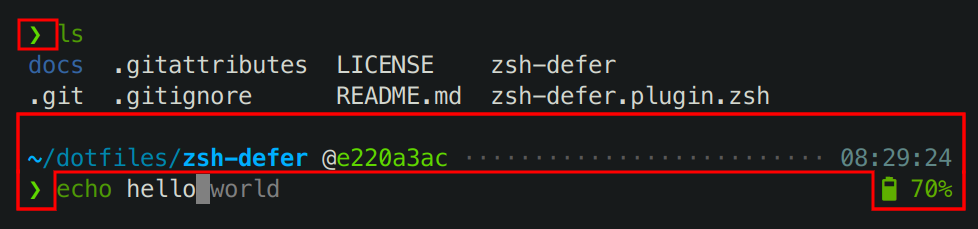
Everything within the highlighted areas on the screenshot is prompt. It is produced by
Powerlevel10k. See
Customizing prompt.
The listing of files produced by ls command is colored by ls itself. Different commands have
different ways of customizing their output, and even different version of ls have different flags
and environment variables related to colors. Zsh for Humans enables colored output for common
commands such as ls and grep. For further customization consult documentation of the respective
command.
echo hello is the current command being typed. Syntax highlighting for it is provided by
zsh-syntax-highlighting. See its homepage
for documentation on how to customize it.
After echo hello you can see world in grey. This is not a part of the command, so pressing
Enter will print only hello but not world. The latter is an autosuggestion provided
by zsh-autosuggestions that you can
accept in part or in full. It comes from command history and it's a
great productivity booster. See zsh-autosuggestions homepage for more information.
Last but not least, your terminal has a say about the appearance of everything that runs within
it. The base colors, numbered from 0 to 15, can look differently in different terminals and even
in the same terminal with different settings. Most modern terminals support themes,
color palettes or color schemes that allow you to quickly change base colors. If colors in your
terminal look unpleasant, try a different theme. Note that colors with codes above 15, as well as
colors specified as RGB triplets, don't get affected by terminal themes. They look the same
everywhere.
Additional Zsh startup files
When you start Zsh, it automatically sources ~/.zshenv and ~/.zshrc. The former bootstraps Zsh
for Humans, the latter is your personal config. It is strongly recommended to keep all shell
customization and configuration (including exported environment variables such as PATH) in
~/.zshrc or in files sourced from ~/.zshrc. If you are certain that you must export some
environment variables in ~/.zshenv, do it where indicated by comments.
Zsh supports several additional startup files with complex rules governing when each file is
sourced. The additional startup files are ~/.zprofile, ~/.zlogin and ~/.zlogout. Do not
create these files unless you are absolutely certain you need them.
Updating
Run z4h update to update Zsh for Humans. There is no update mechanism for ~/.zshrc itself.
Uninstalling
Delete or replace ~/.zshenv and ~/.zshrc. If you had these files prior to the installation of
Zsh for Humans and have replied in the affirmative when asked by the installer whether you want
them backed up, you can find them in ~/zsh-backup.
Restart your terminal. Restarting zsh is not enough.
No homepage URL was recorded for romkatv/zsh4humans in TopGit's last sync. The README tab above frequently contains screenshots and demo links, or check the repository description on GitHub.
How many stars does romkatv/zsh4humans have?
romkatv/zsh4humans has 2.3k GitHub stars — refresh the page for the live number, or check github.com/romkatv/zsh4humans. TopGit mirrors GitHub's count but does not claim minute-by-minute accuracy.
Is romkatv/zsh4humans open source?
Yes — romkatv/zsh4humans ships under the MIT license, which makes its source code freely readable (and, depending on license terms, forkable and reusable). Source: github.com/romkatv/zsh4humans.
What is romkatv/zsh4humans?
romkatv/zsh4humans (romkatv/zsh4humans) is a multi-language project on GitHub. From the project's own README: A turnkey configuration for Zsh
Where do I read more about romkatv/zsh4humans?
This TopGit page is a snapshot — the READ ME tab shows the project's own README content (links stripped, images preserved). The GitHub repository at github.com/romkatv/zsh4humans is the definitive source.
Read full README in the tab above.
Want a second opinion on zsh4humans?
Ask an AI that can read this page — one click and you get its take on zsh4humans.

 /zsh4humans