tj/n is tracked by TopGit as an open-source project, with 19.5k stars on GitHub, written primarily in Shell. Node version management
Snapshot summary built from the project's own GitHub metadata — there's no written TopGit review yet. The page will update automatically when a full review is published.
WHY NO REVIEW YET
TopGit writes full reviews for the most-starred, most-requested repositories. This page is a snapshot until then — see the READ ME tab for the original README in full.
Node.js version management: no subshells, no profile setup, no convoluted API, just simple.
n – Interactively Manage Your Node.js Versions
Supported Platforms
Installation
Third Party Installers
Replacing a previous node install
Installing Node.js Versions
Specifying Node.js Versions
Removing Versions
Using Downloaded Node.js Versions Without Reinstalling
Preserving npm
Miscellaneous
Custom Mirror
Custom Architecture
Optional Environment Variables
How It Works
Supported Platforms
n is supported on macOS, Linux, including with Windows Subsystem for Linux, and various other unix-like systems.
It is written as a BASH script but does not require you to use BASH as your command shell.
n does not work in native shells on Microsoft Windows (like PowerShell), or Git for Windows BASH, or with the Cygwin DLL.
Installation
If you already have Node.js installed, an easy way to install n is using npm:
npm install -g n
The default root location used when running n is /usr/local where a normal user does not have write permission. You may strike the same sort of permission error when using npm to install global modules, like the above command. You have three main options:
change the ownership of the relevant directories to yourself (see below)
tell n to use a custom location where you do have write permissions (see N_PREFIX)
put sudo in front of the command to run it as super user
n caches Node.js versions in subdirectory n/versions. The active Node.js version is installed in subdirectories bin, include, lib, and share.
To take ownership of the system directories (option 1):
# make cache folder (if missing) and take ownership
sudo mkdir -p /usr/local/n
sudo chown -R $(whoami) /usr/local/n
# make sure the required folders exist (safe to execute even if they already exist)
sudo mkdir -p /usr/local/bin /usr/local/lib /usr/local/include /usr/local/share
# take ownership of Node.js install destination folders
sudo chown -R $(whoami) /usr/local/bin /usr/local/lib /usr/local/include /usr/local/share
If npm is not yet available, one way to bootstrap an install is to download and run n directly. To install the lts version of Node.js:
curl -fsSL https://raw.githubusercontent.com/tj/n/master/bin/n | bash -s install lts
# If you want n installed, you can use npm now.
npm install -g n
If you don't need support for updates to n itself you can just save the download:
On macOS with Homebrew you can install the n formula.
brew install n
Or on macOS with MacPorts you can install the n port:
port install n
On Linux and macOS, n-install allows installation directly from GitHub; for instance:
curl -L https://bit.ly/n-install | bash
n-install sets both PREFIX and N_PREFIX to $HOME/n, installs n to $HOME/n/bin, modifies the initialization files of supported shells to export N_PREFIX and add $HOME/n/bin to the PATH, and installs the latest LTS Node.js version.
As a result, both n itself and all Node.js versions it manages are hosted inside a single, optionally configurable directory, which you can later remove with the included n-uninstall script. n-update updates n itself to the latest version. See the n-install repo for more details.
Replacing a previous node install
Changing from a previous Node.js installed to a different location may involve a few extra steps. See docs for changing node location for a walk-through example of switching from using Homebrew to using n to manage Node.js.
You have a problem with multiple versions if after installing node you see the "installed" and "active" locations are different:
% n lts
     copying : node/20.12.2
   installed : v20.12.2 to /usr/local/bin/node
      active : v21.7.3 at /opt/homebrew/bin/node
Installing Node.js Versions
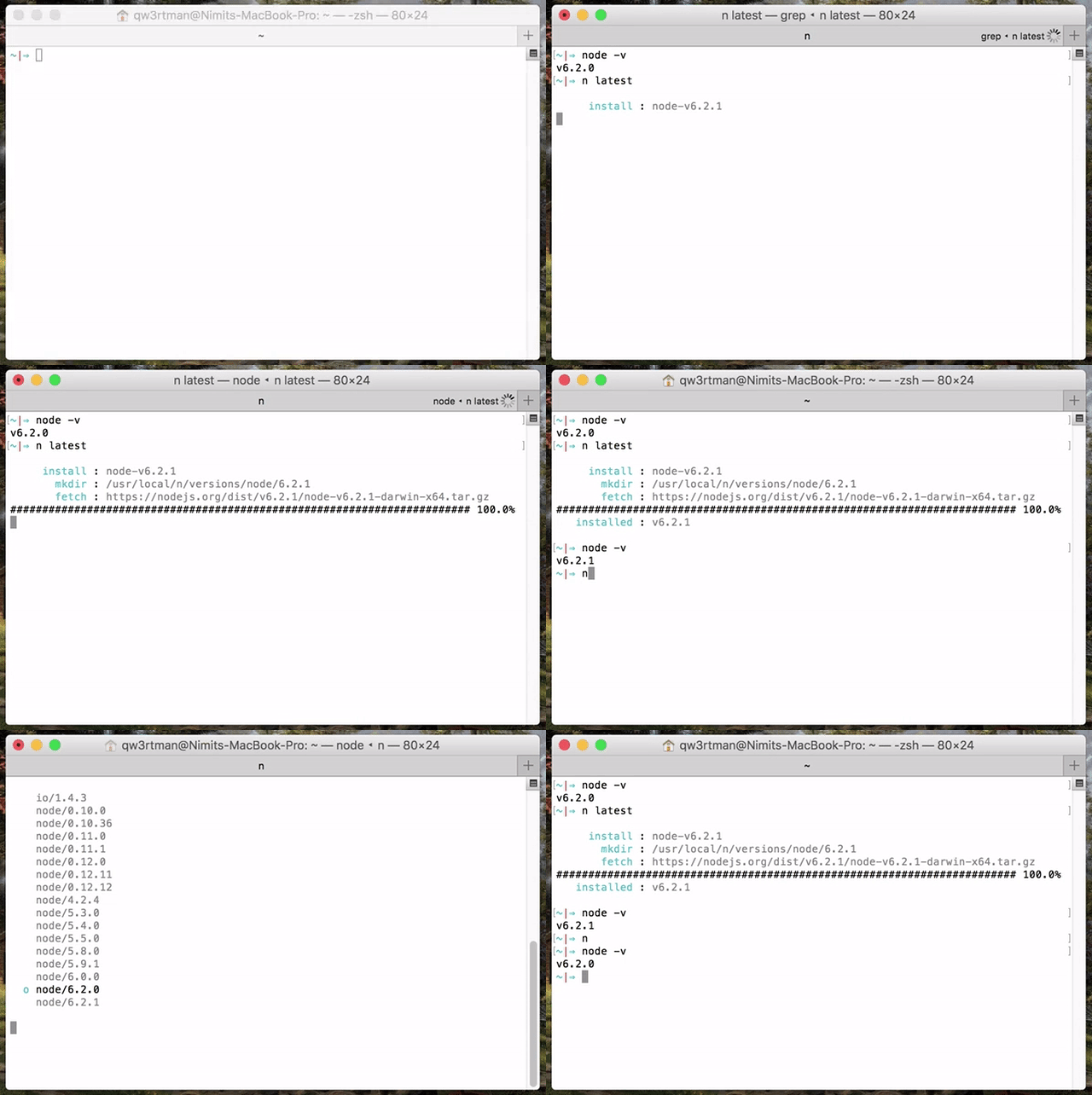
Simply execute n <version> to download and install a version of Node.js. If <version> has already been downloaded, n will install from its cache.
n 10.16.0
n lts
Execute n on its own to view your downloaded versions, and install the selected version.
$ n

  node/4.9.1
ο node/8.11.3
  node/10.15.0

Use up/down arrow keys to select a version, return key to install, d to delete, q to quit
(You can also use j and k to select next or previous version instead of using arrows, or ctrl+n and ctrl+p.)
If the active node version does not change after install, try opening a new shell in case seeing a stale version.
Specifying Node.js Versions
There are a variety of ways of specifying the target Node.js version for n commands. Most commands use the latest matching version, and n ls-remote lists multiple matching versions.
Numeric version numbers can be complete or incomplete, with an optional leading v.
4.9.1
8: 8.x.y versions
v6.1: 6.1.x versions
There are labels for two especially useful versions:
lts: newest Long Term Support official release
latest, current: newest official release
There is an auto label to read the target version from a file in the current directory, or any parent directory. n looks for in order:
.n-node-version: version on single line. Custom to n.
.node-version: version on single line. Used by multiple tools: node-version-usage
.nvmrc: version on single line. Used by nvm.
if no version file found, look for engine as below.
The engine label looks for a package.json file and reads the engines field to determine compatible Node.js. Requires an installed version of jq or node, and uses npx semver to resolve complex ranges.
There is support for the named release streams:
argon, boron, carbon: codenames for LTS release streams
These Node.js support aliases may be used, although simply resolve to the latest matching version:
The last version form is for specifying other releases available using the name of the remote download folder optionally followed by the complete or incomplete version.
nightly
test/v11.0.0-test20180528
rc/10
Removing Versions
Remove some cached versions:
n rm 0.9.4 v0.10.0
Removing all cached versions except the installed version:
n prune
Remove the installed Node.js (does not affect the cached versions). This can be useful
to revert to the system version of node (if in a different location), or if you no longer
wish to use node and npm, or are switching to a different way of managing them.
n uninstall
Using Downloaded Node.js Versions Without Reinstalling
There are three commands for working directly with your downloaded versions of Node.js, without reinstalling.
You can show the path to the downloaded node version:
$ n which 6.14.3
/usr/local/n/versions/6.14.3/bin/node
Or run a downloaded node version with the n run command:
n run 8.11.3 --debug some.js
Or execute a command with PATH modified so node and npm will be from the downloaded Node.js version.
(NB: npm run this way will be using global node_modules from the target node version folder.)
n exec 10 my-script --fast test
n exec lts zsh
Preserving npm
A Node.js install normally also includes npm, npx, and corepack, but you may wish to preserve your current (especially newer) versions using --preserve:
You can make this the default by setting the environment variable to a non-empty string. There are separate environment variables for npm and corepack:
Normally n run, n exec, and n which will fail if the target version is not already in the cache. You can add --download to use the cache if available or download if required:
n --download run 18.3 my-script.js
Display diagnostics to help resolve problems:
n doctor
Custom Mirror
If you would like to use a different Node.js mirror which has the same layout as the default https://nodejs.org/dist/, you can define N_NODE_MIRROR.
Another example is the Node.js unofficial-builds project which has downloads for some platforms not made available officially, such as armv6l (Raspberry Pi) and 32-bit x86.
There is also N_NODE_DOWNLOAD_MIRROR for a different mirror with same layout as the default https://nodejs.org/download.
Custom Architecture
By default n picks the binaries matching your system architecture. For example, on a 64 bit system n will download 64 bit binaries.
On a Mac with Apple silicon:
for Node.js 16 and higher, n defaults to arm64 binaries which run natively
for older versions of Node.js, n defaults to x64 binaries which run in Rosetta 2
You can override the default architecture by using the -a or --arch option, or set N_ARCH environment variable.
e.g. reinstall latest version of Node.js with x64 binaries:
n rm current
n --arch x64 current
Optional Environment Variables
The n command downloads and installs to /usr/local by default, but you may override this location by defining N_PREFIX.
To change the location to say $HOME/.n, add lines like the following to your shell initialization file:
If you want to store the downloads under a different location, use N_CACHE_PREFIX. This does not affect where the active
node version is installed.
n defaults to using xz compressed Node.js tarballs for the download if it is likely tar on the system supports xz decompression.
You can override the automatic choice by setting an environment variable to zero or non-zero:
export N_USE_XZ=0 # to disable
export N_USE_XZ=1 # to enable
You can be explicit to get the desired behaviour whatever the environment variable:
n install --use-xz nightly
n install --no-use-xz latest
In brief:
N_NODE_MIRROR: see Custom Mirror
N_NODE_DOWNLOAD_MIRROR: see Custom Mirror
support for NO_COLOR and CLICOLOR=0 for controlling use of ANSI color codes
N_MAX_REMOTE_MATCHES to change the default ls-remote maximum of 20 matching versions
N_PRESERVE_NPM: see Preserving npm
N_PRESERVE_COREPACK: see Preserving npm
N_ARCH: see Custom Architecture
How It Works
n downloads a prebuilt Node.js package and installs to a single prefix (e.g. /usr/local). This overwrites the previous version. The bin folder in this location should be in your PATH (e.g. /usr/local/bin).
The downloads are kept in a cache folder to be used for reinstalls. The downloads are also available for limited use using n which and n run and n exec.
The global npm packages are not changed by the install, with the
exception of npm itself which is part of the Node.js install.
The most recent commit recorded on tj/n was 25 days ago, based on the GitHub push timestamp. The repository has 758 forks — one of the better signals of community interest.
How many stars does tj/n have?
tj/n has 19.5k GitHub stars — refresh the page for the live number, or check github.com/tj/n. TopGit mirrors GitHub's count but does not claim minute-by-minute accuracy.
Is tj/n open source?
Yes — tj/n ships under the MIT license, which makes its source code freely readable (and, depending on license terms, forkable and reusable). Source: github.com/tj/n.
What is tj/n?
tj/n (tj/n) is a Shell project on GitHub. From the project's own README: Node version management
What language is tj/n written in?
tj/n is written primarily in Shell. GitHub's language field is based on the largest share of bytes in the default branch.
What license does tj/n use?
tj/n is released under the MIT license. Always verify the LICENSE file directly on GitHub for the authoritative terms — license strings can be edited out of sync with a project's actual stance.
Where do I read more about tj/n?
This TopGit page is a snapshot — the READ ME tab shows the project's own README content (links stripped, images preserved). The GitHub repository at github.com/tj/n is the definitive source.
Read full README in the tab above.
Want a second opinion on n?
Ask an AI that can read this page — one click and you get its take on n.
 /n
/n