5.1k GitHub stars and counting — Unity-Technologies/FPSSample is a C# project TopGit is tracking across repositories on the platform. A first person multiplayer shooter example project in Unity
Snapshot summary built from the project's own GitHub metadata — there's no written TopGit review yet. The page will update automatically when a full review is published.
WHY NO REVIEW YET
TopGit writes full reviews for the most-starred, most-requested repositories. This page is a snapshot until then — see the READ ME tab for the original README in full.
Update about the state of the project:
This project is based on Unity 2018.3 and no longer being actively maintained.
Feel free to continue to use it as a learning resource or simply for
inspiration. As always, you should upgrade to latest version of Unity
and packages if you intend to start a project.
Thanks for checking out this sample!
This is a fully functional, first person multiplayer shooter game made in
Unity and with full source and assets. It was developed by a small
team from Unity Technologies. Our goals are to test and showcase new
features in Unity and to be of use for teams who can bootstrap on top of
this, extract useful bits and tools or simply learn from and get inspired by
what is in the project.
Visit our landing page for more high
level information about the project. Or reach out in the forum.
The project is using a number of new technologies: We use the new HD Render
Pipeline, meaning
all content has been authored for HDRP. We are also using the new
network transport layer as well as the Entity-Component System.
In the case of ECS, we have primarily adopted the "ECS-pattern" and use it in
hybrid mode with a lot of regular components. As more and more features of
Unity become available in ECS-aware versions, we will migrate to them.
Status and prerequisites
Current status at a glance:
Unity version: 2018.3.8f1
Platforms    : Windows (client and server) and Linux (server only)
Getting the project
To get the project folder you need to clone the project.
Note, that
IMPORTANT:
This project uses Git Large Files Support (LFS). Downloading a zip file using the green button on Github
will not work. You must clone the project with a version of git that has LFS.
You can download Git LFS here: https://git-lfs.github.com/.
The project size is about 18GB (size of Assets folder). Your cloned repository
will be almost double of that due to git state. If it is much smaller,
you most likely did not have LFS when you cloned.
Getting the right version of Unity
Once you have cloned the repository, you should install
the version of Unity that is listed above in the prerequisites section. Make
sure you include windows standalone support in your installation (and Linux support
if you want to build the Linux headless server).
Opening the project for the first time
The following guide should take you to the point where
you can hit play in the editor and run around the levels and also build a
standalone version of the game and use it to spin up a server and connect a
few clients to it.
The first time you open the project you need patience! It takes a while
to import all the assets.
NOTE: Due to a bug in Unity 2018.3, you have to take the following step right after the initial import:
1 Search for Firstperson_Projection in the Project search field. Select the 4 shaders, right click and reimport them.
2 If you have script compile errors related to entities, you need to remove and re-install the entities package.
One day soon we will remove this note and there will be cake.
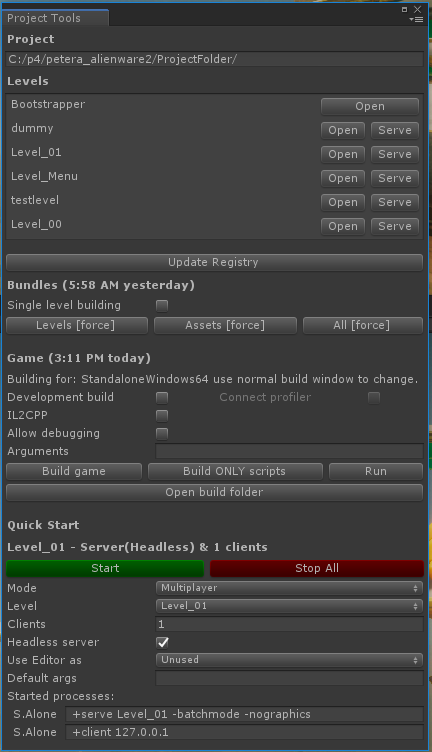
Once the editor is ready, open the Project Tools Window by
navigating to FPS Sample > Windows > Project tools.
It should look like this:
Keep this window docked as you will use it a lot. From here you can open the
levels, build assetbundles and build standalone players. Because this is a
multiplayer game you will need to work with standalone players a lot.
Trying out preview mode
From the Project Tools window click Open next to Level_00. Our levels are
split into multiple scenes but using these buttons will ensure you open all the scenes
that make up a level.
Once opened, try entering playmode in the editor. You should now
be able to run around in the level. This is what we call 'preview mode'. Here
you can move around and test your level, player traversal and weapons.
Building bundles and standalone
Leave playmode again and in the Project Tools window, verify that
it says "Building for: StandaloneWindows64..." under the Game headline.
If it does not, change your platform in the usual way, using File > Build
settings window.
Now, in the Project Tools window in the bundles section, press All [force].
This will build the levels and other assets into assetbundles. The first time
around this will take a significant amount of time as all shaders have to be
compiled.
Once you have built the bundles, hit Build game in the game section.
This builds the standalone player. Again, first time will be slow.
NOTE: Due to a limitation in Unity 2018.3, you have to look out for errors like this Maximum number (256) of shader keywords exceeded, keyword <KEYWORD_NAME> will be ignored. and similar. If you get these, you can close and open Unity and then try and build again. The errors are relatively harmless but can lead to graphical artifacts as some shaders will have wrong keywords.
Using the quick start launcher
When this is done, locate the "Quick start" section at the bottom of the
Project Tools window. Fill out the settings like this:
Now hit the green Start button. This should launch two processes: one is
a standalone, headless server, the other is a client that will attempt to
connect to the server.
Congratulations! If you made it this far you should celebrate a bit!
Development of FPS Sample, Contributions etc.
As of today, internally development of the project happens on Perforce. We
push versions of the project to github from there. As we do that we will update
the CHANGELOG with highlights but the full history is not
carried over.
For practical reasons we are not able to take larger contributions
just now. But bugfixes are very welcome! Read the guidelines for
contributing in CONTRIBUTING.
More information
Check out the Documentation folder for more information. In particular, the Getting Started Guide is a good place to, well, start.
License
Our intention is that you can use everything in this project as a starting
point or as bits and pieces in your own Unity games. For the legal words, see
LICENSE.md.
How many stars does Unity-Technologies/FPSSample have?
Unity-Technologies/FPSSample has 5.1k GitHub stars — refresh the page for the live number, or check github.com/Unity-Technologies/FPSSample. TopGit mirrors GitHub's count but does not claim minute-by-minute accuracy.
Is Unity-Technologies/FPSSample open source?
TopGit's metadata for Unity-Technologies/FPSSample does not record a license. Most public repositories on GitHub ARE open source, but the exact terms vary — verify by opening the LICENSE file directly.
What is Unity-Technologies/FPSSample?
Unity-Technologies/FPSSample (Unity-Technologies/FPSSample) is a C# project on GitHub. From the project's own README: A first person multiplayer shooter example project in Unity
Where can I see Unity-Technologies/FPSSample in action?
The project maintains a homepage at https://unity.com/fps-sample. The README tab on this page also usually contains screenshots and a quickstart.
Where do I read more about Unity-Technologies/FPSSample?
This TopGit page is a snapshot — the READ ME tab shows the project's own README content (links stripped, images preserved). The GitHub repository at github.com/Unity-Technologies/FPSSample is the definitive source.
Read full README in the tab above.
Is FPSSample worth your time?
ChatGPT, Claude and Perplexity can all read this page. Ask one of them what it makes of FPSSample.
 /FPSSample