Indexed by TopGit from live GitHub metadata: imthenachoman/ExquisiteW has 16 stars, written primarily in AutoHotkey. ExquisiteW is a GUI driven window manager utility for Windows 10 that lets you create custom window layouts and then quickly move and resize windows to zones using a GUI or keyboard shortcuts.
Snapshot summary built from the project's own GitHub metadata — there's no written TopGit review yet. The page will update automatically when a full review is published.
WHY NO REVIEW YET
TopGit writes full reviews for the most-starred, most-requested repositories. This page is a snapshot until then — see the READ ME tab for the original README in full.
ExquisiteW is a customizable GUI driven window manager utility for Windows 10 that lets you create custom window layouts and then quickly move and resize windows to zones using a GUI or keyboard shortcuts.
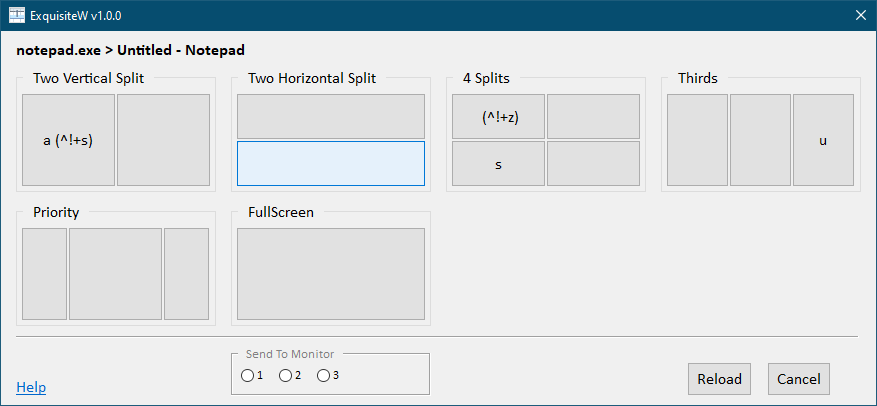
After layouts have been configured, and ExquisiteW is running, you can use ExquisiteW to move and resize the window under the mouse to a specific zones in one of 2 ways:
Activate the ExquisiteW GUI (using your configured trigger) and then either:
Click on the zone you want
Press the zone's activator key
Press the global keyboard shortcut you have defined for the zone
ExquisiteW was inspired by Exquisite and the beta version was written in AutoHotKey by Malcev.
Table of Contents
Features
How It Works
Getting It
Requirements
Installation
Using It
Configuration File Specification
settings.ini
Section General
Section Layout Selector
layouts.json
windowPaddingInPixels
padAtMonitorEdges
layouts[].zones[].hotkey
AutoHotKey Hotkeys
Limitations And Known Bugs
Support / Help
Inspiration
Credits
Features
Custom layouts (currently through a JSON configuration file)
GUI for moving + resizing the window under the mouse
Customizable keyboard shortcuts
Multi-monitor support to move + resize a window to another monitor from the GUI
How It Works
ExquisiteW uses layouts to define a set of zones
You can have multiple layouts
A layout represents the usable area of a monitor (the taskbar is automatically excluded)
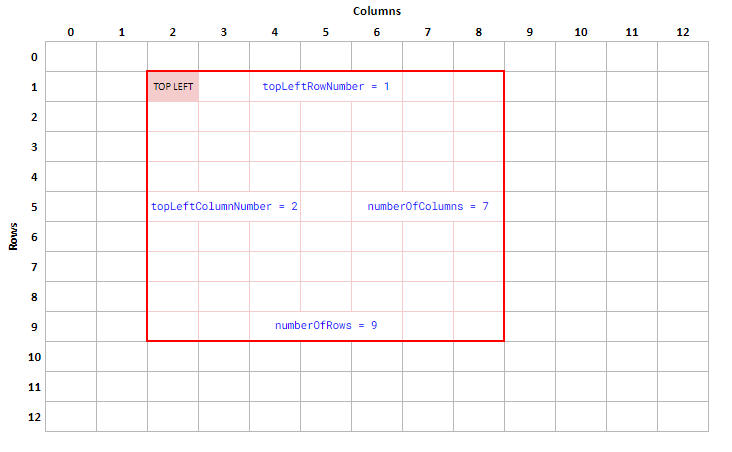
A layout is a 12 row by 12 column representation of a a monitor (for the same reason as the inspiration for ExquisiteW)
Each layout can have multiple zones
A zone represents the location and area of the monitor where you want a window to be moved and resized to
Getting It
Requirements
Windows 10 *
AutoHotKey 2.0
* I only have Windows 10 machines. I do not have access to Windows 11 (nor do I really want it). If you have Windows 11 and are willing to help me test ExquisiteW, please contact me.
Installation
Go to https://github.com/imthenachoman/ExquisiteW/releases
Download the latest release ZIP file
Extract the ZIP file to wherever you like/want
Edit settings.ini and layouts.json to your liking
Run/execute ExquisiteW.ahk
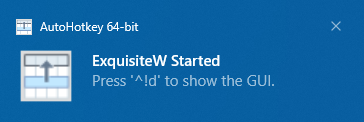
You'll get a notification letting you know it's running, along with what ExquisiteW's GUI activation trigger is.
Using It
You can customize the global shortcut/trigger used to show ExquisiteW's GUI
ExquisiteW's GUI will show you all of your configured layouts
Each layout will have 1+ buttons to represent each zone in that layout
Each button/zone will be visually placed in the layout to represent the area of the monitor the window will be moved and resized to
Clicking on a zone, or pressing the zone's activator key, will move and resize the window that was under the mouse when you activated the GUI
If you have multiple monitors, ExquisiteW's GUI will let you select the monitor you want to move and resize the window to
You can configure a global shortcut/trigger for a specific zone
This will let you move and resize the window under the mouse without opening ExquisiteW's GUI
Configuration File Specification
There are two configuration files used by ExquisiteW:
settings.ini
layouts.json
settings.ini
This is a standard INI file with some global, non-layout specific settings.
Section General
Setting
Valid Options
Default
Description
Update Check Frequency
whole number greater than -1
24
How often to check for updates, in hours:
-1 = check once at start up
0 = do not check for updates
X = check every X hours
Section Layout Selector
Setting
Valid Options
Default
Description
Close After Selection
1 or 0
1
0 = leave ExquisiteW's GUI open after you select a zone
1 = close it
Opacity
whole number from 0 to 100
100
0 = make ExquisiteW's GUI completely transparent
... = percent transparent
100 = completely opaque
Trigger
AHK HotKey
^!d (ctrl + alt + d)
The global keyboard shortcut to show ExquisiteW's GUI when the mouse is over a window/application that can be resized
Number Of Layouts In A Row
whole number greater than 3
4
Number of layouts per row in ExquisiteW's GUI; 3 is the minimum
Layout Box Width In Pixels
whole number greater than 50
200
Width of each layout (in pixels) in ExquisiteW's GUI; 50 is the minimum
Layout Box Height In Pixels
whole number greater than 50
125
Height of each layout (in pixels) in ExquisiteW's GUI; 50 is the minimum
layouts.json
layouts.json is a JSON formatted configuration file where layouts are defined. The structure of layouts.json is below. See layouts.json for a real example.
Global window padding for all zones in all layouts (see windowPaddingInPixels)
padAtMonitorEdges
true or false
Global setting for if padding should be added when a window is at the edge of the monitor (see padAtMonitorEdges)
layouts *
array of layouts
All of the layouts
layouts[].name *
string
Name of the layout to show in the GUI
layouts[].windowPaddingInPixels
number
Window padding for all of zones in this layout (see windowPaddingInPixels)
layouts[].padAtMonitorEdges
number
Setting for this layout for if padding should be added when a window is at the edge of the monitor (see padAtMonitorEdges)
layouts[].zones *
array of zones
All of the zones for this layout
layouts[].zones[].topLeftRowNumber *
0 - 11
Row number of the top left corner of the window (see How It Works)
layouts[].zones[].topLeftColumnNumber *
0 - 11
Column number of the top left corner of the window (see How It Works)
layouts[].zones[].numberOfRows *
1 - 12
Height of the window, in number of rows (see How It Works)
layouts[].zones[].numberOfColumns *
1 - 12
Width of the window, in number of columns (see How It Works)
layouts[].zones[].activator
letter
Single letter to activate a zone/button in the GUI
layouts[].zones[].hotkey
AHK HotKey
Global shortcut to activate a zone without the GUI (see layouts[].zones[].hotkey)
layouts[].zones[].windowPaddingInPixels
number
Window padding for this zone in this layout (see windowPaddingInPixels)
layouts[].zones[].padAtMonitorEdges
number
Setting for this zone in this layout for if padding should be added when a window is at the edge of the monitor (see padAtMonitorEdges)
* required properties
windowPaddingInPixels
You can add a custom padding (in pixels) around a window when it is moved and resized
Window padding can be set in 3 places:
globally, for all layouts, by setting the windowPaddingInPixels property at the root of layouts.json
for all zones of a specific layout by setting the windowPaddingInPixels property for a layout
for a specific zone by setting the windowPaddingInPixels property of a specific zone
If windowPaddingInPixels is not set for a zone, it will use the value of windowPaddingInPixels for the layout
If windowPaddingInPixels is not set for a layout, it will use the global value of windowPaddingInPixels
padAtMonitorEdges
If you have set windowPaddingInPixels then padding will be added to all four sides of the window
If the window is at the edge of the monitor, you may not want padding added to that edge
This lets you disable padding at the edge
This setting can be set in 3 places:
globally, for all layouts, by setting the padAtMonitorEdges property at the root of layouts.json
for all zones of a specific layout by setting the padAtMonitorEdges property for a layout
for a specific zone by setting the padAtMonitorEdges property of a specific zone
If padAtMonitorEdges is not set for a zone, it will use the value of padAtMonitorEdges for the layout
If padAtMonitorEdges is not set for a layout, it will use the global value of padAtMonitorEdges
layouts[].zones[].hotkey
This is an AutoHotKey HotKey
If set, a global keyboard shortcut will be created and associated to the zone
When the ExquisiteW GUI is not active, and this keyboard shortcut is used, the current window under the mouse will be moved and resized according to the zone's configuration
AutoHotKey Hotkeys
Since ExquisiteW is written in AutoHotKey, it uses AHK's structure for defining hotkeys. You can read about it and see examples at https://www.autohotkey.com/docs/v2/Hotkeys.htm.
Limitations And Known Bugs
Issue
Type
Details
No support for administrator windows
limitation
ExquisiteW cannot move and resize windows running as an administrator.
Not monitor/desktop change aware
limitation
ExquisiteW does not know when your monitor arrangement/configuration changes, or your desktop changes. You will need to manually reload ExquisiteW when you make those kinds of changes.
Support / Help
You can get support/help in one of two ways:
Open an issue at https://github.com/imthenachoman/ExquisiteW/issues
Contact me at the information listed in my GitHub profile
Inspiration
My daily driver is Linux (Debian + KDE Plasma)
Exquisite (without the W) is a window manager for KDE written by qewer33
It is the best window manager I have ever seen
I still use Windows 10 on some machines
Windows 10 built-in window snapping is adequate
FancyZones (part of PowerToys) is awesome but you have to drag/drop windows and that's a lot of mouse travel (especially on an ultrawide monitor)
So I* decided to build a Windows clone of Exquisite.
Disclaimer: I didn't know AutoHotKey when I started. I reached out to Malcev who created the beta version for me. I took his's code -- with his permission -- and ran with it. (In the interest of transprency, I paid him for his work.)
Credits
Malcev for the initial version
andymbody for https://www.autohotkey.com/boards/viewtopic.php?p=540471#p540471
jNizM for https://www.autohotkey.com/boards/viewtopic.php?p=540898#p540898
just me for https://www.autohotkey.com/boards/viewtopic.php?p=539922#p539922 and https://www.autohotkey.com/boards/viewtopic.php?p=540310#p540310
neogna2 for https://www.autohotkey.com/boards/viewtopic.php?p=539921#p539921
niCode for https://www.autohotkey.com/boards/viewtopic.php?p=540587#p540587
ntepa for https://www.autohotkey.com/boards/viewtopic.php?p=540461#p540461
teadrinker for https://www.autohotkey.com/boards/viewtopic.php?p=540162#p540162
How active is development on imthenachoman/ExquisiteW?
The most recent commit recorded on imthenachoman/ExquisiteW was 3.0 years ago, based on the GitHub push timestamp. The repository has 1 forks — one of the better signals of community interest.
How many stars does imthenachoman/ExquisiteW have?
imthenachoman/ExquisiteW has 16 GitHub stars — refresh the page for the live number, or check github.com/imthenachoman/ExquisiteW. TopGit mirrors GitHub's count but does not claim minute-by-minute accuracy.
Is imthenachoman/ExquisiteW open source?
Yes — imthenachoman/ExquisiteW ships under the GPL-3.0 license, which makes its source code freely readable (and, depending on license terms, forkable and reusable). Source: github.com/imthenachoman/ExquisiteW.
What is imthenachoman/ExquisiteW?
imthenachoman/ExquisiteW (imthenachoman/ExquisiteW) is a AutoHotkey project on GitHub. From the project's own README: ExquisiteW is a GUI driven window manager utility for Windows 10 that lets you create custom window layouts and then quickly move and resize windows to zones using a GUI or keyboard shortcuts.
What language is imthenachoman/ExquisiteW written in?
imthenachoman/ExquisiteW is written primarily in AutoHotkey. GitHub's language field is based on the largest share of bytes in the default branch.
What license does imthenachoman/ExquisiteW use?
imthenachoman/ExquisiteW is released under the GPL-3.0 license. Always verify the LICENSE file directly on GitHub for the authoritative terms — license strings can be edited out of sync with a project's actual stance.
Where do I read more about imthenachoman/ExquisiteW?
This TopGit page is a snapshot — the READ ME tab shows the project's own README content (links stripped, images preserved). The GitHub repository at github.com/imthenachoman/ExquisiteW is the definitive source.
Read full README in the tab above.
Curious whether ExquisiteW is right for you?
Let ChatGPT, Claude, or Perplexity look into it — click below and see what AI actually says about ExquisiteW.
 /ExquisiteW