Snapshot of vikmeup/SCLAlertView-Swift: 5.3k★, Swift. Beautiful animated Alert View. Written in Swift
Snapshot summary built from the project's own GitHub metadata — there's no written TopGit review yet. The page will update automatically when a full review is published.
WHY NO REVIEW YET
TopGit writes full reviews for the most-starred, most-requested repositories. This page is a snapshot until then — see the READ ME tab for the original README in full.
Animated Alert View written in Swift, which can be used as a UIAlertView or UIAlertController replacement with nice customization features.
_
Easy to use
Get Started
// Get started
SCLAlertView().showInfo("Important info", subTitle: "You are great")
Updating the alert view
let alertViewResponder: SCLAlertViewResponder = SCLAlertView().showSuccess("Hello World", subTitle: "This is a more descriptive text.")

// Upon displaying, change/close view
alertViewResponder.setTitle("New Title") // Rename title
alertViewResponder.setSubTitle("New description") // Rename subtitle
alertViewResponder.close() // Close view
Alternative alert types
SCLAlertView().showError("Hello Error", subTitle: "This is a more descriptive error text.") // Error
SCLAlertView().showNotice("Hello Notice", subTitle: "This is a more descriptive notice text.") // Notice
SCLAlertView().showWarning("Hello Warning", subTitle: "This is a more descriptive warning text.") // Warning
SCLAlertView().showInfo("Hello Info", subTitle: "This is a more descriptive info text.") // Info
SCLAlertView().showEdit("Hello Edit", subTitle: "This is a more descriptive info text.") // Edit
Raw call to showTitle()
SCLAlertView().showTitle(
    "Congratulations", // Title of view
    subTitle: "Operation successfully completed.", // String of view
    duration: 2.0, // Duration to show before closing automatically, default: 0.0
    completeText: "Done", // Optional button value, default: ""
    style: .success, // Styles - see below.
    colorStyle: UIColorFromRGB(0xA429FF),
    colorTextButton: .white
)
Controls
Custom Appearance
// SCLAlertView.SCLAppearanc has more than 15 different properties to customize. See below.

let appearance = SCLAlertView.SCLAppearance(
    kTitleFont: UIFont(name: "HelveticaNeue", size: 20)!,
    kTextFont: UIFont(name: "HelveticaNeue", size: 14)!,
    kButtonFont: UIFont(name: "HelveticaNeue-Bold", size: 14)!,
    showCloseButton: false
)

let alert = SCLAlertView(appearance: appearance)
let appearance = SCLAlertView.SCLAppearance(
    showCloseButton: false
)
let alertView = SCLAlertView(appearance: appearance)
alertView.showSuccess("No button", subTitle: "You will have hard times trying to close me")
Hide default close button & a duration to close the alert
let appearance = SCLAlertView.SCLAppearance(
    showCloseButton: false
)
let alertView = SCLAlertView(appearance: appearance)
alertView.showWarning("No button", subTitle: "Just wait for 3 seconds and I will disappear", duration: 3)
Hide alert icon
let appearance = SCLAlertView.SCLAppearance(
    showCircularIcon: false
)
let alertView = SCLAlertView(appearance: appearance)
alertView.showSuccess("No icon", subTitle: "This is a clean alert without Icon!")
Use a custom icon
let appearance = SCLAlertView.SCLAppearance(
    showCircularIcon: true
)
let alertView = SCLAlertView(appearance: appearance)
let alertViewIcon = UIImage(named: "IconImage") //Replace the IconImage text with the image name
alertView.showInfo("Custom icon", subTitle: "This is a nice alert with a custom icon you choose", circleIconImage: alertViewIcon)
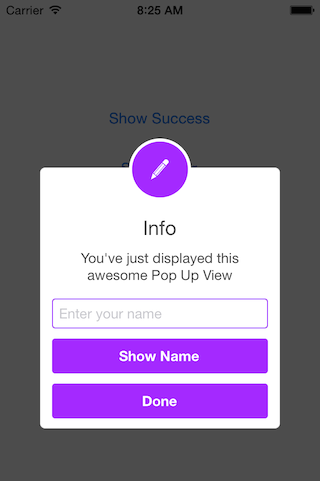
Add Text fields
// Add a text field
let alert = SCLAlertView()
let txt = alert.addTextField("Enter your name")
alert.addButton("Show Name") {
    print("Text value: \(txt.text)")
}
alert.showEdit("Edit View", subTitle: "This alert view shows a text box")
Use a custom subview instead of a subtitle
// Example of using the view to add two text fields to the alert
// Create custom Appearance Configuration
let appearance = SCLAlertView.SCLAppearance(
    kTitleFont: UIFont(name: "HelveticaNeue", size: 20)!,
    kTextFont: UIFont(name: "HelveticaNeue", size: 14)!,
    kButtonFont: UIFont(name: "HelveticaNeue-Bold", size: 14)!,
    showCloseButton: false,
    dynamicAnimatorActive: true
)

// Initialize SCLAlertView using custom Appearance
let alert = SCLAlertView(appearance: appearance)

// Creat the subview
let subview = UIView(frame: CGRect(x: 0,y: 0,width: 216,height: 70))
let x = (subview.frame.width - 180) / 2

// Add textfield 1
let textfield1 = UITextField(frame: CGRect(x: x,y: 10,width: 180,height: 25))
textfield1.layer.borderColor = UIColor.green.cgColor
textfield1.layer.borderWidth = 1.5
textfield1.layer.cornerRadius = 5
textfield1.placeholder = "Username"
textfield1.textAlignment = NSTextAlignment.center
subview.addSubview(textfield1)

// Add textfield 2
let textfield2 = UITextField(frame: CGRect(x: x,y: textfield1.frame.maxY + 10,width: 180,height: 25))
textfield2.isSecureTextEntry = true
textfield2.layer.borderColor = UIColor.blue.cgColor
textfield2.layer.borderWidth = 1.5
textfield2.layer.cornerRadius = 5
textfield1.layer.borderColor = UIColor.blue.cgColor
textfield2.placeholder = "Password"
textfield2.textAlignment = NSTextAlignment.center
subview.addSubview(textfield2)

// Add the subview to the alert's UI property
alert.customSubview = subview
_ = alert.addButton("Login") {
    print("Logged in")
}

// Add Button with visible timeout and custom Colors
let showTimeout = SCLButton.ShowTimeoutConfiguration(prefix: "(", suffix: " s)")
_ = alert.addButton("Timeout Button", backgroundColor: UIColor.brown, textColor: UIColor.yellow, showTimeout: showTimeout) {
    print("Timeout Button tapped")
}

let timeoutValue: TimeInterval = 10.0
let timeoutAction: SCLAlertView.SCLTimeoutConfiguration.ActionType = {
    print("Timeout occurred")
}

_ = alert.showInfo("Login", subTitle: "", timeout: SCLAlertView.SCLTimeoutConfiguration(timeoutValue: timeoutValue, timeoutAction: timeoutAction))
List of properties to customize
// Button
kButtonFont: UIFont
buttonCornerRadius : CGFloat
showCloseButton: Bool
kButtonHeight: CGFloat

// Circle Image
showCircularIcon: Bool
kCircleTopPosition: CGFloat
kCircleBackgroundTopPosition: CGFloat
kCircleHeight: CGFloat
kCircleIconHeight: CGFloat

// Text
kTitleFont: UIFont
kTitleTop:CGFloat
kTitleHeight:CGFloat
kTextFont: UIFont
kTextHeight: CGFloat
kTextFieldHeight: CGFloat
kTextViewdHeight: CGFloat

// View
kDefaultShadowOpacity: CGFloat
kWindowWidth: CGFloat
kWindowHeight: CGFloat
shouldAutoDismiss: Bool // Set this false to 'Disable' Auto hideView when SCLButton is tapped
fieldCornerRadius : CGFloat
contentViewCornerRadius : CGFloat
disableTapGesture: Bool // set this to true if adding tableview to subView
Alert View Styles
enum SCLAlertViewStyle: Int {
    case success, error, notice, warning, info, edit, wait, question
}
Alert show animation Styles
// Animation Styles
public enum SCLAnimationStyle {
    case noAnimation, topToBottom, bottomToTop, leftToRight, rightToLeft
}
Installation
SCLAlertView is available through
CocoaPods
To install add the following line to your Podfile:
pod 'SCLAlertView'
Carthage
To install add the following line to your Cartfile:
github "vikmeup/SCLAlertView-Swift" "master"
Collaboration
I tried to build an easy to use API, while beeing flexible enough for multiple variations, but I'm sure there are ways of improving and adding more features, so feel free to collaborate with ideas, issues and/or pull requests.
Incoming improvements
More animations
Performance tests
Has been developed initially for the Scroll Feed app
Design @SherzodMx Sherzod Max
Development @vikmeup Viktor Radchenko
Improvements by @bih Bilawal Hameed, @rizjoj Riz Joj
Does vikmeup/SCLAlertView-Swift have a project website?
No homepage URL was recorded for vikmeup/SCLAlertView-Swift in TopGit's last sync. The README tab above frequently contains screenshots and demo links, or check the repository description on GitHub.
Does vikmeup/SCLAlertView-Swift have any tags?
TopGit's last sync did not record any GitHub topics for vikmeup/SCLAlertView-Swift. GitHub topics appear in the right sidebar of a repository page; that's the authoritative place to check.
How active is development on vikmeup/SCLAlertView-Swift?
The most recent commit recorded on vikmeup/SCLAlertView-Swift was 2.9 years ago, based on the GitHub push timestamp. The repository has 747 forks — one of the better signals of community interest.
Is vikmeup/SCLAlertView-Swift open source?
Yes — vikmeup/SCLAlertView-Swift ships under the MIT license, which makes its source code freely readable (and, depending on license terms, forkable and reusable). Source: github.com/vikmeup/SCLAlertView-Swift.
What license does vikmeup/SCLAlertView-Swift use?
vikmeup/SCLAlertView-Swift is released under the MIT license. Always verify the LICENSE file directly on GitHub for the authoritative terms — license strings can be edited out of sync with a project's actual stance.
Where do I read more about vikmeup/SCLAlertView-Swift?
This TopGit page is a snapshot — the READ ME tab shows the project's own README content (links stripped, images preserved). The GitHub repository at github.com/vikmeup/SCLAlertView-Swift is the definitive source.
Read full README in the tab above.
Is SCLAlertView-Swift worth your time?
ChatGPT, Claude and Perplexity can all read this page. Ask one of them what it makes of SCLAlertView-Swift.

 /SCLAlertView-Swift


 _